Multi-View Rear
Camera
When you shift into Reverse (R), a real-time image of the area behind your vehicle is shown in the display, along with helpful parking guidelines.
Models with color audio system
Press the selector knob to change views.
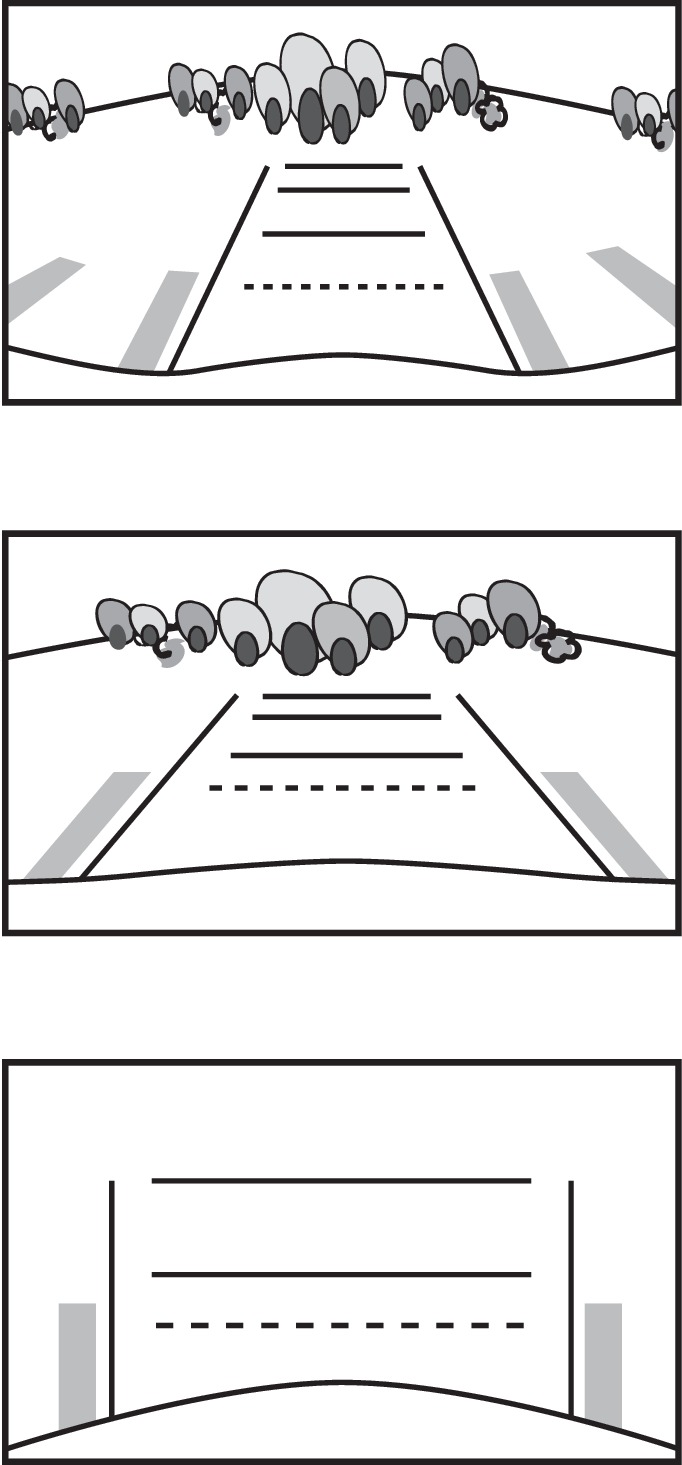
Wide view
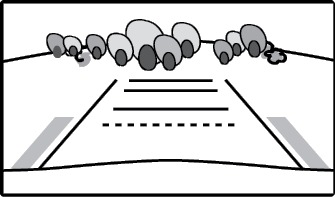
Normal view
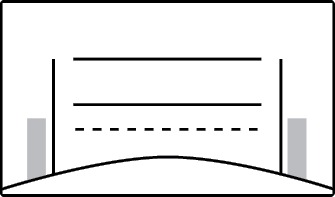
Top down view
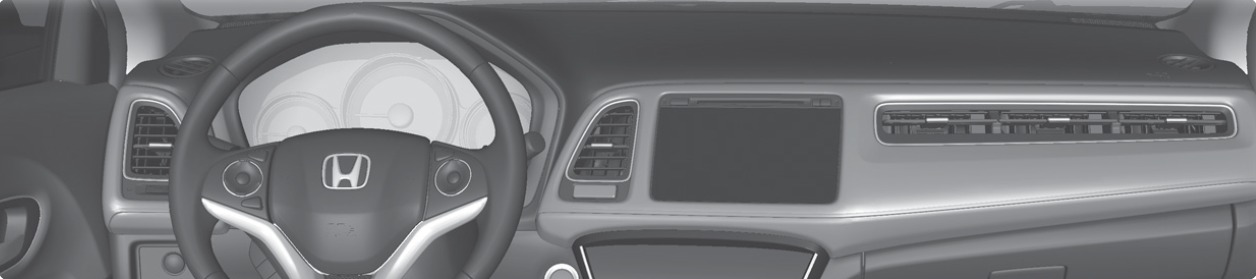
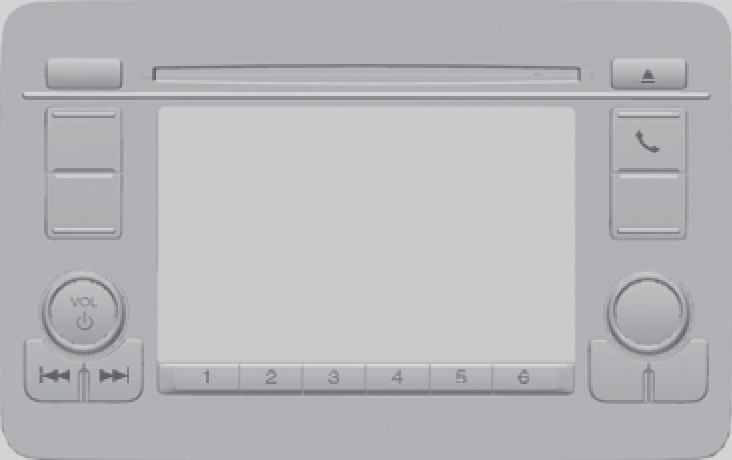
Changing Camera Settings
Turn the guidelines on or off. Use the selector knob to make and enter selections.
- Press the MENU/CLOCK button.
- Select Settings.
- Select Rear Camera.
- Select Camera Guideline.
- Select On or Off.
- Press BACK to exit the menu.
Models with Display Audio
Press the icons on the touchscreen to change views.
Wide view
Normal view
Top down view
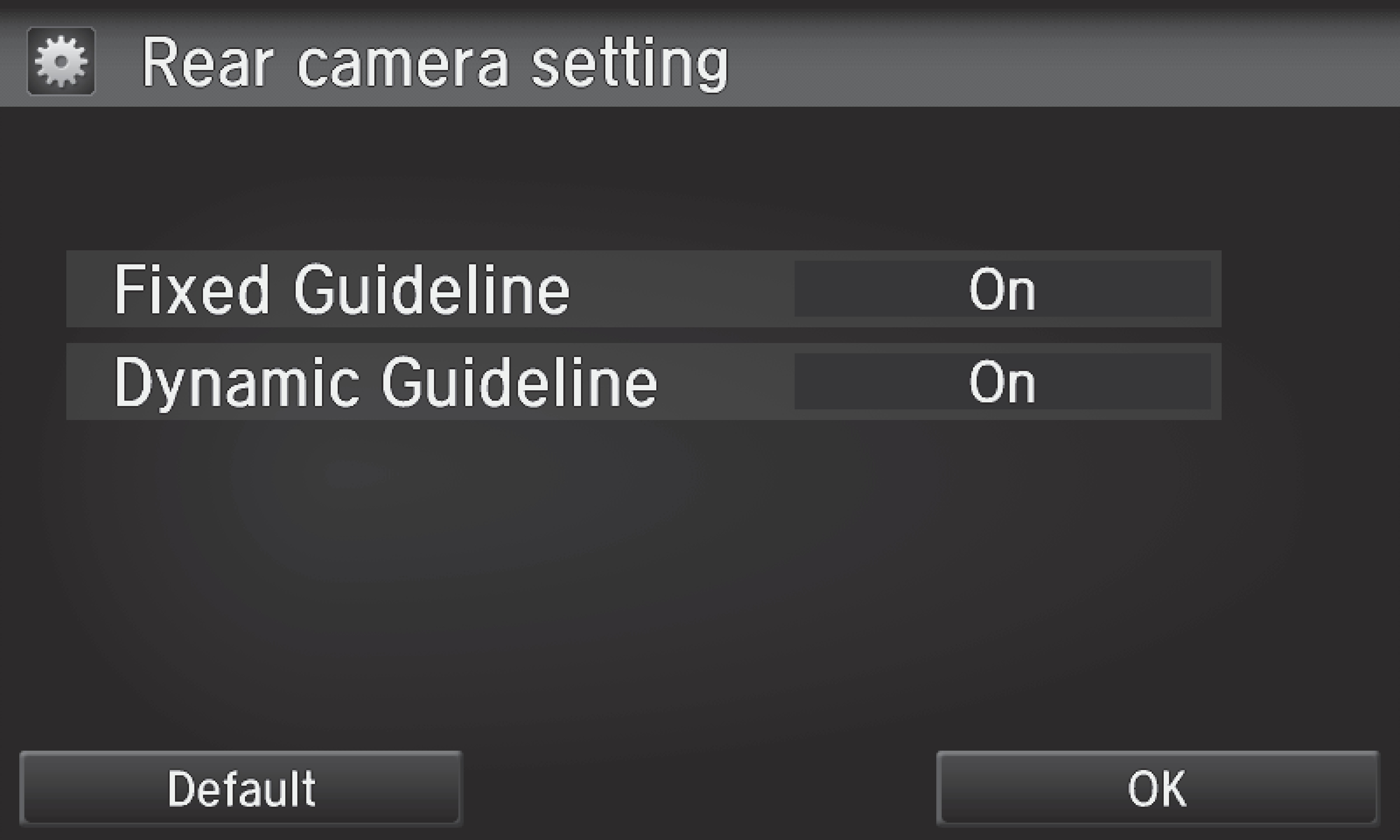
Changing Camera Settings
Turn the guidelines on or off.
- From the HOME screen, select Settings.
- Select Camera.
- Select Rear Wide Camera.
-
Select one of the options.
Fixed Guideline: Guidelines appear when you shift into Reverse. Select On or Off.
Dynamic Guideline: Guidelines move as you turn the steering wheel. Select On or Off.
- Press BACK to exit the menu.
The rear camera view is restricted. You cannot see the corner ends of the bumper or what is underneath the bumper. Its unique lens also makes objects appear closer or farther than they actually are.
Visually confirm that it is safe to drive before backing up. Certain conditions (such as weather, lighting, and high temperatures) may also restrict the rear view. Do not rely on the rearview display, which does not give you all information about conditions at the rear of your vehicle.
- Shifting
- LaneWatch*
Download Manual