Models with Color Audio System
Color Audio Operation*
Use the buttons to control the display and audio system.
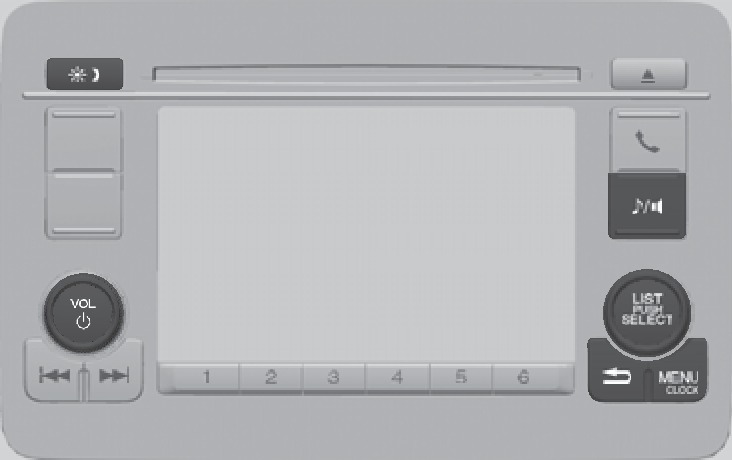
Display button: Adjust display brightness.
Volume/power knob
Sound button: Adjust sound.
Selector knob: Make and enter selections.
MENU/CLOCK button: Display menu options. Press and hold for clock adjustment.
BACK button: Go back to the previous display.
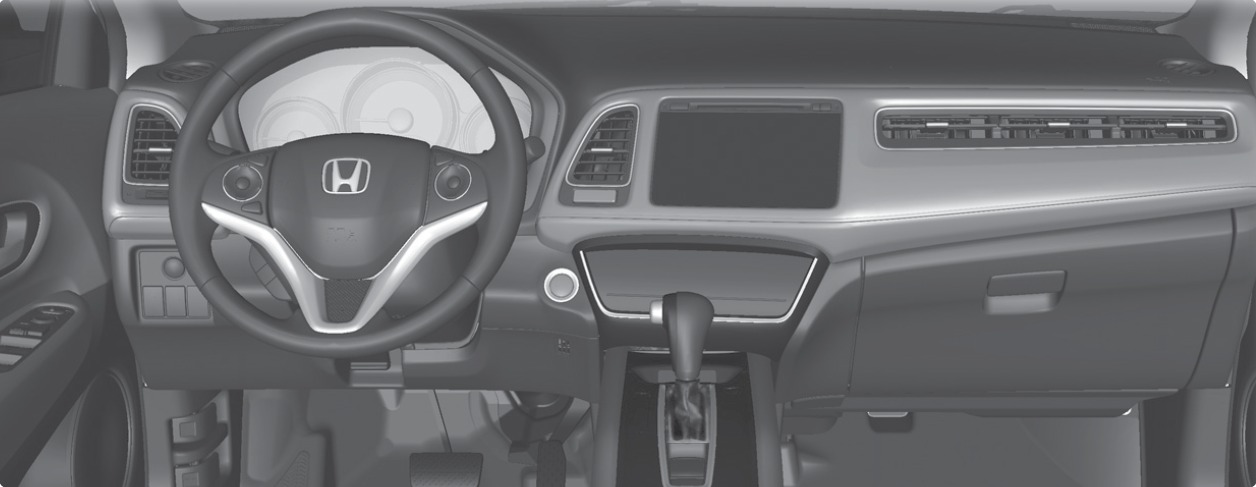
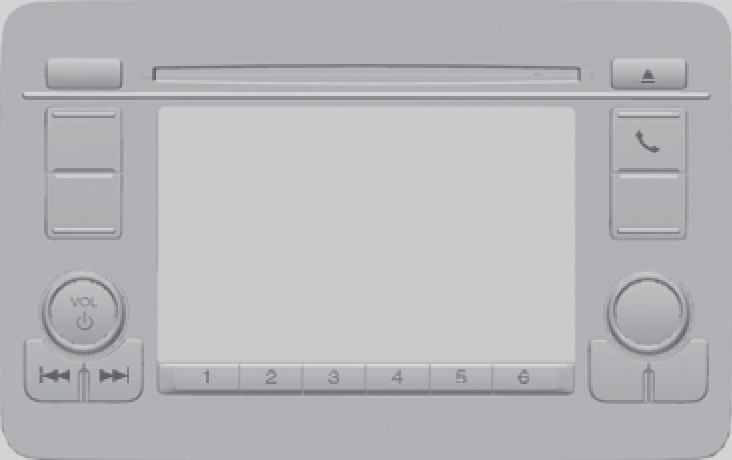
- FM/AM Radio
- iPod
- USB Flash Drive
- Bluetooth Audio
FM/AM Radio
Play FM or AM radio stations.
Models with color audio system
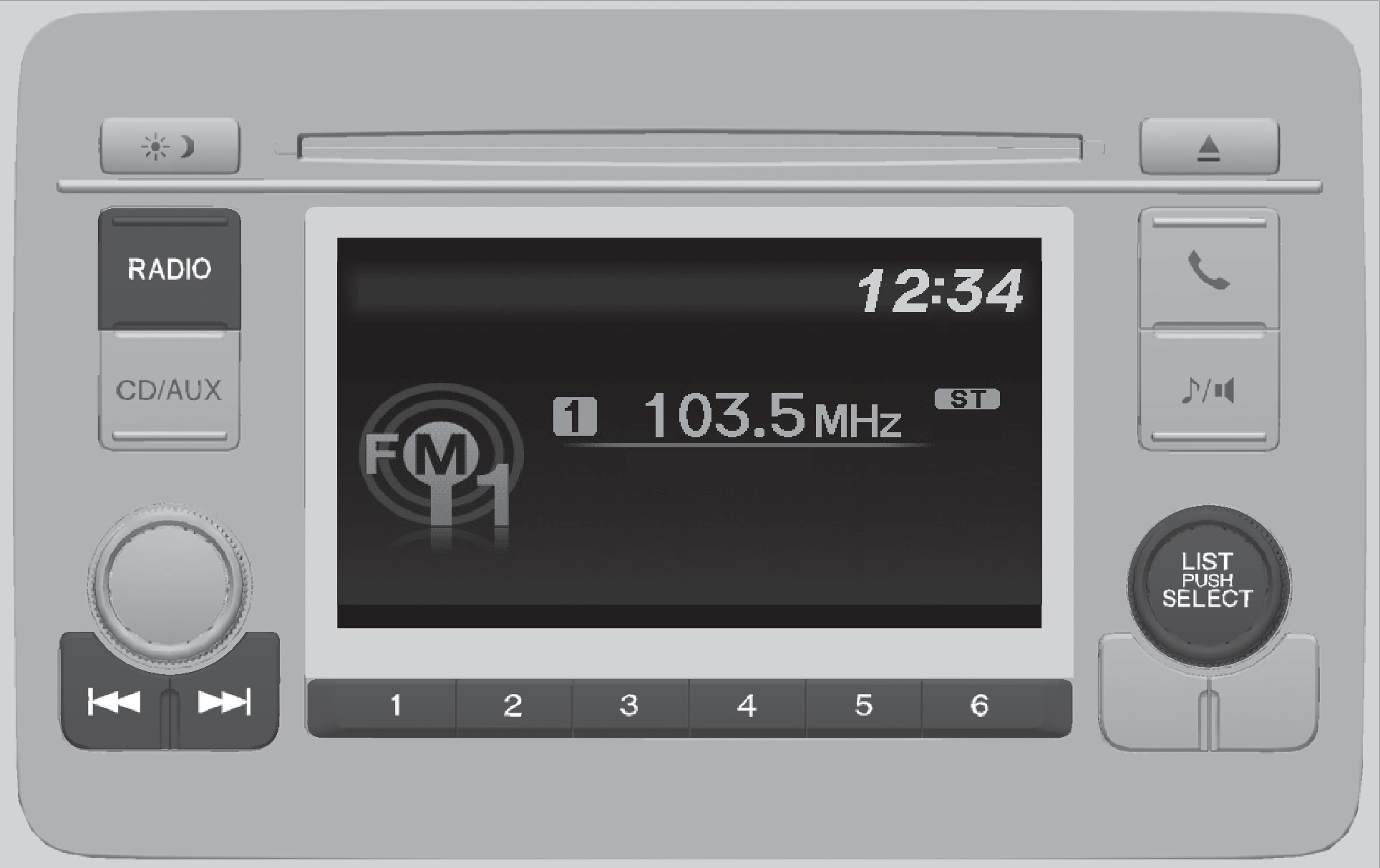
Radio button: Select a band.
Seek/Skip buttons: Search up and down the selected band for a station with a strong signal.
Preset buttons (1-6): Press and hold a preset button to store the current station. Press a preset button to select a previously stored station.
Selector knob: Rotate to tune radio frequency. Press to for more options.
- Basic Audio Operation
- Color Audio Operation*
Compact Disc (CD)
The audio system supports audio CDs, CD-Rs, and CD-RWs in MP3, WMA, or AAC formats.
Models with color audio system
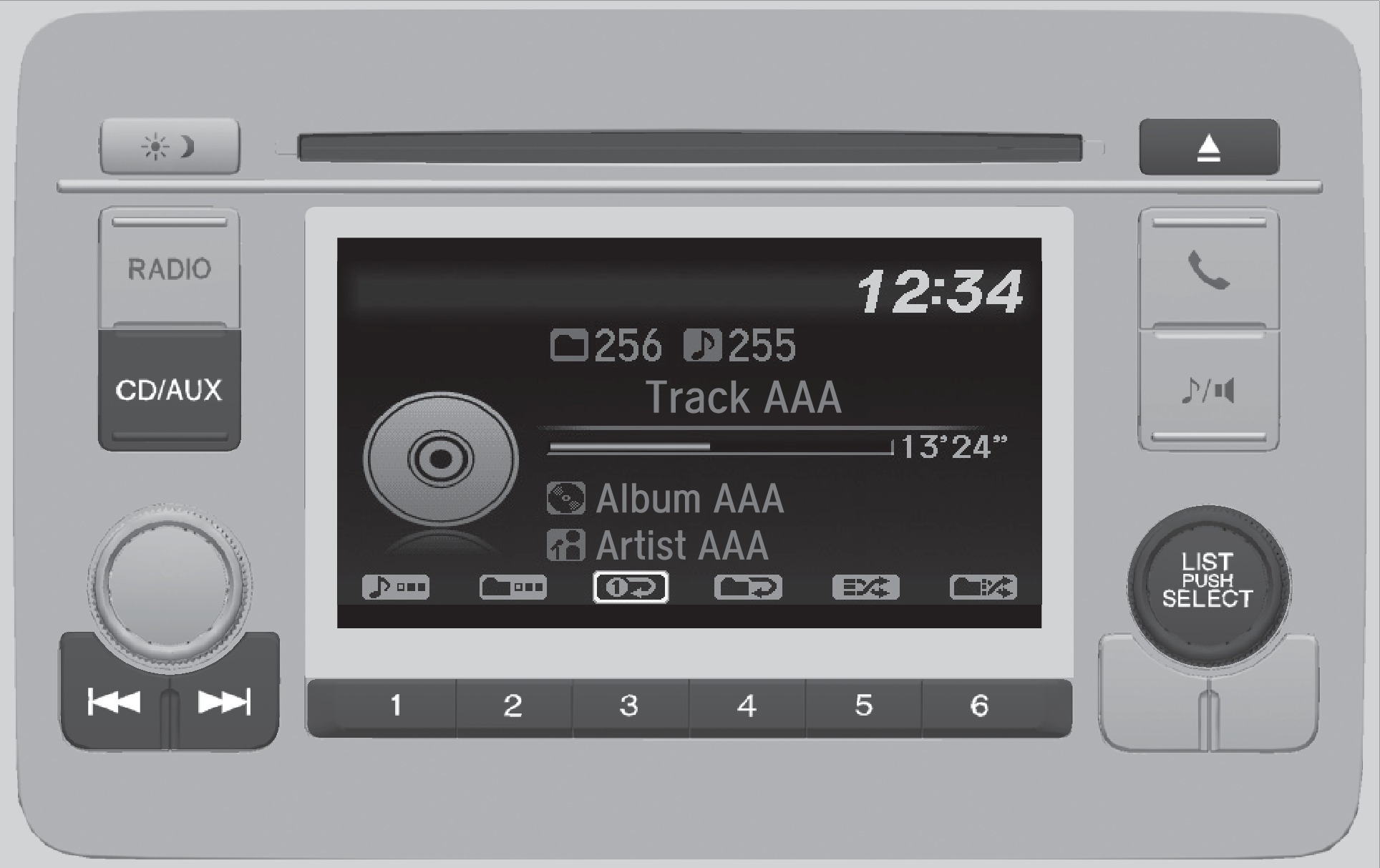
CD slot
CD eject button
Selector knob: Rotate to change tracks. Press to display a track list.
Play mode buttons (1-6): Select a play mode, such as random, repeat, etc. Corresponding icons appear above each button.
Seek/Skip buttons: Press to change tracks. Press and hold to move rapidly within a track.
CD/AUX button: Play a CD.
Do not use CDs with adhesive labels or insert a damaged CD. Inserting these types of CDs may cause them to get stuck or damage the audio unit.
- Basic Audio Operation
iPod®
Play and operate an iPod through the vehicle's audio system.
Models with color audio system
Connect your device (see "Basic Audio Operation").
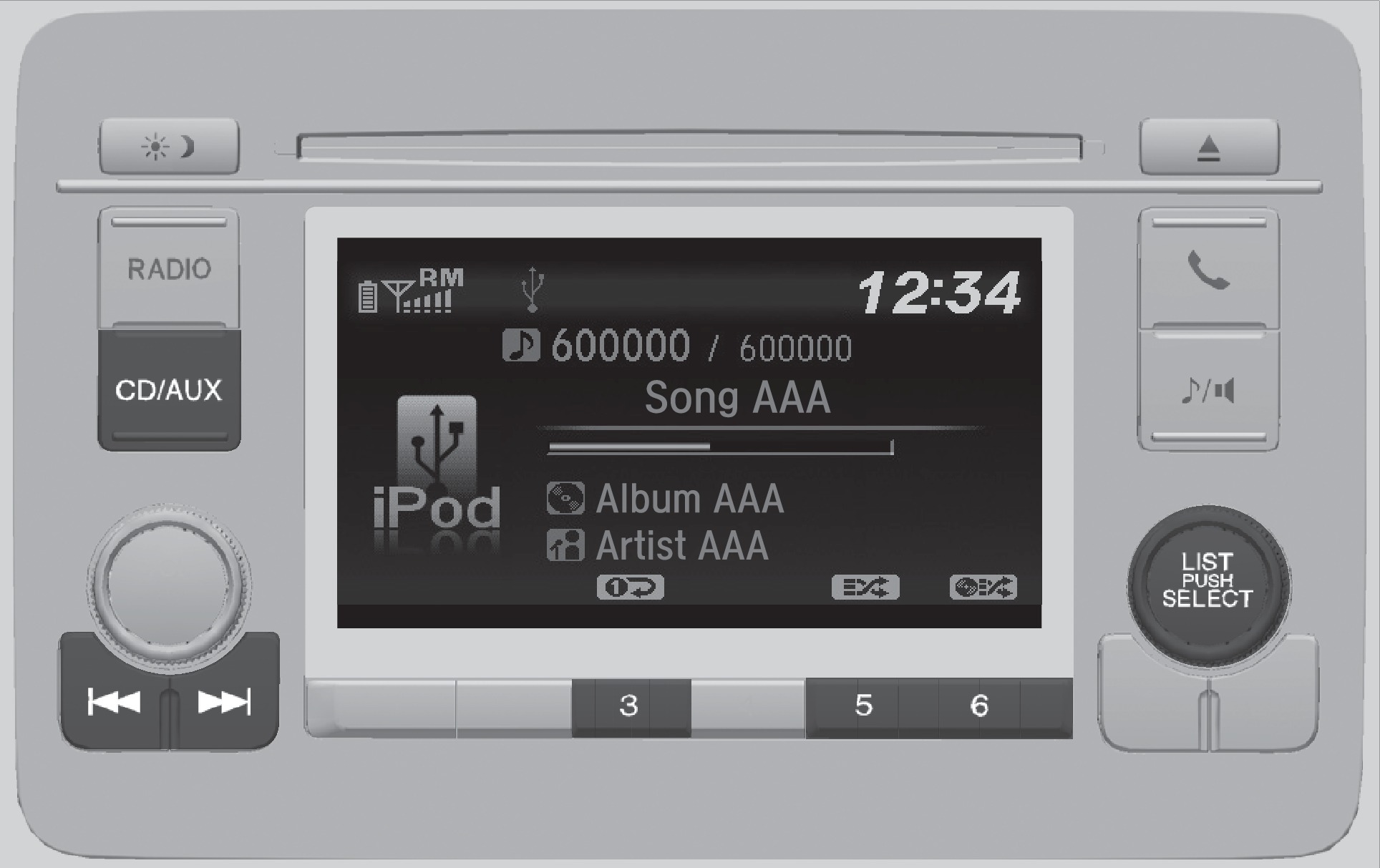
CD/AUX button: Play a connected iPod.
Selector knob: Rotate to change tracks. Press to enter the music search list.
Play mode buttons (3, 5, 6): Select a play mode, such as random, repeat, etc. Corresponding icons appear above each button.
Seek/Skip buttons: Press to change tracks. Press and hold to move rapidly within a track.
Searching for Music
Use the selector knob to search for tracks stored on the iPod.
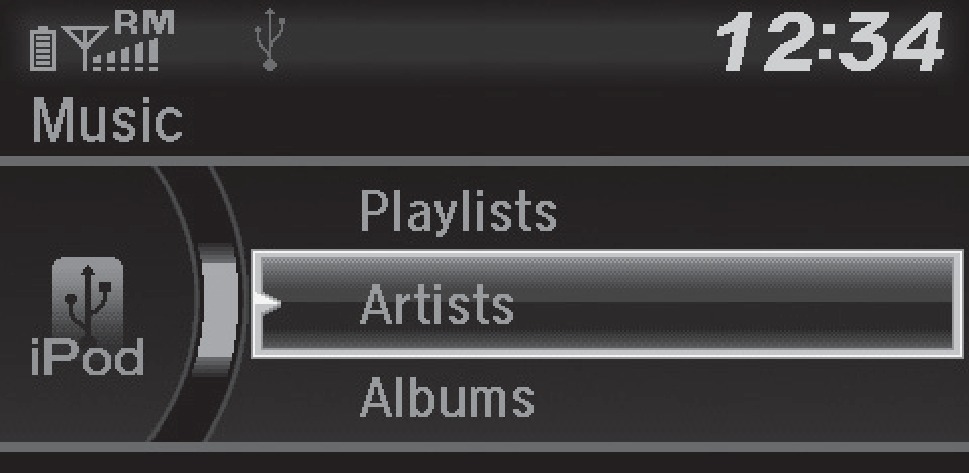
- From the audio screen, press the selector knob.
- Select a search option.
- Select the track you want to play.
iPod is a trademark of Apple, Inc.
- Bluetooth Audio
- Basic Audio Operation
USB Flash Drive
Play and operate a USB flash drive through the vehicle's audio system.
Models with color audio system
Connect your device (see "Basic Audio Operation").
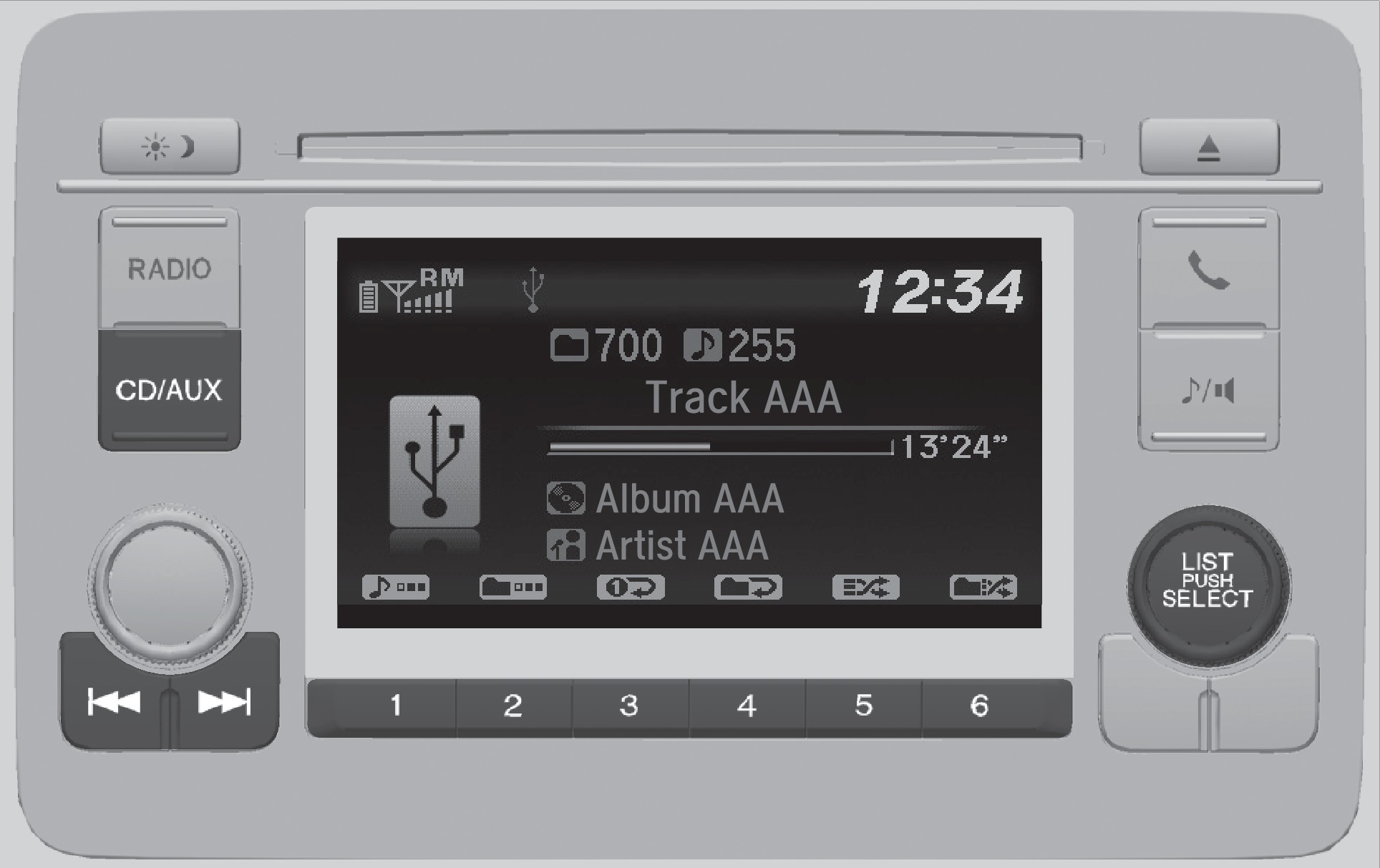
CD/AUX button: Play a connected USB flash drive.
Seek/Skip buttons: Press to change tracks. Press and hold to move rapidly within a track.
Play mode buttons (1-6): Select a play mode, such as random, repeat, etc. Corresponding icons appear above each button.
Selector knob: Rotate to change tracks. Press to display the folder list.
Searching for Music
Use the selector knob to search for tracks stored on the flash drive.
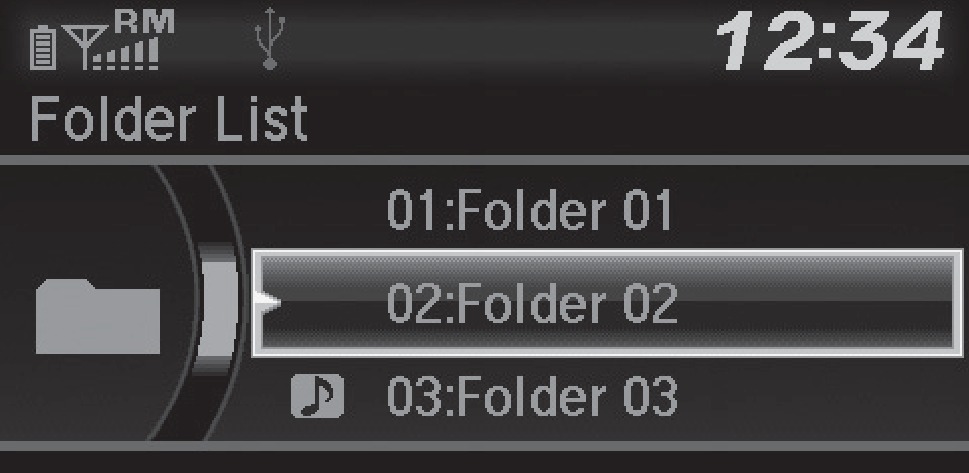
- From the audio screen, press the selector knob.
- Select a folder.
- Select the track you want to play.
- Bluetooth Audio
- iPod
- Basic Audio Operation
Bluetooth® Audio
Play streaming or stored audio from your compatible phone through the vehicle's audio system. Visit Open Web Page (U.S.) or Open Web Page (Canada) to check phone compatibility. Standard data rates apply.
Models with color audio system
Connect your phone to Bluetooth HandsFreeLink (see "Pairing a Phone").
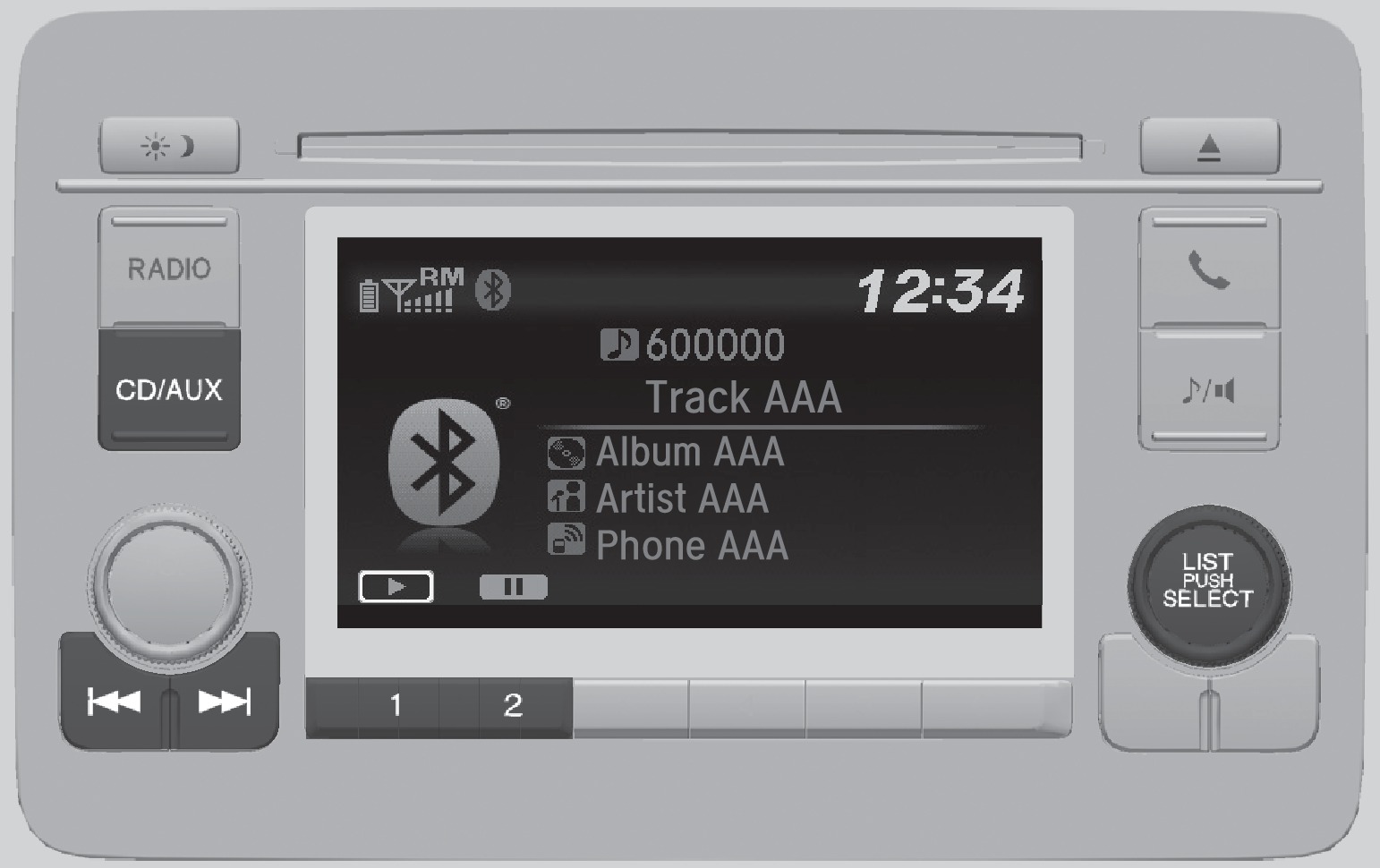
CD/AUX button: Play Bluetooth Audio.
Seek/Skip buttons: Change audio tracks.
Preset button 1: Resume audio.
Preset button 2: Pause audio.
Selector knob: Press to enter the music search list.
Searching for Music
Use the selector knob to search for tracks stored on the device.
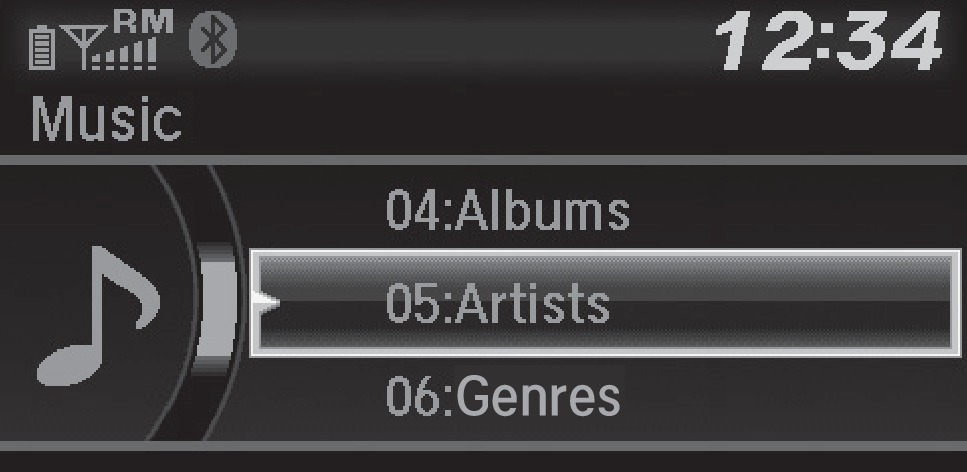
- From the audio screen, press the selector knob.
- Select a category.
- Select the track you want to play.
Notes:
- Make sure the volume on your phone is properly adjusted.
- You may need to enable additional settings on your phone for playback.
- The resume/pause function and remote audio controls are not supported on all phones.
Applicable laws may prohibit the operation of handheld electronic devices while operating a vehicle.
Launch streaming audio on your phone only when it is safe to do so.
- Basic Audio Operation
- FM/AM Radio
- Pairing a Phone
Download Manual