UCONNECT VOICE RECOGNITION
INTRODUCING VOICE RECOGNITION
Start using Uconnect Voice Recognition with these helpful quick tips. It provides the key Voice Commands and tips you need to know to control your vehicle’s Voice Recognition (VR) system.
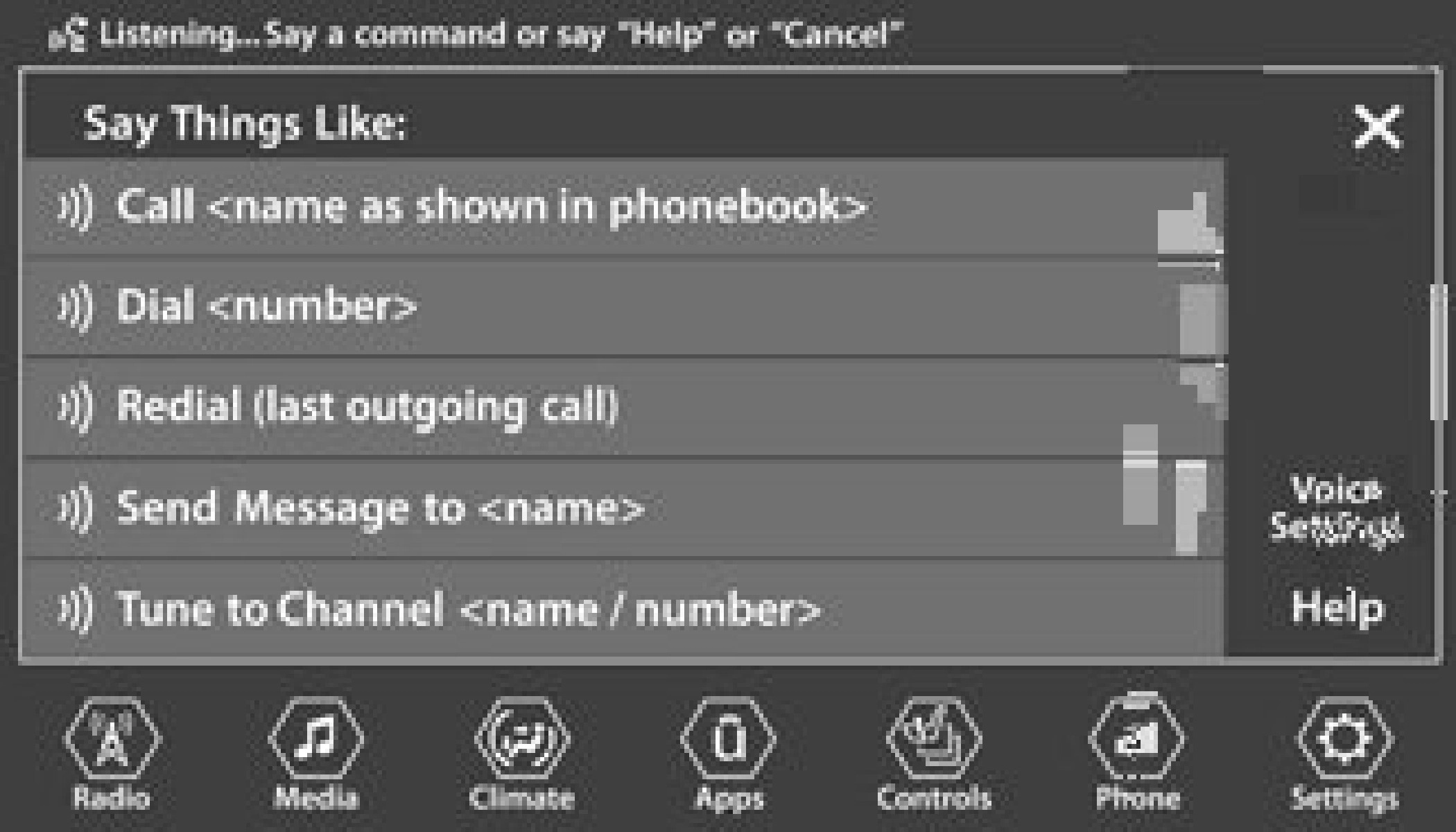
Uconnect 4 With 7-inch Display
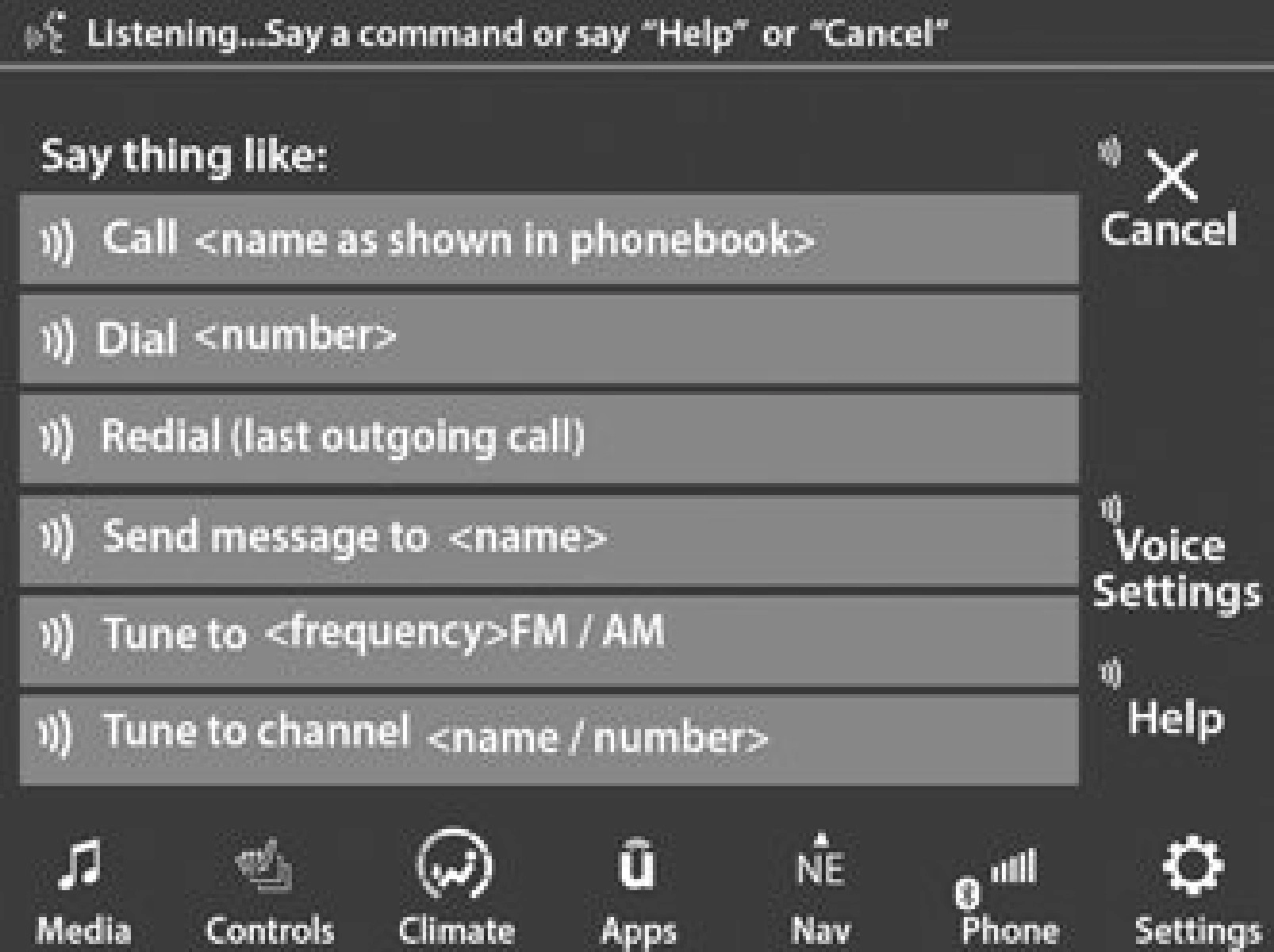
Uconnect 4C NAV With 8.4-inch Display
If you see the NAV icon on the bottom bar or in the Apps menus of your 8.4-inch touchscreen, you have the Uconnect 4C NAV system. If not, you have a Uconnect 4C with 8.4-inch display system.
BASIC VOICE COMMANDS
The basic Voice Commands below can be given at any point while using your Uconnect system.
Push the VR button . After the beep, say:
- “Cancel” to stop a current voice session
- “Help” to hear a list of suggested Voice Commands
- “Repeat” to listen to the system prompts again
Notice the visual cues that inform you of your VR system’s status. Cues appear on the touchscreen.
GET STARTED
The Voice Recognition (VR) button is used to activate/deactivate your Voice Recognition system.
Helpful hints for using Voice Recognition:
- Reduce background noise. Wind and passenger conversations are examples of noise that may impact recognition.
- Speak clearly at a normal pace and volume while facing straight ahead.
- Each time you give a Voice Command, you must first push the Voice Recognition (VR) button, wait until after the beep, then say your Voice Command.
- You can interrupt the help message or system prompts by pushing the VR button and saying a Voice Command from the current category.
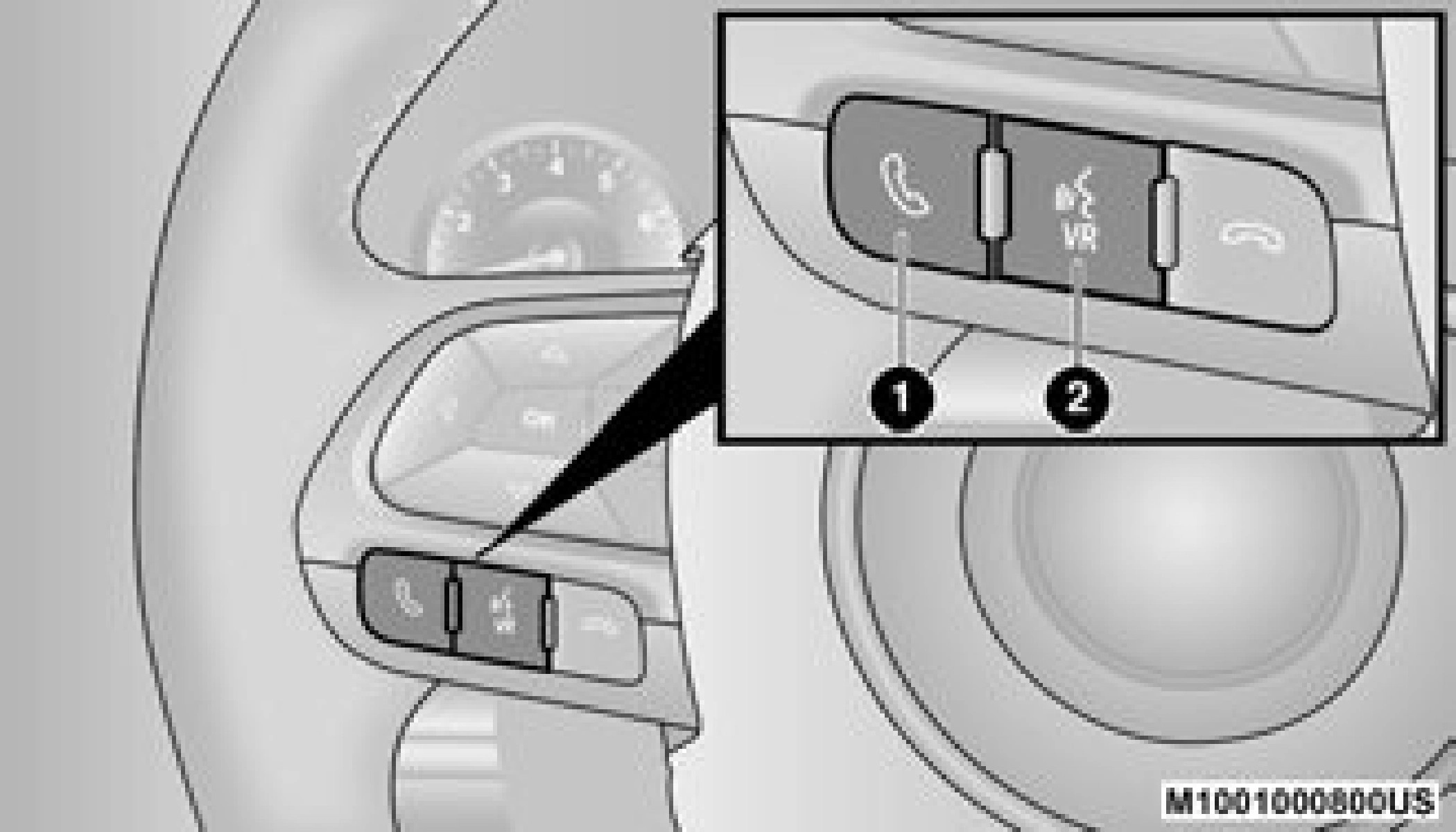
Uconnect Voice Command Buttons
- Push To Start Or Answer A Phone Call And Send Or Receive A Text
- Push The Voice Recognition Button To Begin Radio, Media, And Climate Functions
Download Manual