Control panel buttons — color screen with Navigation System (if so equipped)
WARNING
|
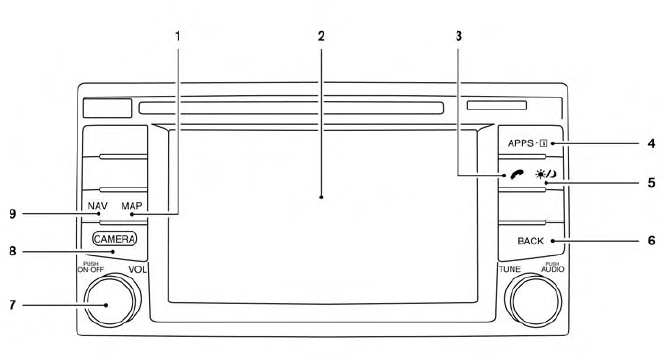
- MAP button*
- Display screen
 button**
 button
 (brightness control) button
- BACK button
- ON-OFF button/VOL (volume) control knob
- CAMERA button
- NAV button*
* For information regarding the Navigation system control buttons, refer to the separate Navigation System Owner’s Manual.
** For information regarding the Bluetooth® Hands-Free Phone System control button, see “Bluetooth® Hands-Free Phone System with navigation system” or “Bluetooth® Hands-Free Phone System without navigation system” in this section.
When you use this system, make sure the engine is running.
If you use the system with the engine not running (ignition ON or ACC) for a long time, it will discharge the battery, and the engine will not start.
Reference symbols: “Example” — Words marked in quotes refer to a key shown only on the display. These keys can be selected by touching the screen.
How to use the touch-screen
CAUTION
The glass display screen may break if it is hit with a hard or sharp object. If the glass screen breaks, do not touch it.
Doing so could result in an injury.
To clean the display, never use a rough cloth, alcohol, benzine, thinner or any kind of solvent or paper towel with a chemical cleaning agent. They will scratch or deteriorate the panel.
Do not splash any liquid such as water or car fragrance on the display. Contact with liquid will cause the system to malfunction.
To help ensure safe driving, some functions cannot be operated while driving.
The on-screen functions that are not available while driving will be “grayed out” or muted.
Park the vehicle in a safe location and then operate the navigation system.
WARNING
|
Touch-screen operation
| Menu Item | Result | |
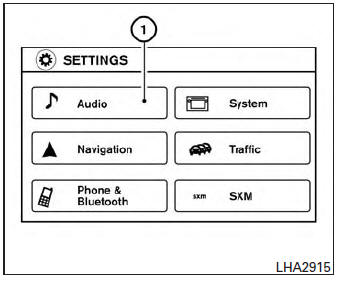
| Selecting the item | Touch an item to select . To select the “Audio” key, touch the “Audio” key 1 on the screen. Touch the “BACK” key to return to the previous screen. | |
| Adjusting the item | Touch the “+” key or the “ ” key to adjust the settings of an item. Touch the up arrow to scroll up the page. Touch the down arrow to scroll down the page. | |
| Inputting characters | Touch the letter or number key. There are some options available when inputting characters. | |
| 123/ABC | Changes the available character set to numbers. | |
| Space | Inserts a space. | |
| Delete | Deletes the last inputted character with one touch. Touch and hold the “Delete” key to delete all of the characters. | |
| OK | Completes the character input. | |
Touch-screen maintenance
If you clean the display screen, use a dry, soft cloth. If additional cleaning is necessary, use a small amount of neutral detergent with a soft cloth. Never spray the screen with water or detergent.
Dampen the cloth first and then wipe the screen.
How to use the BACK button
Press the BACK button to return to the previous screen.
How to use the APPS – i button
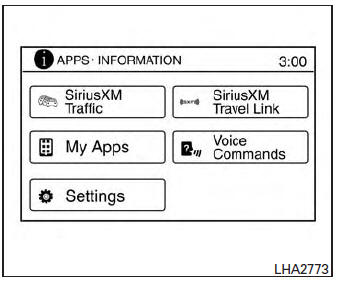
For more information about the “SiriusXM Travel Link”, and “SiriusXM Traffic” features, see the separate Navigation System Owner’s Manual.
For more information about the “My Apps” key, see “NissanConnect™ App Smartphone Integration” in this section.
For more information about the “Voice Commands” key, see “NISSAN Voice Recognition System” in this section.
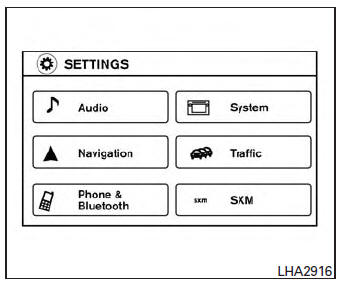
To select and/or adjust several functions, features and modes that are available for your vehicle:
- Press the [
 ] button.
 - Touch the “Settings” key.
- Touch the desired item.
| Menu item | Result | ||||||
| Audio | |||||||
| Navigation | |||||||
| Phone & Bluetooth | |||||||
| System | |||||||
| Display | |||||||
| Brightness | |||||||
| Display Mode | |||||||
| Scroll Direction | |||||||
| Clock | |||||||
| Time Format | |||||||
| Date Format | |||||||
| Clock Mode | |||||||
| Set Clock Manually | |||||||
| Daylight Savings Time | |||||||
| Time Zone | |||||||
| Language | Touch this key to change the language on the display. | ||||||
| Camera | Touch this key to change the camera settings. | ||||||
| Display Mode | Touch this key to select the touch-screen display mode (day, night, or automatic). | ||||||
| Brightness | Adjust touch-screen brightness. | ||||||
| Contrast | Adjust touch-screen contrast. | ||||||
| Color | Adjust touch-screen color. | ||||||
| Temperature Unit | Touch this key to change the temperature unit being displayed (Fahrenheit or Celsius). | ||||||
| Touchscreen click | Toggles the touch-screen click feature on or off. When activated a click sound will be heard every time a key on the screen is touched. | ||||||
| System Beeps | Toggle the system beep tones feature on or off. When activated, a beep sound will be heard when a pop-up message appears on the screen or a button on the unit (such as the  button) is pressed and held button) is pressed and heldfor 2 seconds. |
||||||
| Return to Factory Settings/Clear Memory | Touch this key to return all settings to default and to clear the memory. | ||||||
| Software Licenses | Touch this key to display software licensing information. | ||||||
| Traffic | Touch this key to display traffic settings. See the separate Navigation System Owner’s Manual for more information. | ||||||
| SXM | Touch this key to display SXM status information. For SXM setup, refer to “Audio System” in this section. | ||||||
 button
To change the display brightness, press the
button. Pressing the
button again will change the display to the day or the night display.
If no operation is performed within 5 seconds, the display will return to the previous display.
Press and hold the button for more than two seconds to turn the
display
off. Press the button again to turn the display on.
How to use the ON-OFF button/VOL (volume) control knob
Press the ON-OFF button to turn audio function on and off. Turn the volume control knob to adjust audio volume.
How to use the CAMERA button
For more information regarding the CAMERA button, see “REARVIEW MONITOR” in this section.
Download Manual