Bluetooth® streaming audio without Navigation System (if so equipped)
If you have a compatible Bluetooth® audio device that is capable of playing audio files, the device can be connected to the vehicle’s audio system so that the audio files on the device play through the vehicle’s speakers.
Connecting Bluetooth® audio
To connect your Bluetooth® audio device to the vehicle, follow the procedure below:
- Press the
 button. The
system announces the available commands. - Say “Connect Phone”. The system acknowledges the command and announces the next set of available commands.
- Say “Add Phone”. The system acknowledges the command and asks you to initiate connecting from the phone handset. The connecting procedure of the cellular phone varies according to each cellular phone model. See the cellular phone Owner’s Manual for details. You can also visit www.nissanusa.com/bluetooth for instructions on connecting NISSAN recommended cellular phones.
- When prompted for a Passkey code, enter “1234” from the handset. The Passkey code “1234” has been assigned by NISSAN and cannot be changed.
Audio main operation
To switch to the Bluetooth® audio mode, press the AUX button repeatedly until the Bluetooth® audio mode is displayed on the screen.
Use the vehicle audio controls or the Bluetooth® device’s controls to play, pause, skip or reverse tracks.
Bluetooth® streaming audio with Navigation System (if so equipped)
If you have a compatible Bluetooth® audio device that is capable of playing audio files, the device can be connected to the vehicle’s audio system so that the audio files on the device play through the vehicle’s speakers.
Connecting Bluetooth® audio
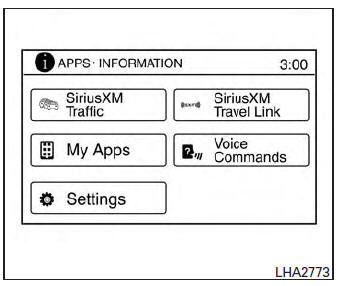
To connect your Bluetooth® audio device to the vehicle, follow the procedure below:
- Press the [
 ] button.
 - Touch the “Settings” key.
- Touch the “Phone & Bluetooth” key.
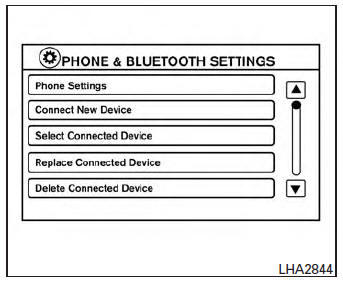
- Touch the “Connect New Device” key.
- The system acknowledges the command and asks you to initiate connecting from the phone handset. The connecting procedure of the cellular phone varies according to each cellular phone model. See the cellular phone Owner’s Manual for details. You can also visit www.nissanusa.com/bluetooth for instructions on connecting NISSAN recommended cellular phones.
Audio main operation
To switch to the Bluetooth® audio mode, press the AUX button repeatedly until the Bluetooth® audio mode is displayed on the screen.
The controls for the Bluetooth® audio are displayed on the screen.
Pandora® audio (if so equipped)
The vehicle’s audio system is capable of playing audio streaming through a compatible, USBconnected audio device using the Pandora® music service.
Connecting a device for use with Pandora® audio
Devices capable of streaming Pandora® audio can be connected to the vehicle’s audio system via the USB input jack. The USB input jack is located in the center console.
Launch the Pandora® application on the phone and then connect with the USB jack. Once connected, the Pandora® controls will be displayed on the control panel display screen.
Compatibility
The following iPhone® models are compatible with the system:
- iPhone® 3GS
- iPhone® 4
- iPhone® 4S
- iPhone® 5
The latest Pandora® application should be installed on the phone.
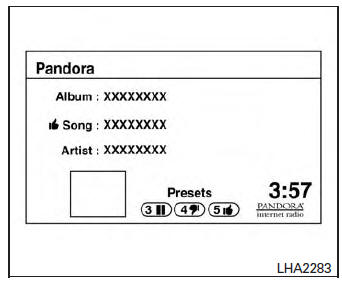
Models without Navigation System
Audio main operation
Models without Navigation System:
To switch to the Pandora® audio mode, press the AUX button repeatedly until the Pandora® audio mode is displayed on the screen.
The controls for the Pandora® audio mode are displayed on the screen. Press the audio preset 3 button to pause or play the music.
Press the audio preset 5 button to select “  ”
”
(thumbs up). Press the audio preset 4 button to select “  ” (thumbs down).
NOTE:
There is a limit of six skips per station per hour. If a “ ” (thumbs down)
is given after the skip limit has been reached, the current track will continue to play but the feedback will be saved.
Download Manual