Infotainment
Navigation destination input
 Navigation menu
"Destination input"
A search box and entered information such as the search history are displayed.
Select the desired entry or the search box.
When selecting the search box, enter characters or choose one of the POI categories displayed.
If necessary, select to display more information, e.g. to preview a map.
Apply the suggested search keywords as necessary
Select the desired entry.
"Start guidance"
Entertainment
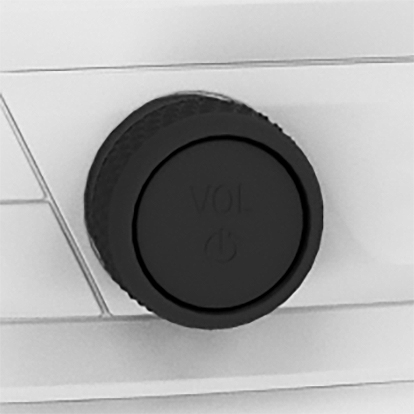
Depending on the vehicle type, the following buttons are installed on the center console or on the instrument panel:
|
Button |
Function |
|---|---|
|
|
Turn the button to adjust the volume. Press the button to switch off the sound output. Pressing the button again restores the previous volume setting. |
|
|
Change the entertainment source. |
|
|
Press once: changes the station/track. Press and hold: fast forward/rewind the track. |



Using the mobile phone
General information
After the mobile phone is connected once to the vehicle, the mobile phone can be operated using iDrive and the steering wheel buttons.
Activate Bluetooth® on the mobile phone.
Connecting via Bluetooth®
 Apps menu
"All apps"
"Mobile devices"
"Connect new device"
Mobile phones in range are displayed on the control display.
Select the desired mobile phone.
Compare the control number displayed on the control display with the control number in the display of the mobile phone, and confirm that they match.
If necessary, select the connection mode:
"Use Bluetooth®"
The device is connected and displayed in the device list.
Accepting a call
Depending on the equipment, incoming calls can be answered in several ways.
Via iDrive:

"Accept"
Press the button on the steering wheel:

Use the thumbwheel on the steering wheel to select from the list in the instrument cluster: "Accept"
Dialing a number
Communication menu
"More"
"Dial number"
Enter the numbers.
Select the icon. The connection is established via the mobile phone to which this function has been assigned.
Download Manual