Driver assistance systems
Vehicle features and options
This chapter describes model-specific equipment, systems, and functions that are currently available, or may become available in the future, even if they are not present in the vehicle.
Additional information:
Vehicle equipment.
Speed warning
Principle
The speed warning can be used to set a speed limit. A warning will be issued when this speed limit is exceeded.
General information
Another warning occurs when the set speed limit is exceeded again after it has dropped by 3 mph/5 km/h.
Activating/deactivating the speed warning
 Apps menu
"Vehicle"
"Driving settings"
"Driver Assistance"
"Safety and warnings"
"Speed warning"
Adjusting the speed
Apps menu
"Vehicle"
"Driving settings"
"Driver Assistance"
"Safety and warnings"
"Speed warning"
"Warning above:"
Select the desired setting.
Applying current speed as the speed warning
Apps menu
"Vehicle"
"Driving settings"
"Driver Assistance"
"Safety and warnings"
"Speed warning"
"Adopt current speed"
Speed Limit Info
Speed Limit Info
Principle
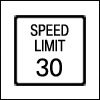
Speed Limit Info shows the currently valid speed limit in the instrument cluster and, if necessary, the Head-up display.
General information
The camera in the area of the interior mirror detects traffic signs at the edge of the road as well as overhead sign posts.
Traffic signs with extra icons are considered and compared with the vehicle's onboard data. The traffic sign will then be either displayed or ignored depending on the situation in the instrument cluster and the Head-up display.
The system may also show speed limits that apply to routes that are not signposted if the navigation system has current map data.
For Speed Limit Info to function correctly, current map data for the country in which the vehicle is operated must be downloaded.
For information on the current map version and map updates, see Map update in the Navigation system chapter.
Additional information:
Navigation data and map update.
Safety information

Observe surrounding traffic and adapt driving style

Sensors
The system is controlled by a camera behind the windshield.
Displaying Speed Limit Info
General information
The Speed Limit Info can be shown or hidden via iDrive in the instrument cluster. Depending on the national-market version, Speed Limit Info is continuously displayed in the instrument cluster.
Displaying Speed Limit Info
Apps menu
"Vehicle"
"Driving settings"
"Driver Assistance"
"Driving"
"Speed Limit Assistance"
"Speed limits"
"Show current limit"
Display
Speed Limit Info
|
Icon |
Description |
|---|---|
|
|
Current speed limit. |
|
|
No data on current speed limit available. |
|
|
Speed Limit Info not available. |


Warning signals
General information
The display flashes if the detected speed limit is exceeded or the speed limit changes. Depending on national-market version, an acoustic signal also sounds.
Signal for exceeding speed limit
The warning for exceeding the maximum permissible speed can be activated or deactivated via iDrive:
Apps menu
"Vehicle"
"Driving settings"
"Driver Assistance"
"Driving"
"Speed Limit Assistant"
"Warning when speeding"
Signal for speed limit change
The warning for speed limit changes can be activated or deactivated via iDrive:
Apps menu
"Vehicle"
"Driving settings"
"Driver Assistance"
"Driving"
"Speed Limit Assistant"
"Sound when speed limit changes."
Settings
Apps menu
"Vehicle"
"Driving settings"
"Driver Assistance"
"Driving"
"Speed Limit Assistance"
Select the desired setting.
System limits
System limits of the sensors
Additional information:
Camera.
Functional limitations
The system function may be limited and may provide incorrect information in the following situations:
Traffic signs are fully or partially concealed by objects, stickers, or paint.
Traffic signs do not comply with the standard.
In areas that are not included in the navigation system map data.
If navigation system map data is invalid, outdated, or unavailable.
When roads deviate from the navigation such as due to changes in road layout.
When driving very close to the vehicle in front of you.
When passing buses or trucks with traffic signs applied to them.
In case of electronic traffic signs.
When traffic signs that are valid for a parallel road are detected.
In the presence of country-specific road signs or road layouts.
Manual Speed Limiter
Principle
The Manual Speed Limiter can be used to set a speed limit, for instance to prevent the vehicle from exceeding speed limits.
General information
The system can limit the speed, starting at 20 mph/30 km/h. The vehicle can be driven at any speed below the set speed limit.
Overview
Buttons on the steering wheel
|
Button |
Function |
|---|---|
|
|
System on/off. |
|
|
Store current speed. Speed Limit Assistant: accept suggested speed manually. |
|
|
Rocker switch: Changing the speed limit. |
Operation
Turning on the speed limiter

Press the button on the steering wheel.
The current speed is adopted as the speed limit.
If the system is turned on while the vehicle is stationary or driving at low speeds, 20 mph/30 km/h is set as the speed limit.
The marking in the speedometer is set to the corresponding speed.
When the speed limit is activated, Dynamic Stability Control is switched on as necessary.
Turning off the speed limiter
Press the button on the steering wheel.
The system switches off automatically in the following situations, for example:
When the engine is switched off.
When Cruise Control is switched on.
When activating certain driving modes.
The displays turn off.
Stopping the speed limiter
If the reverse gear is engaged or in Neutral, the system is interrupted when rolling backwards.
Changing the speed limit
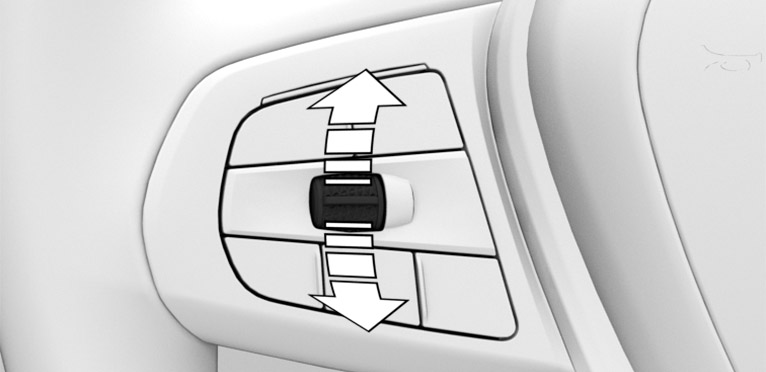
Press the rocker switch up or down repeatedly until the desired speed limit is set.
Each time the rocker switch is pressed to the resistance point, the speed limit increases or decreases by 1 mph/1 km/h.
Each time the rocker switch is pressed past the resistance point, the desired speed changes by a maximum of 5 mph/10 km/h.
If the set speed limit is reached or unintentionally exceeded such as when driving downhill, the vehicle is not actively braked.
When the speed limit is set during a trip to a value below the current speed, the vehicle coasts until it drops to the set speed limit.
The current speed can also be stored by pressing a button:

Press the button on the steering wheel.
Exceeding the speed limit
When the vehicle speed exceeds the set speed limit, a warning is issued.
The speed limit can be exceeded intentionally.
Press the accelerator pedal all the way down to intentionally exceed the set speed limit.
When the vehicle speed drops below the set speed limit, the limit is automatically reactivated.
Warning when the speed limit is exceeded
Visual warning

If the speed limit is exceeded: the indicator light in the instrument cluster flashes while the vehicle speed is greater than the set speed limit.
Acoustic warning
If the speed limit is exceeded unintentionally, a signal sounds.
When the speed limit is reduced to below the current vehicle speed, the signal sounds after some time.
When the speed limit is intentionally exceeded by stepping on the accelerator pedal all the way down, there is no signal.
Displays in the instrument cluster
Display in the speedometer
Depending on the equipment, a mark in the speedometer displays the status of the system.
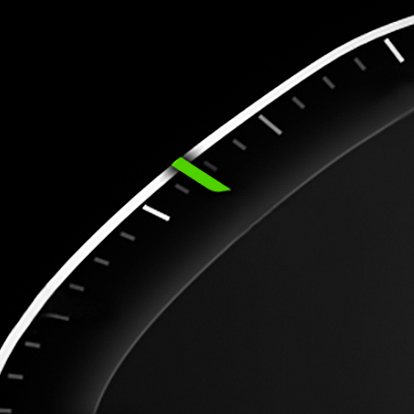
Green marking: system is active.
Gray marking: system is interrupted.
No marking: system is switched off.
Indicator light
|
Icon |
Description |
|---|---|
|
|
The indicator light illuminates: the system is switched on. The indicator light flashes: the set speed limit has been exceeded. |
|
|
Gray indicator light: the system has been interrupted. |

Cruise Control without Distance Control
Principle
Animation: Cruise Control

With the Cruise Control, a set speed can be adjusted using the buttons on the steering wheel. The system maintains the set speed. The system accelerates and brakes automatically as needed.
General information
The system can be activated starting at 20 mph/30 km/h.
Depending on the vehicle settings, the cruise control settings may change under certain conditions.
Safety information
Also observe surrounding traffic and adapt driving style
Use system only at constant speed
Observe surrounding traffic and adjust set speed
Switching off Cruise Control and Forward Collision Mitigation
Overview
Buttons on the steering wheel
|
Button |
Function |
|---|---|
|
|
Cruise control on/off. |
|
|
Continue cruise control with the last setting. |
|
|
Interrupt cruise control. |
|
|
Store current speed. Speed Limit Assistant: accept suggested speed manually. |
|
|
Rocker switch: Set speed. |
Turning Cruise Control on/off
Turning on the system
Depending on the equipment version, press the relevant button on the steering wheel.
The indicator lights in the instrument cluster illuminate and the mark on the speedometer is set to the current speed.
Cruise control is active. The current speed is maintained and stored as desired speed.
If necessary, the Dynamic Stability Control will be turned on.
Turning off the system
Depending on the equipment version, press the relevant button on the steering wheel.
The displays turn off. The stored set speed is deleted.
Interrupting Cruise Control
Stopping the system manually

When active, press the button.
Stopping the system automatically
The system is automatically interrupted in the following situations, for example:
When braking manually.
Manual transmission:
The clutch pedal is depressed for a few seconds or released if a gear is not engaged.
The gear engaged is too high for the current speed.
M Steptronic Sport transmission: selector lever position D is disengaged.
While M Dynamic Mode is enabled or Dynamic Stability Control is disabled.
While Dynamic Stability Control regulates driving stability.
Adjusting the speed
Maintaining and storing the speed
Press the rocker switch up or down once while the system is interrupted.
When the system is switched on, the current speed is maintained and stored as the set speed.
The stored speed is displayed on the speedometer.
If necessary, the Dynamic Stability Control will be turned on.
The speed can also be stored by pressing a button.
Press the button.
Changing the speed
Press the rocker switch up or down repeatedly until the desired speed is set.
If active, the displayed speed is stored and the vehicle reaches the stored speed when the road is clear.
Each time the rocker switch is tapped to the resistance point, the set speed increases or decreases by 1 mph/1 km/h.
Each time the rocker switch is pressed past the resistance point, the desired speed changes by a maximum of 5 mph/10 km/h.
The maximum speed that can be set depends on the vehicle.
Pressing the rocker switch to the resistance point and holding it: vehicle accelerates or decelerates without pressure on the accelerator pedal.
After the rocker switch is released, the vehicle maintains its final speed. Pressing the switch beyond the resistance point causes the vehicle to accelerate more rapidly.
Continuing cruise control
Observe surrounding traffic and adjust set speed
An interrupted cruise control can be continued by calling up the stored speed. The difference between the current speed and the stored speed should be as little as possible.

Press the button with the system interrupted.
Cruise control is continued with the stored values.
In the following cases, the stored speed value is deleted and cannot be called up again:
When the system is switched off.
When drive-ready state is switched off.
Displays in the instrument cluster
Display in the speedometer
Depending on the equipment, a mark in the speedometer displays the status of the system.
Green marking: system is active, the marking indicates the desired speed.
Gray marking: system is interrupted, the marking indicates the stored speed.
No marking: system is switched off.
Indicator light
|
Icon |
Description |
|---|---|
|
No indicator light: system is switched off. |
|
|
|
Indicator light green: system is active. |
|
|
Gray indicator light: the system has been interrupted. |


Displays in the Head-up display
Some system information can also be displayed in the Head-up display.

The icon is displayed when the set speed is reached.
Active Cruise Control with Distance Control
Principle
Animation: Cruise Control with Distance Control
Using the Cruise Control, a desired speed and a distance to a vehicle ahead can be adjusted using the buttons on the steering wheel.
General information
The system maintains the set speed on clear roads. The vehicle accelerates or brakes automatically.
If a vehicle is driving ahead of you, the system adjusts the speed of the vehicle so that the set distance to the vehicle ahead is maintained. The speed is adjusted as far as the given situation allows.
The distance can be adjusted at several levels. For safety reasons, it depends on the respective speed.
If the vehicle ahead of you brakes to a standstill and then drives off again within a brief period, the system is able to detect this within the given system limits.
Otherwise, drive off on your own such as by pressing the accelerator pedal or the rocker switch on the steering wheel.
Depending on the vehicle settings, the cruise control settings may change under certain conditions.
Safety information
Also observe surrounding traffic and adapt driving style
Observe before exiting the vehicle
Observe surrounding traffic and adjust set speed
Observe surrounding traffic and actively intervene where appropriate
Switching off Cruise Control and Forward Collision Mitigation
Overview
Buttons on the steering wheel
|
Button |
Function |
|---|---|
|
|
With Steering Assistant: Cruise control on/off. |
|
|
With Steering Assistant: Select function. |
|
|
Without Steering Assistant: Cruise control on/off. |
|
|
Store current speed. Speed Limit Assistant: accept suggested speed manually. |
|
|
With Steering Assistant: Interrupt cruise control. Continue cruise control with the last setting. |
|
|
Without Steering Assistant: Continue cruise control with the last setting. |
|
|
Without Steering Assistant: Interrupt cruise control. |
|
|
Increase the distance. Switch Distance Control on/off. |
|
|
Reduce distance. Switch Distance Control on/off. |
|
|
Rocker switch: Set speed. |
Sensors
The system is controlled by the following sensors:
Cameras behind the windshield.
Front radar sensor.
Additional information:
Sensors of the vehicle.
Application range
The system is best used on well-maintained roads.
The minimum speed that can be set is 20 mph/30 km/h.
The maximum speed that can be set is limited and depends, for example, on the vehicle and the vehicle equipment.
The system can also be activated when stationary.
Turning Cruise Control on/off or stopping it
With Steering Assistant: Assisted Driving Mode
General information
This button is used to switch the configured function on and off.
The button can be used to set the primarily used function.
Setting the function
When the system is active, press the button repeatedly until the desired function is selected in the toolbar. The toolbar for Assisted Driving mode is displayed at the bottom of the instrument cluster.
|
Icon |
Function |
|---|---|
|
|
Cruise Control with Distance Control. |
|
|
Cruise Control with Distance Control and Steering Assistant. |
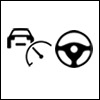
The selected function is shown in green.
Turning on the system
With Steering Assistant:
Press the button on the steering wheel.
If necessary, set the cruise control.
Without Steering Assistant:
Press the button on the steering wheel.
The indicator lights in the instrument cluster illuminate and the mark on the speedometer is set to the current speed.
Cruise control is active. The current speed is maintained and stored as desired speed.
If necessary, the Dynamic Stability Control will be turned on.
Turning off the system
To switch off the system while stationary, step on brake pedal at the same time.
Press the button on the steering wheel:
With Steering Assistant.
Without Steering Assistant.
The displays turn off. The stored set speed is deleted.
Stopping the system manually
When active, press the button on the steering wheel:

With Steering Assistant.
Without Steering Assistant.
If interrupting the system while stationary, press on the brake pedal at the same time.
Stopping the system automatically
The system is automatically interrupted in the following situations:
When braking manually.
Selector lever position D is disengaged.
While M Dynamic Mode is enabled or Dynamic Stability Control is disabled.
While Dynamic Stability Control regulates driving stability.
When the vehicle is stationary, the seat belt is unbuckled and the driver's door is opened.
The system has not detected objects for an extended period, for instance on a road with very little traffic without curb or shoulder markings.
The detection range of the radar is impaired, for instance by contamination or heavy precipitation.
After a longer stationary period when the vehicle has been braked to a stop by the system.
Adjusting the speed
Maintaining and storing the speed
Press the rocker switch up or down once while the system is interrupted. The system will be activated.
The current speed is maintained and stored as desired speed.
The stored speed is displayed on the speedometer.
If necessary, the Dynamic Stability Control will be turned on.
The speed can also be stored by pressing a button.
Press the button.
Changing the speed
Press the rocker switch up or down repeatedly until the desired speed is set.
If active, the displayed speed is stored and the vehicle reaches the stored speed when the road is clear.
Each time the rocker switch is tapped to the resistance point, the set speed increases or decreases by 1 mph/1 km/h.
Each time the rocker switch is pressed past the resistance point, the desired speed changes by a maximum of 5 mph/10 km/h.
Hold the rocker switch in position to repeat the action.
Adjusting the distance
Safety information
Observe surrounding traffic and keep proper distance
Reducing the distance
Press the button repeatedly until the desired distance is set.
Instrument cluster will display selected distance.
Increasing the distance

Press the button repeatedly until the desired distance is set.
Instrument cluster will display selected distance.
Automatic adaptation of the distance
Depending on the equipment and national-market version: the system can be set so that the distance to the vehicle in front is automatically adjusted within the set distance. The system takes into account the traffic situation and ambient conditions, e.g. poor visibility.
Apps menu
"Vehicle"
"Driving settings"
"Driver Assistance"
"Driving"
"Speed Limit Assistance"
"Situational distance control"
Continuing cruise control
Observe surrounding traffic and adjust set speed
An interrupted cruise control can be continued by calling up the stored speed. The difference between the current speed and the stored speed should be as little as possible.
Press the button on the steering wheel with the system interrupted:
With Steering Assistant.
Without Steering Assistant.
Cruise control is continued with the stored values.
In the following cases, the stored speed value is deleted and cannot be called up again:
When the system is switched off.
When drive-ready state is switched off.
Changing between Cruise Control with/without Distance Control
Safety information
Adjust the set speed to the traffic conditions
Changing over the Cruise Control mode
Switching Cruise Control without Distance Control off and on:
Press and hold this button.
Press and hold this button.
With Steering Assistant: switch on Distance Control:
Press the button.
Without Steering Assistant: switch on Distance Control:
Press the button.
Press the button.
After changing, a Check Control message is displayed.
Displays in the instrument cluster
General information
Depending on the equipment version, the displays in the instrument cluster may vary.
Display in the speedometer
Depending on the equipment, a mark in the speedometer displays the status of the system.
Green marking: system is active, the marking indicates the desired speed.
Gray marking: system is interrupted, the marking indicates the stored speed.
No marking: system is switched off.
Indicator lights and warning lights
Depending on the equipment:
|
Icon |
Description |
|---|---|
|
|
White indicator light: No distance control display, as the accelerator pedal is being pressed. |
|
|
Indicator light illuminates green: Vehicle has been detected ahead of you. The vehicle icon goes out if no vehicle has been detected ahead of you. Indicator light flashes green: Vehicle in front drove off. |
|
|
Indicator light illuminates gray: System interrupted. |
|
|
Indicator light flashes gray: Conditions are not adequate for the system to work. The system was deactivated but applies the brakes until you actively resume control by pressing on the brake pedal or accelerator pedal. |
|
|
Warning light flashes red and acoustic signal sounds: Brake and make an evasive maneuver, if necessary. |
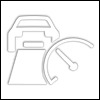



Assisted View
Depending on the equipment and national-market version, information for the system is displayed in the Assisted View in the central display area of the instrument cluster.
Additional information:
Assisted View.
Displays in the Head-up display
Set speed
Some system information can also be displayed in the Head-up display.
The icon is displayed when the set speed is reached.
Distance information
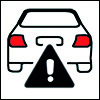
The icon is displayed when the distance from the vehicle traveling ahead is too short.
The distance information is active in the following situations:
Active Cruise Control with Distance Control switched off.
Display in the Head-up display selected.
Head-up display.
Distance too short.
Speed greater than approx. 40 mph/70 km/h.
System limits
System limits of the sensors
Additional information:
Cameras.
Radar sensors.
Detection range
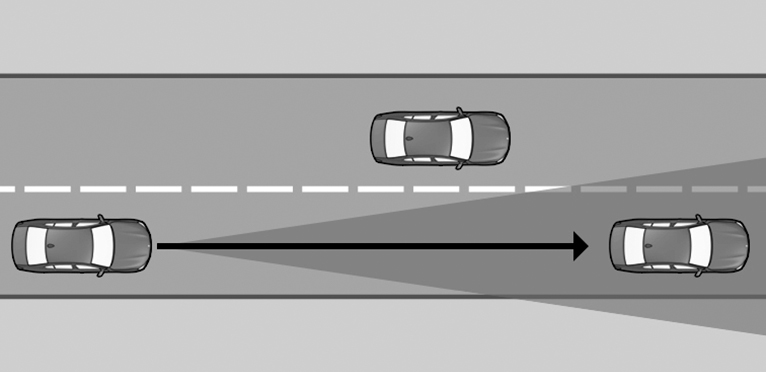
The detection capability of the system and the automatic braking performance are limited.
For instance, two-wheeled vehicles may not be detected.
Deceleration
The system does not decelerate in the following situations:
For pedestrians or similarly slow-moving road users.
Depending on the vehicle equipment and national availability, for red traffic lights.
For cross traffic.
For oncoming traffic.
Merging vehicles
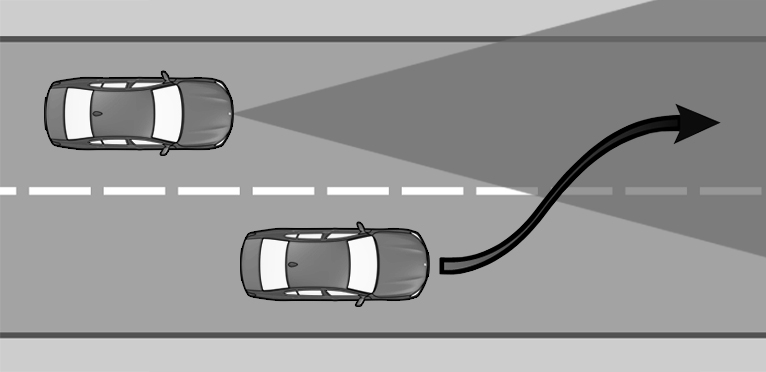
If a vehicle driving ahead of you suddenly merges into your lane, the system may not be able to automatically restore the selected distance. It may not be possible to restore the selected distance in certain situations, including if you are driving significantly faster than vehicles driving ahead of you, for instance when rapidly approaching a truck. When a vehicle driving ahead of you is reliably detected, the system requests that the driver intervene by braking and making an evasive maneuver, if needed.
Cornering
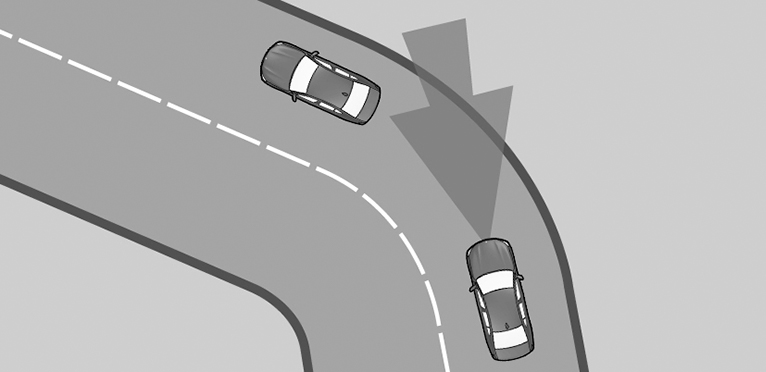
When the set speed is too high for a curve, the speed is reduced slightly. Because curves may not be anticipated in advance, drive into a curve at an appropriate speed.
The system has a limited detection range. Situations can arise in tight curves where a vehicle driving ahead will not be detected or will be detected very late.
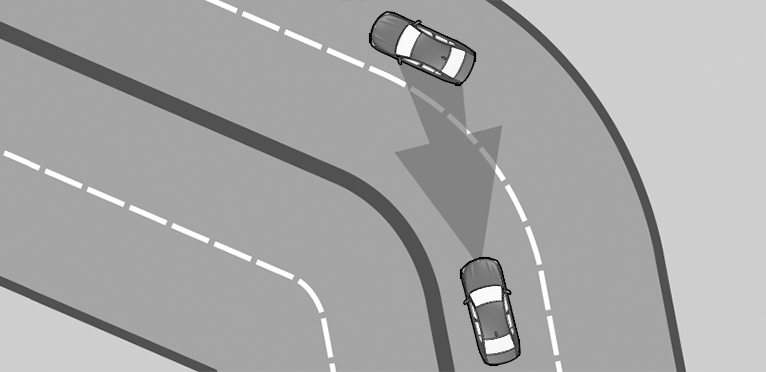
When you approach a curve the system may briefly report vehicles in the next lane due to the bend of the curve. If the system decelerates you may compensate for it by briefly accelerating. After releasing the accelerator pedal the system is reactivated and controls speed independently.
Driving off
In some situations, the vehicle cannot drive off automatically; for example:
On steep uphill grades.
In front of bumps in the road.
In these cases, step on the accelerator pedal.
Weather
The following restrictions can occur under unfavorable weather or light conditions:
Poorer vehicle detection.
Short-term interruptions for vehicles that are already recognized.
Drive attentively, and react to the current surrounding traffic situation. If necessary, intervene actively, for instance by braking, steering or making an evasive maneuver.
Speed Limit Assistant
Principle
Animation: Speed Limit Assistant
Speed Limit Assistant supports driving at the speed limit. A suggested speed can be applied.
General information
When the systems in the vehicle, e.g., Speed Limit Info, detect a change of the speed limit, this new speed value can be applied for the following systems:
Manual Speed Limiter.
Cruise control.
Active Cruise Control with Distance Control.
The speed value is suggested as the new desired speed to be applied. To apply the speed value, the corresponding system must be activated.
Safety information
Also observe surrounding traffic and adapt driving style
Observe surrounding traffic and adjust set speed
Overview
Buttons on the steering wheel
|
Button |
Function |
|---|---|
|
|
Accept suggested speed manually. |
|
|
Rocker switch: Set speed, refer to Cruise Control. |
Turning Speed Limit Assistant on/off
Apps menu
"Vehicle"
"Driving settings"
"Driver Assistance"
"Driving"
"Speed Limit Assistance"
"Speed limits"
Select the desired setting:
"Adjust manually": detected speed limits can be applied manually.
"Show anticipation": Depending on the national-market version: current and upcoming speed limits are displayed in the instrument cluster without being applied.
"Show current limit": current speed limits are displayed without being applied in the instrument cluster.
"Off": depending on the national-market version, Speed Limit Info and Speed Limit Assistant will be turned off.
Displays in the instrument cluster
A message is displayed in the instrument cluster when the system and a driver assistance system are activated.
|
Icon |
Function |
|---|---|
|
|
Depending on the equipment version, the indicator light illuminates green, together with the icon for a speed control system: Speed Limit Assistant is active and detected speed limits can be applied manually for the displayed system. |
|
|
Detected change of a speed limit with immediate effect. |
|
|
Indicator light illuminates green: the detected speed limit can be applied with the SET button. After it has been applied, a green checkmark is displayed. |


Manual adoption
A detected speed limit can be applied manually for the active driver assistance system.
When the SET icon illuminates, press the button.
Speed adjustment
Principle
It can be adjusted whether the speed limit is applied exactly or with a tolerance.
General information
You can configure a speed adaptation for all speed limits and an additional speed adaptation for speed limits up to 40 mph/60 km/h.
The additional speed adaptation for speed limits up to 40 mph/60 km/h can be activated or deactivated.
Setting the speed adjustment
Apps menu
"Vehicle"
"Driving settings"
"Driver Assistance"
"Driving"
"Speed Limit Assistance"
Select the desired setting:
"Adjust speed limits": set tolerance for the speed adaptation that affects all speeds.
"2nd adjustm. up to": activate or deactivate additional speed adaptation.
"Adjust speed limits": With additional speed adjustment activated, set the tolerance for speed limits up to 40 mph/60 km/h.
Adapting to route
Principle
Depending on the national-market version, the system can be configured so that the vehicle adapts the speed automatically to the route.
For instance, the speed will be reduced in the following situations, if necessary:
Before making turns.
Before a roundabout.
Before a curve.
Adapting speed automatically to route
Apps menu
"Vehicle"
"Driving settings"
"Driver Assistance"
"Driving"
"Speed Limit Assistance"
"Adjust to route" or "Automatically adjust speed to route"
System limits
Speed Limit Assistant is based on the Speed Limit Info system.
Consider the system limits of Speed Limit Info.
Upcoming speed limits can only be applied to Active Cruise Control with Distance Control.
The system does not react or reacts to a limited extent to the route ahead in the following situations:
If the vehicle location cannot be clearly determined by the navigation system.
With wintry road conditions.
Additional information:
System limits of Speed Limit Information.
System limits of the sensors.
Steering Assistant
Principle
The Steering Assistant helps keep the vehicle in the lane. For this purpose, the system executes supporting steering movements, for instance when cornering.
General information
Depending on the speed, the system orients itself according to the lane boundaries or vehicles in front.
Sensors on the steering wheel detect whether the steering wheel is being touched.
Safety information
Also observe surrounding traffic and adapt driving style
Overview
Buttons on the steering wheel
|
Button |
Function |
|---|---|
|
|
Steering Assistant with Traffic Jam Assistant on/off. |
|
|
Switch function on. |
Sensors
The system is controlled by the following sensors:
Cameras behind the windshield.
Front radar sensor.
Radar sensors, side, front.
Radar sensors, side, rear.
Additional information:
Sensors of the vehicle.
Functional requirements
Speed below 130 mph/210 km/h.
Sufficient lane width.
Above approx. 43 mph/70 km/h: lane boundary on both sides is detected.
Below approx. 43 mph, 70 km/h: lane boundary on both sides or vehicle driving ahead is detected.
Hands on the steering wheel rim.
Wide curves.
Drive in the center of the lane.
Turn signal switched off.
The sensor system calibration process is complete.
Cruise Control with Distance Control active.
Seat belt on the driver's side fastened.
Forward Collision Warning active.
Pedestrian Warning active.
Side Collision Warning active.
Turning Steering Assistant on/off
Assisted Driving Mode
General information
This button is used to switch the configured function on and off.
The button can be used to set the primarily used function.
Setting the function
When the system is active, press the button repeatedly until the desired function is selected in the toolbar. The toolbar for Assisted Driving mode is displayed at the bottom of the instrument cluster.
|
Icon |
Function |
|---|---|
|
|
Cruise Control with Distance Control. |
|
|
Cruise Control with Distance Control and Steering Assistant. |
The selected function is shown in green.
Turning on the system
Press the button on the steering wheel.
Adjust the Steering Assistant if necessary.

Indicator light illuminates gray:
The system is on standby and does not manipulate steering movements.
System activates automatically as soon as all function conditions are fulfilled.

The indicator light illuminates green.
The system is active.
With the system switched on, the Daytime Pedestrian Collision Mitigation system and the Side Collision Warning are activated.
Turning off the system
Press the button on the steering wheel.
The indicator goes out.
The system does not perform supportive steering wheel movements.
Stopping Steering Assistant automatically
The system interrupts the supporting steering movements automatically, for example in the following situations:
At a speed above 130 mph/210 km/h.
When the steering wheel is released.
When braking manually.
With strong steering intervention.
When leaving own lane.
When the turn signal is switched on.
When the lane is too narrow.
If a lane boundary is not detected for a certain period of time and no vehicle is driving ahead.
Active Cruise Control with distance control is stopped.
The seat belt on the driver's side is unfastened.
Indicator light illuminates gray:
The system is on standby and does not manipulate steering movements.
System activates automatically as soon as all function conditions are fulfilled.
Displays in the instrument cluster
|
Icon |
Description |
|---|---|
|
|
Indicator light illuminates gray: The system is ready. |
|
|
Indicator light illuminates green: The system is activated. The system supports the driver in keeping the vehicle within the lane. |
|
|
Warning light flashes yellow: A lane boundary has been crossed. The steering wheel vibrates where applicable. |
|
|
Warning light illuminates yellow and acoustic signal may sound: Yellow: System interruption is imminent. |
|
|
Depending on national-market version: The warning light flashes or illuminates red. A signal sounds: The system is switched off. |
|
|
Warning light illuminates yellow: Hands are not grasping the steering wheel. The system is still active. |
|
|
Warning light illuminates red, acoustic signal sounds: Hands are not grasping the steering wheel. System interruption is imminent. The system reduces the speed to a standstill if applicable. It is possible that the system will not execute any supporting steering movements. |



Depending on vehicle equipment and national-market version, information for the system is displayed in the Assisted View of the instrument cluster.
Additional information:
Assisted View.
Displays on the steering wheel
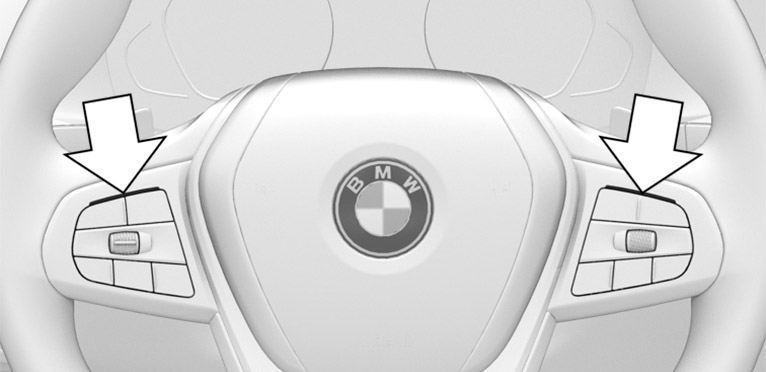
The two LED lights above the buttons illuminate analogously to the displays in the instrument cluster:
Yellow: system interruption is imminent.
Red: system will be deactivated.
The steering wheel displays can be switched on/off if required.
Apps menu
"Vehicle"
"Driving settings"
"Driver Assistance"
"Feedback via steering wheel"
"Light elements"
Displays in the Head-up display
All system information can also be displayed in the Head-up display.
System limits
General information
The system cannot be activated or meaningfully used in certain situations, e.g., while towing a trailer.
Safety information
Observe the system limits
System limits of the sensors
Additional information:
Cameras.
Radar sensors.
Hands on the steering wheel
The sensors cannot detect hand-steering wheel contact in the following situations:
Driving with gloves.
Protective covers on the steering wheel.
Narrow lanes
When driving within narrow lanes, the system cannot be activated or effectively used, for instance in the following situations:
In construction areas.
Depending on the equipment, with automatic formation of emergency lanes.
Within city limits.
Weather
The following restrictions can occur under unfavorable weather or light conditions:
Poorer recognition of vehicles and lane boundaries.
Short-term interruptions for vehicles that are already recognized.
Drive attentively, and react to the current surrounding traffic situation. If necessary, intervene actively, for instance by braking, steering or making an evasive maneuver.
Assisted Driving Mode Plus
Principle
Assisted Driving Mode Plus helps drivers guide their vehicle through traffic jams.
Supporting steering movements take place without the driver actively steering.
General information
The system uses the sensors of the Steering Assistant.
Safety information
Observe surrounding traffic and adapt driving style
Federal, state, or local laws may differ, and the use of this function may be prohibited or limited. Before use, check federal, state, and local laws.
Additionally, the notices for the Steering Assistant apply.
Additional information:
Steering Assistant.
Functional requirements
The functional requirements of the Steering Assistant are fulfilled.
Functional requirements.
The Steering Assistant is active.
The function is only available on certain street types, e.g. freeways.
Driving on a road without pedestrians or cyclists.
Sufficient lane width.
Lane markings and a vehicle driving ahead are detected.
Speed below approx. 40 mph/60 km/h.
The Driver Attention Camera in the instrument cluster detects that the driver is paying attention to the surrounding traffic.
The function must be available in the country in which the vehicle is driven.
Switching on Assisted Driving Mode Plus

As soon as all functional requirements are met, an additional icon for Assisted Driving Mode Plus will be displayed on the toolbar. The toolbar is displayed at the bottom of the instrument cluster.
Select Assisted Driving Mode Plus with the button on the steering wheel.
The icon for Assisted Driving Mode Plus is shown in green.
Two green LED lights are illuminated on the steering wheel.
The indicator light in the instrument cluster is shown in green.
The system begins to assist the driver with vehicle control.
Depending on vehicle equipment, this function can be enabled/disabled on the control display.
Apps menu
"Vehicle"
"Driving settings"
"Driver Assistance"
"Driving"
"Assisted Driving"
"Assisted Driving Plus"
Displays in the instrument cluster
|
Icon |
Description |
|---|---|
|
|
Indicator light green: system is active. |
|
|
Indicator light white: system is ready. |
|
|
Gray indicator light: the system has been interrupted. |



Alternative displays
Depending on the equipment version, the displays in the instrument cluster may vary and are displayed as follows:
|
Icon |
Description |
|---|---|
|
|
Indicator light green: system is active. |

Displays on the steering wheel
The two LED lights above the buttons illuminate analogously to the displays in the instrument cluster:
Green: the system is active.
Yellow: system will be interrupted.
Red: system will be deactivated.
System limits
General information
The limits of the Steering Assistant system apply.
Additional information:
Steering Assistant.
Driver Attention Camera
The limits of the Driver Attention Camera system apply.
Additional information:
Driver Attention Camera.
Lane Change Assistant
Principle
Animation: Lane Change Assistant
The Lane Change Assistant also assists when changing lanes on multi-lane roads.
General information
The system uses the sensors of the Steering Assistant.
Safety information
Also observe surrounding traffic and adapt driving style
Additionally, the notices for the Steering Assistant apply.
Additional information:
Steering Assistant.
Functional requirements
The functional requirements of the Steering Assistant are fulfilled.
Functional requirements.
Driving on a road without pedestrians or cyclists and with physical barriers to oncoming traffic such as crash barriers.
Crossable lane boundaries are detected.
Maximum speed approx. 110 mph/180 km/h.
The minimum speed is country-specific.
The function must be available in the country in which the vehicle is driven.
Turning on/turning off Lane Change Assistant
Apps menu
"Vehicle"
"Driving settings"
"Driver Assistance"
"Driving"
"Assisted Driving"
"Automatic Lane Change"
Changing lanes
Ensure that the traffic situation permits changing lanes.
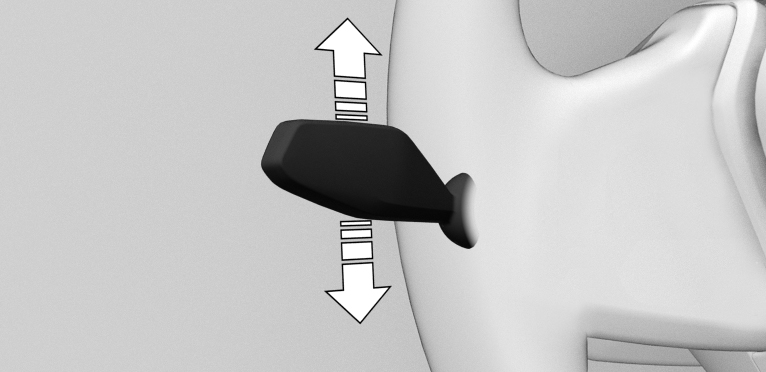
Press the turn signal lever in the required direction to the pressure point for signaling briefly.
A supporting steering movement in the required direction can be detected a short time later.
After the lane change, the system helps keep the vehicle in the new lane.
Canceling a lane change
The lane change can be canceled by steering movement into the opposite direction.
Displays in the instrument cluster
|
Icon |
Description |
|---|---|
|
|
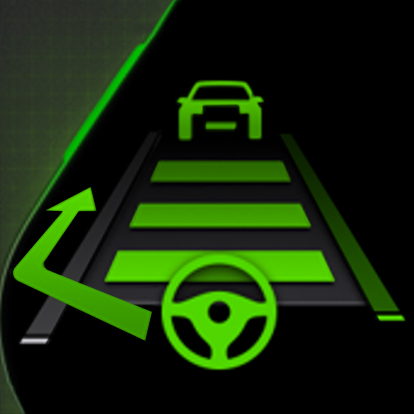
Green steering wheel icon. Green arrow icon for lane-changing. The system carries out a lane change. |
|
|
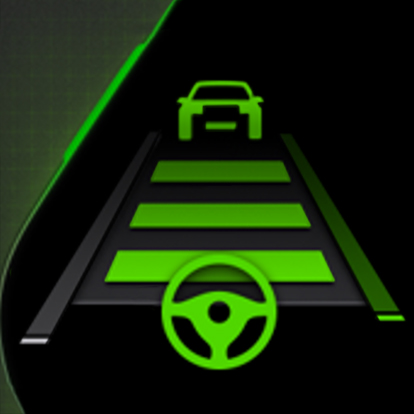
Green steering wheel icon. Gray line for lane marking on the appropriate side. The system detected the lane change request. Lane change not currently possible. |
|
|
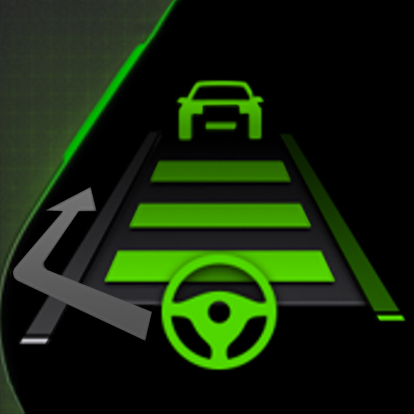
Depending on the national-market version: Green steering wheel icon. Gray arrow icon for lane-changing. Lane change not possible; functional requirements not met. |



Depending on vehicle equipment and national-market version, information for the system is displayed in the Assisted View of the instrument cluster.
Additional information:
Assisted View.
Alternative displays
Depending on the equipment version, the displays in the instrument cluster may vary and are displayed as follows:
|
Icon |
Description |
|---|---|
|
|
Green steering wheel icon. Gray line for lane marking on the appropriate side. Green arrow icon for lane-changing. The system carries out a lane change. |
|
|
Green steering wheel icon. Gray line for lane marking on the appropriate side. No arrow icon for lane-changing on the display. The system detected the lane change request. Lane change not currently possible. |
|
|
Depending on the national-market version: Green steering wheel icon. Gray line for lane marking on the appropriate side. Gray arrow icon for lane-changing. Lane change not possible; functional requirements not met. |
System limits
The limits of the Steering Assistant system apply.
Additional information:
Steering Assistant.
Download Manual