Connections
Vehicle features and options
This chapter describes model-specific equipment, systems, and functions that are currently available, or may become available in the future, even if they are not present in the vehicle.
Additional information:
Vehicle equipment.
Functions and connection types
Principle
Various connection types are available for using mobile devices in the vehicle. The connection type to select depends on the mobile device and the desired function.
Safety information

Observe when operating systems and devices

Warning
Operating the integrated information systems and communication devices while driving can distract from surrounding traffic. It is possible to lose control of the vehicle. There is a risk of accident. Only use the systems or devices when the traffic situation allows. As warranted, stop and use the systems and devices while the vehicle is stationary.
Overview
The following overview shows possible functions and the suitable connection types for them. The range of functions depends on the vehicle equipment and the mobile device.
|
Function |
Connection type |
Icon on the control display |
|---|---|---|
|
Making calls via the hands-free system. Using phone functions via iDrive. Calling via Bluetooth. |
Bluetooth. Bluetooth connection. |
|
|
Playing music from a mobile device. Audio. |
Bluetooth audio. Bluetooth connection. |
|
|
Calling without a mobile phone. Calling with the Personal eSIM. |
Personal eSIM. Personal eSIM. |
|
|
Data exchange between mobile device and vehicle. |
Wi-Fi. Vehicle Wi-Fi. |
|
|
Use Internet access via the personal hotspot. |
Wi-Fi via personal hotspot. Personal hotspot. |
|
|
Using Apple CarPlay via iDrive and via voice control. Apple CarPlay preparation. |
Bluetooth and Wi-Fi. Bluetooth connection. Vehicle Wi-Fi. |
|
|
Using Android Auto via iDrive and via voice control. Android Auto preparation |
Bluetooth and Wi-Fi. Bluetooth connection. Vehicle Wi-Fi. |
|
|
Playing music from a USB device. Audio. |
USB. USB connection. |
|


Compatible devices
Information on compatible mobile devices is available as follows:
On the BMW website.
Via Hotline/Customer Support
At an authorized service center or another qualified service center or repair shop.
Malfunctions may occur with devices not listed or for different software versions.
Bluetooth connection
Principle
Bluetooth® is an industry standard for the data transfer between devices over short distances by radio.
General information
A maximum of four mobile devices can be connected simultaneously to the vehicle via Bluetooth®. Two of these devices can be used as telephones and two devices for audio playback. If another device is to be connected, a device that is already connected must be deleted.
Functional requirements
Standby state is switched on.
Compatible device with Bluetooth interface.
Bluetooth is switched on in the vehicle and on the device.
Bluetooth default settings such as for visibility may be required on device, refer to your device operating instructions.
Activate Bluetooth
 Apps menu
"All apps"
"Mobile devices"
"Settings"
"Bluetooth®"
Select the desired setting.
Registering a mobile device
To use a Bluetooth connection, the mobile device must first be paired with the vehicle.
The Google Fast Pair function can be used on Android devices with the corresponding software version. To do this, follow the instructions on the control display and on the smartphone display.
Apps menu
"All apps"
"Mobile devices"
"Connect new device"
Devices detected by the vehicle are shown on the control display.
If necessary, select Google Fast Pair on the smartphone display and follow the instructions on the device. Steps 5 and 6 can then be skipped.
Select the desired device.
Compare the control number displayed on the control display with the control number in the display of the device and confirm that they match.
Depending on the device, select connection mode if necessary:
"Use Bluetooth®"
"Continue"
"Use Android Auto"
If necessary, select the function for which the mobile device is to be used:
 Telephone
 Bluetooth audio
The mobile device is displayed in the device list.
Additional information:
Device list.
Connecting mobile devices
Mobile devices are automatically detected in the vehicle interior. If the device is already registered in the vehicle, the connection is established automatically.
Frequently Asked Questions
All prerequisites are met and all required steps were completed in the specified order. Despite that, the mobile device does not function as expected.
In this case, the following explanations can help:
Why could the device not be registered?
Too many other Bluetooth devices are connected to the mobile device.
Delete the Bluetooth connection from the respective device’s device list and start a new device search.
Too many Bluetooth devices are paired with the vehicle for the same function.
Adapt the functions in the device list on the control display.
The device is in power economy mode or has only a low battery life.
Charge the device and deactivate the power economy mode if necessary.
Why is it no longer possible to operate the mobile device?
The applications on the device do not function any more.
Turn the device off and on again.
Too high or too low ambient temperature to operate the device.
Do not expose the device to extreme ambient conditions.
If all points listed have been checked and the required function is still not available: contact the hotline, an authorized service center or another qualified service center or repair shop.
Vehicle Wi-Fi
Principle
The vehicle Wi-Fi can be used to exchange data between mobile devices and the vehicle.
General information
A maximum of ten mobile devices can be registered on the Wi-Fi at the same time. If another device is to be registered, a device that is already registered must be deleted.
Functional requirements
Standby state is switched on.
Compatible device with activated WLAN interface.
Activate vehicle Wi-Fi
Apps menu
"All apps"
"Wi-Fi connections"
"Settings"
Activate Wi-Fi.
Registering a mobile device
Apps menu
"All apps"
"Wi-Fi connections"
"Connect new device"
To register a mobile device on the vehicle Wi-Fi:
Scan the QR code shown in the control display.
Enter the displayed access data on the mobile end device.
The mobile device is displayed in the device list.
Connecting mobile devices
Mobile devices are automatically detected in the vehicle interior. If the device is already registered in the vehicle, the connection is established automatically.
Personal eSIM
Principle
Personal eSIM is a digital SIM card that is permanently installed in the vehicle.
The Personal eSIM enables making phone calls or the use of mobile data regardless of whether there is a mobile phone in the vehicle.
General information
Depending on the country of registration and the mobile phone provider, the digital SIM card may not available. In this case, a nano SIM card can be used with the BMW SIM Reader in order to utilize Personal eSIM in the vehicle. Information on availability can be obtained from the wireless service provider, on the BMW website, or in the My BMW App.
The use of the vehicle cell phone antenna improves the call quality and the reception of mobile data.
Additional information:
Calling with the Personal eSIM.
Personal hotspot.
Functional requirements
Standby state is switched on.
Active ConnectedDrive contract.
The personal eSIM is connected to the desired BMW ID.
The BMW ID is added in the vehicle, driver identification is set, and synchronization is activated.
A mobile phone has been paired for the telephone function.
Additional information:
BMW ID.
Linking Personal eSIM with a BMW ID
The Personal eSIM can be connected to the BMW ID by the following means:
In the My BMW App.
In the ConnectedDrive customer portal.
In the vehicle via iDrive.
Via iDrive:
In the vehicle, log in using the desired BMW ID.
Apps menu
"All apps"
"Mobile devices"
"Personal eSIM"
Follow the instructions on the control display. If necessary, scan the displayed QR code with a smartphone and start the activation.
Follow the instructions on the smartphone and, if applicable, on the control display.
Settings
It is possible to specify, for instance, if the personal eSIM will be used as a telephone or as a personal hotspot.
Roaming can be activated or deactivated for use in other countries.
Apps menu
"All apps"
"Mobile devices"
"Personal eSIM"
"Settings"
Select the desired settings.
BMW SIM Reader
Principle
The BMW SIM Reader can be used to connect a nano SIM card to the vehicle and to use Personal eSIM.
General information
The digital SIM card is not supported by all mobile phone providers. Personal eSIM functions can still be used with the BMW SIM Reader. For this, a nano SIM card must be used, e.g. e.g. an additional card of the existing mobile communications contract or a card with another contract.
The SIM Reader can be registered to a maximum of 10 vehicles.
Functional requirements
Standby state is switched on.
Active ConnectedDrive contract.
The BMW ID is added in the vehicle, driver identification is set, and synchronization is activated.
The SIM Reader is connected to the vehicle.
A mobile phone has been linked to the eSIM for the telephone function.
Overview
1
2
3
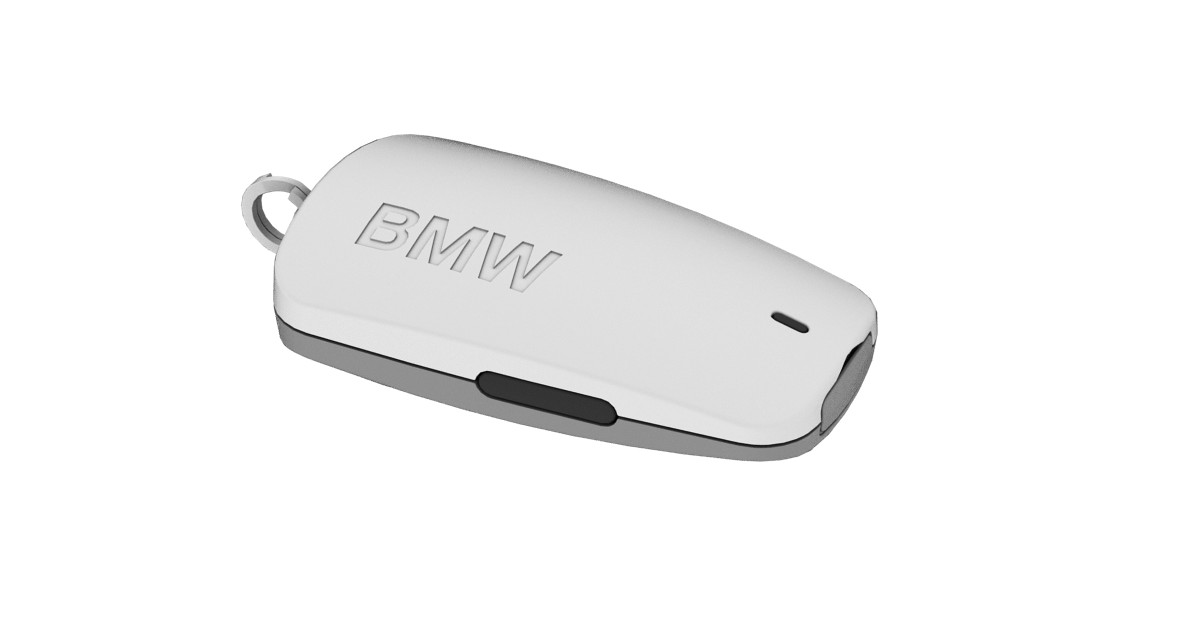
1
Call accept button
2
Status LED
3
Battery cover
Opening/closing the battery cover
The SIM Reader battery cover can be removed, for instance to insert a SIM card.
To open:
Place the enclosed tool on the opening of the SIM Reader.
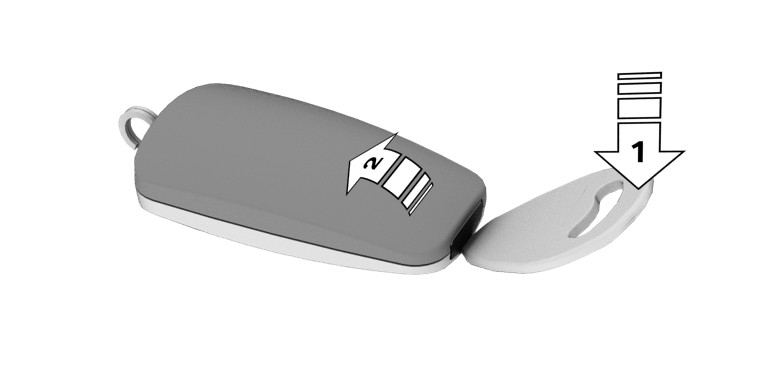
Carefully tilt the tool, arrow 1, and release the battery cover from the catch.
Remove the battery cover, arrow 2.
To close:
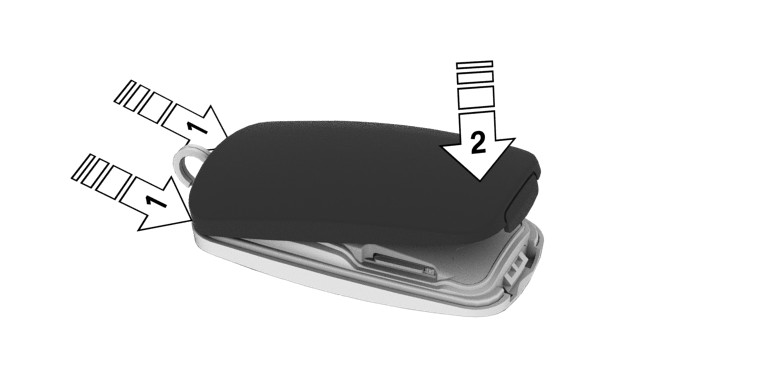
Slide the battery cover into the mounts on the rear side of the SIM Reader, arrow 1.
Press the battery cover down until it engages audibly, arrow 2.
Inserting the SIM card
The SIM card slot is located under the battery cover on the underside of the SIM Reader. To insert the SIM card, open the SIM Reader.
Remove the battery cover.
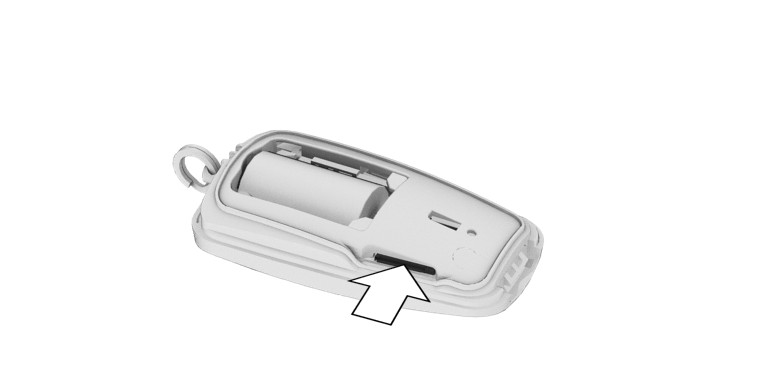
Insert the SIM card, with its contact surface facing down, into the slot until the SIM card engages.
Close the battery cover.
After the SIM card has been inserted, the SIM Reader is ready for use.
Registering the SIM Reader to the vehicle
The SIM Reader must be registered to the vehicle once. The SIM Reader can only be registered when the vehicle is stationary and the SIM card is inserted.
Only one SIM Reader can be registered to the vehicle per BMW ID.
Select the BMW ID.
Apps menu
"All apps"
"Mobile devices"
"Personal eSIM"
"Set up with SIM card"
Press and hold down the call accept button on the SIM Reader for 6 seconds.
The status LED for the SIM Reader flashes blue.
The SIM Reader is shown on the control display.
Select the SIM Reader.
The status LED for the SIM Reader illuminates blue after the reader has been successfully registered to the vehicle.
The signal quality of the mobile phone connection and the battery charge level are shown in the status field on the control display.
Connecting the SIM Reader
The SIM Reader is automatically detected in the vehicle. If the SIM Reader is already registered to the vehicle, it is connected automatically.
LED displays
The current status of the SIM Reader can be checked by pressing the connect button. The status LED illuminates in the corresponding color.
|
Color |
Meaning |
|---|---|
|
Green |
The SIM Reader can be connected to the vehicle. |
|
Blue |
The Bluetooth connection to the vehicle is active. |
|
Red |
The battery has low charge. The Bluetooth connection to the vehicle has failed or the SIM Reader has detected a problem. Try to re-establish the connection at a later time. If the connection problem persists, contact an authorized service center or another qualified service center or repair shop. |
Unregistering the SIM Reader from the vehicle
You can disassociate the SIM Reader from the BMW ID, e.g., when selling your vehicle.
Select the BMW ID.
Apps menu
"All apps"
"Mobile devices"
"Personal eSIM"
"BMW SIM Reader"
"Remove SIM Reader"
Resetting the function
Resetting deletes all vehicles stored in the SIM Reader and restores to the factory settings.
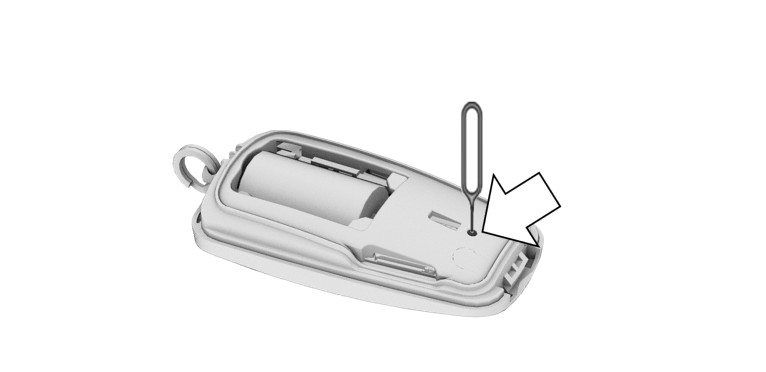
Use a pointed object, e.g. a SIM needle, to press the button.
Replacing the battery
Keep out of reach of children
Do not use unsuitable batteries
Remove the battery cover.
Lift out the battery, placing the tool on the positive terminal.
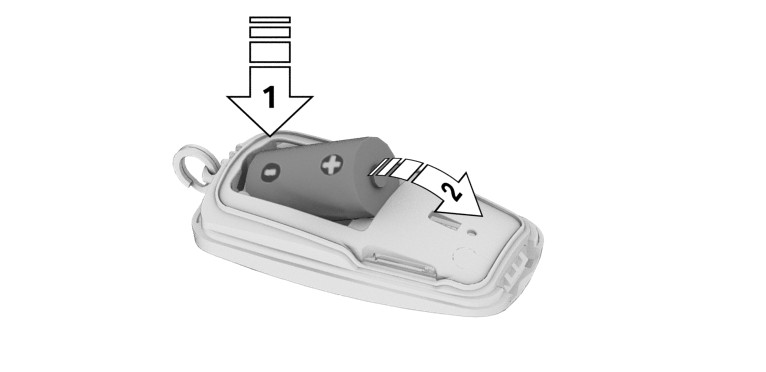
First insert the negative terminal of a 3.6 V battery of type ER14250 into the mount, arrow 1. Then press the positive pole into the mount, arrow 2.
Close the battery cover.

Have old batteries disposed of by an authorized service center or another qualified service center or repair shop, or take them to a collection point.
Personal Hotspot
Principle
Compatible devices with WLAN interface can use the Internet connection with the data volume of the Personal eSIM via the personal hotspot.
General information
Up to ten devices can be connected to the personal hotspot simultaneously. If another device is to be registered, a device that is already registered must be deleted.
Functional requirements
Standby state is switched on.
Compatible device with activated WLAN interface.
Personal eSIM is set up and active.
The mobile data setting for the personal eSIM has been activated.
WLAN is activated on the vehicle.
Activating the personal hotspot and registering the device
Apps menu
"All apps"
"Personal Hotspot"
"Connect new device"
"Activate internet access"
Register the desired mobile device on the personal hotspot:
Scan the QR code shown in the control display.
Enter the displayed access data on the mobile end device.
All devices connected via the hotspot use the data volume of the Personal eSIM.
The mobile device is displayed in the device list.
Connecting mobile devices
Mobile devices are automatically detected in the vehicle interior. If the device is already registered in the vehicle, the connection is established automatically.
Enabling/disabling Internet use
Internet use may be deactivated if the data volume is used up, for instance.
Apps menu
"All apps"
"Personal Hotspot"
"Settings"
"Internet access for mobile devices"
Select the desired setting.
USB connection
Principle
USB ports can be used to play music files or to update navigation data.
Additional information:
USB audio.
Map update.
General information
The following mobile devices can be connected to the USB port with data transmission:
Mobile phones.
Audio devices.
USB storage devices.
Common file systems are supported. FAT32 and exFAT are the recommended formats.
A connected USB device will be supplied with charge current via the USB port if the device supports this. Follow the maximum charge current of the USB port.
Additional information:
USB port.
Functional requirement
The mobile device must support Mass Storage Class mode.
Compatible device with USB port.
Additional information:
Compatible devices.
Connecting the device
Connect the USB device using a suitable adapter cable to a USB port.
Follow the following when connecting:
Do not use force when plugging the connector into the USB port.
Use a flexible adapter cable.
Protect the USB device against mechanical damage.
Due to the large number of USB devices available on the market, it cannot be guaranteed that every device is operable on the vehicle.
Do not expose USB devices to extreme environmental conditions such as very high temperatures, refer to the operating instructions of the device.
Due to the many different compression techniques, proper playback of the media stored on the USB device cannot be guaranteed in all cases.
To ensure proper transfer of the saved data, do not charge a USB device via the 12 V socket when it is connected to a USB port.
Settings on the device may be necessary in order to use it for transferring data.
The connected USB device is displayed in the device list.
Non-compatible USB devices
USB hard drives.
USB hubs.
USB memory card readers with multiple slots.
HFS-formatted USB devices.
Devices such as fans or bulbs.
Device list
Principle
All mobile devices registered to the vehicle and their functions are displayed in the device list.
General information
A maximum of four devices can be connected to the vehicle via Bluetooth®, and a maximum of ten devices can be connected to the vehicle via Wi-Fi. A maximum of 20 devices are saved.
Displaying the device list
Apps menu
"All apps"
"Mobile devices"
Icons to the right of the device name indicate for which function the device can be used.
|
Icon |
Meaning |
|---|---|
|
|
Telephone. |
|
|
Bluetooth audio. |
|
|
Apple CarPlay. |
|
|
Android Auto. |
Configuring the device
Functions can be activated or deactivated on connected devices.
The range of functions depends on the mobile device.
Follow the information on the control display.
Apps menu
"All apps"
"Mobile devices"
Select the desired device.
Select the desired setting.
Tap on the desired icon to activate and deactivate a function.
Download Manual