Radio operation
333
*: If equipped
P.329
Select to display the audio source selection screen.
Select to display the preset stations screen. (P.333)
Select to display a list of receivable stations. (P.334)
Select to display the radio options screen. (P.334)
Select to display the sound setting screen. (P.330)
Select to tune to preset sta- tions/channels. (P.333)
Press to seek for stations in the relevant program type. Press and hold for continu- ous seek.
Turn to step up/down fre- quencies.
Turn to move up/down the station. Also, the knob can be used to enter selections on the list screens by pressing it.
The radio automatically changes to stereo reception when a stereo broadcast is received.
1 Tune in the desired station.
2 Select and hold “(Hold Edit)”.
The number of preset radio stations displayed on the screen can be changed. (P.351)
Select the desired program genre when the genre selection screen is displayed.
1 Select “Refresh”.
“Cancel Refresh”: Select to can- cel the refresh.
“Source”: Select to change to another audio source while refreshing.
|
|
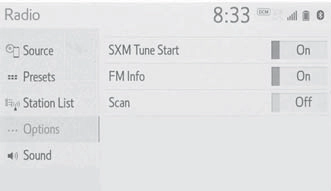
When “SXM Tune Start” is turned on, the current song is played from the beginning when you select the channel.
Analog FM only: Select to display RBDS text mes- sages.
Select to scan for receivable stations.
This audio/visual system is equipped with Radio Broadcast Data Systems (RBDS). RBDS mode allows text messages to be received from radio stations that utilize RBDS transmitters.
When RBDS is on, the radio can
nal station
RBDS features are available
plete terms at www.siri- usxm.com (U.S.A.) or
335
All SiriusXM services, including satellite radio and data services, plus streaming services, require a subscription, sold separately or as a package by Sirius XM Radio Inc. (or in Canada, Sirius XM Canada Inc.), after any trial subscription which may be included with your vehicle pur- chase or lease. To subscribe after your trial subscription, call 1-877-447-0011 (U.S.A.) or
1-877-438-9677 (Canada).
Your SiriusXM services will automatically stop at the end of your trial unless you decide to subscribe. If you decide to con- tinue service, the paid subscrip- tion plan you choose will automatically renew and you will be charged the rate in effect at that time and according to your chosen payment method. Fees and taxes apply. You may can- cel at any time by calling
1-866-635-2349. See SiriusXM
Customer Agreement for com-
www.siriusxm.ca (Canada). All fees and programming subject to change. Traffic information not available in all markets.
|
|
|
It is prohibited to copy, decom- pile, disassemble, reverse engi- neer, hack, manipulate, or otherwise make available any technology or software incorpo- rated in receivers compatible with the SiriusXM Satellite Radio System or that support the SiriusXM website, the streaming service or any of its content. Furthermore, the AMBE® voice compression soft- ware included in this product is protected by intellectual prop- erty rights including patent rights, copyrights, and trade secrets of Digital Voice Sys- tems, Inc.
Note: this applies to SiriusXM Satellite Radio receivers only and not SiriusXM Ready devices.
|
 NOTICE
game, every NASCAR® race, NHL® games, 24/7 talk channels dedicated to the biggest leagues, and more. You get all kinds of commercial-free music, including artist-dedicated channels and more, plus sports, news, talk and entertainment.
Locate your Radio ID by turning to Channel 0. If you don’t see your number there, go to siri- usxm.com/activationhelp to find it. Visit siriusxm.com/refresh or call 1-855-MYREFRESH (697-3373)
to send a refresh signal to your radio.
Canada:
Locate your Radio ID by turning to Channel 0.
Visit siriusxm.ca/refresh to send a refresh signal to your radio or call
1-888-539-7474 for service.
When problems occur with the SiriusXM tuner, a message will appear on the screen. Referring to the table below to identify the problem, take the suggested corrective action.
|
Message |
Explanation |
|
“Check Antenna” |
The SiriusXM antenna is not connected. Check whether the SiriusXM antenna cable is attached securely. Contact your Toyota dealer for assistance. |
|
A short circuit occurs in the antenna or the surrounding antenna cable. Contact your Toyota dealer for assistance. |
|
|
“No Signal” |
The SiriusXM signal is too weak at the current location. Wait until your vehicle reaches a location with a stronger signal. |
337
|
Message |
Explanation |
|
“Chan Unavailable” |
The channel you selected is not broadcasting any program- ming. Select another channel. |
|
“Ch Unsub- scribed” |
The channel you selected is no longer available. Wait for about 2 seconds until the radio returns to the previous chan- nel or “Ch 001”. If it does not change automatically, select another channel. |
Internet radio
already registered, it will be connected automatically.
audio-multimedia or call
1-800-331-4331 in the United States, https://www.toyota.ca/connected or call
1-888-869-6828 in Canada, and http://www.toyotapr.com/
audio-multimedia or call
1-877-855-8377 in Puerto Rico.
Download Manual