Connected Services Operation
Press the “MENU” button.
|
|
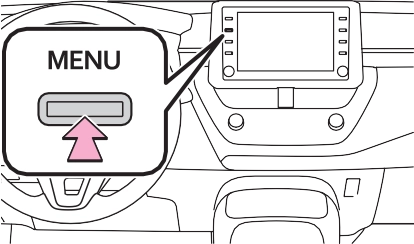
From the “APPS” button
|
|
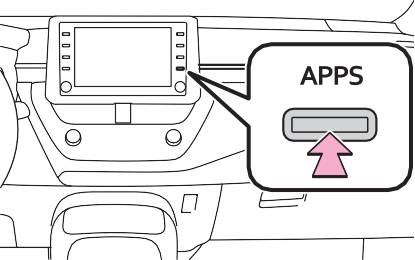
If a specific application screen is displayed, select “Apps” again.
 : Select to activate an applica- tion.
“Update”: Select to update the applications. (P.409)
“App Catalog”: Select to change the order of the applications. (P.410)
 : Displays the number of new notifications for the application
If an update is available, “Update” can be selected.
“Download in Background”: Select to operate other functions while downloading.
“Cancel”: Select to cancel updating.
“Later”: Select to install later. When this screen button is selected, the screen will return to the last dis- played screen. To install the update data: (P.410)
“See Detail”: Select to display detailed information on the update data.
“Install”: Select to install the update data. Follow the steps “Installing the update data” from step 2. (P.410)
“Later”: Select to postpone the installation of the update data and go back to the previous screen.
“Install in Background”: Select to operate other functions while installing.
Order of the applications can be changed.
When problems occur with start- ing the application player, a message will appear on the screen. Referring to the follow- ing items, identify the problem and take the suggested correc- tive action.
The Toyota mobile application can- not be connected to Bluetooth® SPP.
Refer to https://www.toyota.com/ connected-services
in the United States, https://www.toyota.ca/connected in Canada, and
The Toyota apps cannot be oper- ated while installing.
connected-services
in Puerto Rico, to confirm if the
411
phone is Bluetooth® SPP compati- ble or not, and then activate the Toyota mobile application.
Installation can be attempted again by changing to the application screen and pressing the “Install” switch.
Downloading can be attempted again by checking the communica- tion status, changing to the applica- tion screen and pressing the “Download” switch again.
The Toyota mobile application can- not be connected to Bluetooth® SPP.
Refer to https://www.toyota.com/ connected-services
in the United States, https://www.toyota.ca/connected in Canada, and http://www.toyotapr.com/ connected-services
in Puerto Rico, to confirm if the phone is Bluetooth® SPP compati- ble or not, and then activate the Toyota mobile application.
Please ensure your Toyota mobile application is running and logged in on your phone while vehicle is not moving.
1-800-331-4331 in the United States, 1-888-869-6828 in
Canada, and 1-877-855-8377 in Puerto Rico.”
The Toyota mobile application can- not be connected to Bluetooth® SPP.
Refer to https://www.toyota.com/ connected-services
in the United States, https://www.toyota.ca/connected in Canada, and http://www.toyotapr.com/ connected-services
in Puerto Rico, to confirm if the phone is Bluetooth® SPP compati- ble or not, and then activate the Toyota mobile application.
Communication was disconnected.
After a few moments, retry the operation.
A keyword can be entered to an application by the software key- board or voice recognition func- tion. For details about the functions and services provided by each application, refer to https://www.toyota.com/
connected-services in the United States,
https://www.toyota.ca/connected in Canada, and http://www.toyotapr.com/ connected-services
in Puerto Rico.
The keyboard layout can be changed. (P.321)
For details on operating the key- board: P.293
Completion of the keyword will be detected automatically.
Download Manual