Instrument Cluster Display
Your vehicle may be equipped with an instrument cluster display, which offers useful information to the driver. With the ignition in the OFF mode, opening/closing of a door will activate the display for viewing, and display the total miles, or kilometers, in the odometer. Your instrument cluster display is designed to display important information about your vehicle’s systems and features. Using the driver interactive display located on the instrument panel, your instrument cluster display can show you how systems are working and give you warnings when they aren’t. The steering wheel mounted controls allow you to scroll through and enter the main menus and submenus. You can access the specific information you want and make selections and adjustments.
INSTRUMENT CLUSTER DISPLAY LOCATION AND CONTROLS
The instrument cluster display features a driver interactive display that is located in the instrument cluster.
Note:
Depending on your vehicle trim, your instrument cluster display may vary.
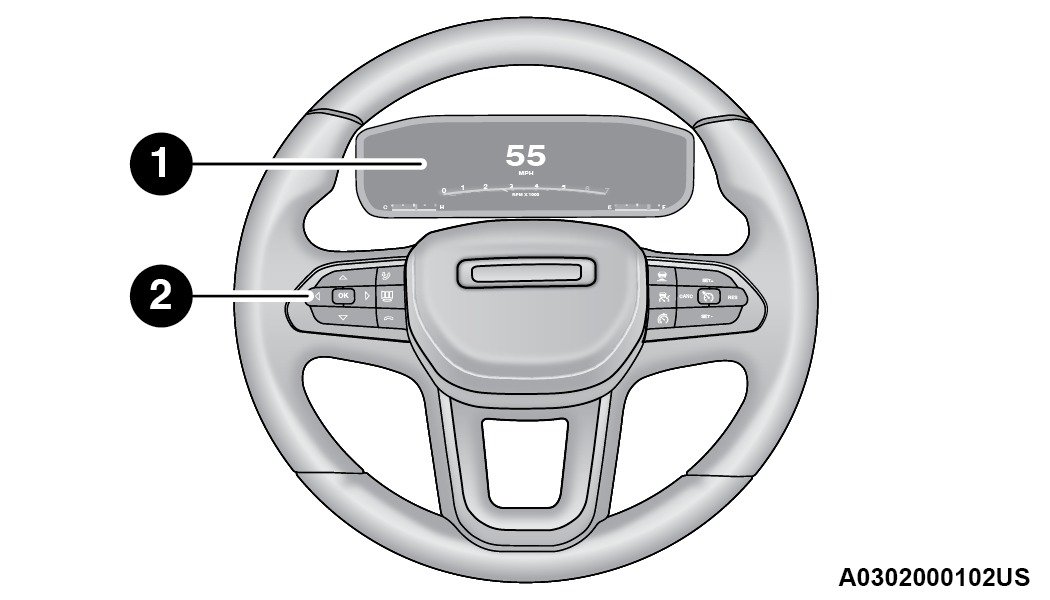
>Instrument Cluster Display Location and Controls
| 1 – Instrument Cluster Display Screen |
| 2 – Instrument Cluster Display Controls |
The systems allow the driver to select information by pushing the following buttons mounted on the steering wheel:
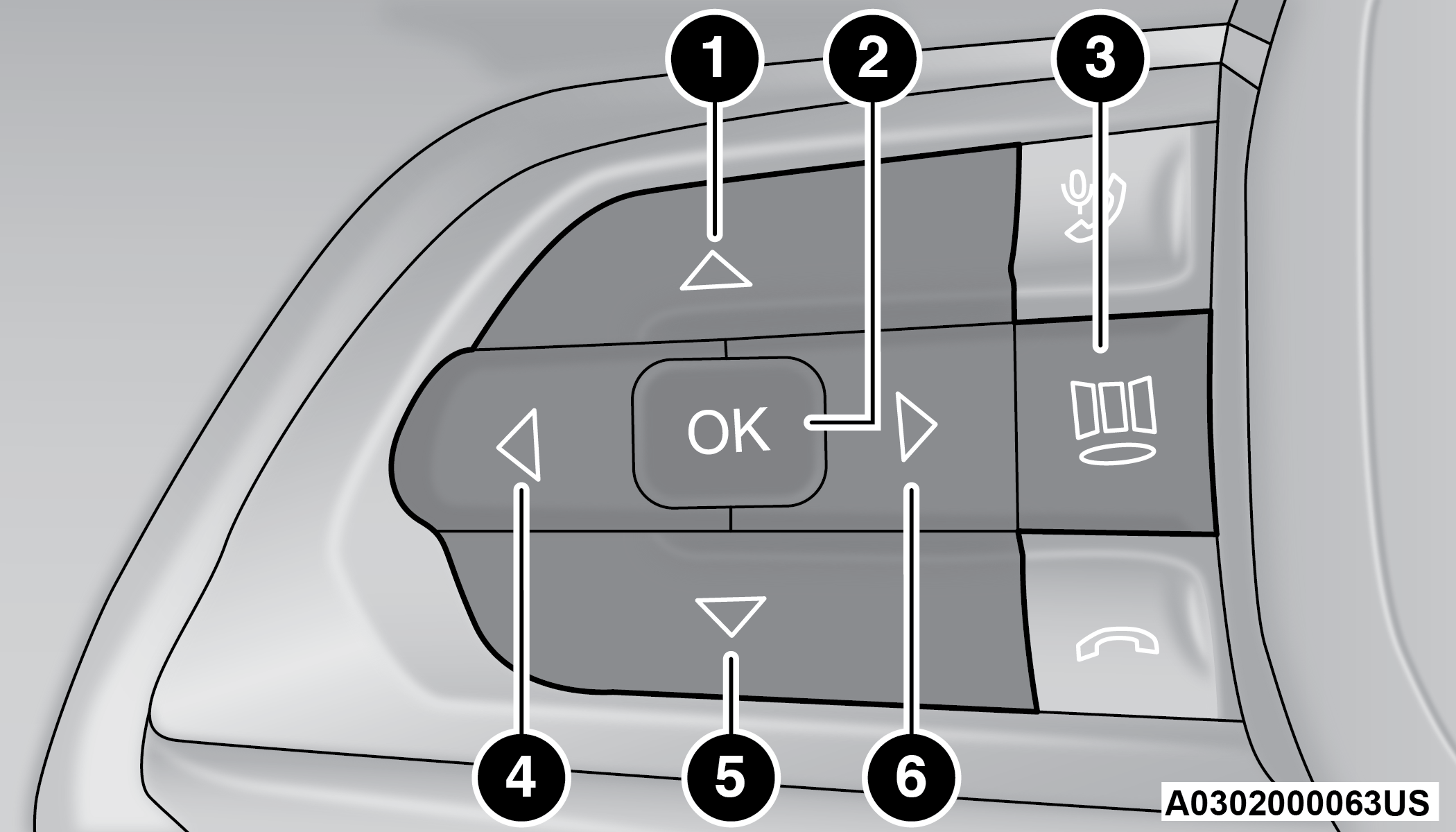
>Premium Instrument Cluster Display Control Buttons
| 1 — Up Arrow Button |
| 2 — OK Button |
| 3 — Menu Button |
| 4 — Left Arrow Button |
| 5 — Down Arrow Button |
| 6 — Right Arrow Button |
- Up Arrow Button
Push and release the up
 arrow button to scroll upward through the main menu and submenus.
 - OK Button
Push the OK button to access/select the information screens or submenu screens of a main menu item. Push and hold the OK button for one second to reset displayed/selected features that can be reset.
-
Menu Button — If Equipped
Push the Menu button to access/select the information screens or submenu screens of the Home Screen display. Push and hold the OK button to enter edit mode.
- Left Arrow Button
Push and release the left
 arrow button to access the information screens or submenu screens of a main menu item.
 - Down Arrow Button
Push and release the down
 arrow button to scroll downward through the main menu and submenus.
 - Right Arrow Button
Push and release the right
 arrow button to access the information screens or submenu screens of a main menu item.
Display Options — If Equipped
Holding OK will also allow you to change your display to Digital or Analog.
-
Digital theme will be the default theme
-
Menu screen times out after 10 seconds. Press OKto reactivate
-
Speedometer must always be present
-
Relevant warning notifications and other pop-up info will still be displayed in the main screen area (In this case the speed moves to the top)
Custom Tile Configuration — If Equipped
To customize the instrument cluster further, you are able to select up to five tiles to display information based on your needs.
-
Press the Menu button for the Home Screen display
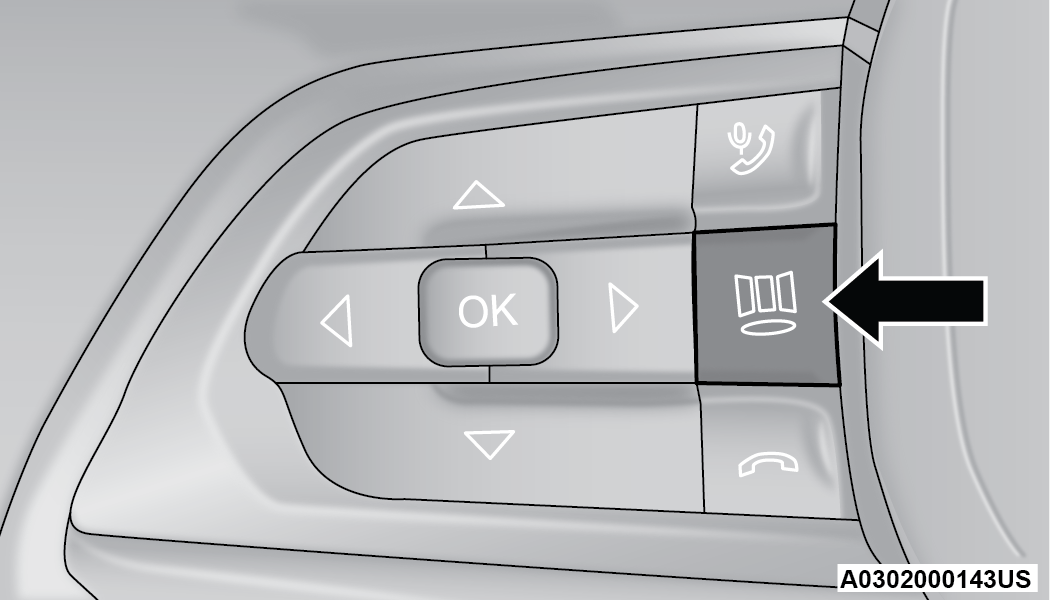
>Menu Button
-
Navigate Left or Right to highlight desired Tile
-
Press OK to select the tile and navigate to the selected submenu and press OK again to add your selection to your tile view
-
The main menu options are Main Menu, Vehicle Info, Navigation, Audio, and Off Road
The instrument cluster display is located in the center portion of the cluster and consist of multiple sections:
-
Main Screen — The inner ring of the display will illuminate in gray under normal conditions, yellow for non critical warnings, red for critical warnings, and white for on demand information.
-
Submenu Dots — Whenever there are submenus available, the position within the submenus is shown here.
-
Reconfigurable Telltales/Information
-
Gear Selector Status (PRND)
-
Driver Interactive Display (Compass, Temp, Range to Empty, Trip A, Trip B, Average Fuel Economy, Current Fuel Economy and Time)
-
Air Suspension Status — If Equipped
-
Four Wheel Drive (4WD) Status — If Equipped
The instrument cluster display will normally display the main menu or the screens of a selected feature of the main menu. The main display area also displays pop-up messages that consist of approximately 60 possible warning or information messages. These pop-up messages fall into several categories:
- Five Second Stored Messages
When the appropriate conditions occur, this type of message takes control of the main display area for five seconds and then returns to the previous screen. Most of the messages of this type are then stored (as long as the condition that activated it remains active) and can be reviewed from the “Messages” main menu item. Examples of this message type are “Right Front Turn Signal Lamp Out” and “Low Tire Pressure.”
- Unstored Messages
This message type is displayed indefinitely or until the condition that activated the message is cleared. Examples of this message type are “Turn Signal On” (if a turn signal is left on) and “Lights On” (if driver leaves the vehicle with the lights on).
- Unstored Messages Until RUN
These messages deal primarily with the Remote Start feature. This message type is displayed until the ignition is in the RUN state. Examples of this message type are “Remote Start Canceled - Door Ajar” and “Press Brake Pedal and Push Button to Start.”
- Five Second Unstored Messages
When the appropriate conditions occur, this type of message takes control of the main display area for five seconds and then returns to the previous screen. An example of this message type is “Automatic High Beams On.”
OIL CHANGE RESET
-
Your vehicle is equipped with an engine oil change indicator system. The “Oil Change Due” message will display in the instrument cluster display for five seconds after a single chime has sounded, to indicate the next scheduled oil change interval. The engine oil change indicator system is duty cycle based, which means the engine oil change interval may fluctuate, dependent upon your personal driving style.
-
Unless reset, this message will continue to display each time the ignition is cycled to the ON/RUN position.
To reset the oil change indicator after performing the scheduled maintenance, refer to the following procedure:
-
Without pressing the brake pedal, push the ENGINE START/STOP button and cycle the ignition to the ON/RUN position (do not start the engine).
-
Fully press the accelerator pedal, slowly, three times within ten seconds.
-
Cycle the ignition to the OFF position.
Note:
If the indicator message illuminates when you start the vehicle, the oil change indicator system did not reset. If necessary, repeat this procedure.
DISPLAY AND MESSAGES — IF EQUIPPED
Includes the following, but not limited to:
|
Front Seat Belts Unbuckled |
Driver Seat Belt Unbuckled |
Passenger Seat Belt Unbuckled |
|
Traction Control Off |
Washer Fluid Low |
Oil Pressure Low |
|
Oil Change Due |
Fuel Low |
Service Anti-lock Brake System |
|
Service Electronic Throttle Control |
Service Power Steering |
Cruise Off |
|
Cruise Ready |
ACC Override |
Cruise Set To XXX mph or km/h |
|
Cruise Set To XXX km/h |
Tire Pressure Screen With Low Tire(s) |
Service Tire Pressure System |
|
Park Brake Engaged |
Brake Fluid Low |
Engine Temperature Hot |
|
Lights On |
Right Front Turn Signal Light Out |
Right Rear Turn Signal Light Out |
|
Left Front Turn Signal Light Out |
Left Rear Turn Signal Light Out |
Ignition or Accessory On |
|
Vehicle Not In Park |
Remote Start Active Push Start Button |
Remote Start Canceled Fuel Low |
|
Remote Start Canceled Door Open |
Remote Start Canceled Hood Open |
Remote Start Canceled Liftgate Open |
|
Remote Start Canceled Time Expired |
Remote Start Disabled Start To Reset |
Service Air Bag System |
|
Service Air Bag Warning Light |
Door Open |
Doors Open |
|
Liftgate Open |
Hood Open |
Shift Not Allowed |
|
Vehicle Speed Too High To Shift to D |
Vehicle Speed is Too High to Shift to R |
Vehicle Speed is Too High to Shift to P |
|
Service Transmission |
Service Shifter |
The Reconfigurable Telltales section is divided into the white or yellow telltales area on the left, and the green or red telltales area on the right.
INSTRUMENT CLUSTER DISPLAY MENU ITEMS
The instrument cluster display can be used to view the main menu items for several features. Use the upand downarrow buttons to scroll through the driver interactive display menu options until the desired menu is reached.
Note:
The instrument cluster display menu items display in the center of the instrument cluster. Menu items may vary depending on your vehicle features.
HOME SCREEN — IF EQUIPPED
Press the Menu button to display the Home Screen.
Push and release the left or right arrow button to highlight the desired selection. Push and release the OK button to select. Press the up or down arrow button to select a different screen within the selected category. If the Menu button is pressed in this view, the instrument cluster will return to the previously displayed screen.
Home Screen Options
-
Navigation — If Equipped
-
Route Set
-
-
Trip
-
Trip A
-
Trip B
-
-
Vehicle Info
-
Coolant Temp
-
Trans Temp
-
Oil Temp
-
Oil Pressure — If Equipped
-
Battery Voltage
-
Tire Pressure
-
Fuel Economy
-
-
Driver Assist
-
Speedometer
-
Driver Assist
-
-
Audio
-
Audio Info
-
-
Off Road — If Equipped
-
Selec-Terrain Status
-
-
Messages
-
Stored Messages
-
-
Settings
-
Display
-
Safety and Assistance
-
-
Screen Setup
-
Customize EVIC Screen
-
Upper Left and Right Corners
-
Center Tile Area
-
Hill Start Assist – If Equipped
-
-
Stop/Start
DRIVER INFO— IF EQUIPPED
Speedometer
Push and release the up or downarrow button until the Speedometer Menu item is displayed in the instrument cluster display. Push and release the OK button to change the speedometer scale from MPH to km/h (or vice versa).
Driver Assist
Push and release the up or down arrow button until the Driver Assist menu icon is displayed in the instrument cluster display. Push and release the OK button to select. The Driver Assist screen indicates the current status of ACC, Active Lane Management and Highway Assist/Assist+/Pilot. Push and release the OK button to again to change between Zoomed In and Zoomed Out view (“Press OK to Zoom In” will display when in Zoomed Out view/“Press OK to Zoom Out” will display when in Zoomed In view).
VEHICLE INFO (CUSTOMER INFORMATION FEATURES)
Push and release the up or downarrow button until the Vehicle Info Menu item is displayed in the instrument cluster display. Push and release the leftor rightarrow button to cycle through the Vehicle Info submenus and follow the prompts on each screen as needed.
-
Tire Pressure
-
If tire pressure is OK for all tires a vehicle ICON is displayed with tire pressure values in each corner of the ICON.
-
If one or more tires have low pressure, “Inflate Tire To XX” is displayed with the vehicle ICON and the tire pressure values in each corner of the ICON with the pressure value of the low tire displayed in a different color than the other tire pressure value.
-
If the Tire Pressure system requires service, “Service Tire Pressure System” is displayed.
-
Tire PSI is an information only function and cannot be reset "⇨Tire Pressure Monitoring System (TPMS)".
-
-
Coolant Temperature
Displays the actual coolant temperature.
-
Transmission Temperature — Automatic Transmission Only
Displays the actual transmission temperature.
-
Oil Temperature
Displays the level of oil temperature.
-
Battery Voltage
Displays the actual battery voltage.
-
Clutch Message — If Equipped
“Drive in First Gear” message will be shown in manual transmission vehicle during initial launch and any time the vehicle speed fluctuates below 5mph (8 km/h).
DRIVER ASSIST
Push and release the up or downarrow button until the Driver Assist menu title is highlighted in the instrument cluster display.
The instrument cluster display displays the current ACC system settings. The information displayed depends on ACC system status.
Push the Adaptive Cruise Control (ACC) ON/OFF button (located on the steering wheel) until one of the following displays in the instrument cluster display:
Adaptive Cruise Control Off
When ACC is deactivated, the display will read “Adaptive Cruise Control Off.”
Adaptive Cruise Control Ready
When ACC is activated but the vehicle speed setting has not been selected, the display will read “Adaptive Cruise Control Ready.”
Push and release the SET + or the SET- button (located on the steering wheel) and the following will display in the instrument cluster display:
ACC SET
When ACC is set, the set speed will display in the instrument cluster.
The ACC screen may display once again if any ACC activity occurs, which may include any of the following:
-
Distance Setting Change
-
System Cancel
-
Driver Override
-
System Off
-
ACC Proximity Warning
-
ACC Unavailable Warning
Note:
The instrument cluster display will return to the last display selected after five seconds of no ACC display activity "⇨Adaptive Cruise Control (ACC)".
The instrument cluster display displays the current Active Lane Management system settings. The information displayed depends on Active Lane Management system status and the conditions that need to be met "⇨ACTIVE LANE MANAGEMENT SYSTEM — IF EQUIPPED".
FUEL ECONOMY
Push and release the up or downarrow button until the Fuel Economy menu title is displayed in the instrument cluster display. Push and hold the OK button to reset average fuel economy feature.
-
Range – The display shows the estimated distance (mi or km) that can be traveled with the fuel remaining in the tank. When the Range value is less than 30 miles (48 km) estimated driving distance, the Range display will change to a “LOW FUEL” message. Adding a significant amount of fuel to the vehicle will turn off the “LOW FUEL” message and a new Range value will display. Range cannot be reset through the OK button.
Note:
Significant changes in driving style or vehicle loading will greatly affect the actual drivable distance of the vehicle, regardless of the Range displayed value.
-
Average – The display shows the average fuel economy (MPG, or L/100 km, or km/L) since the last reset.
-
Current – This display shows the current fuel economy (MPG, or L/100 km, or km/L) while driving.
TRIP INFO
Push and release the up or downarrow button until the Trip menu title is displayed in the instrument cluster display. Toggle the leftor rightarrow button to select Trip A or Trip B. The Trip information will display the following:
-
Distance – Shows the total distance (mi or km) traveled for Trip A or Trip B since the last reset.
-
Average Fuel Economy – Shows the average fuel economy (MPG or L/100 km or km/L) of Trip A or Trip B since the last reset.
-
Elapsed Time – Shows the total elapsed time of travel since Trip A or Trip B has been reset.
Hold the OK button to reset feature information.
NAVIGATION — IF EQUIPPED
Push and release the leftor rightarrow button until the Navigation display icon/title is highlighted in the instrument cluster display. Start Route will display when no active route is set. Cancel Route will display when an active route is set.
OFF ROAD — IF EQUIPPED
Push and release the upor downarrow button until the Off Road Menu icon/title is highlighted. Push the leftor rightarrow button to scroll the submenus.
-
Terrain Status
-
Selec-Terrain Status
-
Air Suspension Status
-
-
Vehicle Dynamics
-
Wheel Articulation
-
Transfer Case Status
-
Steering Angle
-
Sway Bar Status
-
Axle Lock Status
-
-
Pitch And Roll
-
Vehicle Pitch
-
Vehicle Roll
-
STOP/START – IF EQUIPPED
Push and release the up or downarrow button until the Stop/Start menu title is displayed in the instrument cluster display.
AUDIO
Push and release the up or downarrow button until the Audio menu title is displayed in the instrument cluster display.
STORED MESSAGES
Push and release the up or downarrow button until the Messages Menu Icon is highlighted in the instrument cluster display. This feature shows the number of stored warning messages. Pushing the leftor rightarrow button will allow you to scroll through the stored messages.
SCREEN SETUP
Push and release the up or down arrow button until the Screen Setup Menu Icon/Title is highlighted in the instrument cluster display. Push and release the OK button to enter the submenus and follow the prompts on the screen as needed. The Screen Setup feature allows you to change what information is displayed in the instrument cluster as well as the location that information is displayed.
Screen Setup Driver Selectable Items
|
Upper Left |
||
|
None |
Range To Empty |
Date |
|
Outside Temp |
Current Economy |
Ignition State |
|
Time |
Compass |
Average Economy |
|
Upper Right |
||
|
None |
Range To Empty |
Date |
|
Outside Temp |
Current Economy |
Ignition State |
|
Time |
Compass |
Average Economy |
|
Center |
||
|
None |
Range to Empty |
Date |
|
Average Economy |
Current Economy |
Outside Temp |
|
Compass |
Menu Title |
Audio Info |
|
Time |
Trip A Distance |
Speedometer |
|
Trip B Distance |
Restore Defaults (Restores All Settings To Default Settings)
-
Yes
-
No
Current Gear — If Equipped
-
On
-
Off
VEHICLE SETTINGS — IF EQUIPPED
Push and release the up or downarrow button until the Vehicle Setup Menu item is displayed in the instrument cluster display. This menu item allows you to change the settings for the following:
-
Display
- Navigation Repetition
-
Security
- Passenger Airbag
- Seat Belt Reminder
-
Safety and Assistance
- Hill Start Assist
Note:
Most vehicle settings will be moved into the radio if a touchscreen radio is present "⇨UCONNECT SETTINGS".
Display
By selecting Display, the following settings can be selected:
-
Language: select the language in which to display the information/warnings.
-
Phone Repetition: displays information relating to the phone mode.
Units
By selecting Units, the unit of measurement to use for displaying various values can be set. Possible options are:
-
US
-
Metric
-
Custom: allows individual changes of units for temperature, distance, consumption, and tire pressure.
Clock And Date
By selecting Clock and Date, the time and date can be set. Possible options are:
-
Set Time: adjust hours/minutes
-
Set Format: adjust the time format “12h” (12 hours) or “24h” (24 hours)
-
Set Date: adjust day/month/year
Security
Passenger Air Bag Disable (PAD): a selection of Passenger Air Bag Disable (ON/OFF) may be made if a child restraint must be installed in the front seat.
Safety And Assistance
By selecting the item Safety and Assistance, the following adjustments can be made:
-
ParkSense (If Equipped): a selection of the type of information provided by ParkSense
-
Front ParkSense Volume (If Equipped): selection of the volume of the beeps provided by the front ParkSense
-
Rear ParkSense Volume (If Equipped): selection of the volume of the beeps provided by the rear ParkSense
-
Forward Collision Warning (FCW) (If Equipped): a selection of operating modes of the system Forward Collision Warning Plus
-
FCW Sensitivity (If Equipped): a selection of the “readiness” of intervention of the Forward Collision Warning Plus system, based on the distance to the obstacle
-
Rain Sensing Wipers (If Equipped): enabling/disabling the automatic operation of wipers in the event of rain
-
Active Lane Management Force (If Equipped): selection of the force to be applied to the steering wheel to put the car in the roadway through the system of electrical drive, in case of operation of the system Active Lane Management
-
Active Lane Management Warning (If Equipped): a selection of the “readiness” of intervention of Active Lane Management
-
Buzzer Volume: There are 4 options: Off, Low, Medium, Loud
-
Brake Service (If Equipped): activation of the procedure to carry out braking system maintenance
-
Auto Park Brake (If Equipped): enable/disable auto insertion of the Electric Park Brake
-
Hill Start Assist: Activation/Deactivation of the Hill Start Assist system
Lights — If Equipped
By selecting Lights, the following adjustments can be made:
-
Ambient Lights (If Equipped): adjust the sensitivity of lighting in the doors and overhead console
-
Lights Off Delay: set the delay for headlight shutoff after engine shutoff
-
Headlight Sensitivity: adjust the sensitivity of headlight brightness
-
Greeting Lights: activate the direction indicators when unlocking the doors
-
Daytime Lights (If Equipped): activate/deactivate the daytime running lights
-
Cornering Lights (If Equipped): activate/deactivate the cornering lights
-
Auto High Beam (If Equipped): activate/deactivate the automatic high beam headlights
Doors And Locks
By selecting Doors and Locks, the following adjustments can be made:
-
Auto Unlock Doors: automatic unlocking of the doors when exiting the vehicle
-
Lights with Lock: activate the direction indicators when locking the doors
-
Horn With Remote Lock: activate/deactivate the horn when pressing the lock button on the key. The options are “Off”, “First Press”, and “Second Press”
-
Horn With Remote Start (If Equipped): activate/deactivate the horn at the Remote Starting of the engine with the key
-
Door Unlock: allow you to choose whether to unlock all the doors or only the driver’s side door on the first push of the unlock button on the key
-
Auto Driver Comfort (If Equipped): activate/deactivate automatic climate control during vehicle starts
-
Key in Memory (If Equipped): activate/deactivate memory linked to a key
Compass
By selecting Compass, the following settings can be changed:
Calibration (If Equipped)
This compass is self-calibrating, which eliminates the need to set the compass manually. When the vehicle is new, the compass may appear erratic, and the cluster will display dashes (- -) until the compass is calibrated. You may also calibrate the compass by completing one or more 360 degree turns (in an area free from large metal or metallic objects) until the dashes (- -) displayed in the instrument cluster display turns off. The compass will now function normally.
Variance (If Equipped)
Compass Variance is the difference between Magnetic North and Geographic North. To compensate for the differences, the variance should be set for the zone where the vehicle is driven, per the zone map. Once properly set, the compass will automatically compensate for the differences and provide the most accurate compass heading.
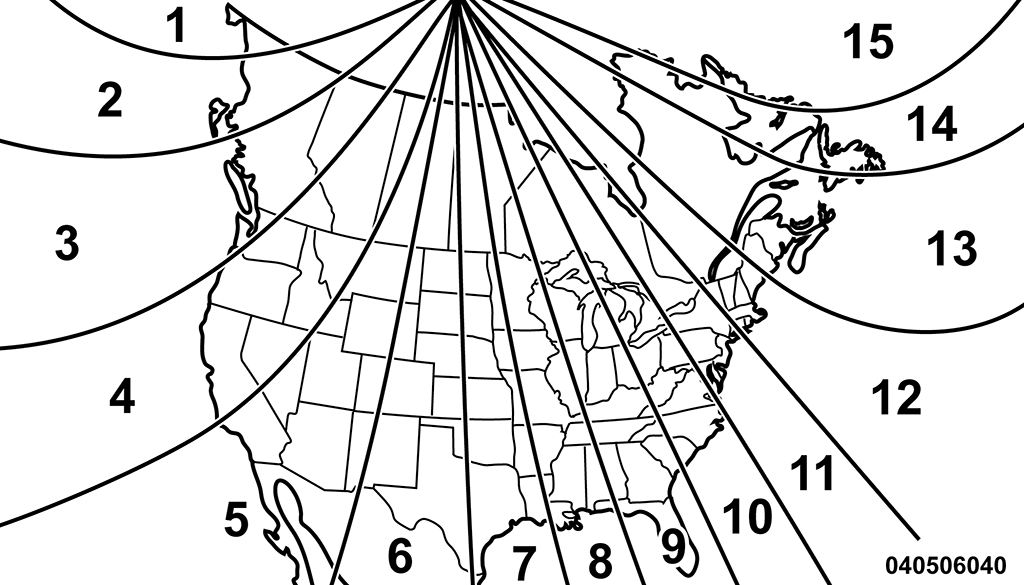
Compass Variance Map
BATTERY SAVER ON/BATTERY SAVER MODE MESSAGE — ELECTRICAL LOAD REDUCTION ACTIONS — IF EQUIPPED
This vehicle is equipped with an Intelligent Battery Sensor (IBS) to perform additional monitoring of the electrical system and status of the vehicle battery.
In cases when the IBS detects charging system failure, or the vehicle battery conditions are deteriorating, electrical load reduction actions will take place to extend the driving time and distance of the vehicle. This is done by reducing power to or turning off non-essential electrical loads.
Load reduction is only active when the engine is running. It will display a message if there is a risk of battery depletion to the point where the vehicle may stall due to lack of electrical supply, or will not restart after the current drive cycle.
When load reduction is activated, the message “Battery Saver On” or “Battery Saver Mode” will appear in the instrument cluster display.
These messages indicate the vehicle battery has a low state of charge and continues to lose electrical charge at a rate that the charging system cannot sustain.
Note:
-
The charging system is independent from load reduction. The charging system performs a diagnostic on the charging system continuously.
-
If the Battery Charge Warning Light is on it may indicate a problem with the charging system "⇨Battery Charge Warning Light".
The electrical loads that may be switched off (if equipped), and vehicle functions which can be effected by load reduction:
-
Heated Seat/Vented Seats/Heated Wheel
-
Heated/Cooled Cup Holders — If Equipped
-
Rear Defroster And Heated Mirrors
-
HVAC System
-
150W Power Inverter System
-
Audio and Telematics System
Loss of the battery charge may indicate one or more of the following conditions:
-
The charging system cannot deliver enough electrical power to the vehicle system because the electrical loads are larger than the capability of charging system. The charging system is still functioning properly.
-
Turning on all possible vehicle electrical loads (e.g. HVAC to max settings, exterior and interior lights, overloaded power outlets +12 Volts, 150W, USB ports) during certain driving conditions (city driving, towing, frequent stopping).
-
Installing options like additional lights, upfitter electrical accessories, audio systems, alarms and similar devices.
-
Unusual driving cycles (short trips separated by long parking periods).
-
The vehicle was parked for an extended period of time (weeks, months).
-
The battery was recently replaced and was not charged completely.
-
The battery was discharged by an electrical load left on when the vehicle was parked.
-
The battery was used for an extended period with the engine not running to supply radio, lights, chargers, +12 Volts portable appliances like vacuum cleaners, game consoles and similar devices.
What to do when an electrical load reduction action message is present (“Battery Saver On” or “Battery Saver Mode”)
During a trip:
-
Reduce power to unnecessary loads if possible:
-
Turn off redundant lights (interior or exterior)
-
Check what may be plugged into power outlets +12 Volts, 150W, USB ports
-
Check HVAC settings (blower, temperature)
-
Check the audio settings (volume)
-
After a trip:
-
Check if any aftermarket equipment was installed (additional lights, upfitter electrical accessories, audio systems, alarms) and review specifications if any (load and Ignition Off Draw currents).
-
Evaluate the latest driving cycles (distance, driving time and parking time).
-
The vehicle should have service performed if the message is still present during consecutive trips and the evaluation of the vehicle and driving pattern did not help to identify the cause.
Download Manual