Vehicle Features
Radio(s)
 /VOL: Press to turn the system on
and off. Turn to increase or decrease the volume.
RADIO/BAND: Press to select AM, FM, or band.
 SEEK or SEEK
: Press to seek the previous or next station.
Buttons 1-6: Press to save and select favorite stations.
INFO: Press to view current radio information.
For more information about these and other radio features, see Operation on page 7-6.
Storing a Favorite Station
Stations from all bands can be stored in the favorite lists in any order. Up to six stations can be stored in each favorite page and the number of available favorite pages can be set.
To store the station to a position in the list, press the corresponding button 1-6 until a beep is heard.
For more information, see “Storing a Station as a Favorite” in AM-FM Radio on page 7-9.
Setting the Clock
See Clock on page 5-5.
Satellite Radio
If equipped, vehicles with a SiriusXM® satellite radio tuner and a valid SiriusXM satellite radio subscription can receive SiriusXM programming.
SiriusXM Satellite Radio Service
SiriusXM is a satellite radio service based in the 48 contiguous United States and 10 Canadian provinces.
SiriusXM satellite radio has a wide variety of programming and commercial-free music, coast to coast, and in digital-quality sound.
A fee is required to receive the SiriusXM service.
Refer to:
- www.siriusxm.com or call 1-866-635-2349 (U.S.).
- www.xmradio.ca or call 1-877-209-0079 (Canada).
See Satellite Radio on page 7-14.
Portable Audio Devices
Some vehicles may have a 3.5mm (1/8 in) auxiliary input and a USB port in the center stack. External devices such as iPods®, laptop computers, MP3 players, CD changers, and USB drives may be connected, depending on the audio system.
See Auxiliary Devices on page 7-17.
Bluetooth®
The Bluetooth® system allows users with a Bluetooth-enabled cell phone to make and receive hands-free calls using the vehicle audio system and controls.
The Bluetooth-enabled cell phone must be paired with the in-vehicle Bluetooth system before it can be used in the vehicle. Not all phones will support all functions.
See Bluetooth (Overview) on page 7-19 or Bluetooth (Infotainment Controls) on page 7-21.
Steering Wheel Controls
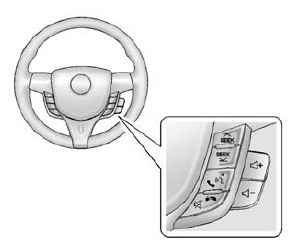
If equipped with audio steering wheel controls, some audio controls can be adjusted at the steering wheel.
 SEEK or SEEK
 : Press to go to the next or previous
radio station, song on an iPod®, or file on a USB device (if equipped).
 /
/
: If equipped with Bluetooth or OnStar, press to interact with those systems. See Bluetooth (Overview) on page 7-19 or Bluetooth (Infotainment Controls) on page 7-21 or OnStar Overview on page 14-1.
 /
/ :
:
Press to silence the vehicle speakers only. Press again to turn the sound on. If equipped with OnStar or Bluetooth systems, press to decline an incoming call, to end speech recognition, or to end a current call.
 + or
+ or
 - : Press + or - to increase or decrease
the volume.
Cruise Control
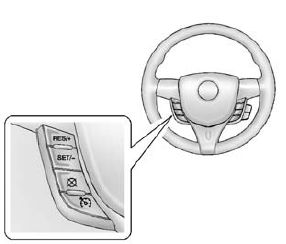
If equipped with cruise control:
 Press to turn the cruise control
system on and off. A white indicator comes on in the instrument cluster.
RES/+: If there is a set speed in memory, press briefly to resume to that speed or press and hold to accelerate. If cruise control is already active, use to increase vehicle speed.
SET/-: Press briefly to set the speed and activate cruise control.
If cruise control is already active, use to decrease vehicle speed.
 : Press to disengage cruise control
without erasing the set speed from memory.
See Cruise Control on page 9-30.
Driver Information Center (DIC)
The DIC has different displays, which can be accessed by using the DIC buttons on the right side of the instrument cluster. The DIC displays trip, fuel, and warning messages if a system problem is detected.
DIC Buttons
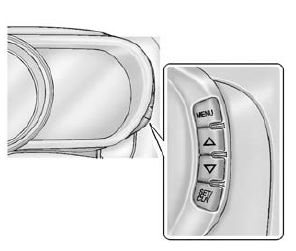
MENU: Press to display the DIC menus.
 or
or
 : Use to scroll through the menus.
SET/CLR: Press to set or clear the menu item displayed.
See Driver Information Center (DIC) on page 5-22.
Rear Vision Camera (RVC)
The RVC displays a view of the area behind the vehicle, on the infotainment system display, when the vehicle is shifted into R (Reverse).
See Rear Vision Camera (RVC) on page 9-32.
Power Outlets
The accessory power outlets can be used to plug in electrical equipment, such as a cell phone or MP3 player.
The vehicle has an accessory power outlet in front of the cupholders on the center stack.
See Power Outlets on page 5-6.
Download Manual