Downloadable Applications
Smartphone Link (Overview)
Before Using Smartphone Link
If equipped, the vehicle can connect to Pandora®, Stitcher SmartRadio®, or other available applications through the infotainment system.
The applications must be downloaded to the device first, then the device can be connected to the infotainment system.
Pandora is a free Internet radio service that streams personalized radio stations based on artists, songs, genres, and comedians.
Create stations using the Pandora website or smartphone application, then use  (thumbs up) or
 (thumbs down) to personalize stations.
To set up an account, or for more information, go to www.pandora.com. Pandora may not be available in Canada or Mexico.
Stitcher SmartRadio is an Internet radio service that streams news, sports, and entertainment shows through the audio system. Create personalized, on-demand stations or discover new shows through Stitcher's preset stations. To set up an account, download the application from the Android Market or iTunes Store, or go to www.stitcher.com.
A phone or tablet with Internet connection and the application installed is required. Personal cell phone data plans are used. Make sure the latest version is installed on the device and the volume is turned up.
Smartphone Supported by Application
To use Applications:
- Connect an iPod/iPhone using the USB port.
- Connect Andriod™ phones through Bluetooth.
iPod/iPhone Error Messages and Solution
If the system fails to activate the application on the iPod/iPhone connected, an error message is displayed as, “Unable to start application, possible reasons.”
- Your iPhone is locked. To resolve, unlock the iPhone.
- You have another active application open. To resolve, close the other active application.
- You have not installed the application on your iPhone. To resolve, install the application on the iPhone.
iOS Version Error
If the iOS version of the iPhone is less than 4.0, the error message is displayed as, “Your iPhone does not allow this application to be opened on a USB connection. Please refer to owner’s manual.”
- Activate the application on your iPhone, then press the desired application menu on the infotainment system.
Connecting Application Error
If the infotainment system fails to activate the application on the smartphone connected through Bluetooth wireless technology, the error message is displayed as, “Connecting application failed.”
- Reset all settings related to the phone, then press the desired application menu on the infotainment system.
- Reconnect the smartphone and infotainment system through Bluetooth wireless technology, then press the desired application menu on the infotainment system.
- When the application is stopped on the smartphone, it usually takes time to return to normal operation. Try to activate the application after 10–20 seconds.
To switch to another application while playing an application and connected through the USB port, press HOME on the iPod/iPhone, then press the application icon on the infotainment system.
Switching Between a USB Connected Device and a Bluetooth Device
When the iPhone is connected to the infotainment system through the USB port, and the infotainment system is connected to another phone through Bluetooth wireless technology, press iPhone or bluetooth phone on the smartphone list menu to switch between the two applications.
Displaying or Hiding Application Icons
To display or hide application icons on the smartphone link menu:
- Press
 .
. - Press
 smartphone link.
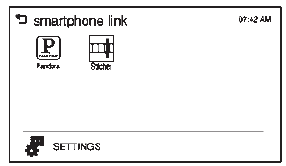
- Press SETTINGS.
- Press the desired application icon to hide or display it on the smartphone link menu.
- Press OK.
If the activated application is on the smartphone link menu, the is activated in the upper position
of the HOME menu or playing screen.
Connecting an Application
This section explains a general operation. It may vary depending on the phone operation system, versions, and/or application versions.
To connect an application:
- Install the application on the smartphone from Appstore or Playstore.
- Connect the smartphone to the infotainment system through the USB port or Bluetooth.
- iPhone: USB port
- Android phone: Bluetooth
- Activate the application.
- Press
 to play the application
through the infotainment system.The smartphone link menu is displayed.
- Press the application icon.
- The application screen is displayed.
Smartphone Link (Pandora)
Some images and explanations may vary by phone operating systems, versions, and/or application (App) versions.
Using Pandora
- Install the Pandora application on the smartphone.
- Connect the smartphone to the infotainment system through the USB port or Bluetooth wireless technology.
- iPhone: USB connection.
- Android phone/BlackBerry phone: Bluetooth wireless technology.
- Activate the Pandora application.
- Press
 .
. - Press
 smartphone link
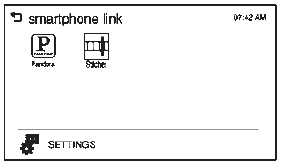 .
. - Press Pandora.
If the smartphone is not connected to the infotainment system or the application is not installed on the smartphone, the Pandora menu is not activated.
Thumbs Up and Thumbs Down
Rate tracks by using  (thumbs up)
or  (thumbs down).
Pause
- Press
 to pause.
 - Press
 to resume.
Changing Tracks
Press  to change to the next track.
Bookmark
To bookmark a favorite artist or track:
- Press
 on the screen.
 - Press Artist or Track.
Pandora Menus
Creating Stations from Currently Playing Music
- Press MENU. The Pandora menu is displayed.
- Press create station.
- Press from currently playing.
- Press Artist or Track.
- Press the desired station. The station is added into the Pandora menu automatically.
Creating Stations by Searching by Artist or Track
- Press MENU. The Pandora menu is displayed.
- Press create station.
- Press enter artist/track. The keypad is displayed.
- Enter the artist or track name using the keypad, then press Create.
- Press the desired station. The station is added into the Pandora menu automatically.
Listening to Stations
- Press MENU. The Pandora menu is displayed.
- Press
 or
or
 to scroll through the list. Select
the desired station.
QuickMix
- Press MENU. The Pandora menu is displayed.
- Press QuickMix
 to listen to
a selection of tracks from your stations.
Tone Settings
- Press MENU. The Pandora menu is displayed.
- Press tone settings. The tone settings menu is displayed. See “Tone Settings” under “Radio Controls with Touchscreen” in Operation on page 7-6.
Smartphone Link (Stitcher)
Some images and explanations may vary by phone operating systems, versions, and/or application (App) versions.
Using Stitcher
- Install the Stitcher application on the smartphone.
- Connect the smartphone to the infotainment system through the USB port or Bluetooth wireless technology.
- iPhone: USB connection
- Android phone/BlackBerry phone: Bluetooth wireless technology.
- Activate the Stitcher application.
- Press
 .
. - Press
 smartphone link.
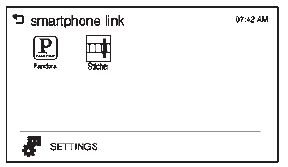
- Press Stitcher.
If the smartphone is not connected to the infotainment system or the application is not installed on the smartphone, the Stitcher menu is not activated.
Thumbs Up and Thumbs Down
Rate tracks by using  (thumbs up)
or  (thumbs down).
Pause
- Press
 to pause.
 - Press
 to resume.
Changing Stations
Press  to change to the next station.
Saving Favorites
To save a station as a favorite, press  on the stitcher screen.
Stitcher Menus
The Stitcher Station menu displays available station data from the Stitcher server.
- Press MENU. The Stitcher Station menu is displayed.
- Press
 or
or
 to scroll through the list.
Select the desired station.
Tone Settings
- Press MENU. The Stitcher menu is displayed.
- Press tone settings. The tone settings menu is displayed. See “Tone Settings” under “Radio Controls with Touchscreen” in Operation on page 7-6.
Download Manual