Audio Players
USB Port
Using the USB Port
The infotainment system can play music or movies by connecting an auxiliary device to the USB port.
USB Support
If equipped, the USB connector is in the center stack, and uses the USB 2.0 standard.
USB Supported Devices
- USB Flash Drives
- Portable USB Hard Drives
- 2G–5G iPod nano®
- 1G–3G iPod touch®
- 120GB/160GB iPod classic®
- 3G/3GS/4/4S iPhone®
Not all iPods and USB drives are compatible with the USB port.
Make sure the iPod has the latest firmware from Apple® for proper operation. iPod firmware can be updated using the latest iTunes® application. See www.apple.com/itunes.
For help with identifying your iPod, go to www.apple.com/support.
The USB port can play both lower and upper case .mp3, .wma, .ogg, and .wav files stored on a USB storage device.
USB Supported File and Folder Structure
The Infotainment system supports:
- Up to 2,500 folders.
- Up to 10 folders in depth.
- Up to 2,500 music files.
- Up to 2,500 photo files.
- Up to 250 movie files.
- ID3 Tag (versions 1.0/1.1/2.2/ 2.3/2.4).
- FAT16.
- FAT32.
- exFAT.
Connecting a USB Storage Device or iPod/iPhone
To connect a USB storage device, connect the device to the USB port.
To connect an iPod/iPhone, connect one end of the device’s cable to the iPod/iPhone and the other end to the USB port.
The iPod/iPhone charges while it is connected to the vehicle if the vehicle is in ACC/ACCESSORY, ON/RUN. See Retained Accessory Power (RAP) on page 9-18. When the vehicle is turned off, the iPod/ iPhone automatically powers off and will not charge or draw power from the vehicle's battery.
For more information on USB usage, see “Audio System Information” under Pictures and Movies (Audio System) on page 7-34 or Pictures and Movies (Picture System) on page 7-39 or Pictures and Movies (Movie System) on page 7-40.
Auxiliary Devices
Using the Auxiliary Input Jack
Settings menus and functions may vary depending on vehicle options.
If equipped, the auxiliary input jack in the center stack can be used to connect external audio devices such as an iPod®, iPhone®, MP3 player, CD player, and other supported devices for use as another source for audio listening. This input jack is not an audio output; do not plug headphones into the front auxiliary input jack.
Radio without Touchscreen
To use a portable device, connect the device with a 3.5mm (1/8 in) cable to the auxiliary input jack. The radio will automatically switch to the device if the radio is on.
When a device is already connected, press the AUX button to begin playing the device.
Use the  /VOL knob to adjust the
volume.
Radio with Touchscreen
The infotainment system can play music or movies connected by the auxiliary device.
Play will begin when the system has finished reading the information on the device.
Playing Music
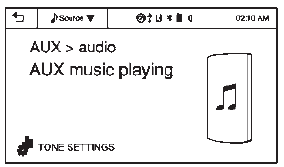
To play the music from the device, if the device is already connected:
- Press
 .
. - Press audio.
- Press Source
 .
. - Press AUX/USB.
To adjust the tone settings, see “Tone Settings” under “Radio Controls with Touchscreen” in Operation on page 7-6.
Playing Movies
Movies are not available while driving.
If the USB storage device is already connected:
- Press
 .
. - Press picture & movie.
- Press Source
 .
. - Press USB (Movie).
For iPod/iPhone, connect the iPod/ iPhone to the AUX input terminal by using the AUX cable for iPod/ iPhone to play movie files.
iPhone 5 cell phones have a connector which no longer supports AUX connections to the radio. This feature is limited to older versions of iPhone.
Using the AUX Movie Menu
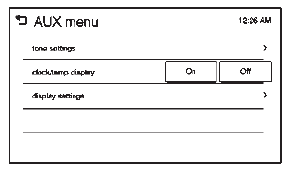
- Press MENU from the AUX movie screen. The AUX menu is displayed.
- Press the desired menu.
- tone settings: Adjust the sound setup. See “Tone Settings” under “Radio Controls with Touchscreen” in Operation on page 7-6.
- clock/temp display: To display the clock and temperature on the full screen, select On or Off.
- display settings: Adjust the brightness and contrast of the screen.
- Press
 .
.
Download Manual