Phone
Bluetooth (Overview)
If equipped with Bluetooth® capability, the system can interact with many Bluetooth phones, PDAs, or other devices to:
- Place and receive hands-free calls.
- Transmit hands-free data.
- Play audio streaming files.
The device must be paired first. See “Pairing” under Bluetooth (Infotainment Controls) Bluetooth (Overview) on page 7-19 or Bluetooth (Infotainment Controls) on page 7-21.
To minimize driver distraction, before driving, and with the vehicle parked:
- Become familiar with the features of the cell phone.
Organize the phone book and contact lists clearly and delete duplicate or rarely used entries.
If possible, program speed dial or other shortcuts.
- Review the controls and operation of the infotainment system.
- Pair cell phone(s) to the vehicle.
The system may not work with all cell phones. See “Pairing” in this section.
- See “Storing and Deleting Phone Numbers” in this section.
Warning
When using a cell phone, it can be distracting to look too long or too often at the screen of the phone or the infotainment system.
Taking your eyes off the road too long or too often could cause a crash resulting in injury or death.
Focus your attention on driving.
Vehicles with a Bluetooth system can use a Bluetooth-capable cell phone with a Hands-Free Profile to make and receive phone calls. The infotainment system is used to control the system. The system can be used while in ACC/ACCESSORY or ON/RUN. See Retained Accessory Power (RAP) on page 9-18. Not all phones support all functions and not all phones work with the Bluetooth system. See www.gm.com/bluetooth for more information about compatible phones.
There may be restrictions on using Bluetooth wireless technology in some locations.
Due to the variety of Bluetooth devices and their firmware versions, the device may respond differently when performing over Bluetooth.
Refer to the cell phone manufacturer’s user guide for questions about the phone's Bluetooth functionality.
Bluetooth Controls
For vehicles equipped with Bluetooth capability, use the buttons on the infotainment system and the steering wheel to operate the system.
Steering Wheel Controls
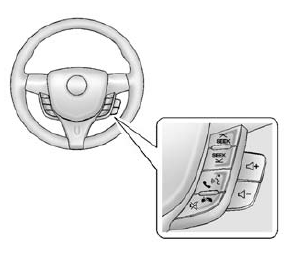
 SEEK or SEEK
 (Next/ Previous): Press to go to the
next or previous radio station, song on an iPod, or file on a USB device (if equipped).
 (Push to Talk): Press to interact
with Bluetooth or OnStar, if equipped. See Bluetooth (Overview) on page 7-19 or Bluetooth (Infotainment Controls) on page 7-21 or OnStar Overview on page 14-1.
 (Mute/End Call): Press to silence
the vehicle speakers only.
Press again to turn the sound on.
Press to reject an incoming call, or end a current call.
 + or
+ or
 - (Volume): Press to increase or decrease
the volume.
Audio System
When using the Bluetooth system, sound comes through the vehicle's front audio system speakers and overrides the audio system. Use the volume bar during a call to change the volume level. The adjusted volume level remains in memory for later calls. The system maintains a minimum volume level.
Bluetooth (Infotainment Controls)
To use infotainment controls to access the menu system, see Overview on page 7-3.
Pairing
A Bluetooth-enabled cell phone must be paired to the Bluetooth system and then connected to the vehicle before it can be used. See your cell phone manufacturer's user guide for Bluetooth functions before pairing the cell phone. If a Bluetooth phone is not connected, calls will be made using OnStar Hands-Free Calling, if available. See OnStar Overview on page 14-1.
Pairing Information
- A Bluetooth phone with MP3 capability cannot be paired to the vehicle as a phone and an MP3 player at the same time.
- Up to five cell phones can be paired to the Bluetooth system.
- The pairing process is disabled when the vehicle is moving.
- Pairing only needs to be completed once, unless the pairing information on the cell phone changes or the cell phone is deleted from the system.
- Only one paired cell phone can be connected to the Bluetooth system at a time.
- If multiple paired cell phones are within range of the system, the system connects to the first available paired cell phone in the order that they were first paired to the system. To link to a different paired phone, see “Linking to a Different Phone” later in this section.
When the Bluetooth device and infotainment system are successfully paired, the phone book is downloaded automatically.
However, the phone book may not be downloaded automatically according to the type of the phone.
In this case, proceed with the phone book download on the phone.
Pairing a Phone
When there is no paired device on the infotainment system and the Simple Secure Pairing (SSP) is supported:
- Press
 .
.
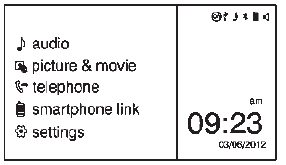
- Press
 telephone, then press
Yes. - Press Search Bluetooth Device.
- Press the desired device to pair on the searched list screen.
- Press Yes on the pop-up screen of the Bluetooth device and infotainment system.
- When the Bluetooth device and infotainment system are successfully paired, the telephone screen is displayed on the infotainment system.
Pairing a Phone
When a paired device is on the infotainment system and the SSP is supported:
- Press
 .
.
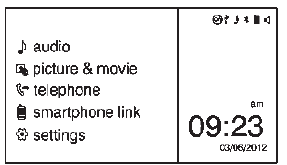
- Press
 settings.
 - Press connection settings.
- Press bluetooth settings.
- Press pair device.
- Press Search Bluetooth Device.
- Press the desired device to pair on the searched list screen.
- Press Yes on the pop-up screen of the Bluetooth device and infotainment system.
- When the Bluetooth device and infotainment system are successfully paired,
 is displayed on the pair
device screen.
- The connected phone is highlighted by
 .
.  indicates the hands-free and
phone music functions are enabled. indicates only the hands-free
function is enabled. indicates only Bluetooth music
is enabled.
Pairing a Phone
When there is no paired device on the infotainment system and the SSP is not supported:
- Press
 .
.
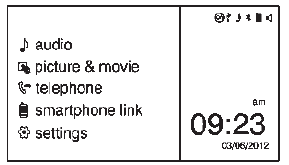
- Press
 telephone, then
press Yes. - Press Search Bluetooth Device.
- Press the desired device to pair on the searched list screen.
- Input the Personal Identification Number (PIN) code (default: 1234) to the Bluetooth device.
When the Bluetooth device and infotainment system are successfully paired, the telephone screen is displayed on the infotainment system.
When the connection fails, a failure message is displayed on the infotainment system.
If a Bluetooth device was previously connected, the infotainment system executes the auto connection.
However, if the Bluetooth setting on the Bluetooth device is turned off, a failure message is displayed on the infotainment system.
Pairing a Phone
When a paired device is on the infotainment system and the SSP is not supported:
- Press
 .
.
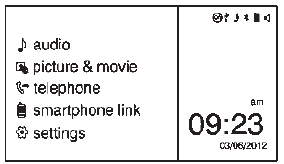
- Press
 settings.
 - Press connection settings.
- Press bluetooth settings.
- Press pair device.
- Press Search Bluetooth Device.
- Press the desired device to pair on the searched list screen.
- Input the Personal Identification Number (PIN) code (default: 1234) to the Bluetooth device.
When the Bluetooth device and infotainment system are successfully paired, 57 is displayed on the pair device screen.
- The connected phone is highlighted by
 .
.  indicates the hands-free and
phone music functions are enabled. indicates only the hands-free
function is enabled. indicates only Bluetooth music
is enabled.
Connecting a Bluetooth Device
- Press
 .
. - Select
 settings.
 - Press connection settings.
- Press bluetooth settings
- Press pair device.
- Press the device to be paired.
- Press OK.
Checking the Bluetooth Connection
- Press
 .
. - Select
 settings.
 - Press connection settings.
- Press bluetooth settings.
- Press pair device.
- The paired device will show with
 when connected.
Disconnecting the Bluetooth Device
- Press
 .
. - Select
 settings.
 - Press connection settings.
- Press bluetooth settings.
- Press pair device.
- Press the name of the device to be disconnected.
- Press OK.
Deleting a Paired Phone
- Press
 .
. - Select
 settings.
 - Press connection settings.
- Press bluetooth settings.
- Press pair device.
- Press Delete.
- Press Yes.
Bluetooth Music
Before playing Bluetooth music, read the following information.
- A cell phone or Bluetooth device that supports Advanced Audio Distribution Profile (A2DP) versions over 1.2 must be registered and connected to the product.
- From the cell phone or Bluetooth device, find the Bluetooth device type to set/connect the item as a stereo headset.
 will appear on the screen
if the stereo headset is successfully connected.- The sound played by the Bluetooth device is delivered through the infotainment system.
- Bluetooth music can be played only when a Bluetooth device has been connected. To play Bluetooth music, connect the Bluetooth phone to the infotainment system.
- If the Bluetooth device is disconnected while playing phone music, the music is discontinued. The audio streaming function may not be supported in some Bluetooth phones. Only one function can be used at a time between the Bluetooth hands-free or Phone music function. For example, if you convert to Bluetooth hands-free while playing Phone music, the music is discontinued. Playing music from the car is not possible when there are no music files stored in the cell phone.
- For Bluetooth music to play, the music must be played at least once from the music player mode of the cell phone or Bluetooth device after connecting as a stereo headset.
After being played at least once, the music player will automatically play upon entering play mode, and it will automatically stop when the music player mode ends. If the cell phone or Bluetooth device is not in the waiting screen mode, some devices may not automatically play in Bluetooth music play mode.
Playing Bluetooth Music
- Press
 .
.
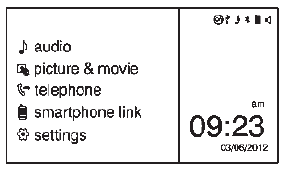
- Press
 audio.
 - Press Source
 .
. - Press Bluetooth, then select the connected Bluetooth music play mode.
Pause
Press  to pause.
Press  again to resume.
Skipping the Previous or Next File
Press  or
or
 to select the previous or next file.
Search
Press and hold  or
or
to rewind or fast forward.
Playing a File Repeatedly
Press  during playback.
- 1: Plays the current file repeatedly.
- ALL: Plays all files repeatedly.
- OFF: Returns to normal playback.
This function may not be supported depending on the cell phone.
Playing a File Randomly
Press  during playback.
- NO: Plays all files repeatedly.
- OFF: Returns to normal playback.
This function may not be supported depending on the cell phone.
Do not change the track too quickly when playing Bluetooth music.
Conditions that may occur when playing Bluetooth music:
- It takes some time to transmit data from the cell phone to the infotainment system.
- If the cell phone or Bluetooth device is not in the waiting screen mode, it may not automatically play despite being carried out from the Bluetooth music play mode.
- The infotainment system transmits the order to play from the cell phone in the Bluetooth music play mode. If this is done in a different mode, then the device transmits the order to stop. Depending on the cell phone’s options, this order to play/stop may take time to activate.
- If the Bluetooth music playback is not functioning, then check to see if the cell phone is in the waiting screen mode.
- Sounds may be cut off during the Bluetooth music playback.
- The infotainment system outputs the audio from the cell phone or Bluetooth device as it is transmitted.
Hands-Free Phone
General Information without Touchscreen
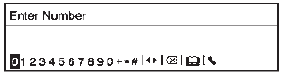 To use the hands-free phone on vehicles
without a touchscreen radio, press  ,
,
select Onstar Hands-Free Calling, then enter the desired number.
General Information with Touchscreen
Vehicles with a Hands-Free Phone system can use a Bluetooth-capable cell phone with a hands-free profile to make and receive phone calls.
The infotainment system and voice control are used to operate the system. Not all phones support all functions and not all phones work with the Hands-Free Phone system.
Hands-Free Phone Controls
Use the buttons on the infotainment system and the steering wheel to operate the Hands-Free Phone system.
Steering Wheel Controls
Steering wheel controls can be used to:
- Answer incoming calls.
- Confirm system information.
- End a call.
- Decline a call.
- Cancel an operation.
- Make outgoing calls using the call list.
 (Push to Talk): Press to answer
incoming calls and to confirm system information. Press and hold for two to three seconds to access the call list.
 (Mute/End Call): Press to end a call,
decline a call, or cancel an operation.
Making a Call by Entering a Phone Number
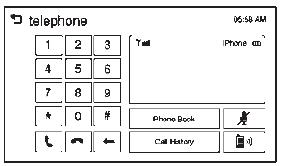 Enter the phone number using
the keypad on the telephone screen.- Press
 on the screen
or on the steering wheel controls.
If a wrong number is entered, press  to delete the number one digit at
a time, or press and hold  to delete
all digits of the number.
Switching a Call to the Cell Phone (Private Mode)
To switch the call from the cell phone to hands-free:
- Press
 .
. - Press
 again to switch back
to hands-free.
Turning the Microphone On and Off
Press  to turn the microphone
on or off.
Calling by Redial
To call by using redial:
- Press
 on the steering wheel
controls to display the redial guidance screen.
- Press and hold
 on the telephone
screen.
Redialing is not possible when there is no call history.
Taking calls
When a phone call comes through the connected Bluetooth cell phone, the playing track will be cut off and the phone will ring with the relevant information displayed.
Press  on the steering wheel controls
or press Accept on the screen.
To decline the call, press  on the
steering wheel controls or press Reject on the screen.
Using the Phone Book Menu
- Press Phone Book on the telephone screen.
- Press
 or
or
 to scroll through the list.
 - Select the phone book entry to call.
- Press the number to dial.
Searching for Phone Book Entries
- Press Phone Book on the telephone screen.
- Press
 on the phone book screen.
 - Use the keypad to input the name to search. For details, refer to the “Searching for a Name” later in this section.
- Select the phone book entry to call.
- Press the number to dial.
When the Bluetooth device and infotainment system are successfully paired, the phone book will download. Some phones may not download automatically. If this happens, connect it again or proceed with the phone book download on the phone.
Searching for a Name
Select characters by using the keypad on the phone book screen.
As characters are selected, the names that include those characters will display on the phone book screen. As more characters of the name are entered, the list of possible names is shortened.
To search for the name Alex:
- Press (abc) to select the first character.
- Press (jkl) to select the second character.
- Press (def) to select the third character.
- Press (wxy) to select the fourth character.
Making a Call from Call History
- Press Call History on the telephone screen.
- Press one of the following for:
 Dialed calls.
 Missed calls.
 Received calls.
- Select the phone book entry to call.
Making a Call with Speed Dial Numbers
Press and hold the speed dial number using the keypad on the telephone screen.
Only speed dial numbers already stored on the cell phone can be used for speed dial calls. Up to two-digit speed dial numbers are supported.
For two-digit speed dial numbers, press and hold the second digit to make a call to the speed dial number.
Download Manual