ON - DEMAND MULTI - PURPOSE DISPLAY (ODMD)
On-Demand Multi-Use Display™ (ODMD™)
Models with navigation
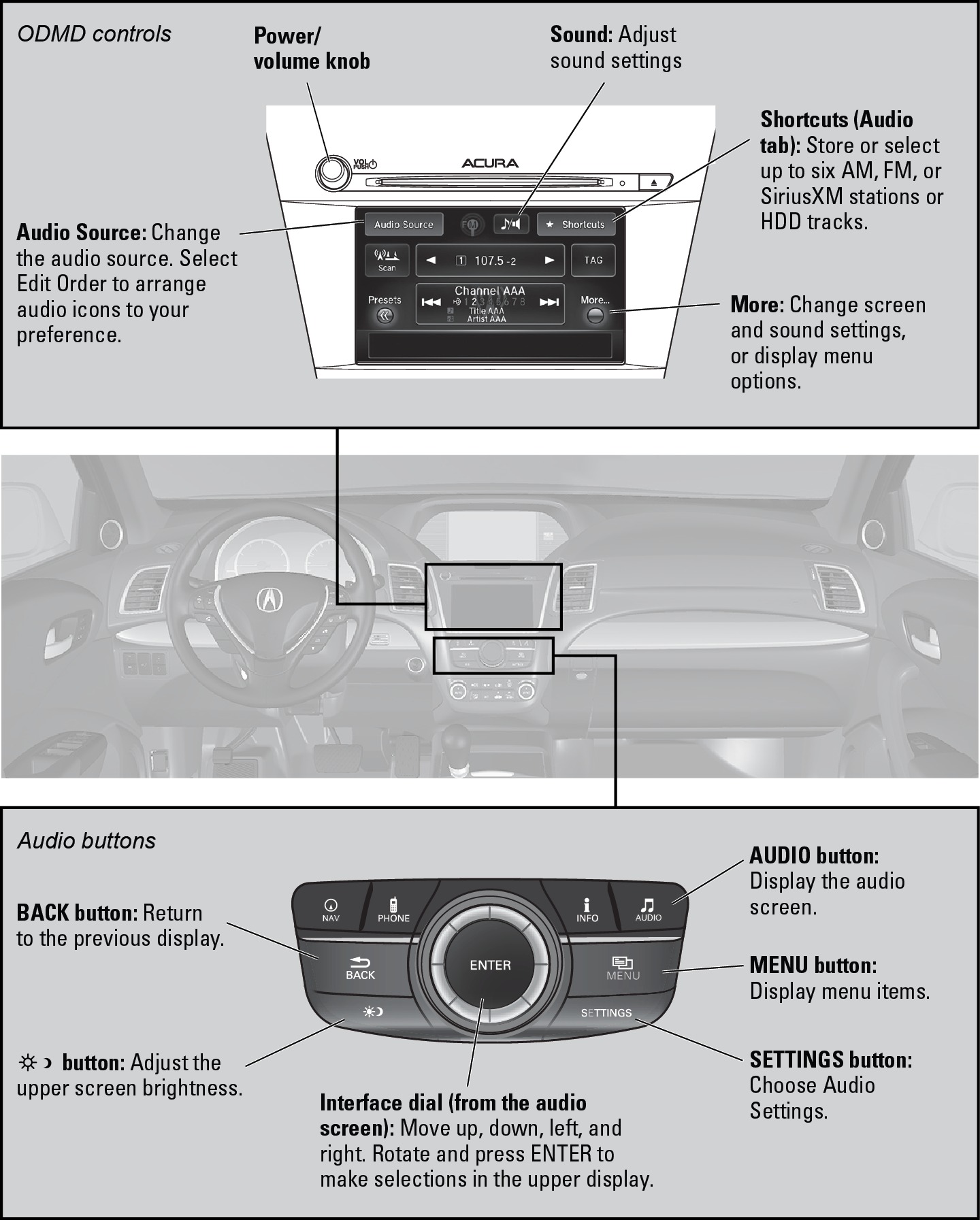
Operate the audio system using either the touchscreen or dashboard buttons.
The functions shown here can be used with most audio sources. Refer to subsequent audio pages for more specific functions. Options that appear depend on the selected audio source.
- FM/AM Radio
- SiriusXM Radio
- Compact Disc (CD) or USB Flash Drive
- iPod
- Bluetooth Audio
- Pandora*
- AcuraLink featuring Aha
FM/AM Radio
Models with navigation
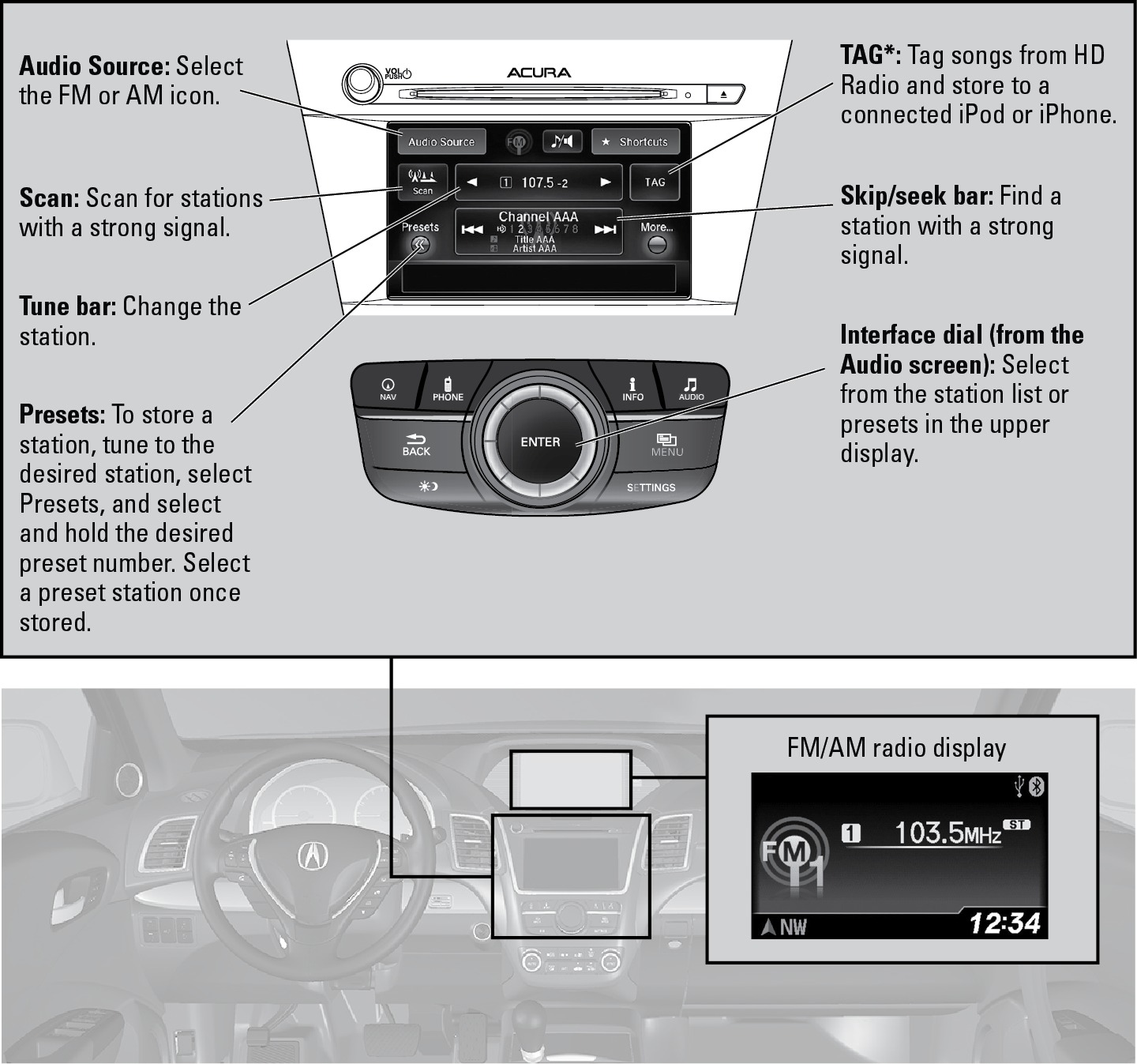
Play FM or AM radio stations.
*if equipped
- On-Demand Multi-Use Display (ODMD)
- SiriusXM Radio
SiriusXM®Radio
Models with navigation
Available on a subscription basis only. For more information or to subscribe, contact your dealer, or visit Open Web Page (U.S.) or Open Web Page (Canada)
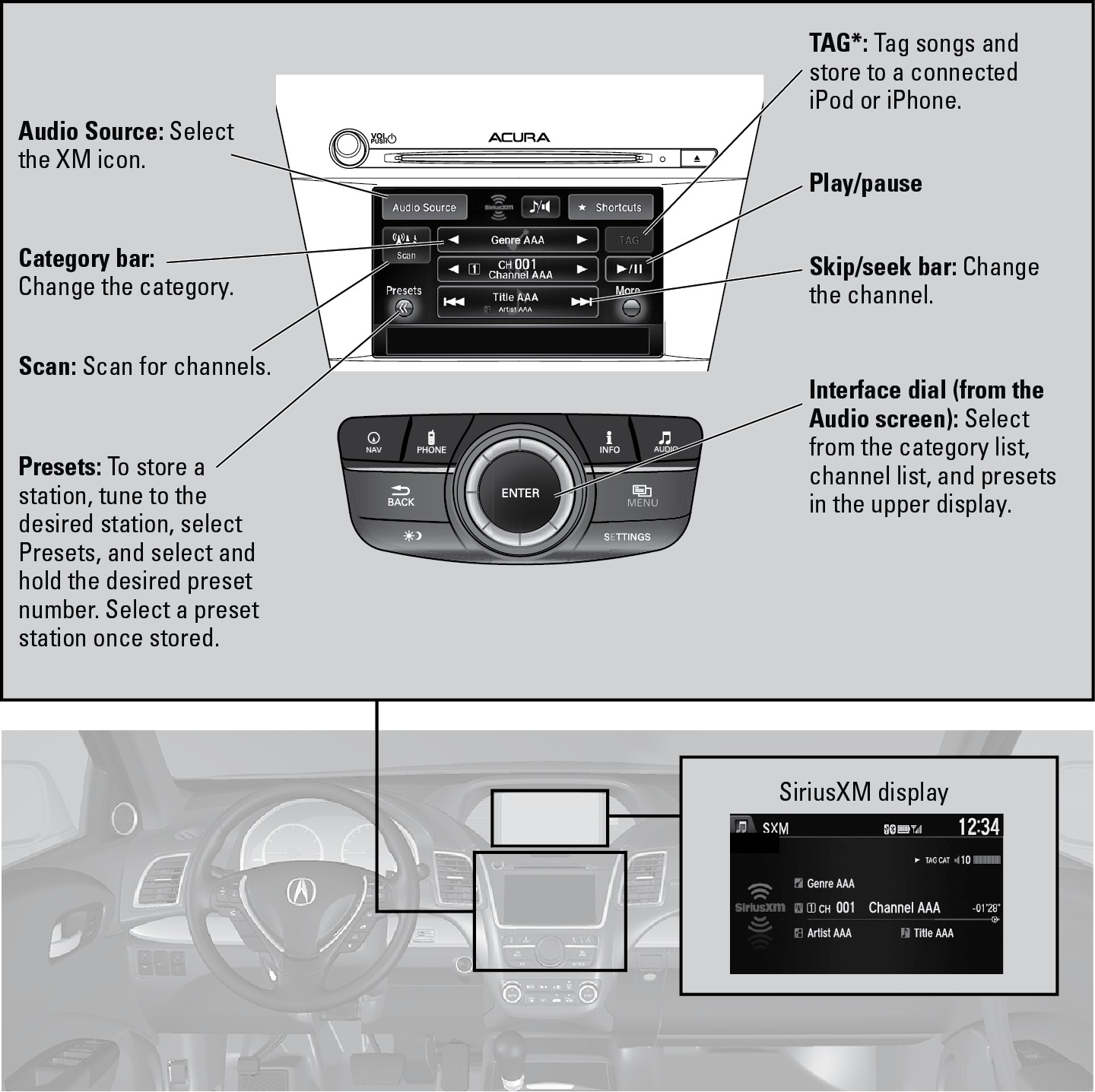
To learn about additional features-such as multi-channel preset, replay, or SportsFlash-see your Navigation Manual on the Owner Information CD or Open Web Page (U.S.) or Open Web Page (Canada).
Available in the U.S. and Canada, except Hawaii, Alaska, and Puerto Rico.
XM® is a registered trademark of Sirius XM Radio, Inc.
*U.S. models
- On-Demand Multi-Use Display (ODMD)
- FM/AM Radio
Compact Disc (CD) or USB Flash Drive
Models with navigation
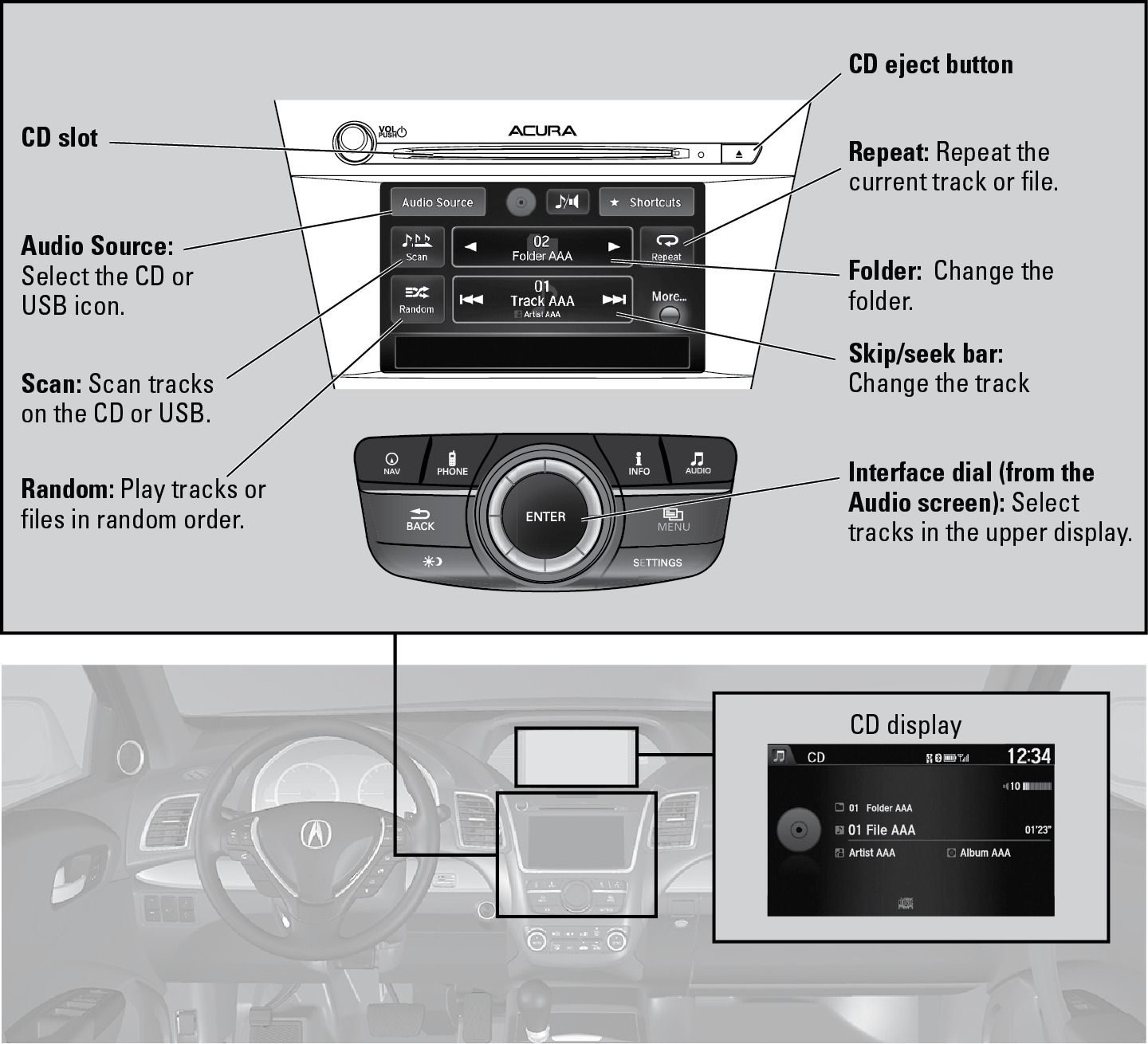
Insert a CD to begin playing. The audio system supports audio CDs, CD-Rs, and CD-RWs in MP3, WMA, or AAC formats.
Connect your USB flash drive using the USB port (see "Basic Audio Operation" section). The audio system supports MP3, WMA, or AAC files.
Searching for Music
Use the interface dial to search for tracks on the CD or USB.
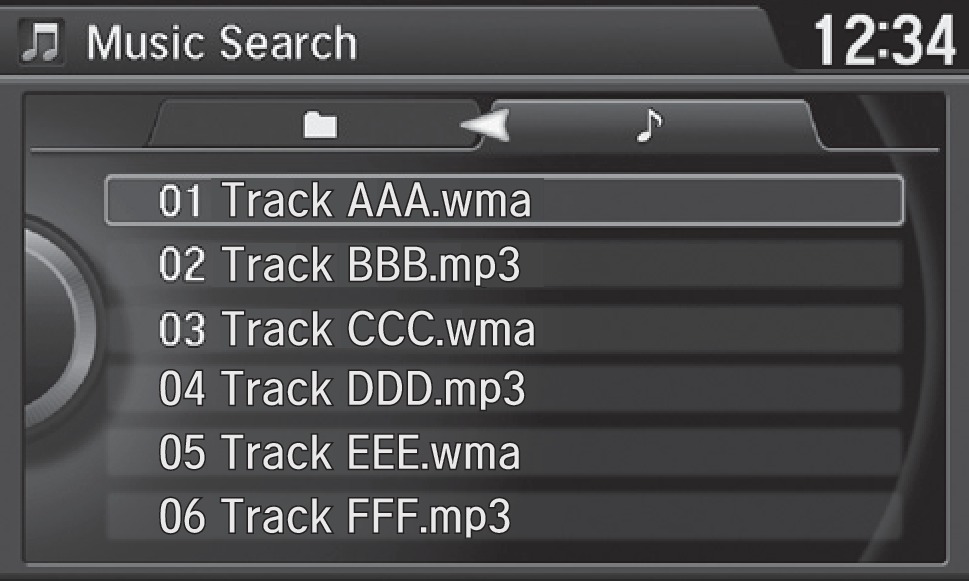
- From the audio screen, press MENU.
- Select Music Search.
- Select a search type (artist, album, track, etc.) or folder.
- Select the song you want to play.
Do not use CDs with adhesive labels or insert a damaged CD. Inserting these types of CDs may cause them to get stuck inside or damage the audio unit.
- On-Demand Multi-Use Display (ODMD)
iPod®
Models with navigation
Play and operate an iPod through the vehicle's audio system. Connect your device to the USB port (see "Basic Audio Operation" section).
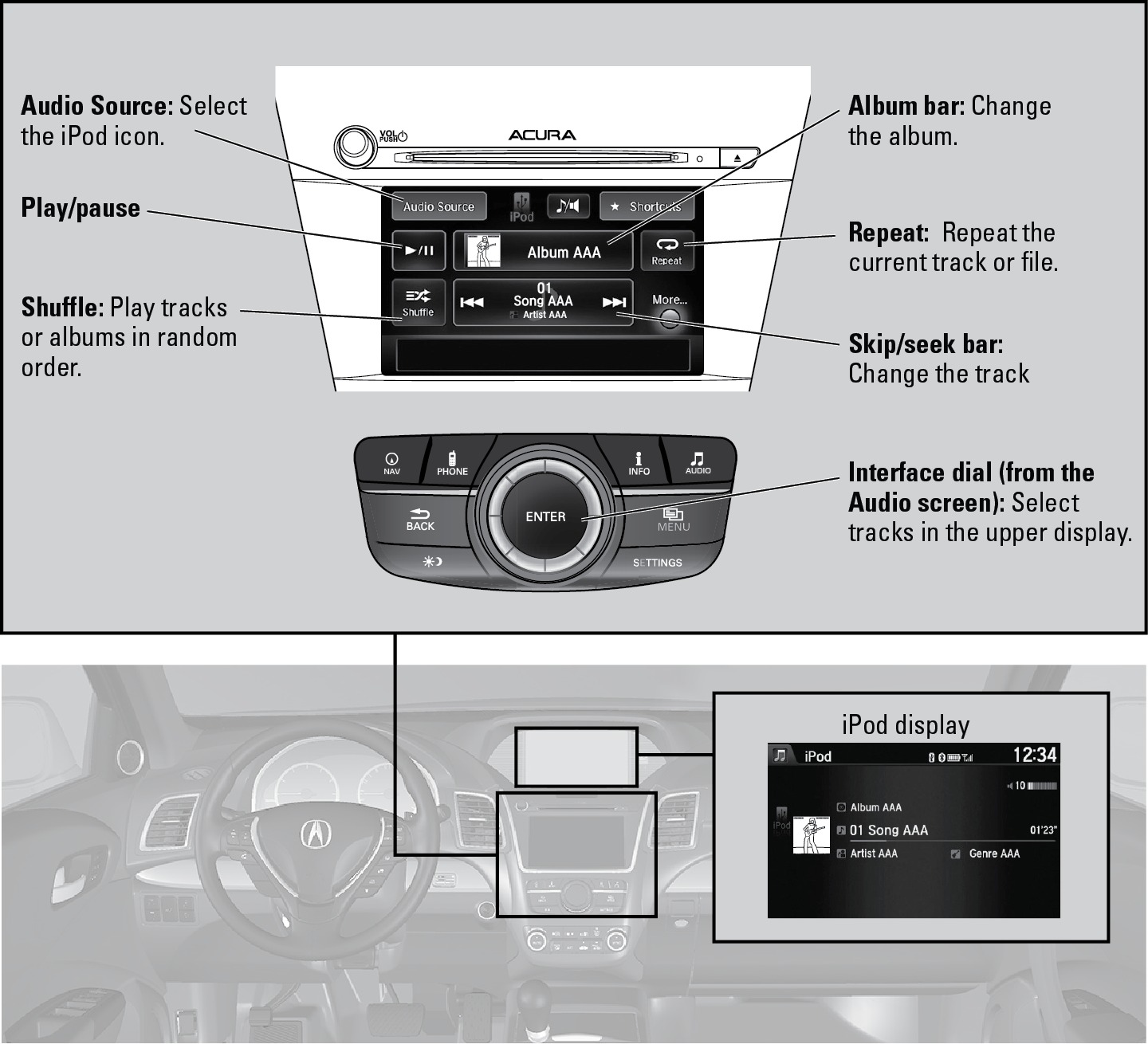
Searching for Music
Use the interface dial to search for tracks using several methods.
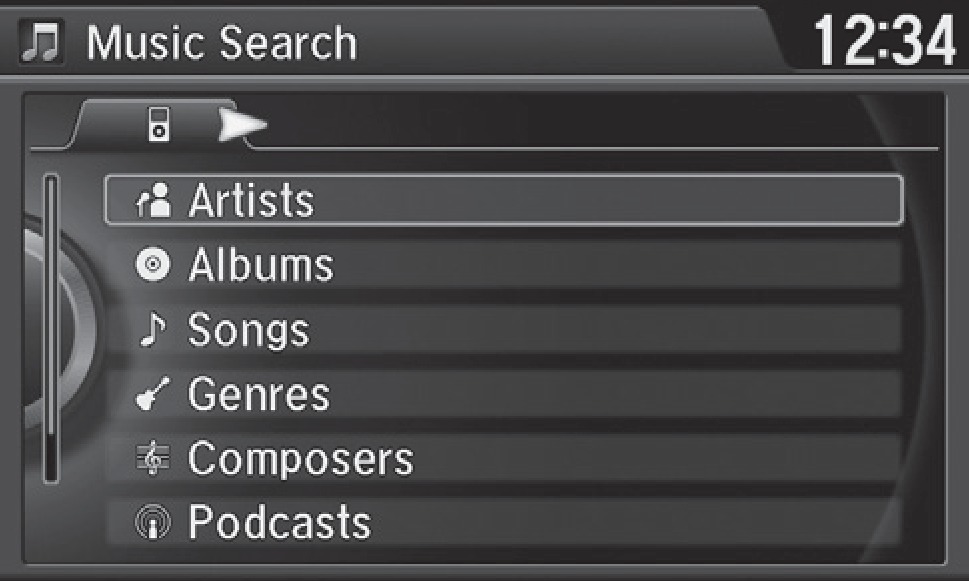
- From the audio screen, press MENU.
- Select Music Search.
- Select a search type (artist, album, track, etc.).
- Select the song you want to play.
You can also search for and play iPod music using Song By Voice™ (see "Voice Command Index" section).
iPod is a trademark of Apple, Inc.
- On-Demand Multi-Use Display (ODMD)
- Basic Audio Operation
Bluetooth® Audio
Models with navigation
Play streaming or stored audio from your compatible phone through your vehicle's audio system. Connect your phone to Bluetooth® HandsFreeLink® (see "On-Demand Multi-Purpose Display (ODMD) - Pairing a Phone").
Visit Open Web Page (U.S.) or Open Web Page (Canada) to check phone compatibility. Standard data rates apply.
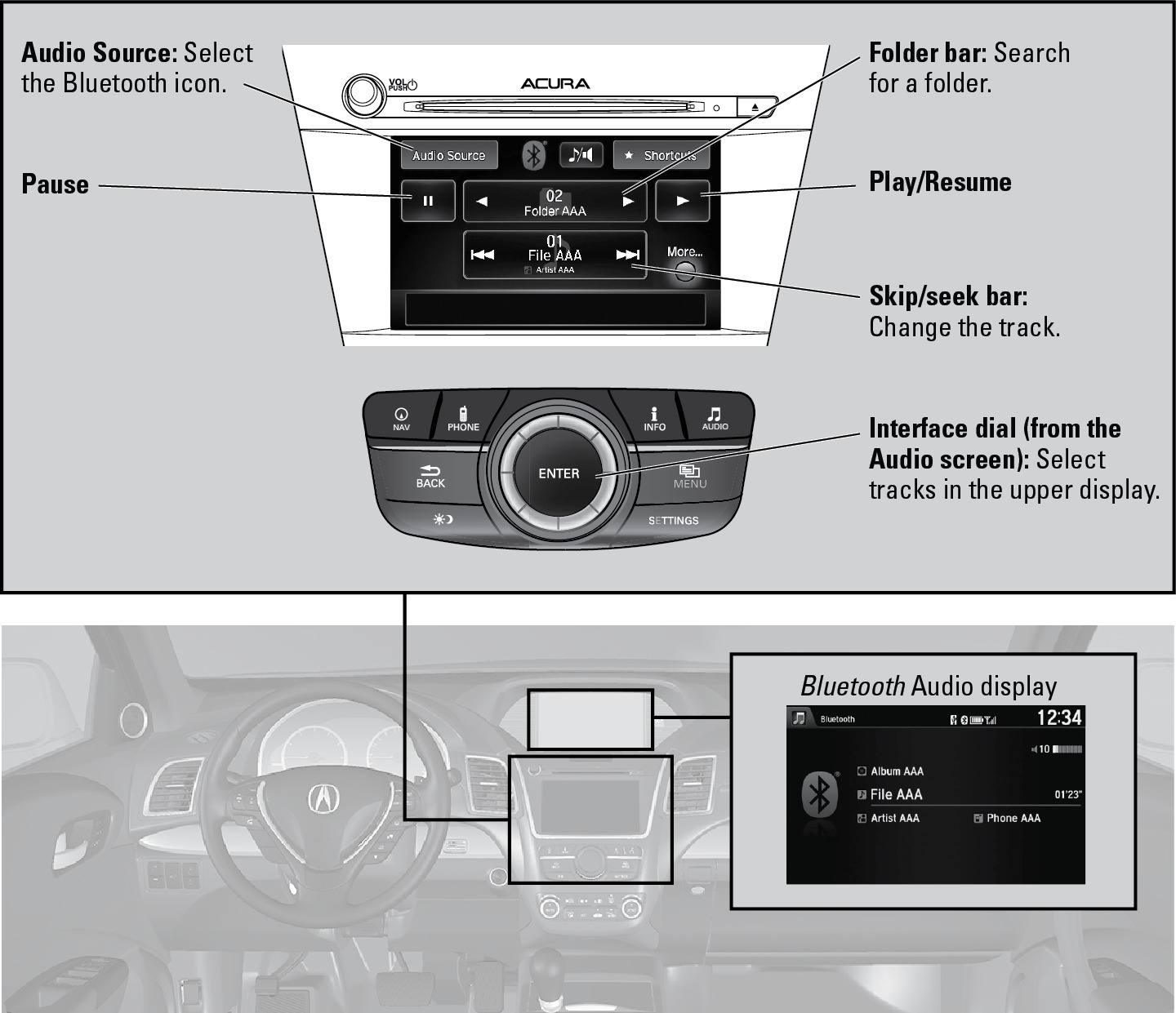
Notes:
- Make sure the volume on your phone is properly adjusted.
- You may need to enable additional settings on your phone for playback.
- The resume/pause function and remote audio controls are not supported on all phones.
Applicable laws may prohibit the operation of handheld electronic devices while operating a vehicle.
Launch streaming audio on your phone only when safe to do so.
- Pairing a Phone
Pandora®*
Models with navigation
Play and operate Pandora from your compatible phone through the vehicle's audio system. Connect your phone when the vehicle is stopped.
Visit Open Web Page to check phone compatibility. Standard data rates apply. Available in the U.S. only.
For iPhone:
- Connect via Bluetooth® HandsFreeLink® (see "On-Demand Multi-Purpose Display (ODMD) - Pairing a Phone" section) or USB (see "Basic Audio Operation" section).
- If you cannot operate Pandora through the audio system, it may be streaming through Bluetooth® Audio. Make sure Pandora mode on the audio system is selected.
- If Pandora still does not operate, you may have to reconnect the cable.
- A pop-up may appear on your phone requesting you to allow access for Pandora to be launched.
For other compatible smartphones:
- Connect via Bluetooth® HandsFreeLink® (see "On-Demand Multi-Purpose Display (ODMD) - Pairing a Phone" section).
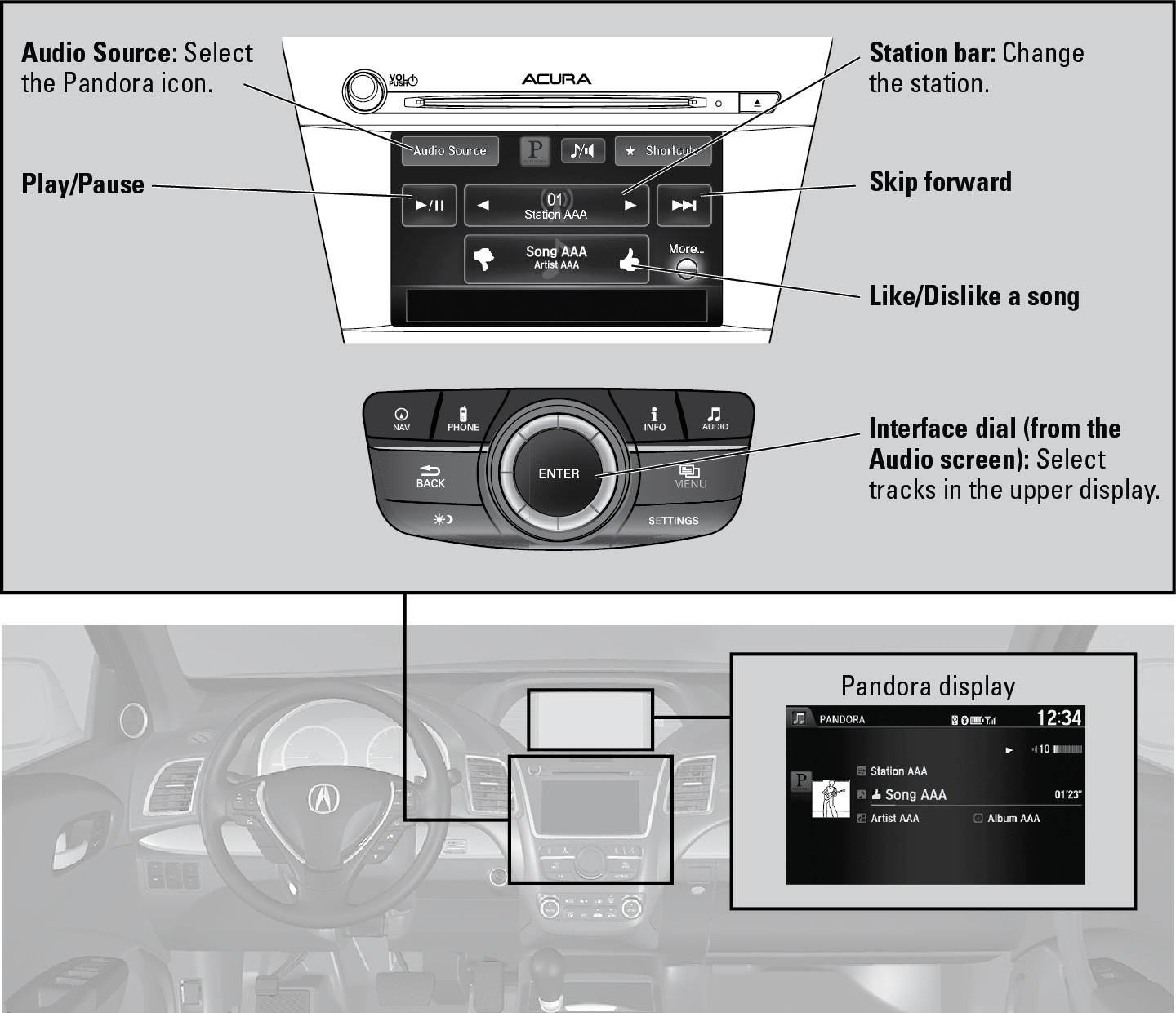
*U.S. models only. Applicable laws may prohibit the operation of handheld electronic devices while operating a vehicle.
Launch streaming audio on your phone only when safe to do so.
- Bluetooth Audio
- Pairing a Phone
- Subscription Features
- Basic Audio Operation
AcuraLink featuring Aha™
Access music and information programming, location-based services, and social media through the vehicle's audio system. Visit Open Web Page (U.S.) or Open Web Page (Canada) to check phone compatibility. Standard data rates apply.
Visit Open Web Page (U.S.) or Open Web Page (Canada) and download the AcuraLink app to your phone prior to using this feature. Make sure you have an active Aha account. Connect your phone when the vehicle is stopped.
For iPhone:
- Connect via Bluetooth® HandsFreeLink® (see "On-Demand Multi-Purpose Display (ODMD) - Pairing a Phone" section) or USB (see "Basic Audio Operation" section).
- A pop-up may appear on your phone requesting you to allow access for Aha to be launched.
- If Aha still does not operate, try rebooting the phone and reconnecting the cable if necessary.
For other compatible smartphones:
- Connect via Bluetooth® HandsFreeLink® (see "On-Demand Multi-Purpose Display (ODMD) - Pairing a Phone" section).
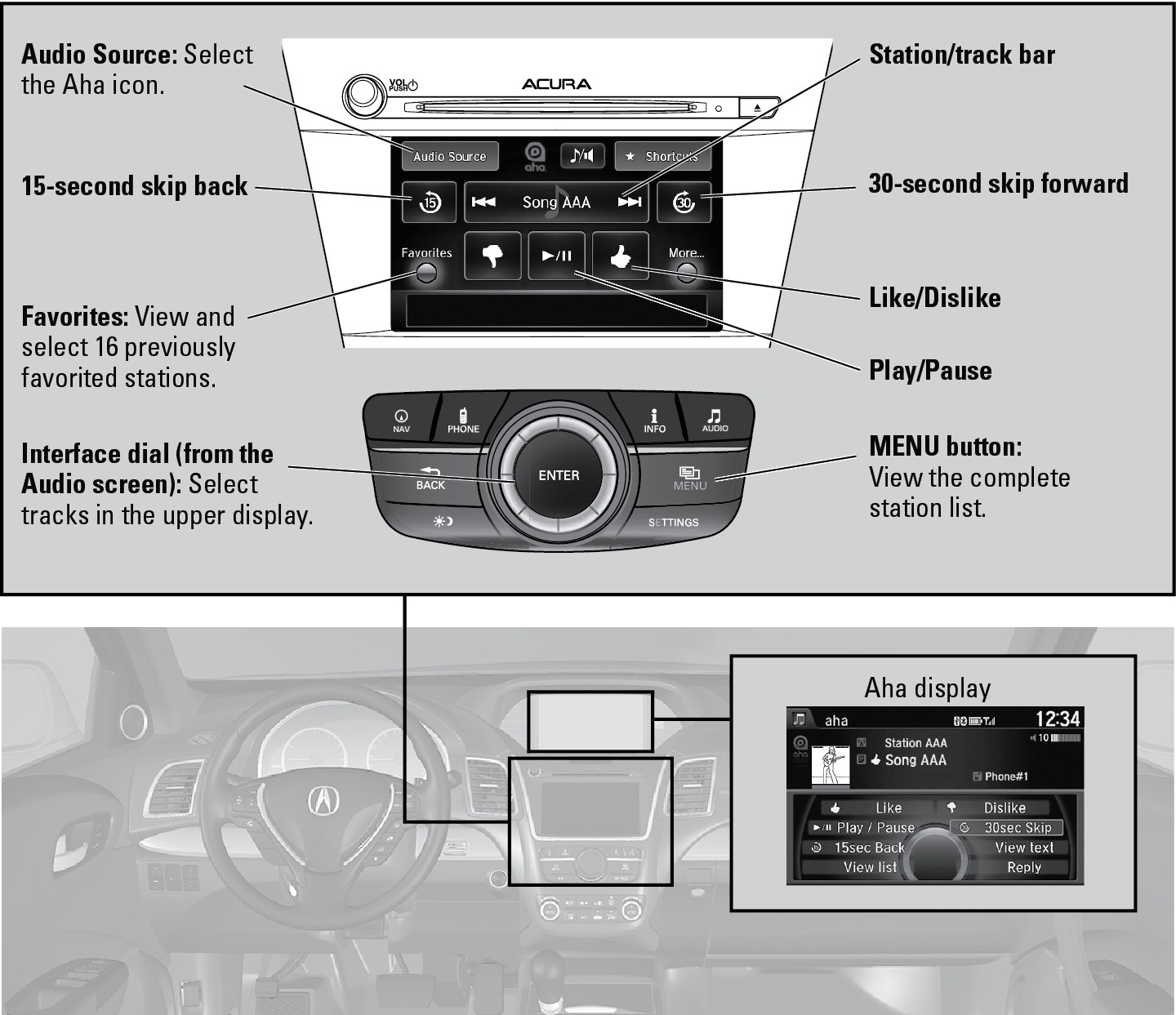
Applicable laws may prohibit the operation of handheld electronic devices while operating a vehicle.
Launch streaming audio on your phone only when it is safe to do so.
- Basic HFL Operation
- Pairing a Phone
- Basic Audio Operation
Download Manual