Basic Audio
Operation
Connect audio devices in the front console, and operate buttons and displays for the audio system.
USB Port
Connect a USB flash drive or other audio device, such as an iPod® or iPhone®.
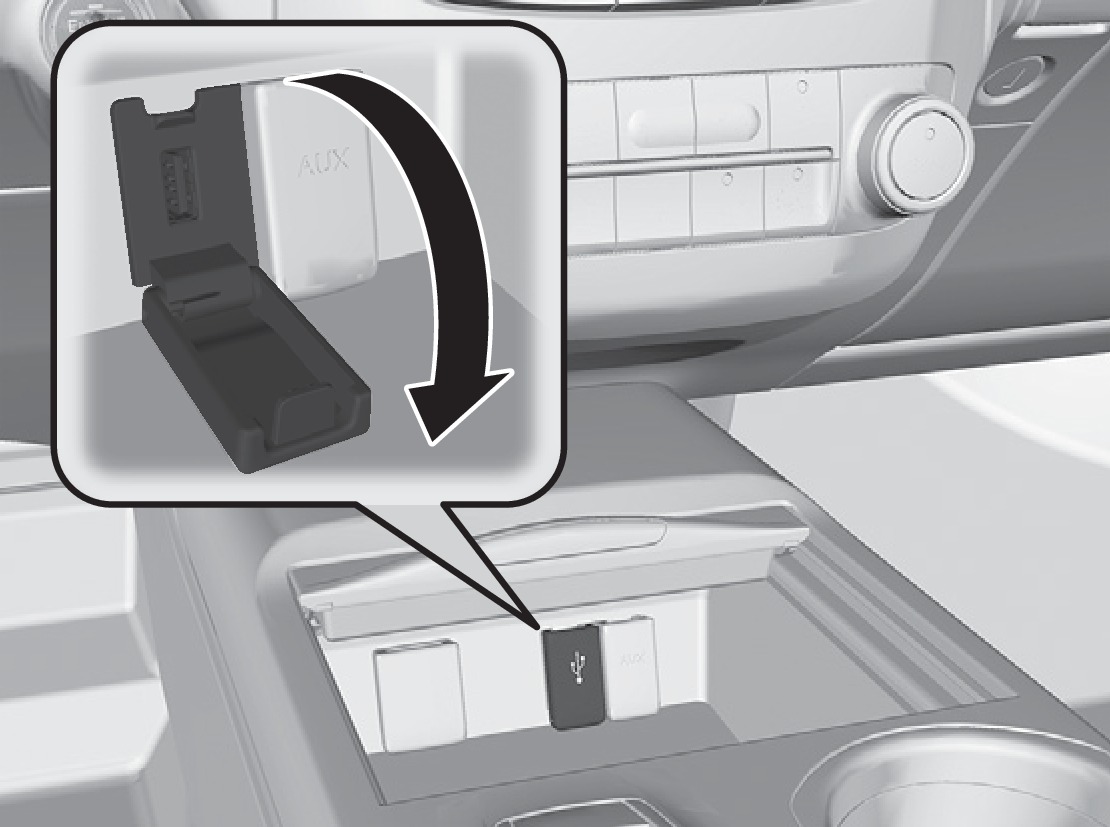
- Open the USB cover.
- Install the iPod dock connector or the USB flash drive into the USB port.
iPod and iPhone are trademarks of Apple, Inc.
Applicable laws may prohibit the operation of handheld electronic devices while operating a vehicle.
Auxiliary Input Jack
Connect standard audio devices with a 1/8-inch (3.5 mm) stereo miniplug.
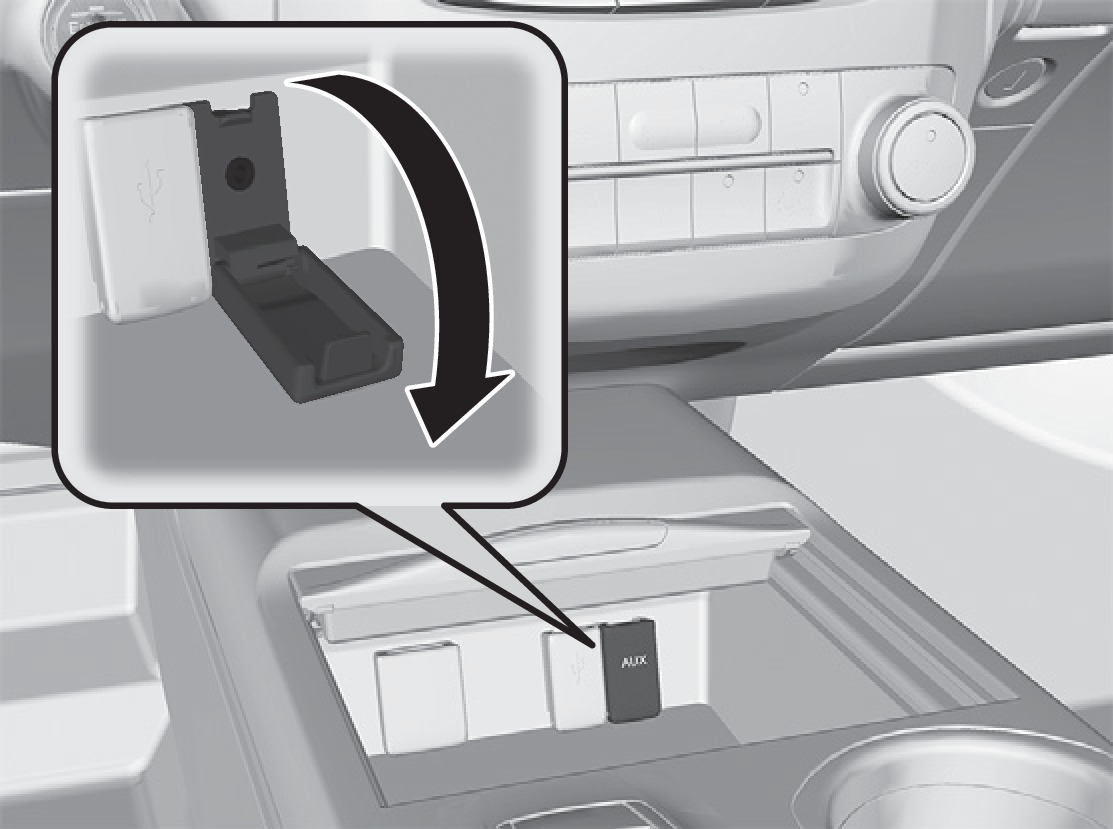
- Open the AUX cover.
- Insert the miniplug attached to the audio device into the jack. The audio system switches to AUX mode. Use the device to control the audio.
Accessory Power Socket
Located in the front and center consoles. Open the socket cover to use power when the vehicle is on.
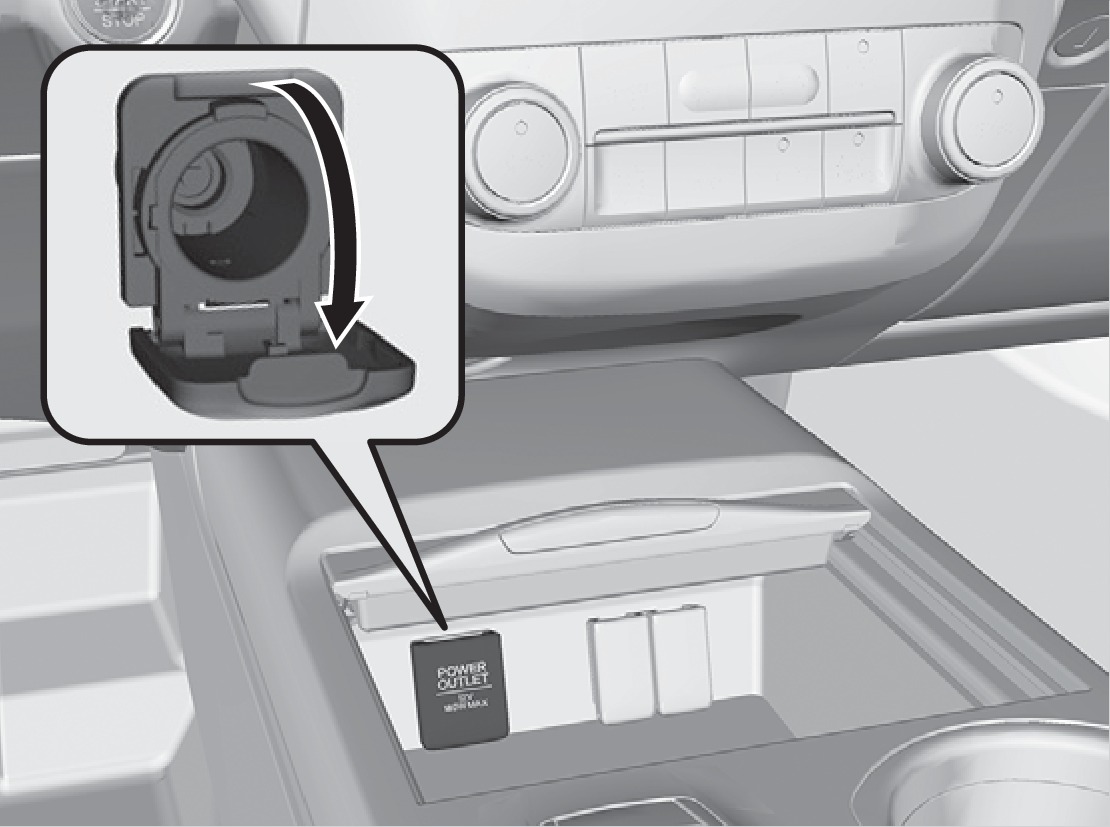
Do not insert an automotive type cigarette lighter element. This can overheat the power socket.
Steering Wheel Controls
Operate certain functions of the audio system using the steering wheel controls.
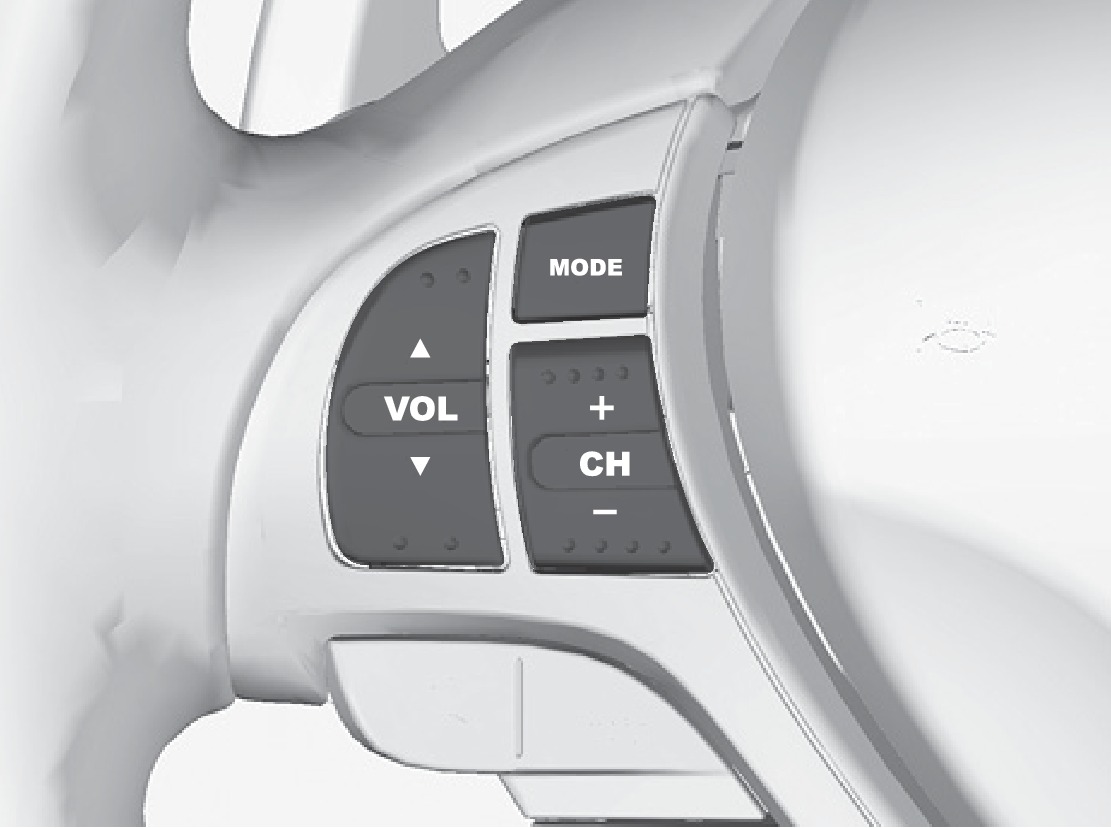
MODE button: Cycle through available audio modes.
VOL buttons:Adjust audio volume.
CH (+/-) button: Change presets, tracks, albums, or folders.
FM/AM/XM® Radio
Press (+) or (-) for the next or previous station.
Press and hold (+) or (-) for the next or previous strong station.
CD/HDD*/iPod®/USB/Bluetooth® Audio
Press (+) or (-) for the next or previous track.
Press and hold (+) or (-) for the next or previous folder (CD/USB).
Pandora®
Press (+) for the next song.
Press and hold (+) or (-) for the next or previous station.
Adjusting the Sound
Adjust various sound settings.
Models without navigation
Use the selector knob to make and enter selections.
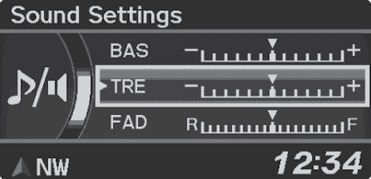
- Press the SETUP button.
- Select Sound Settings.
- Select the setting you want, and adjust it to the desired level.
- Press the BACK button to exit the menu.
Models with navigation
Use the interface dial to make and enter selections.
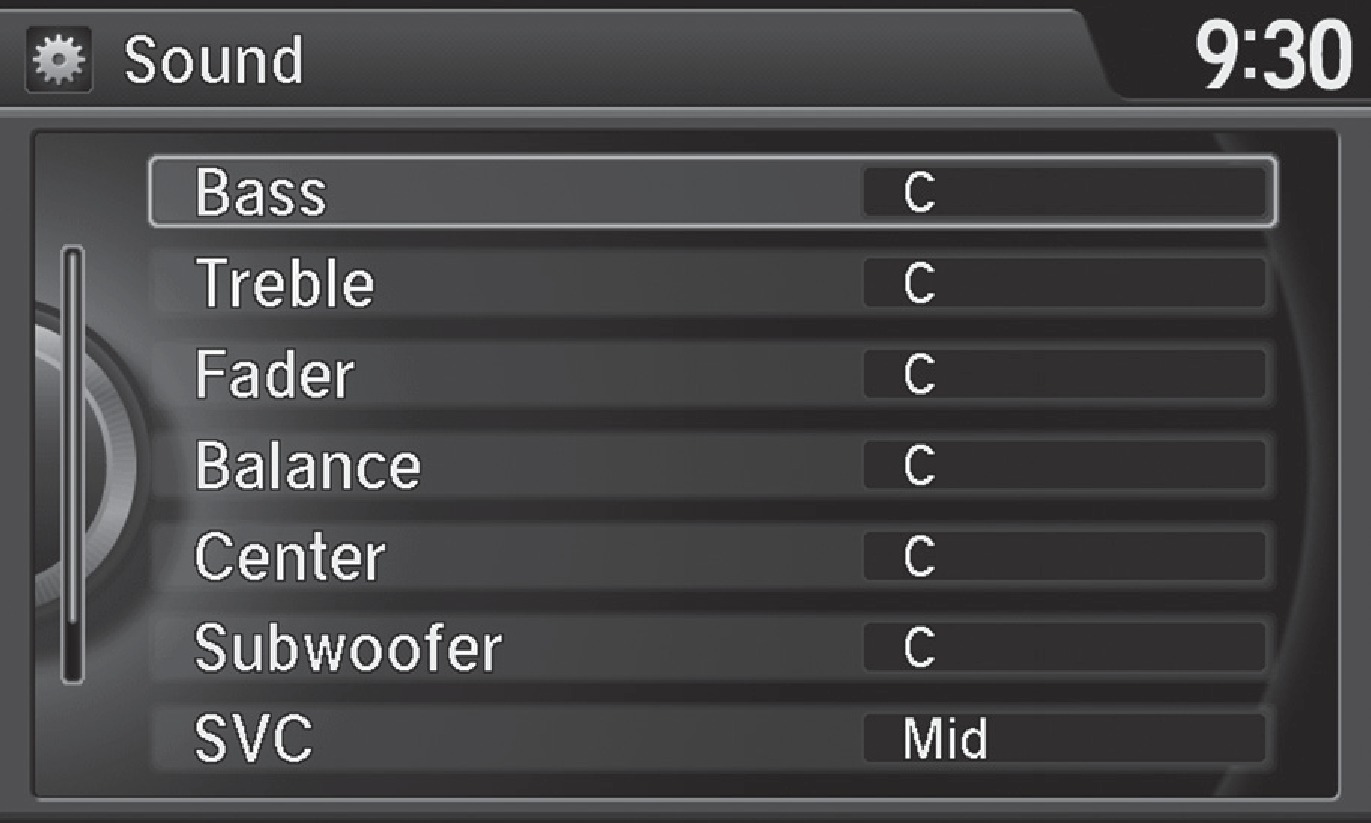
- From the audio screen, press the MENU button.
- Select Sound.
- Select the setting you want, and adjust it to the desired level.
- Press the BACK button to exit the menu.
You can also adjust the sound using the ODMD touchscreen. Select More, select Sound, and select the + or - icons to adjust settings. Select X to exit the screen.
*if equipped
- SiriusXM Radio
- Basic Navigation Operation
- Steering Wheel and Nearby Controls
Download Manual