Phone operation (Hands-free system for cellular phones)
From the “PHONE” button Press the “PHONE” button.
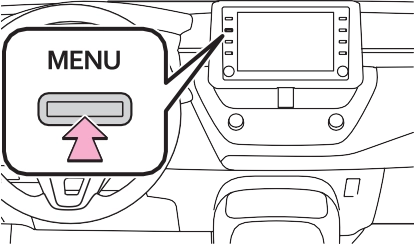
From the “MENU” button
Press the “MENU” button, then select “Phone”.
The following functions can be used on phone operation:
The following function can be used on message function:
Using the Bluetooth® phone message function (P.356)
The following functions can be made in the system:
Wi-Fi® Hotspot functions at the same time, the following problems may occur:
|
|
|
While driving, do not operate a cellular phone.
|
 WARNING
 ■ Connecting a Bluetooth® device
Registering an additional device
347
When another Bluetooth® device is connected, a confirmation screen will be displayed. To disconnect the Bluetooth® device, select “Yes”.
Selecting a registered device
If an error message is displayed, follow the guidance on the screen to try again.
By pressing the phone switch, a call can be received or ended without taking your hands off the steering wheel.
Phone switch
|
|
|
Do not touch and put a sharp object to the microphone. It may cause failure. |
 NOTICE
349
The voice command system and its list of commands can be operated. (P.336)
The following data is stored for every registered phone. When another phone is connected, the following registered data cannot be read:
A lot of personal data is regis- tered when the hands-free sys- tem is used. When selling or disposing of the vehicle, initial- ize the data. (P.298)
The following data in the system can be initialized:
Once initialized, the data and set- tings will be erased. Pay additional
attention when initializing the data.
When a phone’s registration is deleted, the above-mentioned data is also deleted.
items (missed, incoming and outgoing) can be selected.
If the contact which is not regis- tered on the contact list is selected, the name is displayed as “Unknown Contact”. In this case, select the number to make a call properly.
Up to 30 of the latest call history
: Missed call

 : Incoming call
 : Outgoing call
351
Calls can be made by using contact data which is transferred from a registered cellular phone. (P.362)
Up to 5000 contacts (maximum of 4 phone numbers, e-mail addresses and addresses per contact) can be registered in the contact list.
“Add Favorite”/“Remove Favorite”: Select to register/remove the con- tact in the favorites list. (P.366, 367)
“E-mail Addresses”: Select to dis-
play all registered e-mail addresses for the contact.
“Addresses”: Select to display all registered addresses for the con- tact.
Contacts are transferred auto- matically.
1 Select the desired item.
Select to always transfer all the contacts from a con- nected cellular phone auto- matically.
Select to transfer all the con- tacts from a connected cellu- lar phone only once.
Select to cancel transferring.
2 Check that a confirmation screen is displayed when the operation is complete.
1 Select the desired item.
Select to transfer the con- tacts from the connected cel- lular phone.
Transfer the contact data to the system using a Blue- tooth® phone.
Select to add a new contact manually.
Follow the steps in “Register- ing a new contact to the con- tacts list” from step 2. (P.365)
Select to cancel transferring.
tact list may not transfer depend- ing on the type of Bluetooth® phone connected.
 Select
  or press the switch on the steering wheel.
Depending on the type of Blue- tooth® phone being connected, it may be necessary to perform addi- tional steps on the phone.
353
Bluetooth® phone, both the sys- tem and Bluetooth® phone may ring simultaneously when there is an incoming call. (P.360)
 switch on the steering wheel to talk on the phone.
“Decline”: Select to refuse to receive the call.
To adjust the volume of a received call: Turn the “POWER VOLUME” knob, or use the volume control switch on the steering wheel.
“Activate”.
Select to hang up the phone.
Select to display the keypad to send tones. (P.354)
Select to send tones. This button only appears when a number that contains a (w) is dialed in hands-free mode. (P.354)
Select to adjust your voice volume that the other party hears from their speaker. (P.355)
Select to mute your voice to the other party.
Select to change handset modes between hands-free and cellular phone.
Select to put a call on hold. To cancel this function, select
“Release Tones” appear when a continuous tone signal (s) con- taining a (w) is registered in the contact list.
This operation can be per- formed while driving.
Select “Release Tones”.
355
vice is desired. A phone number
with continuous tone signals can be registered in the contact list.
 to display previ- ous screen.
This function may not be available depending on the type of cellular phone.
Select “Answer” or press the  switch on the steering wheel to start talking with the other party.
This function may not be available depending on the type of Bluetooth® phone.
names of the accounts that exist on the currently con- nected phone.
A confirmation message appears when the “Automatic Message Transfer” function is set to off (P.368), select “Yes”.
“Phone”: Select to change to phone mode.
When an e-mail/SMS/MMS is received, the incoming message screen pops up with sound and is ready to be operated on the screen.
Select to check the message.
Select to not open the mes- sage.
Select to call the message sender.
357
tooth® phone used for receiving messages, or its registration sta- tus with the system, some infor- mation may not be displayed.
E-mail:
SMS/MMS:
Select to have messages read out.
To cancel this function, select “Stop”.
When “Automatic Message Readout” is set to on, mes- sages will be automatically read out. (P.368)
Select to display the previous or next message.
This function can be chosen the method to reply mes- sage with “Dictation” or “Quick Message”.
tooth® phone being connected,
E-Mail function cannot be used via Bluetooth®.
Select to call the message
or “Mark Read” to mark mail unread or read on the message screen.
This function is available when “Update Message Read Status on Phone” is set to on. (P.368)
*: If equipped
“Cancel”: Select to cancel sending the message.
“Retry”: Select to retry speaking message that you want to send.
While the message is being sent, a sending message screen is dis- played.
If an error message is displayed, follow the guidance on the screen to try again.
been stored.
 : Select to edit the message. (P.358)
“Cancel”: Select to cancel sending the message.
While the message is being sent, a sending message screen is dis- played.
If an error message is displayed, follow the guidance on the screen to try again.
Depending on the type of Blue- tooth® phone, reply function is not available.
 corresponding to the desired message to edit.
To reset the edited quick reply mes- sages, select “Default”.
359
e-mail/SMS/MMS message sender’s phone number.
This operation can be per- formed while driving.
e-mail/SMS/MMS message display
 Select
  , or press the switch on the steering wheel.
If there are 2 or more phone num- bers, select the desired number.
Calls can be made to a number identified in a message’s text area.
This operation cannot be per- formed while driving.
Identified phone numbers con- tained in the message are dis- played in blue text.
A series of numbers may be recog- nized as a phone number. Addition- ally, some phone numbers may not be recognized, such as those for other countries.
|
|
Connecting a Bluetooth® device and editing the Blue- tooth® device information (P.280, 283)
Sound settings* (P.360)
Notification settings* (P.361)
Contact/call history settings*
(P.362)
Message settings* (P.368)
*: This operation cannot be per- formed while driving.
Select to set the desired ring- tone.
Select “-” or “+” to adjust the ringtone volume.
Select “-” or “+” to adjust the default volume of the other party’s voice.
361
Select to set the desired incoming SMS/MMS tone.
Select “-” or “+” to adjust the incoming SMS/MMS tone volume.
Select “-” or “+” to adjust the incoming e-mail tone volume.
Select “-” or “+” to adjust the message readout volume.
Select to reset all setup items.
Depending on the type of Blue- tooth® phone, certain functions may not be available.
Select to change the incom- ing call display.
“Full Screen”: When a call is received, the incoming call screen is displayed and can be operated on the screen.
“Drop-down”: A message is dis- played at the top of the screen.
Select to change the incom- ing SMS/MMS display.
“Full Screen”: When an SMS/MMS message is received, the incoming SMS/MMS display screen is displayed and can be oper- ated on the screen.
“Drop-down”: When an SMS/MMS message is received, a message is dis- played at the top of the
screen.
Select to set the e-mail notifi- cation pop-up on/off.
Select to change the incom- ing e-mail display.
“Full Screen”: When an
e-mail is received, the incom- ing e-mail display screen is displayed and can be oper- ated on the screen.
“Drop-down”: When an
e-mail is received, a mes- sage is displayed at the top of the screen.
Select to set display of the contact/history transfer com- pletion message on/off.
Select to reset all setup items.
Depending on the type of Blue- tooth® phone, these functions may not be available.
For PBAP compatible Blue- tooth® phones: Select to change the contact/history transfer settings. (P.363)
Select to update contacts from the connected device. (P.363)
Select to sort contacts by the first name or last name field.
Select to add contacts to the favorites list. (P.366)
Select to delete contacts from the favorites list. (P.366)
Select to clear the call his- tory.*
Select to add new contacts to the contact list.* (P.365)
Select to edit contacts in the
363
Select to delete contacts from the contact list.* (P.366)
Select to set the voice tags. (P.367)
Select to reset all setup items.
*: For PBAP compatible Bluetooth® phones, this function is available when “Automatic Transfer” is set to off. (P.363)
Select to set automatic con- tact/history transfer on/off. When set to on, the phone’s contact data and history are automatically transferred.
Select to update contacts from the connected phone. (P.363)
Select to set the transferred contact image display on/off. Only when the vehicle is not moving, the contact image can be displayed.
Select to reset all setup items.
Contacts are transferred automati- cally.
*: For PBAP compatible Bluetooth® phones, this function is available when “Automatic Transfer” is set to off. (P.362)
“Cancel”.
When the contact is regis- tered
“Replace Contacts”: Select to trans- fer the contact from the connected cellular phone and replace the cur- rent one.
“Add Contact”: Select to transfer the desired contact data from the connected cellular phone to add to the current one.
Backed-up contact data (vCard formatted) can be transferred from USB device or Bluetooth® phone to this system.
365
“Replace Contacts”: Select to trans- fer the contact from the connected USB device or Bluetooth® phone and replace the current one.
“Add Contact”: Select to transfer the desired contact data from the connected USB device or Blue- tooth® phone to add to the current one.
Up to 4 numbers per person can be registered. For PBAP com- patible Bluetooth® phones, this function is available when “Auto- matic Transfer” is set to off. (P.362)
For PBAP compatible Blue-
tooth® phones, this function is available when “Automatic Transfer” is set to off. (P.362)
 next to the name or desired number.
For PBAP compatible Blue- tooth® phones, this function is available when “Automatic Transfer” is set to off. (P.362)
Dimmed contacts are already stored as a favorite.
When 15 contacts have already been registered to the favorites list
tag. (P.367)
Select to edit a voice tag. (P.367)
367
Calls can be made by saying the voice tag of a registered contact in the contact list. (P.336)
Select to register a new voice
Select to delete a voice tag. (P.367)
Up to 50 voice tags can be reg- istered.
When recording a voice tag, do so in a quiet area.
“Play”: Select to play the voice tag.
Select to set automatic mes- sage transfer on/off.
Select to set automatic mes- sage readout on/off.
Select to set updating mes- sage read status on phone on/off.
Select to set display of mes- saging account names on the message screen on/off.
When set to on, messaging account names used on the cellular phone will be dis- played.
Select to set adding the vehi- cle signature to outgoing messages on/off.
The vehicle signature can be edited. (P.368)
Select to reset all setup items.
functions may not be available.
Select to set adding the vehi- cle signature to outgoing messages on/off.
Select to edit the vehicle sig- nature. (P.368)
Select to reset all setup items.
Depending on the phone, these
Troubleshooting
369
■ When registering/connect- ing a cellular phone
A cellular phone cannot be reg- istered.
|
Likely cause |
Solution |
|
Set automatic |
|
|
Automatic Blue- tooth® connec- tion on this system is set to off. |
Bluetooth® con- nection on this system to on when the engine switch is in ACC or ON. (P.284) |
|
Set preferred |
|
|
device settings |
|
|
function on this |
|
|
Preferred device settings function on this system is set to on. |
system to off. (P.285) |
|
Set the desired cellular phone to the highest auto- |
|
|
matic connec- |
|
|
tion priority. |
|
|
(P.285) |
A Bluetooth® connection can- not be made.
■ When making/receiving a call
A call cannot be made/received.
|
Likely cause |
Solution |
|
Your vehicle is in a |
Move to where
|
 area.
area. no longer appears on the display.
■ When using the phonebook
Phonebook data cannot be transferred manually/automati- cally.
Download Manual