Connectivity settings
http://www.toyotapr.com/entune in Puerto Rico, to find approved
Bluetooth® phones for this sys- tem.
Bluetooth is a registered trademark of Bluetooth SIG, Inc.
This function is not available when Bluetooth® connection setting of your cellular phone is set to off.
|
|
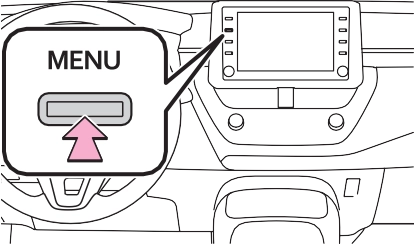
Operations up to this point can also be performed by pressing the “PHONE” button on the instrument panel.
compatible Bluetooth® devices. Depending on the type of Bluetooth® device
277
If the desired Bluetooth® phone is not on the list, select “If you cannot find...” and follow the guidance on the screen. (P.278)
being connected, a message confirming registration may be displayed on the Blue- tooth® device’s screen.
Respond and operate the Bluetooth® device according to the confirmation message.
8 Check that “Connected” is displayed and registration is complete.
If an error message is displayed, follow the guidance on the screen to try again.
If a cellular phone does not operate properly after being connected, turn the cellular phone off and on and then connect it again.
ister the Bluetooth® device using your Bluetooth® device.
To use the Bluetooth® audio, it is necessary to register an audio
279
Once the player has been regis- tered, it is possible to use the Bluetooth® audio.
This operation cannot be per- formed while driving.
For details about registering a Bluetooth® device: P.276
When an Apple CarPlay con- nection is established, Blue- tooth® functions of the system will become unavailable and any connected Bluetooth® devices will be disconnected.
This function is not available when the Bluetooth® connection setting of your audio player is set to off.
This system supports the follow- ing services.
Ver. 2.0 (Recommended: Ver.
4.1 +EDR)
1.0 (Recommended: Ver. 1.7)
This is a profile to allow hands-free phone calls using a cellular phone. It has outgoing and incoming call functions.
This is a profile to transfer contacts data.
This is a profile to transfer phone- book data.
This is a profile to use phone mes- sage functions.
This is a profile to use the “Toyota Entune” function.
This is a profile to transmit stereo audio or high quality sound to the audio/visual system.
This is a profile to allow remote control the A/V equipment.
|
|
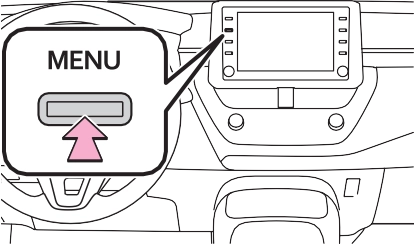
Connecting a Bluetooth®
281
Registering a Bluetooth® device (P.282)
Deleting a Bluetooth® device (P.283)
Setting the Bluetooth® sys- tem (P.285)
Up to 5 Bluetooth® devices (Phones (HFP) and audio play- ers (AVP)) can be registered.
If more than 1 Bluetooth® device has been registered, select which device to connect to.
 : Phone
 : Audio player
 : Phone/“Toyota Entune” service
connected device will be dis- played in color.
“Device Info”: Select to confirm and change the Bluetooth® device infor- mation. (P.283)
To disconnect the Bluetooth® device, select “Yes”.
If an error message is displayed, follow the guidance on the screen to try again.
additional steps on the device.
P.360
P.318
To turn auto connection mode on, set “Bluetooth Power” to on. (P.285) Leave the Bluetooth® device in a location where the connection can be established.
phone with the highest prior- ity. (P.285)
When the auto connection has failed or “Bluetooth Power” is turned off, it is necessary to con- nect the Bluetooth® device man- ually.
If a Bluetooth® phone is discon- nected due to poor reception from the Bluetooth® network when the engine switch is in ACC or ON, the system auto- matically reconnects the Blue- tooth® phone.
Up to 5 Bluetooth® devices can be registered.
Bluetooth® compatible phones (HFP) and audio players (AVP) can be registered simultane- ously.
This operation cannot be per- formed while driving.
When another Bluetooth® device is connected
To disconnect the Bluetooth® device, select “Yes”.
A registered device needs to be replaced. Select “Yes”, and select the device to be replaced.
This operation cannot be per- formed while driving.
When deleting a Bluetooth® phone, the contact data will be deleted at the same time.
This operation cannot be per- formed while driving.
5 Confirm and change the Bluetooth® device informa- tion.
Even if the device name is changed, the name registered in your Blue- tooth® device does not change.
Select to set the Bluetooth® audio player connection method. (P.284)
Device address is unique to the device and cannot be changed.
Phone number is unique to the Bluetooth® phone and cannot be changed.
Compatibility profile is unique to the Bluetooth® device and cannot be changed.
Select to reset all setup items.
“Vehicle”: Select to connect the audio player from the vehicle’s audio/visual system.
“Device”: Select to connect the vehicle’s audio/visual system from the audio player.
Depending on the audio player, the “Vehicle” or “Device” connection method may be best. As such, refer
285
to the manual that comes with the audio player.
matically connected when the engine switch is in ACC or ON.
When “Bluetooth Power” is off: The Bluetooth® device is dis- connected, and the system will not connect to it next time.
confirmed and changed.
Select to set Bluetooth® con- nection on/off. (P.285)
Select to change the auto- matic connection priority of the registered Bluetooth® devices. (P.285)
Select to edit the system information. (P.286)
Select to reset all setup items.
1 Select “Bluetooth Power”. When “Bluetooth Power” is on: The Bluetooth® device is auto-
While driving, the auto connection state can be changed from off to on, but cannot be changed from on to off.
Select to set automatic con- nection priority on/off.
Select to change the auto- matic connection priority of the registered Bluetooth® phones. (P.286)
Select to change the auto- matic connection priority of the registered Bluetooth®
audio players. (P.286)
Select to reset all setup items.
A newly registered Bluetooth® device will automatically be given the highest automatic connection priority.
2 Select the desired item to be set.
Displays system name. Can be changed to a desired name. (P.287)
PIN code used when the Bluetooth® device was regis- tered. Can be changed to a desired code. (P.287)
Device address is unique to the device and cannot be changed.
Select to set the connection status display of the phone on/off.
Select to set the connection status display of the audio player on/off.
Compatibility profile of the system
Select to reset all setup items.
*: If equipped
287
For details about operating the device, refer to the documentation which came with it.
4 Operate the device to con- nect it to the vehicle access point.
To check the vehicle access point password, check “Password”. (P.288)
Hints for connecting to the vehicle via Wi-Fi® can be displayed. (P.288)
|
|
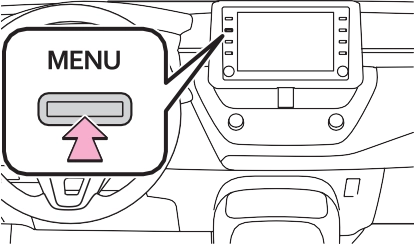
*: Wi-Fi® is a registered trademark of Wi-Fi Alliance®.
Select to enable/disable the Wi-Fi® Hotspot function. (P.289)
Select to check/change the
service subscription. (If the
289
Select to display hints for connecting to the vehicle via Wi-Fi®.
Select to make the access point searchable/unsearch- able.
Select to check/change the security protocol of the access point (for authentica- tion and encryption). (P.290)
Select to change the access point name (SSID). (P.290)
Select to change the Wi-Fi® connection channel (within the 2.4GHz frequency band). (P.290)
If any settings have been changed, it will be necessary to reset the
Wi-Fi® system to complete the changes. To reset the Wi-Fi® sys- tem, select “Yes” on the pop-up dis- played after changing the settings.
If a Hotspot service subscription has not been started, start the Toyota Entune App Suite Con- nect application to activate the
Toyota Entune App Suite Con- nect application has not been installed, install the application.)
Contact your Toyota dealer for details about the Toyota Entune App Suite Connect application.
Displays the password
Select to display/hide the entered password.
Select to change the pass- word.
When setting/changing a pass- word, observe the following guide- lines to help prevent the password from being cracked by a third party:
and numbers. (Non-ASCII characters will not be recog- nized by the system.)
1 Select “Channel”.
2 Check that the following screen is displayed.
Select to change the chan- nel selection to auto- matic/manual.
When “Manual” is selected, select to change the channel.
Channels 1 through 11 can be selected.
the Wi-Fi® Hotspot function, the communication speed may decrease.
IEEE 802.11g
IEEE 802.11n (2.4GHz)
291
*: if equipped
an Apple CarPlay connection will not be established. In this case, the device can be oper- ated as a normal Apple device, such as an iPod.
Select to display the home screen of Apple CarPlay. Touch and hold to activate Siri.
Select to start the application. User can use any iPhone application supported by Apple CarPlay.
Select to display the system screen.
means that a vehicle user inter- face meets Apple performance standards. Apple is not responsi- ble for the operation of this vehicle or its compliance with safety and regulatory standards. Please note that the use of this product with iPhone or iPod may affect wire- less performance.
|
|
|
Do not connect iPhone or operate the controls while driving. |
 WARNING

|
Symptom |
Solution |
|
An Apple CarPlay connec- tion cannot be estab- lished. |
Check if the device supports Apple CarPlay. Check if Apple CarPlay is enabled on the con- nected device. For details, refer to https://www.apple.com/ios/carplay/. |
|
Check if “Apple CarPlay” on the general set- tings screen is set to on. (P.296) |
|
|
Check if the Lightning cable being used is certi- fied by Apple Inc., and if it is securely con- nected to the device and USB port. |
|
|
When the iPhone is connected using a USB hub, etc., an Apple CarPlay connection may not be established. Connect the lightning cable to USB the port directly. |
|
|
After checking all of the above, try to establish an Apple CarPlay connection. (P.292) |
|
|
When an Apple CarPlay connection is established and a video is being played, the video is not displayed, but audio is output through the sys- tem. |
As the system is not designed to play video through Apple CarPlay, this is not a malfunc- tion. |
|
Although an Apple Car- Play connection is estab- lished, audio is not output through the system. |
The system may muted or the volume may be low. Increase the system volume. |
|
The Apple CarPlay screen has artifacts and/or audio from Apple CarPlay has noise. |
Check if the Lightning cable being used to con- nect the device to the system is damaged. To check if the Lightning cable is damaged internally, connect the device to another sys- tem, such as a PC, and check if the device is recognized by the connected system. (The device should begin charging when connected.) |
|
After checking all of the above, try to establish an Apple CarPlay connection. (P.292) |
5-3. Connectivity settings
295
|
Symptom |
Solution |
|
During Apple CarPlay music application (Apple Music, Spotify, etc.) play- back, if the iPhone is operated to start and play audio from an application that is not compatible with Apple CarPlay* and the onboard device volume is changed, the audio of the incompatible application stops and the system resumes playback of the original music application. |
This operation is performed according to the specification of the onboard device, this is not a malfunction. |
|
After interrupt audio (such as navigation route guid- ance) is played from an application that is not compatible with Apple CarPlay while the onboard device is playing audio (FM/AM, CD, etc.), the system does not resume playback of the original audio (FM/AM, CD, etc.). |
This operation is performed according to the specification of the onboard device, this is not a malfunction. Manually change the audio source by yourself. Or, do not use applications that are not compat- ible with Apple CarPlay.* Due to some naviga- tion applications are compatible from iOS 12, update to the latest iOS and application ver- sions. |
*: Applications not compatible with Apple CarPlay are applications installed on the iPhone that are not displayed on the Apple CarPlay screen appli- cation list. (such as visual voicemail)
Download Manual