Adaptive Cruise Control
Adaptive cruise control with stop and go uses radar and camera sensors to maintain a set gap between your vehicle and the vehicle in front of you while following it to a complete stop. Stop and go can also be set to follow a vehicle directly in front of you and adjust the set speed, while you are at a complete stop.


315
|
|
 WARNING: Do not use the system when towing a trailer that has aftermarket electronic trailer brake controls. Failure to follow this instruction could result in the loss of control of your vehicle, personal injury or death.
 WARNING: Do not use tire sizes other than those recommended because this can affect the normal operation of the system. Failure to do so may result in a loss of vehicle control, which could result in serious injury.
 WARNING: Do not use the system with a snow plow blade installed.
 WARNING: Do not use the system in poor visibility, for example fog, heavy rain, spray or snow.
|
|
 WARNING: When following a vehicle that is braking, your vehicle does not always decelerate quickly enough to avoid a crash without driver intervention. Apply the brakes when necessary. Failure to follow this instruction could result in personal injury or death.
Hilly Condition Usage
You should select a lower gear when the system is active in situations such as prolonged downhill driving on steep slopes, for example in mountainous areas.


 The camera is on the windshield behind the interior mirror.
The radar sensor is in the lower grille.
 Note: You cannot see the sensor. It is behind a fascia panel.
 Note: Keep the front of your vehicle free of dirt, metal badges or objects. Vehicle front protectors, aftermarket lights, additional paint or plastic coatings could also degrade sensor performance.

 A message displays if something obstructs the camera or the sensor. When something blocks the sensor, the system cannot detect a vehicle ahead and does not function. See Adaptive Cruise Control
– Information Messages (page 325).
316
The radar sensor has a limited field of view. It may not detect vehicles at all or detect a vehicle later than expected in some situations. The lead vehicle image does not illuminate if the system does not detect a vehicle in front of you.
If something hits the front end of your vehicle or damage occurs, the
radar-sensing zone may change. This could cause missed or false vehicle detection.
Optimal system performance requires a clear view of the road by the windshield camera.
Optimal performance may not occur if:
The cruise controls are on the steering wheel. See Visual Search (page 30).
Press the button to activate the system. When the system activates, the set speed is equal
to whichever is greater, the current vehicle speed, or 15 mph when in imperial units or 20 km/h when in metric units. If the speed is too low, or other conditions are not correct for adaptive cruise control activation, the system enters standby mode. When you are below 15 mph when in imperial units or 20 km/h when in metric units, adaptive cruise control does not activate unless you are following another vehicle.
The indicator, current gap setting and set speed appear in the instrument cluster display.
In these cases, the system may brake late or unexpectedly.
317
Press the button when the system is in standby mode or switch the ignition off.
Note: When you switch the system off, the set speed clears.
The system may cancel if:
The system may cancel and set the parking brake if:
The system may deactivate or prevent activating when requested if:
Drive to the speed you prefer.
Press the Set+ or Set- buttons to set the current speed.
Take your foot off the accelerator pedal.
The indicator, current gap setting and set speed appear in the information display.
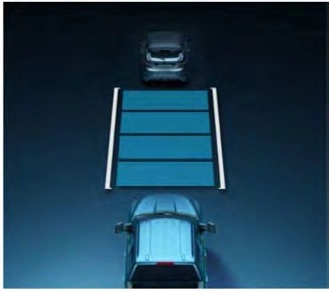
A vehicle image illuminates if there is a vehicle detected in front of you.
Note: When adaptive cruise control is active, the speedometer may vary slightly from the set speed displayed in the information display.
Press the Set+ or Set- buttons while keeping the brake pedal fully depressed.
The set speed adjusts to 20 km/h when in metric units or 15 mph when in imperial units.
The indicator, current gap setting and set speed appear in the information display.
Note: The system will activate from a complete stop only when it detects a lead vehicle in close proximity.
318
Press the Set+ button to increase the set speed in small increments. Press and hold the
Set+ button to accelerate. Release the button when you have reached your preferred speed.
Press the Set- button to decrease the set speed in small increments. Press and hold the
Set- button to decelerate. Release the button when you have reached your preferred speed.
You can also press the accelerator or brake pedal until you reach the speed you prefer. Press the Set+ or Set- button to select the current speed as the set speed.
The system may apply the brakes to slow the vehicle to the new set speed. The set speed continuously displays in the information display when the system is active.
 Press the button to cycle through the four gap settings.
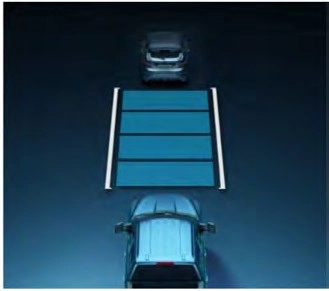
The selected gap appears in the information display as shown by the bars in the image.
Note: The gap setting is time dependent and therefore, the distance adjusts with your vehicle speed.
Note: It is your responsibility to select a gap appropriate to the driving conditions.
|
Graphic Display, Bars Indic- |
Gap Distance |
Dynamic Behavior |
|
ated |
||
|
Between |
||
|
Vehicles |
||
|
1 |
Closest. |
Sport. |
|
2 |
Close. |
Normal. |
|
3 |
Medium. |
Normal. |
|
4 |
Far. |
Comfort. |
Each time you switch the system on, it selects the last chosen gap setting.
319
Following a Vehicle
When a vehicle ahead of you enters the same lane or a slower vehicle is ahead in the same lane, the vehicle speed adjusts to maintain the gap setting.
Note: When you are following a vehicle and you switch on a turn signal lamp, adaptive cruise control may provide a small, temporary acceleration to help you pass.
Your vehicle maintains a consistent gap from the vehicle ahead until:
The system applies the brakes to slow down your vehicle to maintain a safe gap distance from the vehicle in front of you. The system only applies limited braking. You can override the system by applying the brakes.
Note: The brakes may emit noise when applied by the system.
If the system determines that its maximum braking level is not sufficient, an audible warning sounds, a message appears in the information display and an indicator flashes when the system continues to brake. Take immediate action.
Press the button or tap the brake pedal.
The set speed does not erase.
320
Press the button.
Your vehicle speed returns to the previously set speed and gap setting. The set speed displays continuously in the information display when the system is active.
Note: Only use resume if you are aware of the set speed and intend to return to it.
If your vehicle follows a vehicle to a complete stop and remains stationary for less than a few seconds, your vehicle accelerates from a stationary position to follow the vehicle ahead.
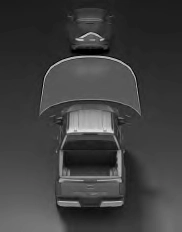 If your vehicle follows a vehicle to a complete stop and remains stationary for more than a few seconds, an indicator and message displays.
E335548
|
Message |
Action |
|
Stopped |
Cruise control does not resume automatic- ally when this display is active. |
|
Press button to resume |
If the lead vehicle begins to move, you are prompted to press the resume button. Press and release the button or use the accelerator pedal to resume following the lead vehicle. |
|
Auto-Resume |
Displays when on a limited access highway after following a vehicle to a complete stop. In this situation, the vehicle resumes following the lead vehicle without a button press or pressing the accelerator pedal. The system can remain in auto-resume state for approximately 30 seconds, after which it no longer automatically resumes. |
|
|
 WARNING: If you override the system by pressing the accelerator pedal, it does not automatically apply the brakes to maintain a gap from any vehicle ahead.
When you press the accelerator pedal, you override the set speed and gap distance.
Use the accelerator pedal to intentionally exceed the set speed limit.
When you override the system, the green indicator illuminates and the vehicle icon does not appear in the instrument cluster display.
The system resumes operation when you release the accelerator pedal. The vehicle speed decreases to the set speed, or a lower speed if following a slower vehicle.
321
Illuminates when you switch adaptive cruise control on. The color of the indicator changes to
indicate the system status.
White indicates the system is on but inactive.
Green indicates that you set the speed and the system is active.
|
|
 WARNING: Normal cruise control will not brake when your vehicle is approaching slower vehicles. Always be aware of which mode you have selected and apply the brakes when necessary.
The cruise control indicator replaces the adaptive cruise control indicator if you select
normal cruise control. The gap setting does not display, and the system does not respond to lead vehicles. Automatic braking remains active to maintain set speed. The system remembers the last setting when you start your vehicle.
Adaptive cruise control with lane centering uses radar and camera sensors to help keep your vehicle in the lane by applying continuous assistance steering torque input toward the lane center on highways.
Note: The adaptive cruise control gap setting operates normally.

|
|
 WARNING: Do not use the system if any changes or modifications to the steering wheel have been made. Any changes or modifications to the steering wheel could affect the functionality or performance of the system. Failure to follow this instruction could result in the loss of control of your vehicle, personal injury or death.
Adaptive cruise control precautions apply to lane centering unless stated otherwise or contradicted by a lane centering precaution. See Adaptive Cruise Control Precautions (page 315).
You must keep your hands on the steering wheel at all times.
The system only activates when all of the following occur:
Note: If it does not detect valid lane markings, the system stays inactive until valid markings are available.
Adaptive cruise control limitations apply to lane centering unless stated otherwise or contradicted by a lane centering limitation. See Adaptive Cruise Control Limitations (page 316).
322
Lane Centering may not correctly operate in any of the following conditions:
Note: The driving assistance torque is limited and may not be sufficient for all driving situations such as driving through tight curves or driving through curves at high speeds.
Note: In exceptional conditions, the system may deviate from the center line.
You must keep your hands on the steering wheel at all times.
The controls are on the steering wheel.
Press the button.
The indicator appears in the information display. When the system is on, the color of the indicator changes to indicate the system status.
You can override the system at any time by steering your vehicle.
Note: The correct requirements must be met before you can switch the system on. See Lane Centering Requirements (page 322).
You must keep your hands on the steering wheel at all times.
When the system is active and detects no steering activity for a period of time, the system alerts you to put your hands on the steering wheel. If you do not react to the warnings the system cancels and slows your vehicle down to idle speeds while maintaining steering control.
The system also alerts you if your vehicle crosses lane markings without detected steering activity.
Note: The system may detect a light grip or touch on the steering wheel as hands-off driving.
When an external condition cancels the system, for example, no lane markings available, a tone sounds and a message appears in the instrument cluster display.
If your vehicle starts to slow down, provide steering input to the wheel and press and release
the button to regain full system performance.
Note: The system disables until the next key cycle if your vehicle slows down due to driver inactivity twice within a key cycle.
323
When an external condition cancels the system, for example, no lane markings available, a tone sounds and a message appears in the instrument cluster display.
If your vehicle starts to slow down, you must provide steering input to the wheel and press and
release the button to regain full system performance.
Automatic cancellation can also occur if:
Note: The system disables until the next key cycle if your vehicle slows down due to driver inactivity twice within a key cycle.
Illuminates when you switch lane centering on. The color of the indicator changes to indicate
the system status.
Gray indicates the system is on but inactive.
Green indicates the system is active and applying steering torque assistance input to keep your vehicle in the center of the lane.
Amber with an audible tone and then gray indicates a system automatic cancellation.
Equipped)
Intelligent adaptive cruise control combines speed sign recognition with adaptive cruise control to adjust the cruise set speed to the speed limit detected by the speed sign recognition system. As the system detects new speed signs, the set speed updates.
Note: The adaptive cruise control gap setting operates normally.
|
|
 WARNING: You are responsible for controlling your vehicle at all times. The system is designed to be an aid and does not relieve you of your responsibility to drive with due care and attention. Failure to follow this instruction could result in the loss of control of your vehicle, personal injury or death.
Intelligent Adaptive Cruise Control Requirements
Traffic sign recognition must be enabled for intelligent adaptive cruise control to be active.
The speed limit information provided by the navigation map data could be inaccurate or out of date.
324
The system may not detect and read speed limit signs with conditional information, for example, when a sign is flashing, during specific time ranges, or when children are present.
Note: The system does not set the vehicle speed to speed limits shown with a supplementary traffic sign.
Under certain conditions, the system may not adjust the vehicle speed until after your vehicle passes the speed limit.
Note: You cannot set the tolerance more than 19 mph (30 km/h) above or below the recognized speed.
If you increase the set speed beyond the speed limit or speed limit plus a positive tolerance value, the set speed indicator flashes.
The warning does not occur if:
E337564
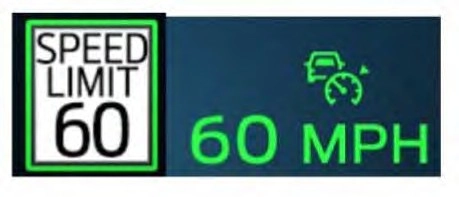
The set speed limit displays next to the detected speed limit in the instrument cluster.
– TROUBLESHOOTING
Note: Depending on your vehicle options and instrument cluster type, not all messages display or are available.
Note: The system could abbreviate or shorten certain messages depending upon which cluster type you have.
325
|
Message |
Action |
|
Keep Hands on Steering Wheel |
Make sure you return your hands to the steering wheel and provide steering input. |
|
Lane Centering Assist Not Available |
Lane centering assist conditions exist preventing the system from being available. |
|
Resume Control |
The system is going to cancel and you must take control. |
|
Press Accelerator Pedal to Resume |
Press the accelerator and follow the prompts. |
326
Note: Depending on your vehicle options and instrument cluster type, not all messages display or are available.
Note: The system could abbreviate or shorten certain messages depending upon which cluster type you have.
|
Message |
Action |
|
Adaptive Cruise Malfunction |
A malfunction is preventing the adaptive cruise from engaging. |
|
Front Sensor Not Aligned |
Contact an authorized dealer to have the radar checked for proper coverage and operation. |
|
Adaptive Cruise Not Available |
Conditions exist preventing the system from being available. |
|
Adaptive Cruise Not Available Sensor Blocked See Manual |
You have a blocked radar because of poor radar visibility due to inclement weather or ice, mud, or water in front of the radar. You can typically clean the sensor to resolve this. Due to the nature of radar technology, it is possible to get a blockage warning with no actual block. This happens, for example, when driving in sparse rural or desert environments. A false blocked condition either self clears, or clears after you restart your vehicle. |
|
Normal Cruise Active Adaptive Braking Off |
You have selected normal cruise control. The system does not brake or react to traffic. |
|
Adaptive Cruise - Driver Resume Control |
Displays when the adaptive cruise control is going to cancel and you must take control. |
|
Adaptive Cruise Speed Too Low to Activate |
Displays when the vehicle speed is too slow to activate the adaptive cruise control and there is no lead vehicle in range. |
327
Download Manual