TOUCHSCREEN
Basic HFL Operation
Make and receive phone calls using the vehicle's audio system, without handling your phone. Visit Open Web Page (U.S.) or phone
(Canada) to check phone compatibility.
To reduce the potential for driver distraction, certain manual functions may be inoperable or grayed out while the vehicle is moving. Stop or pull over to perform the function. Voice commands are also available.
HFL Controls
Use the controls to enter information and make selections.
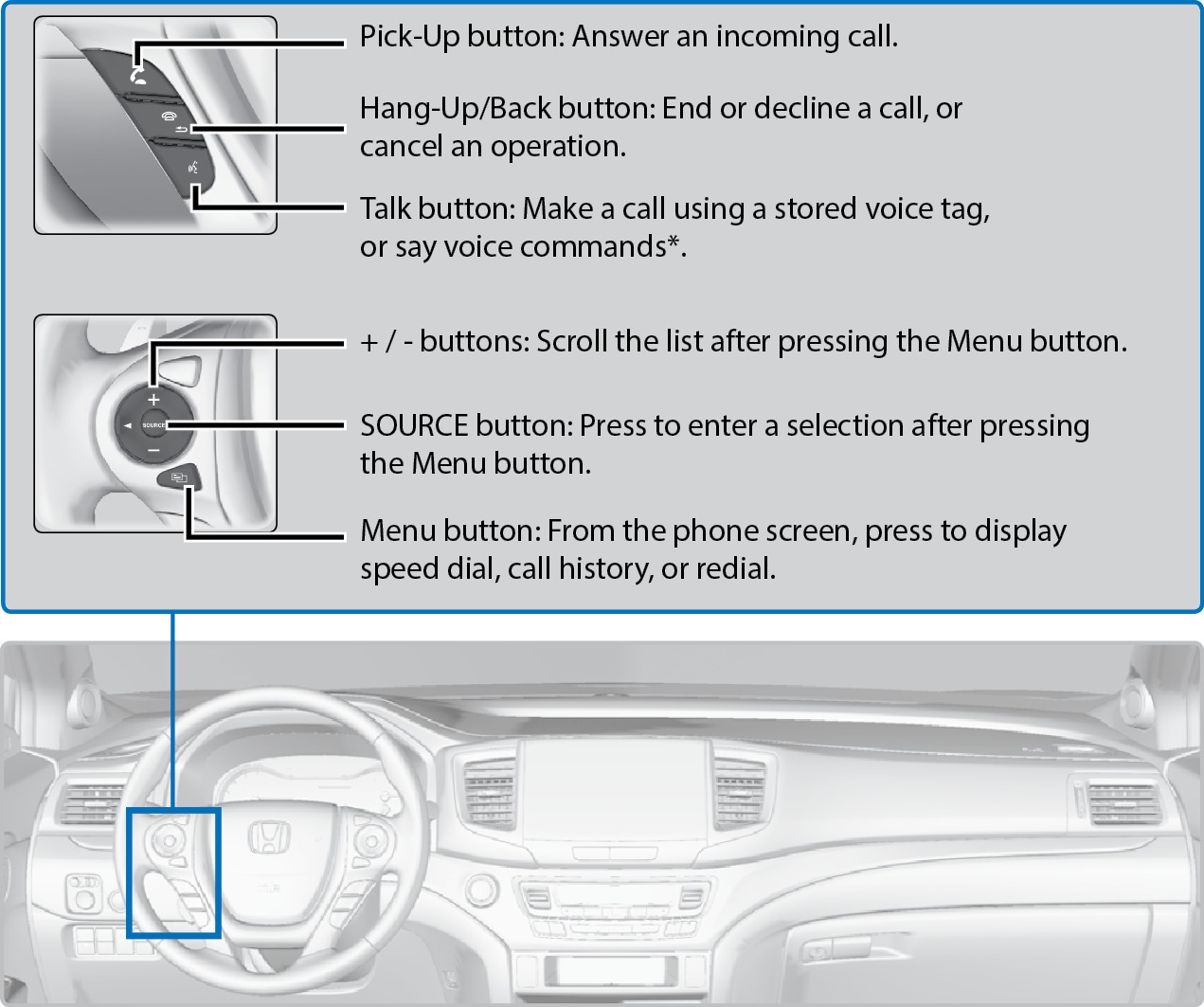
*models with navigation
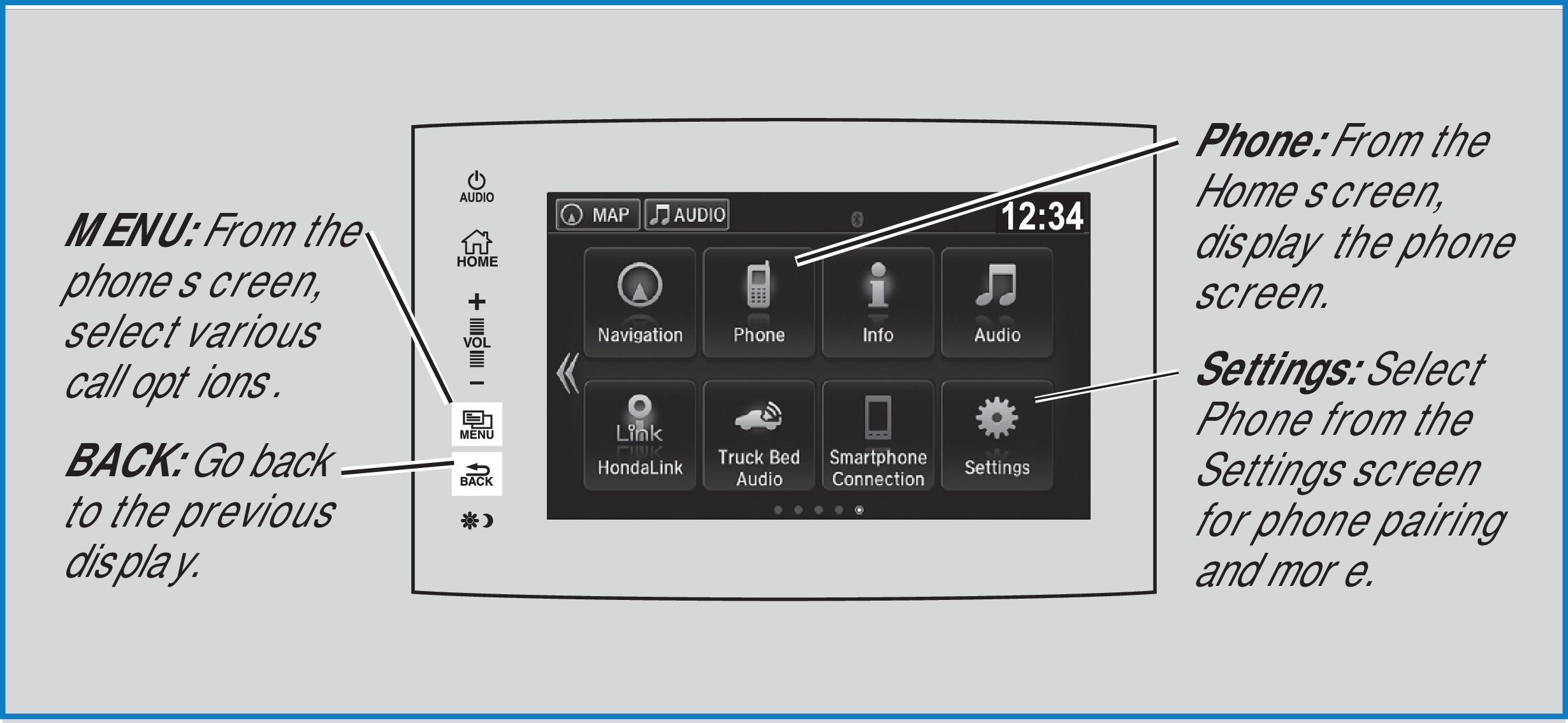
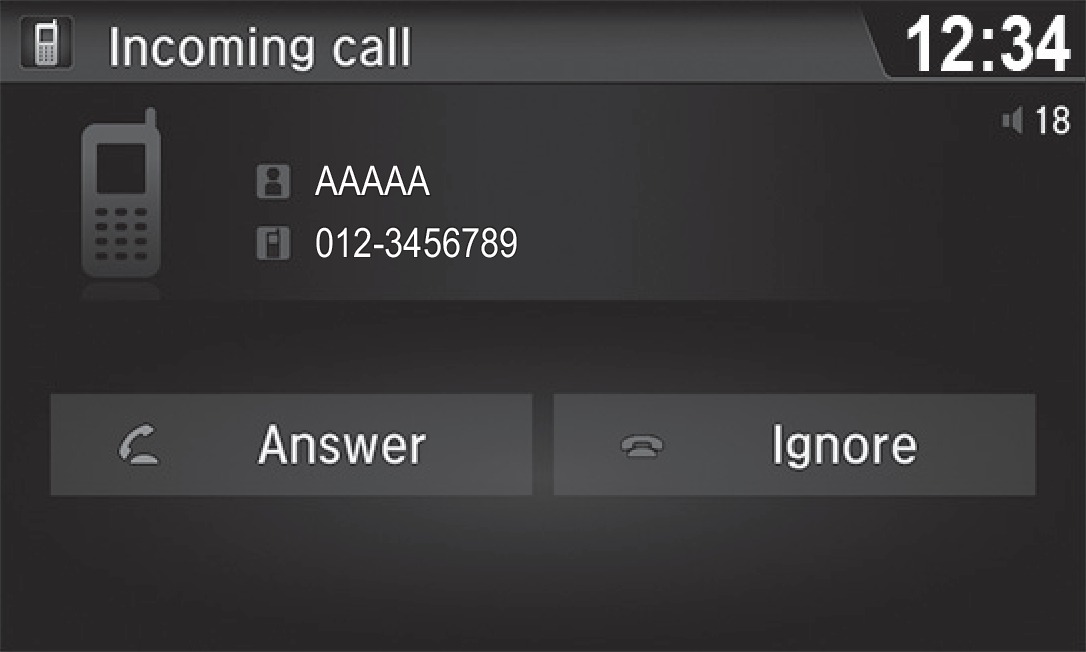
HFL display
Talk Button Tips
For a list of available phone commands, see "Voice Command Index". The system recognizes only the commands on the list.
- When using the Talk button, wait until you hear a beep before speaking.
- To bypass the system prompts, simply press the Talk button again to say your command.
- When the Talk button is pressed, all available voice commands are highlighted in yellow.
- Speak in a clear, natural voice.
- Reduce all background noise.
- Adjust the dashboard vents away from the microphone on the ceiling.
- Close the windows and moonroof*.
*if equipped
- Pairing a Phone
- Making a Call
- SMS Text Messaging and E-Mail*
- HondaLink Assist
- Siri Eyes Free
- Voice Command Index
Pairing a Phone
Models with touchscreen
To use hands-free phone and streaming audio functions, you must first pair your phone to the system. This can only be done when the vehicle is stopped. Use the touchscreen to make and enter selections.
- From the Home screen, select Settings.
- Select Phone.
- Select Bluetooth Device List.
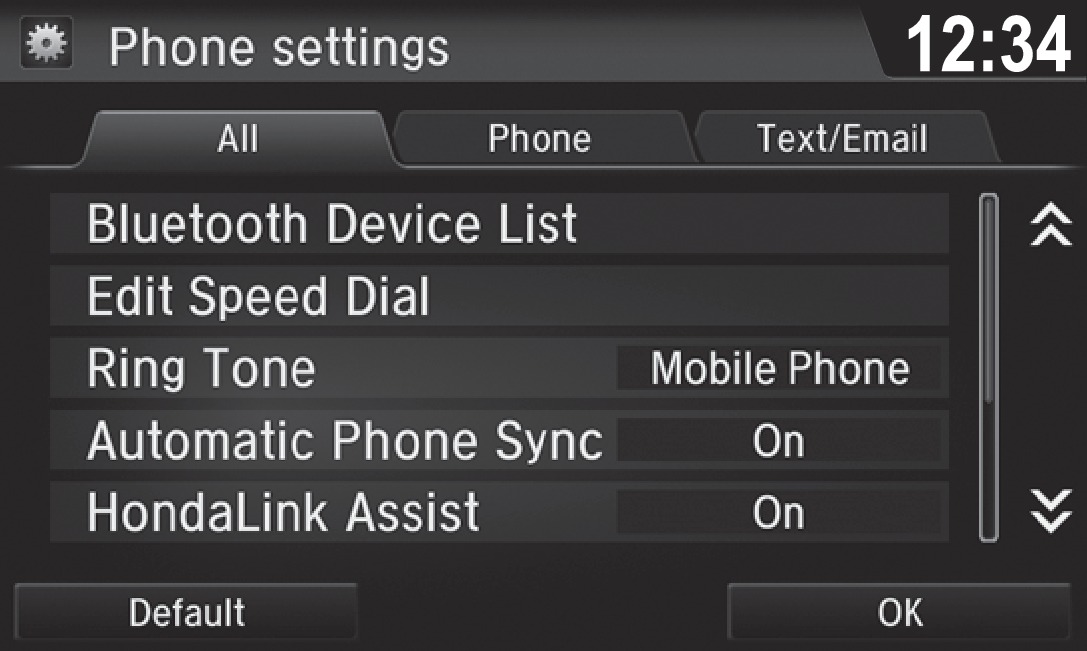
- Select Add Bluetooth Device.
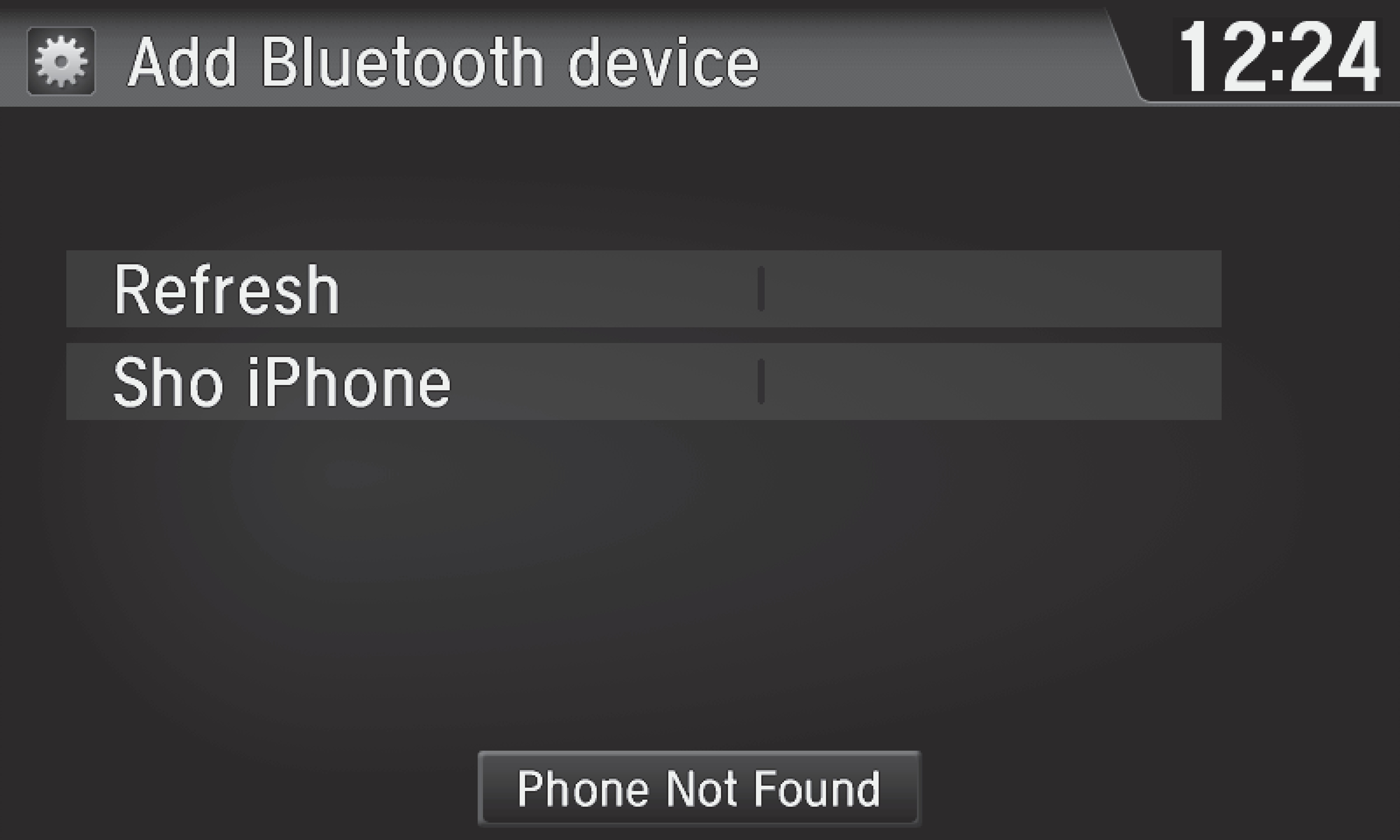
- Make sure your phone is in discovery mode. Select Continue.
The system searches for your phone. Select your phone when it appears on the list.
If your phone does not appear: Select Phone Not Found and search for HandsFreeLink from your phone. Connect to HFL.
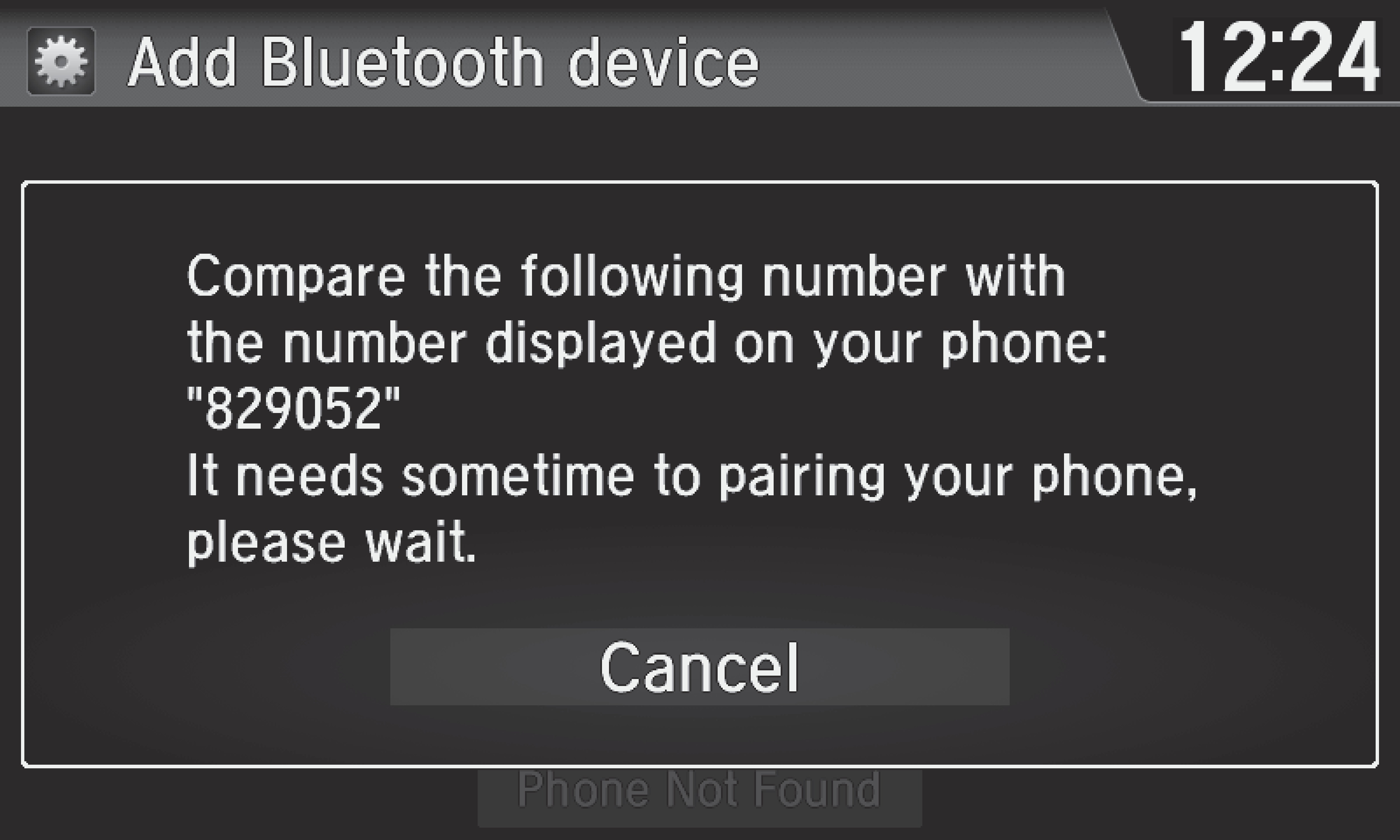
- The system gives you a pairing code. Compare it to the code that
appears on your phone. Connect to HFL from your phone.
- The system asks if you want to enable HondaLink Assist. Select On to enable emergency collision notification (see "HondaLink Assist").
- Press BACK to exit the menu.
Applicable laws may prohibit the operation of handheld electronic devices while operating a vehicle.
- Basic HFL Operation
- Making a Call
- SMS Text Messaging and E-Mail*
- Apple CarPlay
- Android Auto
Making a Call
Models with touchscreen
You can make a call using several methods.
Dialing a Number
Enter a 10-digit phone number to call.
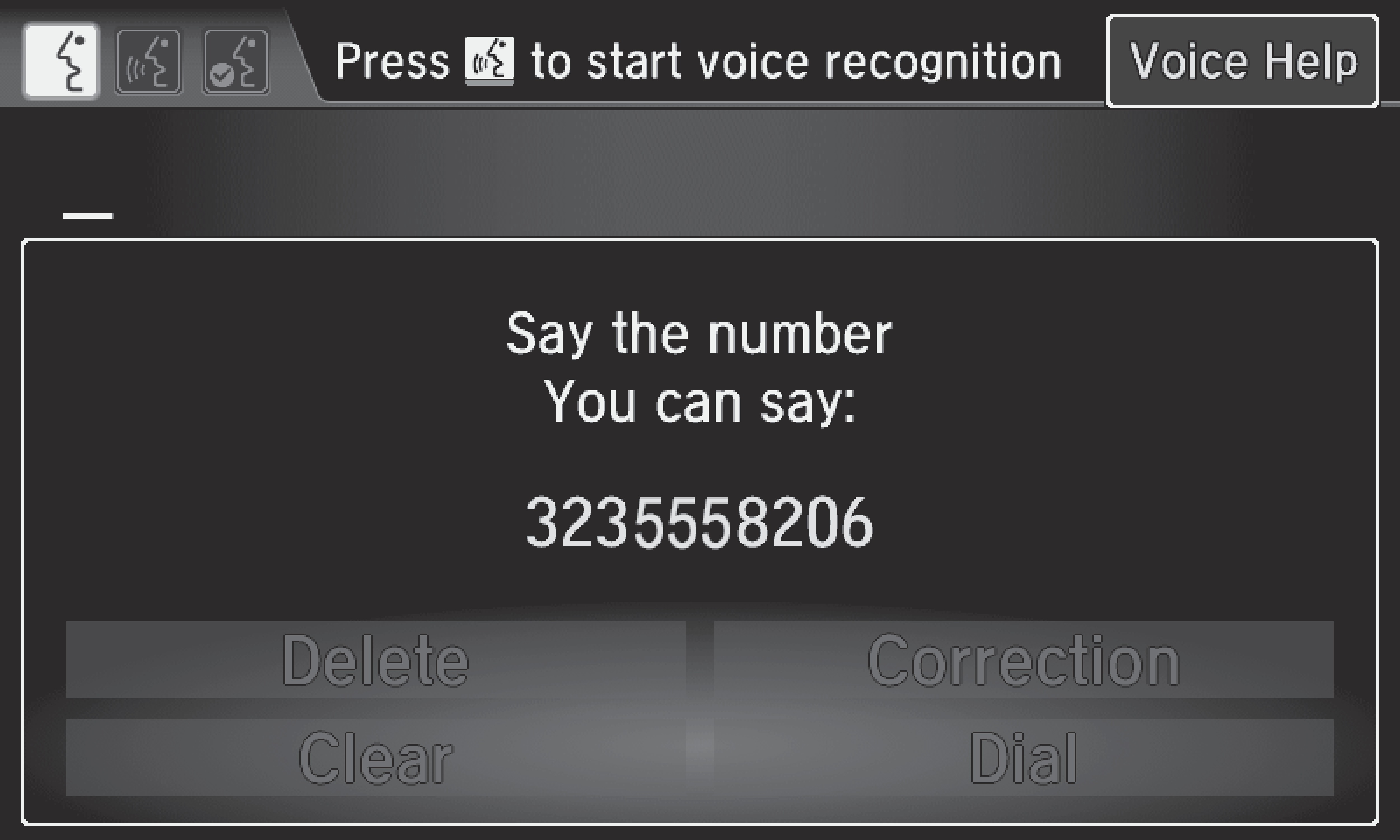
Using voice commands
- Press the Talk button before you say each command.
- Say "Dial by number."
- Say the phone number: For example, "3-1-0-5-5-5-1-2-3-4."
- The system begins to dial.
Using the touchscreen
Manual operation is limited while the vehicle is moving. Voice commands are always available.
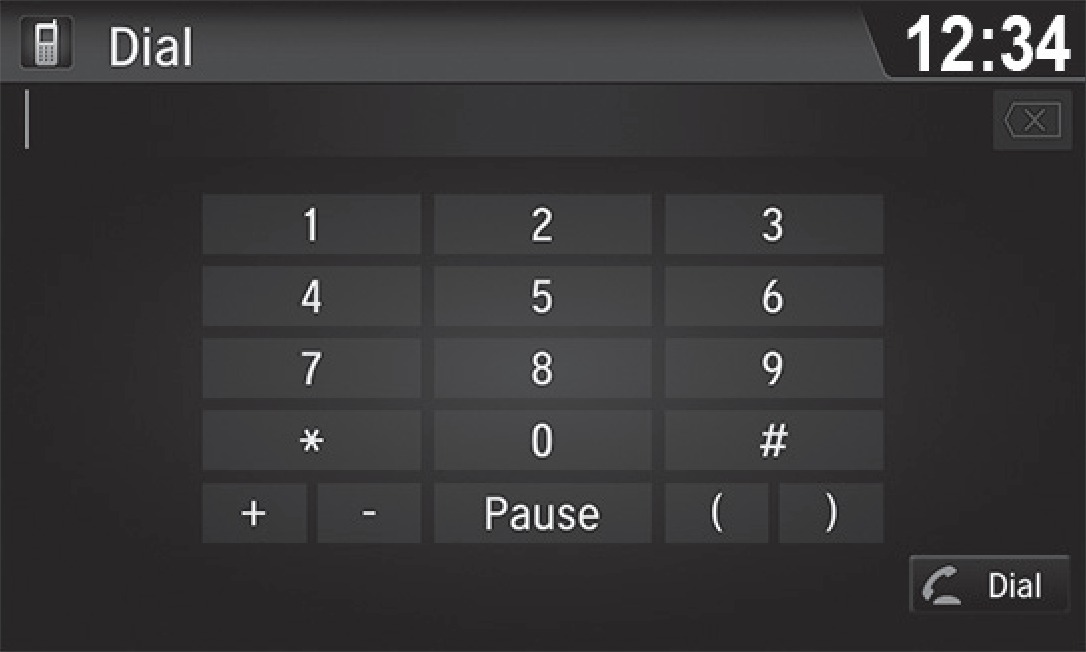
- From the Home screen, select Phone.
- Select MENU.
- Select Dial.
- Enter the phone number. Select the green phone icon to call.
Using the Phonebook
When your phone is paired, its entire phonebook can be automatically imported to the system. Phone synchronization must be turned on.
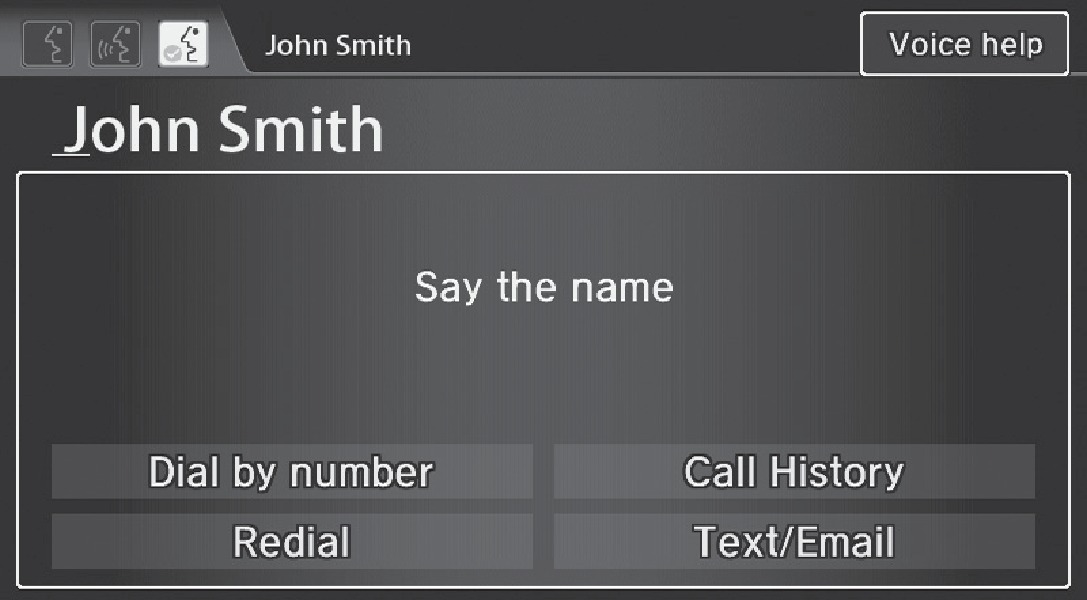
Using voice commands
- Press the Talk button before you say each command.
- Say "Dial by name."
- Say the phonebook name and phone type. For example, "John Smith mobile."
Using the touchscreen
Manual operation is limited while the vehicle is moving. Voice commands are always available.
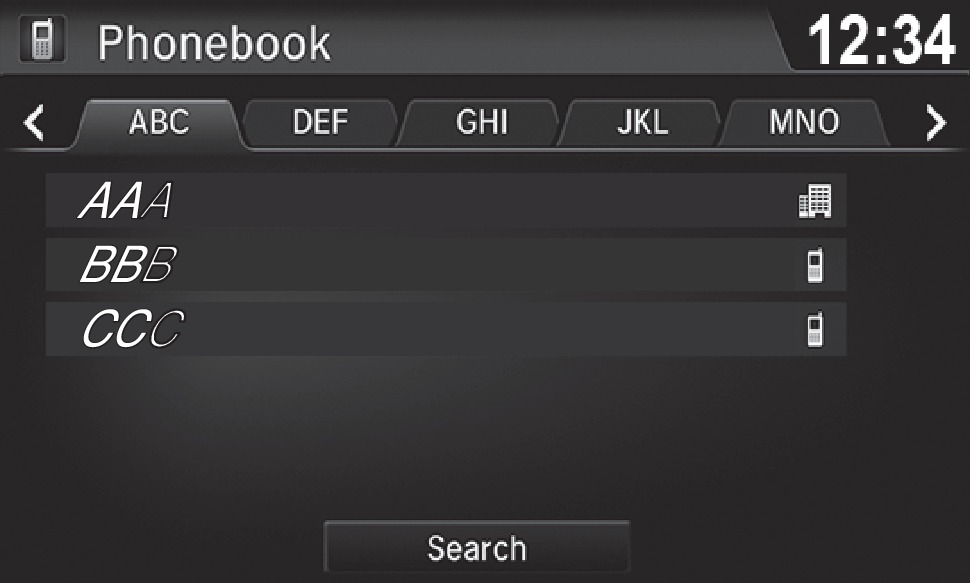
- From the Home screen, select Phone.
- Select MENU.
- Select Phonebook.
- Scroll through the list to find the name and number you want to call, and select it to call.
Storing Speed Dial Entries
Store up to 20 numbers for quick dialing.
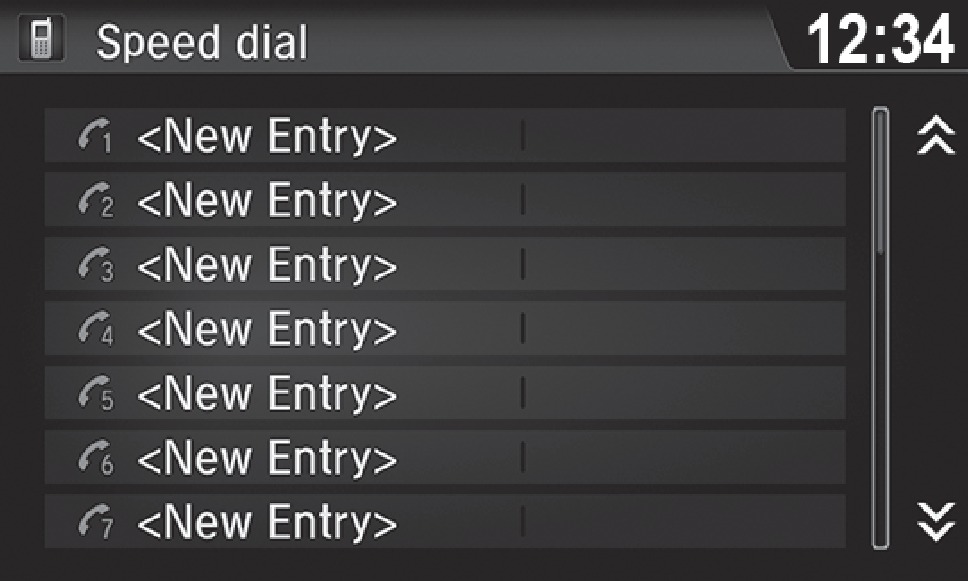
- From the Home screen, select Phone.
- Select MENU.
- Select Speed Dial, then select New Entry.
- Select an entry method.
- If desired, you can create a voice tag for the number. Follow the prompts.
Using Speed Dial
Make calls quickly using stored speed dial entries.
Using voice commands
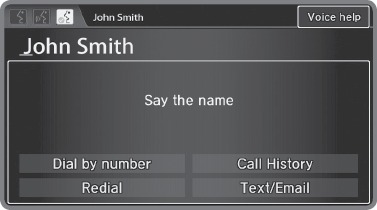
- Press the Talk button before you say each command.
- Say "Dial by name."
- Say the stored voice tag name. For example, "John Smith."
Using the touchscreen
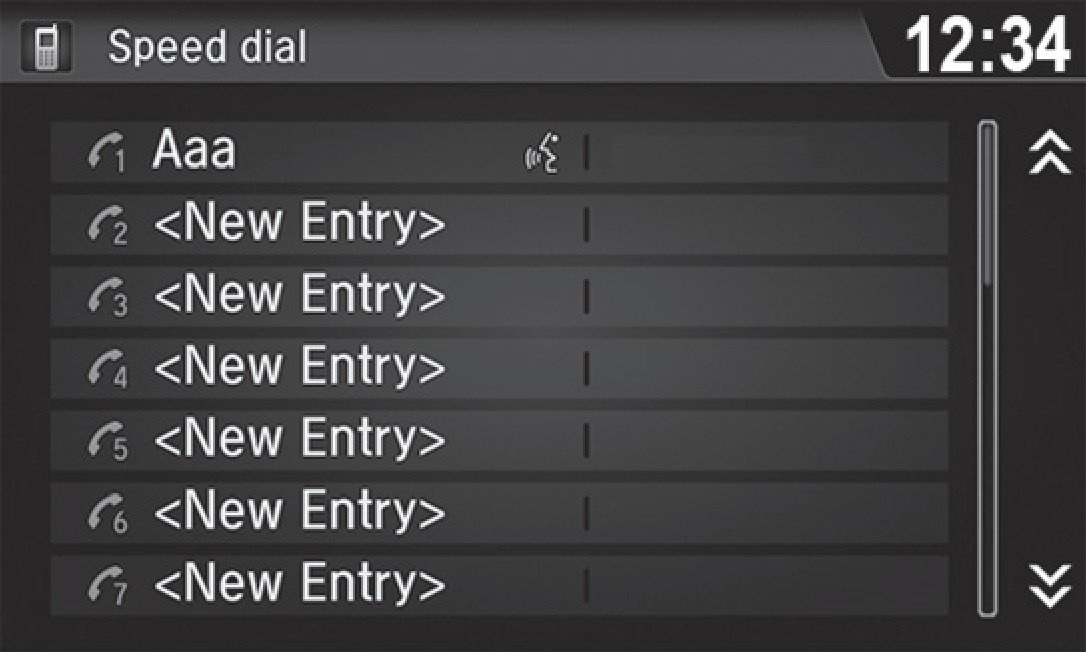
- From the Home screen, select Phone.
- Scroll through the list to find the entry you want to call, and select it to call.
- SMS Text Messaging and E-Mail*
- Pairing a Phone
HondaLink Assist
If your vehicle's airbags deploy or if the unit detects that the vehicle is severely impacted, your vehicle automatically attempts to connect to an operator. Your phone must be paired to the system and have good cellular connection. Visit
Open Web Page
(U.S.) or
Open Web Page
(Canada) for more information.
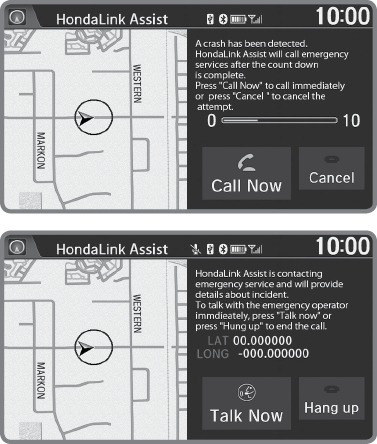
- Make sure your phone is on and paired to Bluetooth HandsFreeLink (see "Pairing a Phone").
- Select Call Now, or the system automatically connects after 10 seconds. The vehicle information and its position are sent to the operator.
- Select Talk Now to immediately talk to the operator.
- When the call is complete, select Hang Up or press the Hang-Up/Back button on the steering wheel.
*if equipped
- Siri Eyes Free
- Pairing a Phone
- Basic HFL Operation
SMS Text Messaging and E-Mail*
Models with touchscreen
Certain phones can receive and send messages while paired and connected. Visit Open Web Page (U.S.) or phone
(Canada) to check phone compatibility. Standard message rates apply with your phone service provider.
This feature is limited while the vehicle is moving.
Receiving and Responding to Messages
When you receive a new message, a pop-up appears on the touchscreen. You can view the message when the vehicle is stopped. You can also reply to it using fixed phrases or call the sender.
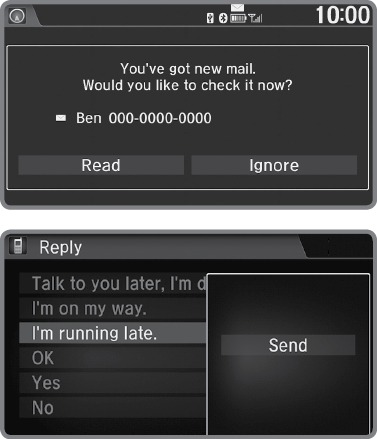
- When the prompt appears, select Read.
- The message is displayed, and the system reads it aloud.
- To reply: With the message open, select Reply, and choose one of the six available responses. Select Send to send the message. You cannot create a new text message.
- To call the sender: With the message open, select Call.
Selecting an Account
If your phone has both text message and e-mail accounts, you can select only one of them at a time to be active and receive notifications.
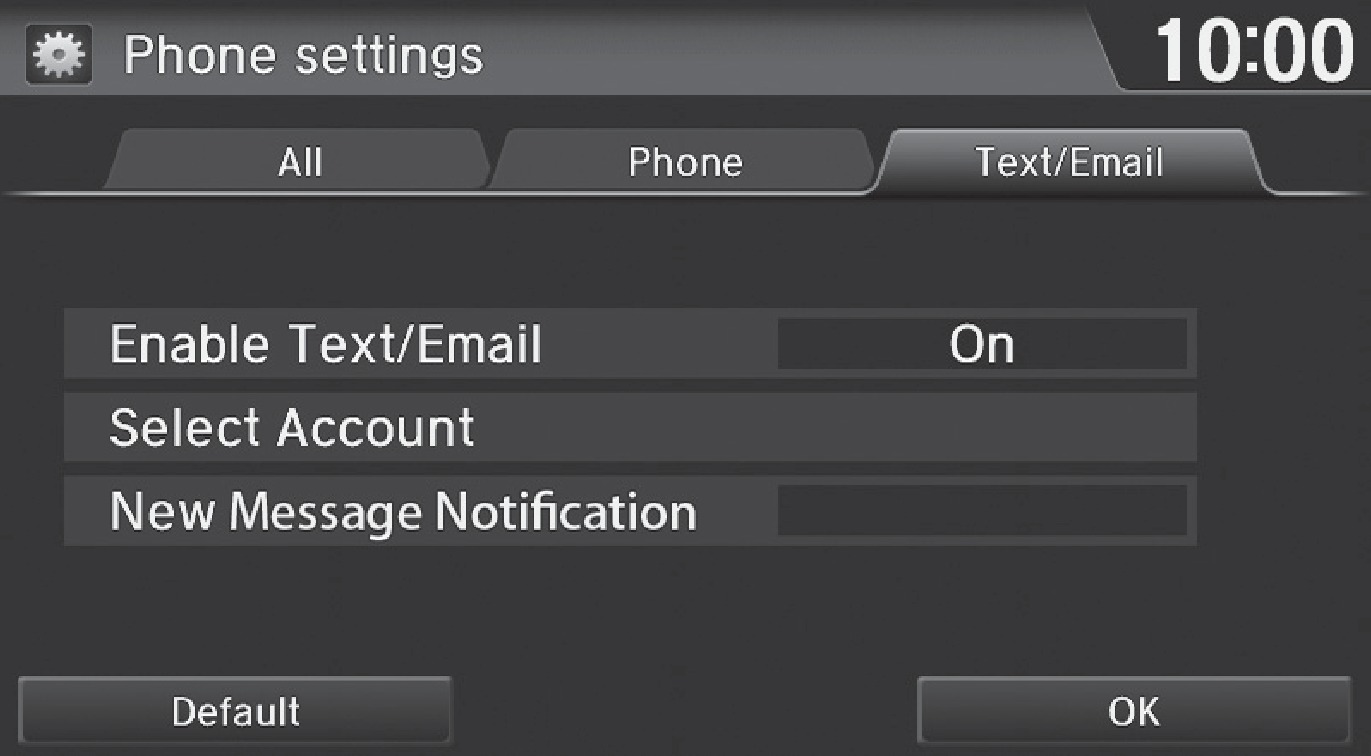
- From the Home screen, select Settings.
- Select Phone.
- Select Account.
- Select Text Message or an e-mail account.
*if equipped
- Making a Call
- Pairing a Phone
- Basic HFL Operation
- Pairing a Phone
- Making a Call
Siri™ Eyes Free
Models with touchscreen
Activate Siri through your vehicle when an iPhone is paired to the system.
Visit Open Web Page (U.S.) or phone
(Canada) to check phone compatibility.
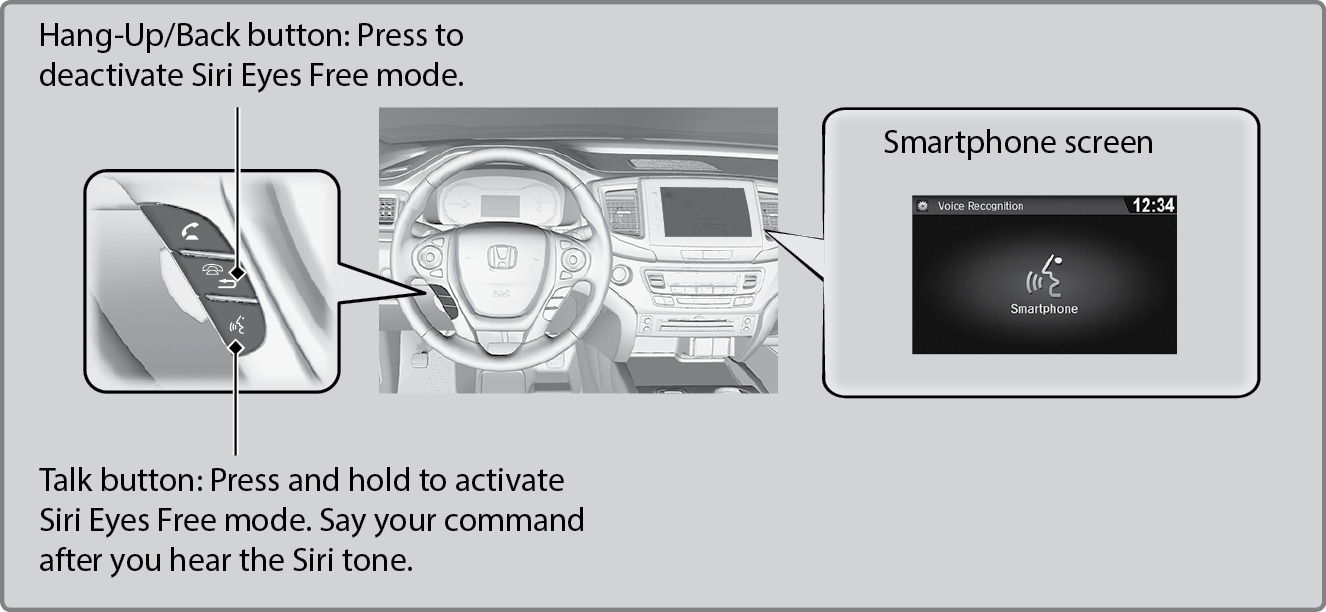
Here are some examples of Siri commands:
"Call John Smith" |
"Remind me to pick up dinner" |
"Read my new text message" |
"Set up a meeting today at 3 p.m." |
"Find a nearby sushi restaurant" |
"Play song XYZ" |
Notes:
- Any requests that include visual feedback from Siri on your phone are not displayed in the vehicle.
- Certain commands rely on the iPhone's features and existing apps.
- To hear turn-by-turn directions or songs through the vehicle, set the audio source to Bluetooth Audio.
Siri and iPhone are trademarks of Apple, Inc.
- Making a Call
- Pairing a Phone
- Basic HFL Operation
- Apple CarPlay
Download Manual