Routing
After a destination is set, you can alter or cancel your route.
Map Legend
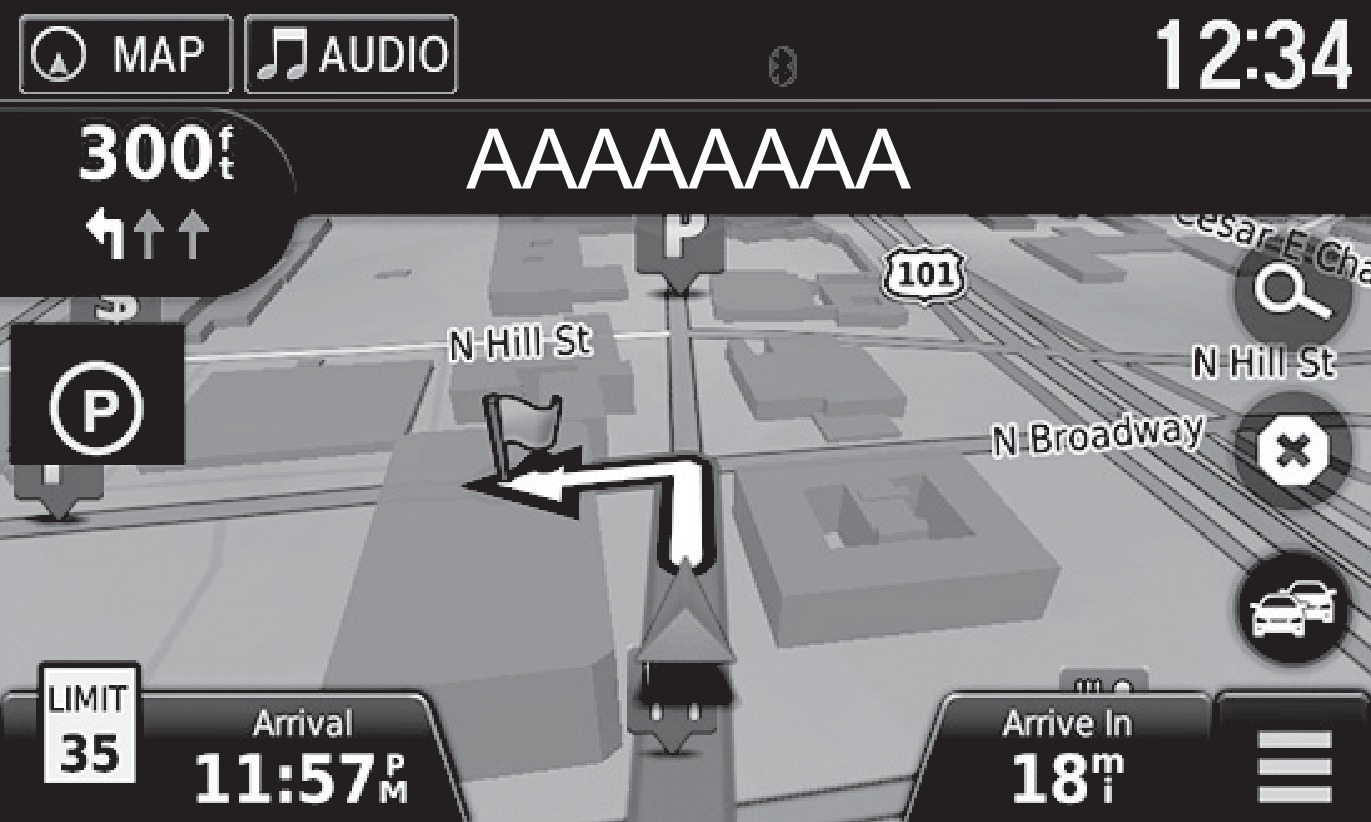
During route guidance
Next guidance point
Speed limit
Search icon
Cancel route
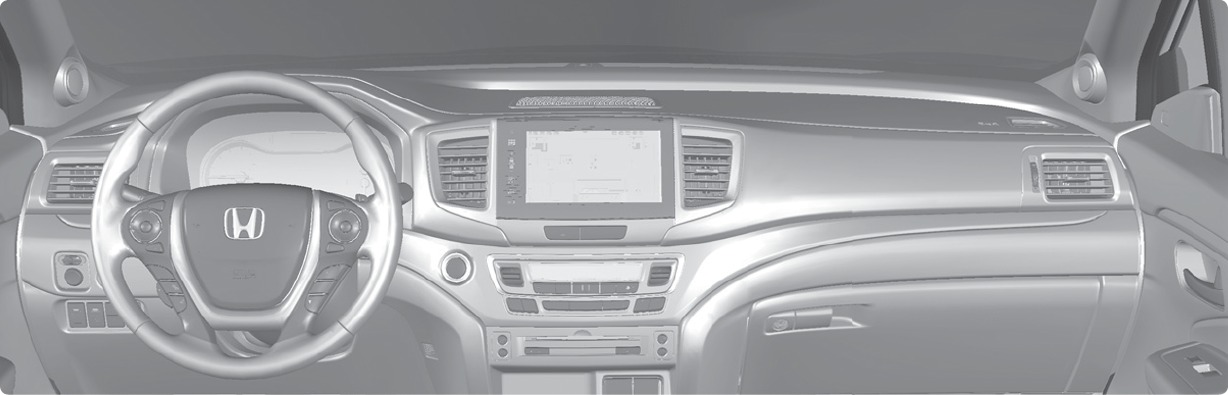
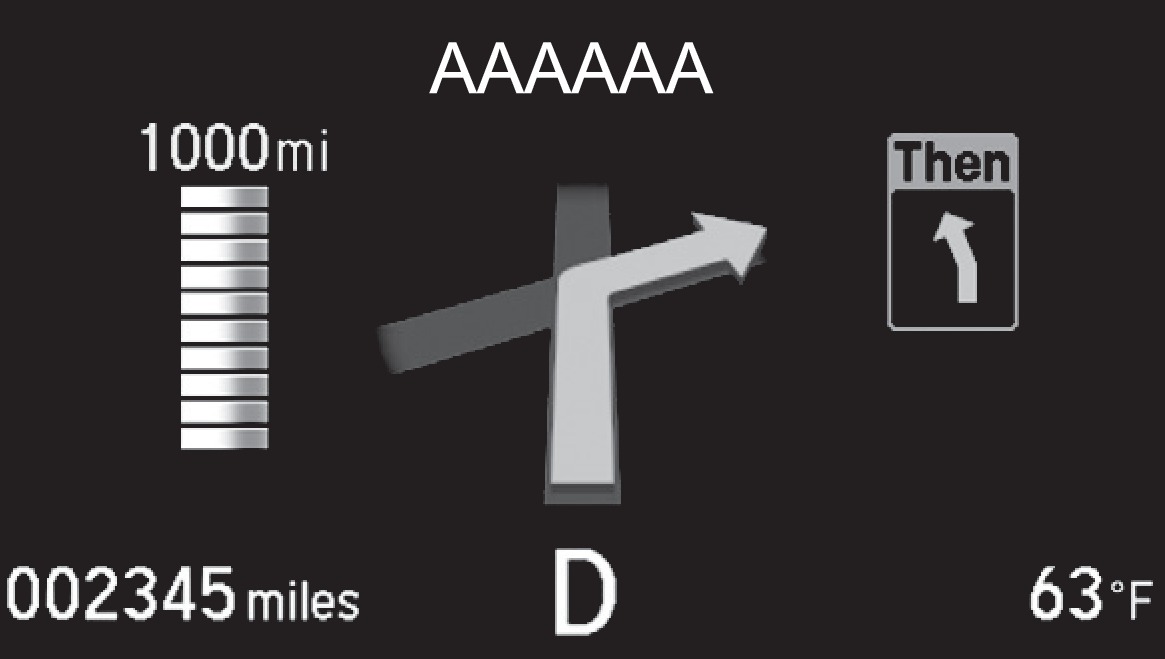
Turn-by-turn directions
Shows a more detailed view of the next maneuver on the MID.
Street name of next guidance point
Distance to next guidance point
Upcoming maneuver
Current route
Using the navigation system while driving can take your attention away from the road, causing a crash in which you could be seriously injured or killed.
Operate system controls only when the conditions permit you to safely do so.
Traffic
View traffic flow and incidents in major metro areas. Traffic alerts are accompanied by an audible beep. Pop-up messages and traffic information can be viewed when you are on the map screen. You can also select traffic to avoid. Traffic coverage is limited in Canada.
Viewing traffic
- From the map screen, select the traffic icon.
- Select Traffic Conditions.
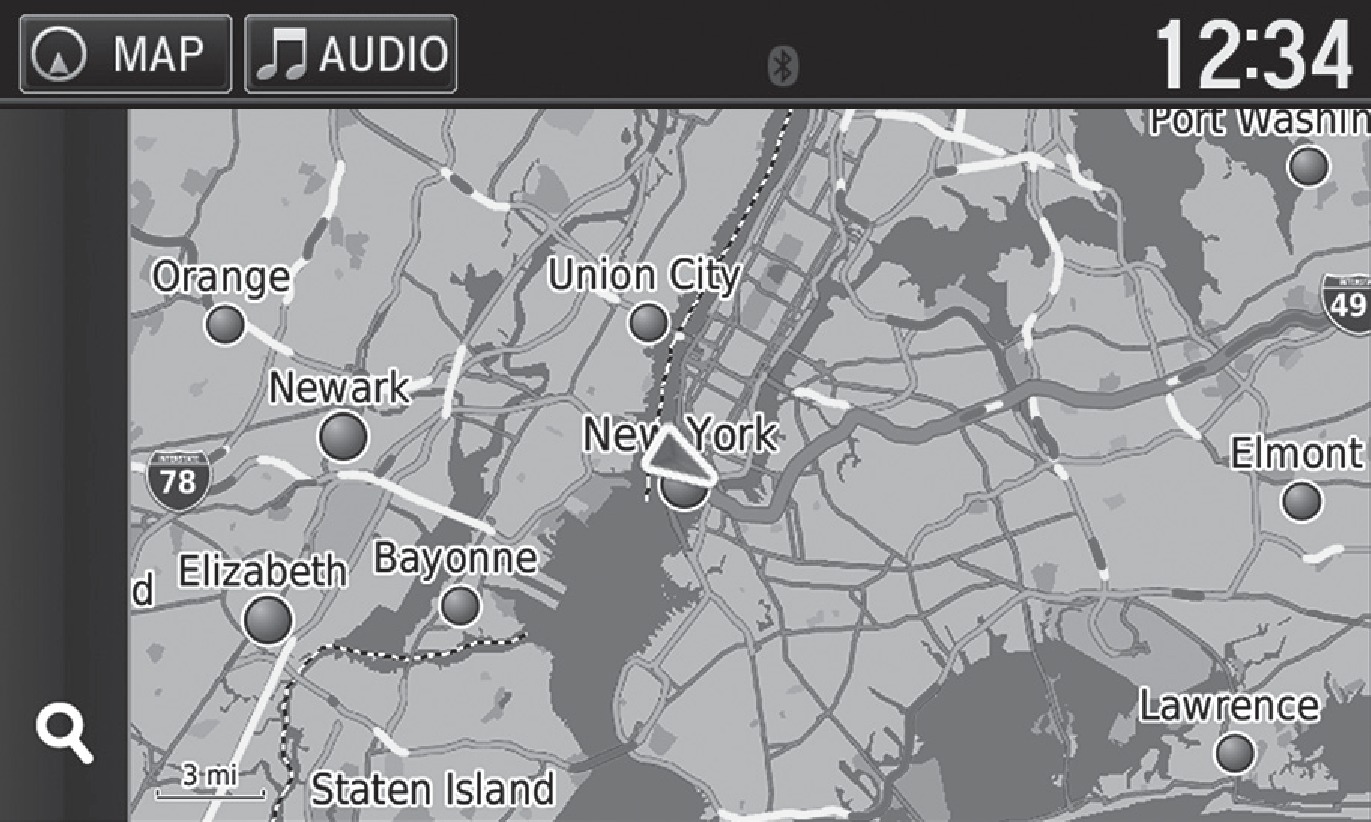
- Traffic icons are shown on the map. Select the magnifying glass icon to display a full list of traffic delays.
To mute traffic alerts and voice guidance: From the map screen, press MENU. Select Mute. To lower voice guidance volume, see "Basic Navigation Operation".
Avoiding traffic on your route
- From the map screen, select the traffic icon.
- Select Traffic on Route.
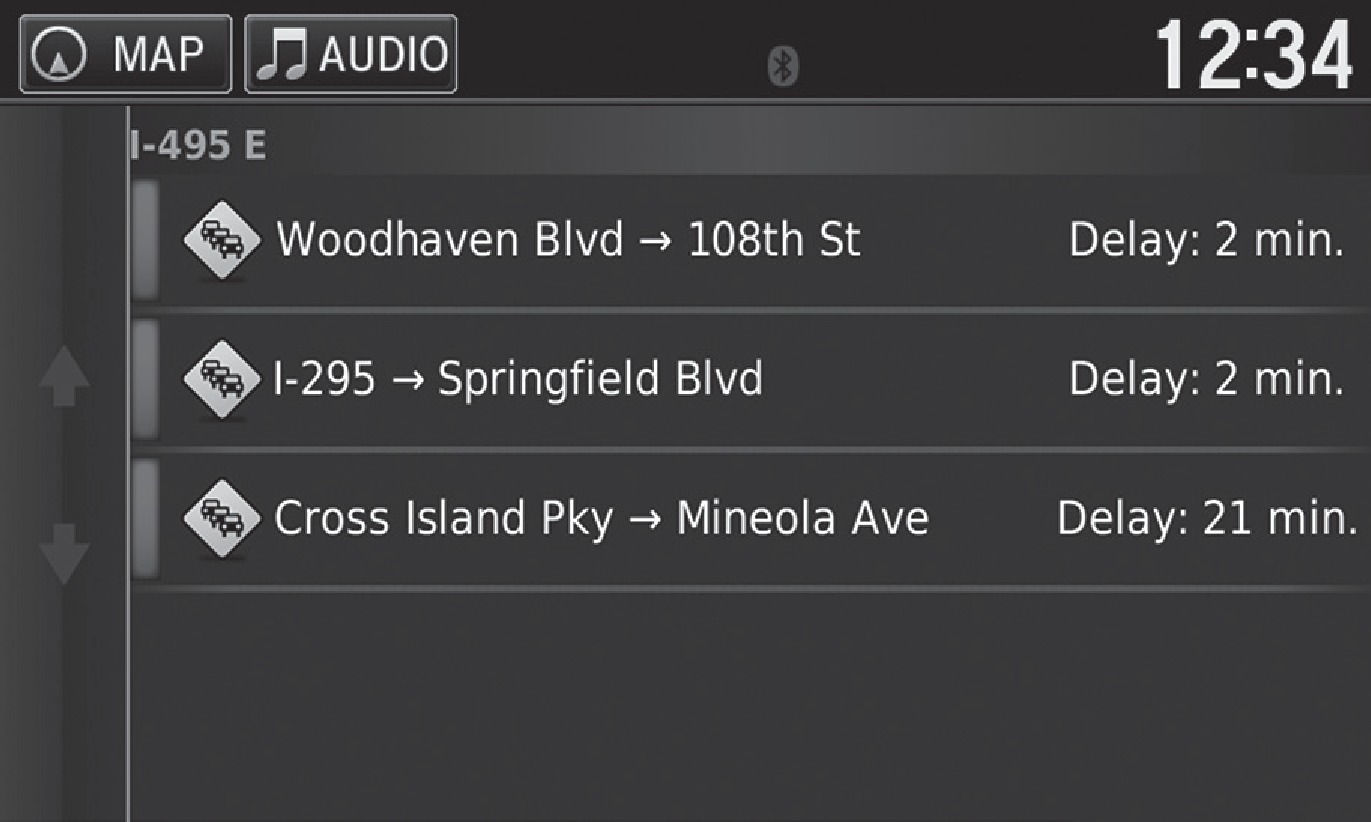
- Select an incident to avoid from the list.
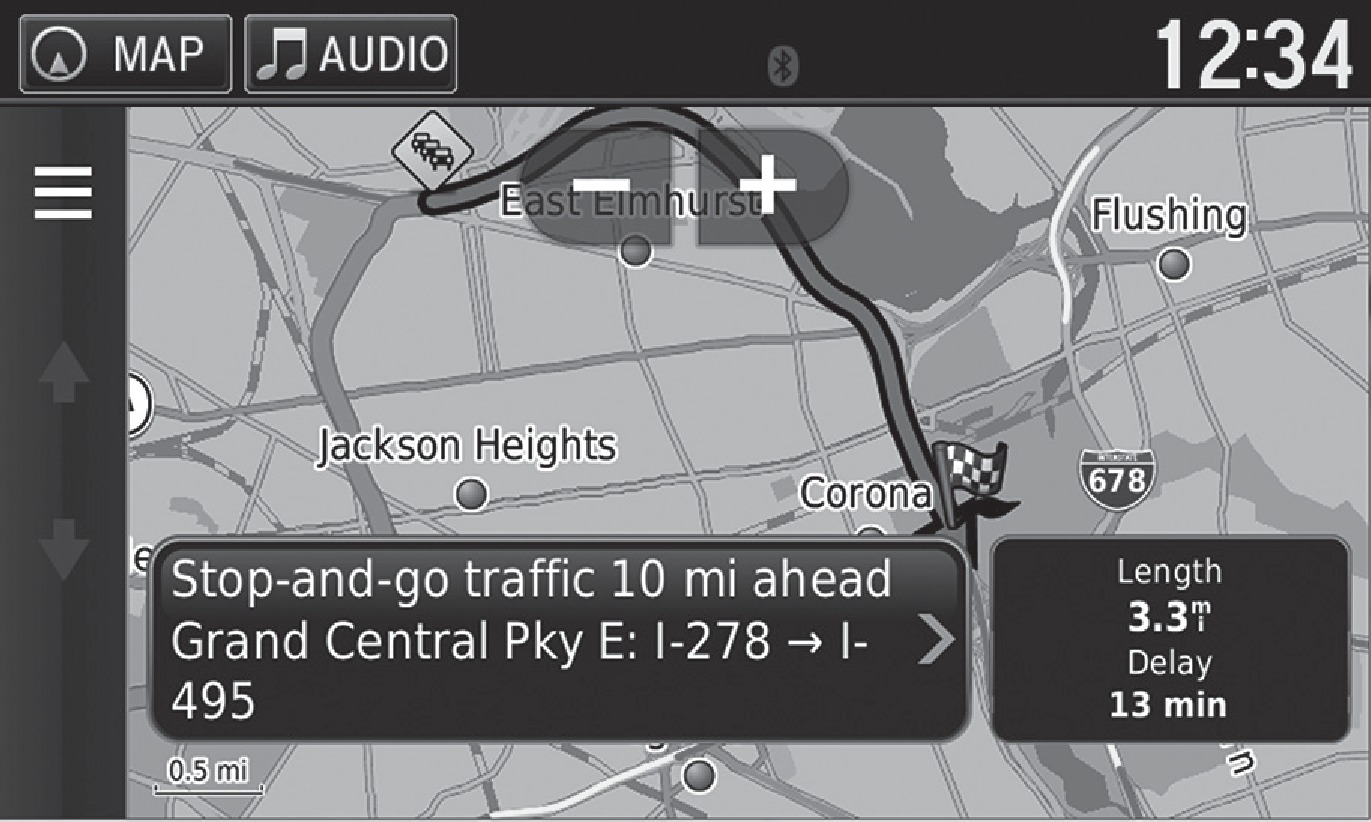
- Select the menu icon.
- Select Avoid.
Download Manual