MODELS WITH COLOR AUDIO SYSTEM
Basic HFL Operation
Models with Color Audio
Make and receive phone calls using the vehicle's audio system, without handling your phone. Visit
(U.S.) or call
(U.S. and Canada) to check phone compatibility.
To reduce the potential for driver distraction, certain manual functions may be inoperable or grayed out while the vehicle is moving. Stop or pull over to perform the function.
HFL Controls
Use the controls to enter information and make selections.
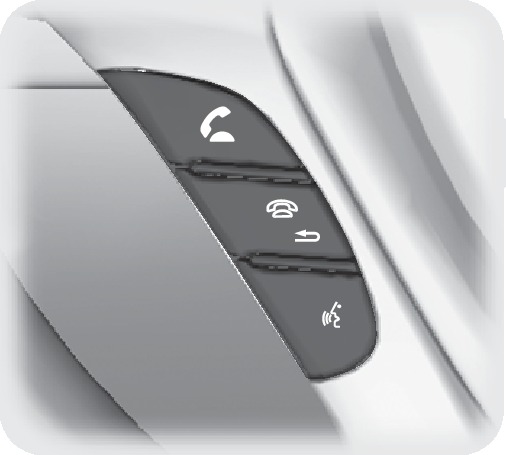
Pick-Up button: Answer an incoming call.
Hang-Up/Back button: End or decline a call, or cancel a command.
Talk button: Make a call using a stored voice tag.
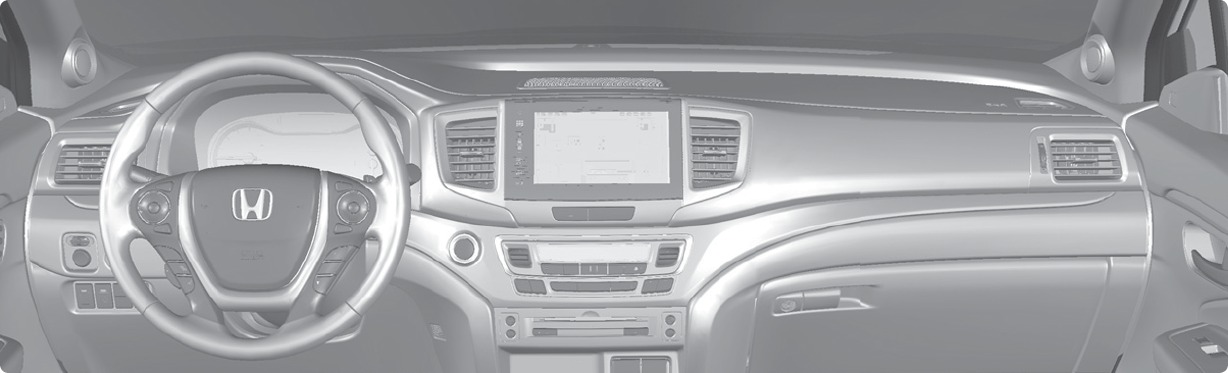
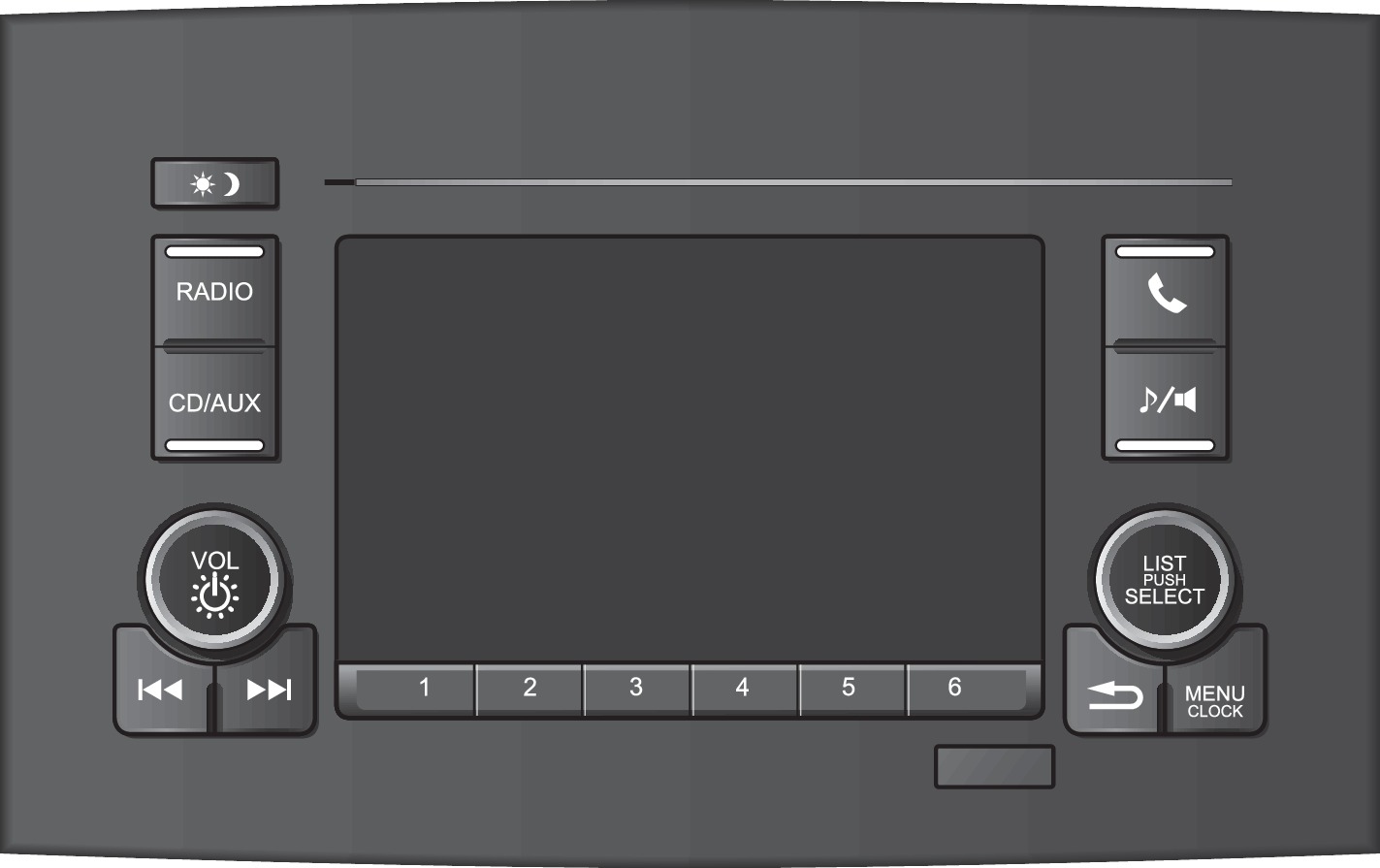
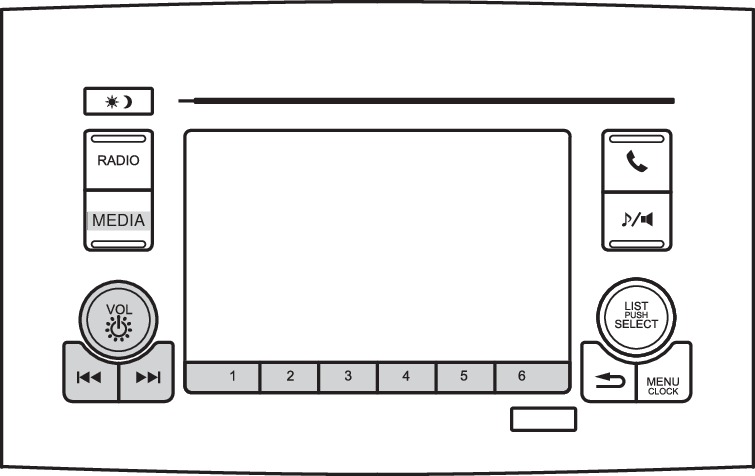
PHONE button: Display the phone screen.
Selector knob: Rotate and press to make selections.
Back button: Go back to the previous display.
Pairing a Phone
Models with Color Audio
To use hands-free phone and streaming audio functions, you must first pair your phone to the system. This can only be done when the vehicle is stopped. Use the selector knob to make and enter selections.
Pairing the First Phone
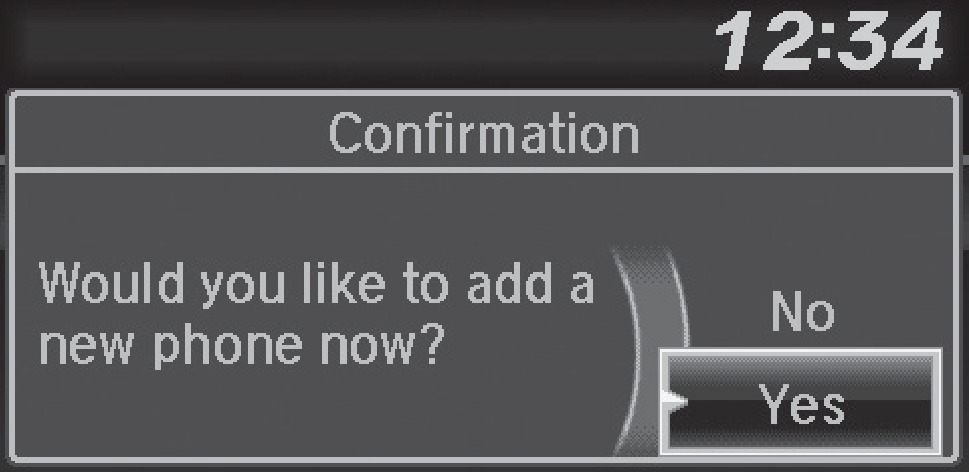
- Press the Phone button to go to the Phone screen. A prompt appears. Select Yes.
- Make sure your phone is in discovery mode. Select OK.
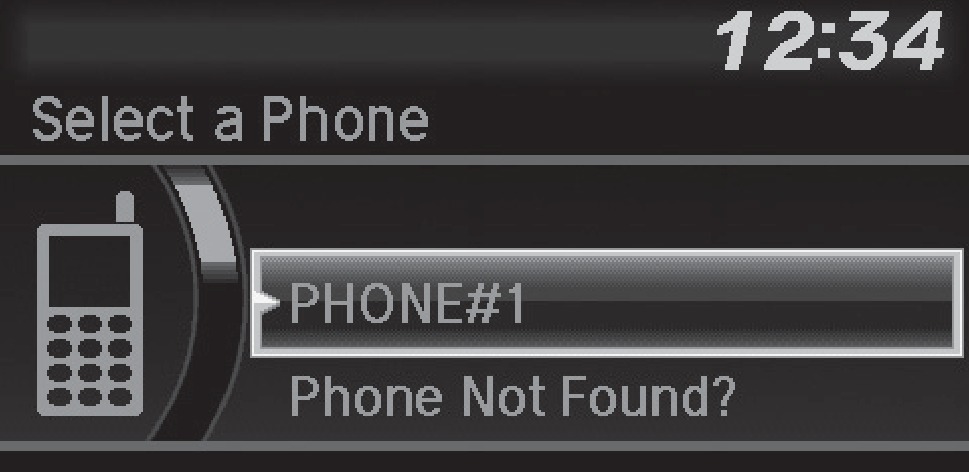
- The system searches for your phone. Select your phone when it appears on the list.
If your phone does not appear:
Select Phone Not Found and search for HandsFreeLink from your phone. Connect to HFL.
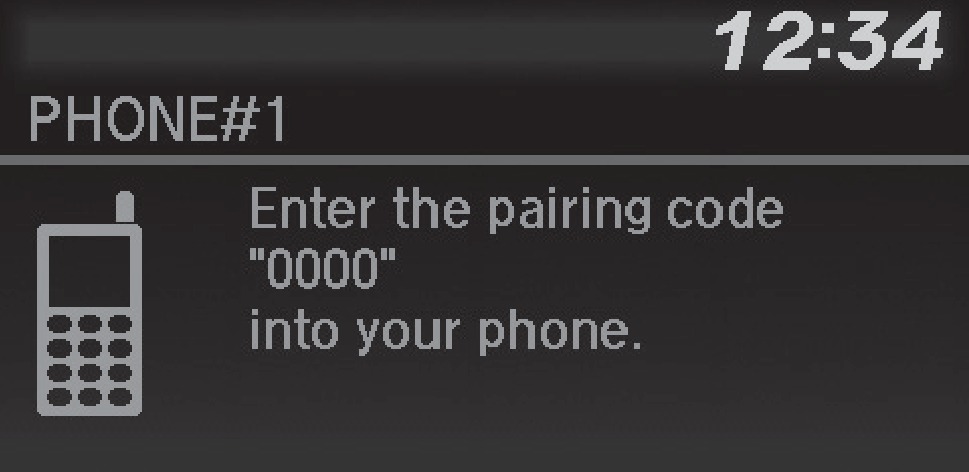
- The system gives you a pairing code. Compare it to the code that appears on your phone. Connect to HFL from your phone.
Pairing an Additional Phone
- Press the Phone button to go to the Phone screen. If a prompt appears asking to connect to a phone, select No.
- Select Phone Setup.
- Select Bluetooth Setup.
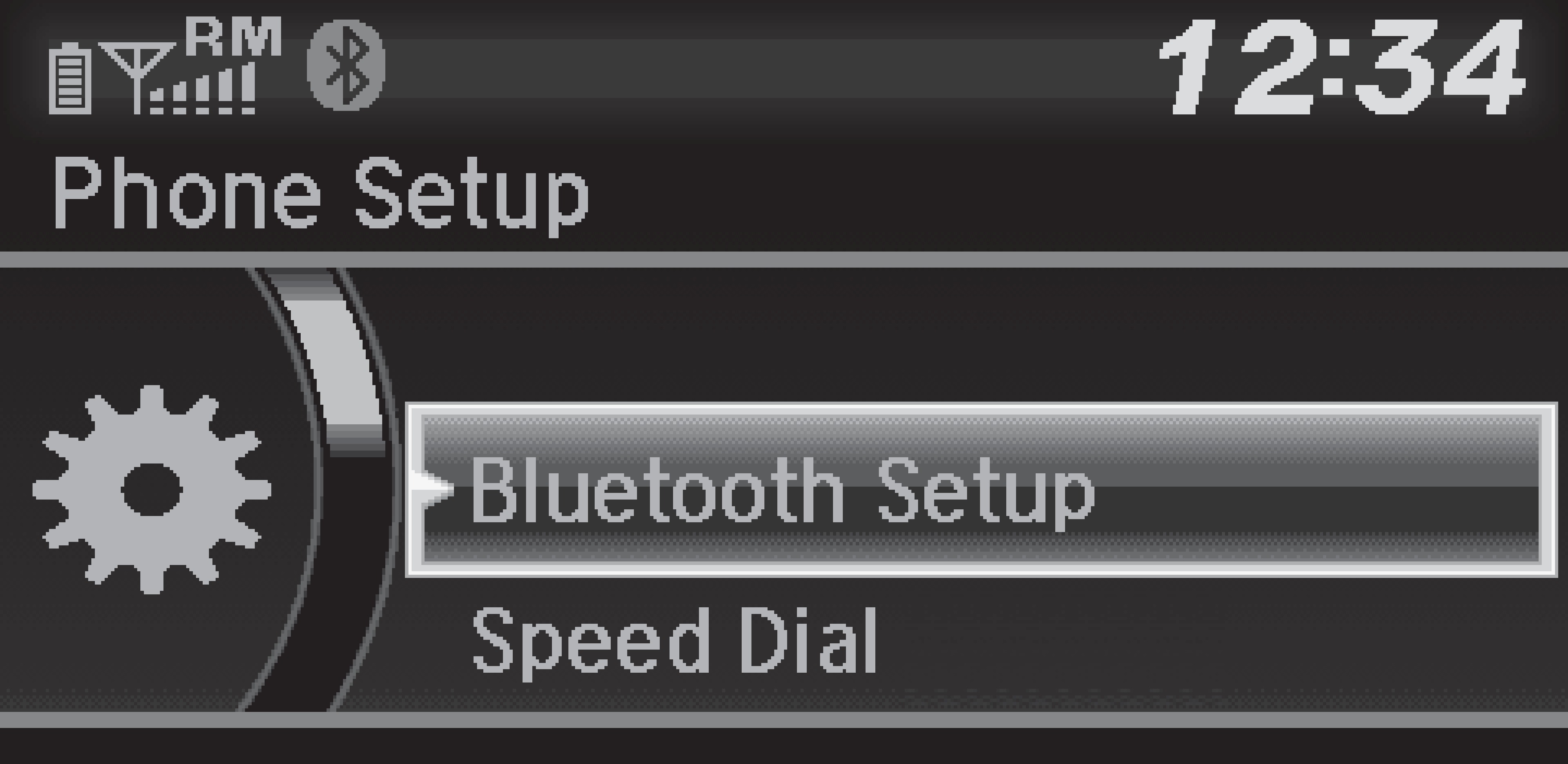
- Select Add New Device.
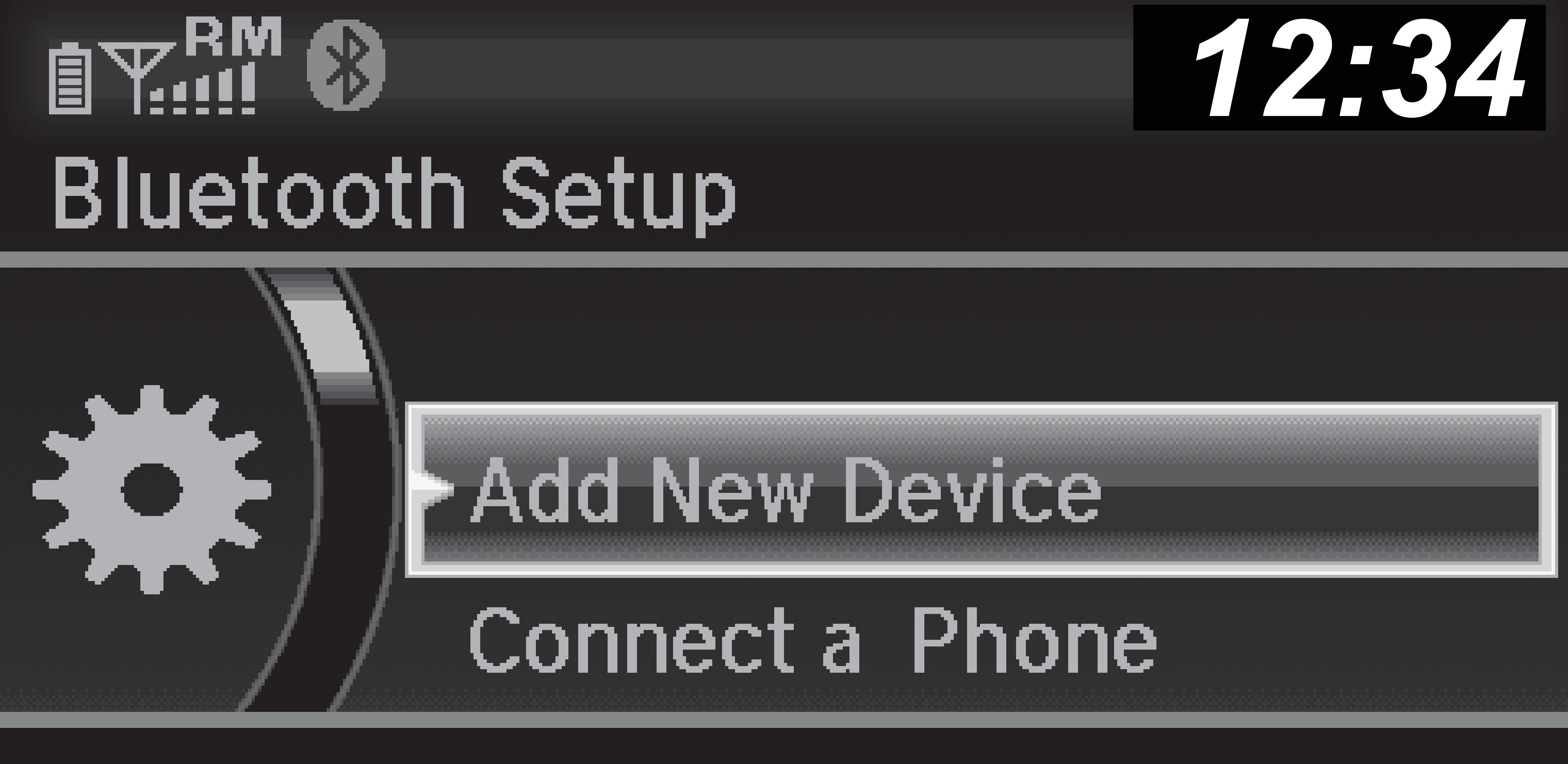
- Make sure your phone is in discovery mode. Select OK.
- The system searches for your phone. Select it when it appears on the list.
If your phone does not appear:
Select Phone Not Found, and search for HandsFreeLink from your phone. Connect to HFL.
- The system gives you a pairing code. Enter it on your phone when prompted.
Applicable laws may prohibit the operation of handheld electronic devices while operating a vehicle.
Making a Call
Models with Display Audio
You can make a call using several methods.
Dialing a Number
Enter a 10-digit phone number to call. Use the selector knob to make and enter selections. This method is inoperable while the vehicle is moving.
- Press the Phone button.
- Select Dial.
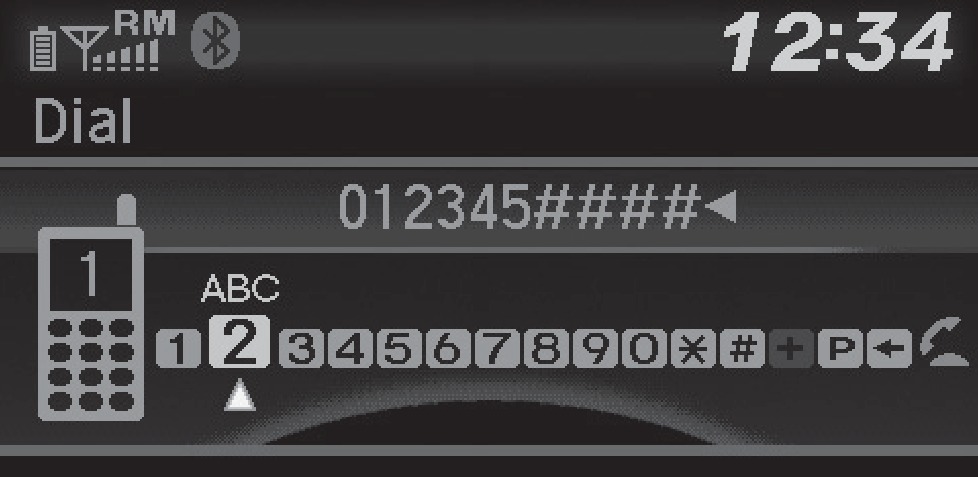
- Enter the phone number. Select the green phone icon to call.
Using the Phonebook
When your phone is paired, its phonebook is automatically imported to the system. Use the selector knob to make and enter selections. This method is inoperable while the vehicle is moving.
- Press the Phone button.
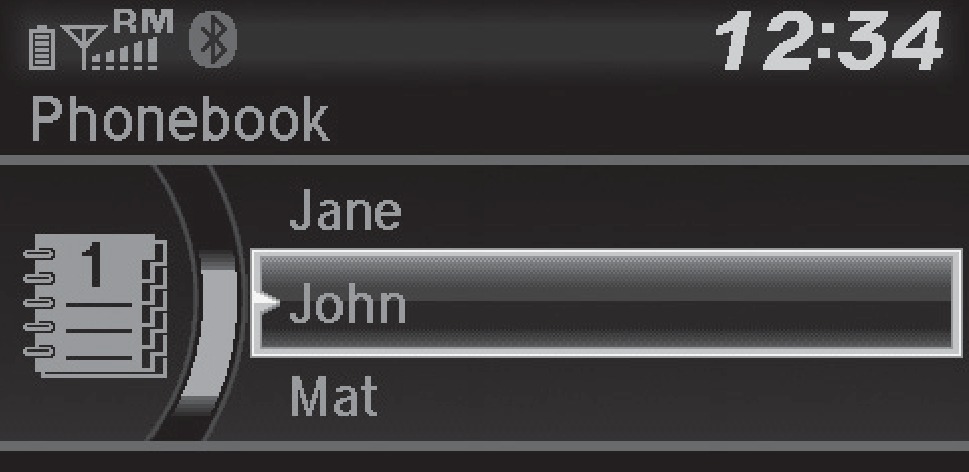
- Select Phonebook.
- Scroll through the list to find the name and number you want to call and select it to call.
Storing Speed Dial Entries
Store up to 20 numbers for quick dialing. Use the selector knob to make and enter selections.
- Press the Phone button.
- Select Phone Setup.
- Select Speed Dial, then select Add New.
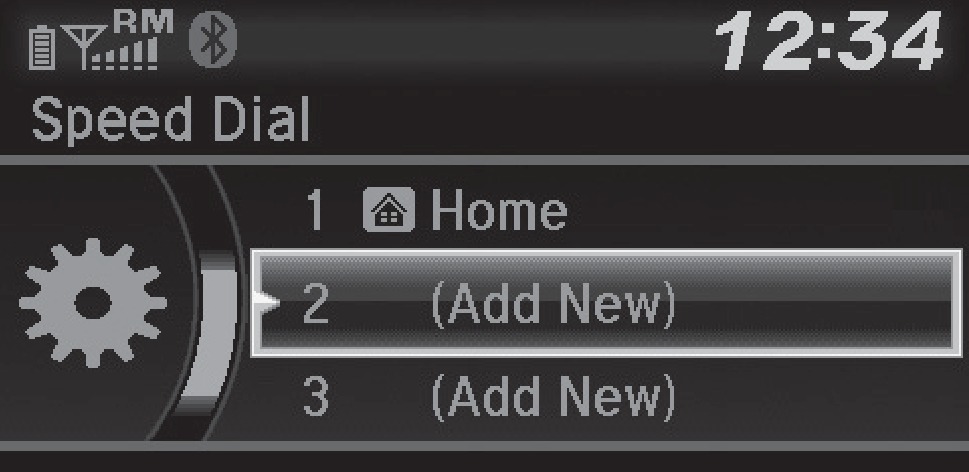
- Select an entry method.
- If desired, you can create a voice tag for the number. Follow the prompts.
Using Speed Dial
Make calls quickly using stored speed dial entries. Use the selector knob to make and enter selections.
- Press the Phone button.
- Select Speed Dial.
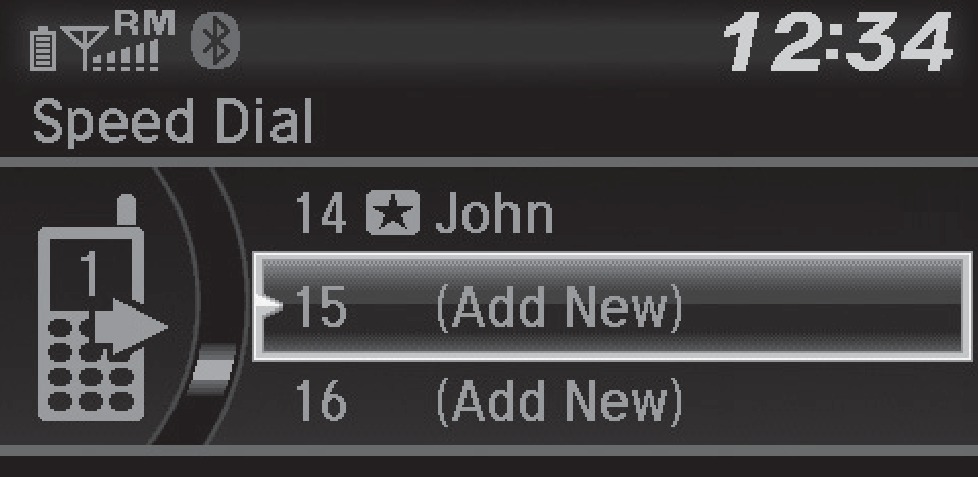
- Scroll through the list to find the entry you want to call and select it to call.
Speed dial entries with stored voice tags can be called using the Talk button. Press the Talk button and follow the prompts.
Download Manual