Basic Navigation
Operation
A real-time navigation system uses GPS and a map database to show your current location and help guide you to a desired destination. You can operate the system using voice commands or the system controls.
To reduce the potential for driver distraction, certain manual functions may be inoperable or grayed out while the vehicle is moving. Voice commands are always available.
Steering Wheel Controls
Use the steering wheel controls to say voice commands.
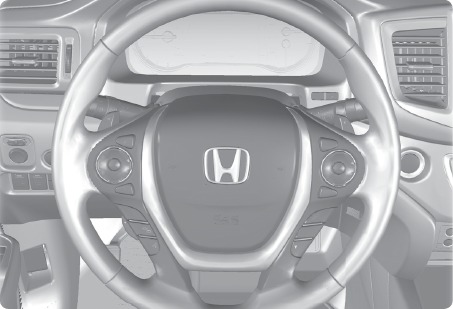
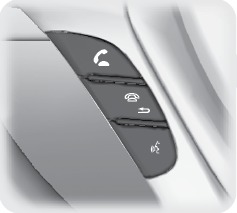
BACK button: Press to cancel a command or operation.
TALK button: Press to say navigation commands.
Talk Button Tips
- When using the Talk button, wait for a beep before saying a command.
- The system recognizes only those commands listed in the Voice Command Index (see "Voice Command Index")
- To bypass the system prompts, simply press the Talk button again to say your command.
- Speak in a clear, natural voice.
- Reduce all background noise.
- Adjust the dashboard vents away from the microphone in the ceiling.
- Close the windows and moonroof.
System Guidance Volume
Adjust the navigation system volume.
- From the Home screen, select Settings.
- Select System.
- Select the Sound/Beep tab.
- Adjust the Guidance Volume level.
- Press BACK to exit the menus.
*if equipped
Navigation Display and Controls
Touch icons on the screen to enter information and make selections.
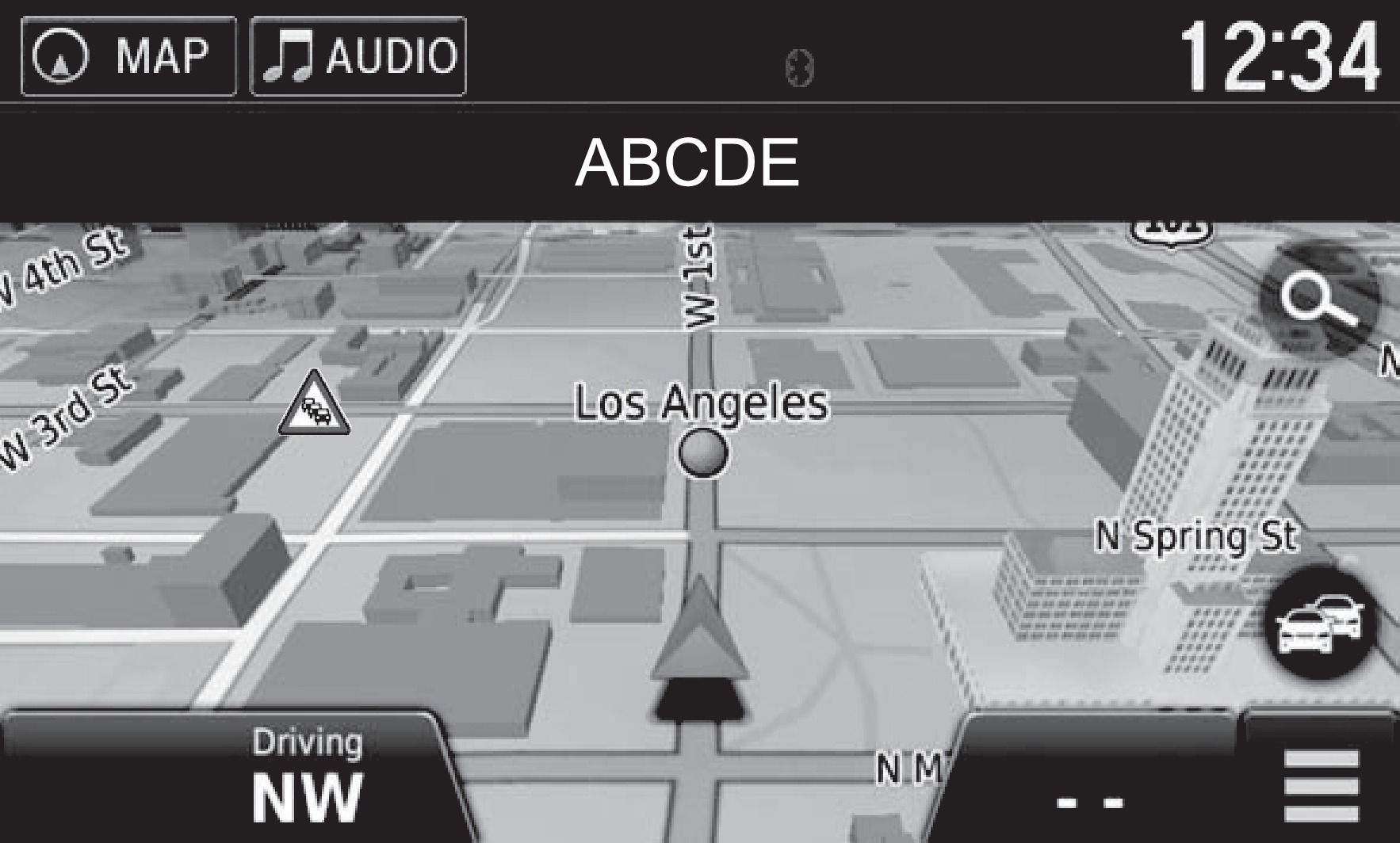
Traffic incident icon
Current vehicle position
Search icon
Traffic flow
Map menu
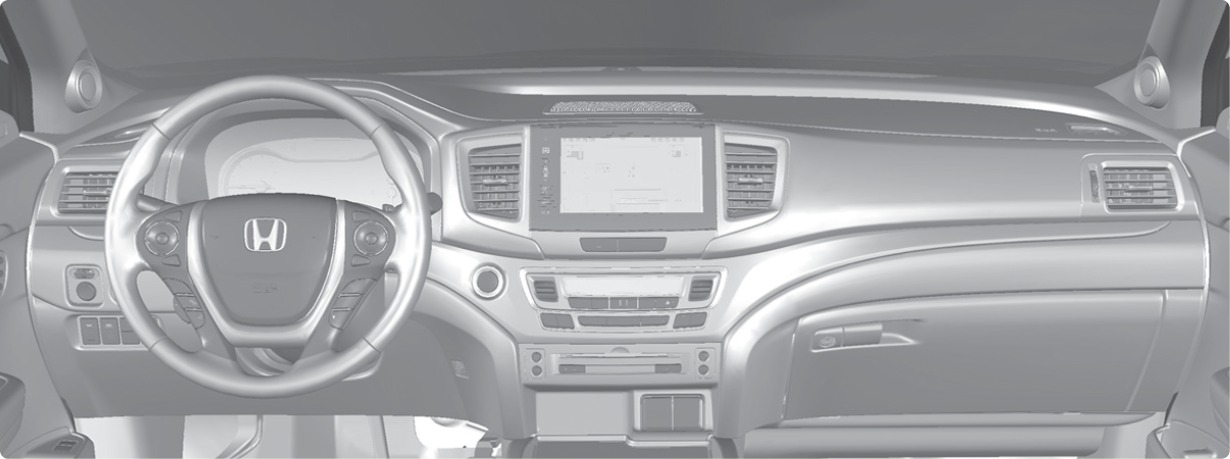
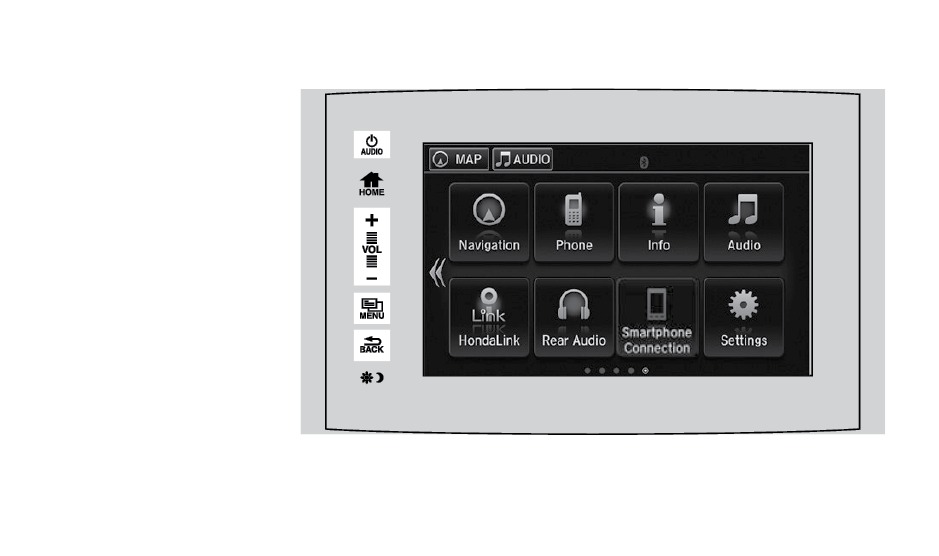
MAP: Display the map screen.
Navi: Display the navigation screen.
MENU: Display navigation options.
BACK: Go back to the previous display.
Download Manual