Rear Entertainment System (RES)
Models with Display Audio
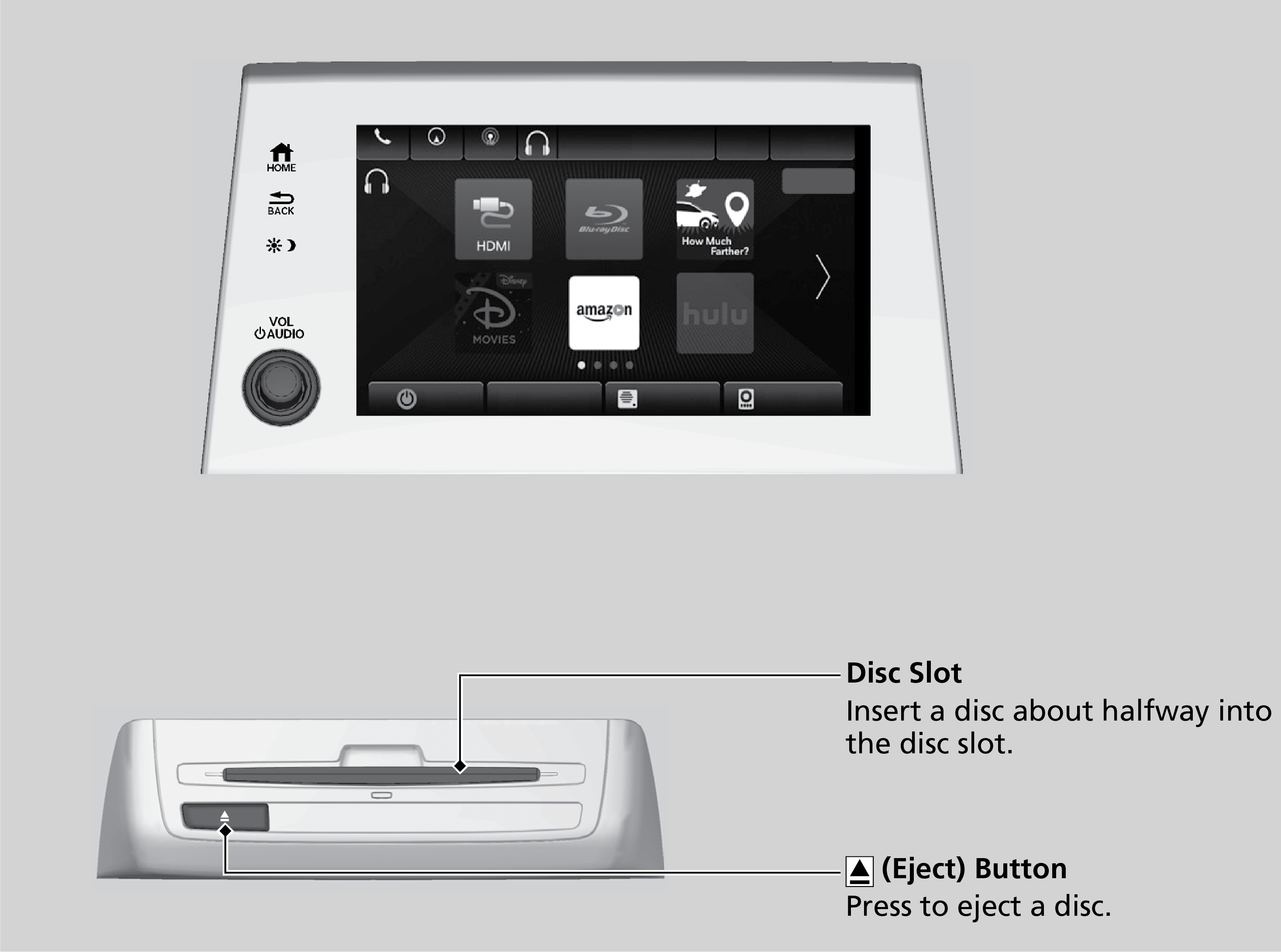
- Operating the System from the Front
- Operating the System from the Rear
- Playing a Disc
- HDMI™ Port
- Overhead Screen
- Wireless Headphones
- Auxiliary Console Panel
- Rear Entertainment System Accessibility
■Operating the System from the Front
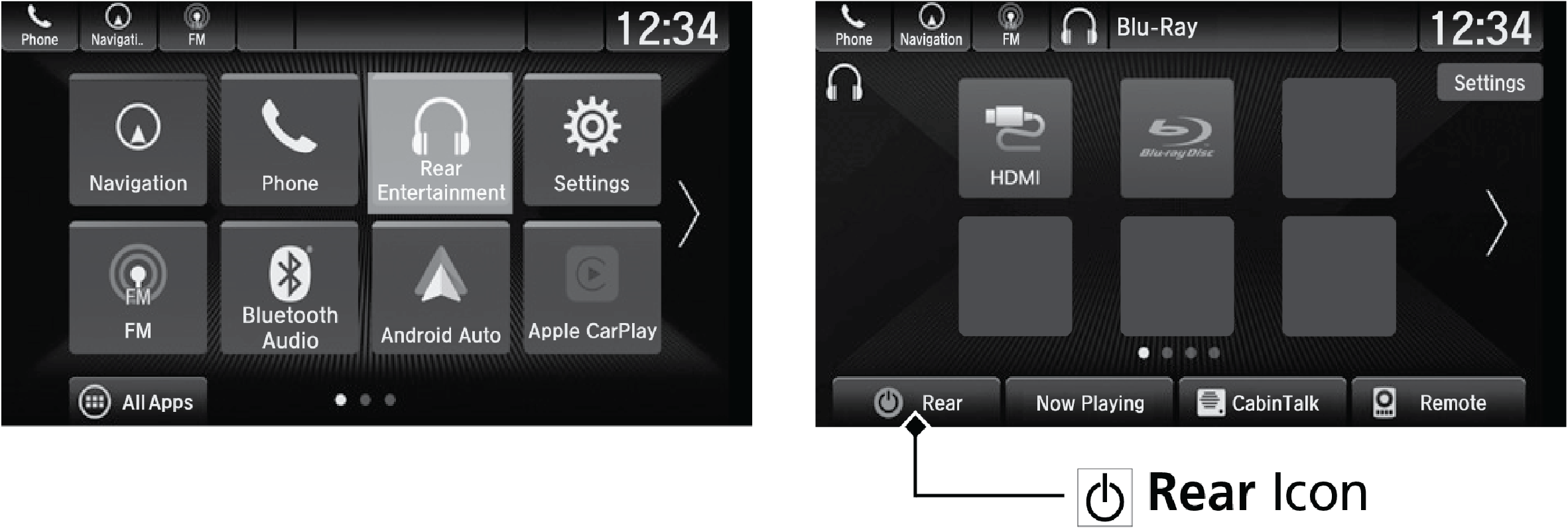
■Operating the System from the Rear
- Make sure the REAR POWER button is turned on in the front.
- Press the HOME button.
- Select the desired source button (DVD, iPod®, USB flash drive, HDMI etc.).
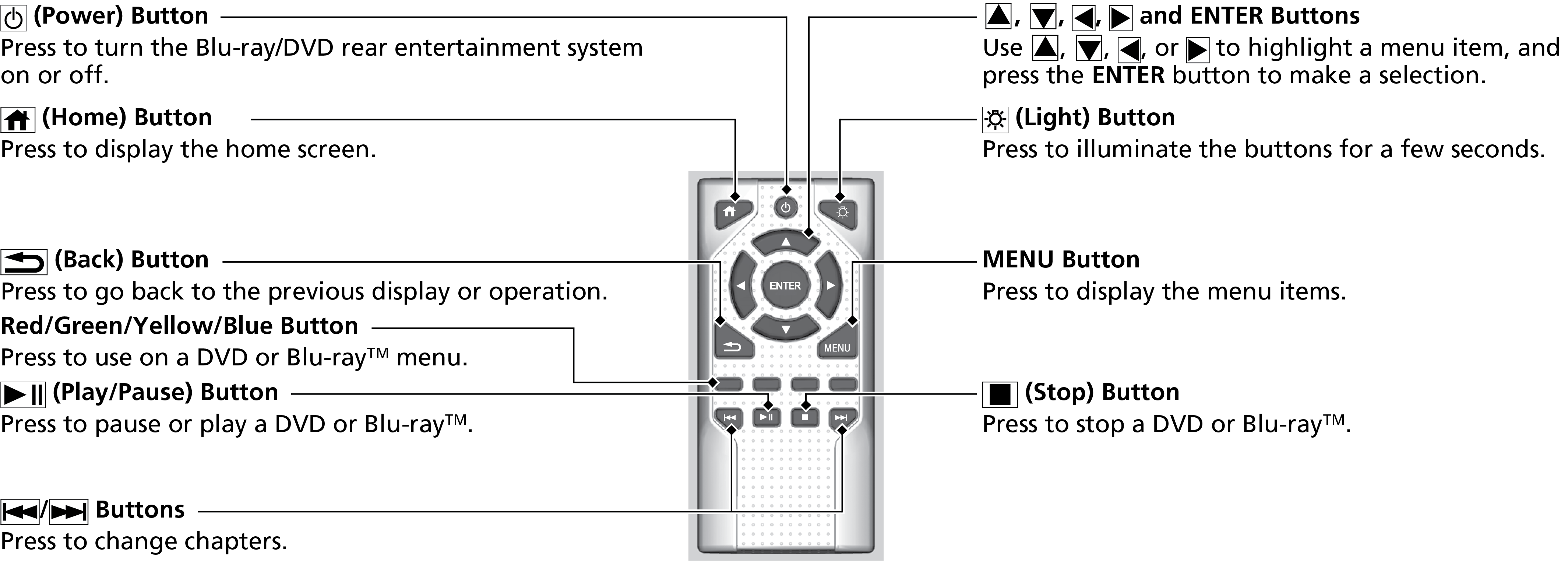
■Playing a Disc
Insert a DVD or Blu-ray™ into the lower slot of the front audio system, and select the Rear icon in the audio/information screen.
The system automatically starts the DVD or Blu-rayTM. DVD or Blu-rayTM is available for the rear seat passenger only.
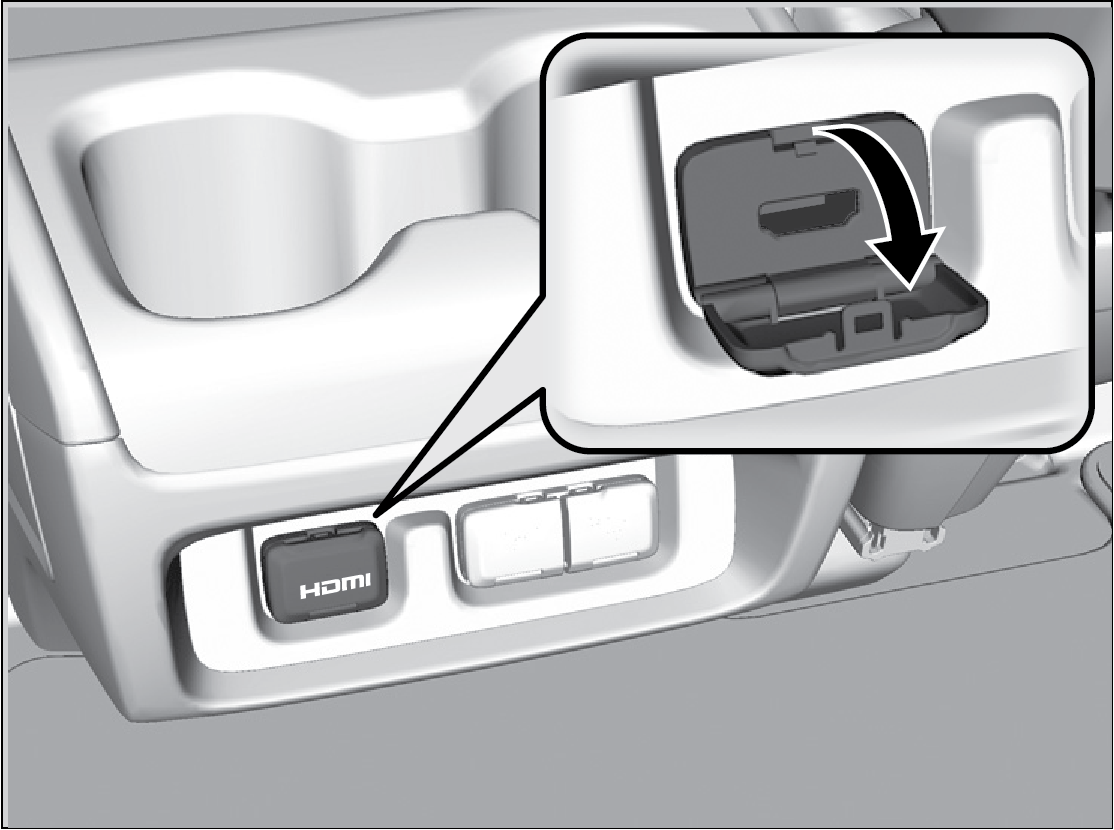
■HDMI™ Port
There is an HDMI™ port on the back of the center console compartment. The system will accept HDMI™ input from video games and video equipment which are equipped with an HDMI™ port.
■Overhead Screen
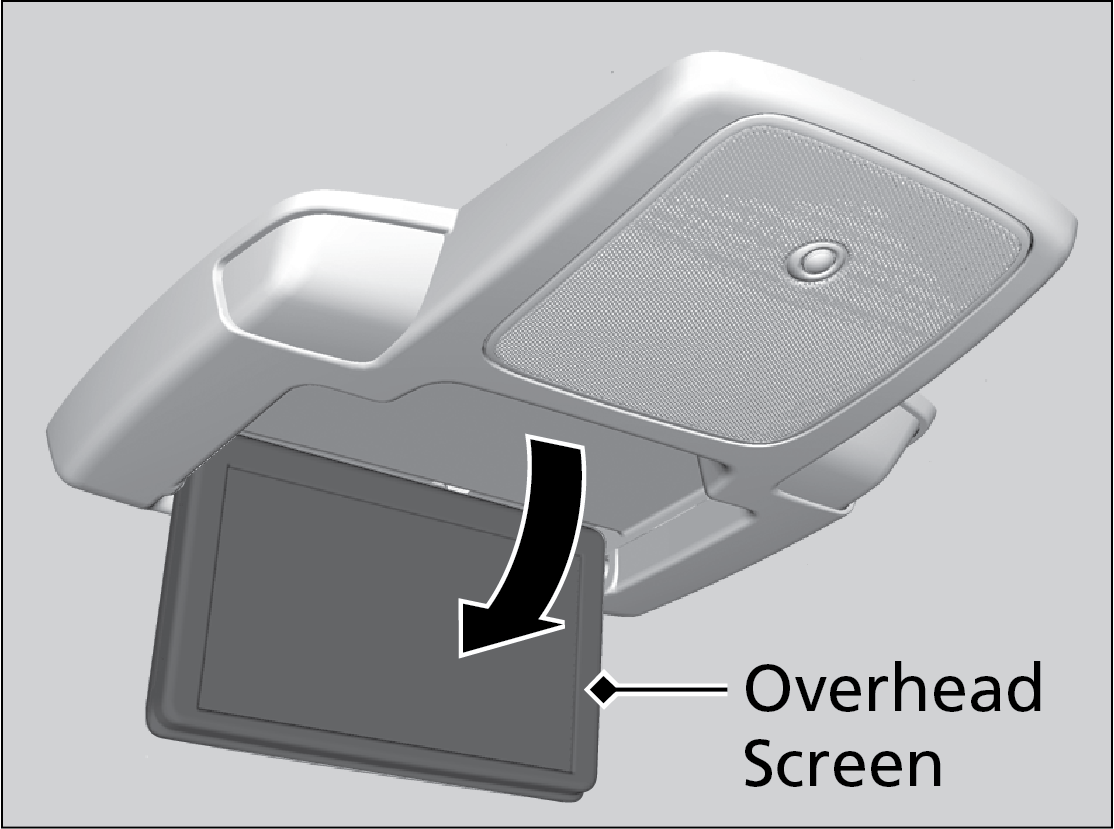
■Wireless Headphones
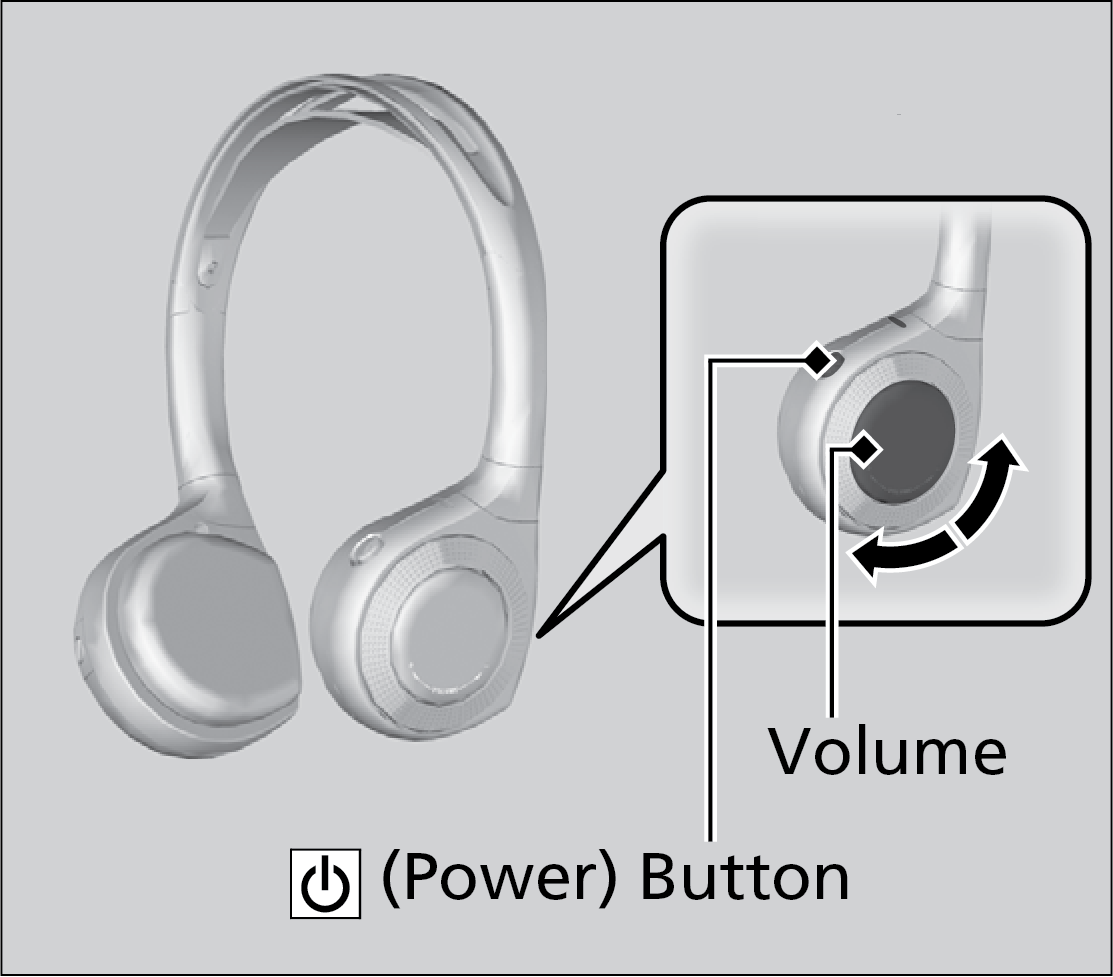
Press the Power button on the right earpiece to turn on the headphones.
Turn the dial on the right earpiece to adjust the volume.
■Auxiliary Console Panel
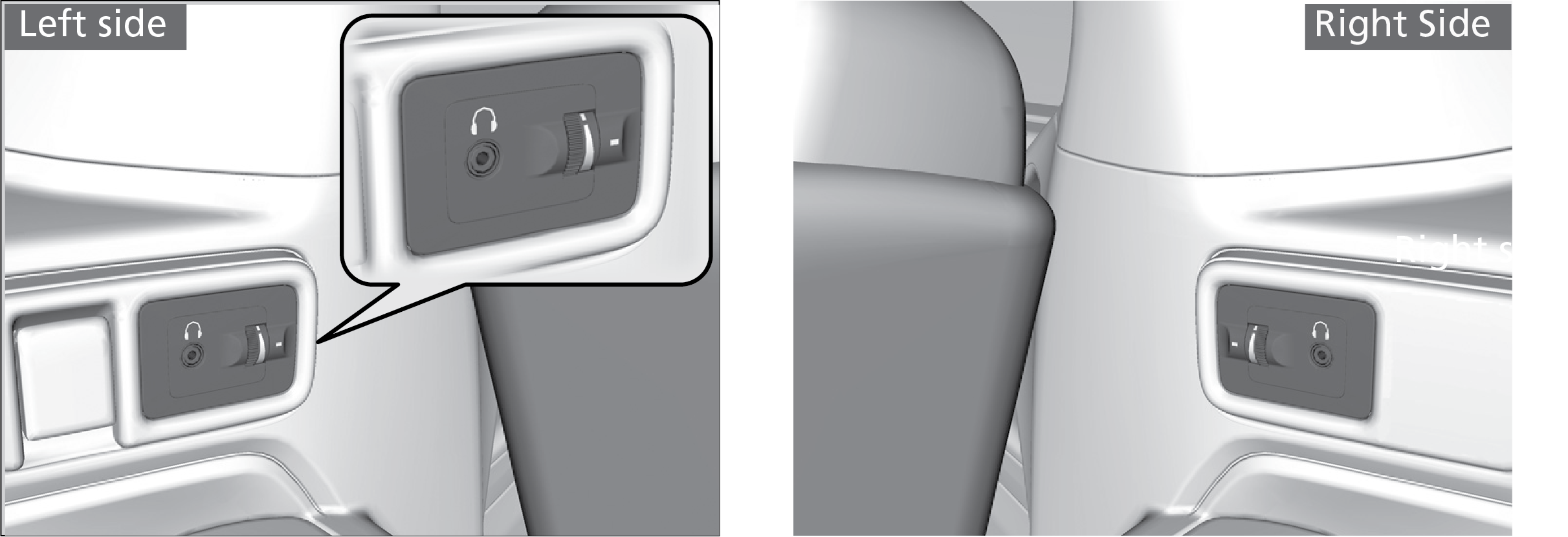
The headphones can also be used by connecting to either auxiliary console panel. There are two headphone connectors for the third row passengers. Each connector has its own volume control.
■Rear Entertainment System Accessibility
The Blu-ray/DVD Rear Entertainment System (RES) supports an accessibility function which allows the user to enable audio feedback of on-screen operations through the wireless and wired headphones.
- Selecting the Accessibility Function
- To Change Function Status
Selecting the Accessibility Function
- Press the Power button on the remote (from the rear seat).
- Select Accessibility and then press the Enter button on the remote.
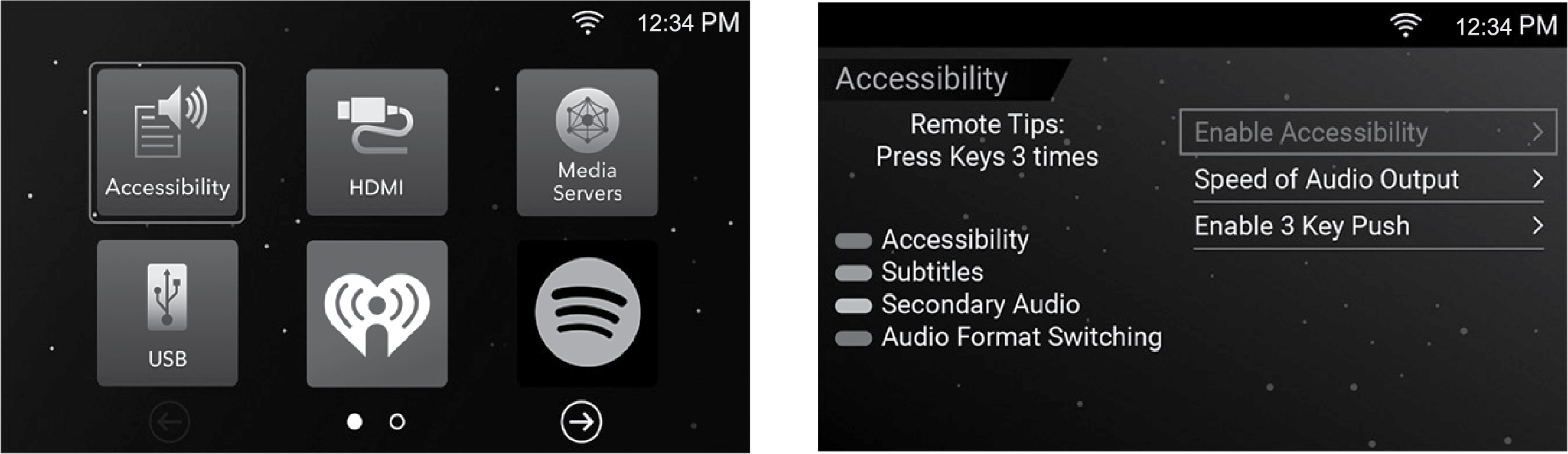
| Enable Accessibility: | Turns the accessibility mode ON or OFF. The default setting is OFF. |
| Speed of Audio Output: | Adjusts to increase or decrease the speed of audio output. |
| Enable 3 Key Push: | Turns the 3-button push behavior ON or OFF. |
To Change Function Status
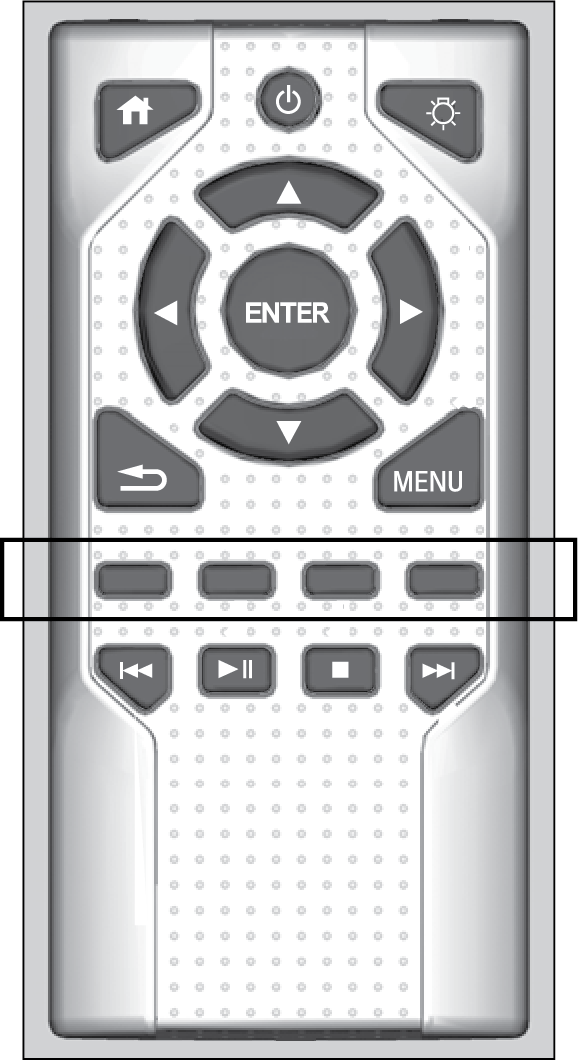
| Red button: | Accessibility |
| Green button: | Subtitles |
| Yellow button: | Secondary Audio |
| Blue button: | Audio Format Switching |
Download Manual