Clock
Adjusting the Clock
You can adjust the time in the clock display with the power mode in ON.
The clock is automatically updated through the audio system.
Models with 7-in. Color Touchscreen
You can also select and enter with the selector knob instead of the touch panel.Models with 9-in. Color Touchscreen
You can also adjust the clock by touching the clock displayed on the header area of the audio/information screen, Clock displayed on the home screen, or  All Apps.
-
Touch the clock on the screen.
The clock screen of the face-type appears. -
Select Settings.
-
Select Date & Time.
-
Select Set Date & Time.
-
Select Automatic Date & Time, then select OFF.
-
Select Set Date or Set Time.
-
Adjusting the dates, hours and minutes by selecting ▲ or ▼.
-
Select Save to set the time.
You can customize the clock display to show the 12 hour clock or 24 hour clock.
How to Customize the General Settings
You can customize the date display to MM/DD/YYYY, DD/MM/YYYY or YYYY/MM/DD.
How to Customize the General Settings
- Detail
Adjusting the Time
-
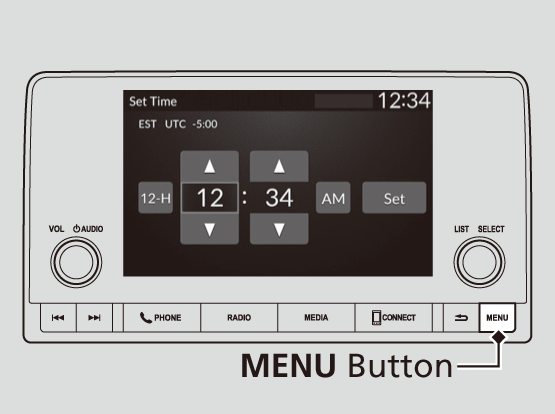
Models with 7-in. Color Touchscreen
- Press the MENU button.
- Select Clock Settings.
- Select Automatic Time, then select OFF.
- Select Set Time.
- Select 12H/24H to change 12 or 24 hour clock.
- Select ▲ or ▼.
- Select Set to set the time.
-
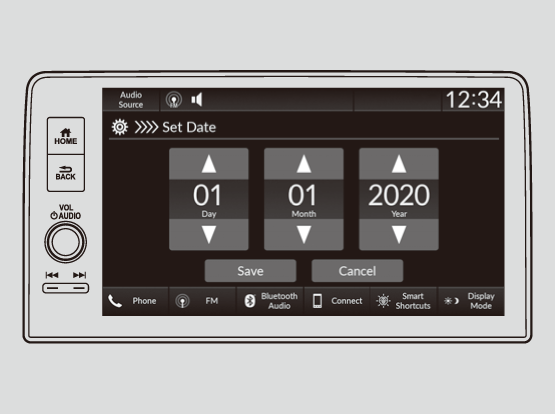
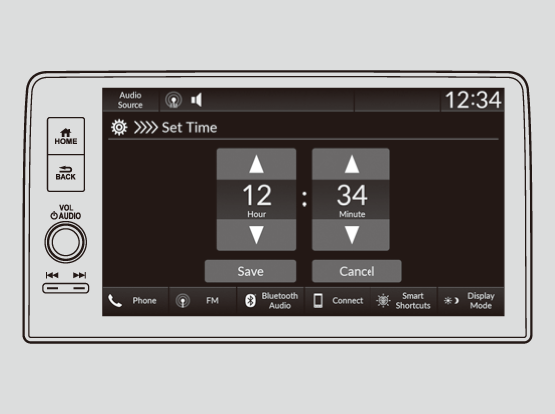
Models with 9-in. Color Touchscreen
- Press the
 button.
 - Select General Settings.
- Select System.
- Select Date & Time.
- Select Set Date & Time.
- Select Automatic Date & Time, then select OFF.
- Press the
-
To adjust date:
- Select Set Date.
- Select ▲ or ▼.
- Select Save to set the date.
To adjust time:- Select Set Time.
- Select ▲ or ▼.
- Select Save to set the time.
Download Manual