Audio System Basic Operation (Models with 7-in. Color Touchscreen)
Audio System Basic Operation
To use the audio system, the power mode must be in ACCESSORY or ON.

-
Use the selector knob or MENU button to access some audio functions.
Press
 to switch between the normal and extended display for some functions.

-
Selector knob: Rotate left or right to scroll through the available choices. Press
to set your selection.
MENU button: Press to display the menu screen.
 (Back) button: Press to go back to the previous display.
Rotate
 to select.
Press
to enter.Adjusting the Clock
Adjusting the Sound
Display Setup
Customized Features Defaulting All the Settings
Audio Remote Controls
- Use simple gestures - including touching, swiping and scrolling - to operate certain audio functions.
- Some items may be grayed out during driving to reduce the potential for distraction.
- You can select them when the vehicle is stopped.
- Wearing gloves may limit or prevent touchscreen response.
Customized Features Defaulting All the Settings
- Detail
Adjusting the Sound

-
- Select an audio source.
- Press the MENU button.
- Select Sound Settings.
Select an item from the following choices:
- Bass / Treble: Bass, Midrange, Treble
- Balance / Fader: Balance, Fader
- Speed Volume Compensation: Speed Volume Compensation (SVC)

- Detail
Display Setup
You can set the screen brightness separately for Day and Night modes.
Changing the Screen Brightness

-
- Press the MENU button.
- Select Display Adjustment.
- Select Day or Night.
- Select the setting you want.
- Detail
Playing AM/FM Radio

Press the audio source selecting button on the steering wheel.
Audio Remote Controls
- Detail
Radio Data System (RDS)
Provides text data information related to your selected RDS capable FM station.
- Detail
To find an RDS station from Station List
- Press while listening to an FM station.
- Select the station.
Update List
Updates your available station list at any time.
- Press while listening to an FM station.
- Select Refresh.
Radio text
Displays the radio text information of the selected RDS station.
- Select Text.
Scan
Samples each of the strongest stations on the selected band for 10 seconds.
- Select Scan.
To turn off scan, select Stop or press the button.
Playing an iPod
Using your USB connector, connect the iPod to the USB port, then press the MEDIA button.
USB Ports
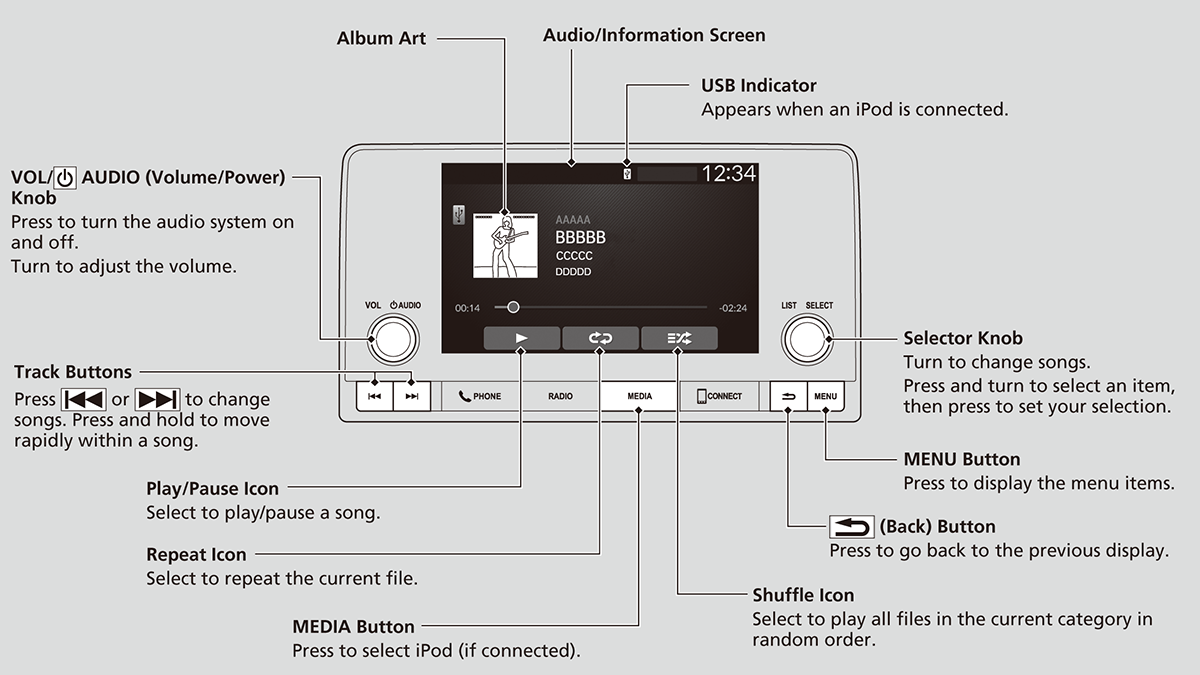
iPod/USB Flash Drive
- Detail
How to Select a Song from the iPod Music List
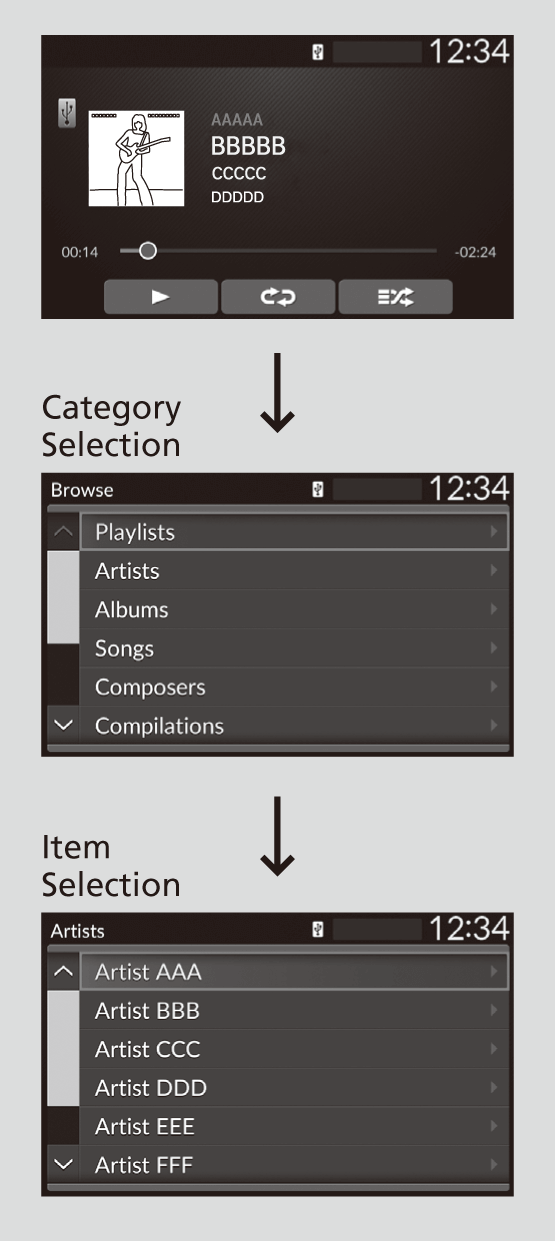
-
- Press to display the iPod music list.
- Select a category.
- Select an item.
- Select an item repeatedly until a desired item you want to listen to is displayed.
- Press
How to Select a Play Mode
You can select repeat and shuffle modes when playing a song.
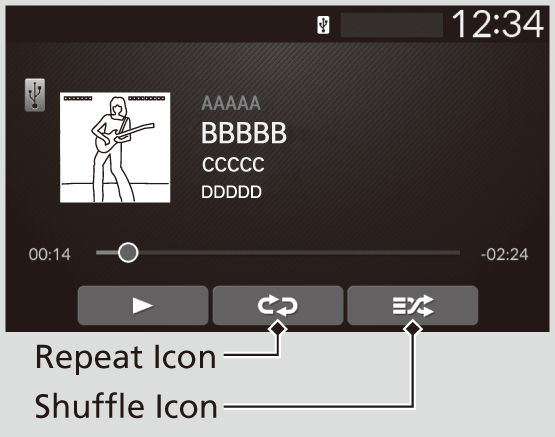
-
Shuffle/Repeat
Repeatedly select the shuffle or repeat icon until you find a play mode option of your preference.
 Shuffle off: Shuffle mode to off.
 Shuffle All Songs: Plays all available songs in a selected list in random order.
 Repeat off: Repeat mode to off.
 Repeat all: Repeats the all songs.
 Repeat Song: Repeats the current song.
- Detail
To turn off a play mode
Select the mode you want to turn off.
Playing a USB Flash Drive
Your audio system reads and plays sound files on a USB flash drive in either MP3, WMA, AAC, FLAC, or WAV format.
Connect your USB flash drive to the USB port, then press the MEDIA button.
USB Ports

SiriusXM® Radio Service* Compatible iPod, iPhone, and USB Flash Drives Honda App License Agreement Legal Information on Apple CarPlay/Android Auto About Open Source Licenses License Information
The audio system displays Unplayable File, and then skips to the next file.
iPod/USB Flash Drive
- Detail
How to Select a File from a Folder

-
- Press to display a folder list.
- Select a folder.
- Select a file.
- Press
How to Select a Play Mode
You can select repeat and random modes when playing a file.

-
Random/Repeat
Select random or repeat icon.
Random All Tracks: Plays all files in random order. Random in Folder: Plays all files in the current folder in random order. Repeat track: Repeats the current file.
 Repeat folder: Repeats all files in the current folder.
- Detail
To turn off a play mode
Select the mode you want to turn off.
* Not available on all models
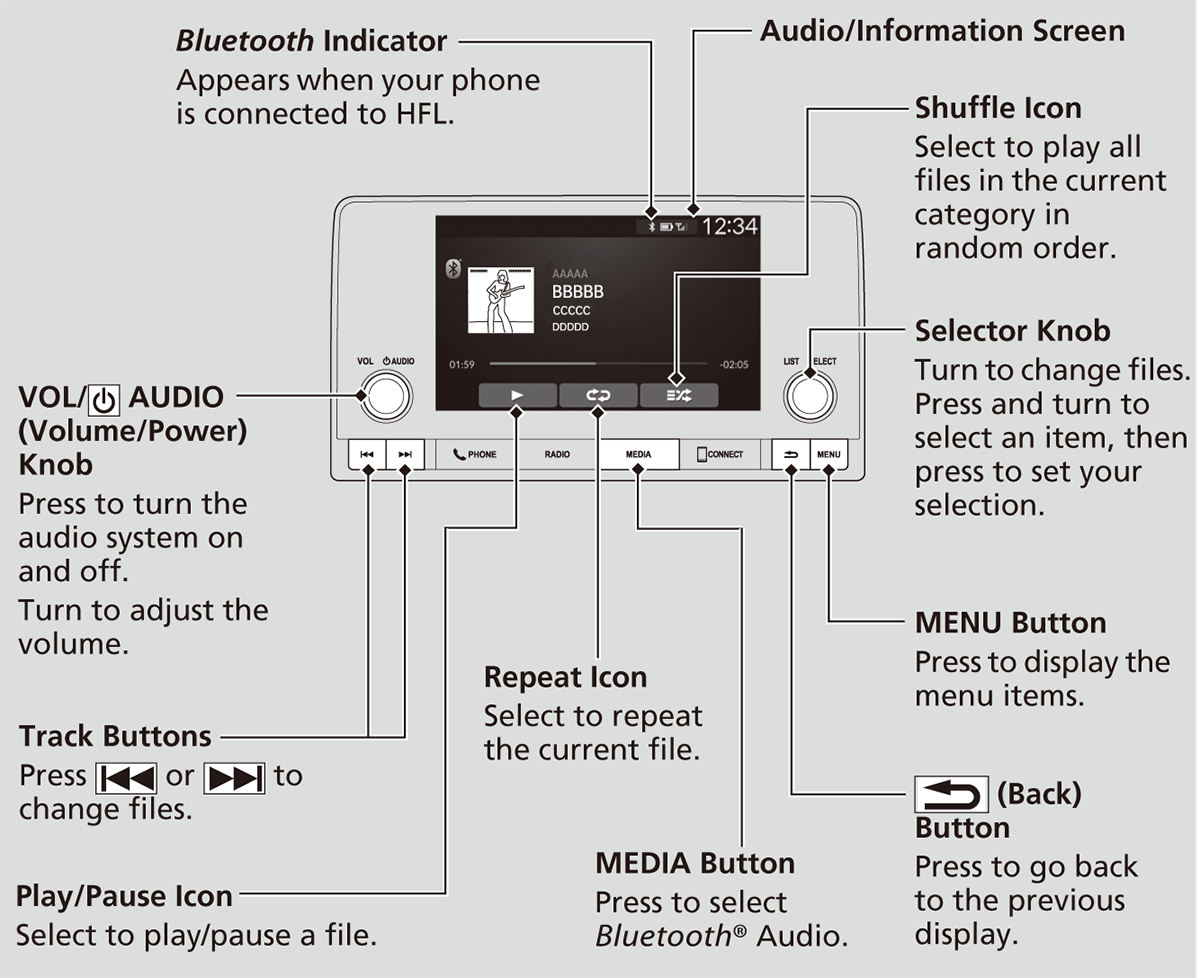
Playing Bluetooth® Audio
Your audio system allows you to listen to music from your Bluetooth-compatible phone.
This function is available when the phone is paired and connected to the vehicle’s Bluetooth® HandsFreeLink® (HFL) system.
Phone Setup
For a list of compatible phones:
- U.S.: Visit automobiles.honda.com/handsfreelink/, or call 1-888-528-7876.
- Canada: For more information on smartphone compatibility, call 1-855-490-7351.
HFL Menus
To change the searched phone manually, select Go to Device List.Phone Setup
- Detail
To Play Bluetooth® Audio Files
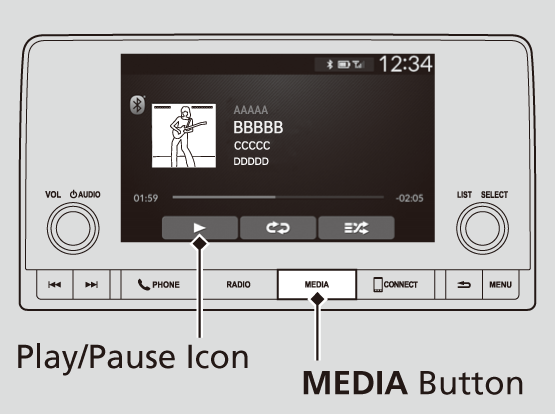
-
- Make sure that your phone is paired and connected to HFL.
- Press the MEDIA button until the Bluetooth® Audio Source is selected.
If the phone is not recognized, another HFL-compatible phone, which is not compatible for Bluetooth® Audio, may already be connected.
- Detail
To play or pause a file
Select the play/pause icon.
How to Select a Song from the Music Search List
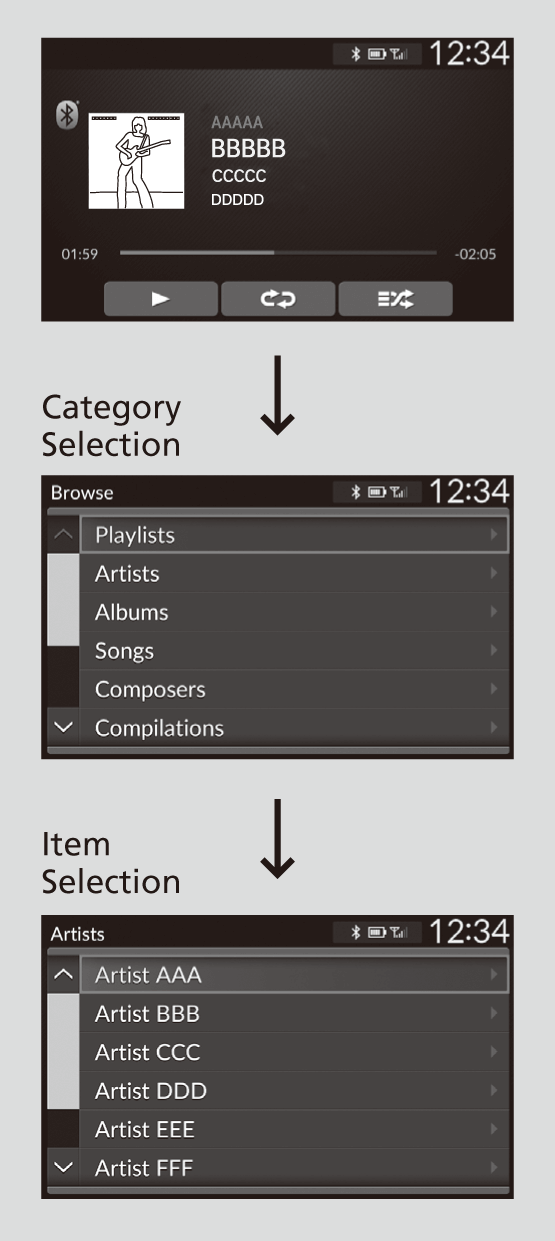
-
- Press to display the music search list.
- Select a category.
- Select an item.
- Select an item repeatedly until a desired item you want to listen to is displayed.
- Press
- Detail
How to Select a Play Mode
You can select repeat and shuffle modes when playing a song.
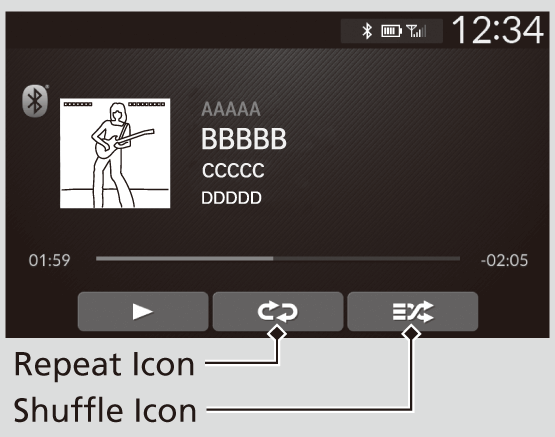
-
Shuffle/Repeat
Repeatedly select the shuffle or repeat icon until you find a play mode option of your preference.
Shuffle off: Shuffle mode to off. Shuffle Albums: Plays all available albums in a selected list in random order. Shuffle All Songs: Plays all available songs in a selected list in random order. Repeat off: Repeat mode to off. Repeat all: Repeats the all songs. Repeat Song: Repeats the current song.
- Detail
To turn off a play mode
Select the mode you want to turn off.
Siri Eyes Free
You can talk to Siri using the  (Talk) button on the steering wheel when your iPhone is paired to the Bluetooth® HandsFreeLink® (HFL) system.
Phone Setup
- Detail
Using Siri Eyes Free
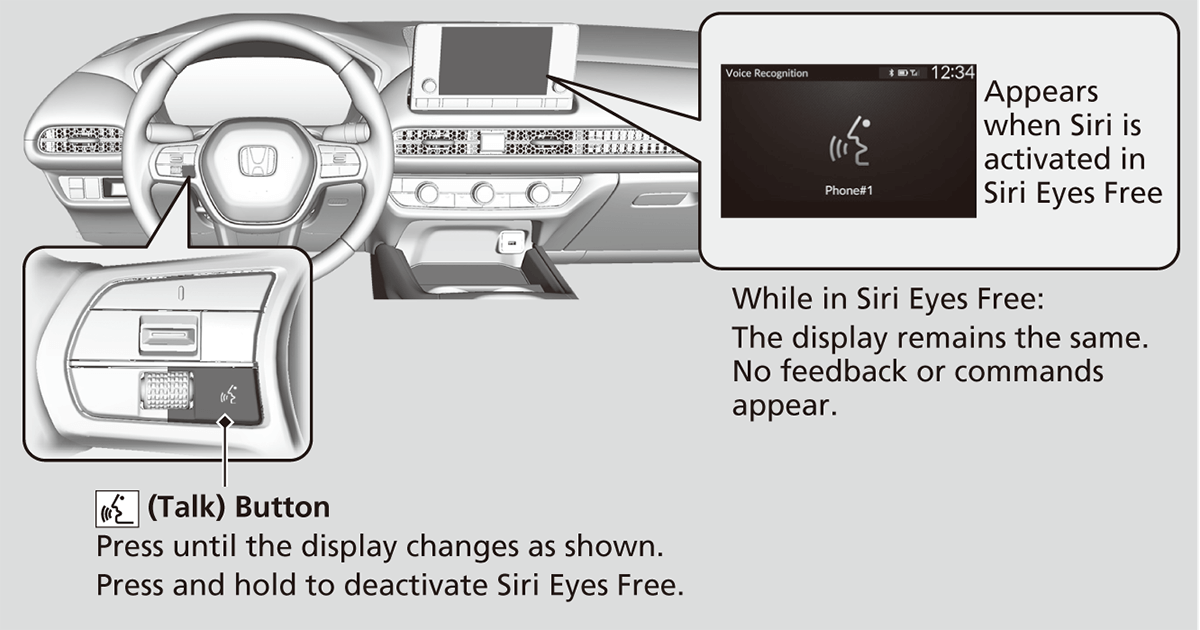
- Detail
Smartphone Voice Recognition
You can use Smartphone Voice Recognition using the (Talk) button on the steering wheel when your Android phone is paired to the Bluetooth® HandsFreeLink® (HFL) system.
Phone Setup
Using Smartphone Voice Recognition
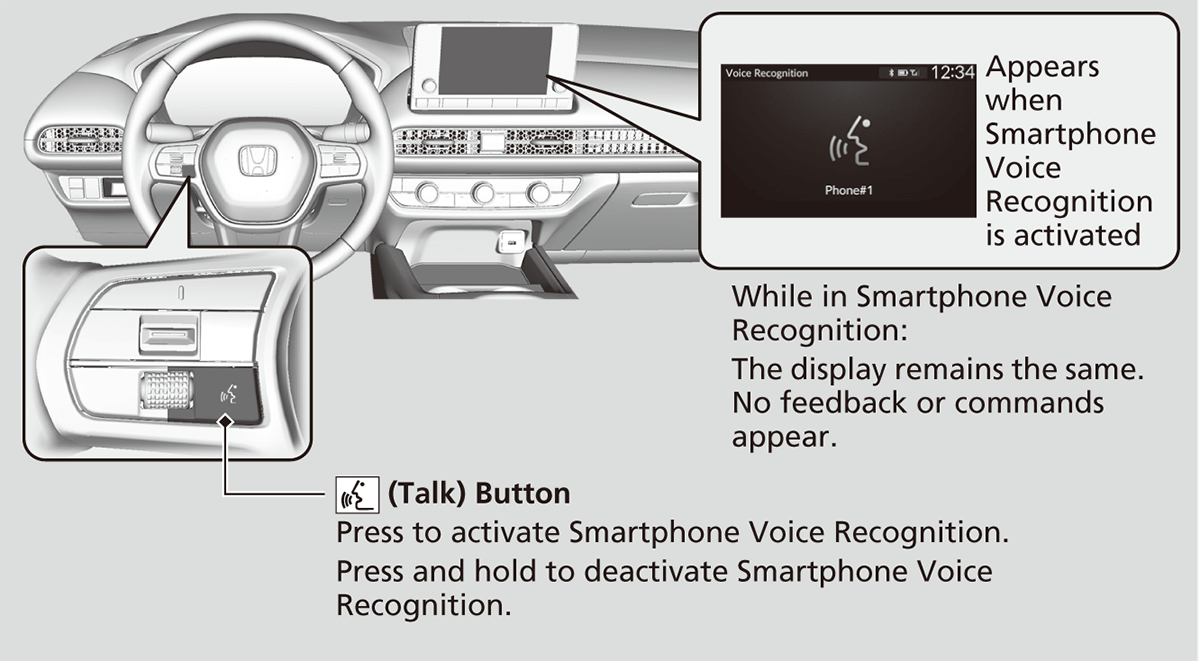
- Detail
Apple CarPlay
If you connect an Apple CarPlay-compatible iPhone to the system via the USB port, you can use the audio/information screen, instead of the iPhone display, to make a phone call, listen to music, view maps (navigation), and access messages.
USB Ports
Setting Up Apple CarPlay
Phone Setup
 AUDIO (Volume/Power) knob while the sound you want to adjust is playing.
- Detail
Apple CarPlay Menu

Phone
Access the contact list, make phone calls, or listen to voicemail.
Messages
Check and reply to text messages, or have messages read to you.
Music
Play music stored on your iPhone.
Maps
Display Apple Maps and use the navigation function just as you would on your iPhone.
Setting Up Apple CarPlay
After you have connected your iPhone to the system via the USB port, use the following procedure to set up Apple CarPlay. Use of Apple CarPlay will result in the transmission of certain user and vehicle information (such as vehicle location, speed, and status) to your iPhone to enhance the Apple CarPlay experience. You will need to consent to the sharing of this information on the audio/information screen.
When Apple CarPlay first detects your iPhone, you will need to set up your iPhone. Refer to the instruction manual that came with your iPhone.
Press the MENU button
 Select Smartphone SettingsApple CarPlaySelect device
- Detail
Connecting Apple CarPlay Using the USB Cable to the USB Port
- Connect the iPhone to the USB port using the USB cable.
USB Ports
- The confirmation screen will be displayed.
- Select Yes.
- If you do not want to connect Apple CarPlay, select No.
You may change the consent settings under the Smartphone Settings menu.
Operating Apple CarPlay with Siri
Press the (talk) button to activate Siri.

- What movies are playing today?
- Call dad at work.
- What song is this?
- How’s the weather tomorrow?
- Read my latest email.
- Find a table for four tonight in Chicago.
AUDIO (Volume/Power) knob while Siri is activated.- Detail
Android AutoTM
When you connect an Android phone to the audio system via the USB port, Android Auto is automatically initiated. When connected via Android Auto, you can use the audio/information screen to access the Phone, Google Maps (Navigation), and Google Now functions. When you first use Android Auto, a tutorial will appear on the screen.
We recommend that you complete this tutorial while safely parked before using Android Auto.
USB Ports
Auto Pairing Connection
Bluetooth A2DP cannot be used while your phone is connected to Android Auto.
Phone Setup
AUDIO (Volume/Power) knob while the sound you want to adjust is playing.- Detail
Android Auto Menu

- Maps Display Google Maps and use the navigation function just as you would with your Android phone. When the vehicle is in motion, it is not possible to make keyboard entries. Stop the vehicle in a safe location to undertake a search or provide other inputs.
- Phone Make and receive phone calls as well as listen to voicemail.
- Exit

Operate Android Auto with your voice.
You can check Android notifications. (Android Auto Home)
Display useful information organized by Android Auto into simple cards that appear just when they’re needed.
Auto Pairing Connection
When you connect an Android phone to the unit via the USB port, Android Auto is automatically initiated.
Connecting Android Auto Using the USB Cable to the USB Port
To enable Android Auto after connecting an Android phone to the system, select Yes on the screen.
You may change the consent settings under the Smartphone Settings menu.
Press the MENU button
Select Smartphone Settings Android Auto Select device- Detail
Operating Android Auto with Voice Recognition
Press the (talk) button to operate Android Auto with your voice.

- Reply to text.
- Call my wife.
- Navigate to Honda.
- Play my music.
- Send a text message to my wife.
- Call flower shop.
icon in the lower-right corner of the screen.AUDIO (Volume/Power) knob while the guidance is playing.- Detail
Download Manual