Audio Players
When using media devices such as CDs, DVDs, Blu-ray Discs, SD cards, USB devices, and mobile devices, consider the source.
Untrusted media devices could contain files that affect system operation or performance. Avoid use if the content or origin cannot be trusted.
The infotainment system can play music by connecting an auxiliary device to the USB port.
USB Support
If equipped, there may be USB ports in the center stack below the climate controls, in the center console storage, and at the rear of the center console. All ports use the USB 2.0 standard.
USB Supported Devices
Not all iPods and USB drives are compatible with the USB port.
Make sure the iPod has the latest firmware from Apple for proper operation. iPod firmware can be updated using the latest iTunes application. See www.apple.com/ itunes.
For help with identifying your iPod, go to www.apple.com/support.
The USB port can play both lower and upper case .mp3, .wma, .ogg, and .wav files stored on a USB storage device.
Supported Apple Devices
To view supported devices in U.S., see my.chevrolet.com\learn.
To view supported devices in Canada, see www.chevroletowner.ca.
USB Supported File and Folder Structure
The infotainment system supports:
To connect a USB storage device, connect the device to the USB port.
To connect an iPod/iPhone, connect one end of the device’s cable to the iPod/iPhone and the other end to the USB port.
The iPod/iPhone charges while it is connected to the vehicle if the ignition is on or in ACC/ ACCESSORY. See Ignition Positions 0 247. When the vehicle is turned off, the iPod/iPhone automatically powers off and will not charge or draw power from the vehicle's battery.
For more information on USB usage, see “Audio System Information” following.
The infotainment system can play the music files contained in the USB storage device or iPod/iPhone products.
Using MP3/WMA/OGG/WAV Files
.ogg, and .wav file name extensions can be played.
Sampling frequency: 48 kHz, 44.1 kHz, 32 kHz, 24 kHz, 22.05
kHz, and 16 kHz.
Using USB Storage Devices and an iPod/iPhone
NTFS and other file systems are not recognized.
If there is not enough power supply, it may not operate normally.
or upgrading.
When not in use, disconnect the iPod/iPhone.
USB Player
Playing Music from a USB Device
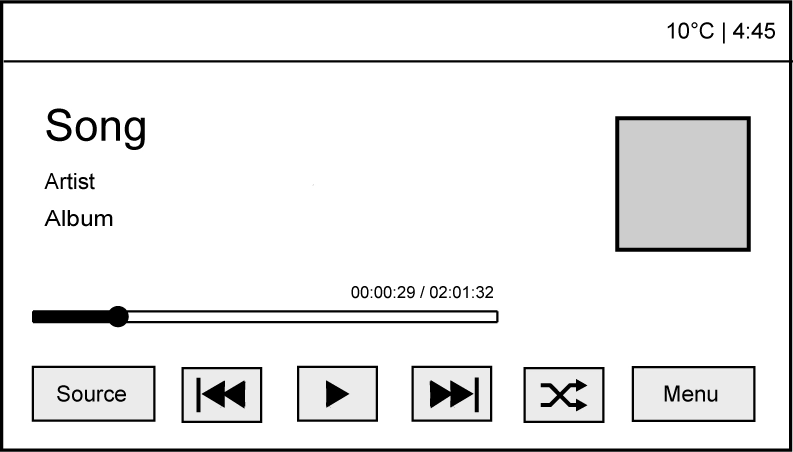
If the USB device is already connected:
To stop the USB device and select another media source, touch Source, then select the other source.
To remove the USB device, select another function, then remove the USB device.
Pause
Changing to Next/Previous Files
Returning to the Beginning of the Current File
Touch g after five seconds of the playback time.
Scanning Forward or Backward
Touch and hold g or l during playback to rewind or fast forward. Release the button to resume playback at normal speed.
Playing a File Randomly
Touch Z during playback.
Using the USB Music Menu
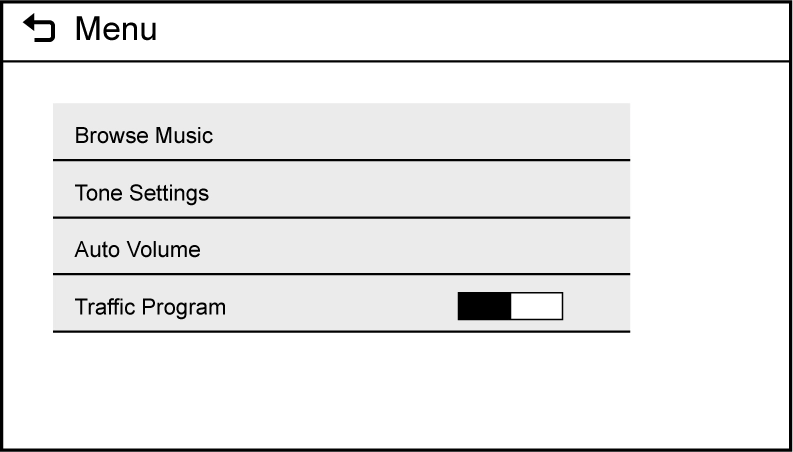
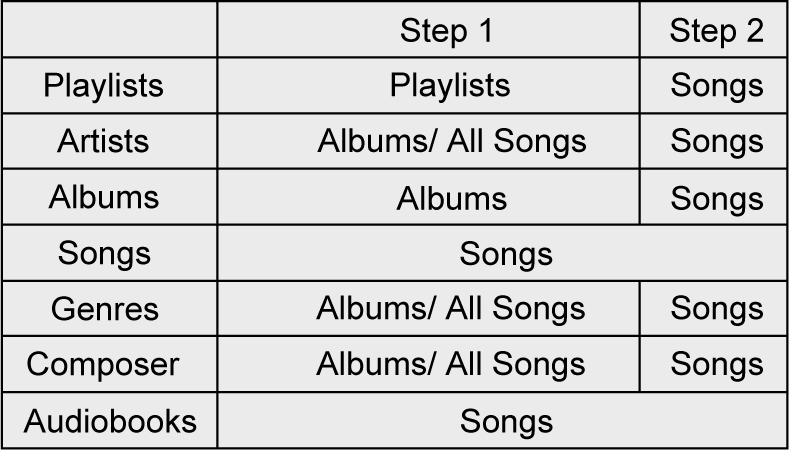
Browse Music
Tone Settings
Auto Volume
Traffic Program (If Equipped)
MTP (Media Transfer Protocol)
iPod/iPhone Player
This feature is limited to models supporting the iPod/iPhone connection.
Playing Music Files
If the iPod/iPhone is already connected:
To stop the device and select another media source, touch Source, then select the other source.
To remove the device, select another function, then remove the device.
Pause
Changing to Next/Previous Song
Returning to the Beginning of the Current File
Touch g after two seconds of the playback time.
Scanning Forward or Backward
Touch and hold g or l during playback to rewind or fast forward. Release the button to resume playback at normal speed.
Playing a File Randomly
Touch Z during playback.
Using the iPod Menu
Browse Music
Tone Settings
Auto Volume
The infotainment system can view picture files stored on a USB storage device and devices that support Media Transfer
Protocol (MTP).
.bmp, .png, .gif.
Viewing Pictures
If the USB device is already connected:
Some features are disabled while the vehicle is in motion.
Viewing a Slide Show
Viewing a Previous or Next Picture
Touch S or T from the picture screen.
Rotating a Picture
Touch w from the picture screen.
Enlarging a Picture
Touch x from the picture screen.
Using the USB Picture Menu
This vehicle may have an AUX jack in the center console storage. See Center Console Storage 0 123.
Possible auxiliary audio sources include:
This jack is not an audio output. Do not plug headphones into the auxiliary input jack. Auxiliary devices should be set up while the vehicle is in P (Park).
Connect a 3.5 mm (1/8 in) cable from the auxiliary device to the auxiliary input jack.
If an auxiliary device has already been connected, but a different source is currently active, touch Source repeatedly to scroll through all of the available audio source screens, until the AUX source screen is shown.
An auxiliary device is played through the audio system and controlled through the device itself. Play will begin when the system has finished reading the information on the device.
Playing Music
To play the music from the device, if the device is already connected:
To adjust the tone settings. See “Audio Settings” in “System Settings” under AM-FM Radio 0 185.
If equipped, music may be played from a paired Bluetooth device. See “Pairing” under Bluetooth (Overview) 0 203 or Bluetooth
(Infotainment Controls) 0 205 for help pairing a device.
Volume and song selection may be controlled by using the infotainment controls or the phone/device.
If Bluetooth Audio is selected and nothing is heard, check the volume setting on both the phone/device and the infotainment system.
Launch music by touching MEDIA on the Home Page.
To play music via Bluetooth:
Bluetooth Audio Menu
Touch MENU to display the Bluetooth Audio menu. The following may be available:
Tone: Use the infotainment controls to adjust the tone settings.
Press o BACK to go back to the previous menu.
Manage Bluetooth Devices: Select to go to the Bluetooth page to add or delete devices.
When selecting Bluetooth Audio, the radio may not be able to launch the audio player on the connected
device to start playing. When the vehicle is not moving, use the phone to begin playback.
All devices launch audio differently. When selecting Bluetooth Audio as a source, the radio may show as paused on the screen. Press play on the device or press r to begin
playback.
Some phones support sending Bluetooth music information to display on the radio. When the radio receives this information, it will check to see if any is available and display it. For more information about supported Bluetooth features, see www.gm.com/bluetooth for U.S. and Canada only.
Download Manual