Rear View Camera (Rear View)
 Introduction
The Rear View Camera system in the rear of the vehicle makes it easier for the driver to see behind the vehicle and assists when parking.
System function
The Rear View Camera system shows the area behind the vehicle on the Infotainment system screen. Depending on the mode and vehicle equipment, orientation lines may assist in the view toward the rear ⇒  .
.
 WARNING
The intelligent technology of the Park Distance Control (PDC) cannot overcome the natural laws of physics and it can only operate within the limits of the system. Not paying attention can result in accidents, serious injuries and vehicle damage.
-
The PDC cannot replace the driver's attention.
-
Brake the vehicle in good time before reaching an obstacle.
Parking mode selection
The screen views in the Infotainment system depend on the vehicle equipment.

- Perpendicular parking:
Guide lines help when parking in reverse perpendicular to the road.

- Parallel parking:
Guide lines and boxes help when parking in reverse parallel to the road.

- Trailer support or off-road support (depending on the country):
Depiction of the area immediately behind the vehicle with a high zoom factor and guide lines.
- Cross traffic:
Depiction of the area behind the vehicle and the areas to the side of the vehicle at a wide angle.
-
Note the information about the Rear View Camera system screen displays → page , Parking system displays in the Infotainment system.
Switching the Rear View Camera system on and off
Please read the introductory information and heed the Warnings and Notice ⇒ and Safety instructions.
Switching on
Variant 1: Rear View Camera system without parking mode selection
-
Select the reverse gear.
Variant 2: Rear View Camera system with parking mode selection
-
Select the reverse gear.
Or: Press the
 button.
Switching off
Variant 1: Rear View Camera system without parking mode selection
-
Disengage reverse gear.
Variant 2: Rear View Camera system with parking mode selection
-
The vehicle drives forward at more than approx. 15 km/h (approx. 9 mph).
Or: Press the
button.
Parking (Rear View Camera system without parking mode selection)
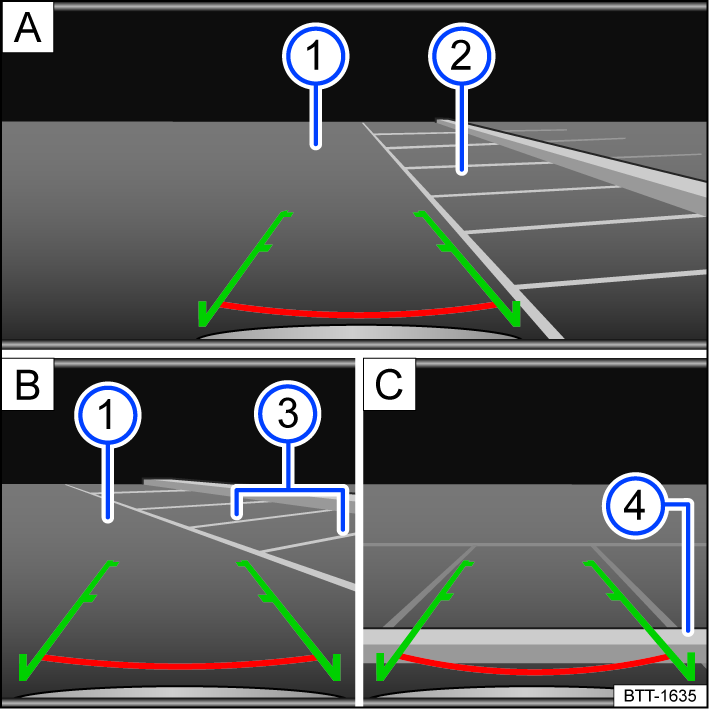
Fig. 144 Infotainment system: Parking with the Rear View Camera system.
 Searching for a parking space.
 Steering toward the selected parking space.
 Aligning the vehicle within the parking space.
 Road surface.
 Selected parking space.
 Side boundaries of the selected parking space.
 Rear boundary of the parking space.
-
Position your vehicle in front of the parking space fig. 144
. -
Select the reverse gear.
-
Slowly reverse while steering so that the green side lines line up with the selected parking space. The green lines must line up with the side boundaries of your parking space fig. 144
. -
Stop when the red horizontal line reaches the rear boundary fig. 144
.
Parking (Rear View Camera system with parking mode selection)
Please read the introductory information and heed the Warnings and Notice ⇒ andSafety instructions.
Parking mode: Parking perpendicular to the road
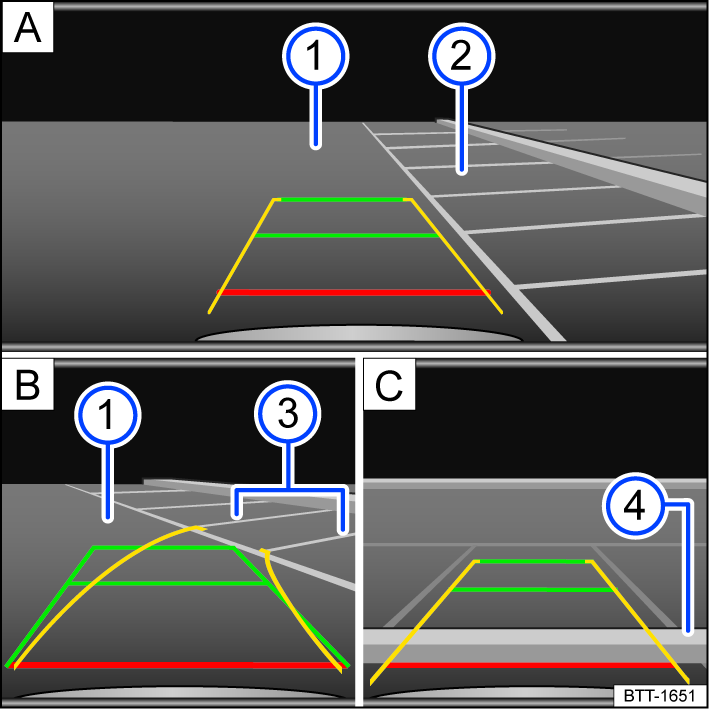
Fig. 145 Infotainment system: Parking perpendicular to the road.
- Searching for a parking space.
- Steering toward the selected parking space.
- Aligning the vehicle within the parking space.
- Road surface.
- Parking space.
- Side boundary of the parking space.
- Rear boundary of the parking space.
-
Press the
button or function key before driving past the parking space. -
Tap the
function key in the Infotainment system to select the parking mode. -
Position your vehicle in front of the parking space fig. 145
. -
Steer so that the yellow lines lead into the parking space. The green and yellow lines must align with the side boundary lines fig. 145
. -
Stop when the red line reaches the rear boundary fig. 145
.
Parking mode: Parallel parking
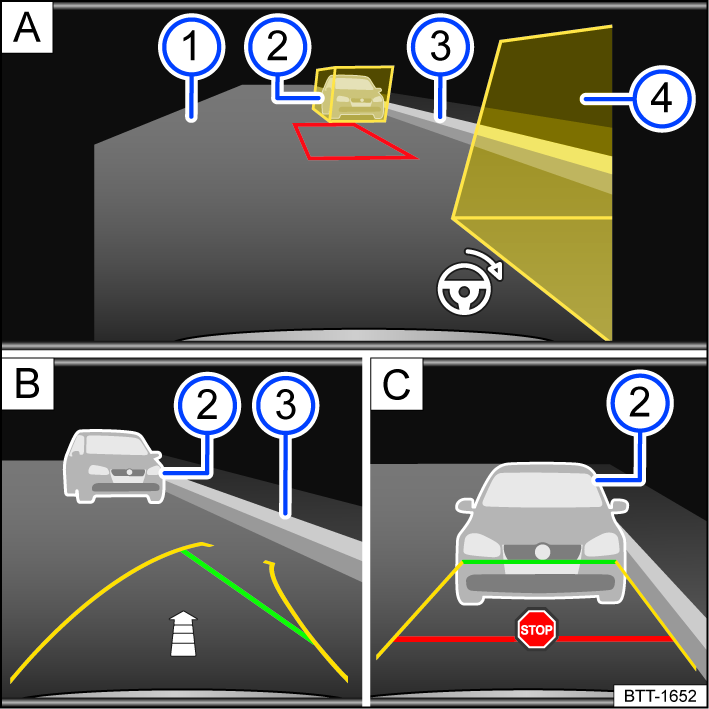
Fig. 146 Infotainment system: Parking parallel to the road.
- Searching for a parking space.
- Steering toward the selected parking space.
- Aligning the vehicle within the parking space.
- Road surface.
- Obstacle or assisting box.
- Side boundary of the parking space.
- Obstacle or assisting box.
-
Press the
button or function key before driving past the parking space. -
Tap the
function key in the Infotainment system to select the parking mode. -
Turn on the turn signal for the corresponding side of the road.
-
Position the vehicle at a distance of approximately 1 m (3 ft) parallel to the parking row. The yellow assisting boxes must cover the obstacles fig. 146
or . The area in between must be free of obstacles. -
Select the reverse gear. A red frame represents the target position of your vehicle fig. 146
. -
Turn the steering wheel until the red frame moves between the assisting boxes and becomes green fig. 146
. Hold the steering wheel in this position while driving in reverse.If the steering wheel angle needs to change, one of the yellow side lines will become red. The
 steering wheel symbol indicates to the driver when the steering wheel must be turned.
 -
Drive slowly in reverse until the
 stop symbol appears or the green line aligns with the side boundary of the parking space fig. 146 . An fig. 146 arrow indicates the remaining distance to be driven based on the number of displayed segments.
 -
Stop the vehicle. Steer in the opposite direction until the steering angle is reached and a direction arrow is no longer displayed.
-
Keep driving in reverse until the
stop symbol appears or until the red line reaches the rear boundary.
Parking mode: Trailer support
Rear View Camera system with parking modes:
On vehicles with a trailer hitch installed at the factory, trailer support can be used for assistance when attaching the trailer to a draw bar.
-
Tap the
function key to select the parking mode.
Colored guide lines help you with the maneuvering process:
 Red lines: position of the trailer hitch.
 Green lines: distance to the trailer hitch.
 Orange line: predicted direction of the trailer hitch based on the steering wheel angle.
Download Manual