Introduction
Read the following pages to become familiar with the features.
The infotainment system has built-in features intended to help avoid distraction by disabling some features when driving.
These features may gray out when they
are unavailable. Many infotainment features are also available through the instrument cluster and steering wheel controls.
Before driving:
. Become familiar with the operation, center stack controls, steering wheel controls, and infotainment display.
See Distracted Driving 0 207.
Active Noise Cancellation (ANC)
If equipped, ANC reduces engine noise in the vehicle’s interior. ANC requires the
factory-installed audio system, radio,
speakers, amplifier (if equipped), induction system, and exhaust system to work properly. Deactivation is required by your dealer if related aftermarket equipment is
Uplevel Radio
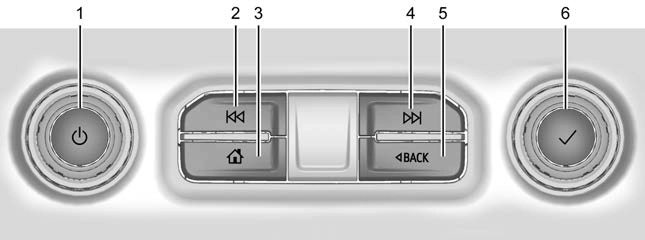 O (Power)
. Press to turn the power on.
. Turn to decrease or increase the volume.
installed.
Overview
The infotainment system is controlled by using the infotainment display, controls on the center stack, steering wheel controls, and voice recognition.
2. 7
Bluetooth Audio 0 157.
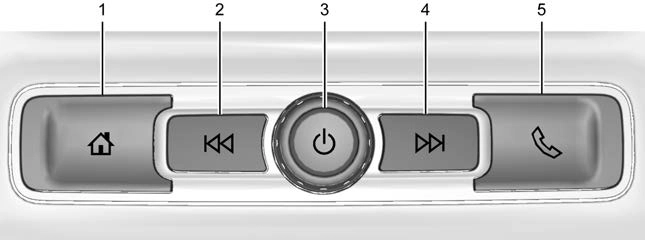 3. {
3. {
“Home Page” later in this section.
4. 6
Bluetooth Audio 0 157.
“Home Page” later in this section.
2. 7
Bluetooth Audio 0 157.
pressed. Pressing O will mute the system and trigger this pane to show a long press is required to actually power down the system.
4. 6
Bluetooth Audio 0 157.
5. v
. Press and release to access the phone display or answer an incoming call.
Home Page
The Home Page is where vehicle application icons are accessed. Some applications are disabled when the vehicle is moving.
The Home Page can be set up to have up to four pages with eight icons per page.
Swipe left or right across the display to access the pages of icons.
Managing Home Page Icons
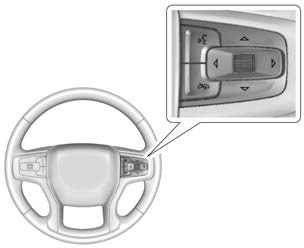
If equipped, some audio controls can be adjusted at the steering wheel.
g : Press to answer an incoming call or start voice recognition. See Bluetooth (Overview) 0 175 or
Bluetooth (Pairing and Using a Phone) 0 176.
c : Press to decline an incoming call or end a current call. Press to mute or unmute the infotainment system when not on a call.
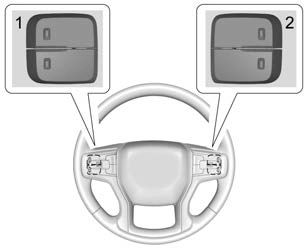
The favorites and volume switches are on the back of the steering wheel.
Touch the Audio icon to display the active audio source page. Examples of available sources may include AM, FM, SXM (if equipped), USB, AUX, and Bluetooth.
Touch the Phone icon to display the
Phone main page. See Bluetooth (Overview)
0 175 or
Bluetooth (Pairing and Using a Phone) 0 176.
If equipped, touch the Nav icon to display the navigation map. See Using the Navigation System 0 158.
If equipped, touch the Users icon to sign in or create a new user profile, and follow the on-screen instructions.
Only four user profiles can be active at one time in the vehicle. It may be necessary to remove a profile from the menu before creating or signing into an existing profile. The removed profile can be logged into at a later time.
Touch the Settings icon to display the Settings menu. See Settings 0 181.
Touch the Apple CarPlay icon to activate Apple CarPlay (if equipped) after a supported device is connected. See Apple CarPlay and Android Auto 0 180.
Touch the Android Auto icon to activate Android Auto (if equipped) after a supported device is connected. See Apple CarPlay and Android Auto 0 180.
If equipped, in-vehicle apps are available for download. Touch the Apps icon on the Home Page to begin.
Downloading and using in-vehicle apps requires Internet connectivity which can be accessed with a data plan through the vehicle’s built-in 4G LTE Wi-Fi hotspot,
if equipped, or a compatible mobile device
hotspot. On most mobile devices, activation of the Wi-Fi hotspot is in the device’s Settings menu under Mobile Network Sharing, Personal Hotspot, Mobile Hotspot, or similar.
Availability of apps and connectivity varies by vehicle, conditions, and location. Data plan rates apply. Features are subject to change. For more information, see www.my.chevrolet.com/learn.
If equipped, touch the OnStar Services icon to display the OnStar Services and Account pages. See OnStar Overview 0 412 and OnStar System 0 157.
If equipped, touch the Camera icon to access the camera application. See Assistance Systems for Parking or Backing 0 249.
The shortcut tray is near the bottom of the display. It shows up to four applications.
Infotainment display features show on the display when available. When a feature is unavailable, it may gray out. When a feature is touched, it may highlight.
If equipped, haptic feedback is a pulse that occurs when an icon or option is touched on the display or when controls on the center stack are pressed.
Use the following finger gestures to control the infotainment system.
Touch/Tap

Touch/tap is used to select an icon or option, activate an application, or change the location inside a map.
Touch and Hold

Touch and hold can be used to start another gesture, or to move or delete an application.
Drag
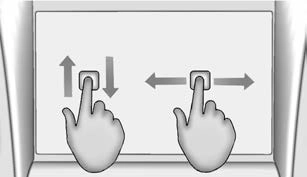
Drag is used to move applications on the Home Page, or to pan the map. To drag the item, it must be held and moved along the display to the new location. This can be
done up, down, right, or left. This feature is only available when vehicle is parked and not in motion.
Nudge

Nudge is used to move items a short distance on a list or a map. To nudge, hold and move the selected item up or down to a new location.
Fling or Swipe

Fling or swipe is used to scroll through a list, pan the map, or change page views. Do this by placing a finger on the display then moving it rapidly up and down or right
and left.
Spread
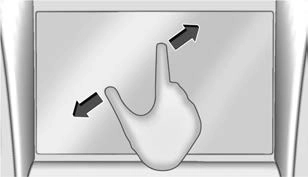
Spread is used to zoom in on a map, certain images, or a web page. Place finger and thumb together on the display, then move them apart.
Pinch
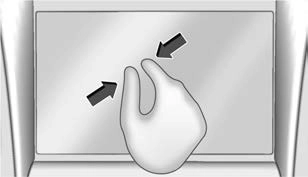
Pinch is used to zoom out on a map, certain images, or a web page. Place finger and thumb apart on the display, then move them together.
For vehicles with high gloss surfaces or vehicle displays, use a microfiber cloth to wipe surfaces. Before wiping the surface with the microfiber cloth, use a soft bristle brush to remove dirt that could scratch the surface. Then use the microfiber cloth by gently rubbing to clean. Never use window cleaners or solvents. Periodically hand wash the microfiber cloth separately, using mild soap. Do not use bleach or fabric softener.
Rinse thoroughly and air dry before next use.
If equipped, see “Updates” under Settings
0 181 for details on software updates.
Download Manual