Audio Players
When using media devices such as SD cards, USB devices, and mobile devices, consider the source. Untrusted media devices could contain files that affect system operation or performance. Avoid use if the content or origin cannot be trusted.
This vehicle is equipped with two USB ports in the center console under the armrest and another two in the center stack. These ports are for data and charging.
There may also be two USB ports for charging only at the rear of the center console.
A USB mass storage device can be connected to the USB port.
Gracenote
When plugging in a USB device, Gracenote service builds voice tags for music. Voice tags allow artists, albums with hard to pronounce names, and nicknames to be used to play music through voice recognition.
While indexing, infotainment features are available.
My Media Library
MyMedia is only available when more than one indexed device is connected. It allows access to content from all indexed media sources. MyMedia will show as an available source in the Source page.
USB MP3 Player and USB Devices
The USB MP3 players and USB devices connected must comply with the USB Mass Storage Class specification (USB MSC).
to play a USB device:
Use the following when playing an active USB source:
r : Touch to play the current media source. j : Touch to pause playback of the current media source.
g :
d :
Shuffle : Touch the shuffle icon to play music in random order.
USB Menu
Touch the Menu icon to display the USB menu. The following may be available:
Shuffle : Touch to play the tracks randomly. Touch again to stop shuffle.
Tone : Touch + or – to adjust the tone settings. See AM-FM Radio 0 150.
Auto Volume (If Equipped) : This feature adjusts the volume based on the vehicle speed. See AM-FM Radio 0 150.
Bose AudioPilot Noise Compensation Technology (If Equipped : This feature adjusts the volume based on the noise in the vehicle and speed. See AM-FM Radio 0 150.
USB Browse Menu
When a list of songs, albums, artists,
or other types of media displays, the up and down arrows and A-Z appear on the left
side. Select A-Z to view a display that will show all letters of the alphabet and select the letter to go to.
Touch anywhere between the top and bottom menus or touch the Browse option on the infotainment display to view the Browse menu and the following options are displayed near the bottom of the display:
Playlists:
Supported Playlist extensions are m3u, pls, and wpl.
Artists:
Albums:
Songs:
Genres:
Podcasts, Composers, Audiobooks, and Folder View (if equipped) are shown when the More option is selected from near the bottom of the display.
Podcasts:
Composers:
Folder View:
Audiobooks:
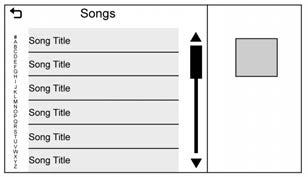
When a list of songs, albums, artists,
or other types of media display, a vertical keyboard appears on one side of the list and a scroll bar on the other side. When using the vertical keyboard, touch the beginning character of the desired name to display the zoom bubble of that character. Release the finger from the infotainment display and the zoom bubble disappears.
Touch the scroll bar to move the list up and down.
File System and Naming
The songs, artists, albums, and genres are taken from the file’s song information and are only displayed if present. The radio displays the file name as the track name if the song information is not available.
Supported Apple Devices
To view supported devices in USA, see my.chevrolet.com\learned.
Loss of Audio
If a phone currently paired over Bluetooth is plugged in with a USB cable, the system will automatically mute the phone audio.
Playback can be resumed by changing the audio source from Bluetooth to USB cable.
Source USB from the Media icon on the infotainment display to resume playback.
Other phones such as Android phones may have a similar reaction.
Bluetooth Streaming Audio and Voice Recognition
See Bluetooth Audio 0 157 for information using voice recognition with Bluetooth streaming audio.
Make sure all devices have the latest software downloaded.
If equipped, this vehicle may have an auxiliary input jack. This may be located in the center stack or center console under the armrest. Possible auxiliary audio sources include:
This jack is not an audio output. Do not plug headphones into the auxiliary input jack. Set up an auxiliary device while the vehicle is in P (Park).
Connect a 3.5 mm (1/8 in) cable from the auxiliary device to the auxiliary input jack. When a device is connected, the system can play audio from the device over the vehicle speakers.
If an auxiliary device has already been connected, but a different source is currently active, press MEDIA on the center stack or touch the Media icon on the infotainment display to scroll through audio source menus, until the AUX Input source appears.
Playing from the AUX Port
An auxiliary device is played through the audio system and controlled through the device itself.
AUX Menu
Press MENU on the center stack to display the AUX Input menu and the following may display:
Tone Settings : Touch to adjust Bass, Midrange, Treble, Balance, Fade, and EQ (Equalizer). See AM-FM Radio 0 150.
Auto Volume (If Equipped) : This feature adjusts the volume based on the vehicle speed. See AM-FM Radio 0 150.
Bose AudioPilot Noise Compensation Technology (If Equipped) : This feature adjusts the volume based on the noise in the vehicle and speed. See “Bose AudioPilot” in AM-FM Radio 0 150.
Music may be played from a paired Bluetooth device. See Bluetooth (Overview) 0 175 or
Bluetooth (Pairing and Using a Phone) 0 176
for help pairing a device.
Volume and song selection may be controlled by using the infotainment controls or the mobile device. If Bluetooth is selected and no volume is present, check the volume setting on the infotainment system.
Music can be launched by touching Bluetooth from the recent sources list on the left of the display or by touching the More option and then touching the Bluetooth device.
To play music via Bluetooth:
Bluetooth Sound Menu
See “Infotainment System Sound Menu” under AM-FM Radio 0 150.
Manage Bluetooth Devices
From the Home Page:
When touching Bluetooth, the radio may not be able to launch the audio player on the connected device to start playing. When the vehicle is not moving, use the mobile device to begin playback.
All devices launch audio differently. When selecting Bluetooth as a source, the radio may show as paused on the display. Press play on the device or touch p on the display to begin playback.
Browse functionality will be provided where supported by the Bluetooth device. This media content will not be part of the MyMedia source mode.
Some smartphones support sending Bluetooth music information to display on the radio. When the radio receives this information, it will check to see if any is available and display it. For more information about supported Bluetooth features, see my.chevrolet.com/learn.
Download Manual