Driver Information Center (DIC)
Your vehicle has a Driver Information Center (DIC).
All messages will appear in the DIC display located below the speedometer in the instrument panel cluster.
The DIC buttons are located on the instrument panel, to the left of the instrument panel cluster.
The DIC comes on when the ignition is on. After a short delay, the DIC will display the information that was last displayed before the engine was turned off.
The DIC displays trip, fuel, and vehicle system information, and warning messages if a system problem is detected. The bottom line of the DIC shows the shift lever position indicator. See Automatic Transmission Operation for more information.
If your vehicle’s DIC has these features, the compass direction and the outside air temperature may also display on the DIC when viewing the trip and fuel information. The compass direction appears on the top right corner of the DIC display. The outside air temperature automatically appears in the bottom right corner of the DIC display. If there is a problem with the system that controls the temperature display, the numbers will be replaced with dashes. If this occurs, have the vehicle serviced by your dealer/retailer.
The DIC also allows some features to be customized.
See DIC Vehicle Customization for more information.
DIC Operation and Displays
The DIC has different displays which can be accessed by pressing the DIC buttons located on the instrument panel, to the left of the instrument panel cluster.
DIC Buttons
The buttons are the trip/fuel, vehicle information, customization, and set/reset buttons. The button functions are detailed in the following pages.
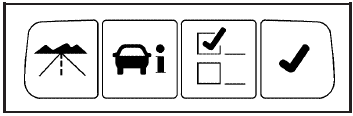
 (Trip/Fuel): Press this button to display the odometer, trip odometers, fuel range, average economy, instantaneous economy, and average speed.
 (Vehicle Information): Press this button to display the oil life, units, park assist on vehicles with this feature, side blind zone alert on vehicles with this feature, tire pressure readings on vehicles with this feature, compass zone and compass calibration on vehicles with this feature, and Remote Keyless Entry (RKE) transmitter programming.
 (Customization): Press this button to customize the feature settings on your vehicle. See DIC Vehicle Customization for more information.
 (Set/Reset): Press this button to set or reset certain functions and to turn off or acknowledge messages on the DIC.
Trip/Fuel Menu Items
(Trip/Fuel): Press this button to scroll through the following menu items:
Odometer
Press the trip/fuel button until ODOMETER displays.
This display shows the distance the vehicle has been driven in either kilometers (km) or miles (mi).
Trip A and Trip B
Press the trip/fuel button until TRIP A or TRIP B displays. This display shows the current distance traveled in either kilometers (km) or miles (mi) since the last reset for each trip odometer. Both trip odometers can be used at the same time.
Each trip odometer can be reset to zero separately by pressing the set/reset button while the desired trip odometer is displayed.
The trip odometer has a feature called the retro-active reset. This can be used to set the trip odometer to the number of kilometers (miles) driven since the ignition was last turned on. This can be used if the trip odometer is not reset at the beginning of the trip.
To use the retro-active reset feature, press and hold the set/reset button for at least four seconds. The trip odometer will display the number of kilometers (km) or miles (mi) driven since the ignition was last turned on and the vehicle was moving. Once the vehicle begins moving, the trip odometer will accumulate mileage. For example, if the vehicle was driven 8 km (5 miles) before it is started again, and then the retro-active reset feature is activated, the display will show 8 km (5 miles). As the vehicle begins moving, the display will then increase to 8.2 km (5.1 miles), 8.4 km (5.2 miles), etc.
If the retro-active reset feature is activated after the vehicle is started, but before it begins moving, the display will show the number of kilometers (km) or miles (mi) that were driven during the last ignition cycle.
Fuel Range
Press the trip/fuel button until FUEL RANGE displays.
This display shows the approximate number of remaining kilometers (km) or miles (mi) the vehicle can be driven without refueling.
The fuel range estimate is based on an average of the vehicle’s fuel economy over recent driving history and the amount of fuel remaining in the fuel tank. This estimate will change if driving conditions change.
For example, if driving in traffic and making frequent stops, this display may read one number, but if the vehicle is driven on a freeway, the number may change even though the same amount of fuel is in the fuel tank. This is because different driving conditions produce different fuel economies. Generally, freeway driving produces better fuel economy than city driving.
If your vehicle is low on fuel, the FUEL LEVEL LOW message will be displayed. See “FUEL LEVEL LOW” under DIC Warnings and Messages for more information.
Average Economy
Press the trip/fuel button until AVG ECONOMY displays.
This display shows the approximate average liters per 100 kilometers (L/100 km) or miles per gallon (mpg).
This number is calculated based on the number of L/100 km (mpg) recorded since the last time this menu item was reset. To reset AVG ECONOMY, press and hold the set/reset button. The display will return to zero.
Instantaneous Economy
Press the trip/fuel button until INST ECONOMY displays.
This display shows the current fuel economy at a particular moment and will change frequently as driving conditions change. This display shows the instantaneous fuel economy in liters per 100 kilometers (L/100 km) or miles per gallon (mpg). Unlike average economy, this screen cannot be reset.
Average Speed
Press the trip/fuel button until AVERAGE SPEED displays. This display shows the average speed of the vehicle in kilometers per hour (km/h) or miles per hour (mph). This average is calculated based on the various vehicle speeds recorded since the last reset of this value.
To reset the value, press and hold the set/reset button.
The display will return to zero.
Blank Display
This display shows no information.
Vehicle Information Menu Items
 (Vehicle Information): Press this button to scroll through the following menu items:
Oil Life
Press the vehicle information button until OIL LIFE REMAINING displays. This display shows an estimate of the oil’s remaining useful life. If you see 99% OIL LIFE REMAINING on the display, that means 99% of the current oil life remains. The engine oil life system will alert you to change the oil on a schedule consistent with your driving conditions.
When the remaining oil life is low, the CHANGE ENGINE OIL SOON message will appear on the display.
See “CHANGE ENGINE OIL SOON” under DIC Warnings and Messages. You should change the oil as soon as possible. See Engine Oil. In addition to the engine oil life system monitoring the oil life, additional maintenance is recommended in the Maintenance Schedule in this manual. See Scheduled Maintenance for more information.
Remember, you must reset the OIL LIFE yourself after each oil change. It will not reset itself. Also, be careful not to reset the OIL LIFE accidentally at any time other than when the oil has just been changed. It cannot be reset accurately until the next oil change. To reset the engine oil life system, see Engine Oil Life System.
Units
Press the vehicle information button until UNITS displays. This display allows you to select between Metric or English units of measurement. Once in this display, press the set/reset button to select between ENGLISH or METRIC units.
Park Assist
If your vehicle has the Ultrasonic Rear Parking Assist (URPA) system, this display allows the system to be turned on or off. Press the vehicle information button until PARK ASSIST displays. Once in this display, press the set/reset button to select between ON or OFF. If you choose ON, the system will be turned on. If you choose OFF, the system will be turned off. The URPA system automatically turns back on after each vehicle start.
When the URPA system is turned off and the vehicle is shifted out of PARK (P), the DIC will display the PARK ASSIST OFF message as a reminder that the system has been turned off. See DIC Warnings and Messages and Ultrasonic Rear Parking Assist (URPA) for more information.
Side Blind Zone
If your vehicle has the Side Blind Zone Alert (SBZA) system, this display allows the system to be turned on or off. Press the vehicle information button until SIDE BLIND ZONE displays. Once in this display, press the set/reset button to select between ON or OFF. If you choose ON, the system will be turned on. If you choose OFF, the system will be turned off. When the SBZA system is turned off, the DIC will display the SIDE BLIND ZONE ALERT SYSTEM OFF message as a reminder that the system has been turned off. See DIC Warnings and Messages and Side Blind Zone Alert (SBZA) for more information.
Tire Pressure
On vehicles with the Tire Pressure Monitor System (TPMS), the pressure for each tire can be viewed in the DIC. The tire pressure will be shown in either pounds per square inch (psi) or kilopascals (kPa). Press the vehicle information button until the DIC displays FRONT TIRES PSI (kPa) LEFT ## RIGHT ##. Press the vehicle information button again until the DIC displays REAR TIRES PSI (kPa) LEFT ## RIGHT ##.
If a low tire pressure condition is detected by the system while driving, a message advising you to check the pressure in a specific tire will appear in the display. See Inflation - Tire Pressure and DIC Warnings and Messages for more information.
If the tire pressure display shows dashes instead of a value, there may be a problem with your vehicle. If this consistently occurs, see your dealer/retailer for service.
Change Compass Zone
Your vehicle may have this feature. To change the compass zone through the DIC, see DIC Compass.
Calibrate Compass
Your vehicle may have this feature. The compass can be manually calibrated. To calibrate the compass through the DIC, see DIC Compass.
Relearn Remote Key
To access this display, the vehicle must be in PARK (P).
This display allows you to match Remote Keyless Entry (RKE) transmitters to your vehicle. This procedure will erase all previously learned transmitters. Therefore, they must be relearned as additional transmitters.
To match an RKE transmitter to your vehicle:
1. Press the vehicle information button until PRESS  TO RELEARN REMOTE KEY displays.
2. Press the set/reset button until REMOTE KEY LEARNING ACTIVE is displayed.
3. Press and hold the lock and unlock buttons on the first transmitter at the same time for about 15 seconds.
On vehicles with memory recall seats, the first transmitter learned will match driver 1 and the second will match driver 2.
A chime will sound indicating that the transmitter is matched.
4. To match additional transmitters at this time, repeat Step 3.
Each vehicle can have a maximum of eight transmitters matched to it.
5. To exit the programming mode, you must cycle the key to LOCK/OFF.
Blank Display
This display shows no information.
Customization Menu Items
 (Customization): Press this button to enter the feature settings menu. This display allows you to customize the feature settings on your vehicle. See DIC Vehicle Customization for more information.
DIC Compass
Your vehicle may have a compass in the Driver Information Center (DIC). The information below explains how to operate this feature in the DIC.
If your vehicle has a compass in the mirror, see Compass.
Compass Zone
Your dealer/retailer will set the correct zone for your location. If the zone is not set to your location or you drive out of the area, the variance needs to be changed to the appropriate zone.
To adjust for compass variance, use the following procedure:
Compass Variance (Zone) Procedure
1. Do not set the compass zone when the vehicle is moving. Only set it when the vehicle is in P (Park).
Press the vehicle information button until PRESS TO CHANGE COMPASS ZONE displays.
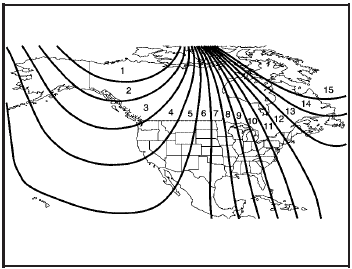
2. Find the vehicle’s current location and variance zone number on the map.
Zones 1 through 15 are available.
3. Press the set/reset button to scroll through and select the appropriate variance zone.
4. Press the trip/fuel button until the vehicle heading, for example, N for North, is displayed in the DIC.
5. If calibration is necessary, calibrate the compass.
See “Compass Calibration Procedure” following.
Compass Calibration
The compass can be manually calibrated. Only calibrate the compass in a magnetically clean and safe location, such as an open parking lot, where driving the vehicle in circles is not a danger. It is suggested to calibrate away from tall buildings, utility wires, manhole covers, or other industrial structures, if possible.
If CAL should ever appear in the DIC display, the compass should be calibrated.
If the DIC display does not show a heading, for example, N for North, or the heading does not change after making turns, there may be a strong magnetic field interfering with the compass. Interference may be caused by a magnetic antenna mount, magnetic note pad holder, or any other magnetic item. Turn off the vehicle, move the magnetic item, then turn on the vehicle and calibrate the compass.
To calibrate the compass, use the following procedure:
Compass Calibration Procedure
1. Before calibrating the compass, check that the compass zone is set to the variance zone in which the vehicle is located. See “Compass Variance (Zone) Procedure” earlier in this section.
Do not operate any switches such as window, sunroof, climate controls, seats, etc. during the calibration procedure.
2. Press the vehicle information button until PRESS TO CALIBRATE COMPASS displays.
3. Press the set/reset button to start the compass calibration.
4. The DIC will display CALIBRATING: DRIVE IN CIRCLES. Drive the vehicle in tight circles at less than 5 mph (8 km/h) to complete the calibration.
The DIC will display CALIBRATION COMPLETE for a few seconds when the calibration is complete.
The DIC display will then return to PRESS TO CALIBRATE COMPASS.
DIC Warnings and Messages
Messages are displayed on the DIC to notify the driver that the status of the vehicle has changed and that some action may be needed by the driver to correct the condition. Multiple messages may appear one after another. Some messages may not require immediate action, but you can press the set/reset button to acknowledge that you received the message and clear it from the DIC display. Pressing any of the DIC buttons also acknowledges and clears any messages. Some messages cannot be cleared from the DIC display because they are more urgent. These messages require action before they can be cleared. You should take any messages that appear on the display seriously and remember that clearing the messages will only make the messages disappear, not correct the problem.
The following are the possible messages that can be displayed and some information about them.
AUTOMATIC LIGHT CONTROL OFF
This message displays when the automatic headlamps are turned off. See Exterior Lamps for more information.
AUTOMATIC LIGHT CONTROL ON
This message displays when the automatic headlamps are turned on. See Exterior Lamps for more information.
BATTERY SAVER ACTIVE
This message displays when the system detects that the battery voltage is dropping beyond a reasonable level. The battery saver system starts reducing certain features of the vehicle that you may be able to notice.
At the point that the features are disabled, this message is displayed. It means that the vehicle is trying to save the charge in the battery.
Turn off all unnecessary accessories to allow the battery to recharge.
The normal battery voltage range is 11.5 to 15.5 volts.
CHANGE ENGINE OIL SOON
This message displays when service is required for the vehicle. See your dealer/retailer. See Engine Oil and Scheduled Maintenance for more information.
Acknowledging the CHANGE ENGINE OIL SOON message will not reset the OIL LIFE REMAINING.
That must be done at the OIL LIFE screen under the vehicle information menu. See “Oil Life” under DIC Operation and Displays and Engine Oil Life System.
DRIVER DOOR OPEN
This message displays when the driver door is not closed properly. Make sure that the door is closed completely.
ENGINE HOT A/C (Air Conditioning) OFF
This message displays when the engine coolant becomes hotter than the normal operating temperature.
To avoid added strain on a hot engine, the air conditioning compressor is automatically turned off.
When the coolant temperature returns to normal, the A/C operation automatically resumes. You can continue to drive your vehicle. If this message continues to appear, have the system repaired by your dealer/retailer as soon as possible to avoid compressor damage.
ENGINE OVERHEATED IDLE ENGINE
Notice: If you drive your vehicle while the engine is overheating, severe engine damage may occur. If an overheat warning appears on the instrument panel cluster and/or DIC, stop the vehicle as soon as possible. Do not increase the engine speed above normal idling speed. See Engine Overheating for more information.
This message displays when the engine coolant temperature is too hot. Stop and allow the vehicle to idle until it cools down.
ENGINE OVERHEATED STOP ENGINE
Notice: If you drive your vehicle while the engine is overheating, severe engine damage may occur.
If an overheat warning appears on the instrument panel cluster and/or DIC, stop the vehicle as soon as possible. See Engine Overheating for more information.
This message displays along with a continuous chime when the engine has overheated. Stop and turn the engine off immediately to avoid severe engine damage.
See Engine Overheating.
ENGINE POWER IS REDUCED
This message displays when the vehicle’s engine power is reduced. Reduced engine power can affect the vehicle’s ability to accelerate. If this message is on, but there is no reduction in performance, proceed to your destination. The performance may be reduced the next time the vehicle is driven. The vehicle may be driven at a reduced speed while this message is on, but acceleration and speed may be reduced. Anytime this message stays on, the vehicle should be taken to your dealer/retailer for service as soon as possible.
ERROR
This message displays while viewing the odometer or trip odometers if there is a problem with the instrument panel cluster. See your dealer/retailer for service.
FUEL LEVEL LOW
This message displays when your vehicle is low on fuel.
Refill the fuel tank as soon as possible. See Fuel Gage and Filling the Tank for more information.
HOOD OPEN
If your vehicle has the remote start feature, this message displays when the hood is not closed properly.
Make sure that the hood is closed completely. See Hood Release.
ICE POSSIBLE DRIVE WITH CARE
This message displays when the outside air temperature is cold enough to create icy road conditions. Adjust your driving accordingly.
LANE DEPARTURE SYSTEM UNAVAILABLE
If your vehicle has the Lane Departure Warning (LDW) system, this message may display if the LDW system does not activate due to a temporary condition.
See Lane Departure Warning (LDW) for more information.
LEFT REAR DOOR OPEN
This message displays when the driver side rear door is not closed properly. Make sure that the door is closed completely.
OIL LEVEL LOW ADD OIL
On some vehicles, this message displays when the vehicle’s engine oil is low. Fill the oil to the proper level as soon as possible. See Engine Compartment Overview for the engine oil fill location.
Also, see Engine Oil for information on the kind of oil to use and the proper oil level.
OIL PRESSURE LOW STOP ENGINE
Notice: If you drive your vehicle while the engine oil pressure is low, severe engine damage may occur. If a low oil pressure warning appears on the instrument panel cluster and/or DIC, stop the vehicle as soon as possible. Do not drive the vehicle until the cause of the low oil pressure is corrected.
See Engine Oil for more information.
This message displays when the vehicle’s engine oil pressure is low. The oil pressure light also appears on the instrument panel cluster. See Oil Pressure Light.
Stop the vehicle immediately, as engine damage can result from driving a vehicle with low oil pressure. Have the vehicle serviced by your dealer/retailer as soon as possible when this message is displayed.
PARK ASSIST OFF
If your vehicle has this feature, after the vehicle has been started, this message will reminder the driver that the Ultrasonic Rear Parking Assist (URPA) system has been turned off. Press the set/reset button to acknowledge this message and clear it from the DIC display. To turn the URPA system back on, see “Park Assist” under DIC Operation and Displays. See Ultrasonic Rear Parking Assist (URPA) for more information.
PASSENGER DOOR OPEN
This message displays when the front passenger door is not closed properly. Make sure that the door is closed completel
REMOTE KEY LEARNING ACTIVE
This message displays while you are matching a Remote Keyless Entry (RKE) transmitter to your vehicle.
See “Matching Transmitter(s) to Your Vehicle” under Remote Keyless Entry (RKE) System Operation and DIC Operation and Displays for more information.
REPLACE BATTERY IN REMOTE KEY
This message displays when the battery in the Remote Keyless Entry (RKE) transmitter needs to be replaced.
To replace the battery, see “Battery Replacement” under Remote Keyless Entry (RKE) System Operation.
RIGHT REAR DOOR OPEN
This message displays when the passenger side rear door is not closed properly. Make sure that the door is closed completely.
SERVICE A/C (Air Conditioning) SYSTEM
This message displays when the electronic sensors that control the air conditioning and heating systems are no longer working. Have the climate control system serviced by your dealer/retailer if you notice a drop in heating and air conditioning efficiency.
SERVICE AIR BAG
This message displays when there is a problem with the airbag system. Have your vehicle serviced by your dealer/retailer immediately. See Airbag Readiness Light for more information.
SERVICE BATTERY CHARGING SYSTEM
This message displays when there is a problem with the generator and battery charging systems. Driving with this problem could drain the battery. Turn off all unnecessary accessories. Stop and turn off the vehicle as soon as it is safe to do so. Have the electrical system checked by your dealer/retailer immediately.
SERVICE BRAKE ASSIST
This message displays if there is a problem with the brake system. The brake system warning light and the antilock brake system warning light may also be displayed on the instrument panel cluster. See Brake System Warning Light and Antilock Brake System (ABS) Warning Light for more information. If this happens, stop as soon as possible and turn off the vehicle. Restart the vehicle and check for the message on the DIC display. If the message is displayed or appears again when you begin driving, the brake system needs service. See your dealer/retailer as soon as possible. See Brakes for more information.
SERVICE BRAKE SYSTEM
This message displays if the ignition is on to inform the driver that the brake fluid level is low. Have the brake system serviced by your dealer/retailer as soon as possible. The brake system warning light also appears on the instrument panel cluster when this message appears on the DIC. See Brake System Warning Light .
SERVICE LANE DEPARTURE SYSTEM
If your vehicle has the Lane Departure Warning (LDW) system, this message may display to indicate that the LDW system is not working properly. If this message remains on after continued driving, the system needs service. See your dealer/retailer.
See Lane Departure Warning (LDW) for more information.
SERVICE PARK ASSIST
If your vehicle has this feature, this message displays if there is a problem with the Ultrasonic Rear Parking Assist (URPA) system. Do not use this system to help you park. See Ultrasonic Rear Parking Assist (URPA) for more information. See your dealer/retailer for service.
SERVICE POWER STEERING
Your vehicle may have a speed variable assist steering system. See Steering.
This message displays if a problem is detected with the speed variable assist steering system. When this message is displayed, you may notice that the effort required to steer the vehicle decreases or feels lighter, but you will still be able to steer the vehicle.
SERVICE SIDE BLIND ZONE ALERT SYSTEM
If your vehicle has the Side Blind Zone Alert (SBZA) system and this message displays, both SBZA displays will remain on indicating there is a problem with the SBZA system. If these displays remain on after continued driving, the system needs service. See your dealer/retailer. See Side Blind Zone Alert (SBZA) for more information.
SERVICE STABILITRAK
If your vehicle has StabiliTrak®, this message displays if there has been a problem detected with StabiliTrak.
A warning light also appears on the instrument panel cluster. See Traction Control System (TCS) Warning Light. See StabiliTrak® System for more information.
If this message turns on while you are driving, pull off the road as soon as possible and stop carefully.
Try resetting the system by turning the ignition off and then back on. If this message still stays on or turns back on again while you are driving, your vehicle needs service. Have the StabiliTrak System inspected by your dealer/retailer as soon as possible.
SERVICE SUSPENSION SYSTEM
This message displays to indicate that the suspension system is not operating properly. See your dealer/retailer for service.
SERVICE THEFT SYSTEM
This message displays when there is a problem with the theft-deterrent system programmed in the key. A fault has been detected in the system which means that the system is disabled and it is not protecting the vehicle. The vehicle usually restarts; however, you may want to take the vehicle to your dealer/retailer before turning off the engine. See PASS-Key® III+ Electronic Immobilizer for more information.
SERVICE TIRE MONITOR SYSTEM
On vehicles with the Tire Pressure Monitor System (TPMS), this message displays if a part on the TPMS is not working properly. The tire pressure light also flashes and then remains on during the same ignition cycle. See Tire Pressure Light. Several conditions may cause this message to appear. See Tire Pressure Monitor Operation for more information. If the warning comes on and stays on, there may be a problem with the TPMS. See your dealer/retailer.
SERVICE TRACTION CONTROL
This message displays when the Traction Control System (TCS) is not functioning properly. A warning light also appears on the instrument panel cluster. See Traction Control System (TCS) Warning Light. See Traction Control System (TCS) for more information. Have the TCS serviced by your dealer/retailer as soon as possible.
SERVICE TRANSMISSION
This message displays when there is a problem with the transmission. See your dealer/retailer for service.
SERVICE VEHICLE SOON
This message displays when a non-emissions related malfunction occurs. Have the vehicle serviced by your dealer/retailer as soon as possible.
SIDE BLIND ZONE ALERT SYSTEM OFF
If your vehicle has the Side Blind Zone Alert (SBZA) system, this message displays when the SBZA system has been turned off. See Side Blind Zone Alert (SBZA) and DIC Operation and Displays for more information.
SIDE BLIND ZONE SYS. UNAVAILABLE
If your vehicle has the Side Blind Zone Alert (SBZA) system, this message displays when the SBZA system is disabled because the sensor is blocked and cannot detect vehicles in your blind zone. The sensor may be blocked by mud, dirt, snow, ice, or slush. This message may also display during heavy rain or due to road spray. It may also come on when driving in isolated areas with no guardrails, trees, or road signs and light traffic. Your vehicle does not need service. For cleaning instructions, see Washing Your Vehicle. See Side Blind Zone Alert (SBZA) for more information.
SPEED LIMITED TO XXX MPH (km/h)
This message displays when your vehicle speed is limited to 128 km/h (80 mph) because the vehicle detects a problem in the speed variable assist steering, magnetic ride control, or automatic leveling control systems. Have your vehicle serviced by your dealer/retailer.
STABILITRAK NOT READY
If your vehicle has StabiliTrak, this message may display and the Traction Control System and StabiliTrak Warning Light on the instrument panel cluster may be on after first driving the vehicle and exceeding 30 km/h (19 mph) for 30 seconds. The StabiliTrak system is not functional until the light has turned off.
See StabiliTrak® System for more information.
STARTING DISABLED SERVICE THROTTLE
This message displays if the starting of the engine is disabled due to the electronic throttle control system.
Have your vehicle serviced by your dealer/retailer immediately.
This message only appears while the ignition is in ON/RUN, and will not disappear until the problem is resolved.
This message cannot be acknowledged.
THEFT ATTEMPTED
This message displays if the content theft-deterrent system has detected a break-in attempt while you were away from your vehicle. See Content Theft-Deterrent for more information.
TIGHTEN GAS CAP
This message may be displayed if the gas cap is not on, or is not fully tightened. Check the gas cap to ensure that it is on properly. See Filling the Tank for more information.
TIRE LEARNING ACTIVE
On vehicles with the Tire Pressure Monitor System (TPMS), this message displays when the TPMS is re-learning the tire positions on your vehicle. The tire positions must be re-learned after rotating the tires or after replacing a tire or sensor. See Tire Inspection and Rotation, Tire Pressure Monitor System, and Inflation - Tire Pressure for more information.
TIRE LOW ADD AIR TO TIRE
On vehicles with the Tire Pressure Monitor System (TPMS), this message displays when the pressure in one or more of the vehicle’s tires is low. This message also displays LEFT FRT (left front), RIGHT FRT (right front), LEFT RR (left rear), or RIGHT RR (right rear) to indicate the location of the low tire. The low tire pressure warning light will also come on. See Tire Pressure Light. If a tire pressure message appears on the DIC, stop as soon as you can. Have the tire pressures checked and set to those shown on the Tire Loading Information label. See Tires, Loading the Vehicle, and Inflation - Tire Pressure. You can receive more than one tire pressure message at a time. To read the other messages that may have been sent at the same time, press the set/reset button. The DIC also shows the tire pressure values. See DIC Operation and Displays.
TRACTION CONTROL OFF
This message displays when the Traction Control System (TCS) is turned off. Adjust your driving accordingly. See Traction Control System (TCS) for more information.
TRACTION CONTROL ON
This message displays when the Traction Control System (TCS) is turned on. See Traction Control System (TCS) for more information.
TRANSMISSION HOT IDLE ENGINE
Notice: If you drive your vehicle while the transmission fluid is overheating and the transmission temperature warning is displayed on the instrument panel cluster and/or DIC, you can damage the transmission. This could lead to costly repairs that would not be covered by your warranty.
Do not drive your vehicle with overheated transmission fluid or while the transmission temperature warning is displayed.
This message displays when the transmission fluid in your vehicle is too hot. Stop the vehicle and allow it to idle until it cools down. If the warning message continues to display, have the vehicle serviced by your dealer/retailer as soon as possible.
TRUNK OPEN
This message displays when the trunk is not closed completely. Make sure that the trunk is closed completely. See Trunk.
TURN SIGNAL ON
This message displays as a reminder to turn off the turn signal if you drive your vehicle for more than about 1.2 km (0.75 mile) with a turn signal on. See Turn Signal/Multifunction Lever.
This message displays and a chime sounds only when the ignition is in ON/RUN. The message will not disappear until the turn signal is manually turned off, or a turn is completed.
WASHER FLUID LOW ADD FLUID
This message displays when the windshield washer fluid is low. Fill the windshield washer reservoir as soon as possible. See Engine Compartment Overview for the location of the windshield washer reservoir. Also, see Windshield Washer Fluid for more information.
DIC Vehicle Customization
Your vehicle has customization capabilities that allow you to program certain features to one preferred setting.
Customization features can only be programmed to one setting on the vehicle and cannot be programmed to a preferred setting for two different drivers.
All of the customization options may not be available on your vehicle. Only the options available will be displayed on the DIC.
The default settings for the customization features were set when your vehicle left the factory, but may have been changed from their default state since then.
The customization preferences are automatically recalled.
To change customization preferences, use the following procedure.
Entering the Feature Settings Menu
1. Turn the ignition on and place the vehicle in P (Park).
To avoid excessive drain on the battery, it is recommended that the headlamps are turned off.
2. Press the customization button to enter the feature settings menu.
If the menu is not available, FEATURE SETTINGS AVAILABLE IN PARK will display. Before entering the menu, make sure the vehicle is in P (Park).
Feature Settings Menu Items
The following are customization features that allow you to program settings to the vehicle:
DISPLAY IN ENGLISH
This feature will only display if a language other than English has been set. This feature allows you to change the language in which the DIC messages appear to English.
Press the customization button until the PRESS V TO DISPLAY IN ENGLISH screen appears on the DIC display. Press the set/reset button once to display all DIC messages in English.
DISPLAY LANGUAGE
This feature allows you to select the language in which the DIC messages will appear.
Press the customization button until the DISPLAY LANGUAGE screen appears on the DIC display. Press the set/reset button once to access the settings for this feature. Then press the customization button to scroll through the following settings:
ENGLISH (default): All messages will appear in English.
FRANCAIS: All messages will appear in French.
ESPANOL: All messages will appear in Spanish.
NO CHANGE: No change will be made to this feature.
The current setting will remain.
To select a setting, press the set/reset button while the desired setting is displayed on the DIC.
AUTO DOOR LOCK
This feature allows you to select when the vehicle’s doors will automatically lock. See Programmable Automatic Door Locks for more information.
Press the customization button until AUTO DOOR LOCK appears on the DIC display. Press the set/reset button once to access the settings for this feature.
Then press the customization button to scroll through the following settings:
SHIFT OUT OF PARK (default): The doors automatically lock when the doors are closed and the vehicle is shifted out of P (Park).
AT VEHICLE SPEED: The doors automatically lock when the vehicle speed is above 5 mph (8 km/h) for three seconds.
NO CHANGE: No change will be made to this feature.
The current setting will remain.
To select a setting, press the set/reset button while the desired setting is displayed on the DIC.
AUTO DOOR UNLOCK
This feature allows you to select whether or not to turn off the automatic door unlocking feature. It also allows you to select which doors and when the doors will automatically unlock. See Programmable Automatic Door Locks for more information.
Press the customization button until AUTO DOOR UNLOCK appears on the DIC display. Press the set/reset button once to access the settings for this feature. Then press the customization button to scroll through the following settings:
OFF: None of the doors will automatically unlock.
DRIVER AT KEY OUT: Only the driver’s door will unlock when the key is taken out of the ignition.
DRIVER IN PARK: Only the driver’s door will unlock when the vehicle is shifted into P (Park).
ALL AT KEY OUT: All of the doors will unlock when the key is taken out of the ignition.
ALL IN PARK (default): All of the doors will unlock when the vehicle is shifted into P (Park).
NO CHANGE: No change will be made to this feature.
The current setting will remain.
To select a setting, press the set/reset button while the desired setting is displayed on the DIC.
REMOTE DOOR LOCK
This feature allows you to select the type of feedback you will receive when locking the vehicle with the Remote Keyless Entry (RKE) transmitter. You will not receive feedback when locking the vehicle with the RKE transmitter if the doors are open. See Remote Keyless Entry (RKE) System Operation for more information.
Press the customization button until REMOTE DOOR LOCK appears on the DIC display. Press the set/reset button once to access the settings for this feature.
Then press the customization button to scroll through the following settings:
HORN & LIGHTS OFF: There will be no feedback when you press the lock button on the RKE transmitter.
LIGHTS ONLY: The exterior lamps will flash when you press the lock button on the RKE transmitter.
HORN ONLY: The horn will sound on the second press of the lock button on the RKE transmitter.
HORN & LIGHTS ON (default): The exterior lamps will flash when you press the lock button on the RKE transmitter, and the horn will sound when the lock button is pressed again within five seconds of the previous command.
NO CHANGE: No change will be made to this feature.
The current setting will remain.
To select a setting, press the set/reset button while the desired setting is displayed on the DIC.
REMOTE DOOR UNLOCK
This feature allows you to select the type of feedback you will receive when unlocking the vehicle with the Remote Keyless Entry (RKE) transmitter. You will not receive feedback when unlocking the vehicle with the RKE transmitter if the doors are open. See Remote Keyless Entry (RKE) System Operation for more information.
Press the customization button until REMOTE DOOR UNLOCK appears on the DIC display. Press the set/reset button once to access the settings for this feature. Then press the customization button to scroll through the following settings:
LIGHTS OFF: The exterior lamps will not flash when you press the unlock button on the RKE transmitter.
LIGHTS ON (default): The exterior lamps will flash when you press the unlock button on the RKE transmitter.
NO CHANGE: No change will be made to this feature.
The current setting will remain.
To select a setting, press the set/reset button while the desired setting is displayed on the DIC.
DELAY DOOR LOCK
This feature allows you to select whether or not the locking of the vehicle’s doors will be delayed. When locking the doors with the power door lock switch and a door is open, this feature will delay locking the doors until five seconds after the last door is closed. You will hear three chimes to signal that the delayed locking feature is in use. The key must be out of the ignition for this feature to work. You can temporarily override delayed locking by pressing the power door lock switch twice or the lock button on the RKE transmitter twice.
See Delayed Locking for more information.
Press the customization button until DELAY DOOR LOCK appears on the DIC display. Press the set/reset button once to access the settings for this feature.
Then press the customization button to scroll through the following settings:
OFF: There will be no delayed locking of the vehicle’s doors.
ON (default): The doors will not lock until five seconds after the last door is closed.
NO CHANGE: No change will be made to this feature.
The current setting will remain.
To select a setting, press the set/reset button while the desired setting is displayed on the DIC.
EXIT LIGHTING
This feature allows you to select the amount of time you want the exterior lamps to remain on when it is dark enough outside. This happens after the key is turned from ON/RUN to LOCK/OFF.
Press the customization button until EXIT LIGHTING appears on the DIC display. Press the set/reset button once to access the settings for this feature. Then press the customization button to scroll through the following settings:
OFF: The exterior lamps will not turn on.
30 SECONDS (default): The exterior lamps will stay on for 30 seconds.
1 MINUTE: The exterior lamps will stay on for one minute.
2 MINUTES: The exterior lamps will stay on for two minutes.
NO CHANGE: No change will be made to this feature.
The current setting will remain.
To select a setting, press the set/reset button while the desired setting is displayed on the DIC.
APPROACH LIGHTING
This feature allows you to select whether or not to have the exterior lights turn on briefly during low light periods after unlocking the vehicle using the Remote Keyless Entry (RKE) transmitter.
Press the customization button until APPROACH LIGHTING appears on the DIC display. Press the set/reset button once to access the settings for this feature. Then press the customization button to scroll through the following settings:
OFF: The exterior lights will not turn on when you unlock the vehicle with the RKE transmitter.
ON (default): If it is dark enough outside, the exterior lights will turn on briefly when you unlock the vehicle with the RKE transmitter.
The lights will remain on for 20 seconds or until the lock button on the RKE transmitter is pressed, or the vehicle is no longer off. See Remote Keyless Entry (RKE) System Operation for more information.
NO CHANGE: No change will be made to this feature.
The current setting will remain.
To select a setting, press the set/reset button while the desired setting is displayed on the DIC.
CHIME VOLUME
This feature allows you to select the volume level of the chime.
Press the customization button until CHIME VOLUME appears on the DIC display. Press the set/reset button once to access the settings for this feature. Then press the customization button to scroll through the following settings:
NORMAL: The chime volume will be set to a normal level.
LOUD: The chime volume will be set to a loud level.
NO CHANGE: No change will be made to this feature.
The current setting will remain.
There is no default for chime volume. The volume will stay at the last known setting.
To select a setting, press the set/reset button while the desired setting is displayed on the DIC.
PARK TILT MIRRORS
If your vehicle has this feature, it allows you to select whether or not the outside mirror(s) will automatically tilt down when the vehicle is shifted into R (Reverse).
See Park Tilt Mirrors for more information.
Press the customization button until PARK TILT MIRRORS appears on the DIC display. Press the set/reset button once to access the settings for this feature. Then press the customization button to scroll through the following settings:
OFF (default): Neither outside mirror will be tilted down when the vehicle is shifted into R (Reverse).
DRIVER MIRROR: The driver’s outside mirror will be tilted down when the vehicle is shifted into R (Reverse).
PASSENGER MIRROR: The passenger’s outside mirror will be tilted down when the vehicle is shifted into R (Reverse).
BOTH MIRRORS: The driver’s and passenger’s outside mirrors will be tilted down when the vehicle is shifted into R (Reverse).
NO CHANGE: No change will be made to this feature.
The current setting will remain.
To select a setting, press the set/reset button while the desired setting is displayed on the DIC.
EASY EXIT RECALL
If your vehicle has this feature, it allows you to select your preference for the automatic easy exit seat feature.
See Memory Seat and Mirrors for more information.
Press the customization button until EASY EXIT RECALL appears on the DIC display. Press the set/reset button once to access the settings for this feature.
Then press the menu up/down button to scroll through the following settings:
DOOR BUTTON ONLY: No automatic seat exit recall will occur. The recall will only occur after pressing the easy exit seat button.
BUTTON AND KEY OUT (default): If the features are enabled through the EASY EXIT SETUP menu, the driver’s seat will move back, and if the vehicle has the power tilt wheel and telescopic steering feature, the power steering column will move up and forward when the key is removed from the ignition or after pressing the easy exit seat button. The automatic easy exit seat movement will only occur one time after the key is removed from the ignition. If the automatic movement has already occurred, and you put the key back in the ignition and remove it again, the seat and steering column will stay in the original exit position, unless a memory recall took place prior to removing the key again.
NO CHANGE: No change will be made to this feature.
The current setting will remain.
To select a setting, press the set/reset button while the desired setting is displayed on the DIC.
EASY EXIT SETUP
If your vehicle has this feature, it allows you to select which areas will recall with the automatic easy exit seat feature. It also allows you to turn off the automatic easy exit feature. See Memory Seat and Mirrors and “EASY EXIT RECALL” earlier for more information.
Press the customization button until EASY EXIT SETUP appears on the DIC display. Press the set/reset button once to access the settings for this feature. Then press the menu up/down button to scroll through the following settings:
OFF: No automatic seat exit will recall.
SEAT ONLY: The driver’s seat will recall.
TILT ONLY: The steering wheel tilt feature will recall.
TELESCOPE ONLY: The steering column telescope feature will recall.
SEAT/TILT: The driver’s seat and the steering wheel tilt feature will recall.
SEAT/TELESCOPE: The driver’s seat and the steering column telescope feature will recall.
TILT/TELESCOPE: The steering wheel tilt and steering column telescope features will recall.
ALL (default): The driver’s seat and the steering wheel tilt and steering column telescope features will recall, if your vehicle has this option.
NO CHANGE: No change will be made to this feature.
The current setting will remain.
To select a setting, press the set/reset button while the desired setting is displayed on the DIC.
MEMORY SEAT RECALL
If your vehicle has this feature, it allows you to select your preference for the remote memory seat recall feature. See Memory Seat and Mirrors for more information.
Press the customization button until MEMORY SEAT RECALL appears on the DIC display. Press the set/reset button once to access the settings for this feature.
Then press the customization button to scroll through the following settings:
OFF (default): No remote memory seat recall will occur.
ON: The driver’s seat and outside mirrors will automatically move to the stored driving position when the unlock button on the Remote Keyless Entry (RKE) transmitter is pressed. The steering column will also move on vehicles with the power tilt and telescopic steering feature. See Power Tilt Wheel and Telescopic Steering Column for more information.
See “Relearn Remote Key” under DIC Operation and Displays for more information on matching transmitters to driver ID numbers.
NO CHANGE: No change will be made to this feature.
The current setting will remain.
To select a setting, press the set/reset button while the desired setting is displayed on the DIC.
REMOTE START
If your vehicle has this feature, it allows you to turn the remote start off or on. The remote start feature allows you to start the engine from outside of the vehicle using the Remote Keyless Entry (RKE) transmitter. See Remote Vehicle Start for more information.
Press the customization button until REMOTE START appears on the DIC display. Press the set/reset button once to access the settings for this feature. Then press the customization button to scroll through the following settings:
OFF: The remote start feature will be disabled.
ON (default): The remote start feature will be enabled.
NO CHANGE: No change will be made to this feature. The current setting will remain.
To select a setting, press the set/reset button while the desired setting is displayed on the DIC.
FACTORY SETTINGS
This feature allows you to set all of the customization features back to their factory default settings.
Press the customization button until FACTORY SETTINGS appears on the DIC display. Press the set/reset button once to access the settings for this feature. Then press the customization button to scroll through the following settings:
RESTORE ALL (default): The customization features will be set to their factory default settings.
DO NOT RESTORE: The customization features will not be set to their factory default settings.
To select a setting, press the set/reset button while the desired setting is displayed on the DIC.
EXIT FEATURE SETTINGS
This feature allows you to exit the FEATURE SETTINGS menu.
Press the customization button until FEATURE SETTINGS PRESS TO EXIT appears on the DIC display. Press the set/reset button to exit the menu.
If you do not exit, pressing the customization button again will return you to the beginning of the FEATURE SETTINGS menu.
Exiting the Feature Settings Menu
The feature settings menu will be exited when any of the following occurs:
• The vehicle is shifted out of P (Park).
• The vehicle is no longer in ON/RUN.
• The trip/fuel or vehicle information DIC buttons are pressed.
• The end of the feature settings menu is reached and exited.
• A 40 second time period has elapsed with no selection made.
Download Manual