Using the radio
Radio operation
Select “AM” or “FM” on the audio source selection screen to begin listening to the radio.
Audio control screen
Pressing the “AUDIO” button displays the audio control screen from any screens of the selected source.
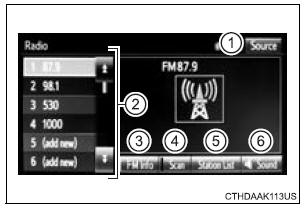
- Audio source selection screen appears
- Preset stations
- Select to display RBDS text messages*
- Scanning for receivable station
- Select to display a list of receivable stations
- Setting the sound
*: FM only
Selecting a station
Tune in to the desired station using one of the following methods.
Seek tuning
Press the “” or “” button on “SEEK•TRACK”.
The radio will begin seeking up or down for a station of the nearest frequency and will stop when a station is found.
Manual tuning
Turn the “TUNE•SCROLL” knob.
Preset stations
Select the desired preset station.
Setting station presets
- Search for desired stations by turning the “TUNE•SCROLL” knob or pressing the “” or “” button on “SEEK•TRACK”.
- Select “(add new)”.
To change the preset station to a different one, select and hold the preset station.
- Select “Yes”.
- Select “OK” after setting the new preset station.
Refreshing the station list
- Select “Refresh” on the “Station List” screen.
To cancel the refresh, select “Cancel Refresh”.
Reception sensitivity
- Maintaining perfect radio reception at all times is difficult due to the continually changing position of the antenna, differences in signal strength and surrounding objects, such as trains, transmitters, etc.
- The radio antenna is mounted inside the rear quarter window. To maintain clear radio reception, do not attach metallic window tinting or other metallic objects to the antenna wire mounted inside the rear quarter window.
Download Manual