Basic Audio
Operation
Connect audio devices and operate buttons and displays for the audio system.
USB Port
- Open the USB cover in the front console.
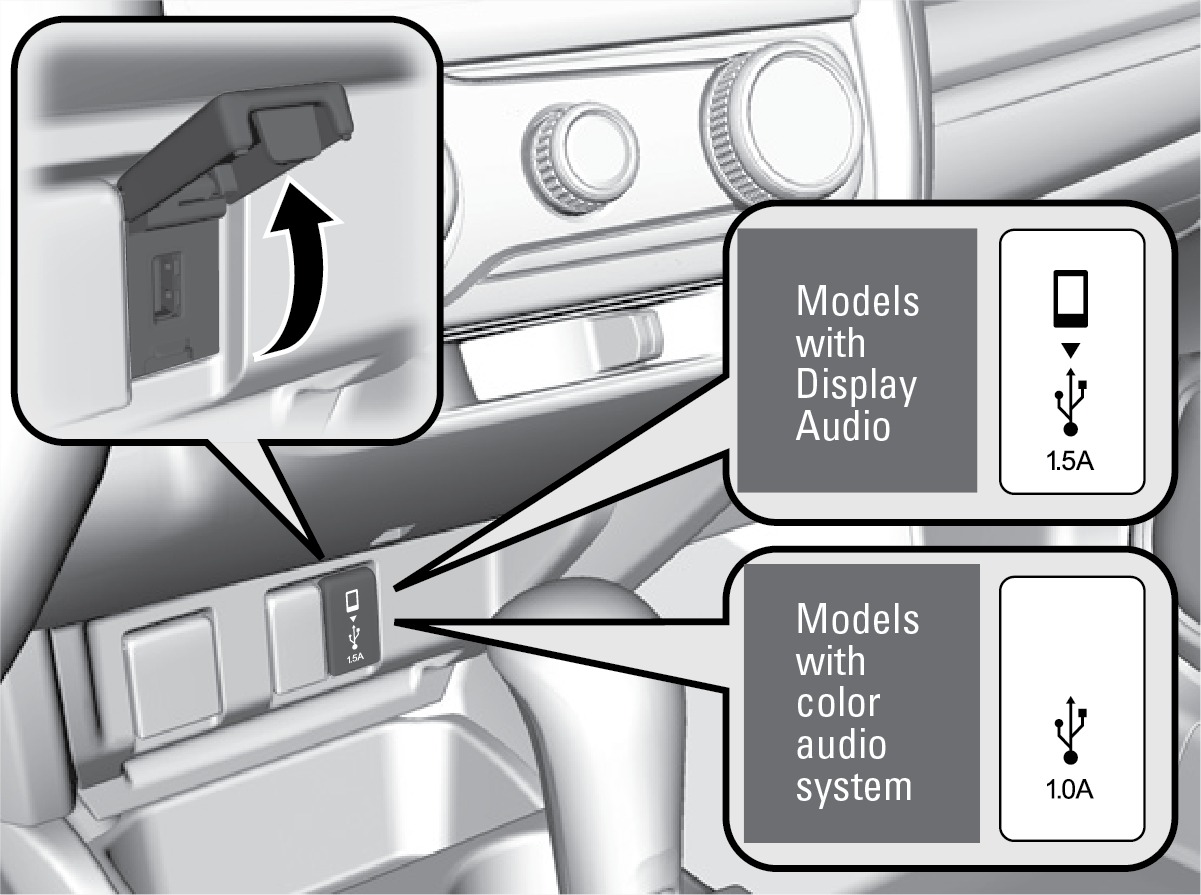
The USB port (1.0A) is for playing audio files on a USB flash drive and connecting a cellular phone and charging device.
The USB port (1.5A) is for charging devices, playing audio files an connecting compatible phones with Apple CarPlay or Android Auto.
An additional USB port is located inside the center console.*
iPod and iPhone are trademarks of Apple, Inc.
Applicable laws may prohibit the operation of handheld electronic devices while operating a vehicle.
Accessory Power Socket
Open the socket cover in the front console to use power when the vehicle is on.
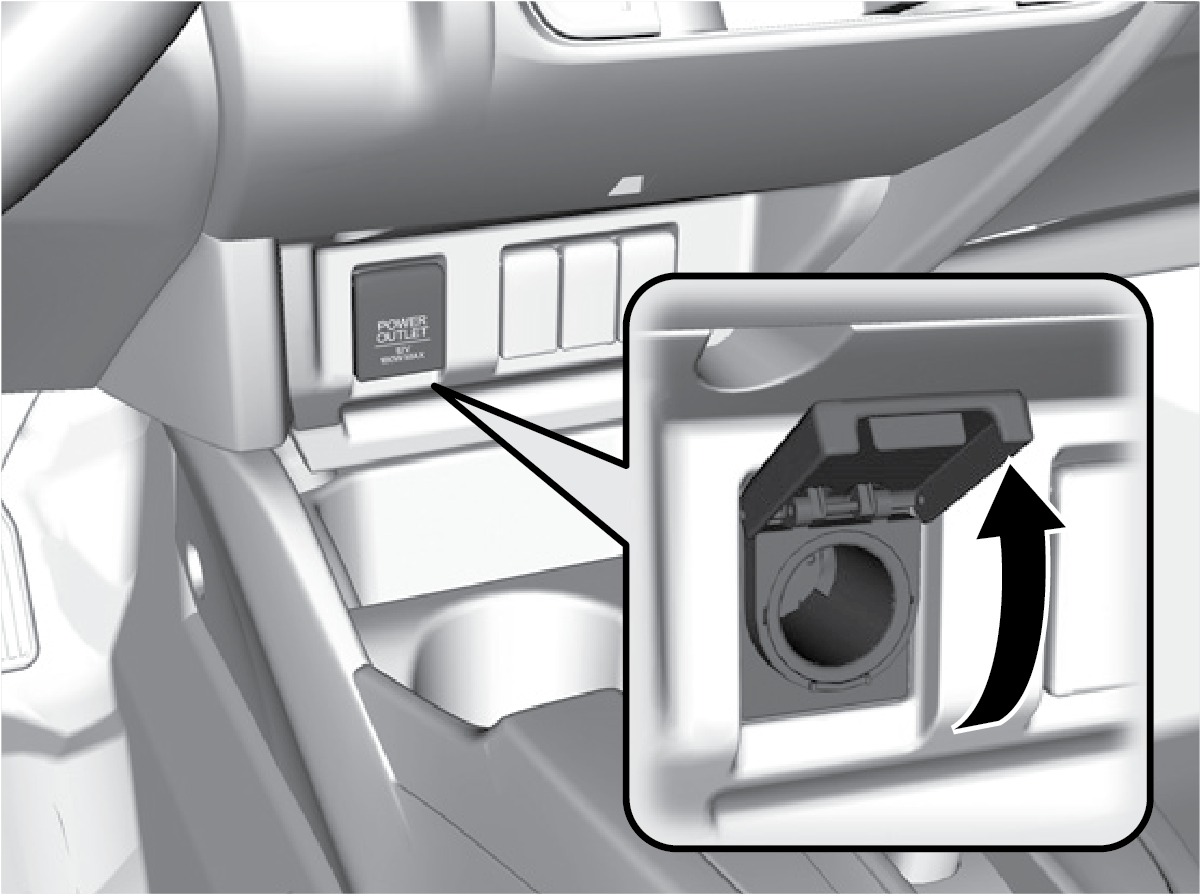
An additional power socket is located inside the center console.*
Do not insert an automotive type cigarette lighter element. This can overheat the power socket.
*if equipped
Audio Remote Controls*
You can operate certain functions of the audio system using the steering wheel controls.
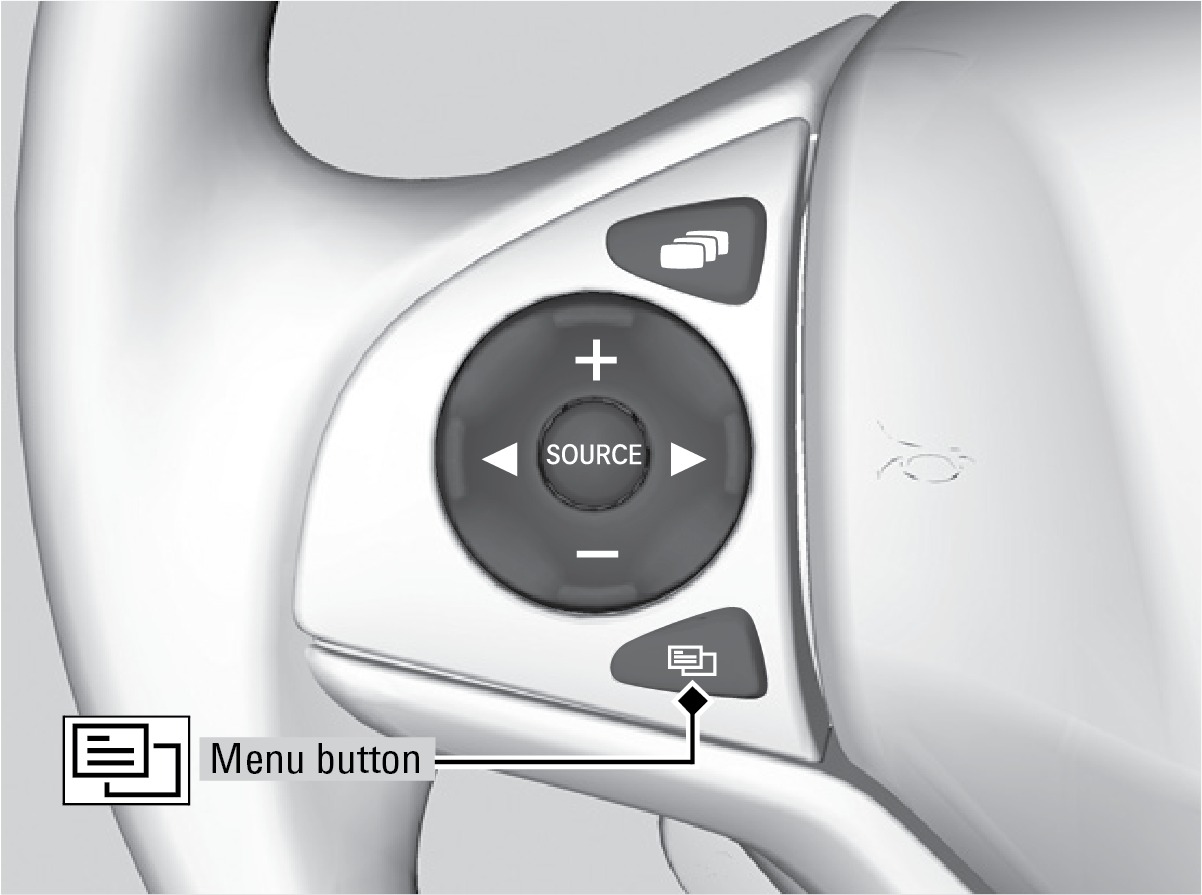
SOURCE button: Cycle through available audio modes.
 /
/  buttons: Change presets, tracks, albums, or folders.
+/- buttons: Adjust audio volume.
Menu button*: From the audio screen, press and hold to choose options for the current audio mode (Models with Display Audio). Use the +/- buttons and the SOURCE button to scroll and enter selections.
FM/AM/XM® Radio
Press or for the next or previous station.
Press and hold or for the next or previous strong station.
CD*/iPod®/USB/Bluetooth® Audio
Press or for the next or previous track.
Press and hold or for the next or previous folder (CD*/USB).
Pandora® (U.S. only)
Press for the next song.
Press and hold or for the next or previous station.
*if equipped
Adjusting the Sound
Adjust various sound settings.
Models with color audio system
Use the selector knob to make and enter selections.
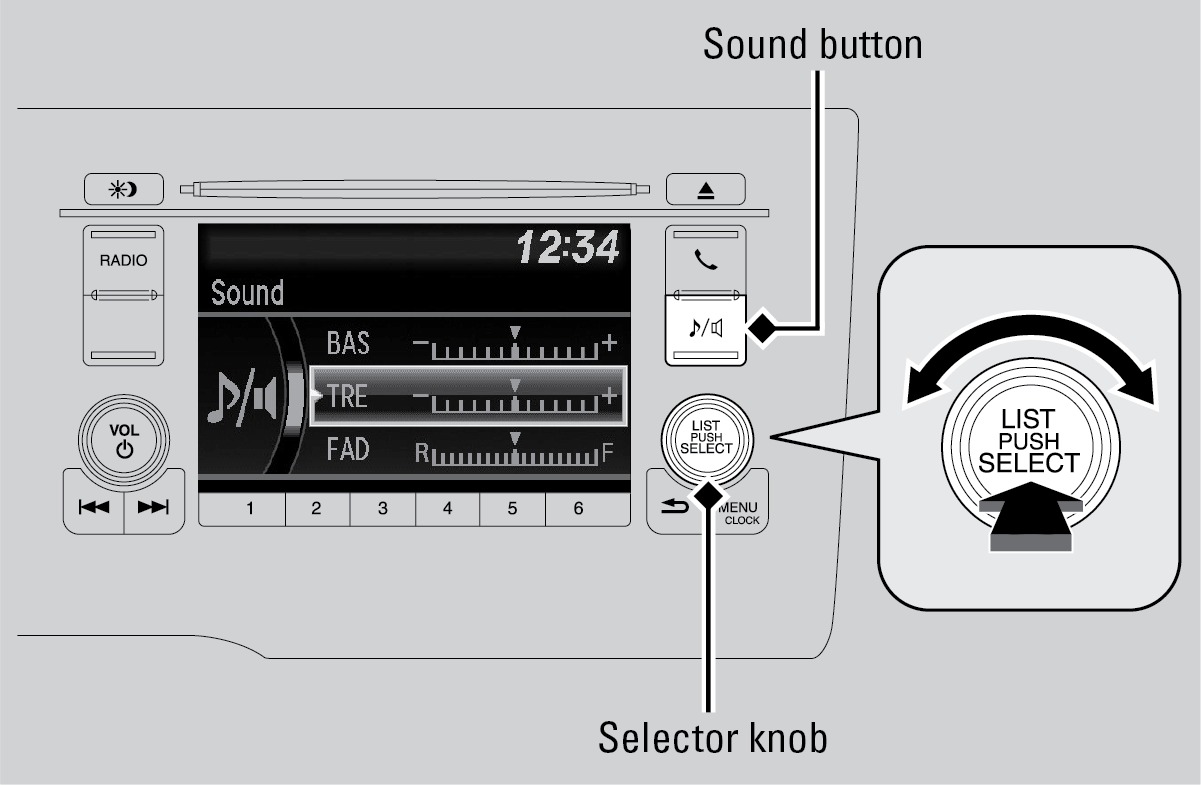
- Press the Sound button.
- Select a sound mode to change and adjust it using the selector knob.
- Press the Back button to exit the menu.
Models with Display Audio
Make selections using the touchscreen.
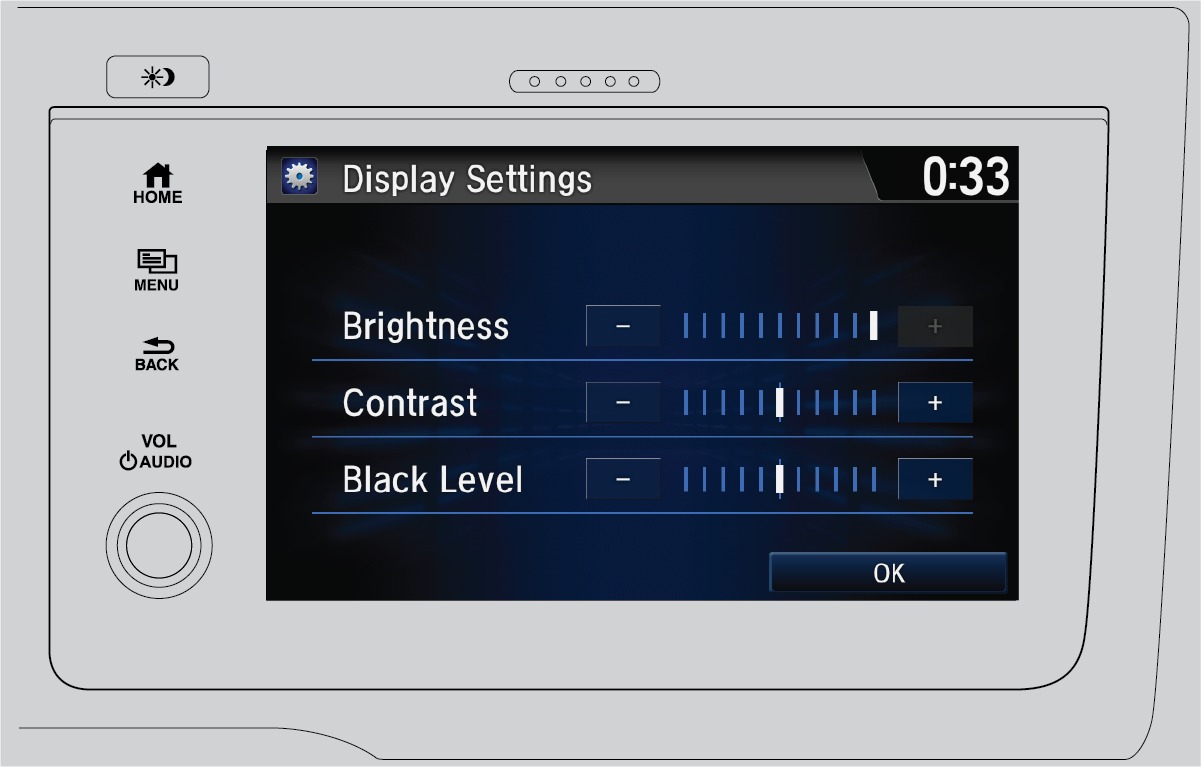
- From the HOME screen, select Audio.
- Select Sound.
- Select the tabs to change the sound mode and adjust the setting.
- Select OK when complete.
MODELS WITH COLOR AUDIO SYSTEM
Color Audio System*
Use the buttons to control the display and audio system.
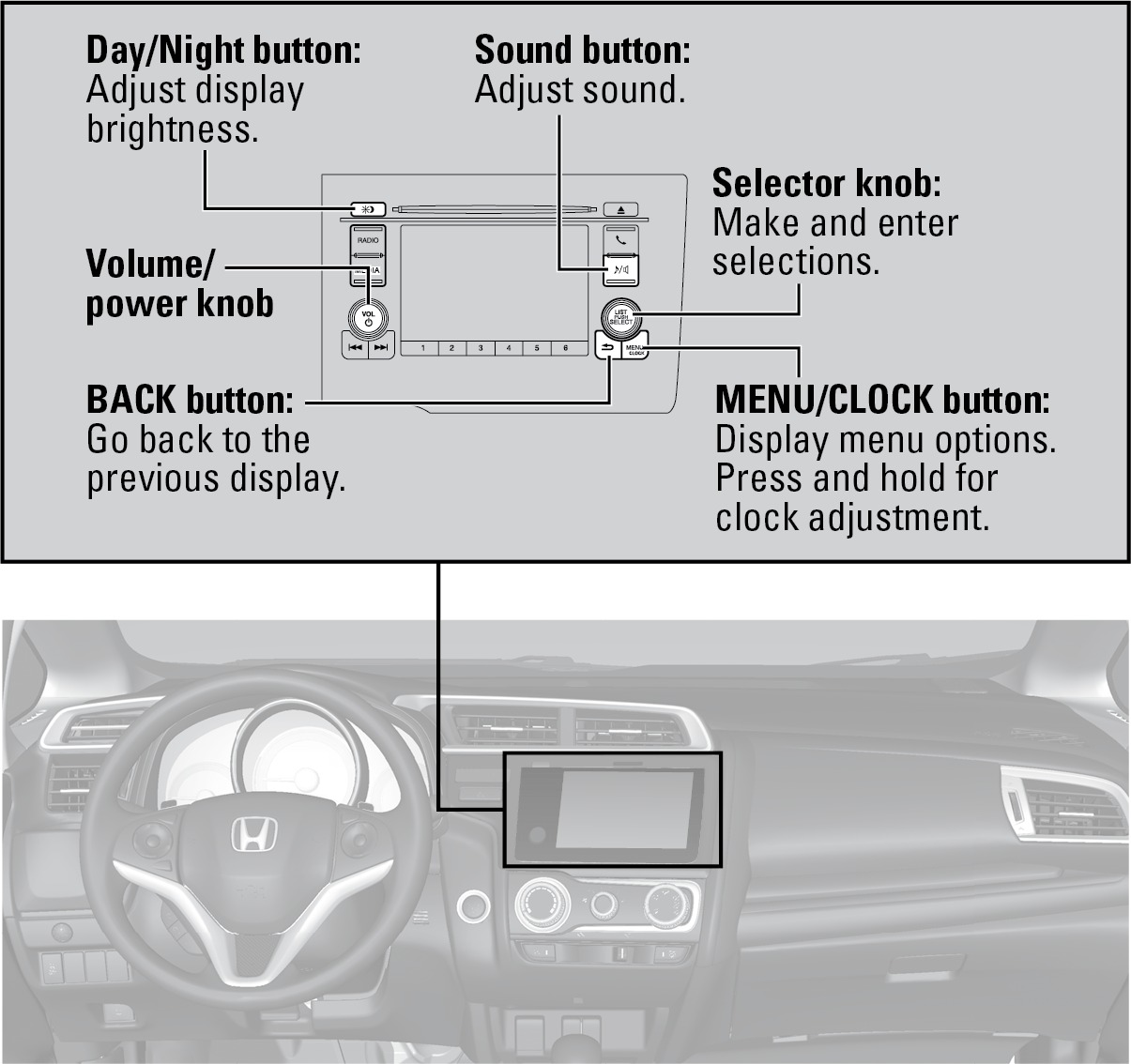
*if equipped
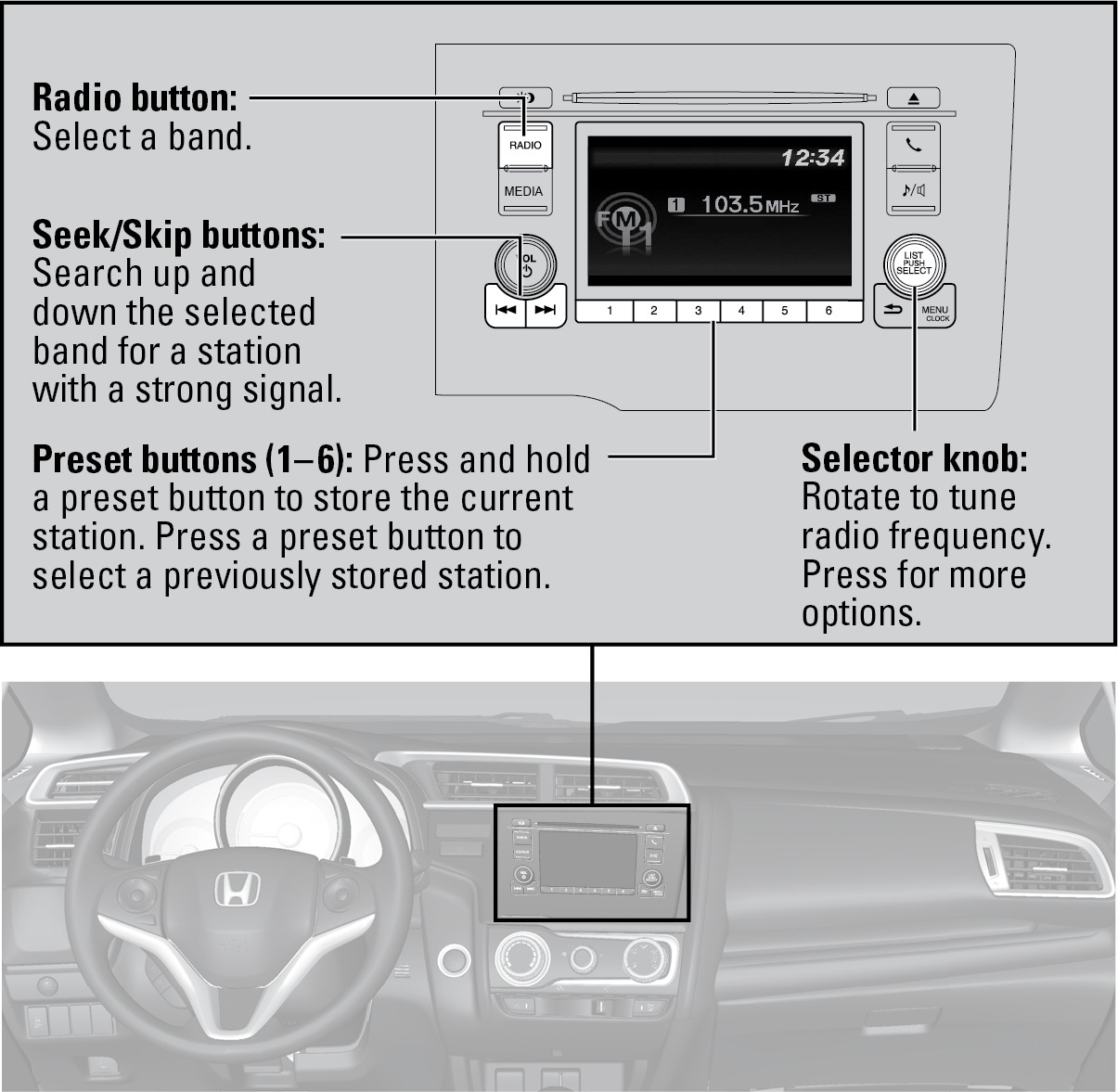
FM/AM Radio
Models with color audio system
Play FM or AM radio stations.
Compact Disc (CD)
Models with color audio system
The audio system supports audio CDs, CD-Rs, and CD-RWs in MP3, WMA, or AAC formats.
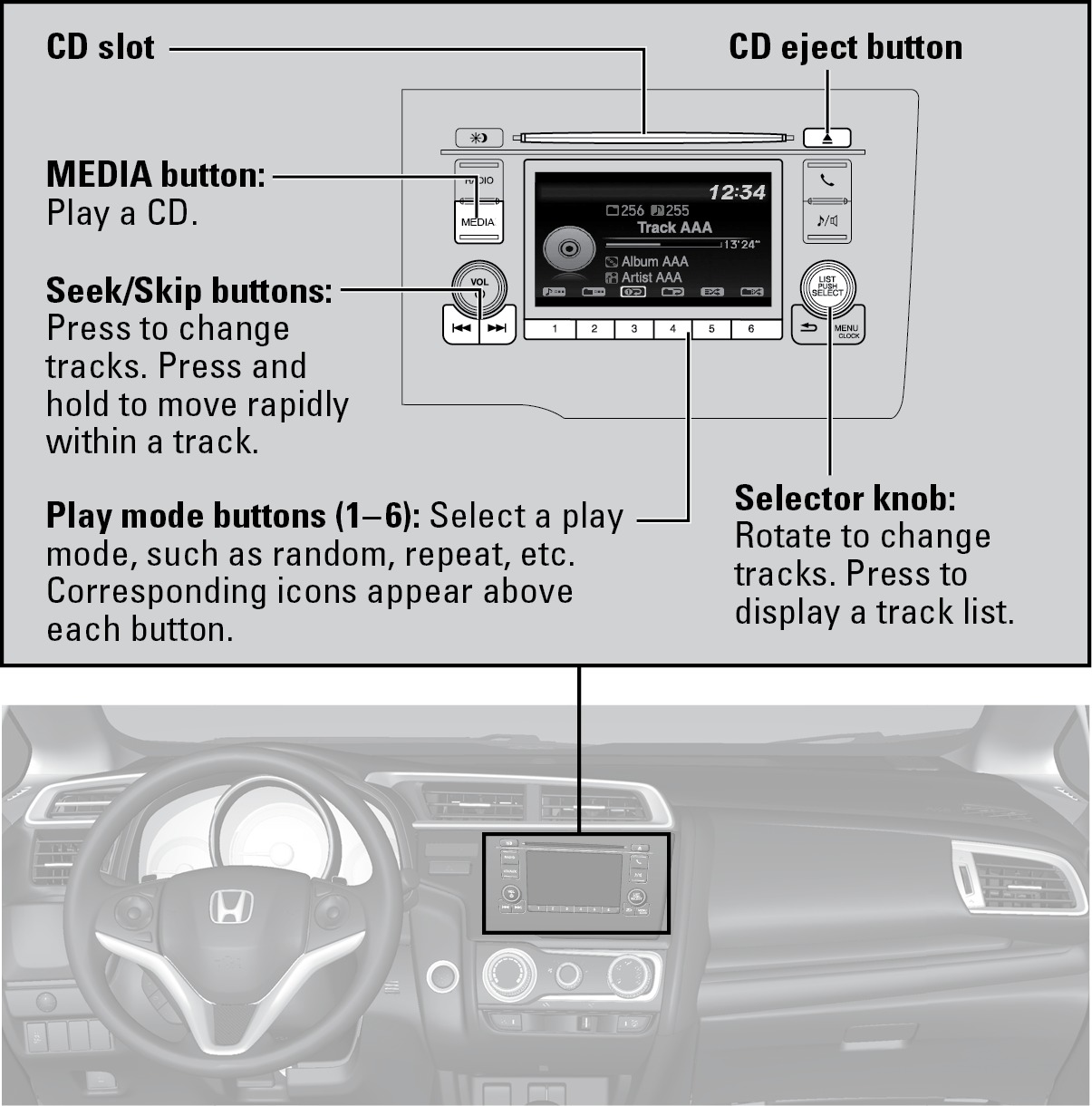
Do not use CDs with adhesive labels or insert a damaged CD. Inserting these types of CDs may cause them to get stuck or damage the audio unit.
iPod®
Models with color audio system
Play and operate an iPod through the vehicle's audio system. Connect your device to the USB port (see "Basic Audio Operation").
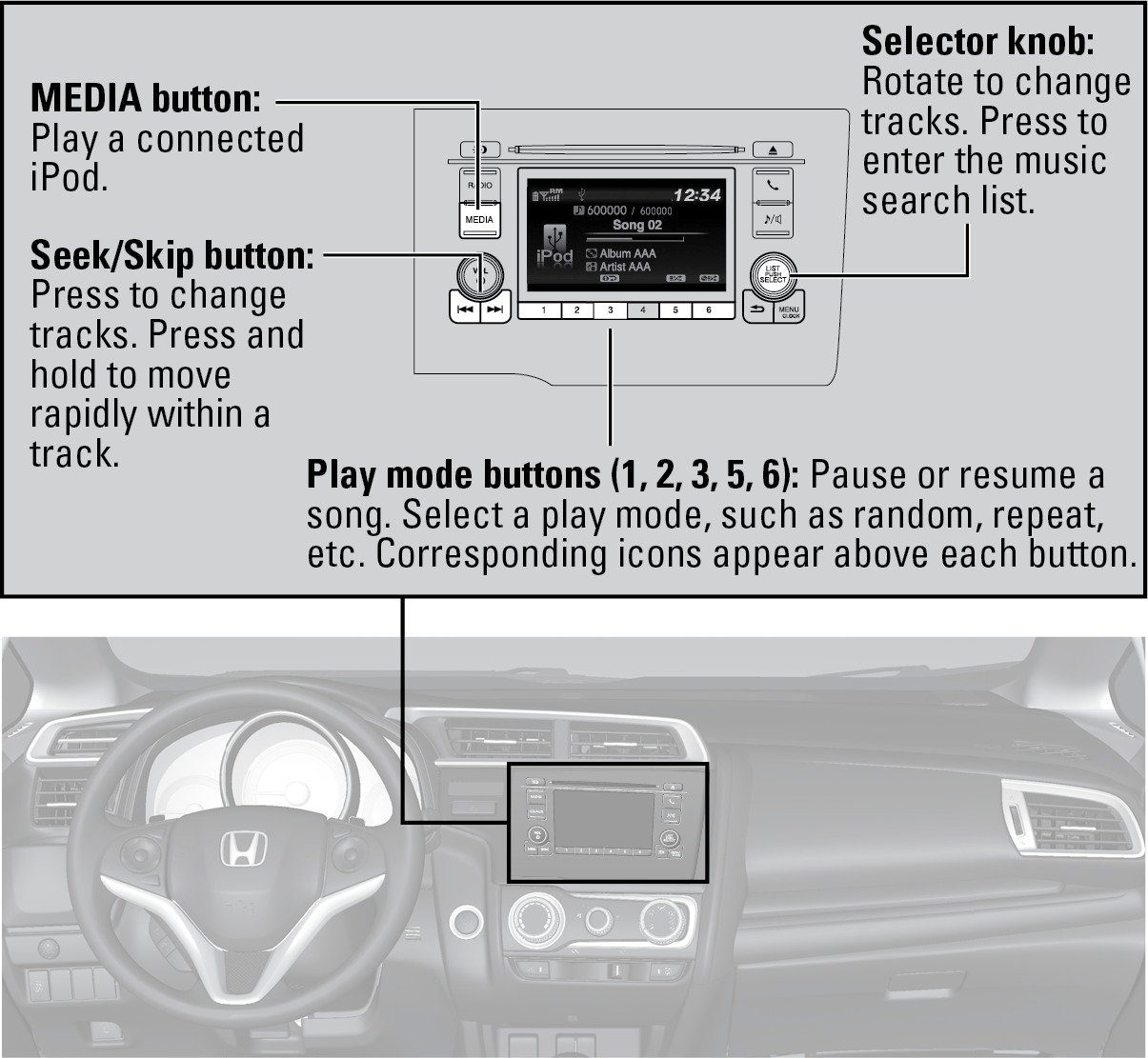
Searching for Music
Use the selector knob to search for tracks stored on the iPod.
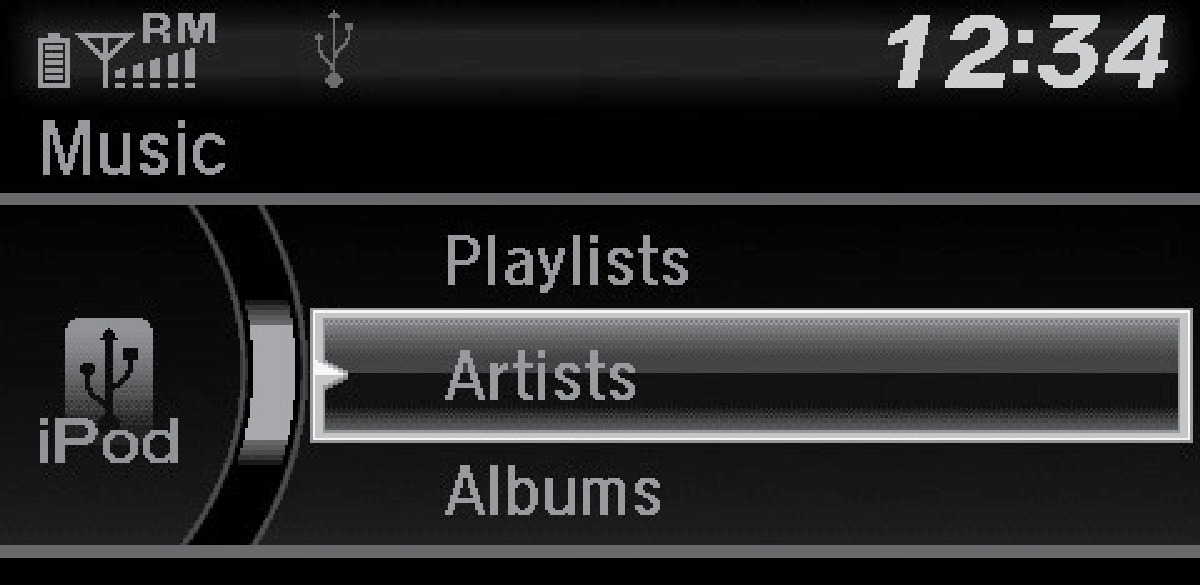
- From the audio screen, press the selector knob.
- Select a search category.
- Select the track you want to play.
iPod is a trademark of Apple, Inc.
USB Flash Drive
Models with color audio system
Play and operate a USB flash drive through the vehicle's audio system. Connect your device to the USB port (see "Basic Audio Operation").
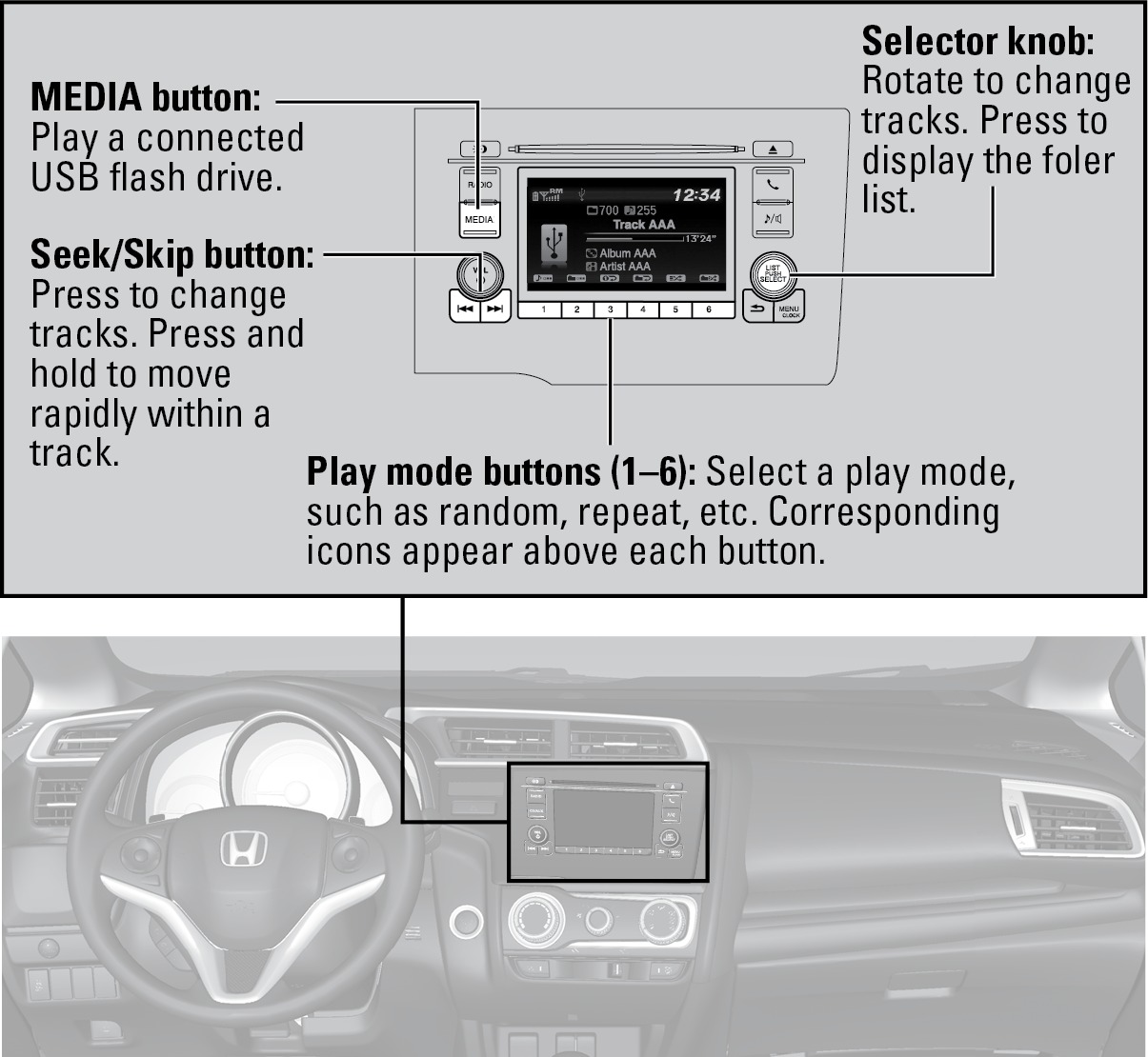
Searching for Music
Use the selector knob to search for tracks stored on the flash drive.
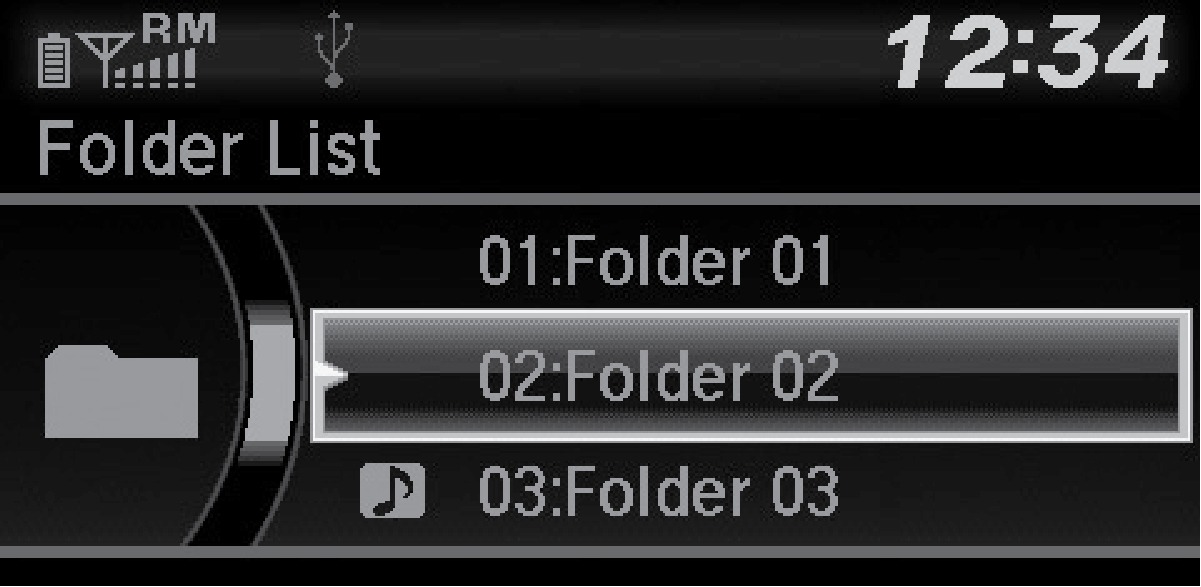
- From the audio screen, press the selector knob.
- Select a folder.
- Select the track you want to play.
Bluetooth® Audio
Models with color audio system
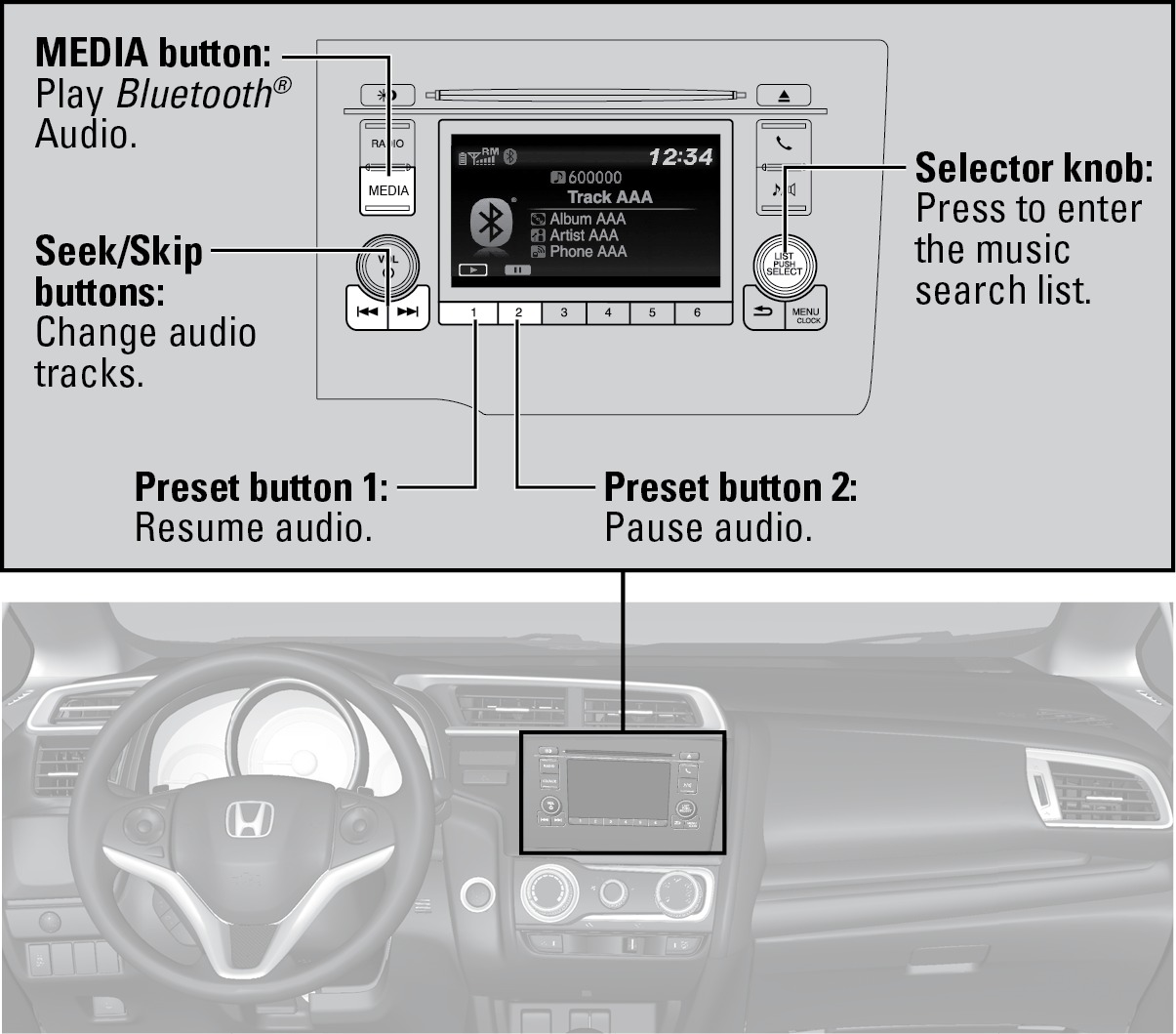
Play streaming or stored audio from your compatible phone through the vehicle's audio system. Visit (U.S.) to check phone compatibility. Standard data rates apply with your phone service provider. Connect your phone to Bluetooth® HandsFreeLink® (see "Pairing a Phone").
Searching for Music
Use the selector knob to search for tracks stored on the device.
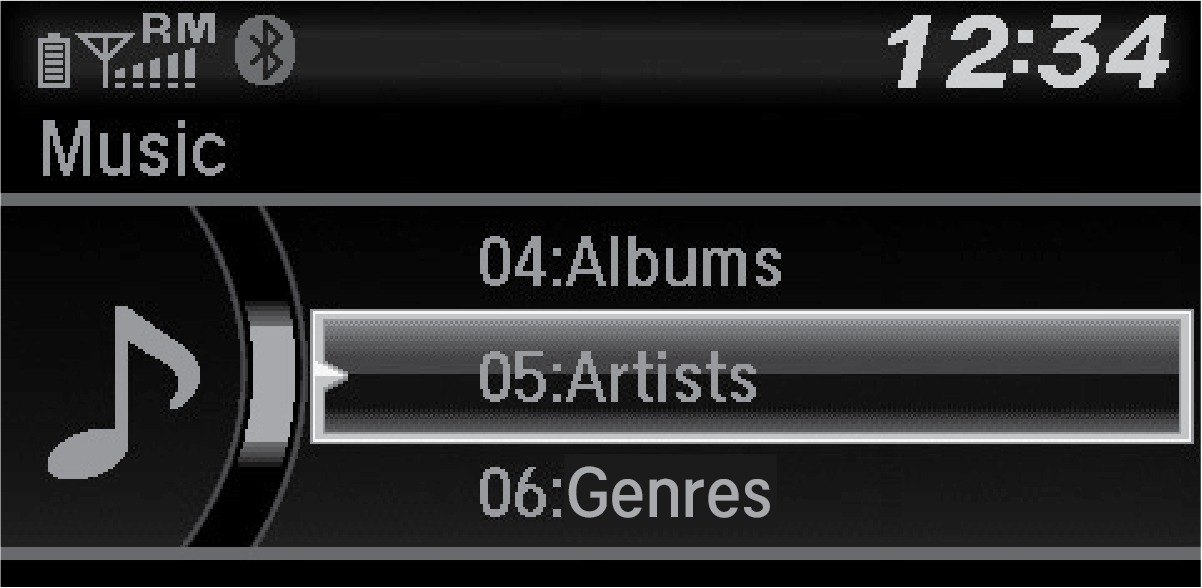
- From the audio screen, press the selector knob.
- Select a category.
- Select the track you want to play.
Notes:
- Make sure the volume on your phone is properly adjusted.
- You may need to enable additional settings on your phone for playback.
- The resume/pause function and remote audio controls are not supported on all phones.
Applicable laws may prohibit the operation of handheld electronic devices while operating a vehicle. Launch streaming audio on your phone only when safe to do so.
MODELS WITH DISPLAY AUDIO
Touchscreen Operation*
Use simple gestures-including touching, swiping, and scrolling-to operate certain audio functions.
Some items may be grayed out during driving to reduce the potential for distraction. You can select them when the vehicle is stopped or use voice commands*.
Wearing gloves may limit or prevent touchscreen response.
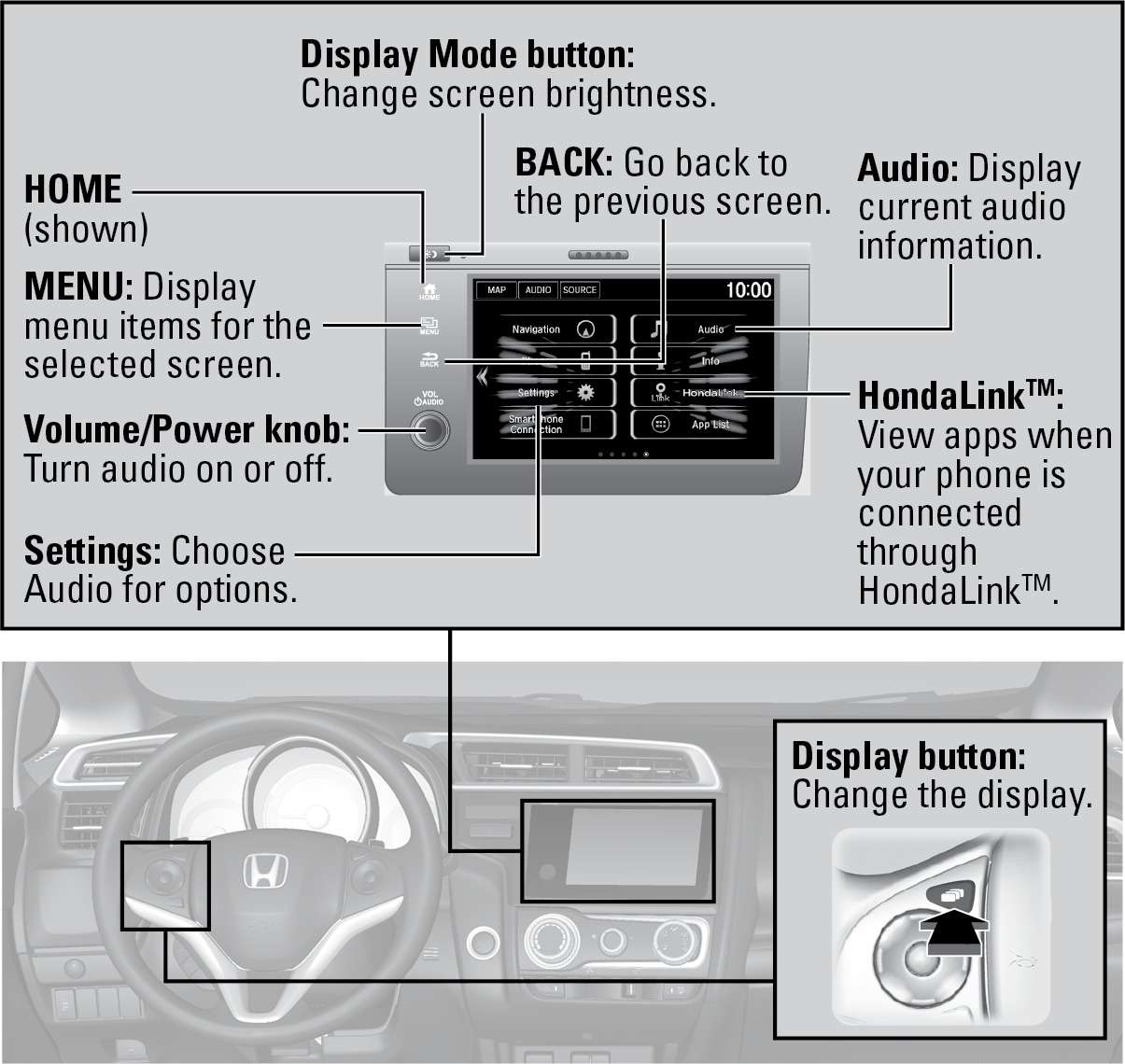
Setting Touchscreen Sensitivity
You can adjust the touchscreen's sensitivity to your fingertip.
- From the HOME screen, select Settings, then System.
- Select Display, then Touch Panel Sensitivity.
- Make your selection.
*if equipped. Do not install apps other than those confirmed by a Honda dealer. Installation of unauthorized apps may introduce data corruption risks to your vehicle's information and your privacy.
**HondaLink can be accessed only if the app is installed on your smartphone and the phone is connected to the system (see "HondaLink").
HondaLink™
You can connect a compatible smartphone to the audio system to enable integration between the smartphone's approved apps and the vehicle. This allows you to control the phone's apps through the touchscreen.
To check smartphone compatibility and connection instructions, visit (U.S.).
To get more information on HondaLink features and apps, visit (U.S.).
Apple CarPlay™
Models with Display Audio
Connect an Apple CarPlay-compatible iPhone to the system. You can use the touchscreen to make a phone call, listen to music, and more. Visit the Apple CarPlay website for more information.
Park in a safe place before connecting your iPhone and launching any compatible apps.
- Connect the iPhone to the front-console USB port (1.5A) (see "Tire Pressure Monitoring System").
- Apple CarPlay requires you to send vehicle information to Honda. Select Enable Once, Always Enable, or Cancel. Your phone may prompt you to allow access for CarPlay to be launched.
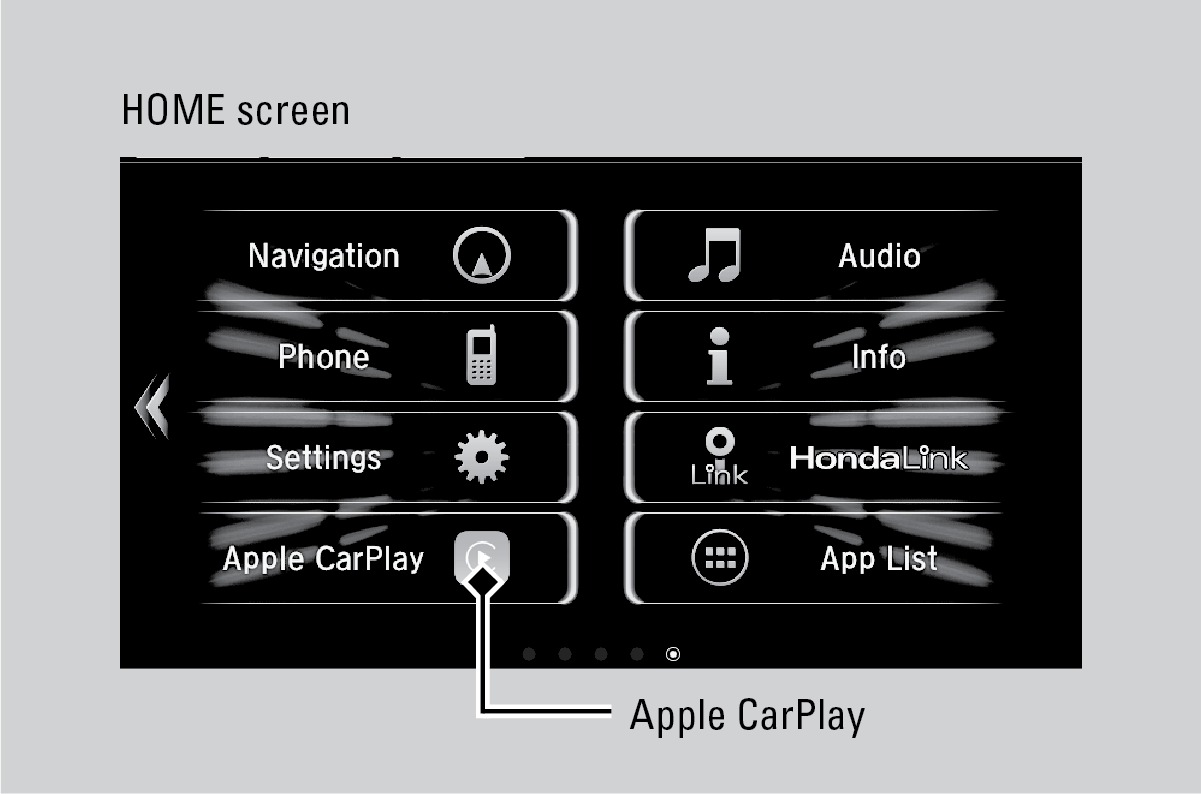
- From the HOME screen, select Apple CarPlay.
- Select a menu option.
Phone: Access your contacts, make phone calls, or listen to voicemail. While connected to Apple CarPlay, calls can be made only through Apple CarPlay, not through Bluetooth HandsFreeLink.
Music: Play music stored on your iPhone.
Maps: View a map and operate navigation. You can use only Apple Maps or the pre-installed navigation system to set a destination with routing guidance.
Messages: View and reply to text messages, or have messages read to you aloud by the system.
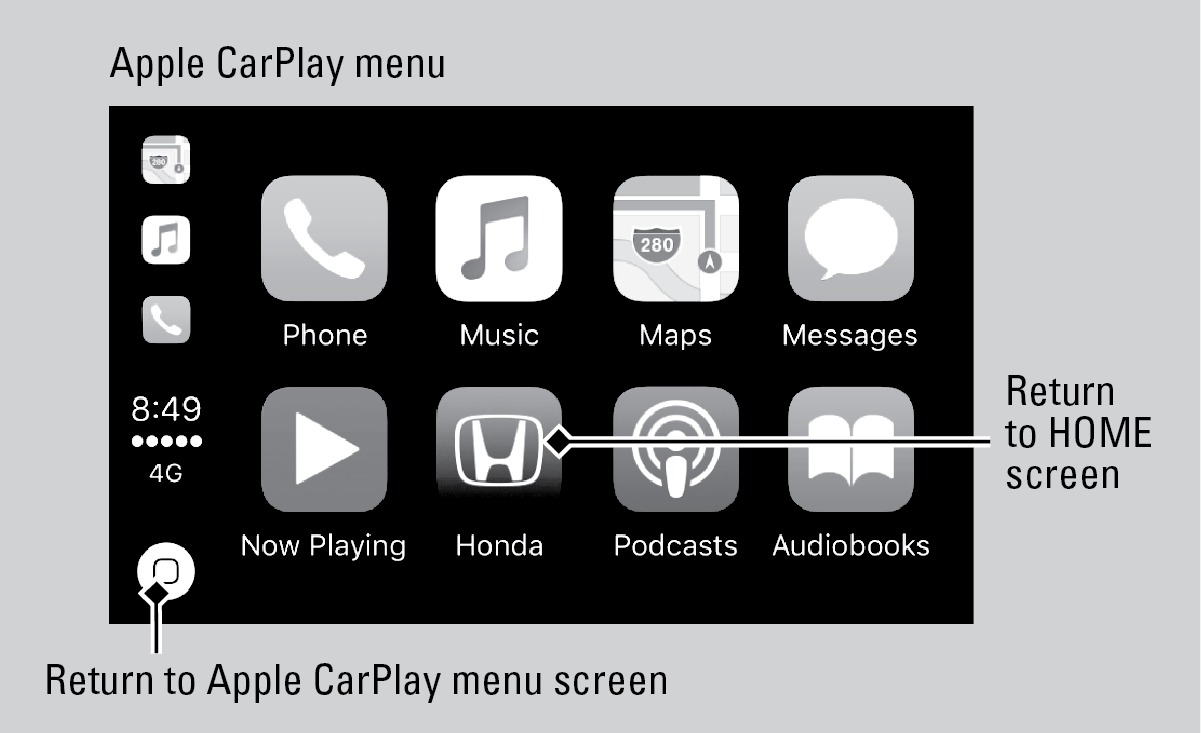
Once connected, press and hold the Talk button on the steering wheel (see "Basic HFL Operation") to operate the system using voice commands with Siri Eyes Free.
Depending on use, Apple CarPlay can share certain vehicle information (e.g., vehicle location, speed, and other operating conditions) with the connected iPhone. See Apple's privacy policy for details regarding Apple's use and handling of data uploaded by CarPlay. Use of CarPlay is at user's own risk, and is subject to agreement to the CarPlay terms of use, which are included as part of the Apple iOS terms of use. CarPlay vehicle integration is provided "as is," and Honda cannot guarantee CarPlay operability or functionality now or in the future due to, among other conditions, changes in CarPlay software/Apple iOS, service interruptions, or incompatibility or obsolescence of vehicle-integrated hardware or software. See dealer for details. Use CarPlay only when conditions allow you to do so safely. See your Owner's Manual at
Android Auto™
Models with Display Audio
Connect a compatible Android phone to the system. You can use the touchscreen to make a phone call, listen to music, and more. Visit the Android Auto website for more information.
Park in a safe place before connecting your smartphone and launching any compatible apps.
- Download the Android Auto app to your phone.
- Connect the phone to the front-console USB port (1.5A) (see "Tire Pressure Monitoring System"). The phone is automatically paired. A tutorial also appears.
- From the HOME screen, select Android Auto.
- Android Auto requires you to send vehicle information to Honda. Select Enable Once, Always Enable, or Cancel.
- Select a menu option.
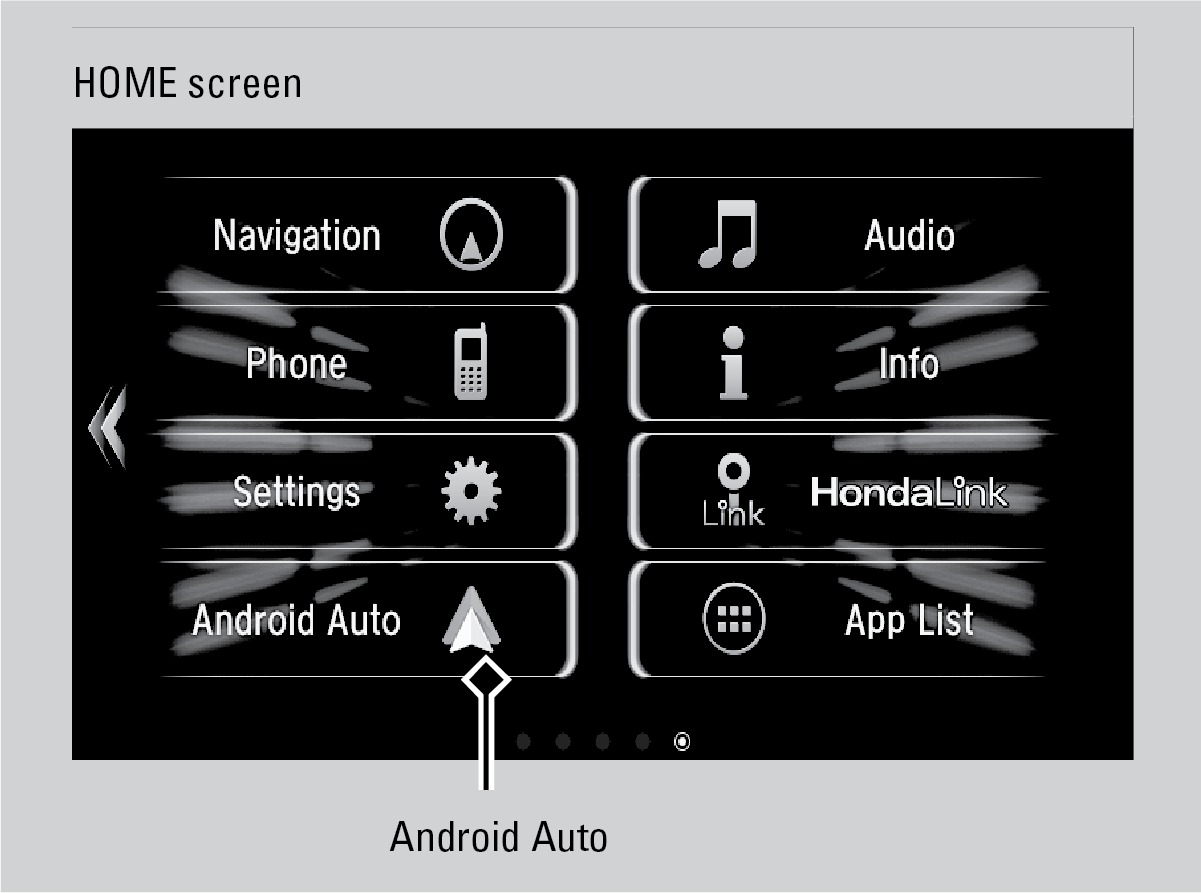
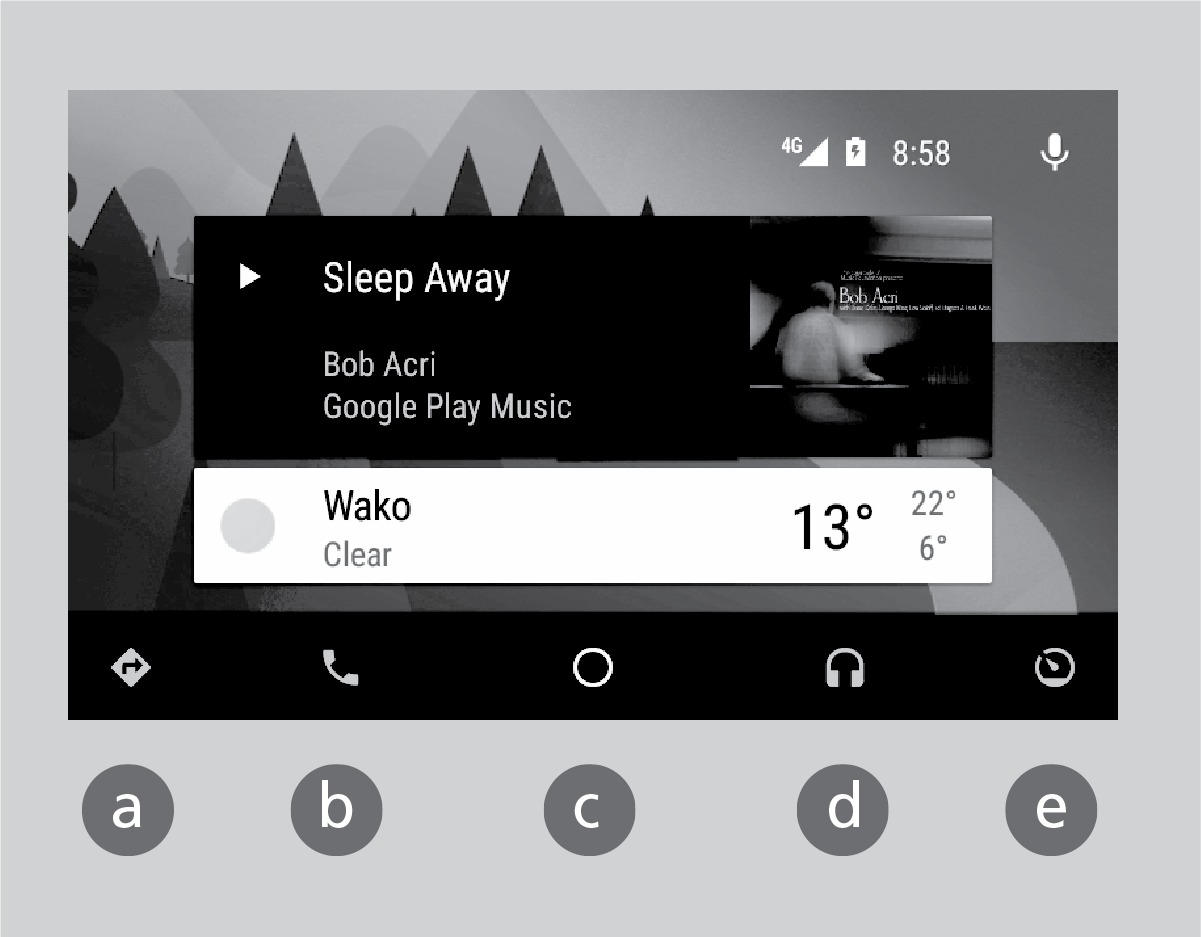
 Maps (Navigation): View Google Maps and operate navigation with routing guidance. You cannot enter destinations using the keyboard while the vehicle is moving.
 Phone (Communication): Make phone calls or listen to voicemail.
 Google Now (home screen): Display useful information organized by Android Auto into simple cards that appear only when needed.
 Music and audio: Play music from compatible apps. Select this icon to switch between music apps.
 Go back to the home screen: Go back to the vehicle system HOME screen.
 Voice: Operate Android Auto with your voice. You can also press and hold the Talk button on the steering wheel (see "Shifting") to say voice commands.
Depending on use, Android Auto can share certain vehicle information (e.g., vehicle location, speed, and other operating conditions) with Google and its service providers. See Google privacy policy for details regarding Google's use and handling of data uploaded by Android Auto. Use of Android Auto is at user's own risk, and is subject to agreement to the Android Auto terms of use, which are presented to the user when the Android Auto application is downloaded to the user's Android phone. Android Auto vehicle integration is provided "as is," and Honda cannot guarantee Android Auto operability or functionality now or in the future due to, among other conditions, changes in Android Auto software/Android operating system, service interruptions, or incompatibility or obsolescence of vehicle-integrated hardware or software. See dealer for details. Use Android Auto only when conditions allow you to do so safely. See your Owner's Manual at
Wi-Fi Connection
Models with Display Audio
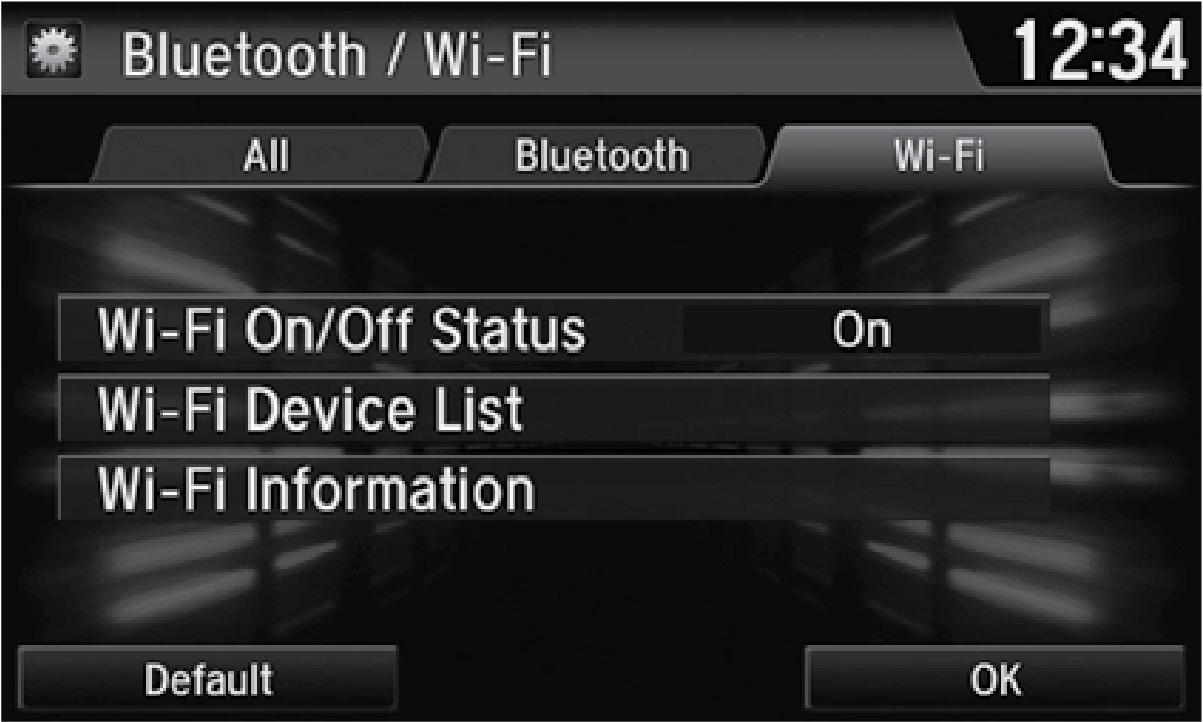
You can connect the audio system to the internet using Wi-Fi and use online services through the touchscreen. If your compatible phone has hotspot capabilities, the system can be tethered to the phone. Follow the steps below to set up Wi-Fi when the vehicle is stopped. Standard data rates apply with your phone service provider.
- From the Home screen, select Settings.
- Select Bluetooth/Wi-Fi. Select the Wi-Fi tab.
- Select Wi-Fi On/Off Status, and select On.
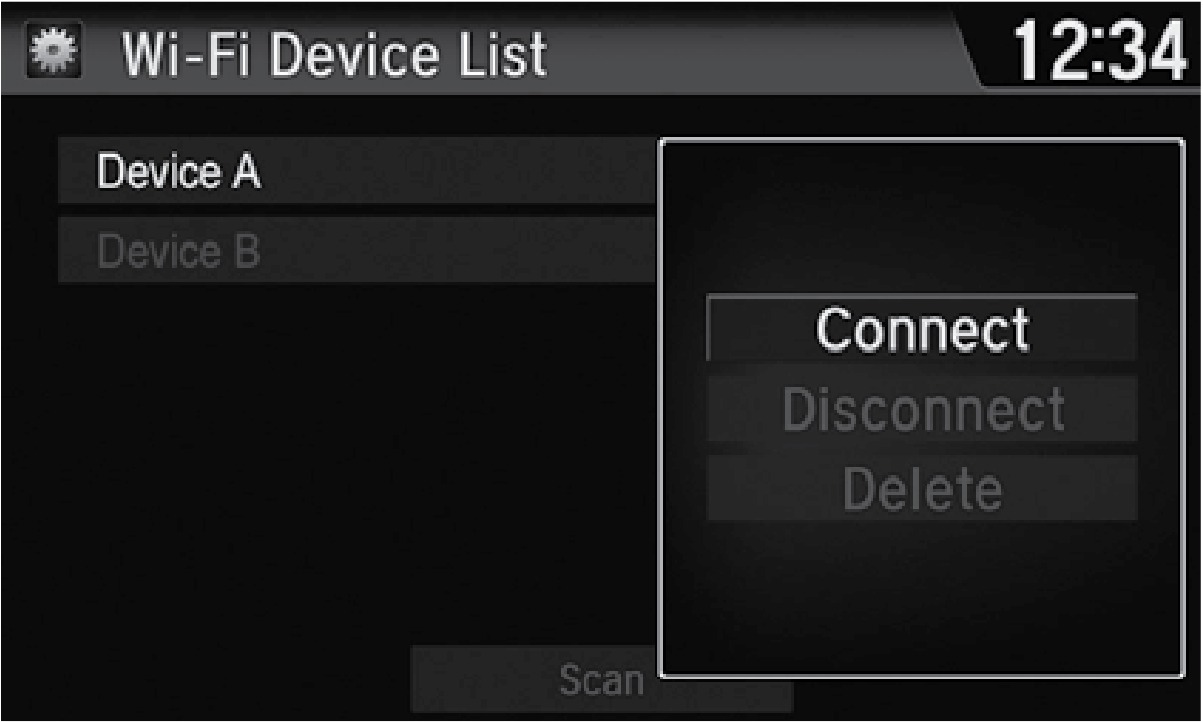
- Select Wi-Fi Device List. Make sure your phone's Wi-Fi setting is in access point (tethering) mode.
- Select the phone you want to connect to the system. If the phone you want to connect does not appear, select Scan.
- Select Connect.
- Enter a password for your phone, if necessary. Select OK. The Wi-Fi symbol is displayed on the list when connection is successful.
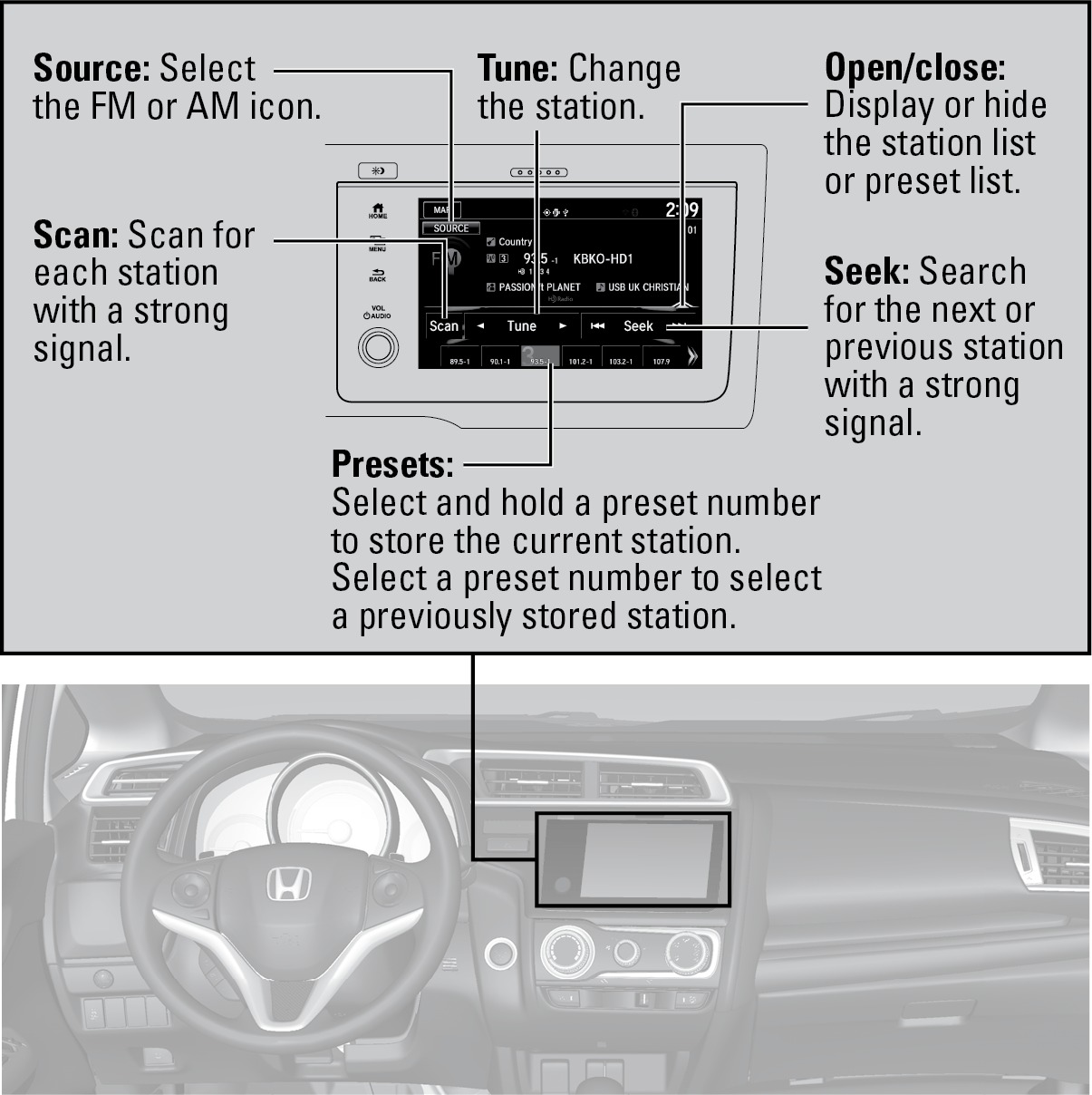
FM/AM Radio
Models with Display Audio
Play FM or AM radio stations.
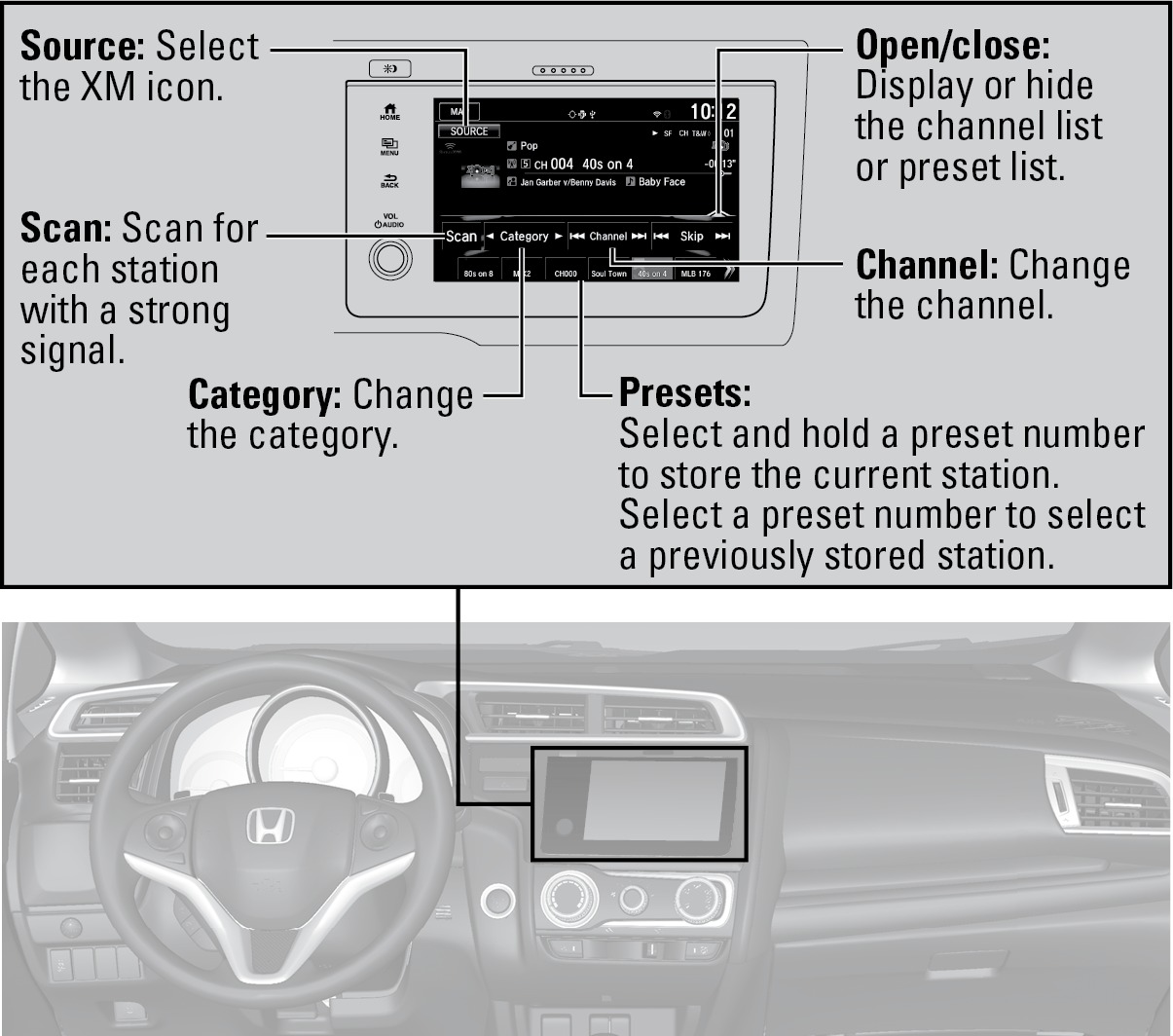
SiriusXM® Radio*
Models with Display Audio
Available on a subscription basis only. For more information or to subscribe, contact your dealer, or visit www.siriusxm.com/subscribenow (U.S.) or www.siriusxm.ca/subscribe-now (Canada).
Available in the U.S. and Canada, except Hawaii, Alaska, and Puerto Rico.
XM® is a registered trademark of Sirius XM Radio, Inc.
*if equipped
iPod®
Models with Display Audio
Play and operate an iPod through the vehicle's audio system. Connect your device to the USB port (see "Basic Audio Operation").
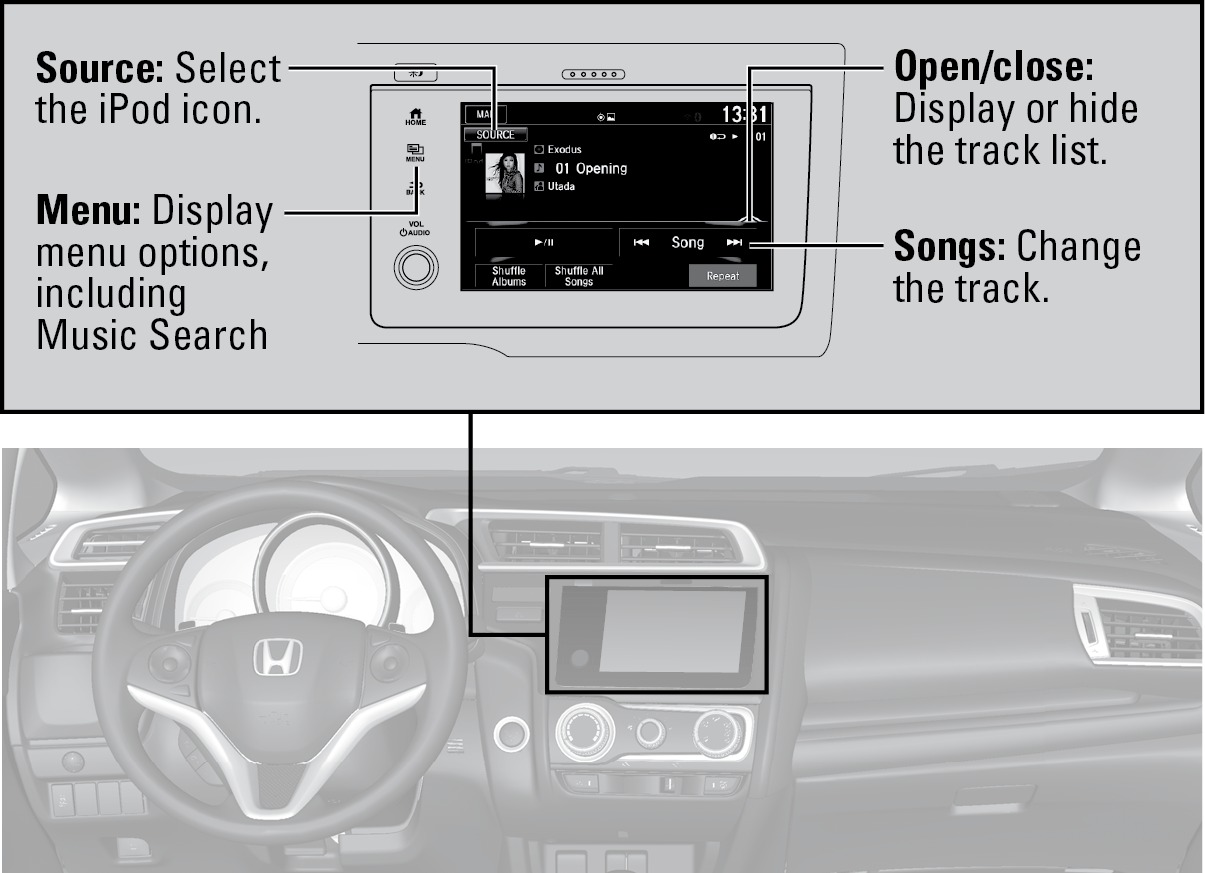
Searching for Music
Use the touchscreen to search for tracks stored on the iPod.
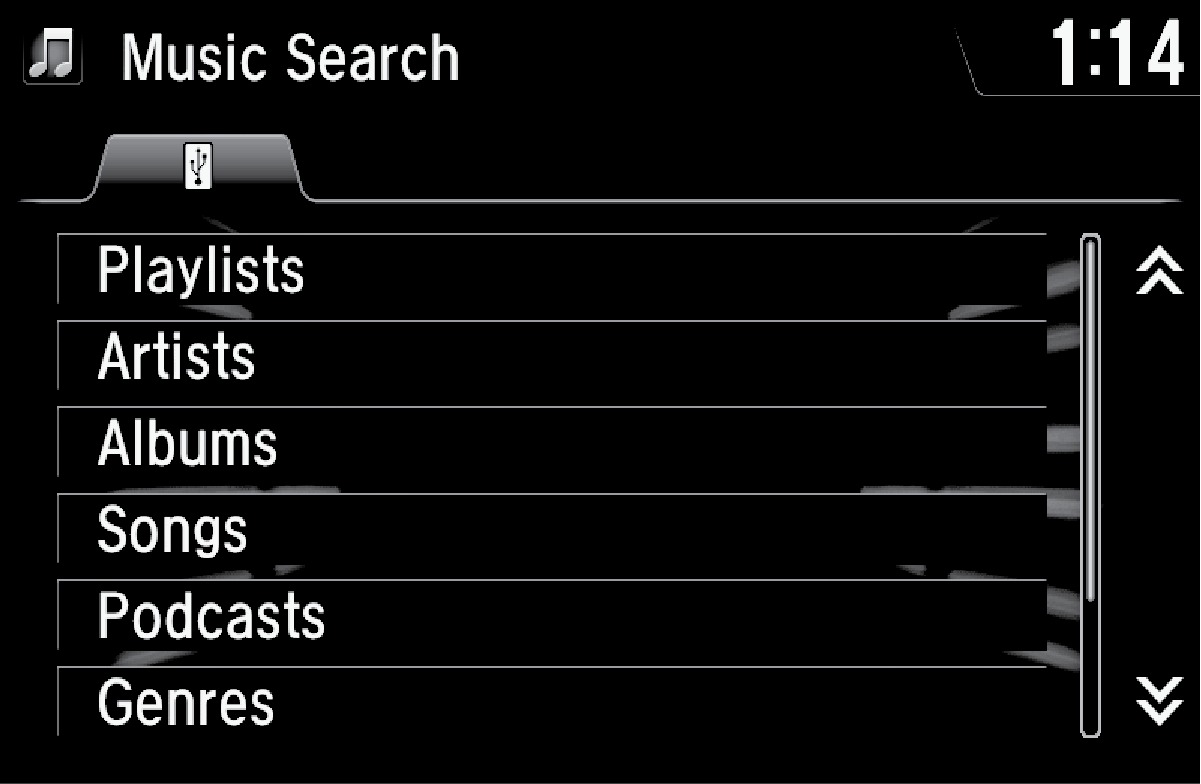
- From the audio screen, press MENU.
- Select Music Search.
- Select a search option.
- Select the track you want to play.
iPod is a trademark of Apple, Inc.
USB Flash Drive
Models with Display Audio
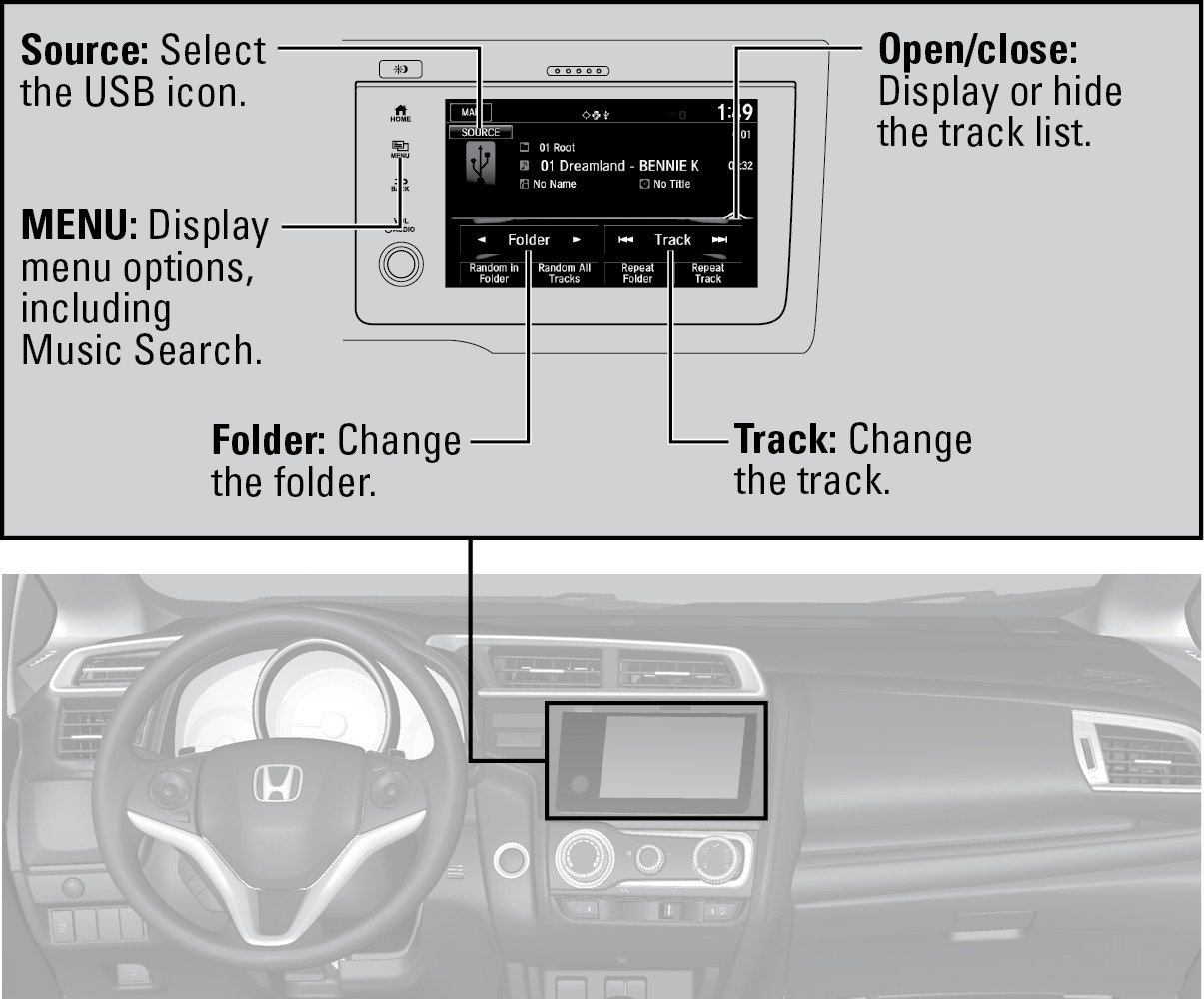
Play and operate a USB flash drive through the vehicle's audio system. Connect your device to the USB port (see "Basic Audio Operation").
Searching for Music
Use the touchscreen to search for tracks stored on the USB flash drive.
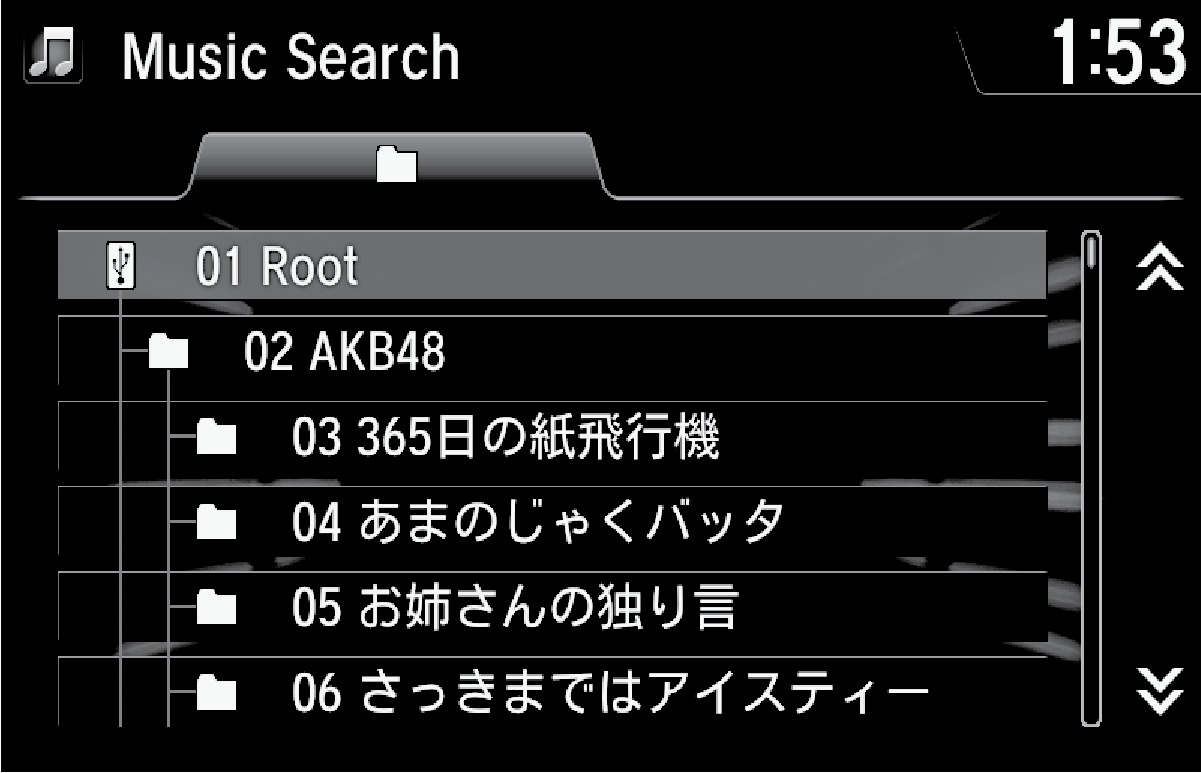
- From the audio screen, press MENU.
- Select Music Search.
- Select a folder.
- Select the track you want to play.
Bluetooth® Audio
Models with Display Audio
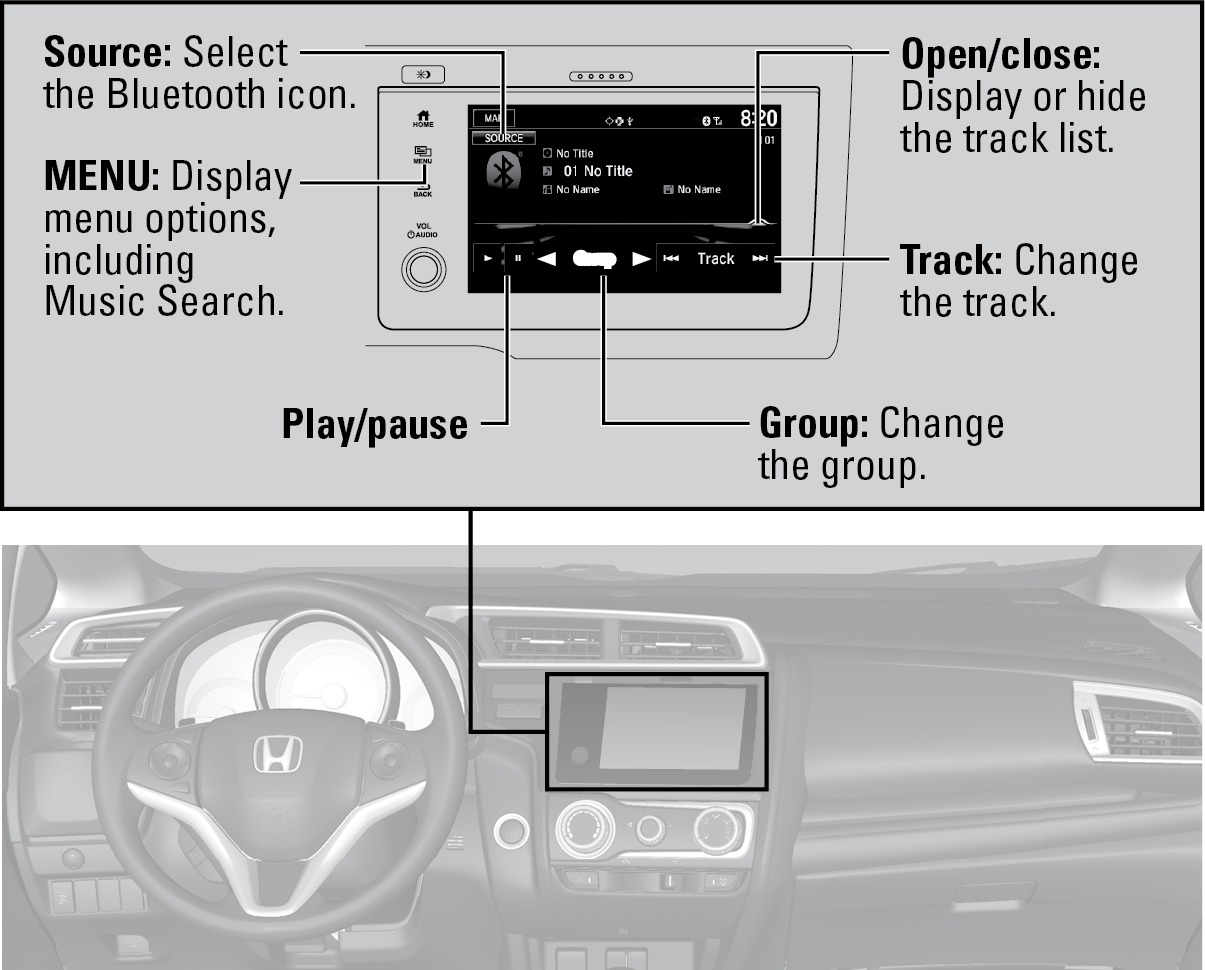
Play streaming or stored audio from your compatible phone through the vehicle's audio system. Visit (U.S.) to check phone compatibility. Standard data rates apply with your phone service provider. Connect your phone to Bluetooth® HandsFreeLink® (see "Pairing a Phone").
Searching for Music
Use the touchscreen to search for tracks stored on the device.
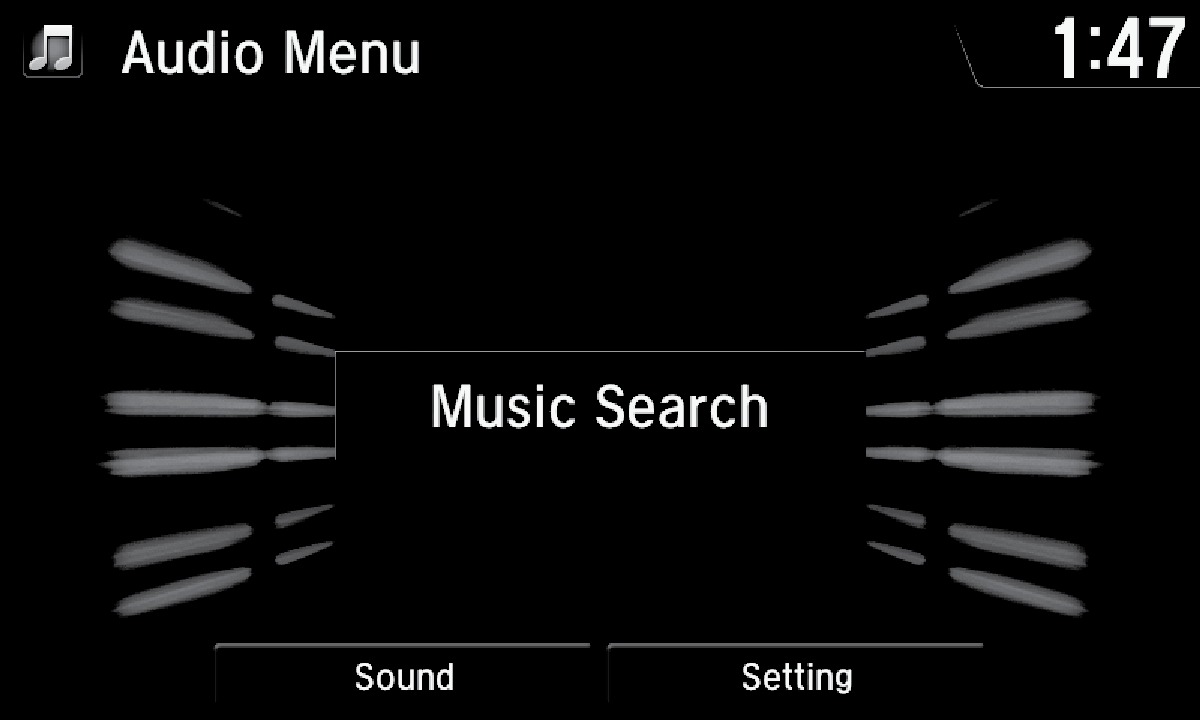
- From the audio screen, press MENU.
- Select Music Search.
- Select a search category.
- Select the track you want to play.
Notes:
- Make sure the volume on your phone is properly adjusted.
- You may need to enable additional settings on your phone for playback.
- The resume/pause function and remote audio controls are not supported on all phones.
Applicable laws may prohibit the operation of handheld electronic devices while operating a vehicle. Launch streaming audio on your phone only when safe to do so.
Pandora®
Models with Display Audio
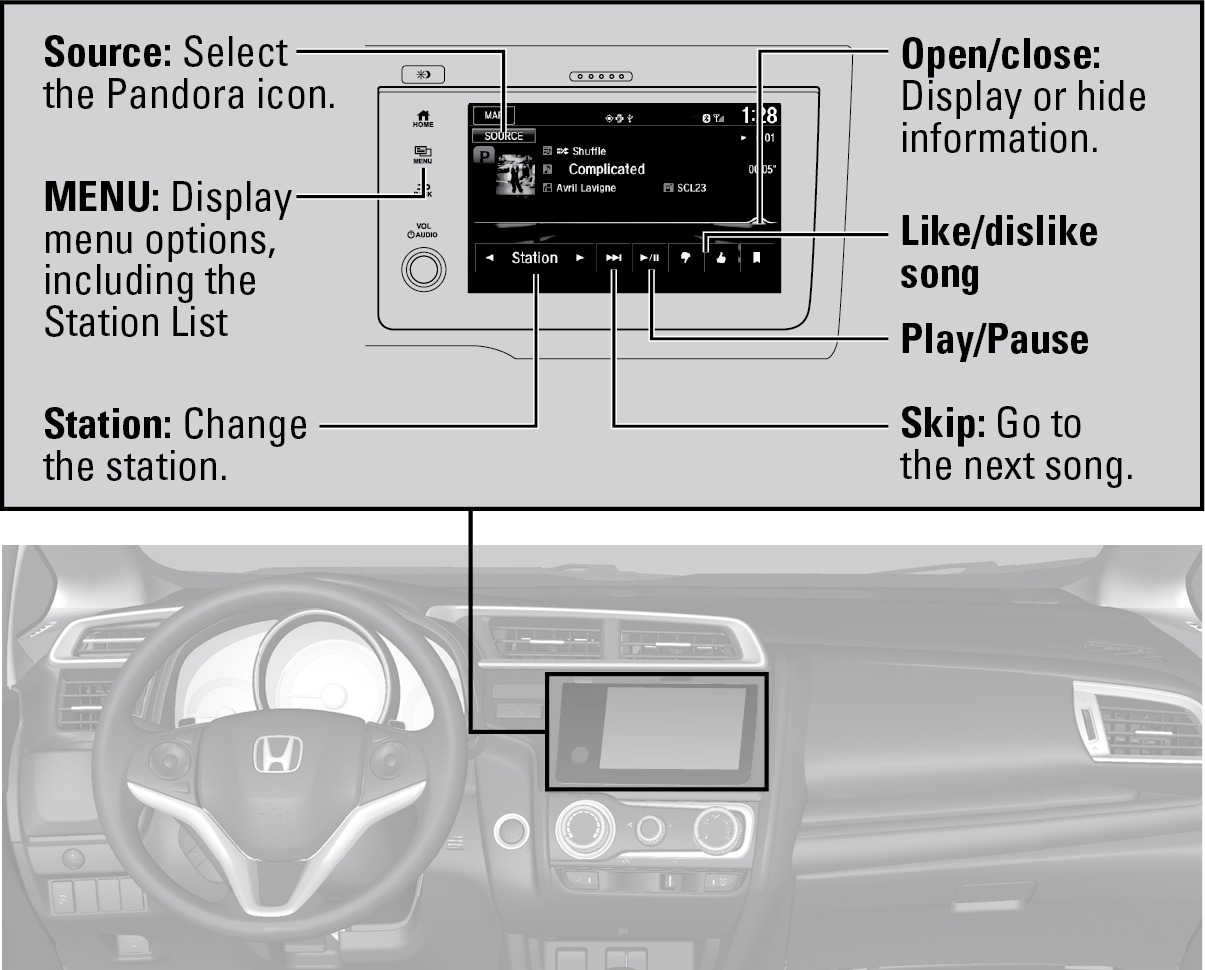
Play and operate Pandora from your compatible phone through the vehicle's audio system. Visit to check phone compatibility. Standard data rates apply with your phone service provider. Available in the U.S. only.
Connect your phone when the vehicle is stopped.
For iPhone:
- Connect via Bluetooth® HandsFreeLink® (see "Pairing a Phone") or USB port (1.5A) (see "Basic Audio Operation").
- A pop-up may appear on your phone requesting you to allow access for Pandora to be launched.
- If you cannot operate Pandora through the audio system, it may be streaming through Bluetooth® Audio. Make sure Pandora is selected on the audio system.
- If Pandora still does not operate, try rebooting the phone and reconnecting the cable if necessary.
For other compatible smartphones:
- Connect via Bluetooth® HandsFreeLink® (see "Pairing a Phone").
Applicable laws may prohibit the operation of handheld electronic devices while operating a vehicle. Launch streaming audio on your phone only when safe to do so.