Tune start
Tune Start begins playing the current song from the beginning when you tune to a music channel using one of the 12 presets. This feature occurs the first time the preset is selected during that current song.
SETTING PRESETS
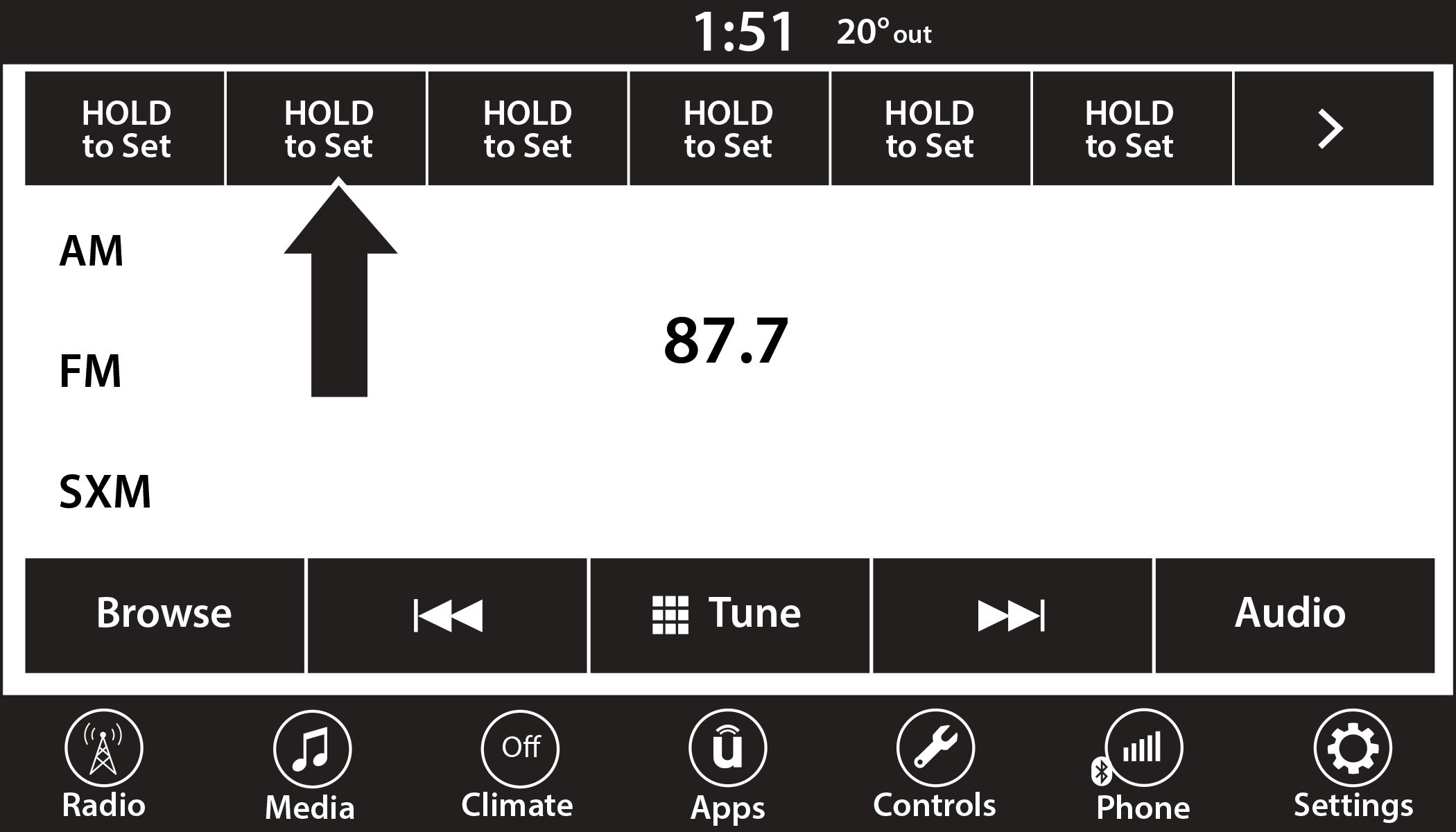
Uconnect 4 With 7-inch Display Radio Presets
The Presets are available for all Radio Modes, and are activated by pressing any of the Preset buttons, located at the top of the screen.
When you are on a station that you wish to save as a preset, press and hold the numbered button on the touchscreen for more than two seconds.
The Radio stores up to 12 presets in each of the Radio Modes.
A total of six presets will appear on the screen. You can switch between the radio presets list by pressing the Arrow button located in the upper right of the radio touchscreen.
PRESET FEATURES — IF EQUIPPED
Browse In AM/FM
When in either AM or FM, the Browse Screen provides a means to edit the Presets List and is entered by pushing the ENTER/BROWSE button.
Scrolling Preset List
Once in the Browse Presets screen, you can scroll the preset list by rotation of the TUNE/SCROLL knob or by pressing the Up or Down Arrow key, located on the right of the screen.
Preset Selection From List
A preset can be selected by pressing any of the listed Presets, or by pushing the ENTER/BROWSE button or the TUNE/SCROLL knob to select the currently highlighted Preset.
When selected, the radio tunes to the station stored in the Presets.
Deleting Presets
A preset can be deleted in the Presets Browse screen by pressing the Trash Can icon for the corresponding preset.
Return To Main Radio Screen
You can return to the Main Radio Screen by pressing the X button or the Back Arrow button when in the Browse Presets screen.
AUDIO SETTINGS
Press the Audio button within the settings main menu to activate the Audio Settings screen.
The audio settings can also be accessed on the Radio Mode screen by pressing the Audio button. You can return to the Radio screen by pressing the X button.
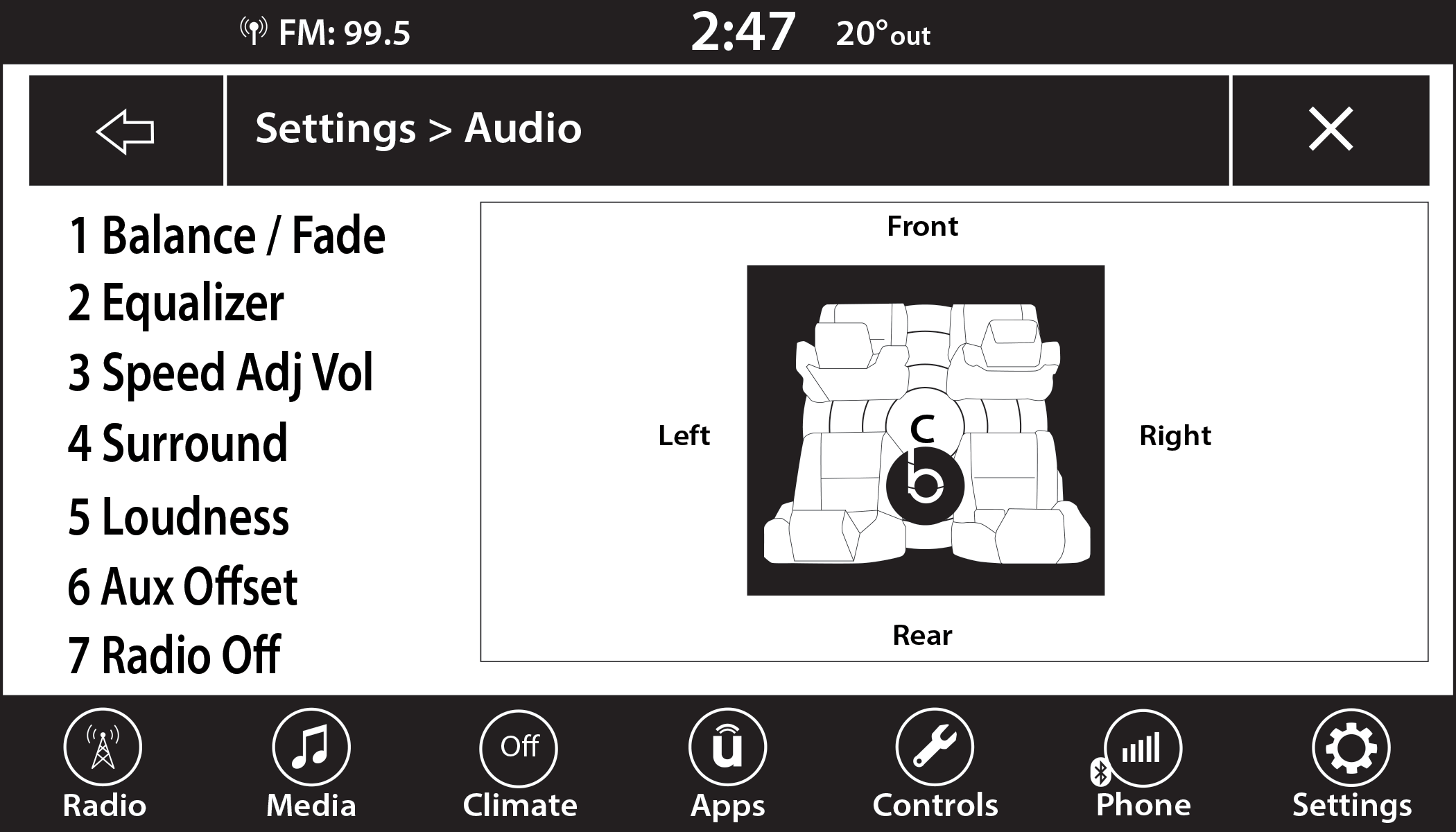
Uconnect 4 With 7-inch Display
|
|
Audio Setting
|
Description |
|
Balance/Fade |
Press the Balance/Fade button on the touchscreen to balance audio between the front speakers or fade the audio between the rear and front speakers. Press the Front, Rear, Left or Right button or press and drag the red Speaker icon to adjust the Balance/Fade. |
|
Equalizer |
Press the + or - button or press and drag the level bar to increase or decrease each of the equalizer bands. The level value, which spans between plus or minus nine, is displayed at the top of each of the bands. |
|
Speed Adjusted Volume |
The Speed Adjusted Volume is adjusted by selecting from “Off”, “1”, “2”, and “3”. This alters the automatic adjustment of the audio volume with variation to vehicle speed. Volume increases automatically as speed increases to compensate for normal road noise. |
|
Surround Sound |
When Surround Sound is on, you can hear audio coming from every direction as in a movie theatre or home theatre system. |
|
AUX Volume Offset |
The AUX Volume Offset is adjusted by pressing + and - buttons. This alters the AUX input audio volume. The level value, which spans between plus or minus three, is displayed above the adjustment bar. |
|
Auto Play |
The Auto Play feature begins playing music as soon as a USB Media device is connected to one of the vehicle’s Media USB ports, when it is turned on. Press “Off” to turn the setting off. |
|
Radio Off With Door |
The Radio Off With Door feature, when activated, keeps the radio on until the driver or passenger door is opened or until the “Radio Off Delay” selected time has expired. |
MEDIA MODE
OPERATING MEDIA MODE
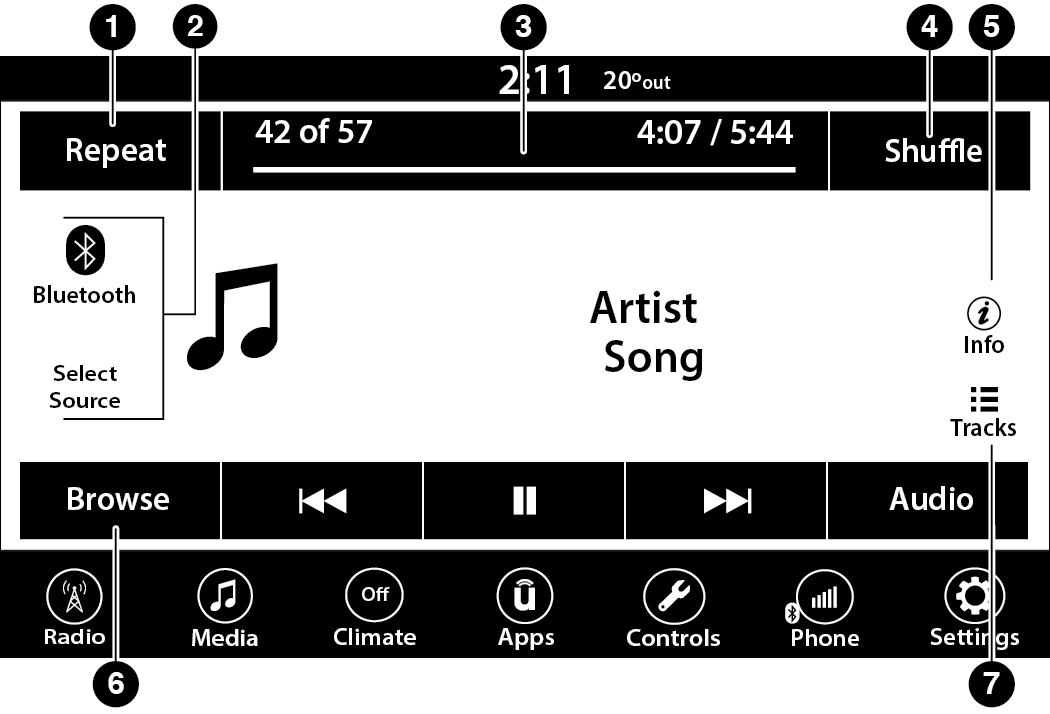
Uconnect 4 With 7-inch Display Operating Media Mode
|
1 — Repeat |
|
2 — Select Source |
|
3 — Track Time |
|
4 — Shuffle |
|
5 — Info |
|
6 — Browse |
|
7 — Tracks |
AUDIO SOURCE SELECTION
Once in Media Mode, press the Source or Source Select button on the touchscreen and the desired mode button on the touchscreen.USB, AUX, and Bluetooth® are the Media sources available. When available, you can select the Browse button on the touchscreen to be given these options:
-
Now Playing
-
Artists
-
Albums
-
Genres
-
Songs
-
Playlists
-
Folders
You can press the Source, Pause/Play, or the Info button on the touchscreen for artist information on the current song playing.
TYPES OF MEDIA MODES
Usb mode
Overview
USB Mode is entered by inserting a USB device into the USB port, by selecting the USB button on the left side of the touchscreen, or by selecting the Source Select/Select Source button and then selecting USB 1 or 2 (if equipped).
Download Manual