Basic Audio Operation
Connect audio devices and operate buttons and displays for the audio system.
Note: When the screen is viewed through polarized sunglasses, a rainbow pattern may appear on the screen due to optical characteristics of the screen.
- USB Port
- Accessory Power Socket
- Audio Remote Controls
- Adjusting the Sound
Parent topic: Audio and Connectivity
■USB Port
- Open the center pocket and tray.
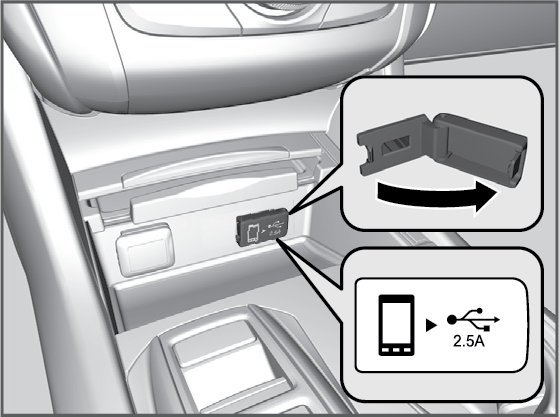
- Open the cover.
- Install the device USB connector or the USB flash drive to the USB port.
The USB port (2.5A) is for charging devices, playing audio files and connecting compatible phones with Apple CarPlay® or Android Auto™.
To prevent any potential issues, be sure to use an Apple MFi Certified Lightning Connector for Apple CarPlay® or a USB cable certified by USB-IF to be compliant with USB 2.0 Standard for Android Auto™.
Parent topic: Basic Audio Operation
■Accessory Power Socket
Center pocket
Open the lid and the tray to access.

Console compartment

Open the console lid and the cover to access.

Do not insert an automotive type cigarette lighter element. This can overheat the power socket.
Parent topic: Basic Audio Operation
■Audio Remote Controls
Parent topic: Basic Audio Operation
Left Selector Whee

| Left Selector Wheel: | Roll up/down to adjust the volume. |
| SOURCE Button: | Press to cycle through the available audio modes. |
Parent topic: Audio Remote Controls
■Adjusting the Sound
Use the interface dial to select and adjust various sound settings.
- Select Audio Menu, then select Sound Settings.
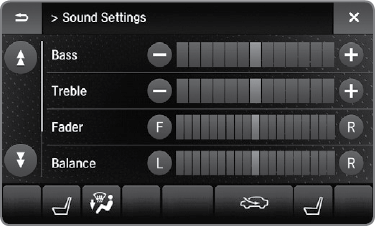
- Select the Bass, Treble, Fader, Balance, Subwoofer or SVC (Speed-sensitive Volume Compensation).
- Use +, - or other icons to adjust the setting.
Parent topic: Basic Audio Operation
Download Manual