Bluetooth® HandsFreeLink®
Models with color audio
Bluetooth® HandsFreeLink® (HFL) allows you to place and receive phone calls using your vehicle’s audio system, without handling your cell phone.
 (Pick-up) button: Press to go directly to the phone screen or to answer an incoming call.
(Hang-up/back) button: Press to end a call or to cancel a command.
(Talk) button: Press to call a number with a stored voice tag.
(Phone) button: Press to go directly to the phone screen.
Selector knob: Rotate  to select an item on the screen, then press
  .
.
Continued
405
uuBluetooth® HandsFreeLink® uUsing HFL
The audio/information screen notifies you when there is an incoming call.
Certain manual functions are disabled or inoperable while the vehicle is in motion. You cannot select a grayed-out option until the vehicle is stopped.
Only previously stored speed dial entries can be called using voice commands while the vehicle is in motion.
2 Speed Dial P. 420
uuBluetooth® HandsFreeLink®uHFL Menus
The power mode must be in ACCESSORY or ON to use HFL.
 or Speed Dial*1 Add New
Call History
Select a phone number from the call history to store as a speed dial number.
Call History*1
(Existing entry list)
Dialed Calls
Received Calls
Missed Calls
Select a phone number from the phonebook to store as a speed dial number.
Phone Number Enter a phone number to store as a speed dial Display the last 20 outgoing calls.
Display the last 20 incoming calls.
Display the last 20 missed calls.
Phonebook*1
Dial*1
Display the phonebook of the paired phone.
Enter a phone number to dial.
*1: Appears only when a phone is connected to HFL.
Continued
uuBluetooth® HandsFreeLink® uHFL Menus
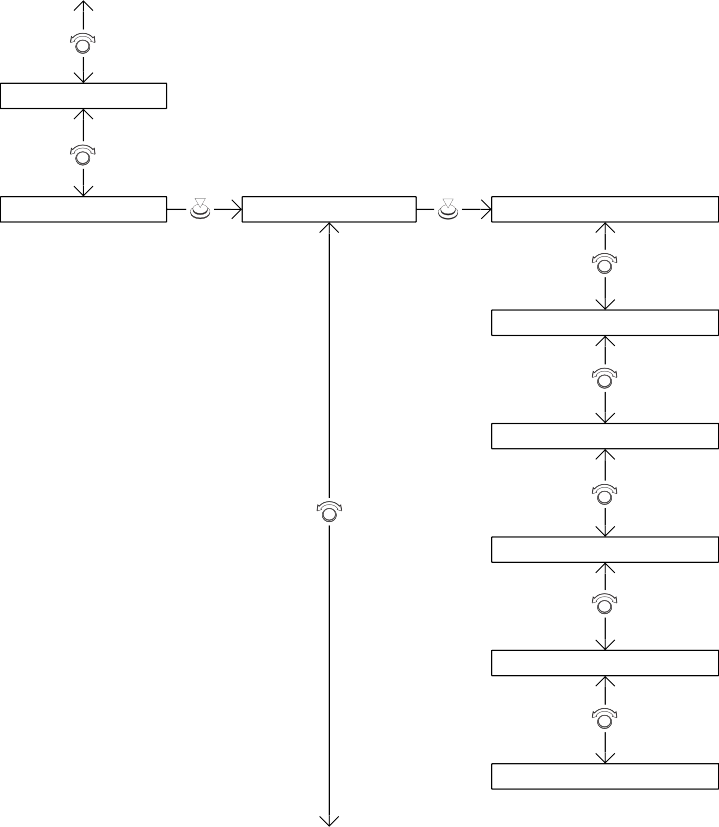 Redial*1 Redial the last number dialed in the phone’s history.
Phone Setup
Bluetooth Setup
Add New Device
Connect a Phone
Pair a phone to the system.
Connect a phone to the system.
Connect an Audio Device
Connect a Bluetooth® Audio device to the system.
Disconnect All Devices
Delete Device
Disconnect a paired phone from the system.
Delete a previously paired phone.
Pass-Key Create a code for a paired phone.
*1 : Appears only when a phone is connected to HFL.
uuBluetooth® HandsFreeLink®uHFL Menus
Select a phone number from the call history to store as a speed dial number.
Select a phone number from the phonebook to store as a speed dial number.
Enter a phone number to store as a speed dial number.
Change a previously stored speed dial number.
Delete a previously stored speed dial number.
Create a voice tag for a speed dial number.
Change a voice tag for a speed dial number.
*1: Appears only when a phone is connected to HFL.
Delete a voice tag for a speed dial number.
Continued
409
 uuBluetooth® HandsFreeLink® uHFL Menus
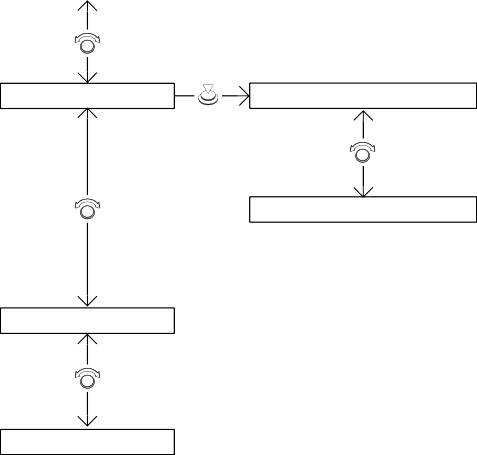
Ringtone
Mobile Phone
Select the ring tone stored in the connected cell phone.
Fixed Select the ring tone stored in HFL.
Auto Transfer Set calls to automatically transfer from your phone to HFL when you enter the vehicle.
System Clear
Clear the system of all paired phones, phonebook entries, and security codes.
uuBluetooth® HandsFreeLink®uHFL Menus
■ Phone Setup
 button.
 .
. .
.u HFL automatically searches for a
Bluetooth® device.
 .
.u If your phone doesn’t appear, select Phone Not Found? and search for Bluetooth® devices using your phone. From your phone, select HandsFreeLink.
u Confirm if the pairing code on the screen and your phone match.
This may vary by phone.
Continued 411
uuBluetooth® HandsFreeLink® uHFL Menus
 button or the
  button.
u If a prompt appears asking to connect to a phone, select No and proceed with step 2.
 Rotate to select Phone Setup, then press .
u The screen changes to device list.
412
uuBluetooth® HandsFreeLink®uHFL Menus
 . u HFL automatically searches for a
Bluetooth® device.
 .
.u If your phone does not appear, select Phone Not Found? and search for Bluetooth® devices using your phone. From your phone, select HandsFreeLink.
u Confirm if the pairing code on the screen and your phone match.
This may vary by a phone.
Continued
413
uuBluetooth® HandsFreeLink® uHFL Menus
 Press the button or the
  button.
 Rotate to select Connect a Phone, then press .
u The screen changes to a device list.
 Rotate to select a desired device name, then press .
u HFL disconnects the connected phone and starts searching for another paired phone.
uuBluetooth® HandsFreeLink®uHFL Menus
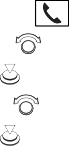 Press the button or the
  button.
 to select Pass-Key, then press
  .
. .
.Continued
415
uuBluetooth® HandsFreeLink® uHFL Menus
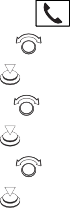 Press the button or the
  button.
u The screen changes to a device list.
 to select a phone you want to delete, then press
  .
. to select Yes, then press
  .
.uuBluetooth® HandsFreeLink®uHFL Menus
You can change the ring tone setting.
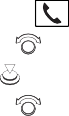 Press the button or the
  button.
 .
. to select Mobile Phone or
Fixed, then press  .
.
■ Automatic Transferring If you get into the vehicle while you are on the phone, the call can be automatically transferred to HFL.
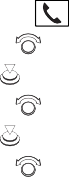 Press the button or the
  button.
 .
.Continued 417
uuBluetooth® HandsFreeLink® uHFL Menus
■ To Clear the System Pairing codes, paired phones, all stored voice tags, all speed dial entries, all call history data, and all imported phonebook data are erased.
 Press the button or the
  button.
 .
. to select Yes, then press
  .
. .
.uuBluetooth® HandsFreeLink®uHFL Menus
■ Automatic Import of Cellular Phonebook and Call History When your phone is paired, the contents of its phonebook and call history are automatically imported to HFL.
Continued 419
uuBluetooth® HandsFreeLink® uHFL Menus
Up to 20 speed dial numbers can be stored per phone.
To store a speed dial number:
 button.
 .
. to select Add New, then press
  .
. to select a place to choose a number from, then press
  .
.From Call History:
u Select a number from the call history. From Phonebook:
u Select a number from the connected cell phone’s imported phonebook.
From Phone Number:
u Input the number manually.
 to select Yes or No, then press .
uuBluetooth® HandsFreeLink®uHFL Menus
 Press the button or the
  button.
 .
. Rotate to select Change Speed Dial, then press .
 .
. Press the button or the
  button.
 .
. Rotate to select Delete Speed Dial, then press .
u A confirmation message appears on the screen. Rotate  to select Yes, then press
  .
.
Continued
421
uuBluetooth® HandsFreeLink® uHFL Menus
 Press the button or the
  button.
 .
. Rotate to select Store Voice Tag, then press .
 Press the button or the
  button.
 .
. Rotate to select Change Voice Tag, then press .
uuBluetooth® HandsFreeLink®uHFL Menus
 Press the button or the
  button.
 .
. Rotate to select Delete Voice Tag, then press .
u A confirmation message appears on the screen. Rotate  to select Yes, then press
  .
.
■ Making a Call You can make calls by inputting any phone number, or by using the imported phonebook, call history, speed dial entries, or redial.
Continued 423
uuBluetooth® HandsFreeLink® uHFL Menus
When your phone is paired, the contents of its phonebook are automatically imported to HFL.
 Press the button or the
  button.
 to select the initial, then press
  .
. Rotate to select a name, then press
  .
. .
.u Dialing starts automatically.
 Press the button or the
  button.
 .
. .
. to select
  , then press
  .
.u Dialing starts automatically.
uuBluetooth® HandsFreeLink®uHFL Menus
 button.
 .
.u Dialing starts automatically.
 Press the button or the
  button.
 .
. to select a number, then press
  .
.u Dialing starts automatically.
Continued 425
uuBluetooth® HandsFreeLink® uHFL Menus
 button.
 .
. to select a number, then press
  .
.u Dialing starts automatically.
uuBluetooth® HandsFreeLink®uHFL Menus
When there is an incoming call, an audible notification sounds and the Incoming Call screen appears.
Press the button to answer the call.
Press the button to decline or end the call.
Continued 427
uuBluetooth® HandsFreeLink® uHFL Menus
The following options are available during a call.
Swap Call: Put the current call on hold to answer the incoming call.
Mute: Mute your voice.
Transfer Call: Transfer a call from HFL to your phone.
Dial Tones: Send numbers during a call. This is useful when you call a menu-driven phone system.
 button.
 to select the option, then press
  .
.u The check box is checked when Mute is selected. Select Mute again to turn it off.
Models with Display Audio
Bluetooth® HandsFreeLink® (HFL) allows you to place and receive phone calls using your vehicle’s audio system, without handling your cell phone.
Continued
429
uuBluetooth® HandsFreeLink® uUsing HFL
 (Pick-up) button: Press to go directly to the phone menu on the driver information interface, or to answer an incoming call.
(Hang-up) button: Press to end a call.
(Back) button: Press to go back to the previous screen, or cancel a command.
(Talk) button: Press to access Voice Portal.
Left Selector Wheel: Press the  (home) button, then roll up or down to select Phone on the driver information interface, and then press the left selector wheel.
  (home) button: Press to go back to the home screen of the driver information interface.
To go to the phone screen of the driver information interface:
 (home) button on the steering wheel.
u You can select Favorite Contacts or Recent Calls.
uuBluetooth® HandsFreeLink® uUsing HFL
The audio/information screen notifies you when there is an incoming call.
Certain manual functions are disabled or inoperable while the vehicle is in motion. You cannot select a grayed-out option until the vehicle is stopped.
Only previously stored phonebook names or numbers can be called using voice commands while the vehicle is in motion.
2 Favorite Contacts P. 439
* Not available on all models
431
uuBluetooth® HandsFreeLink® uHFL Menus
The power mode must be in ACCESSORY or ON to use the system.
 button.
Pair a new phone to the system.
Connect, disconnect, or delete a paired device.
Set phonebook and call history data to be automatically imported when a phone is paired to HFL.
Set calls to automatically transfer from your phone to HFL when you enter the vehicle.
Select the ring tone.
Turn HondaLink® Assist on and off.
432
uuBluetooth® HandsFreeLink®uHFL Menus
 button.
Display the last outgoing, incoming and missed calls. Display the last outgoing calls.
Display the last missed calls. Display the last incoming calls.
Dial the selected number in the speed dial list.
Display the phonebook of the paired phone.
Enter a phone number to dial.
Continued
uuBluetooth® HandsFreeLink® uHFL Menus
You can turn Bluetooth® function on and off.
 button.
uuBluetooth® HandsFreeLink®uHFL Menus
 button.
u HFL automatically searches for a
Bluetooth® device.
u If your phone still does not appear, search for Bluetooth® devices using your phone.
From your phone, search for HandsFree Link.
u Confirm if the pairing code on the screen and your phone match.
This may vary by phone.
Continued 435
uuBluetooth® HandsFreeLink® uHFL Menus
2 Phone settings screen P. 432
u HFL disconnects the connected phone and starts searching for another paired phone.
 .
.2 Phone settings screen P. 432
uuBluetooth® HandsFreeLink®uHFL Menus
You can change the ring tone setting.
2 Phone settings screen P. 432
2 Phone settings screen P. 432
Continued 437
uuBluetooth® HandsFreeLink® uHFL Menus
When your phone is paired, the contents of its phonebook and call history are automatically imported to the system.
2 Phone settings screen P. 432
438
uuBluetooth® HandsFreeLink®uHFL Menus
To store a number as a favourite contact:
2 Phone menu screen P. 433
Keypad screen.
u A notification appears on the screen if the favorite contact is successfully stored.
u To remove the favorite contact, select the star icon again.
Continued
439
uuBluetooth® HandsFreeLink® uHFL Menus
2 Phone menu screen P. 433
2 Phone menu screen P. 433
440
uuBluetooth® HandsFreeLink®uHFL Menus
You can make calls by inputting any phone number, or by using the imported phonebook, call history, or favorite contact entries.
Continued 441
uuBluetooth® HandsFreeLink® uHFL Menus
2 Phone menu screen P. 433
u You can sort by First Name or Last Name. Select the icon on the upper right of the screen.
u Dialing starts automatically.
2 Phone menu screen P. 433
u Use the keyboard on the touch screen for entering numbers.
u Dialing starts automatically.
442
uuBluetooth® HandsFreeLink®uHFL Menus
2 Phone menu screen P. 433
u You can sort by All, Dialed, Missed, or Received. Select the icon on the upper right of the screen.
u Dialing starts automatically.
2 Phone menu screen P. 433
u You can change the order of favorite contact entries by selecting Reorder.
u Dialing starts automatically.
Continued 443
uuBluetooth® HandsFreeLink® uHFL Menus
When there is an incoming call, an audible notification sounds (if activated) and the Incoming Call... screen appears.
Press the button to answer the call. Press the button to decline or end the call.
The following options are available during a call.
Mute: Mute your voice.
Use Handheld: Transfer a call from the system to your phone.
Keypad: Send numbers during a call. This is useful when you call a menu-driven phone system.
The available options are shown on the lower half of the screen.
Select the option.
u The mute icon appears when Mute is selected. Select Mute again to turn it off.
uuBluetooth® HandsFreeLink®uHFL Menus
 button.
Continued 445
uuBluetooth® HandsFreeLink® uHFL Menus
■ Receiving a Text Message HFL can display newly received text messages as well as the last 20 messages received on a linked cell phone. Each received message can be read aloud and
replied to using a fixed common phrase.
u The status area appears.
u The text message is displayed.
446
uuBluetooth® HandsFreeLink®uHFL Menus
 button.
2 To change the currently paired phone
P. 436
Continued 447
uuBluetooth® HandsFreeLink® uHFL Menus
 button.
u Select a phone if necessary.
u The text message is displayed.
uuBluetooth® HandsFreeLink®uHFL Menus
u The system starts reading the message aloud.
Select Play again to start reading the message.
u The pop-up menu appears on the screen.
u Message sent appears on the screen when the reply message was successfully sent.
Continued 449
uuBluetooth® HandsFreeLink® uHFL Menus
 button.
u The on-screen keyboard screen is displayed.
 button.
 on the reply message you want to delete.
u The pop-up menu appears on the screen.
uuBluetooth® HandsFreeLink®uHFL Menus
uuBluetooth® HandsFreeLink® uHondaLink® Assist*
If your vehicle’s airbags deploy or if the unit detects that the vehicle is severely impacted, your vehicle automatically will attempt to connect to the HondaLink® operator. If connected, information about your vehicle, its location, and its condition can be sent to the operator*1; you also can speak to the operator when connected.
IMPORTANT: For vehicles equipped with HondaLink® Assist, owner activation constitutes authorization for Honda to collect information from your vehicle needed to provide the service, and agreement to the Terms of Use at www.hondalink.com/ TermsAndConditions. In a crash, HondaLink® Assist will attempt to notify emergency services but NEITHER HONDA NOR ITS SERVICE PROVIDERS GUARANTEE THAT SUCH NOTIFICATION WILL OCCUR.
Honda reserves the right to terminate HondaLink® Assist services at any time or for any reason, and in the future may not be able to provide services due to changes in, or obsolescence of, technology integral to the service or changes in governmental regulation.
*1: Depending on your phone and adequate cellular coverage, your vehicle’s location may not be sent to the operator.
452
uuBluetooth® HandsFreeLink® uHondaLink® Assist*
2 Phone settings screen P. 432
Download Manual