Pairing a Phone
To use hands-free phone and streaming audio functions, you must first pair your phone to the system. This can only be done when the vehicle is stopped. If there is an active connection to Apple CarPlay™ (see Apple CarPlay) or Android Auto™ (see Android Auto), pairing of additional Bluetooth-compatible devices is unavailable and Add Bluetooth Device is grayed out from the Bluetooth Device List screen.
- Pairing the First Phone
■Pairing the First Phone
- Models with One Display
- Models with Two Displays
Models with One Display
- Press the PHONE button.
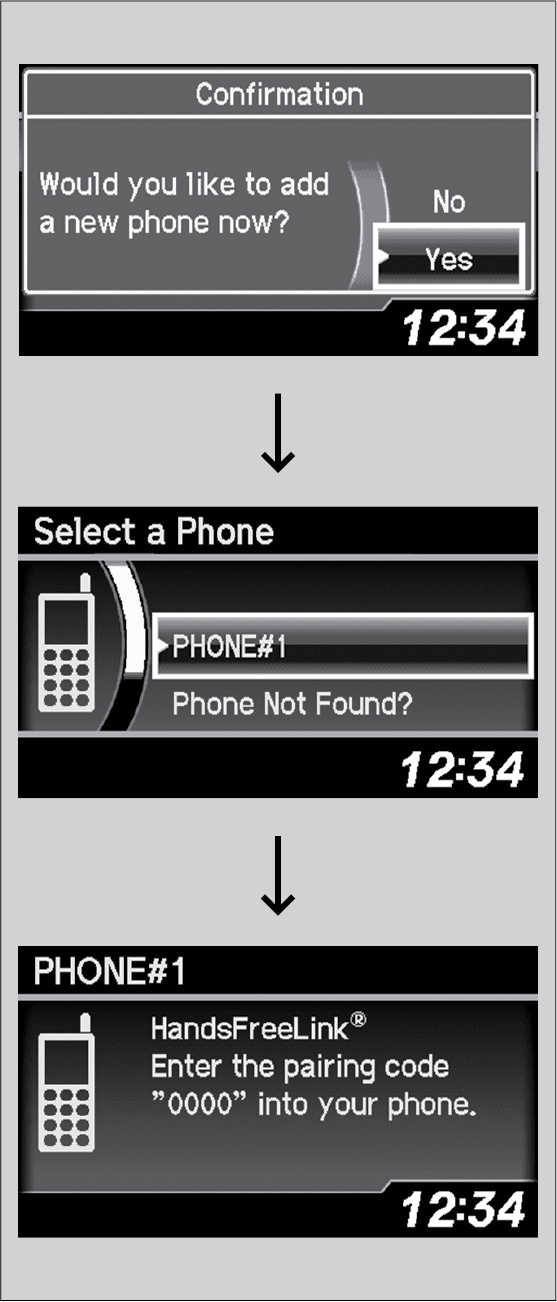
- Select Yes.
- Make sure your phone is in search or discoverable mode, then press the selector knob.
HFL automatically searches for a Bluetooth® device.
- When your phone appears on the list, select it by pressing the selector knob.
If your phone doesn’t appear, select Phone Not Found? and search for Bluetooth® devices using your phone. From your phone, select HandsFreeLink.
- HFL gives you a four-digit pairing code to input on your phone.
When your phone prompts you, input the four-digit pairing code.
- A notification appears on the screen if pairing is successful.
Models with Two Displays
- Press the PHONE button.
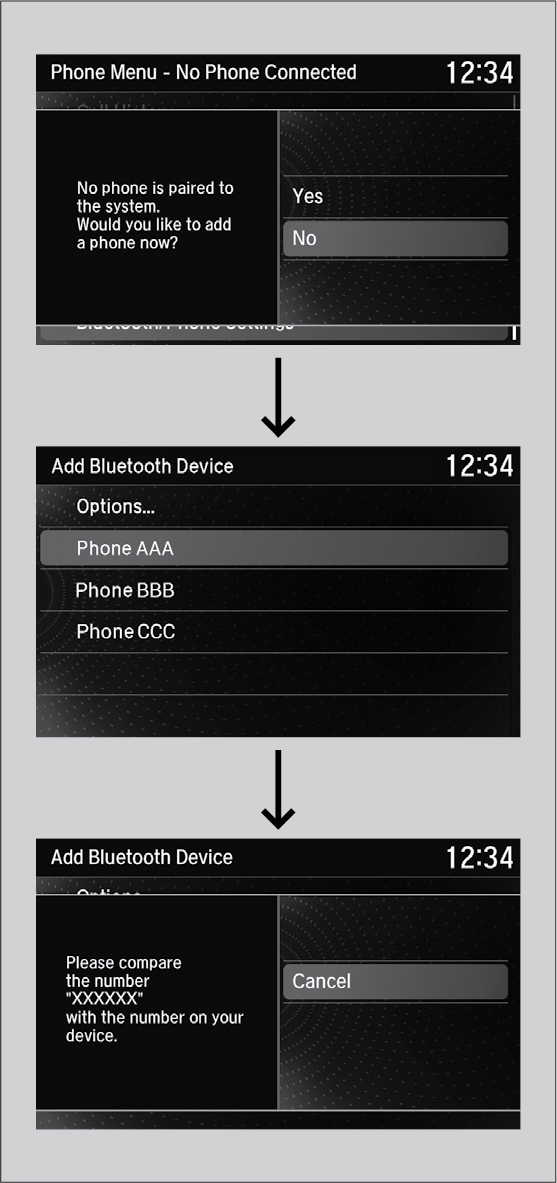
- Select Yes.
- Make sure your phone is search or discoverable mode, then press the interface dial.
HFL automatically searches for a Bluetooth® device.
- When your phone appears on the list, select it.
f your phone does not appear, you can select Options... and Refresh to search again.
If your phone still does not appear, select Options... to select Device Not Found? and search for Bluetooth® devices using your phone. From your phone, select HandsFreeLink.
- HFL gives you a pairing code on the information screen.
Confirm if the pairing code on the screen and your phone match.
This may vary by phone.
- A notification appears on the screen if pairing is successful.
Download Manual