Making a Call
You can make calls by inputting any phone number, or by using the imported phonebook, call history, speed dial entries, or redial.
- Dialing a Number
- Using the Phonebook
- Storing Speed Dial Entries
- Using Speed Dial
■Dialing a Number
- Models with One Display
- Models with Two Displays
Models with One Display
- Press the PHONE button.

- Rotate the selector knob to select Dial.
- Rotate the selector knob to select a number.
- Select the Phone button.
Dialing starts automatically
Models with Two Displays
- Press the PHONE button.
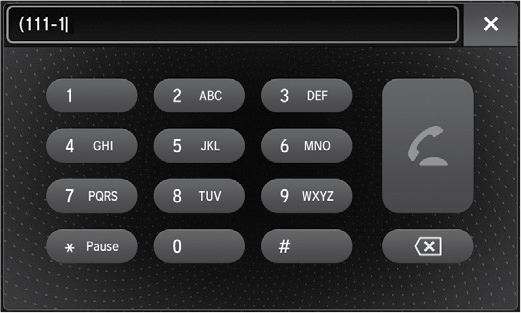
- Rotate the interface dial to select Dial.
- Select a number.
Use the keyboard on the On Demand Multi-Use Display™ for entering numbers.
- Select the Phone button.
■Using the Phonebook
- Models with One Display
- Models with Two Displays
Models with One Display
When your phone is paired, the contents of its phonebook are automatically imported to HFL.
- Press the PHONE button.

- Select Phonebook.
- The phonebook is stored alphabetically. Select the initial, then press the selector knob.
- Select a name.
- Select a number. Dialing starts automatically.
Models with Two Displays
- Press the PHONE button.

- Select Phonebook.
- Select a contact name.
- Select a number.
Dialing starts automatically.
■Storing Speed Dial Entries
Store up to 20 numbers for quick dialing. To store a speed dial number:
- Models with One Display
- Models with Two Displays
Models with One Display
Up to 15 speed dial numbers can be stored per phone.
- Press the PHONE button.
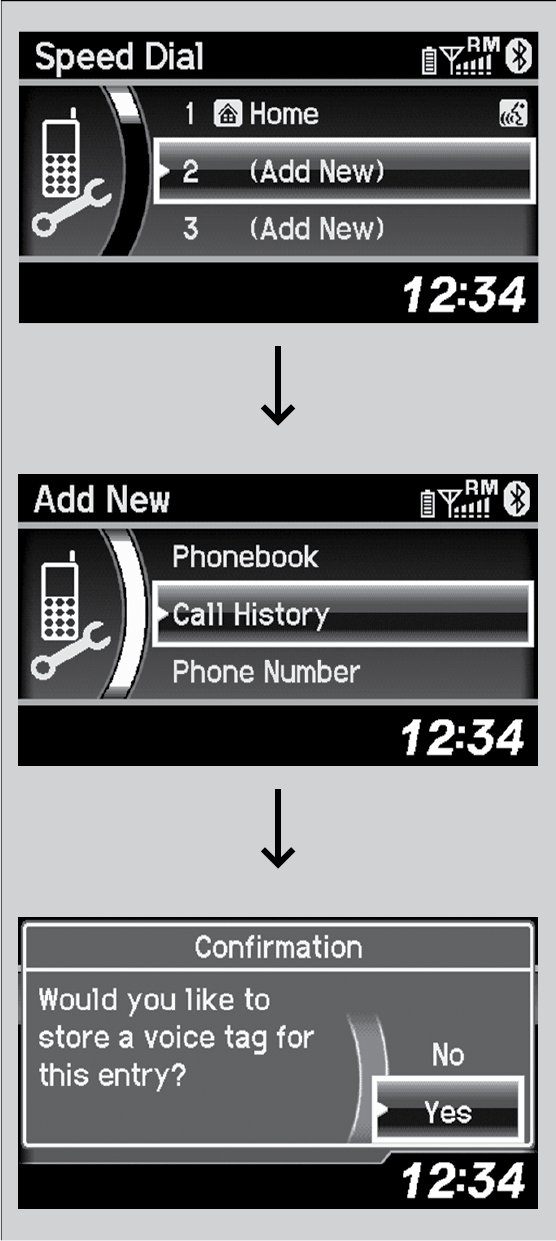
- Select Phone Setup.
Repeat the procedure to select Speed Dial, then Add New.
- Select a place to choose a number from.
By Phonebook:
elect a number from the linked cell phone’s imported phonebook.
By Call History:
Select a number from the call history.
By Phone Number:
Input the number manually.
- When the speed dial is successfully stored, you are asked to create a voice tag for the number. Select Yes or No.
- Using the Talk button, follow the prompts to say the name for the speed dial entry.
Models with Two Displays
Up to 20 speed dial numbers can be stored per phone.
- Press the PHONE button.

- Select Speed Dial.
- Rotate the interface dial to select a place to choose a number from.
- When the speed dial is successfully stored from Import from Call History or Import from Phonebook, you are asked to create a voice tag for the number. Select Yes or No.
- Using the Talk button, follow the prompts to store a voice tag for the speed dial entry.
■Using Speed Dial
Make calls quickly using stored speed dial entries or call history numbers.
- Models with One Display
- Models with Two Displays
Models with One Display
- Press the PHONE button.

- Select Speed Dial.
- Select a number.
Dialing starts automatically.
Models with Two Displays
- Press the PHONE button.

- Select Speed Dial.
- Select a number.
Dialing starts automatically.
Download Manual