Traffic Sign Assist System — If Equipped
The Traffic Sign Assist (TSA) system uses a camera mounted on the windshield, as well as map data when the vehicle is equipped with Navigation, to detect recognizable road signs such as:
-
Speed limits
-
School zones
-
No passing zones
Note:
-
The TSA system will automatically display the detected road sign using the unit of measurement (mph or km/h) selected within the instrument cluster display.
-
If no speed limit signs are detected, the system will revert to the speed limit signs that are stored in the Navigation system.
-
The system always checks the traffic signs indicating the current speed limit. The system is able to recognize and display up to two different road signs in the instrument cluster display. These road signs can be found on the Driver Assist page.
ACTIVATION/DEACTIVATION
The TSA System can be enabled/disabled within the Uconnect system through the Safety/Driver Assistance menu. System ON is signaled by road signs shown on the instrument cluster display.
Note:
Even if the system is OFF, the speed limit sign will be displayed when the driver selects it on the HOME screen.
TRAFFIC SIGN ASSIST MODES
TSA has three selectable modes of operation that are available through the Uconnect system .
Visual
When Visual is selected, the system will alert the driver when the current speed of the vehicle exceeds the detected speed limit by showing a graphic in the instrument cluster display.
Visual + Chime
When Visual + Chime is selected, the system will alert the driver when the current speed of the vehicle exceeds the detected speed limit by showing a graphic in the instrument cluster display, and by sounding an audible alert. The audible alert will last for 10 seconds, and the visual alert will remain on as long as the vehicle is exceeding the speed limit.
TSA Off
When the TSA system is turned off, the system will not show any traffic signs (unless selected in the HOME screen, which will show detected speed limit signs), and no alerts will be issued to the driver.
INDICATIONS ON THE DISPLAY
Detected traffic signs are shown in the instrument cluster display, and can display any combination of signs at one time (e.g. speed limit, speed limit and supplemental info, and “Do Not Pass” signs) depending on what information is available.
When a newly detected speed limit is higher than the current speed limit, the display will update along with an “up” arrow.
When a newly detected speed limit is lower than the current speed limit, the display will update along with a “down” arrow.
Note:
Up or down arrows will be displayed for up to five seconds.
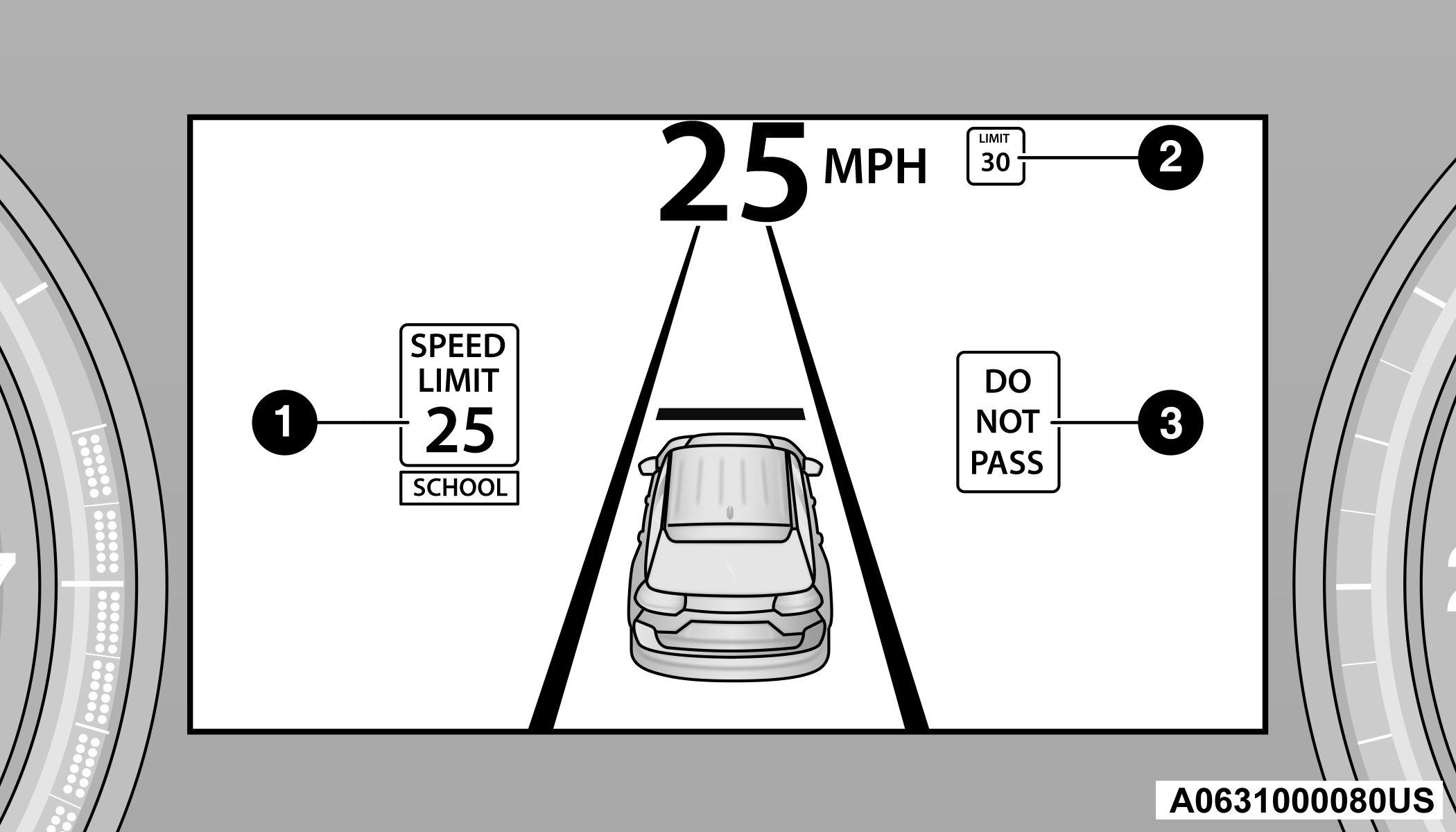
Traffic Signs Recognized
| 1 — Current Speed Limit With Supplemental Information (School Zone) |
| 2 — Next Speed Limit Detected |
| 3 — No Passing Zone Detected |
Supplemental Information
Supplemental information may be displayed along with a newly detected speed limit indicating special circumstances the driver should be aware of. Available supplemental information includes:
-
School
-
Construction
-
Rain
-
Snow
-
Fog
Note:
Supplemental information will not be displayed when the vehicle is ONLY equipped with GPS.
Speed Limit Exceeded
When the vehicle’s speed exceeds the displayed speed limit by 3 mph (5 km/h), the speed limit sign on the instrument cluster display will show a red outline to alert the driver.
CAUTION:
-
Traffic Sign Assist is designed to assist the driver and not to substitute the driver. It is the driver’s responsibility to continue to monitor the vehicle speed.
-
Functionality may be limited or the system may not work if the sensor is obstructed.
-
The system may have limited operation or not work at all in weather conditions such as heavy rain, hail, and thick fog. Strong light contrasts can influence the recognition capability of the sensor.
-
The area surrounding the sensor must not be covered with stickers or any other object.
-
Do not tamper or perform any operations in the area of the windshield glass directly surrounding the sensor.
-
Clean foreign matters such as bird droppings, insects, snow or ice on the windshield. Use specific detergents and clean cloths to avoid scratching the windshield.
Download Manual