Active Driving Display (Some Models)
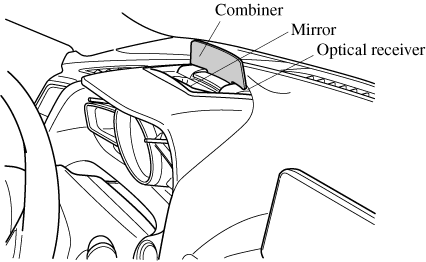
Always adjust the display brightness and position with the vehicle stopped: Adjusting the display brightness and position while driving the vehicle is dangerous as doing so could distract your attention from the road ahead and lead to an accident.
- Do not place beverages near the active driving display. If water or other liquids are splashed on the active driving display, it could cause damage.
- Do not place objects above the active driving display or apply stickers to the dust-proof sheet/optical receiver as they will cause interference.
- A sensor is integrated to control the display's luminosity. If the optical receiver is covered, the display's luminosity will lower making the display difficult to view.
- Do not allow intense light to hit the optical receiver. Otherwise, it could cause damage.
- It may be difficult to view the display when wearing polarized sunglasses. Take off your polarized sunglasses or adjust the luminosity.
- If the battery has been removed and re-installed or the battery voltage is low, the adjusted position may deviate.
- The display may be difficult to view or temporarily affected by weather conditions such as rain, snow, light, and temperature.
- If the audio system is removed, the active driving display cannot be operated.
- Blind Spot Monitoring (BSM) Operation Conditions and Warnings.
- Distance Recognition Support System (DRSS) Warnings.
- Traffic Sign Recognition System (TSR) traffic signs and Warnings.
- Mazda Radar Cruise Control (MRCC) Operation Conditions and Warnings.
- Lane Departure Warning System (LDWS) Warnings.
- Lane-keep Assist System (LAS) & Lane Departure Warning System (LDWS) Operation Conditions and Warnings.
- Advanced Smart City Brake Support (Advanced SCBS) Warnings.
- Smart City Brake Support [Forward] (SCBS F) Warnings.
- Smart City Brake Support [Reverse] (SCBS R) Warnings.
- Smart Brake Support (SBS) Warnings.
- Adjustable Speed Limiter Operation Conditions and Warnings.
- Driver Attention Alert (DAA) Warnings.
- Cruise Control Operation Conditions.
- Navigation Guidance (vehicles with navigation system)
- Speed limit indicator (vehicles with navigation system)
- Vehicle Speed
- Select the
 icon on the home screen and display the Settings screen.
 - Select the AD-Disp tab.
- Select the desired item and perform the setting/adjustment.
- Method for adjusting screen brightness (automatically/manually)
- Screen brightness initial settings (automatic adjustment is selected)
- Screen brightness adjustment (manual adjustment is selected)
- Display position of active driving display (display height)
- Active driving display angle adjustment (display angle correction)
- The combination of street name display, lane guidance, and turn by turn (TBT) can be changed. (navigation guidance)
- Active driving display ON/OFF (indication)
- Reset settings (reset)
The street name may not be displayed depending on the market and region.
Download Manual