Audio System
AM and FM frequencies are established by the Federal Communications Commission (FCC) and the Canadian Radio and Telecommunications Commission (CRTC). Those frequencies are:
• AM: 530-1710 kHz
• FM: 87.9-107.9 MHz
Note: Listening to loud audio for long periods of time could damage your hearing.
|
Radio Reception Factors |
|
|
Distance and strength |
The further you travel from an AM or FM station, the weaker the signal and the weaker the reception. |
|
Terrain |
Hills, mountains, tall buildings, bridges, tunnels, freeway overpasses, parking garages, dense tree foliage and thunderstorms can interfere with the reception. |
|
Station overload |
When you pass a ground-based broadcast repeating tower, a stronger signal may overtake a weaker one and result in the audio system muting. |
|
|
 WARNING: Driving while distracted can result in loss of vehicle control, crash and injury. We strongly recommend that you use extreme caution when using any device that may take your focus off the road. Your primary responsibility is the safe operation of your vehicle. We recommend against the use of any hand-held device while driving and encourage the use of voice-operated systems when possible. Make sure you are aware of all applicable local laws that may affect the use of electronic devices while driving.
E318482
Press and release the button to access the clock setting.
Use the center arrow controls to change the hours and minutes.
Press and release the button to open the media source menu.
342
You can press this multiple times to change to a media device or scroll through the media sources using the arrow buttons. Press OK to select a source.
Press and release the button to access different audio system features.
Press and release the button to access the phone features of the system.
Press and release the button to access settings for Treble, Midrange, Bass, Fade and
Balance.
Changing Radio Stations
In radio mode, turn to search through the radio frequency band.
Press and release the button to listen to the radio or change the radio frequency band.
Press and release the button to mute the playing audio.
 Press and release the button.
Turn to adjust the volume.
Use the up and down arrow buttons to select the various settings. When you make your selection, press the left and right arrow buttons to change the settings.
Press and release to confirm a selection.
343
Press and release the function buttons below the display to select different functions of the audio system depending on which mode you are in.
In radio mode, store and recall your favorite radio stations. To store a favorite station, press and hold until the sound returns. In phone mode, enter a phone number.
In radio mode, select a frequency band and press and release either button. The system stops at the first station it finds in that direction.
|
|
 WARNING: Driving while distracted can result in loss of vehicle control, crash and injury. We strongly recommend that you use extreme caution when using any device that may take your focus off the road. Your primary responsibility is the safe operation of your vehicle. We recommend against the use of any hand-held device while driving and encourage the use of voice-operated systems when possible. Make sure you are aware of all applicable local laws that may affect the use of electronic devices while driving.
E318505
 Press and release the button to access the apps menu. Follow the on-screen prompts to make
your selection.
Press and release the button to access the clock setting.
Use the center arrow controls to change the hours and minutes.
Press and release the button to open the media source menu.
You can press this multiple times to change to a SYNC-Media device or scroll through the media sources using the arrow buttons. Press OK to select a source.
Press and release the button to access the information menu.
Follow the on-screen prompts to make your selection.
344
Press and release the button to access the phone features of the SYNC system.
Press and release the button to access the settings menu.
Follow the on-screen prompts to make your selection.
 Press and release the button to access settings for Treble, Midrange, Bass, Fade and
Balance.
Changing Radio Stations
In radio mode, turn to search through the radio frequency band.
 Press and release the button to listen to the radio or change the radio frequency band.
 Press and release the button to either play or pause the audio.
Turn to adjust the volume.
Press and release the button.
Press and release the button.
345
Press and release the button to repeat the current media source.
Using Seek, Fast Forward and Reverse
 Press and release the button to shuffle the current media source.
 Press and release to either answer an incoming phone call or to make a phone call.
Press and hold to end a phone call.
Use the up and down arrow buttons to select the various settings. When you make your selection, press the left and right arrow buttons to change the settings.
Press and release to confirm a selection.
In radio mode, store and recall your favorite radio stations. To store a favorite station press and hold until the sound returns.
In phone mode, enter a phone number.
In radio mode, select a frequency band and press and release either button. The system stops at the first station it finds in that direction.
|
|
 WARNING: Driving while distracted can result in loss of vehicle control, crash and injury. We strongly recommend that you use extreme caution when using any device that may take your focus off the road. Your primary responsibility is the safe operation of your vehicle. We recommend against the use of any hand-held device while driving and encourage the use of voice-operated systems when possible. Make sure you are aware of all applicable local laws that may affect the use of electronic devices while driving.
Note: The touchscreen system controls most of the audio features.
Note: Some features, such as satellite radio, may not be available in your location. Check with an authorized dealer.
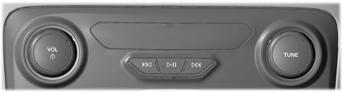
E318508
346
Playing or Pausing Media
 Press and release the button to either play or pause the audio.
 Press and release the button.
Turn to adjust the volume.
In radio mode, turn to search through the radio frequency band.
In satellite radio mode, turn to find the previous or next available satellite radio station.
In radio mode, select a frequency band and press and release either button. The system stops at the first station it finds in that direction.
In satellite radio mode, press and release to select the next or previous satellite radio station. If you select a specific category such as jazz, rock or news, press to find the next or previous station in that category.
Press the button.
Select BT Devices and follow the instructions on the screen.
Note: When pairing a new device, you can choose to download contacts and set this as the primary device.
347
E
You can temporarily remove the mast by unscrewing it from the base.
Note: Remove the antenna mast before entering a car wash. Make sure you firmly screw in the mast when reattaching it to maintain optimum radio reception.
SiriusXM® Satellite Radio broadcasts a variety of music, news, sports, weather, traffic and entertainment satellite radio channels. For more information and a complete list of SiriusXM satellite radio channels, visit www.siriusxm.com in the United States, www.siriusxm.ca in Canada, or call SiriusXM at 1-888-539-7474.
Note: This receiver includes the eCos real-time operating system. eCos is published under the eCos License.
|
Potential satellite radio reception issues |
|
|
Antenna obstructions |
For optimal reception performance, keep the antenna clear of snow and ice build-up and keep luggage and other material as far away from the antenna as possible. |
|
Terrain |
Hills, mountains, tall buildings, bridges, tunnels, freeway overpasses, parking garages, dense tree foliage and thunderstorms can interfere with your reception. |
|
Station overload |
When you pass a ground-based broadcast-repeating tower, a stronger signal may overtake a weaker one and the audio system may mute. |
|
Satellite radio signal interfer- ence |
Your display may show ACQUIRING . . . to indicate the interference and the audio system may mute. |
348
Note: SiriusXM reserves the unrestricted right to change, rearrange, add or delete programming including canceling, moving or adding particular channels, and its prices, at any time, with or without notice to you. Ford Motor Company shall not be responsible for any such programming changes.
E208625
SiriusXM satellite radio is a
subscription-based satellite radio service that broadcasts a variety of music, sports, news, weather, traffic and entertainment programming. Your factory-installed SiriusXM satellite radio system includes hardware and a limited subscription term, which begins on the date of sale or lease of your vehicle. See an authorized dealer for availability.
For more information on extended subscription terms (a service fee is required), the online media player and a complete list of SiriusXM satellite radio channels, and other features, please visit www.siriusxm.com in the United States, www.siriusxm.ca in Canada, or call SiriusXM at 1-888-539-7474.
You need your ESN to activate, modify or track your satellite radio account. When in satellite radio mode, tune to channel 0.
|
Message |
Condition |
Action |
|
Acquiring… |
Radio requires more than two seconds to produce audio for the selected channel. |
No action required. This message should disappear shortly. |
|
Satellite antenna fault SIRIUS system failure |
There is an internal module or system failure present. |
If this message does not clear shortly, or with an igni- tion key cycle, your receiver may have a fault. See an authorized dealer for service. |
|
Invalid Channel |
The channel is no longer available. |
Tune to another channel or choose another preset. |
|
Unsubscribed Channel |
Your subscription does not include this channel. |
Contact SiriusXM at 1-888- 539-7474 to subscribe to the channel, or tune to another channel. |
349
|
Message |
Condition |
Action |
|
No Signal |
The signal is lost from the SiriusXM satellite or Siri- usXM tower to your vehicle antenna. |
The signal is blocked. When you move into an open area, the signal should return. |
|
Updating… |
Update of channel programming in progress. |
No action required. The process may take up to three minutes. |
|
Questions? Call 1-888-539-7474 |
Your satellite service is no longer available. |
Contact SiriusXM at 1-888- 539-7474 to resolve subscription issues. |
|
None found Check Channel Guide |
All the channels in the selected category are either skipped or locked. |
Use the channel guide to turn off the Lock or Skip function on that station. |
|
Subscription Updated |
SiriusXM has updated the channels available for your vehicle. |
No action required. |
Note: HD Radio broadcasts are not available in all markets.
HD Radio technology is the digital evolution of analog AM/FM radio. Your system has a special receiver that allows it to receive digital broadcasts, where available, in addition to the analog broadcasts, it already receives. Digital broadcasts provide a better sound quality than analog broadcasts with free,
crystal-clear audio and no static or distortion. For more information, and a guide to available stations and programming, please visit www.hdradio.com.
When HD Radio is on and you tune to a station broadcasting HD Radio technology, you may notice the HD Radio logo on your screen. When this logo is available, you may also see Title and Artist fields
on-screen.
The multicast indicator appears in FM mode, only, if the current station is broadcasting multiple digital broadcasts. The highlighted numbers signify available digital channels where new or different content is available. HD1 signifies the main programming status and is available in analog and digital broadcasts. Other multicast stations, HD2 through HD7, are only available digitally.
When HD Radio broadcasts are active, you can access the following functions:
• Memory presets allow you to save an active channel as a memory preset. Touch and hold a memory preset slot until the sound returns. There is a brief mute while the radio saves the station. Sound returns when finished. When switching to an HD2 or HD3 memory preset, the sound mutes before the digital audio plays, because the system has to reacquire the digital signal.
350
Note: As with any saved radio station, you cannot access the saved station if your vehicle is outside the station’s reception area.
|
Potential reception issues |
|
|
Reception area |
If you are listening to a multicast station and you are on the fringe of the reception area, the station may mute due to weak signal strength. |
|
If you are listening to HD1, the system switches back to the analog broadcast until the digital broadcast is available again. However, if you are listening to any of the possible HD2-HD7 multicast channels, the station mutes and stays muted unless it is able to connect to the digital signal again. |
|
|
Station blending |
When the system first receives a station, aside from HD2- HD7 multicast stations, it first plays the station in the analog version. Once the receiver verifies the station is an HD Radio station, it shifts to the digital version. Depending on the station quality, you may hear a slight sound change when the station changes from analog to digital. Blending is the shift from analog to digital sound or digital back to analog sound. |
In order to provide the best possible experience, use the contact form to report any station issues found while listening to a station broadcasting with HD Radio technology. Independent entities own and operate each station. These stations are responsible for the accuracy of all audio streams and data fields.
351
|
Potential station issues |
||
|
Issues |
Cause |
Action |
|
Echo, stutter, skip or repeat in audio. Increase or decrease in audio volume. |
This is poor time alignment by the radio broadcaster. |
No action required. This is a broadcast issue. |
|
Sound fading or blending in and out. |
The radio is shifting between analog and digital audio. |
No action required. The reception issue may clear up as you continue to drive. |
|
There is an audio mute delay when selecting HD2 or HD3, multicast preset or Direct Tune. |
The digital multicast is not available until the HD Radio broadcast is decoded. Once decoded, the audio is avail- able. |
No action required. This is normal behavior. Wait until the audio is available. |
|
Cannot access HD2 or HD3 multicast channel when recalling a preset or from a direct tune. |
The previously stored multicast preset or direct tune is not available in your current reception area. |
No action required. The station is not available in your current location. |
|
Text information does not match currently playing audio. |
Data service issue by the radio broadcaster. |
Fill out the station issue form at website listed below. 1 |
|
There is no text information shown for currently selected frequency. |
Data service issue by the radio broadcaster. |
Fill out the station issue form at website listed below.1 |
1 http://hdradio.com/stations/feedback
HD Radio Technology manufactured under license from iBiquity Digital Corporation and foreign patents. HD Radio and the HD and HD Radio logos are proprietary trademarks of DTS Ford Motor Company and DTS are not responsible for the content sent using HD Radio technology. Content may be changed, added or deleted at any time at the station owner's discretion.

352
|
hand-held device while driving and encourage the use of voice-operated systems when possible. Make sure you are aware of all applicable local laws that may affect the use of electronic devices while driving.
|
 WARNING: Always place your device in a secure location in your vehicle so it does not become a projectile in a sudden stop or crash. Failure to follow this instruction could result in personal injury.
E191758
The auxiliary input jack allows you to connect and play music from your portable music player through your vehicle speakers. You can use any portable music player designed for use with headphones. Your audio extension cable must have male connectors at each end.
Use the vehicle audio unit buttons to restore playback from the vehicle audio unit, while your device remains connected.
Note: The audio extension cable must be long enough for you to safely store the device when your vehicle is moving.
Note: For optimum performance when using any auxiliary device set the volume on the device high. This reduces audio interference when charging the device using the vehicle power supply.
Note: For safety reasons, do not connect or adjust the settings on your device while your vehicle is moving.
USB PORT (IF EQUIPPED)
|
|
 WARNING: Driving while distracted can result in loss of vehicle control, crash and injury. We strongly recommend that you use extreme caution when using any device that may take your focus off the road. Your primary responsibility is the safe operation of your vehicle. We recommend against the use of any hand-held device while driving and encourage the use of voice-operated systems when possible. Make sure you are aware of all applicable local laws that may affect the use of electronic devices while driving.
353
MEDIA HUB (IF EQUIPPED)

E201595
The USB port allows you to plug in media playing devices, memory sticks and charge devices.
Note: Not all USB ports in your vehicle have data transfer capabilities. See Auxiliary Power Points (page 137).
This system allows you to use the voice recognition features of your phone.
Press the voice control button on the steering wheel.
Note: This only works when connected via Bluetooth. See Connecting a Bluetooth® Device (page 347).
Note: When using voice pass through use the language set on the device.
The media hub may be on the instrument panel or center console.
The media hub may contain one or more of the following inputs:
See USB Port (page 353).
See Audio Input Jack (page 352).
354
Download Manual