Operating concept
Opening the main menu
 Press button.
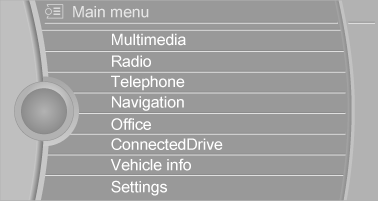
The main menu is displayed.
All iDrive functions can be called up via the main menu.
Selecting menu items
Highlighted menu items can be selected.
1. Turn the controller until the desired menu item is highlighted.
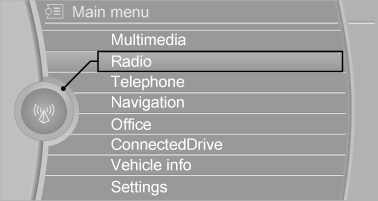
2. Press the controller.
Menu items in the Owner's Manual In the Owner's Manual, menu items that can be selected are set in quotation marks, e.g., "Settings".
Changing between panels
After a menu item is selected, e.g., "Radio", a new panel is displayed. Panels can overlap.
- Move the controller to the left.
Closes current display and shows previous display.
Reopens previous display by pressing BACK button. In this case, the current panel is not closed.
- Move the controller to the right.
Opens new display on top of previous screen.
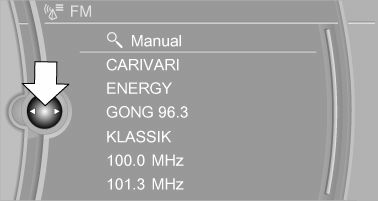
White arrows pointing to the left or right indicate that additional panels can be opened.
Display of an opened menu
When selecting a menu, it generally opens with the panel that was last selected in that menu.
To display the first panel of a menu:
- Move the controller to the left repeatedly until the first panel is displayed.
- Press the menu button on the controller twice.
Opening the Options menu
 Press button.
The "Options" menu is displayed.
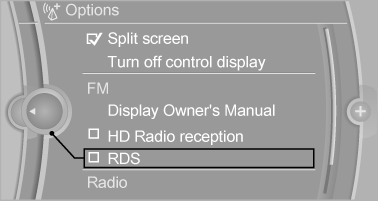
Additional options: move the controller to the right repeatedly until the "Options" menu is displayed.
Options menu The "Options" menu consists of various areas:
- Screen settings, e.g., "Split screen".
This area remains unchanged.
- Control options for the selected main menu, e.g., for "Radio".
- If applicable, further operating options for the selected menu, e.g., "Store station".
Changing settings
1. Select a field.
2. Turn the controller until the desired setting is displayed.
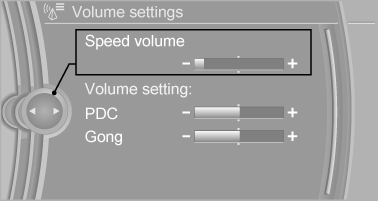
3. Press the controller.
Activating/deactivating the functions
Several menu items are preceded by a checkbox.
It indicates whether the function is activated or deactivated. Selecting the menu item activates or deactivates the function.
 Function is activated.
 Function is deactivated.
Download Manual