Control elements at a glance
Control elements
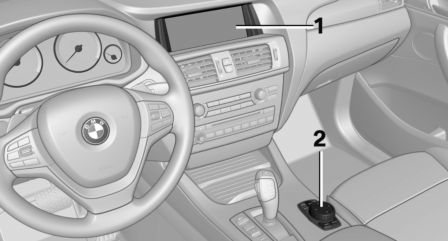
- Control Display
- Controller with buttons and, depending on the equipment version, with touchpad
Control Display
Hints
- To clean the Control Display, follow the care instructions.
- Do not place objects close to the Control Display; otherwise, the Control Display can be damaged.
- In the case of very high temperatures on the Control Display, e.g. due to intense solar radiation, the brightness may be reduced down to complete deactivation.
Once the temperature is reduced, e.g. through shadow or climate control system, the normal functions are re-established.
Switching on
1. Switch on the ignition.
2. Press the controller.
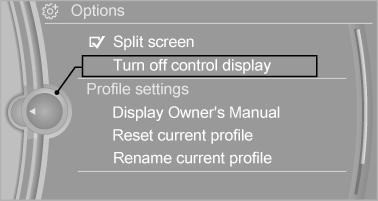
Switch off
1. Press button.
2. "Turn off control display"
Controller with navigation system
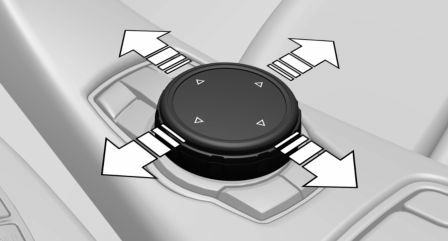
The buttons can be used to open the menus directly. The controller can be used to select menu items and enter the settings.
Some iDrive functions can be operated using the touchpad on the controller.
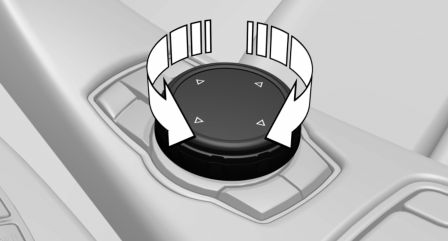
1. Turn.
2. Press.
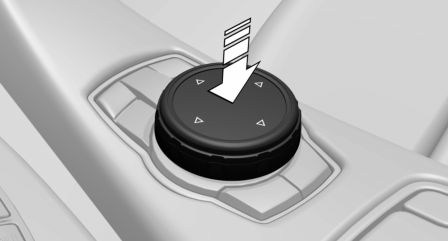
3. Move in four directions.
Buttons on controller
Press button
MENU - Open the main menu.
RADIO - Opens the Radio menu.
MEDIA - Opens the Multimedia menu.
NAV - Opens the Navigation menu.
TEL - Opens the phone menu.
BACK - Displays the previous panel.
OPTION - Opens the Options menu.
Controller without navigation system
The buttons can be used to open the menus directly. The controller can be used to select menu items and enter the settings.
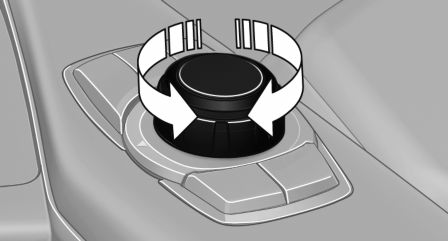
1. Turn.
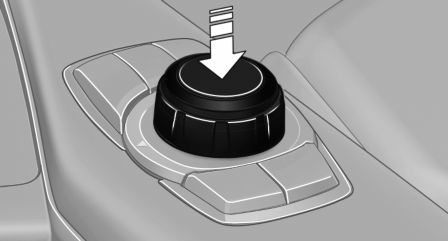
2. Press.
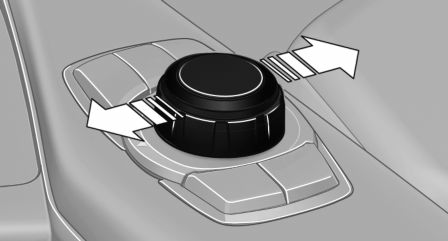
3. Move in two directions.
Buttons on controller
Press button
MENU - Open the main menu
Audio - Open audio menu last listened to, switch between audio menus.
TEL - Opens the phone menu.
BACK - Open previous panel.
OPTION - Opens the Options menu.
Download Manual