Audio system
✽ NOTICE
If you install an after market HID (high intensity discharge) head lamp, your vehicle's audio and electronic device may malfunction.
Antenna
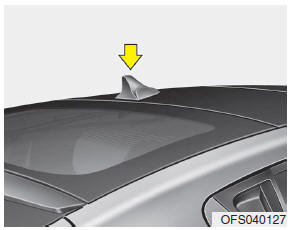
Glass antenna (if equipped)
When the radio power switch is turned on while the ignition key is in either the “ON” or “ACC” position, your car will receive both AM and FM broadcast signals through the antenna in the rear window glass.
CAUTION
- Do not clean the inside of the rear window glass with a cleaner or scraper to remove foreign deposits as this may cause damage to the antenna elements.
- Avoid adding metallic coatings such as Ni, Cd, and so on. These can disturb receiving AM and FM broadcast signals.
Audio remote control
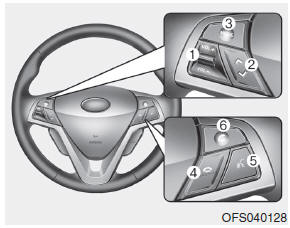
The steering wheel audio remote control switch is installed to promote safe driving.
CAUTION
Do not operate the audio remote control switches simultaneously.
VOL (VOL+/VOL-) (1)
Increases or decreases the volume level.
SEEK ( ) (2)
) (2)
• Press this button.
- Automatic tuning:
- Track up/down:
• Press and hold this button.
- Manual tuning:
- Search (FF/REW):
MODE (3)
Selects a source.
FM ➟ AM ➟ CD ➟ USB (or iPod) ➟ BT ➟
AUX ➟ FM...
 (4)
(4)
Press this button briefly to reject a call during a call.
 (5)
(5)
Enables Bluetooth Hands-Free Phone.
• Press this button briefly to take a call when there is an incoming call.
• Press this button briefly to make a call from last calls.
• Press this button lengthy to switch the sound path during a call.
(Hands free ↔ phone)
 (6)
(6)
• Press this button to start the voice recognition mode.
• Press the button one more to cancel voice commands while the voice recognition is active.
How vehicle audio works
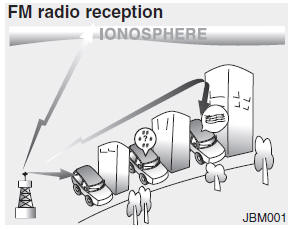
AM and FM radio signals are broadcast from transmitter towers located around your city. They are intercepted by the radio antenna on your vehicle. This signal is then received by the radio and sent to your vehicle speakers.
When a strong radio signal has reached your vehicle, the precise engineering of your audio system ensures the best possible quality reproduction. However, in some cases the signal coming to your vehicle may not be strong and clear. This can be due to factors such as the distance from the radio station, closeness of other strong radio stations or the presence of buildings, bridges or other large obstructions in the area.
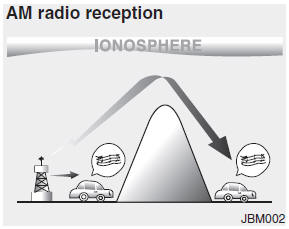
AM broadcasts can be received at greater distances than FM broadcasts. This is because AM radio waves are transmitted at low frequencies. These long, low frequency radio waves can follow the curvature of the earth rather than travelling straight out into the atmosphere. In addition, they curve around obstructions so that they can provide better signal coverage.
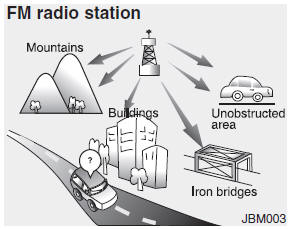
FM broadcasts are transmitted at high frequencies and do not bend to follow the earth's surface. Because of this, FM broadcasts generally begin to fade at short distances from the station. Also, FM signals are easily affected by buildings, mountains, or other obstructions. These can result in certain listening conditions which might lead you to believe a problem exists with your radio. The following conditions are normal and do not indicate radio trouble:
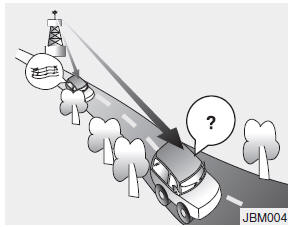
- Fading - As your vehicle moves away from the radio station, the signal will weaken and sound will begin to fade. When this occurs, we suggest that you select another stronger station.
- Flutter/Static - Weak FM signals or large obstructions between the transmitter and your radio can disturb the signal causing static or fluttering noises to occur. Reducing the treble level may lessen this effect until the disturbance clears.
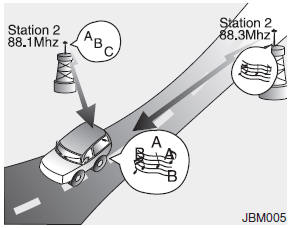
- Station Swapping - As a FM signal weakens, another more powerful signal near the same frequency may begin to play. This is because your radio is designed to lock onto the clearest signal. If this occurs, select another station with a stronger signal.
- Multi-Path Cancellation - Radio signals being received from several directions can cause distortion or fluttering. This can be caused by a direct and reflected signal from the same station, or by signals from two stations with close frequencies. If this occurs, select another station until the condition has passed.
Satellite radio reception
You may experience difficulties in receiving XM™ satellite radio signals in the following situations.
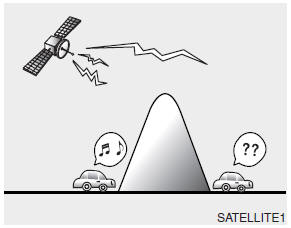
- If you are driving in a tunnel or a covered parking area.
- If you are driving beneath the top level of a multi-level freeway.
- If you drive under a bridge.
- If you are driving next to a tall vehicle (such as a truck or a bus) that blocks the signal.
- If you are driving in a valley where the surrounding hills or peaks block the signal from the satellite.
- If you are driving on a mountain road where is the signal blocked by mountains.
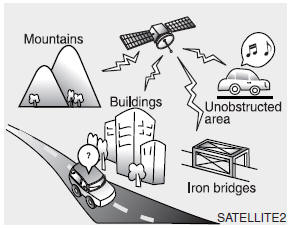
- If you are driving in an area with tall trees that block the signal (30 ft. /10m or more), for example on an road that goes through a dense forest.
- The signal can become weak in some areas that are not covered by the XM™ repeater network.
NOTE:
There may be other unforeseen circumstances leading to reception problems with the XM™ satellite radio signal.
Using a cellular phone or a two-way radio
When a cellular phone is used inside the vehicle, noise may be produced from the audio equipment. This does not mean that something is wrong with the audio equipment. In such a case, use the cellular phone at a place as far as possible from the audio equipment.
CAUTION
When using a communication system such a cellular phone or a radio set inside the vehicle, a separate external antenna must be fitted. When a cellular phone or a radio set is used with an internal antenna alone, it may interfere with the vehicle's electrical system and adversely affect safe operation of the vehicle.
WARNING
Do not use a cellular phone while driving. Stop at a safe location to use a cellular phone.
Care of disc
- If the temperature inside the car is too high, open the car windows for ventilation before using your car audio.
- It is illegal to copy and use MP3/WMA files without permission. Use CDs that are created only by lawful means.
- Do not apply volatile agents such as benzene and thinner, normal cleaners and magnetic sprays made for analogue disc onto CDs.
- To prevent the disc surface from getting damaged. Hold and carry CDs by the edges or the edges of the center hole only.
- Clean the disc surface with a piece of soft cloth before playback (wipe it from the center to the outside edge).
- Do not damage the disc surface or attach pieces of sticky tape or paper onto it.
- Make sure on undesirable matter other than CDs are inserted into the CD player (Do not insert more than one CD at a time).
- Keep CDs in their cases after use to protect them from scratches or dirt.
- Depending on the type of CD-R/CDRW CDs, certain CDs may not operate normally according to manufacturing companies or making and recording methods. In such circumstances, if you still continue to use those CDs, they may cause the malfunction of your car audio system.
✽ NOTICE - Playing an Incompatible Copy Protected Audio CD
Some copy protected CDs, which do not comply with the international audio CD standards (Red Book), may not play on your car audio. Please note that if you try to play copy protected CDs and the CD player does not perform correctly the CDs maybe defective, not the CD player.
Control Panel
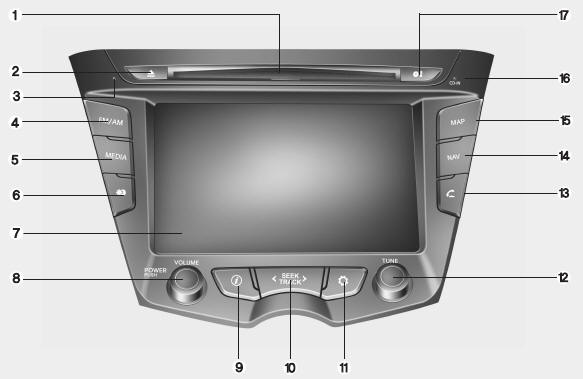
1. Disc slot
2. Eject ( )
)
Press to eject a disc from the unit.
3. RESET hole
You can reset the unit when it doesn't operate normally. Press the RESET hole with a sharp object.
4. FM/AM
Selects the FM/AM band.
5. MEDIA
Selects a source: CD, USB, iPod, BT, AUX.
6. Display on/off ( )
)
Press to switch between the display on and off.
7. LCD
8. Left rotary (POWER/VOLUME)
- Press: Power on/off
- Turn: Volume control
9. Info ( )
)
Press to view the destination, route, and traffic information when the route guidance is active.
• Destination: Shows the information of current vehicle position and destination.
• Route: Shows the route information from the current vehicle position to the destination.
• Traffic: Shows the traffic information.
- Traffic info on route: The list of traffic information found on the recommended route from the current vehicle position to the destination is displayed.
- Traffic info nearby: The list of traffic information around the current vehicle position is displayed.
10. <SEEK/TRACK> • Press this button.
- Automatic tuning: RADIO
- Track up/down: USB CD iPod BT
• Press and hold this button.
- Search (FF/REW): USB CD iPod BT
11. SETUP ( )
)
• Press to access system settings.
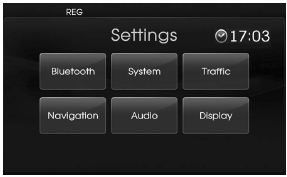
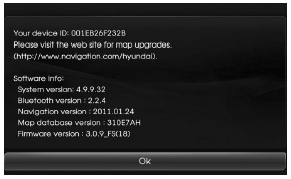
• Press and hold to check the device ID, the software version, the navigation version, and the map version. BT
12. Right rotary (TUNE)
Rotate it clockwise/counterclockwise.
• Searches the previous or next radio frequency.
- Manual tuning
• Skips a track/file up/down in all list screen.
• ZOOM IN/ ZOOM OUT
- Rotate to change the map scale on the map screen.
Repeat voice guidance
Press to repeat the voice guidance.
13. PHONE ( )
)
Use to enable Bluetooth Hands-Free Phone.
14. NAV
Press to enter a destination menu.
Various methods for entering a destination are available.
15. MAP
Press to display the current location map screen.
16. CD indicator light (CD-IN)
When a disc is inserted, the indicator is illuminated.
17. Clock ( )
)
• Press to display the digital/analog clock and outside temperature in power on/off status.
• Press and hold to move to the [Clock] menu.
Navigation menu overview
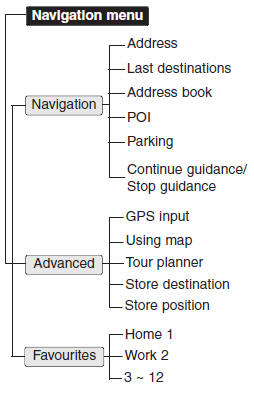
General operations of destination menu
1. Turn the unit on.
2. Press MAP. The map screen appears.
3. Touch [Menu].
![Hyundai Veloster: General operations of map menu. 4. Touch [View], [Route] or [Traffic] to select the desired option.](https://www.hyundaivelostermanuals.org/images/pages/3/page.h45.gif "Hyundai Veloster: General operations of map menu")
4. Touch [View], [Route] or [Traffic] to select the desired option.
![Hyundai Veloster: General operations of map menu. [View] menu](https://www.hyundaivelostermanuals.org/images/pages/3/page.h46.gif "Hyundai Veloster: General operations of map menu")
[View] menu
![Hyundai Veloster: General operations of map menu. [Route] menu](https://www.hyundaivelostermanuals.org/images/pages/3/page.h55.jpg "Hyundai Veloster: General operations of map menu")
[Route] menu
![Hyundai Veloster: General operations of map menu. [Traffic] menu](https://www.hyundaivelostermanuals.org/images/pages/3/page.h47.gif "Hyundai Veloster: General operations of map menu")
[Traffic] menu
5. Touch the preferred setting method.
Map menu overview
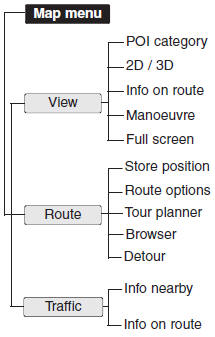
General operations of map menu
1. Turn the unit on.
2. Press MAP. The map screen appears.
3. Touch [Menu].
4. Touch [View], [Route] or [Traffic] to select the desired option.
[View] menu
[Route] menu
[Traffic] menu
5. Touch the preferred setting method.
Understanding Bluetooth wireless technology
Bluetooth wireless technology establishes a wireless link between two devices, such as your phone and the unit. The first time you use two devices together you must connect them by establishing a relationship using a PIN code. After the initial connecting, the two devices can connect automatically each time you turn them on.
NOTE:
- There may be restrictions on using Bluetooth technology in some locations.
- Due to the variety of Bluetooth phones and their firmware version, your device may respond differently when performing over Bluetooth.
- As difference in functional operation by model is mainly resulted from feature of a hands-free phone, consult manufacturer of a phone if you have any question.
- You can check the Bluetooth phone compatibility list on the web-site (http://www.navigation.com/hyundai ).
Connecting your unit and bluetooth phone
To connect using the unit settings (1)
1.Press ![Hyundai Veloster: Connecting your unit and bluetooth phone. 2.Touch [Bluetooth].](https://www.hyundaivelostermanuals.org/images/pages/3/page.h48.gif "Hyundai Veloster: Connecting your unit and bluetooth phone") on the control panel.
on the control panel.
2.Touch [Bluetooth].
![Hyundai Veloster: Connecting your unit and bluetooth phone. 3.Touch [Search for Bluetooth devices]. If you want to cancel, touch [Cancel].](https://www.hyundaivelostermanuals.org/images/pages/3/page.h50.gif "Hyundai Veloster: Connecting your unit and bluetooth phone")
3.Touch [Search for Bluetooth devices]. If you want to cancel, touch [Cancel].
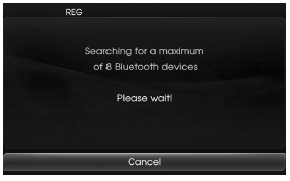
4.Touch a bluetooth phone you desire from the “Bluetooth devices” screen.
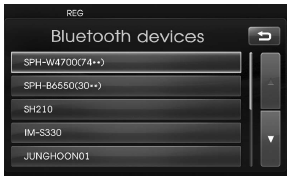
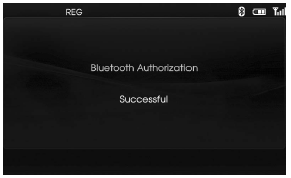
5.Input the passkey (Default: 0000) showed on the screen in your phone when the pop-up screen is displayed on the screen. When it is successfully connected, the Bluetooth main screen appears on the screen. When it is not connected, the connection failure message appears on the screen.
To connect using the unit settings (2)
1. Press ![Hyundai Veloster: To connect using the unit settings (2). 2. Press [Search for Bluetooth devices].](https://www.hyundaivelostermanuals.org/images/pages/3/page.h59.gif "Hyundai Veloster: To connect using the unit settings (2)") on the control panel.
on the control panel.
2. Press [Search for Bluetooth devices].
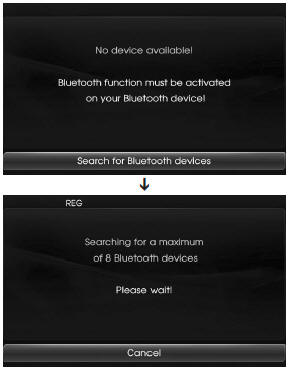
NOTE:
If you touch  on the control panel again after connected via Bluetooth wireless technology, the Bluetooth main screen appears on the screen.
To connect using the phone settings
Your phone's Bluetooth feature may be set to off by default. To use the Bluetooth feature, Bluetooth must be turned on in your phone. Refer to your phone's user guide.
1. Enable the phone's Bluetooth component. This might be in a menu called Settings, Bluetooth, Connections, or Hands-free.
2. Press [![Hyundai Veloster: To connect using the phone settings. > [External device authorization].](https://www.hyundaivelostermanuals.org/images/pages/3/page.h63.gif "Hyundai Veloster: To connect using the phone settings") ] > Touch [Bluetooth] > [External device authorization].
] > Touch [Bluetooth] > [External device authorization].
![Hyundai Veloster: To connect using the phone settings. If you want to cancel, touch [Cancel].](https://www.hyundaivelostermanuals.org/images/pages/3/page.h69.gif "Hyundai Veloster: To connect using the phone settings")
If you want to cancel, touch [Cancel].
3. Initiate a search for Bluetooth devices. These settings might be located in a menu called Bluetooth, Connections, or Hands-free.
4. Select the your device from the list of phone.
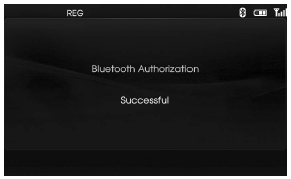
5. Input the passkey (Default: 0000) showed on the screen in your phone when the pop-up screen is displayed on the screen. When it is successfully connected, the [Bluetooth] screen appears on the screen. When it is successfully connected, the [Bluetooth] screen appears on the screen.
NOTE:
- It works the same as the wired headset for mobile phone. The headset functionality is for telephone conversation. It is not for listening to music.
- Unlike the hands-free functionality, Headset connection will allow only two functions "answering calls" and "making a call from the latest call". Also the caller's number is not displayed when answering calls.
- If connecting through a Bluetooth phone, the hands-free connection or headset connection may not operate depending on the type of the phone.
Playing an audio CD and MP3/ WMA/USB/iPod files
Disc
Insert a disc in the disc slot and playback will start automatically.
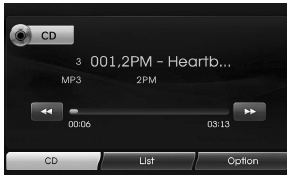
MP3/WMA CD
USB
You can play the files recorded in a USB memory device.
Connect a USB device to the USB port and playback starts automatically.
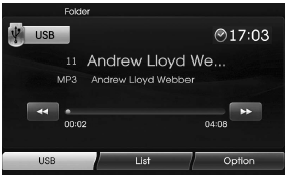
iPod
iPod You can play an iPod device on the unit by connecting the iPod to the USB port by using the iPod cable. Connect an iPod device to the USB port and playback starts automatically. For details about iPod, refer to the iPod User Guide.
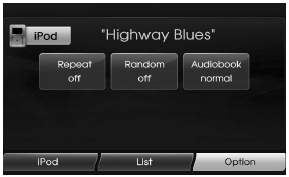
Skip to the next track/file
ALL
Touch ( ) to select the next track/file.
Skip to the previous track/file
ALL
Touch ( ) within 1 second of playing time.
Return to the beginning of the current track/file
ALL
Touch () after 1 second of playing time.
Search
ALL
Touch and hold the () or ( ) buttons during playback and then release at the point you want.
Listening to the radio stations
1.Press the "FM/AM" button to select the radio.
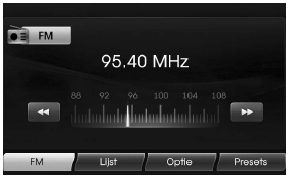
2.Press the "FM/AM" repeatedly to select a band. The mode switches as follows.
FM ➟ AM ➟ FM...
NOTE:
To select the FM/AM by touching the screen, touch (FM) on the screen to select the AM and then touch (AM).
3.Auto tuning:
Touch ()/() on the screen.
Or press <SEEK/TRACK> on the control panel.
- When a station is received, searching stops.
Manual tuning:
Rotate the Jog dial leftward/ rightward on the control panel.
- The frequencies move up and down step by step.
Storing and recalling stations
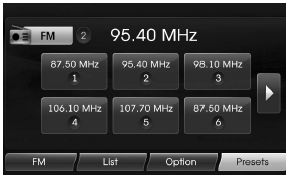
You can easily store up to 12 preset stations for later recall at the touch of a button.
1. Select the band (FM, AM) you want to store a station into.
2. Select the desired frequency.
3. Touch [Presets] on the screen.
4.Touch and hold one of the preset buttons. The preset station information will be displayed. The selected preset station has been stored in memory. If you move to the previous/next page, touch ()/().
5. Repeat steps 1 and 4 to preset other stations. Next time, if you touch the preset buttons, the station is recalled from the memory.
NOTE:
When a station is preset on the preset station button number on which another station of the same band has already been preset, the previously preset station is automatically erased.
Voice recognition
Voice recognition allows hands-free operation of the AV system (RADIO, CD, USB, iPod), navigation and other systems equipped on this vehicle, such as the phone.
NOTE:
To get the best recognition performance out of voice recognition, observe the following:
- Keep the interior of the vehicle as quiet as possible. Close the windows to eliminate the surrounding noises (traffic noises, vibration sounds, etc.), which may prevent the system from recognizing the voice commands correctly.
- Wait until a beep sounds before speaking a command. Otherwise, the command will not be recognized properly.
- Speak in a natural voice without pausing between words.
Giving voice commands
1. Press ( ) on the steering wheel remote control.
2. After the beep sounds, say "Help". All commands shall be listed which are presented in active fields.
NOTE:
- If the command is not recognized, the system announces, 1st time "Pardon?", 2nd time "Please, repeat", and 3rd time "Command is not recognized".
- If you want to cancel the voice recognition, press () one more time or press the any button or touch screen say "Cancel".
- If you want to adjust the volume of the system feedback, press VOL+ or VOL-on the steering wheel remote control or use the volume knob (VOLUME) on the control while the voice recognition is active.
How to say numbers
Voice recognition requires a certain way to say numbers in voice commands. Refer to the following examples. (General rule: Either "zero" or "oh" can be used for "0".)
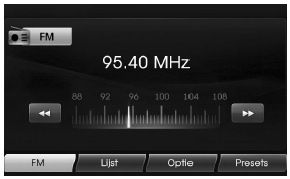
Frequency
Say frequency number according to the following example.
"Frequency ninety five comma four"/ " Ninety five comma four mega-hertz"
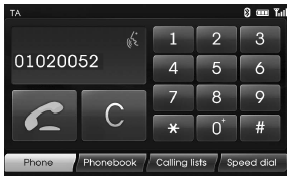
Phone number
Say phone number according to the following example.
0-1-0-2-0-0-5-2 (Single digit)
Download Manual