Driving Aids
Driver Alert
PRINCIPLE OF OPERATION
 WARNING: You are responsible for controlling your vehicle at all times. The system is designed to be an aid and does not relieve you of your responsibility to drive with due care and attention. Failure to follow this instruction could result in the loss of control of your vehicle, personal injury or death. WARNING: The system may not function if the sensor is blocked. WARNING: Take regular rest breaks if you feel tired. Do not wait for the system to warn you. WARNING: Certain driving styles may result in the system warning you even if you are not feeling tired. WARNING: In cold and severe weather conditions the system may not function. Rain, snow and spray can all limit sensor performance. WARNING: The system will not operate if the sensor cannot track the road lane markings. WARNING: If damage occurs in the immediate area surrounding the sensor, have your vehicle checked as soon as possible. WARNING: The system may not correctly operate if your vehicle is fitted with a suspension kit not approved by us. WARNING: You are responsible for controlling your vehicle at all times. The system is designed to be an aid and does not relieve you of your responsibility to drive with due care and attention. Failure to follow this instruction could result in the loss of control of your vehicle, personal injury or death. WARNING: The system may not function if the sensor is blocked. WARNING: Take regular rest breaks if you feel tired. Do not wait for the system to warn you. WARNING: Certain driving styles may result in the system warning you even if you are not feeling tired. WARNING: In cold and severe weather conditions the system may not function. Rain, snow and spray can all limit sensor performance. WARNING: The system will not operate if the sensor cannot track the road lane markings. WARNING: If damage occurs in the immediate area surrounding the sensor, have your vehicle checked as soon as possible. WARNING: The system may not correctly operate if your vehicle is fitted with a suspension kit not approved by us. |
Note: Keep the windshield free from obstructions. For example, bird droppings, insects and snow or ice.
Note: If the camera is blocked or if the windshield is damaged, the system may not function.
Note: The system remembers the on or off setting in the information display menu through ignition cycles.
Note: If enabled in the menu, the system activates at speeds above 40 mph (64 km/h). When below the activation speed, the information display informs the driver that the system is unavailable.
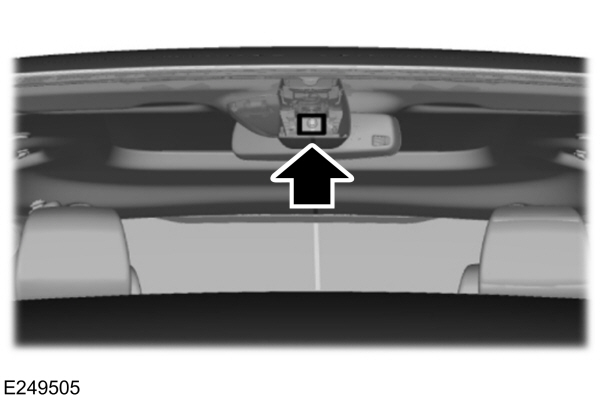
The system automatically monitors your driving behavior using various inputs including the front camera sensor.
If the system detects that your driving alertness is reduced below a certain threshold, the system alerts you using a chime and a message in the cluster display.
USING DRIVER ALERT
Switching the System On and Off
Switch the system on or off using the touchscreen. See Settings.
When active, the system monitors your alertness level based upon your driving behavior in relation to the lane markings, and other factors.
System Warnings
Note: The system does not issue warnings below approximately 40 mph (64 km/h).
Note: If you receive a warning you should consider resting, even if the current assessment is within the typical range.
The warning system has two stages. At first, the system issues a temporary warning that you need to take a rest. This message only appears for a short time. If the system detects further reduction in driving alertness, it may issue another warning that remains in the information display for a longer time. You can press OK on the steering wheel control to clear the warning.
Resetting the System
You can reset the system by either:
- Switching the ignition off and on.
Lane Keeping System
| WARNING: You are responsible for controlling your vehicle at all times. The system is designed to be an aid and does not relieve you of your responsibility to drive with due care and attention. Failure to follow this instruction could result in the loss of control of your vehicle, personal injury or death. WARNING: Always drive with due care and attention when using and operating the controls and features on your vehicle. WARNING: In cold and severe weather conditions the system may not function. Rain, snow and spray can all limit sensor performance. WARNING: Large contrasts in outside lighting can limit sensor performance. WARNING: The system will not operate if the sensor cannot track the road lane markings. WARNING: The sensor may incorrectly track lane markings as other structures or objects. This can result in a false or missed warning. WARNING: The system may not operate properly if the sensor is blocked. Keep the windshield free from obstruction. WARNING: If damage occurs in the immediate area surrounding the sensor, have your vehicle checked as soon as possible. WARNING: The system may not correctly operate if your vehicle is fitted with a suspension kit not approved by us. |
Note: The system works above 40 mph (64 km/h).
Note: The system works as long as the camera can detect one lane marking.
Note: When you select aid or alert and aid mode and the system detects no steering activity for a short period, the system alerts you to put your hands on the steering wheel. The system may detect a light grip or touch on the steering wheel as hands off driving.
Note: The system may not function if the camera is blocked, or if the windshield is damaged or dirty.
When you switch the system on and it detects an unintentional drift out of your lane is likely to occur, the system notifies or assists you to stay in your lane through the steering system and information display. In Alert mode (if equipped), the system provides a warning by vibrating the steering wheel. In Aid mode, the system provides steering assistance by gently counter steering your vehicle back into the lane.
When the system is functioning in the combined Alert and Aid mode, the system first provides steering assistance by gently counter steering your vehicle back into the lane, followed by a warning that vibrates the steering wheel if the vehicle is still out of the lane markings.
Switching the System On and Off
Note: The system is turned on automatically at each ignition cycle.
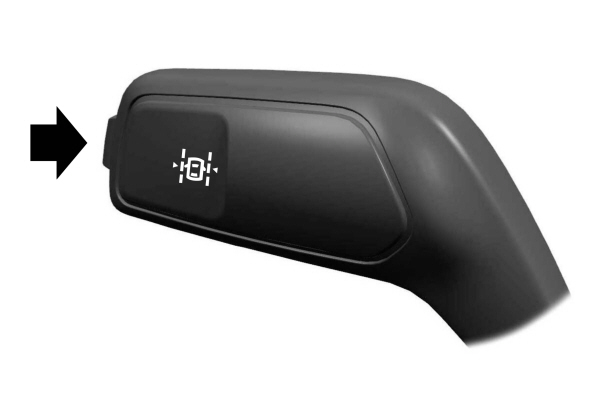
Press the button on the direction indicator stalk to switch the system on or off.
System Settings
The system has optional setting menus available. The system stores the last known selection for each of these settings. You do not need to readjust your settings each time you switch the system on.
Mode: This setting allows you to select which of the system features you can enable.
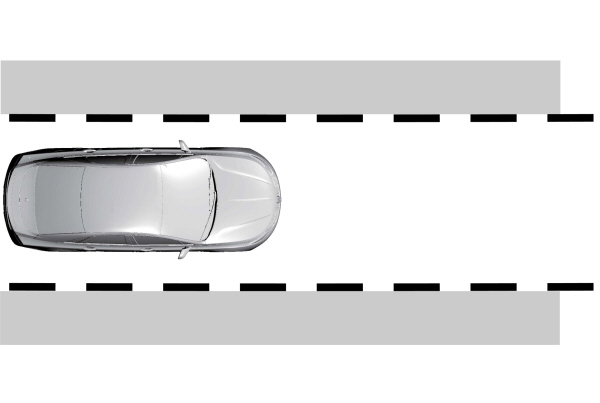
Alert only (if equipped) – Provides a steering wheel vibration when the system detects an unintended lane departure.
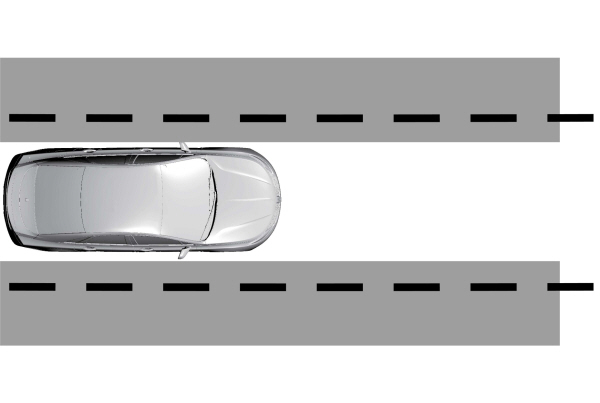
Aid only – Provides steering assistance toward the lane center when the system detects an unintended lane departure.
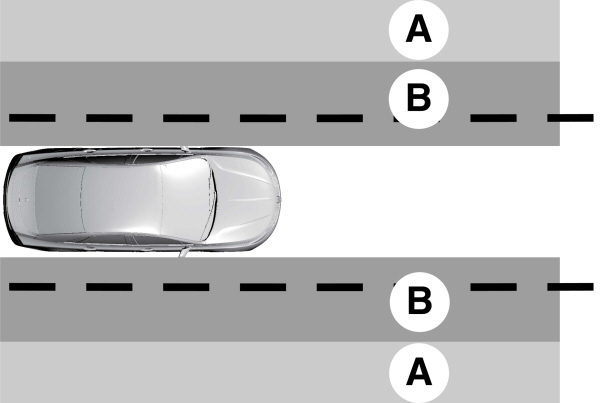
A Alert AlertB Aid |
Alert + Aid – Provides steering assistance toward the lane center.
If your vehicle continues drifting out of the lane after the lane keeping aid corrects the vehicle, the system provides a steering wheel vibration.
If your vehicle stays to one side of the lane after the lane keeping aid corrects your vehicle and then subsequently drifts out of the lane again, the system only provides an alert at the steering wheel.
Note: The alert and aid diagrams illustrate general zone coverage. They do not provide exact zone parameters.
Intensity: This setting affects the intensity of the steering wheel vibration used for the alert (if equipped) and alert + aid modes. This setting does not affect the aid mode.
- Low.
- Normal.
- High.
System Display
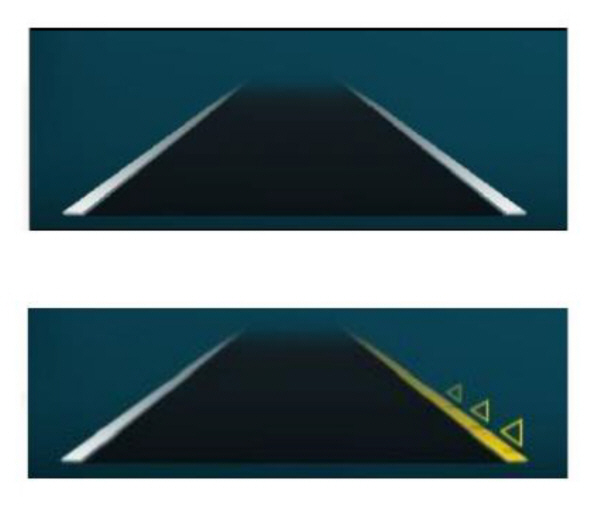
When you switch the system on, a graphic of lane markings appears in the information display.
When you switch the system off, the lane marking graphics do not display.
While the system is on, the color of the lane markings change to indicate the system status. These colors represent the following:
Gray: Indicates that the system is temporarily unable to provide a warning or intervention on the indicated side. This may be because:
- Your vehicle is under the activation speed.
- The direction indicator is active.
- Your vehicle is in a dynamic maneuver.
- The road has no or poor lane markings in the camera field-of-view.
- The camera is obscured or unable to detect the lane markings due to environmental, traffic or vehicle conditions. For example, significant sun angles, shadows, snow, heavy rain or fog, following a large vehicle that is blocking or shadowing the lane or poor headlamp illumination.
See Troubleshooting for additional information.
White: Indicates that the system is available or ready to provide a warning or intervention on the indicated side.
Note: If your vehicle has lane centering assist and the system is active, the walls appear green instead of white.
Yellow: Indicates that the system is providing or has just provided a lane keeping aid intervention.
Red: Indicates that the system is providing or has just provided a lane keeping alert warning.
The system can be temporarily suppressed at any time by the following:
- Quick braking.
- Fast acceleration.
- Using the direction indicator.
- Evasive steering maneuver.
- Driving too close to the lane markings.
Troubleshooting
| Why is the feature not available (line markings are gray) when I can see the lane markings on the road? |
|---|
| Your vehicle speed is outside the operational range of the feature. |
| The sun is shining directly into the camera lens. |
| A quick intentional lane change has occurred. |
| Your vehicle stays too close to the lane markings. |
| Driving at high speeds in curves. |
| The last alert warning or aid intervention occurred a short time ago. |
| Ambiguous lane markings, for example in construction zones. |
| Rapid transition from light to dark, or from dark to light. |
| Sudden offset in lane markings. |
| ABS or AdvanceTrac™ is active. |
| There is a camera blockage due to dirt, grime, fog, frost or water on the windshield. |
| You are driving too close to the vehicle in front of you. |
| Transitioning between no lane markings to lane markings or vice versa. |
| There is standing water on the road. |
| Faint lane markings, for example partial yellow lane markings on concrete roads. |
| Lane width is too narrow or too wide. |
| The camera has not been calibrated after a windshield replacement. |
| Driving on tight roads or on uneven roads. |
| Why does the vehicle not come back toward the middle of the lane, as expected, in the Aid or Aid + Alert mode? |
|---|
| High cross winds are present. |
| There is a large road crown. |
| Rough roads, grooves or shoulder drop-offs. |
| Heavy uneven loading of the vehicle or improper tire inflation pressure. |
| The tires have been changed, or the suspension has been modified. |
Blind Spot Information System
| WARNING: Do not use the blind spot information system as a replacement for using the interior and exterior mirrors or looking over your shoulder before changing lanes. The blind spot information system is not a replacement for careful driving. WARNING: The system may not operate properly during severe weather conditions, for example snow, ice, heavy rain and spray. Always drive with due care and attention. Failure to take care may result in a crash. |
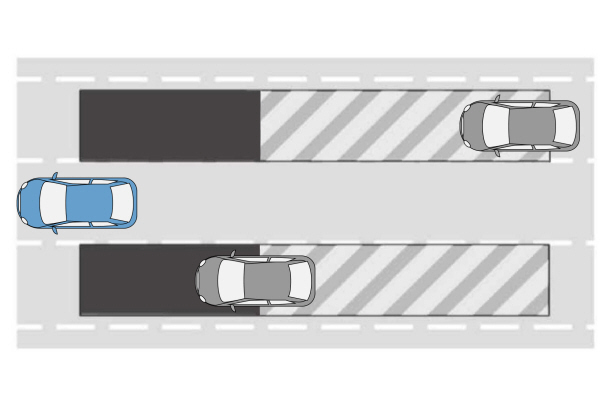
The design of the system is to detect vehicles that enter the blind spot zone. The detection area is on both sides of your vehicle, extending rearward from the exterior mirrors to approximately 13 ft (4 m) beyond the rear bumper. The detection area extends to approximately 59 ft (18 m) beyond the rear bumper when the vehicle speed is greater than 30 mph (48 km/h) to alert you of faster approaching vehicles.
Note: The system does not prevent contact with other vehicles. It does not detect parked vehicles, pedestrians, animals or other infrastructures.
Using the Blind Spot Information System
Vehicles with Automatic Transmission
The system turns on when all of the following occur:
- You start your vehicle.
- You shift into drive (D).
- The vehicle speed is greater than 6 mph (10 km/h).
Note: The system does not operate in park (P) or reverse (R).
System Lights and Messages
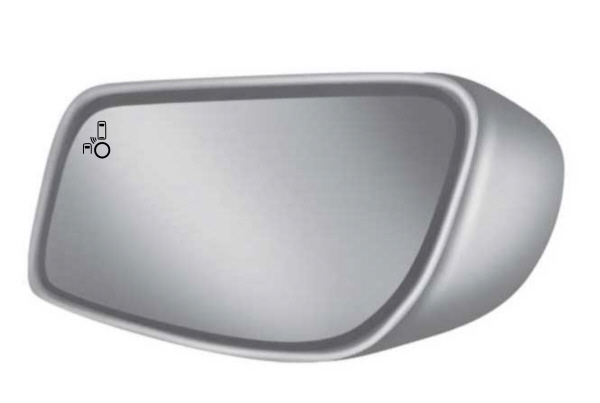
When the system detects a vehicle, an alert indicator illuminates in the exterior mirror on the side the approaching vehicle is coming from. If you switch the direction indicator on for that side of your vehicle, the alert indicator flashes.
Note: The system may not alert you if a vehicle quickly passes through the detection zone.
Blocked Sensors
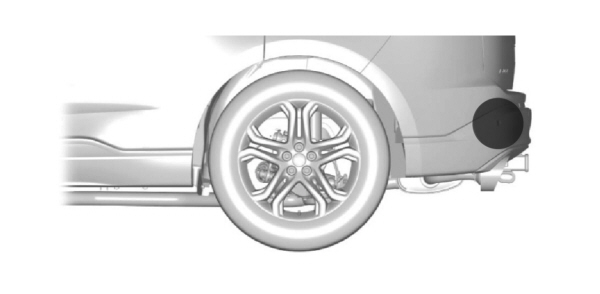
The sensors are behind the rear bumper on both sides of your vehicle.
Note: Keep the sensors free from snow, ice and large accumulations of dirt.
Note: Do not cover the sensors with bumper stickers, repair compound or other objects.
Note: Blocked sensors could affect system performance.
Note: Bike and cargo racks could cause false alerts due to obstruction of the sensor. We recommend switching the feature off when using a bike or cargo rack.
If the sensors become blocked, a message could appear in the information display. See . The alert indicators remain illuminated, but the system does not alert you.
System Errors
If the system detects a fault, a warning lamp illuminates and a message displays. See .
Switching the System On and Off
To switch the system on or off, adjust the setting. Depending on your vehicle options, the setting could be in the following:
- Information display. See .
- Touchscreen. See .
When you switch the system off, a warning lamp illuminates and the alert indicators flash twice.
Note: The system remembers the last setting when you start your vehicle.
To permanently switch the system off, contact an authorized dealer.
Blind Spot Information System with Trailer Tow (If Equipped)
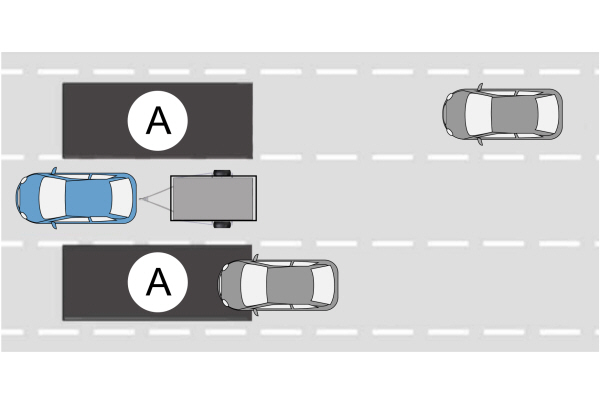
The design of the system is to aid you in detecting vehicles that could enter the detection area zone (A). The detection area is on both sides of your vehicle and trailer, extending rearward from the exterior mirrors to the end of your trailer. When you attach and have setup a trailer, the blind spot information system with trailer tow becomes active when driving forward above 6 mph (10 km/h).
You can switch the system off in the information display. See . If you switch the blind spot information system off, blind spot information system with trailer tow turns off.
Setting up a Trailer
You can setup a trailer through the information display. See .
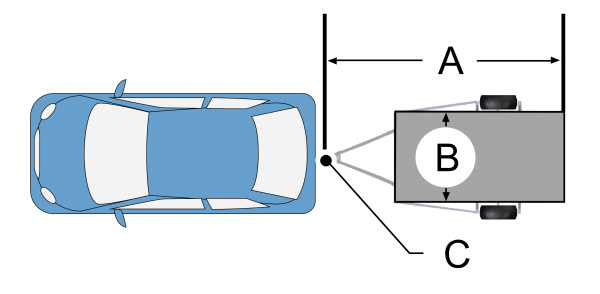
| ATrailer length. B Trailer width.C Trailer hitch ball. |
Note: Measure the width of the trailer at the front of the trailer, not the widest point. The maximum width that the system can support is 8.2 ft (2.5 m)(B).
Note: The trailer length is the distance between the trailer hitch ball and the rear of the trailer. The maximum length that the system can support is 33 ft (10 m)(A).
When setting up a trailer, a sequence of screens appear asking for trailer information:
- Select trailer screen: None, Trailer A, Trailer B or Trailer C.
Note: You can select only one trailer on small information displays.
Select one of the trailers and press OK. The menu goes to the next screen.
- Width less than 8.2 ft (2.5 m) and length less than 33 ft (10 m)?
Note: You do not need to enter an exact trailer width measurement. You only need to confirm that the width of the trailer is 8.2 ft (2.5 m) or less.
If no, the system turns off.
If yes, the menu goes to the next screen.
- Enter length of trailer:
Toggling up or down using the menu buttons increases or decreases the measurement by 1 ft (0.3 m). Select a length that is equal to or within 1 ft (0.3 m) of the actual measured length. For example, if the actual measured length is 25 ft (7.6 m), toggle the length in the menu to 25 ft (8 m). When you enter the length of the trailer, this saves the system setup.
Note: When you connect a trailer, but do not setup a trailer in the blind spot information system, the system turns off and a warning appears in the information display.
Note: If the trailer is a bike rack or cargo rack with electrical lighting, enter a length of 3 ft (1 m). Cross Traffic Alert remains on for trailers with a length of 3 ft (1 m) or less.
Note: The system requires proper measurement and measurement entry to function as designed.
System Operation
If you select a trailer in the information display prior to connecting a trailer, the system loads that configuration and the information display shows a message when you connect the trailer. A second message appears stating cross traffic alert is off, unless a trailer is set up with a length of 3 ft (1 m). The blind spot information system with trailer tow still functions normally when driving forward.
If you connect a trailer, a message appears indicating that you attached a trailer. If you have not selected a trailer previously, another message appears requesting you to select one of the trailers in the list or add a new trailer. The blind spot information system with trailer tow does not function without a trailer selected. If you do not select a trailer, a message appears in the information display stating the system has turned this feature off.This message might not appear until your vehicle speed reaches 22 mph (35 km/h).
The blind spot information system with trailer tow activates when driving forward for that particular trailer set up. If you cycle the ignition, the blind spot information system with trailer tow continues to function using the last trailer you selected.
Trailer Considerations
The system works with a trailer with a front width of 8.2 ft (2.5 m) or less, and a total length from the trailer hitch ball to the rear of the trailer of 33 ft (10 m) or less.
Some trailers could cause a slight change in system performance:
- Wide box trailers, especially those wider than the towing vehicle, could cause false alerts to occur when driving next to infrastructure or near parked cars. A false alert could also occur while making a 90-degree turn or driving through a roundabout.
- Wide trailers that have a total length greater than 20 ft (6 m) could cause delayed alerts when a vehicle is passing at high speeds.
- Box trailers that have a width greater than 8.2 ft (2.5 m) could cause early alerts when you pass a vehicle.
- Clam shell or V-Nose box trailers with a width greater than 8.2 ft (2.5 m) could cause delayed alerts when a vehicle traveling the same speed as your vehicle merges lanes.
System Errors
If the system detects a fault, a warning lamp illuminates and a message displays. See .
Switching the System On and Off
You can switch the blind spot information system with trailer tow off by not selecting a trailer in the information display. See . In this case, the system turns off as long as a trailer is attached to your vehicle. As soon as you disconnect the trailer, the blind spot information system becomes active.
When you switch the system off, a warning lamp illuminates and the alert indicators flash twice.
Note: The system remembers the last trailer setting when you start your vehicle.
You cannot switch off the blind spot information system with trailer tow when using MyKey, but you can still change the trailer settings. See .
To permanently switch the system off, contact an authorized dealer.
Cross Traffic Alert
| WARNING: Do not use the cross traffic alert system as a replacement for using the interior and exterior mirrors or looking over your shoulder before reversing out of a parking space. The cross traffic alert system is not a replacement for careful driving. WARNING: The system may not operate properly during severe weather conditions, for example snow, ice, heavy rain and spray. Always drive with due care and attention. Failure to take care may result in a crash. |
The system alerts you of vehicles approaching from the sides behind your vehicle when you shift into reverse (R).
Using Cross Traffic Alert
The system detects vehicles that approach at a speed between 4 mph (6 km/h) and 37 mph (60 km/h). Coverage decreases when the sensors are partially, mostly or fully obstructed. Slowly reversing helps increase the coverage area and effectiveness.
The system turns on when you start the engine and you shift into reverse (R). The system turns off when you shift out of reverse (R).
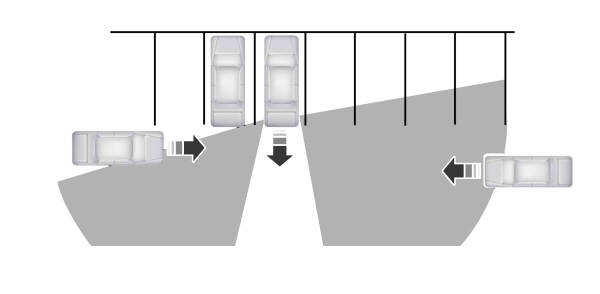
The sensor on the left-hand side is only partially obstructed and zone coverage on the right-hand side is maximized.
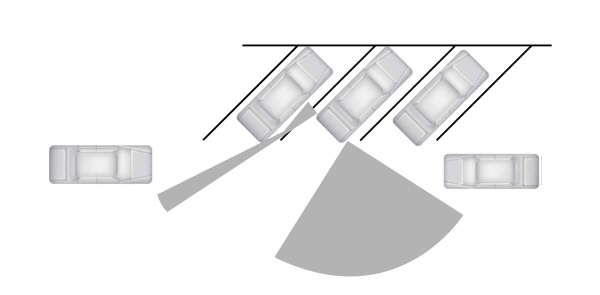
Zone coverage also decreases when parking at narrow angles. The sensor on the left-hand side is mostly obstructed and zone coverage on that side is severely reduced.
Cross Traffic Alert System Sensors
The sensors are behind the rear bumper on both sides of your vehicle.
Note: Keep the sensors free from snow, ice and large accumulations of dirt.
Note: Do not cover the sensors with bumper stickers, repair compound or other objects.
Note: Blocked sensors could affect system performance.
Note: Bike and cargo racks could cause false alerts due to obstruction of the sensor. We recommend switching the feature off when using a bike or cargo rack.
If the sensors are blocked, a message may appear in the information display when you shift into reverse (R).
Cross Traffic Alert System Limitations
The system may not correctly operate when any of the following occur:
- The sensors are blocked.
- Adjacently parked vehicles or objects are obstructing the sensors.
- Vehicles approach at speeds less than 4 mph (6 km/h) or greater than 37 mph (60 km/h).
- The vehicle speed is greater than 7 mph (12 km/h).
- You reverse out of an angled parking space.
Cross Traffic Alert Behavior When Trailer is Attached
Note: The system may not correctly operate when towing a trailer. For vehicles with an approved trailer tow module and tow bar, the system turns off when you attach a trailer. For vehicles with an aftermarket trailer tow module or tow bar, we recommend that you switch the system off when you attach a trailer.
Cross traffic alert remains on when you attach a trailer in vehicles that come with blind spot information system with trailer tow under the following conditions:
- You connect a trailer.
- The trailer is a bike rack or cargo rack with a maximum length of 3 ft (1 m).
- You set the trailer length to 3 ft (1 m) in the information display.
See .
Switching the System On and Off
To switch the system on or off, adjust the setting. Depending on your vehicle options, the setting could be in the following:
- Information display. See .
- Touchscreen. See .
Note: The system turns on every time you switch the ignition on. To permanently switch the system off, contact an authorized dealer.
Cross Traffic Alert Indicator

Note: If arrows do not display, a message appears in the information display.
If the system malfunctions, a warning lamp illuminates in the instrument cluster and a message appears in the information display. Have your vehicle checked as soon as possible.
Note: In exceptional conditions, the system could alert you, even when there is nothing in the detection zone, for example a vehicle passing further away from your vehicle.
Cross Traffic Alert Information Messages
| Message | Action |
|---|---|
|
Cross Traffic Alert |
Displays instead of indication arrows when the system detects a vehicle. Check for approaching traffic. |
|
Cross Traffic Not Available Sensor Blocked See Manual |
Indicates blocked cross traffic alert system sensors. Clean the sensors. If the message continues to appear, have your vehicle checked as soon as possible. |
|
Cross Traffic System Fault |
The system has malfunctioned.Have your vehicle checked as soon as possible. |
|
Cross Traffic Alert Deactivated Trailer Attached |
Displays if you attach a trailer to your vehicle. |
Speed Sign Recognition (If Equipped)
Principle of Operation
| WARNING: You are responsible for controlling your vehicle at all times. The system is designed to be an aid and does not relieve you of your responsibility to drive with due care and attention. Failure to follow this instruction could result in the loss of control of your vehicle, personal injury or death. WARNING: In cold and severe weather conditions the system may not function. Rain, snow and spray can all limit sensor performance. WARNING: The system may not operate properly if the sensor is blocked. Keep the windshield free from obstruction. |
The system is designed to detect speed limit signs to inform you of the current speed limit. Detected speed signs appear in the instrument cluster display.
Note: Do not carry out windshield repairs in the immediate area surrounding the sensor.
Note: Speed sign data provided by the navigation system contains information integrated to the data carrier release.
Note: The system may not detect or correctly read all speed signs.
Note: If your vehicle has a suspension kit not approved by us, the system may not correctly function.
Note: Always replace headlamp bulbs with those specifically designed for your vehicle. Other bulbs could reduce system performance.
The system turns on when you switch the ignition on, and you cannot switch the system off.
Using Speed Sign Recognition
Setting the System Speed Warning
You can set the system speed warning to alert you when the vehicle speed exceeds the speed limit recognized by the system by a certain speed tolerance.
Note: The system remembers the last setting when you start your vehicle.
System Display
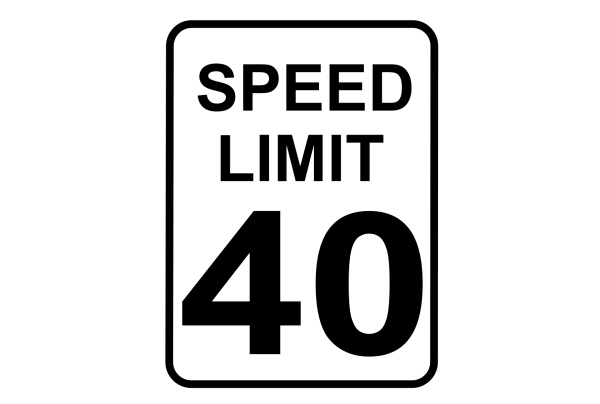
When the system detects a speed limit sign, the speed limit appears in the instrument cluster display.
Note: If your vehicle has a navigation system, stored speed sign data could influence the indicated speed limit value.
To switch the system off or to adjust the settings, use the touchscreen:
- Press Settings on the touchscreen.
- Press Driver Assistance.
- Press Speed Sign Recognition.
- Press Speed Warning.
- Press Tolerance.
- Use + and - to set the tolerance.
Information Messages
| Message | Details |
|---|---|
|
Traffic Sign Reduced Performance See Manual |
The traffic sign data provided by the navigation system is unavailable due to a weak signal, or no signal. Wait for a short period of time for the signal to improve. If the message continues to appear, have your vehicle checked as soon as possible. |
Steering
Electric Power Steering
| WARNING: The electric power steering system has diagnostic checks that continuously monitor the system. If a fault is detected, a message displays in the information display. Stop your vehicle as soon as it is safe to do so. Switch the ignition off. After at least 10 seconds, switch the ignition on and watch the information display for a steering system warning message. If a steering system warning message returns, have the system checked as soon as possible. WARNING: If the system detects an error, you may not feel a difference in the steering, however a serious condition may exist. Have your vehicle checked as soon as possible. Failure to do so may result in loss of steering control. |
Your vehicle has an electric power steering system, there is no fluid reservoir, no maintenance is required.
If your vehicle loses electrical power while you are driving, electric power steering assistance is lost. The steering system still operates and you can steer your vehicle manually. Manually steering your vehicle requires more effort.
Extreme continuous steering may increase the effort required for you to steer your vehicle, this increased effort prevents overheating and permanent damage to the steering system. You do not lose the ability to steer your vehicle manually. Typical steering and driving maneuvers allow the system to cool and return to normal operation.
Steering Tips
If the steering wanders or pulls, check for:
- Correct tire pressures.
- Uneven tire wear.
- Loose or worn suspension components.
- Loose or worn steering components.
- Improper vehicle alignment.
Note: A high crown in the road or high crosswinds may also make the steering seem to wander or pull.
Adaptive Learning (If Equipped)
The electronic power steering system adaptive learning helps correct road irregularities and improves overall handling and steering feel. It communicates with the brake system to help operate advanced stability control and accident avoidance systems. Additionally, whenever the battery is disconnected or a new battery installed, you must drive your vehicle a short distance before the system relearns the strategy and reactivates all systems.
Pre-Collision Assist
| WARNING: You are responsible for controlling your vehicle at all times. The system is designed to be an aid and does not relieve you of your responsibility to drive with due care and attention. Failure to follow this instruction could result in the loss of control of your vehicle, personal injury or death. WARNING: The system does not detect vehicles that are driving in a different direction, cyclists or animals. Apply the brakes when necessary. Failure to follow this instruction could result in the loss of control of your vehicle, personal injury or death. WARNING: The system does not operate during hard acceleration or steering. Failure to take care may lead to a crash or personal injury. WARNING: Some situations and objects prevent hazard detection. For example low or direct sunlight, inclement weather, unconventional vehicle types, and pedestrians. Apply the brakes when necessary. Failure to follow this instruction could result in the loss of control of your vehicle, personal injury or death. WARNING: The system may not operate properly during severe weather conditions, for example snow, ice, heavy rain and spray. Always drive with due care and attention. Failure to take care may result in a crash. WARNING: The system cannot help prevent all crashes. Do not rely on this system to replace driver judgment and the need to maintain a safe distance and speed. |
Note: Keep the sensors free from snow, ice and large accumulations of dirt.
Using the Pre-Collision Assist System
The system is active at speeds above approximately 3 mph (5 km/h) and pedestrian detection is active at speeds up to 50 mph (80 km/h).

If your vehicle is rapidly approaching another stationary vehicle, a vehicle traveling in the same direction as yours, or a pedestrian within your driving path, the system design provides three levels of functionality:
- Alert.
- Brake Support.
- Active Braking.
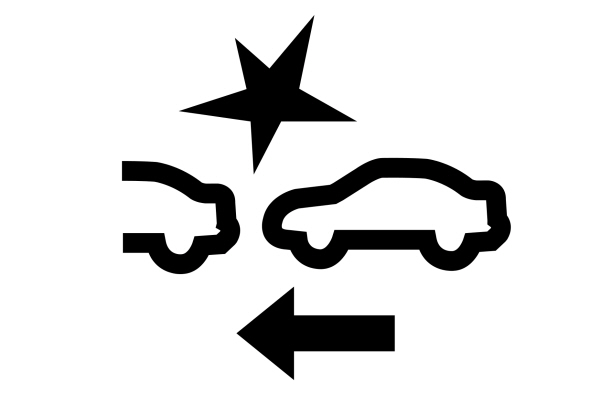
Alert: When active, a flashing visual warning appears and an audible warning tone sounds.
Brake Support: The system design helps reduce the impact speed by preparing the brakes for rapid braking. Brake support does not automatically apply the brakes. If you press the brake pedal, the system could apply additional braking up to maximum braking force, even if you lightly press the brake pedal.
Active Braking: Active braking may activate if the system determines that a collision is imminent. The system may help the driver reduce impact damage or avoid the crash completely.
Note: Brake support and active braking are active at speeds up to 75 mph (120 km/h). If your vehicle has a radar sensor included with adaptive cruise control, then brake support and active braking are active up to the maximum speed of the vehicle.
Note: If you perceive pre-collision assist alerts as being too frequent or disturbing, then you can reduce the alert sensitivity, though we recommend using the highest sensitivity setting where possible. Setting lower sensitivity would lead to fewer and later system warnings.
Distance Indication and Alert (If Equipped)
Distance indication and alert is a function that provides the driver with a graphical indication of the time gap to other preceding vehicles traveling in the same direction. Distance indication and alert shows one of the graphics that follow in the information display.
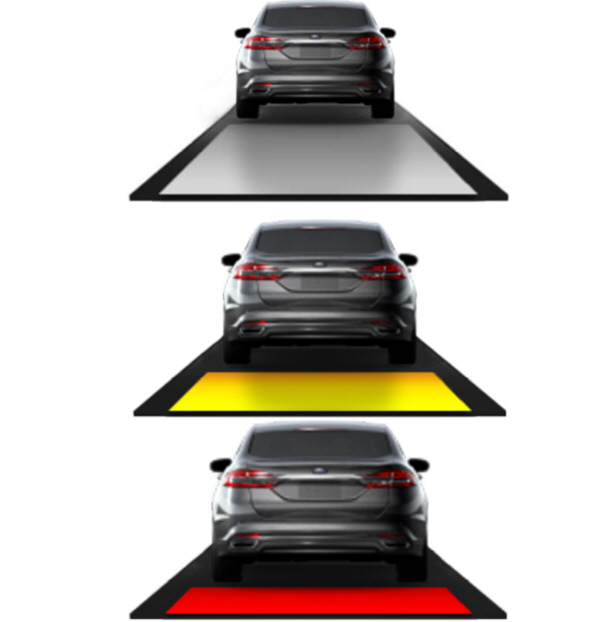
If the time gap to a preceding vehicle is small, a red visual indication displays to the driver.
Note: Distance indication and alert deactivates and the graphics do not display when adaptive cruise control is active.
| Speed | Sensitivity | Graphics | Distance Gap | Time Gap |
| 62 mph (100 km/h) | Normal | Grey | >82 ft (25 m) | >0.9sec |
| 62 mph (100 km/h) | Normal | Yellow | 56–82 ft (17–25 m) | 0.6sec — 0.9sec |
| 62 mph (100 km/h) | Normal | Red | <56 ft (17 m) | <0.6sec |
Evasive Steering Assist (If Equipped)
If your vehicle is rapidly approaching a stationary vehicle or a vehicle traveling in the same direction as your vehicle, the system design helps you steer around the vehicle.
The system only activates when all of the following occur:
- The system detects a vehicle ahead and starts to apply active braking.
- You turn the steering wheel in an attempt to steer around the vehicle.
After you turn the steering wheel, the system applies additional steering torque to help you steer around the vehicle. After you pass the vehicle, the system applies steering torque in the opposite direction to encourage you to steer back into the lane. The system deactivates after you fully pass the vehicle.
Note: The system does not automatically steer around a vehicle. If you do not turn the steering wheel, the system does not activate.
Note: The system does not activate if the distance to the vehicle ahead is too small and the system cannot avoid a crash.
Adjusting the Pre-Collision Assist Settings
You can adjust the following settings by using the touchscreen.
- You can change Alert and Distance Alert sensitivity to one of three possible settings.
- You can switch distance indication and alert on or off.
- If required, you can switch active braking on or off.
- If required, you can switch evasive steering assist on or off.
Note: Active braking and evasive steering assist automatically turn on every time you switch the ignition on.
Note: If you switch active braking off, evasive steering assist turns off.
Blocked Sensors
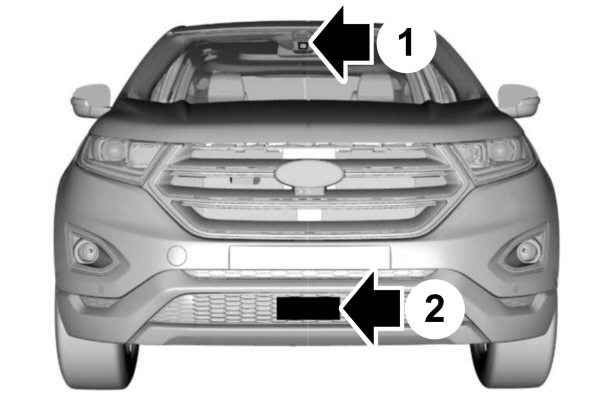
| 1.Camera. 2. Radar sensor (if equipped). |
If a message regarding a blocked sensor or camera appears in the information display, you have obstructed radar signals or camera images. If your vehicle has a radar sensor, it is behind the fascia cover in the center of the lower grille. With a blocked sensor or camera, the system may not function, or performance may reduce. The following table lists possible causes and actions for when this message displays.
Camera Troubleshooting
| Cause | Action |
|---|---|
| The windshield in front of the camera is dirty or obstructed in some way. | Clean the outside of the windshield in front of the camera. |
| The windshield in front of the camera is clean but the message remains in the display screen. | Wait a short time. It may take several minutes for the camera to detect that there is no obstruction. |
Radar Troubleshooting (If Equipped)
| Cause | Action |
|---|---|
| The surface of the radar in the grille is dirty or obstructed in some way. | Clean the grille surface in front of the radar or remove the object causing the obstruction. |
| The surface of the radar in the grille is clean but the message remains in the display screen. | Wait a short time. It may take several minutes for the radar to detect that there is no obstruction. |
| Heavy rain, spray, snow or fog is interfering with the radar signals. | The system is temporarily disabled. The system automatically reactivates a short time after the weather conditions improve. |
| Swirling water or snow or ice on the surface of the road may interfere with the radar signals. | The pre-collision assist system is temporarily disabled. The system automatically reactivates a short time after the weather conditions improve. |
| Radar is out of alignment due to a front-end impact. | Have the radar checked for proper coverage and operation. |
Note: Proper system operation requires a clear view of the road by the camera. Have any windshield damage in the area of the camera's field of view repaired.
Note: If something hits the front end of your vehicle or damage occurs and your vehicle has a radar sensor, the radar sensing zone may change. This could cause missed or false detections. Contact an authorized dealer to have the radar checked for proper coverage and operation.
Download Manual