Uconnect Settings
The Uconnect system uses a combination of buttons on the touchscreen and buttons on the faceplate located on the center of the instrument panel. These buttons allow you to access and change the customer programmable features. Many features can vary by vehicle.
Buttons on the faceplate are located below and/or beside the Uconnect system in the center of the instrument panel. In addition, there is a SCROLL/ENTER control knob located on the right side. Turn the control knob to scroll through menus and change settings. Push the center of the control knob one or more times to select or change a setting.
Your Uconnect system may also have SCREEN OFF and MUTE buttons on the faceplate.
Push the SCREEN OFF button on the faceplate to turn off the Uconnect screen. Push the button again or tap the screen to turn the screen on.
Press the Back Arrow button to exit out of a Menu or certain option on the Uconnect system.
On the Uconnect 5/5 NAV With 10.1-inch Display, push and hold the Power button on the radio’s faceplate for a minimum of 15 seconds to reset the radio.
CUSTOMER PROGRAMMABLE FEATURES
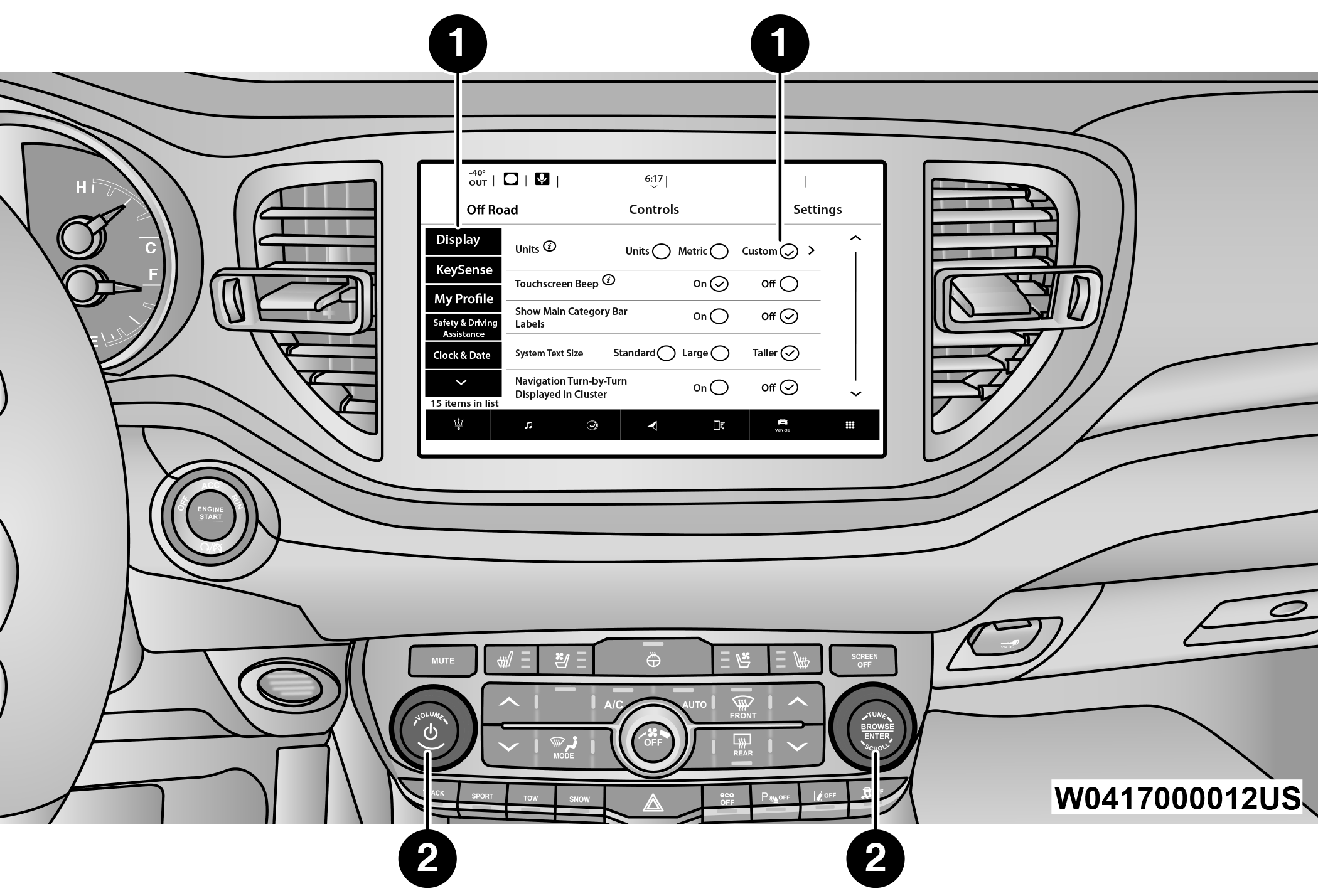
Uconnect 5/5 NAV With 10.1-inch Display Buttons On The Faceplate And Buttons On The Touchscreen
|
1 — Uconnect Buttons On The Touchscreen |
|
2 — Uconnect Buttons On The Faceplate |
For the Uconnect 4C/4C NAV With 8.4-inch Display
Press the Apps  button, then press the Settings button on the touchscreen to display the menu settings screen. In this mode, the Uconnect system allows you to access all of the available programmable features.
Note:
-
Only one touchscreen area may be selected at a time.
-
Depending on the vehicle’s options, feature settings may vary.
When making a selection, press the button on the touchscreen to enter the desired menu. Once in the desired menu, press and release the preferred setting option until a check mark appears next to the setting, showing that setting has been selected. Once the setting is complete, either press the Back Arrow button on the touchscreen to return to the previous menu, or press the X button on the touchscreen to close out of the settings screen. Pressing the Up or Down Arrow button on the right side of the screen will allow you to toggle up or down through the available settings.
For the Uconnect 5 NAV With 10.1-inch Display
Press the Vehicle button, then press the Settings tab on the top of the touchscreen. In this menu, the Uconnect system allows you to access all of the available programmable features.
Note:
-
Only one touchscreen area may be selected at a time.
-
Depending on the vehicle’s options, feature settings may vary.
When making a selection, press the button on the touchscreen to enter the desired menu. Once in the desired menu, press and release the preferred setting option until a check mark appears next to the setting, showing that setting has been selected. Once the setting is complete, press the Vehicle button to exit to the screen. Pressing the Up or Down Arrow button on the right side of the screen will allow you to toggle up or down through the available settings.
LANGUAGE
|
When the Language button is pressed on the touchscreen, the system displays the different language options. Once an option is selected, the system will display in the chosen language. The available setting is: Note: Depending on the vehicle’s options, feature settings may vary. |
|
Setting Name |
Description |
|
Language |
This setting will change the language of the Uconnect system. The available languages are English, Français, Italiano, and Español . |
DISPLAY
|
When the Display button is pressed on the touchscreen, the system will display the options related to the theme (if equipped), brightness, and color of the touchscreen. The available settings are: Note: Depending on the vehicle’s options, feature settings may vary. |
|
Setting Name |
Description |
|
Language |
This setting will change the language of the Uconnect system. The available languages are English, Français, Italiano, and Español. |
|
Display Mode |
This setting will allow you to set the brightness manually or have the system set it automatically. The “Auto” setting has the system automatically adjust the display brightness. The “Manual” setting will allow the user to adjust the brightness of the display. |
|
Display Brightness Headlights ON/Brightness |
This setting will allow you to set the brightness when the headlights are on. To access this setting, Display Mode must be set to “Manual”. The “+” setting will increase the brightness; the “-” will decrease the brightness. |
|
Display Brightness Headlights OFF/Brightness |
This setting will allow you to set the brightness when the headlights are off. To access this setting, Display Mode must be set to “Manual”. The “+” setting will increase the brightness; the “-” will decrease the brightness. |
|
Units |
This setting will allow you to change the unit display. The available options are “Speed” (MPH or km/h), “Distance” (mi or km), “Fuel Consumption” (MPG [US], MPG [UK], L/100 km, or km/L), “Pressure” (psi, kPa, or bar), and “Temperature” (°C or °F) units of measurement independently. |
|
Set Theme |
This setting will allow you to change the display theme. |
|
Keyboard |
This setting will change the keyboard type on the display. The selectable keyboards are “ABCDEF” Keyboard, “QWERTY” Keyboard, and “AZERTY” Keyboard. |
|
Touchscreen Beep |
This setting will allow you to turn the touchscreen beep on or off. |
|
Controls Screen Timeout |
This setting will allow you to set the Control Screen to turn off automatically after five seconds or stay open until manually closed. |
|
Show Main Category Bar Labels |
This setting will allow the main category bar labels to be shown on or off. |
|
Navigation Next Turn Pop-Ups Displayed in Cluster |
This setting will display navigation prompts in the Instrument Cluster Display. |
|
Phone Pop-Ups Displayed In Cluster |
This setting will display smartphone notifications and messages in the Instrument Cluster Display. |
|
Ready To Drive Pop-Ups |
This setting will enable the Ready To Drive Pop-Ups in the Instrument Cluster Display. |
MY PROFILE — IF EQUIPPED
|
When the My Profile button is pressed on the touchscreen, the system displays options related to the vehicle’s profiles. Note: Depending on the vehicle’s options, feature settings may vary. |
|
Setting Name |
Description |
|
Language |
This setting will change the language of the Uconnect system. The available languages are English, Français, Italiano, and Español. |
|
Display Mode |
This setting will adjust the display for the radio to “Auto” or “Manual”. “Manual” allows for more customization with the radio display. |
|
Display Brightness Headlights On |
This setting will allow you to set the brightness when the headlights are on. To access this setting, Display Mode must be set to “Manual”. The “+” setting will increase the brightness; the “-” will decrease the brightness. |
|
Display Brightness Headlights Off |
This setting will allow you to set the brightness when the headlights are off. To access this setting, Display Mode must be set to “Manual”. The “+” setting will increase the brightness; the “-” will decrease the brightness. |
|
Set Theme |
This setting will allow you to change the display theme. |
|
Touchscreen Beep |
This setting will allow you to turn the touchscreen beep on or off. |
|
Show Main Category Bar Labels |
This setting will allow the main category bar labels to be shown on or off. |
|
Units |
This setting will allow you to change the unit display. The available options are “Speed” (MPH or km/h), “Distance” (mi or km), “Fuel Consumption” (MPG [US], MPG [UK], L/100 km, or km/L), “Pressure” (psi, kPa, or bar), and “Temperature” (°C or °F) units of measurement independently. |
|
Navigation Next Turn Pop-Ups Displayed in Cluster |
This setting will display navigation prompts in the Instrument Cluster Display. |
|
Ready To Drive Pop-Ups |
This setting will enable the Ready To Drive Pop-Ups in the Instrument Cluster Display. |
|
Phone Pop-Ups Displayed In Cluster |
This setting will display smartphone notifications and messages in the Instrument Cluster Display. |
|
Time Format |
This setting will allow you to set the time format (AM/PM). Sync Time With GPS must be “Off” for this setting to be available. The “12 hrs” setting will set the time to a 12-hour format. The “24 hrs” setting will set the time to a 24-hour format. |
|
Voice Options |
This setting will allow you to change the voice options for the radio to “Male” or “Female”. |
|
Wake Up Word |
This setting will change the system’s “Wake Up” word. The available options are “Hey Uconnect” and “Hey Dodge”. |
|
Voice Barge-in |
This setting will allow voice barge-in to be turned on and off. |
|
Show Command List |
This setting will allow the Command List to be shown on and off. |
|
Key Off Power Delay |
This setting will keep certain electrical features running after the engine is turned off. When any door is opened, the electronics will deactivate. The available settings are “0 sec”, “45 sec”, “5 min”, and “10 min”. |
|
App Drawer Favoriting Pop-Ups |
This setting will allow you to favorite app drawer pop-ups with “On” and “Off” options. |
|
App Drawer Unfavoriting Pop-Ups |
This setting will allow you to unfavorite app drawer pop-ups with “On” and “Off” options. |
|
New Text Message Pop-Ups |
This setting will allow you to have pop-up notifications for new text messages. This setting options are “On” and “Off”. |
|
Missed Calls Message |
This setting will allow you to have pop-up notifications for missed calls. This setting options are “On” and “Off”. |
|
Personal Settings Linked to Key Fob |
This setting will recall preset radio stations and driver seat position that have been linked to the key fob. |
|
Navigation Pop-Ups |
This setting will allow you to have pop-up notifications for Navigation. This setting options are “On” and “Off”. |
|
Navigation Settings |
This setting will direct you to the Navigation settings within Navigation Mode. |
|
Auto-On Driver Heated/Ventilated Seat & Heated Steering Wheel With Vehicle Start |
This setting will activate the vehicle’s comfort systems and heated seats or heated steering wheel when the vehicle is remote started or ignition is started. The “Off” setting will not activate the comfort systems. The “Remote Start” setting will only activate the comfort systems when using Remote Start. The “All Start” setting will activate the comfort systems whenever the vehicle is started. |
|
Audio Settings |
This setting will take you to the Audio settings for the vehicle profiles. |
|
Reset App Drawer to Default Order |
This setting will reset the app drawer to its factory default layout. |
|
Restore Settings to Default |
This setting will return all the previously changed settings to their factory default. |
|
More Profile Options |
This setting will give access to more profile options. |
SAFETY & DRIVING ASSISTANCE
|
After pressing the Safety & Driving Assistance button on the touchscreen, the following settings will be available: Note: Depending on the vehicle’s options, feature settings may vary. |
|
Setting Name |
Description |
|
|
Automatic Emergency Braking |
Depending on equipped radio, settings such as “Forward Collision Warning” and “Forward Collision Warning” maybe in a parent setting called “Automatic Emergency Braking”. |
|
|
Forward Collision Warning |
This setting will turn the Forward Collision Warning (FCW) system on or off. The “Off” setting will deactivate the FCW system. The “Warning Only” setting will provide only an audible chime when a collision is detected. The “Warning + Active Braking” setting will provide an audible chime and apply some brake pressure when a collision is detected. |
|
|
Forward Collision Warning Sensitivity |
This setting will change the distance at which the Forward Collision Warning alert sounds. The “Medium” setting will have the FCW system signal when an object is in view, and the possibility of a collision is detected. The “Near” setting will have the FCW system signal when the object is closer to the vehicle. The “Far” setting will have the FCW system signal when an object is at a far distance from the vehicle. |
|
|
Active Lane Management Warning |
This setting will change the distance at which the steering wheel will provide lane departure feedback. The available settings are “Early”, “Medium”, and “Late”. |
|
|
Active Lane Management Strength |
This setting will change the strength of the steering wheel feedback during a lane departure. The available settings are “Low”, “Medium”, and “High”. |
|
|
ParkSense |
This setting will change the type of ParkSense alert when a close object is detected and can provide both an audible chime and a visual display. |
|
|
Front ParkSense Volume |
This setting adjusts the volume of the Front ParkSense system. The available settings are “Low”, “Medium”, and “High”. |
|
|
Rear ParkSense Volume |
This setting adjusts the volume of the Rear ParkSense system. The available settings are “Low”, “Medium”, and “High”. |
|
|
Rear ParkSense Braking Assist |
This setting will turn the Rear ParkSense Braking Assist on or off. |
|
|
Blind Spot Alert |
This setting will change the type of alert provided when an object is detected in a vehicle’s blind spot. The “Off” setting will turn off Blind Spot Alert. The “Lights” setting will activate the Blind Spot Alert lights on the outside mirrors. The “Lights & Chime” setting will activate both the lights on the outside mirrors and an audible chime. |
|
|
Electric Power Steering |
This setting will change the Electric Power setting to “Normal”,” Sport”, or “Comfort”. |
|
|
ParkView Backup Camera Delay |
This setting will add a timed delay to the ParkView Backup Camera when shifting out of REVERSE. |
|
|
Active ParkView Backup Camera Guidelines |
This setting will turn the Active ParkView Backup Camera Guidelines on or off. |
|
|
Hill Start Assist |
This setting will turn the Hill Start Assist system on or off. |
|
UNITS
|
When the Units button is pressed on the touchscreen, the system displays the different measurement options. The selected unit of measurement will display in the instrument cluster display and Navigation system (if equipped). The available settings are: Note: Depending on the vehicle’s options, feature settings may vary. |
|
Setting Name |
Description |
|
US |
This setting will change the unit of measurement on the display to US. |
|
Metric |
This setting will change the unit of measurement on the display to Metric. |
|
Custom |
This setting changes the “Speed” (MPH or km/h), “Distance” (mi or km), “Fuel Consumption” (MPG [US], MPG [UK], L/100 km, or km/L), “Pressure” (psi, kPa, or bar), and “Temperature” (°C or °F) units of measurement independently. |
CLOCK/CLOCK & DATE
|
When the Clock/Clock & Date button is pressed on the touchscreen, the system displays the different options related to the vehicle’s internal clock. Note: Depending on the vehicle’s options, feature settings may vary. |
|
Setting Name |
Description |
|
Sync With GPS Time |
This setting will sync the time to the GPS receiver in the system. The system will control the time via the GPS location. |
|
Set Time Hours |
This setting will allow you to set the hours. Sync Time With GPS must be off for this setting to be available. The “+” setting will increase the hours. The “-” setting will decrease the hours. |
|
Set Time Minutes |
This setting will allow you to set the minutes. Sync Time With GPS must be off for this setting to be available. The “+” setting will increase the minutes. The “-” setting will decrease the minutes. |
|
Time Format |
This setting will allow you to set the time format (AM/PM). Sync Time With GPS must be off for this setting to be available. The “12 hrs” setting will set the time to a 12-hour format. The “24 hrs” setting will set the time to a 24-hour format. |
|
Set Time |
This setting will allow you to set the hours and minutes. Sync Time With GPS must be off for this setting to be available. The “+” setting will increase the hours and minutes. The “-” setting will decrease the hours and minutes. |
|
Set Date |
This setting will allow you to set the date. Sync Time With GPS must be off for this setting to be available. |
PHONE/BLUETOOTH®
|
When the Phone/Bluetooth® button is pressed on the touchscreen, the system displays the options related to Bluetooth® connectivity from an external audio device or smartphone. The list of paired audio devices or smartphones can be accessed from this menu. Note: Depending on the vehicle’s options, feature settings may vary. |
|
Setting Name |
Description |
|
Phone Pop-Ups Displayed In Cluster |
This setting will activate phone message pop-ups in the Instrument Cluster Display. |
|
Do Not Disturb |
This setting will open the “Do Not Disturb” settings menu. The settings are “Auto Reply” (both, text, call), “Auto Reply Message” (custom, default), and “Custom Auto Reply Message” (create message). |
|
Device Manager |
This setting will open the Device Manager main screen. |
|
Do Not Disturb All |
This setting will open the “Do Not Disturb All” settings menu. The available options are “On” and “Off”. |
|
Paired Phones |
This setting will show the list of paired phones. |
|
Paired Audio Sources |
This setting will show the list of paired audio sources. |
|
Enable Two Active Phones |
This setting will enable or disable two active phones with the vehicle. The setting options are “On” and “Off”. |
|
Paired Phones And Audio Devices |
This setting will show the list of paired phones and audio devices. |
VOICE
|
When the Voice button is pressed on the touchscreen, the system displays the options related to the vehicle’s Voice Recognition feature. Note: Depending on the vehicle’s options, feature settings may vary. |
|
Setting Name |
Description |
|
Voice Options |
This setting will change the voice type during a Voice Recognition session. The available options are “Male” and “Female”. |
|
Voice Response Length |
This setting will change the response length for the Voice Recognition system. The “Brief” setting provides a shortened audio description from the system. The “Detailed” setting provides the full audio description from the system. |
|
Show Command List |
This setting will allow you to turn the Command List on or off. The “Always” setting will always show the Command List. The “With Help” setting will show the Command List and provide a brief description of what the command does. The “Never” setting will turn the Command List off. |
|
Wake Up Word |
This setting will change the system’s “Wake Up” word. The available options are “Hey Uconnect” and “Hey Dodge”. |
|
Voice Barge-in |
This setting will turn the Voice Barge-in function on or off. |
NAVIGATION — IF EQUIPPED
|
When the Navigation button is pressed on the touchscreen, the system displays options related to the vehicle’s built-in Navigation system. These settings can change which icons display on the map, how “time to arrival is calculated”, and route types. For more information on Navigation and settings, refer to your Uconnect Owner’s Manual Supplement. Note: Depending on the vehicle’s options, feature settings may vary. |
TRAILER — IF EQUIPPED
|
When the Trailer button is pressed on the touchscreen, the system will display settings related to trailer towing. Note: Depending on the vehicle’s options, feature settings may vary. |
|
Setting Name |
Description |
|
Trailer Select |
Select from “Trailer 1”, “Trailer 2”, “Trailer 3”, and “Trailer 4”. These trailer designations can be used to save different trailer settings. |
|
Trailer Brake Type |
This setting will set the system to a specific trailer type. The available options are “Light Electric”, “Heavy Electric”, “Light Electric Over Hydraulic”, and “Heavy Electric Over Hydraulic”. |
|
Trailer Name |
This setting will personalize the trailer name depending on the type of trailer you are hauling. Select the trailer name from the following list: trailer, boat, car, cargo, equipment, flatbed, horse, livestock, motorcycle, snowmobile, travel, and utility. |
CAMERA — IF EQUIPPED
|
When the Camera button is pressed on the touchscreen, the system displays the options related to the vehicle’s camera features. Note: Depending on the vehicle’s options, feature settings may vary. |
|
Setting Name |
Description |
|
ParkView Backup Camera Delay |
This setting will add a timed delay to the ParkView Backup Camera when shifting out of REVERSE. |
|
ParkView Backup Camera Active Guidelines |
This setting will turn the ParkView Backup Camera Active Guidelines on or off. |
MIRRORS & WIPERS — IF EQUIPPED
|
When the Mirrors & Wipers button is pressed on the touchscreen, the system displays the options related to the vehicle’s mirrors and wipers. Note: Depending on the vehicle’s options, feature settings may vary. |
|
Setting Name |
Description |
|
Tilt Side Mirrors In Reverse |
This setting will tilt the outside side-view mirrors when the ignition is in the ON/RUN position and the transmission gear selector is in the REVERSE position. The mirrors will move back to their previous position when the transmission is shifted out of REVERSE. The available settings are “On” and “Off”. |
|
Rain Sensing Auto Wipers |
This setting will turn the Rain Sensing Auto Wipers on or off. |
|
Headlights With Wipers |
This setting will turn the headlights on when the wipers are activated. |
LIGHTS
|
When the Lights button is pressed on the touchscreen, the system displays the options related to the vehicle’s exterior and interior lights. Note:
|
|
Setting Name |
Description |
|
Headlight Off Delay |
This setting will allow you to set the amount of time it takes for the headlights to shut off after the vehicle is turned off. The available settings are “0 sec”, “30 sec”, “60 sec”, and “90 sec”. |
|
Headlight Illumination On Approach |
This setting will allow you to set the amount of time it takes for the headlights to shut off after the vehicle is unlocked. The available settings are “0 sec”, “30 sec”, “60 sec”, and “90 sec”. |
|
Headlights with Wipers |
This setting will turn the headlights on when the wipers are activated. |
|
Auto Dim High Beams |
This setting will allow you to turn the Auto Dim High Beams on or off. |
|
Daytime Running Lights |
This setting will allow you to turn the Daytime Running Lights on or off. |
|
Flash Lights With Lock |
This setting will allow you to turn the flashing of the lights when the Lock button is pushed on the key fob on or off. |
DOORS & LOCKS
|
When the Doors & Locks button is pressed on the touchscreen, the system displays the options related to locking and unlocking the vehicle’s doors. Note:
|
|
Setting Name |
Description |
|
|
Auto Door Locks |
This setting will allow you to change if the doors lock automatically when the vehicle reaches 15 mph (24 km/h). |
|
|
Auto Unlock On Exit |
This setting will unlock the doors when any of the doors are opened from the inside. |
|
|
Flash Lights With Lock |
This setting will allow you to turn the flashing of the lights when the Lock button is pushed on the key fob on or off. |
|
|
Sound Horn With Lock |
This setting will sound the horn when the Lock button is pushed on the key fob. The “Off” setting will not sound the horn when the Lock button is pushed. The “1st Press” setting will sound the horn when the Lock button is pushed once. The “2nd Press” setting will sound the horn when the Lock button is pushed twice. |
|
|
Sound Horn With Remote Start |
This setting will sound the horn when the remote start is activated from the key fob. |
|
|
Remote Door Unlock |
This setting will change how many pushes of the Unlock button on the key fob are needed to unlock all the doors. The “Driver Door” setting will only unlock the driver door on the first push on the Unlock button. The “All Doors” setting will unlock all doors with only one push of the Unlock button. |
|
|
Passive Entry |
This setting will allow you to turn the Passive Entry feature (Keyless Enter ‘n Go™) on or off. |
|
|
Personal Settings Linked to Key Fob |
This setting will recall preset radio stations and driver seat position that have been linked to the key fob. |
|
|
Power Liftgate Alert |
This setting will chime an audible alert when the power liftgate is raising or lowering. Selectable settings are “On” and “Off”. |
|
SEATS & COMFORT/AUTO-ON COMFORT — IF EQUIPPED
|
When Seats & Comfort/Auto-On Comfort button is pressed on the touchscreen, the system displays the options related to the vehicle’s comfort systems when remote start has been activated or the vehicle has been started. Note: Depending on the vehicle’s options, feature settings may vary. |
|
Setting Name |
Description |
|
Easy Exit Seats |
This setting will automatically move the driver seat rearward when the engine is shut off. The available settings are “On” and “Off”. |
|
Auto-On Driver Heated/Ventilated Seat & Heated Steering Wheel With Vehicle Start |
This setting will activate the vehicle’s comfort systems and heated seats or heated steering wheel when the vehicle is remote started or ignition is started. The “Off” setting will not activate the comfort systems. The “Remote Start” setting will only activate the comfort systems when using Remote Start. The “All Start” setting will activate the comfort systems whenever the vehicle is started. If equipped, the only selectable option will be “With Vehicle Start”. |
KEY OFF/ENGINE OFF OPTIONS
|
When the Key Off /Engine Off Options button is pressed on the touchscreen, the system displays the options related to vehicle shutoff. These settings will only activate when the ignition is set to OFF. Note: Depending on the vehicle’s options, feature settings may vary. |
|
Setting Name |
Description |
|
Easy Exit Seats |
This setting adjusts the seats to make exiting the vehicle easier. |
|
Key Off/Engine Off Power Delay |
This setting will keep certain electrical features running after the engine is turned off. When any door is opened, the electronics will deactivate. The available settings are “0 sec”, “45 sec”, “5 min”, and “10 min”. |
|
Headlight Off Delay |
This setting will allow you to set the amount of time the headlights remain on after the vehicle has been turned off. The “+” will increase the amount of time. The “-” will decrease the amount of time. |
AUDIO
|
When the Audio button is pressed on the touchscreen, the system displays options related to the vehicle’s sound system. These settings can change the audio location within the vehicle, adjust the bass or treble levels, and auto-play settings from an audio device or smartphone. Note: Depending on the vehicle’s options, feature settings may vary. |
|
Setting Name |
Description |
|
Balance/Fade |
This setting will adjust audio levels from specific speakers in the front/back and left/right of the vehicle. The Speaker icon can be moved to set audio location. |
|
Equalizer |
This setting will adjust the “Bass”, “Mid”, and “Treble” ranges of the audio. |
|
Speed Adjusted Volume |
This setting will adjust audio volume as speeds increase. At a higher setting, the volume will increase more as the vehicle speeds up. The available settings are “Off”, “1”, “2”, and “3”. |
|
Surround Sound |
This setting will turn the Surround Sound system on or off. |
|
AUX Volume Offset |
This setting will tune the audio levels from a device connected through the AUX port. The available settings are “+” and “-”. |
|
Auto Play |
This setting will automatically begin playing audio from a connected device. |
|
Auto On Radio |
This setting will turn the radio on with vehicle start and recall the last known radio state. The available options are “On”, “Off”, and “Last Recall”. |
|
Volume Adjustment |
This setting will let you adjust the volume levels for “Media”, “Phone”, “Navigation”, and “VR” (Voice Recognition). |
|
Loudness |
When Loudness is on, the sound quality at lower volumes improves. |
NOTIFICATIONS — IF EQUIPPED
|
When the Notifications button is pressed on the touchscreen, the system displays the options related to Notifications for the system. Note: Depending on the vehicle’s options, feature settings may vary. |
|
Setting Name |
Description |
|
App Drawer Favoriting Pop-Ups |
This setting turns the “App Favorited” pop-up on or off. |
|
App Drawer Unfavoriting Pop-Ups |
This setting turns the “App Unfavorited” pop-up on or off. |
|
New Text Message Pop-Ups |
This setting turns receiving/storing a pop-up for new text messages of any connected phone on or off. |
|
Missed Calls Message |
This setting turns receiving/storing a pop-up for missed calls of any connected phone on or off. |
|
Navigation Pop-ups |
This setting turns receiving/storing predictive Navigation Pop-ups on or off. |
SIRIUSXM® SETUP
|
When the SiriusXM® Setup button is pressed on the touchscreen, the system displays options related to SiriusXM® satellite radio. These settings can be used to skip specific radio channels and restart favorite songs from the beginning. Note:
|
|
Setting Name |
Description |
|
SiriusXM® Account, Profiles, & Settings |
This setting will direct you to the SiriusXM® Profile settings. |
|
Block Explicit |
This setting will skip over content labeled as explicit. The available settings are “On” and “Off”. |
|
Tune Start |
This setting will play the current song from the beginning when you tune to a music channel using one of the 12 presets. |
|
Channel Skip |
This setting allows you to set channels that you wish to skip. A channel list will display of the skipped channels. |
|
Subscription Information |
This menu provides SiriusXM® subscription information. |
ACCESSIBILITY — IF EQUIPPED
|
When the Accessibility button is pressed on the touchscreen, the system will display the option related to the vehicle’s theater system. Note: Depending on the vehicle’s options, feature settings may vary. |
|
Setting Name |
Description |
|
Accessibility |
The “Accessibility” feature announces a function prior to performing the action selected when using DVD/Blu-ray™ and USB Video functions, when it is activated. For example, when activated, and the Play button is selected, the system will announce “play button selected”, and then once pressed again the Play button will perform its action. |
SOFTWARE UPDATE — IF EQUIPPED
|
When the Software Update button is selected, the system will display a menu with possible Wi-Fi connections. From this page, you can select and connect to one of the available Wi-Fi networks to begin system software updates. To begin, make sure the system is set to allow for Wi-Fi updates.
Note: Depending on the vehicle’s options, feature settings may vary. |
SYSTEM INFORMATION — IF EQUIPPED
|
When the System Information button is pressed on the touchscreen, the system displays the radio system information. Note: Depending on the vehicle’s options, feature settings may vary. |
|
Setting Name |
Description |
|
Version Information |
When this feature is selected, the radio version build will be displayed. |
|
License Information |
When this feature is selected, a Software License screen will appear, displaying the system software version. |
RESET — IF EQUIPPED
|
When the Reset button is pressed on the touchscreen, the system displays the options related to resetting the Uconnect system back to its default settings. These settings can clear personal data and reset selected settings from other menus. Note: Depending on the vehicle’s options, feature settings may vary. |
|
Setting Name |
Description |
||
|
Restart Radio |
This setting will reboot the radio. |
||
|
Reset App Drawer to Default Order |
This setting will reset the App Drawer to its factory default layout. |
||
|
Restore Apps |
This setting will delete all installed Apps on the vehicle. |
||
|
Restore Settings to Default |
This setting will return all the previously changed settings to their factory default. |
||
|
Clear Personal Data |
This setting will display a pop-up that gives you the option to clear all personal data from the system, including Bluetooth® devices and presets. |
||
|
Reset Wi-Fi Password For Projection |
This setting will reset the password used for the in-vehicle Wi-Fi. |
||
|
Factory Reset |
This setting will restore the radio to its factory default settings. |
||
Download Manual