Vehicle Features
See the infotainment manual for information on the radio, audio players, phone, navigation system, and voice or speech recognition.
It also includes information on settings.
The infotainment system can be operated by using the steering wheel controls. See “Steering Wheel Controls” in the infotainment manual.
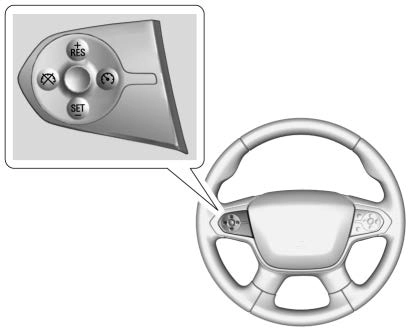
5 : Press to turn the system on or off. A white indicator comes on in the instrument cluster when cruise
is turned on.
+RES : If there is a set speed in memory, press briefly to resume to that speed or press and hold to accelerate. If cruise control is already active, use to increase vehicle speed.
SET− : Press briefly to set the speed and activate cruise control. If cruise control is already active, use to decrease vehicle speed.
* : Press to disengage cruise control without erasing the set speed from memory.
See Cruise Control 0 206.
The DIC display is in the center of the instrument cluster. It shows the status of many vehicle systems. The controls for the DIC are on the turn signal lever.
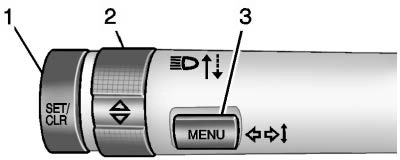
or press and hold to clear, the menu item displayed.
See Driver Information Center (DIC) (Base Level) 0 129 or Driver Information Center (DIC) (Uplevel) 0 131.
The DIC display is in the instrument cluster. It shows the status of many vehicle systems.
If the vehicle has the uplevel instrument cluster, the right steering wheel controls are used to operate the DIC.
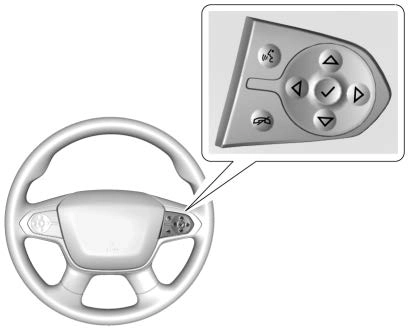
w or x : Press to move up or down in a list.
o or p : Press to move between the interactive display zones in the cluster.
V : Press to open a menu or select a menu item. Press and hold to reset values on certain screens.
See Driver Information Center (DIC) (Base Level) 0 129 or Driver Information Center (DIC) (Uplevel) 0 131.
If equipped, FCA may help avoid or reduce the harm caused by
front-end crashes. FCA provides a green indicator, V, when a vehicle is detected ahead. This indicator displays amber if you follow a vehicle much too closely. When approaching a vehicle ahead too quickly, FCA provides a red flashing alert on the windshield and rapidly beeps.
See Forward Collision Alert (FCA) System 0 212.
If equipped, LDW may help avoid unintentional lane departures at speeds of 56 km/h (35 mph) or greater. LDW uses a camera sensor to detect the lane markings. The LDW light, @, is green if a lane marking is detected. If the vehicle departs the lane without using a turn
signal in that direction, the light will change to amber and flash. In addition, beeps will sound.
See Lane Departure Warning (LDW)
0 214.
The RVC displays a view of the area behind the vehicle on the infotainment display when the vehicle is shifted into R (Reverse) to aid with parking and low-speed backing maneuvers.
See Assistance Systems for Parking or Backing 0 210.
If equipped, Rear Park Assist (RPA) uses sensors on the rear bumper to assist with parking and avoiding objects while in R (Reverse).
It operates at speeds less than 8 km/h (5 mph). RPA may show a warning triangle on the infotainment display and/or a graphic on the instrument cluster to provide the
object distance. In addition, multiple beeps may occur if very close to an object.
See Assistance Systems for Parking or Backing 0 210.
Accessory power outlets can be used to plug in electrical equipment, such as a cell phone, MP3
player, etc.
The vehicle may have accessory power outlets:
if equipped.
Lift the cover to access and replace when not in use.
See Power Outlets 0 108.
Download Manual