Instrument cluster
7-inch display
The units used on the meters and some indicators may differ depending on the target region.
2. Instrument cluster 79
*1
(U.S.A.)
*1
(Canada) (Red)
Brake system warning light (P. 497)
Brake system warning light (P. 497)
*2
(Canada)
*1, 2
(if equipped)
Parking brake indicator (P. 498)
Brake hold operated indicator (P. 498)
*1
(if equipped) (Yellow)
*1
(U.S.A.)
 *1
*1
(Canada)
Brake system warning light (P. 497)
Malfunction indicator lamp (P. 497)
Malfunction indicator lamp (P. 497)
*1
(Red/yellow)
*1, 2
(if equipped)
*1, 2
(if equipped)
Electric power steering system warning light (P. 498)
PCS warning light (P. 499)
ICS OFF indicator (P. 499)
*1 SRS warning light
(P. 497) (if equipped) (Yellow)
LDA (Lane Departure Alert) indicator
(P. 498)
 *1
*1
(U.S.A.)
*1
(Canada)
*2
(U.S.A.)
ABS warning light (P. 497)
ABS warning light (P. 497)
Parking brake indicator (P. 498)
*1
Slip indicator (P. 499)
Low fuel level warning light (P. 500)
Driver’s and front passenger’s seat belt reminder light (P. 500)
80 2. Instrument cluster
*3
(Type A)
*3
(Type B)
Rear passengers’ seat belt reminder lights (P. 500)
Rear passengers’ seat belt reminder lights (P. 500)
*1
Master warning light (P. 500)
*1
Tire pressure warning light (P. 500)
*1: These lights turn on when the engine switch is turned to the “ON” position (vehicles without a smart key system) or IGNITION ON mode (vehicles with a smart key system) to indicate that a system check is being per- formed. They will turn off after the engine is started, or after a few seconds. There may be a malfunction in a system if a light does not come on, or turn off. Have the vehicle inspected by your Toyota dealer.
*2: This light flashes to indicate a malfunction.
*3: This light illuminates on the center panel.
2. Instrument cluster 81
Turn signal indicator (P. 211)
*1 Brake hold standby indicator (P. 217)
(U.S.A.)
Headlight indicator (P. 219)
Cruise control indicator (P. 263, 276, 289)
(Canada)
*1
(if equipped)
*1, 2
Tail light indicator (P. 219)
Headlight high beam indicator (P. 220)
Automatic High Beam indicator (P. 223)
Eco driving indicator (P. 111, 343)
Parking brake indicator
(if equipped)
*1, 3
(if equipped)
*1, 3
(if equipped)
Radar cruise control indicator (P. 263, 276)
Cruise control “SET” indicator
(P. 263, 276, 289)
PCS warning light (P. 245)
ICS OFF indicator (P. 325)
LDA (Lane Departure
(U.S.A.)
(Canada)
*1
(if equipped)
(P. 213, 212) (if equipped) (White)
Parking brake indicator
(P. 213, 212) (if equipped) (Green)
*4
Brake hold operated indicator (P. 217)
(if equipped) (Yellow)
Alert) indicator (P. 253)
LDA (Lane Departure Alert) indicator
(P. 253)
LDA (Lane Departure Alert) indicator
(P. 253)
82 2. Instrument cluster
*1, 4
Slip indicator (P. 295)
*1, 3 VSC OFF indicator (P. 296)
*1, 7
(Type A for Canada)
*1, 7
(Type B for Canada)
“AIRBAG ON/OFF”
indicator (P. 45)
“AIRBAG ON/OFF”
indicator (P. 45)
(if equipped)
“BSM” indicator (P. 300)
*7 Security indicator (P. 71, 74)
(if equipped)
*5, 6
“RCTA” indicator (P. 300)
BSM (Blind Spot Moni- tor) outside rear view mirror indicators
 (if equipped)
Intuitive parking assist indicator (P. 314)
“SPORT” indicator (P. 343)
(if equipped)
*1, 7
(Type A for U.S.A.)
*1, 7
(Type B for U.S.A.)
(P. 300) (if equipped)
“AIRBAG ON/OFF”
indicator (P. 45)
(if equipped)
*8
“AIRBAG ON/OFF”
indicator (P. 45)
“ECO MODE” indicator (P. 343)
Low outside tempera- ture indicator (P. 84)
2. Instrument cluster 83
*1: These lights turn on when the engine switch is turned to the “ON” position (vehicles without a smart key system) or IGNITION ON mode (vehicles with a smart key system) to indicate that a system check is being per- formed. They will turn off after the engine is started, or after a few seconds. There may be a malfunction in a system if a light does not come on, or turn off. Have the vehicle inspected by your Toyota dealer.
*2: This light does not turn on when the system is disabled.
*3: This light turns on when the system is off.
*4: This light flashes to indicate that the system is operating.
*5: These indicators will illuminate in the following situations to indicate that the system initial check is being performed:
The indicators will turn off after a few seconds. If the indicators do not illuminate or turn off, or if a buzzer does not sound when the RCTA func- tion is enabled, the system may be malfunctioning. Have the vehicle inspected by your Toyota dealer.
*6: This light illuminates on the outside rear view mirrors.
*7: This light illuminates on the center panel.
*8: When the outside temperature is approximately 37°F (3°C) or lower, this indicator will flash for approximately 10 seconds, then stay on.
84 2. Instrument cluster
7-inch display
Tachometer
2. Instrument cluster 85
Displays the engine speed in revolutions per minute
Displays the outside temperature within the range of -40°F (-40°C) to 122°F (50°C). Low outside temperature indicator comes on when the ambient temperature is 37°F (3°C) or lower.
Presents the driver with a variety of vehicle data (P. 87, 99) Displays warning messages in case of a malfunction (P. 507) Speedometer
Odometer and trip meter (P. 96, 110) Engine coolant temperature gauge Displays the engine coolant temperature
Darker Brighter
*: Day mode and night mode: P. 86
86 2. Instrument cluster
Vehicles without a smart key system The engine switch is in the “ON” position.
Vehicles with a smart key system
The engine switch is in IGNITION ON mode.
In the following situations, the correct outside temperature may not be dis- played, or the display may take longer than normal to change:
2. Instrument cluster 87
Shift position (P. 205) Menu icon display area
Displays the following items.
When a menu icon is not selected, the outside temperature is displayed.
A variety of information can be displayed by selecting a menu icon. Addi- tionally, warning or suggestion/advice pop-up displays will be displayed in some situations.
88 2. Instrument cluster
Using the multi-information display
Scroll screens*, change the displayed content* and move the cursor
Press: Enter/Set Press and hold: Reset
Return to the previous screen
Pressing and holding the switch will display the first screen of the selected menu icon.
*: When the screen can be scrolled or different content can be displayed, a mark, such as an arrow, will be displayed to suggest which switch to operate.
Each time the switch is pressed,
the displayed item will be changed.
Display the desired trip meter and press and hold the switch to reset the trip meter.
2. Instrument cluster 89
Drive information (P. 90)
Select to display various drive data.
Select to enable selection of an audio source or track on the meter using the meter control switches.
Select to display the operational status of the following systems:
Select to display warning messages and measures to be taken if a mal- function is detected.
Select to change the meter display settings and other settings.
90 2. Instrument cluster
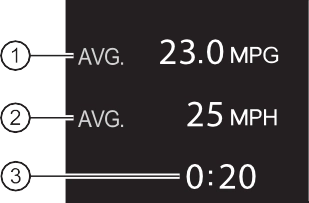 Displays the average fuel con- sumption since engine start.
Displays the average vehicle speed since engine start.
Displays the time elapsed since engine start.
*: Use the displayed fuel consumption as a reference only.
Displays the instantaneous cur- rent fuel consumption.
Displays the average fuel con- sumption since the display was reset.
Displays the average vehicle speed since reset or elapsed time since reset, as selected in . (P. 92)
*1: Pressing and holding will reset the average fuel consumption
and average vehicle speed/elapsed time.
*2: Use the displayed fuel consumption as a reference only.
2. Instrument cluster 91
Driving range*1, 2
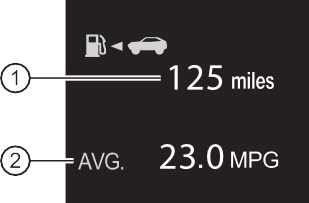 Displays the driving range with remaining fuel.
Displays the average fuel con- sumption since the vehicle was refueled.
*1: When only a small amount of fuel is added to the tank, the display may not be updated.
When refueling, turn the engine switch off. If the vehicle is refueled with- out turning the engine switch off, the display may not be updated.
*2: This distance is computed based on your average fuel consumption. As a result, the actual distance that can be driven may differ from that dis- played.
*3: Use the displayed fuel consumption as a reference only.
Displays the vehicle speed.
P. 445
Displays no drive information contents.
92 2. Instrument cluster
|
Settings display ( |
) |
Press  or
or  to select .
Operate the switches to select a desired item.
Change the setting by referring to the message displayed on the screen.
 LDA (Lane Departure Alert with steering control) (if equipped) (P. 253)
The following LDA system settings can be changed:
|
Item |
Settings |
Details |
|
Steering assist |
On |
Select to enable/disable steering wheel assistance. |
|
Off |
||
|
Alert sensitivity |
High |
Select to set the warning sensi- tivity. |
|
Normal |
||
|
Sway warning |
On |
Select to enable/disable the vehi- cle sway warning. |
|
Off |
||
|
Sway sensitivity |
High |
Select to set the vehicle sway warning sensitivity. |
|
Medium |
||
|
Low |
2. Instrument cluster 93
 BSM (Blind Spot Monitor) function (if equipped) (P. 300)
|
Item |
Settings |
Details |
|
BSM |
On |
Select to enable/disable the Blind Spot Monitor function. |
|
Off |
|
Item |
Settings |
Details |
|
RCTA |
On |
Select to enable/disable the Rear Cross Traffic Alert function. |
|
Off |
94 2. Instrument cluster
|
Item |
Settings |
Details |
|
|
||
|
Outside rear view mirror indicator brightness |
Bright |
Select to change the brightness of the outside rear view mirror indicators. |
|
Dim |
||
|
RCTA (Rear Cross Traffic Alert) (if equipped) (P. 300) |
||
|
RCTA buzzer vol- ume |
1 (Low) |
Select to change the volume of the RCTA buzzer. |
|
2 (Medium) |
||
|
3 (Loud) |
||
|
TPWS (Tire pressure warning system) (P. 445) |
||
|
Set pressure (tire pressure warning sys- tem initialization) |
Select to initialize the tire pres- sure warning system. To per- form initialization, press and hold the Before performing initialization, make sure to adjust the inflation pressure of each tire to the spec- ified level. (P. 446) |
|
|
Change wheel (change the tire pres- sure warning system sensor ID code set) (vehicles without a tire inflation pres- sure display function) |
Select to change the tire pres- sure warning system sensor ID code set. To enable this function, a second set of tire pressure warning sys- tem sensor ID codes must be registered by a Toyota dealer. For information regarding chang- ing the registered ID code set, contact your Toyota dealer. (P. 448) |
|
|
Change wheel (register tire pressure warning system sensor ID codes) (vehicles with a tire inflation pressure display function) |
Select to register the ID codes of the tire pressure sensors to the tire pressure warning system. To register the ID codes, press and hold the |
 BSM (Blind Spot Monitor) (if equipped) (P. 300)
 switch.
 switch. (P. 448)
2. Instrument cluster 95
|
Item |
Settings |
Details |
|
Scheduled maintenance display (if equipped) |
||
|
Maintenance data reset |
Select to reset the message indi- cating maintenance is required, after the required maintenance is performed. (P. 421) |
 Meter settings
|
Item |
Settings |
Details |
|
Language |
Select to change the language displayed. |
|
|
Units |
Select to change the units of measure displayed. |
|
|
(Eco Driving Indicator Light) |
On |
Select to enable/disable the Eco Driving Indicator Light. (P. 97) |
|
Off |
||
|
Drive information (total [after reset]) |
Average vehicle speed |
Select to change the display between average speed/elapsed time. |
|
Elapsed time |
||
|
Pop-up display |
Incoming calls |
Select to enable/disable the pop- up display. |
|
Brightness adjust- ment |
||
|
Default setting |
Select to reset the meter display settings to the default setting. |
96 2. Instrument cluster
Displays the distance the vehicle has been driven since the meter was last reset. Trip meters A and B can be used to record and dis- play different distances independently.
To reset, display the desired trip meter and press and hold the “ODO/ TRIP” switch.
The suggestion function can be turned on/off. (Customizable features: P. 567)
If a front door is opened after the engine switch is turned off, this sug- gestion message will not be displayed.
2. Instrument cluster 97
 1 Eco Driving Indicator Light
During Eco-friendly acceleration (Eco driving), the Eco Driving Indicator Light will turn on. When the acceleration exceeds the Zone of Eco driving, or when the vehicle is stopped, the light turns off.
 2 Eco Driving Indicator Zone Display Suggests the Zone of Eco driving with current Eco driving ratio based on acceleration.
 3 Eco driving ratio based on acceleration If the acceleration exceeds the Zone of Eco driving, the right side of the Eco Driving Indicator Zone Display will illu- minate.
 4 Zone of Eco driving
Eco Driving Indicator will not operate under the following conditions:
Small spots or light spots may appear on the display. This phenomenon is characteristic of liquid crystal displays, and there is no problem continuing to use the display.
Some functions can be customized. (P. 92, 567)
98 2. Instrument cluster
2. Instrument cluster 99
Indicators (P. 81)
Dynamic radar cruise control with full-speed range/LDA (Lane Departure Alert with steering control) display area
Displays the operational status of the following systems:
The speedometer display can be enabled/disabled in  on the multi- information display. (P. 104)
A variety of information can be displayed by selecting a menu icon. Addi- tionally, warning or suggestion/advice pop-up displays will be displayed in some situations.
100 2. Instrument cluster
Meter control switches (P. 100)
Using the multi-information display
The content display area is operated using the meter control switches.
Scroll screens*, change the displayed content* and move the cursor
Press: Enter/Set
Press and hold: Reset/Dis- play the next screen
Return to the previous screen
Pressing and holding the switch will display the first screen of the selected menu icon.
*: When the screen can be scrolled or different content can be displayed, a mark, such as an arrow, will be displayed to suggest which switch to operate.
Each time the switch is pressed,
the displayed item will be changed.
Display the desired trip meter and press and hold the switch to reset the trip meter.
2. Instrument cluster
101
Warning message display (P. 507)
This menu icon will be displayed only when a warning message can be displayed.
Select to display warning messages and measures to be taken if a mal- function is detected.
Select to display fuel consumption data in various forms.
Select to perform the following:
Display the operational status of the following systems:
Display the following navigation system-linked information (if equipped):
Select to enable selection of an audio source or track on the meter using the meter control switches.
Select to perform the following:
Display the following information:
Enable/Disable the following systems:
 .
.Select to change the meter display settings and other settings.
102 2. Instrument cluster
Displays the instantaneous cur- rent fuel consumption.
Displays the average fuel con- sumption since engine start.*1
Displays the driving range with remaining fuel.*2, 3
Gadget*4
The following items can be displayed by changing the settings for gad- get content and fuel economy type on  . (P. 104)
|
Displayable item |
Content |
|
|
Gadget content |
Fuel economy type |
|
|
Average vehicle speed |
Trip (after start) |
Displays the average vehicle speed since engine start. |
|
Total (after reset) |
Displays the average vehicle speed since the display was reset.*5 |
|
|
Distance |
Trip (after start) |
Displays the distance driven since vehicle start. |
|
Total (after reset) |
Displays the distance driven since the display was reset.*5 |
|
|
Elapsed time |
Trip (after start) |
Displays the elapsed time since engine start. |
|
Total (after reset) |
Displays the elapsed time since the display was reset.*5 |
2. Instrument cluster
103
Displayed item (listed below) can be changed on the fuel economy type screen of  . (P. 104)
Displays the average fuel consumption since the display was reset.*1, 5
Displays the average fuel consumption since the vehicle was refu- eled.*1, 2
*1: Use the displayed fuel consumption as a reference only.
*2: When only a small amount of fuel is added to the tank, the display may not be updated.
When refueling, turn the engine switch off. If the vehicle is refueled with- out turning the engine switch off, the display may not be updated.
*3: This distance is computed based on your average fuel consumption. As a result, the actual distance that can be driven may differ from that dis- played.
*4: The default setting is no display.
*5: This display can be reset by pressing and holding  while it is dis- played.
P. 111
Displays the driving range with remaining fuel.
When only a small amount of fuel is added to the tank, the display may not be updated.
When refueling, turn the engine switch off. If the vehicle is refueled with- out turning the engine switch off, the display may not be updated.
This distance is computed based on your average fuel consumption. As a result, the actual distance that can be driven may differ from that dis- played.
104 2. Instrument cluster

 Press or to select
  .
.
Operate the switches to select a desired item. Press or press and hold  .
.
The available settings will differ depending on if is pressed or
pressed and held. Follow the instructions on the display.
 LDA (Lane Departure Alert with steering control) (P. 253)
|
Item |
Settings |
Details |
|
Steering assist |
On |
Select to enable/disable steering wheel assistance. |
|
Off |
||
|
Alert sensitivity |
High |
Select to set the warning sensi- tivity. |
|
Normal |
||
|
Sway warning |
On |
Select to enable/disable the vehi- cle sway warning. |
|
Off |
||
|
Sway sensitivity |
High |
Select to set the vehicle sway warning sensitivity. |
|
Medium |
||
|
Low |
2. Instrument cluster
 PCS (Pre-Collision System) (P. 242)
105
 BSM (Blind Spot Monitor) (if equipped) (P. 300)
Press  to enable/disable the Blind Spot Monitor function.
|
Item |
Settings |
Details |
|
BSM |
On |
Select to enable/disable the Blind Spot Monitor function. |
|
Off |
 Press and hold to change the settings of the following item:
|
Item |
Settings |
Details |
|
Outside rear view mirror indicator brightness |
Bright |
Select to change the brightness of the outside rear view mirror indicators. |
|
Dim |
106 2. Instrument cluster
|
Item |
Settings |
Details |
|
RCTA |
On |
Select to enable/disable the Rear Cross Traffic Alert function. |
|
Off |
Press and hold  to change the settings of the following item:
|
Item |
Settings |
Details |
|
RCTA buzzer vol- ume |
1 (Low) |
Select to change the volume of the RCTA buzzer. |
|
2 (Medium) |
||
|
3 (Loud) |
 ICS (Intelligent Clearance Sonar) (if equipped) (P. 322)
Press  to enable/disable the Intelligent Clearance Sonar.
|
Item |
Settings |
Details |
|
ICS |
On |
Select to enable/disable the Intelligent Clearance Sonar sys- tem. |
|
Off |
 Intuitive parking assist (if equipped) (P. 314)
Press  to enable/disable the Intuitive parking assist.
|
Item |
Settings |
Details |
|
Intuitive parking assist |
On |
Select to enable/disable the intui- tive parking assist. |
|
Off |
 Press and hold to change the settings of the following item:
|
Item |
Settings |
Details |
|
Volume |
1 (Low) |
Select to change the volume of the intuitive parking assist buzzer. |
|
2 (Medium) |
||
|
3 (Loud) |
2. Instrument cluster
107
|
Item |
Settings |
Details |
|
HUD |
On |
Select to enable/disable the head-up display. |
|
Off |
|
Item |
Settings |
Details |
|
HUD Brightness/Position |
Select to adjust the brightness/ position of the head-up display. Press the
 / /  switch to adjust the display brightness. switch to adjust the display brightness.Press the / switch to adjust the display position.
|
|
|
HUD Driving sup- port |
Tachometer set- tings |
Select to change the display between the following: Eco Driving Indicator
Tachometer
No content
|
|
Navigation sys- tem (if equipped) |
Select to enable/disable head-up display content. |
|
|
Driving Assist |
||
|
Compass (if equipped) |
||
|
Audio system |
||
|
Rotation |
Select to adjust the angle of the head-up display. Press the |
 /
/  switch to adjust the display angle.
108 2. Instrument cluster
 Vehicle settings
|
Item |
Settings |
Details |
|
TPWS (Tire pressure warning system) (P. 445) |
||
|
Set pressure (tire pressure warning sys- tem initialization) |
Select to initialize the tire pres- sure warning system. To per- form initialization, press and hold the Before performing initialization, make sure to adjust the inflation pressure of each tire to the spec- ified level. (P. 446) |
|
|
Change wheel (register tire pressure warning system sensor ID codes) |
Select to register the ID codes of the tire pressure sensors to the tire pressure warning system. To register the ID codes, press and hold the |
|
|
Scheduled maintenance display (if equipped) |
||
|
Maintenance data reset |
Select to reset the message indi- cating maintenance is required, after the required maintenance is performed. (P. 421) |
 switch.
 switch. (P. 448)
2. Instrument cluster
109
 Meter settings
|
Item |
Settings |
Details |
|
Language |
Select to change the language displayed. |
|
|
Units |
Select to change the units of measure displayed. |
|
|
(Eco Driving Indicator Light) |
On |
Select to enable/disable the Eco Driving Indicator Light. (P. 111) |
|
Off |
||
|
Speedometer |
On |
Select to enable/disable the speedometer display. |
|
Off |
||
|
Gadget content |
Off |
No display |
|
Average vehicle speed |
Select to turn the display of a gadget. |
|
|
Distance |
||
|
Elapsed time |
||
|
Fuel economy type |
Trip (after start)*1 |
Select to change the average fuel consumption display and an item to be displayed as gadget. |
|
Total (after reset) |
||
|
Tank (after refuel)*2 |
||
|
Multi-information display off |
Select to turn the multi-informa- tion display off. To turn the multi-information dis- play on again, press any direc- tion switch ( / / |
|
|
Pop-up display |
Intersection guid- ance (if equipped) |
Select to enable/disable the pop- up display. |
|
Incoming calls |
||
|
Brightness adjust- ment |
||
|
Default setting |
Select to reset the meter display settings to the default setting. |
 /
/  ).
).
 *1: Selecting this item will only change the gadget.
*2: Selecting this item will turn the display of the gadget off.
110 2. Instrument cluster
Displays the distance the vehicle has been driven since the meter was last reset. Trip meters A and B can be used to record and dis- play different distances independently.
To reset, display the desired trip meter and press and hold the “ODO/ TRIP” switch.
The suggestion function can be turned on/off. (Customizable features: P. 567)
If a front door is opened after the engine switch is turned off, this sug- gestion message will not be displayed.
2. Instrument cluster
111
 1 Eco Driving Indicator Light
During Eco-friendly acceleration (Eco driving), the Eco Driving Indicator Light will turn on. When the acceleration exceeds the Zone of Eco driving, or when the vehicle is stopped, the light turns off.
 2 Eco Driving Indicator Zone Display Suggests the Zone of Eco driving with current Eco driving ratio based on acceleration.
 3 Eco driving ratio based on acceleration If the acceleration exceeds the Zone of Eco driving, the right side of the Eco Driving Indicator Zone Display will illu- minate.
 4 Zone of Eco driving
Eco Driving Indicator will not operate under the following conditions:
Small spots or light spots may appear on the display. This phenomenon is characteristic of liquid crystal displays, and there is no problem continuing to use the display.
Some functions can be customized. (P. 104, 567)
112 2. Instrument cluster
2. Instrument cluster
113
Driving assist system status/navigation system-linked display area (if equipped) (P. 115)
The following pop-up displays will be displayed in certain situations:
Eco Driving Indicator/Tachometer (P. 116) Information display area (P. 117)
The following pop-up displays will be displayed in certain situations:
*: If equipped
114 2. Instrument cluster
Press and hold  to change the following settings:
Select to display Eco Driving Indicator/tachometer/no content.
Select to adjust the brightness and position of the head-up display.
Select to enable/disable the following items:
2. Instrument cluster
115
Displays the following items, which are linked to the navigation sys- tem:
When the navigation system is performing route guidance, the name of the next street will be displayed on the top of the display area.
Displayed when the navigation system is performing route guid- ance. When approaching an intersection, an arrow will be displayed to indicate the suggested direction of travel.
Displays the direction of travel.
116 2. Instrument cluster
Eco driving ratio based on acceleration
Zone of Eco driving
Displayed content is the same as that displayed on the multi- information display (Eco Driving Indicator). For details, refer to P. 111.
2. Instrument cluster
117
 message
Displayed when a suggestion/advice pop-up display is displayed on the multi-information display. (P. 110)
Displayed when a warning message is displayed on the multi-informa- tion display. (P. 507)
Displayed in the following situations:
Displayed content is the same as that displayed on the multi-information display. For details, refer to the explanation of the outside temperature display on the multi-information display. (P. 84)
Displayed when the hands-free system is operated.
Displayed when the audio system is operated.
118 2. Instrument cluster
The head-up display may seem dark or hard to see when viewed through sunglasses, especially polarized sunglasses.
Adjust the brightness of the head-up display or remove your sunglasses.
The brightness of the head-up display can be adjusted on  of the multi- information display. Also, it is automatically adjusted according to the ambient brightness.
If the head-up display is disabled, it will remain disabled when the engine switch is turned off then back to IGNITION ON mode.
Only street names which are included in the map data will be displayed.
2. Instrument cluster
119
120 2. Instrument cluster
Press the “INFO” button.
If the “History” screen is displayed, select “Trip Information”.
Select “ECO” on the “Information” screen.
If the “History” screen is displayed, select “Trip Information”.
Select “Info” on the “Menu”
screen.
Select “ECO” on the “Informa- tion” screen.
If the “History” screen is displayed, select “Trip Information”.
2. Instrument cluster
121
Average vehicle speed since the engine was started
Elapsed time since the engine was started
Fuel consumption in the past 15 minutes
Cruising range (P. 123) Current fuel consumption
Vehicles without a smart key system:
Average fuel consumption for the past 15 minutes is divided by color into past averages and averages attained since the engine switch was last turned to the “ON” position. Use the displayed average fuel con- sumption as a reference.
Vehicles with a smart key system:
Average fuel consumption for the past 15 minutes is divided by color into past averages and averages attained since the engine switch was last turned to IGNITION ON mode. Use the displayed average fuel consumption as a reference.
This image is an example only.
122 2. Instrument cluster
Press the “INFO” button.
If the “Trip Information” screen is displayed, select “History”.
Select “ECO” on the “Information” screen.
If the “Trip Information” screen is displayed, select “History”.
Select “Info” on the “Menu” screen. Select “ECO” on the “Information” screen.
If the “Trip Information” screen is displayed, select “History”.
Previous fuel consumption record
Entune Audio and Entune Audio Plus
Displays the daily average fuel consumption. (Instead of the date, “Trip 1” through “Trip 5” will be displayed.)
Entune Premium Audio
Displays the daily average fuel consumption. Updating the average fuel consumption data
The average fuel consumption history is divided by color into past averages and the average fuel consumption since the last updated. Use the displayed average fuel consumption as a reference.
This image is an example only.
2. Instrument cluster
123
Update the average fuel consumption by selecting “Clip” to measure the cur- rent fuel consumption again.
The fuel consumption data can be deleted by selecting “Clear”.
Displays the estimated maximum distance that can be driven with the quan- tity of fuel remaining.
This distance is computed based on your average fuel consumption.
As a result, the actual distance that can be driven may differ from that dis- played.
124 2. Instrument cluster