Interior storage and equipment
STORAGE
GLOVE COMPARTMENT
The glove compartment is located on the passenger side of the instrument panel.
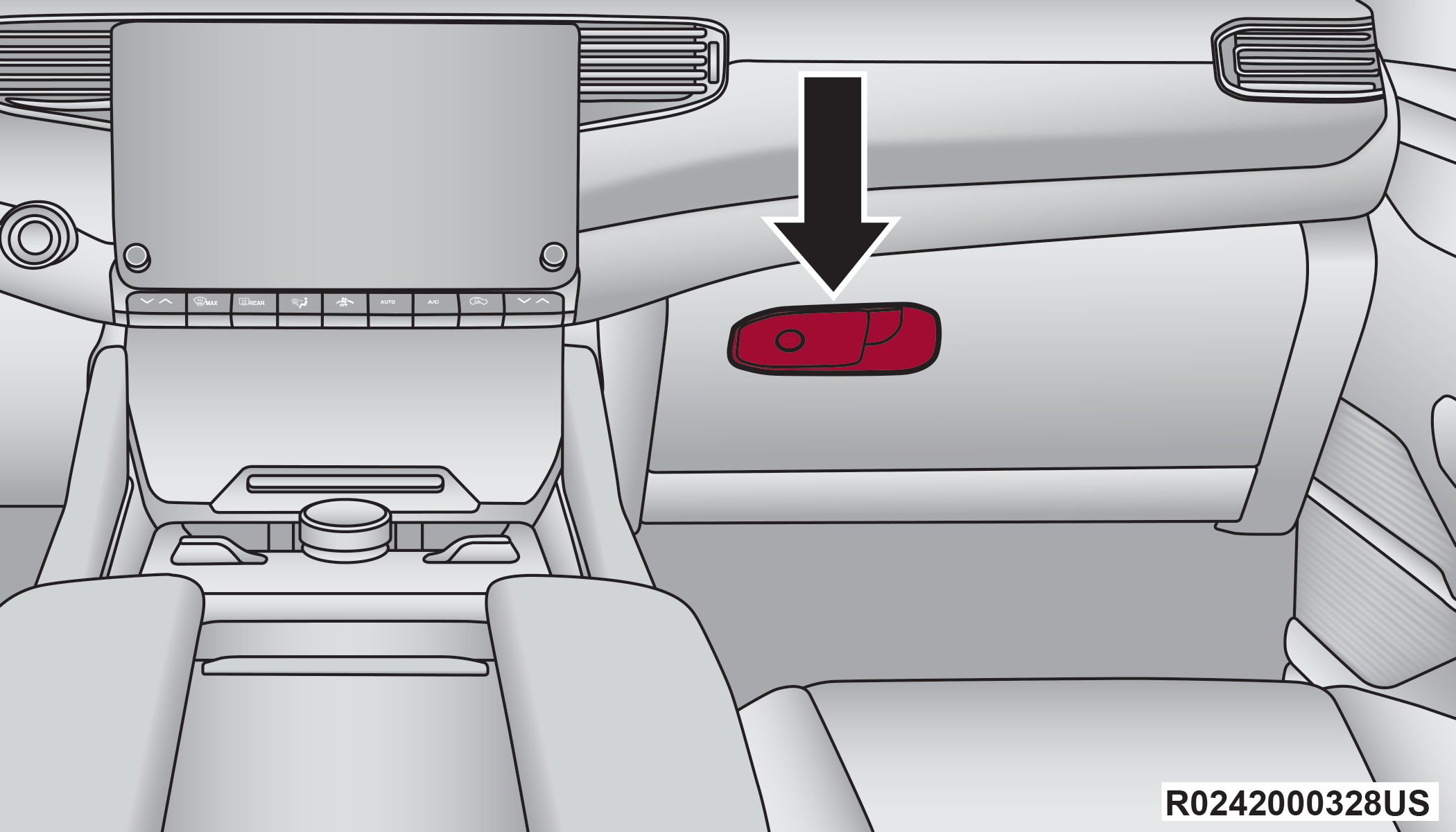
Glove Compartment Release Handle
To open the glove compartment, pull the release handle.
The glove compartment also has a lock cylinder that can be locked/unlocked with the emergency key (located inside the key fob) Replacing The Battery In The Key Fob.
Note:
When valet parking your vehicle, remove the emergency key from the key fob, as it will open the safe.
FRONT CENTER CONSOLE
The front center console contains both an upper and a lower storage area.
To open the lower storage compartment, push the release button and lift up.
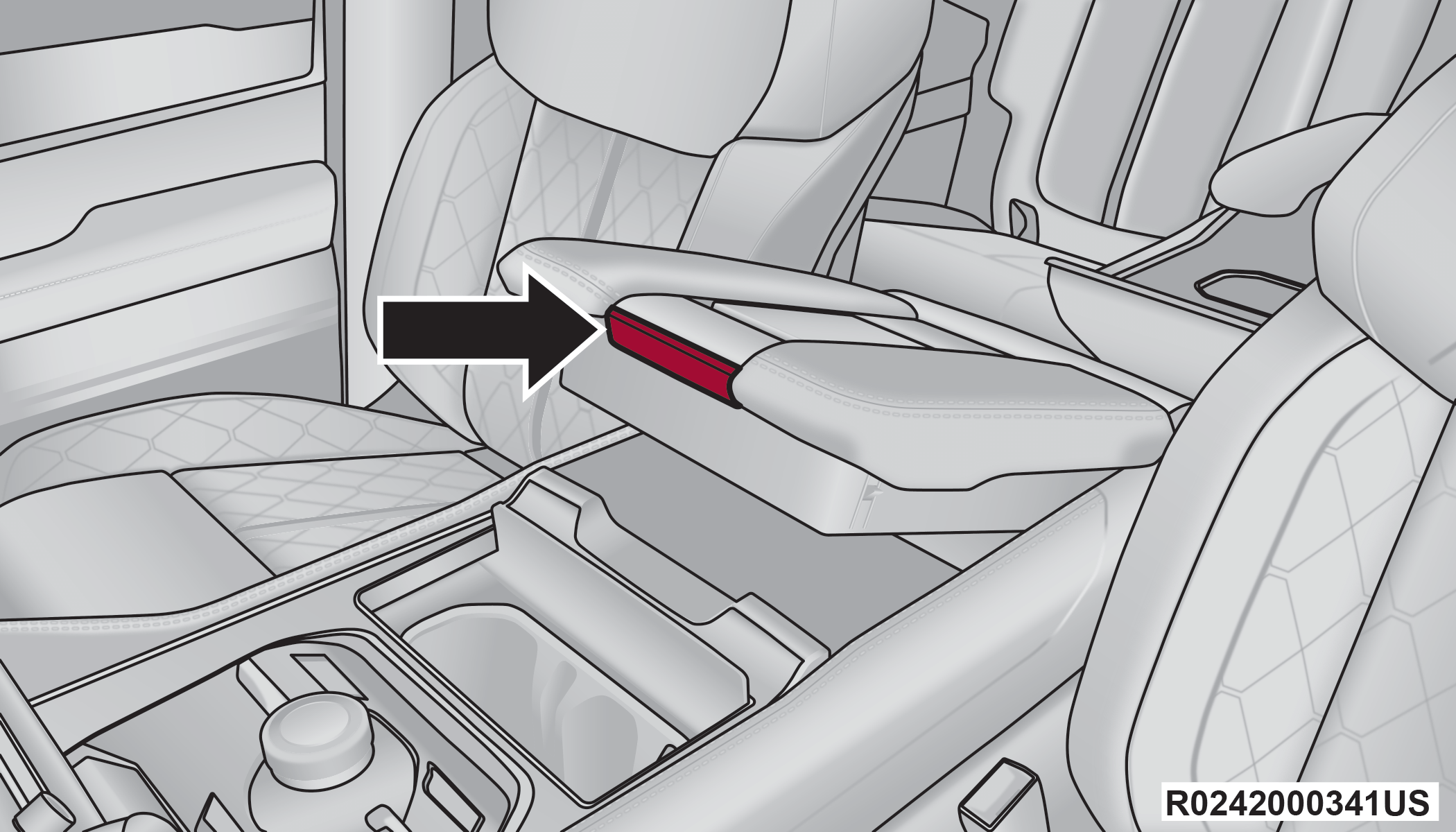
Lower Storage Compartment Release Button
To open the upper storage compartment, pull the sliding tab backwards to slide the door open.
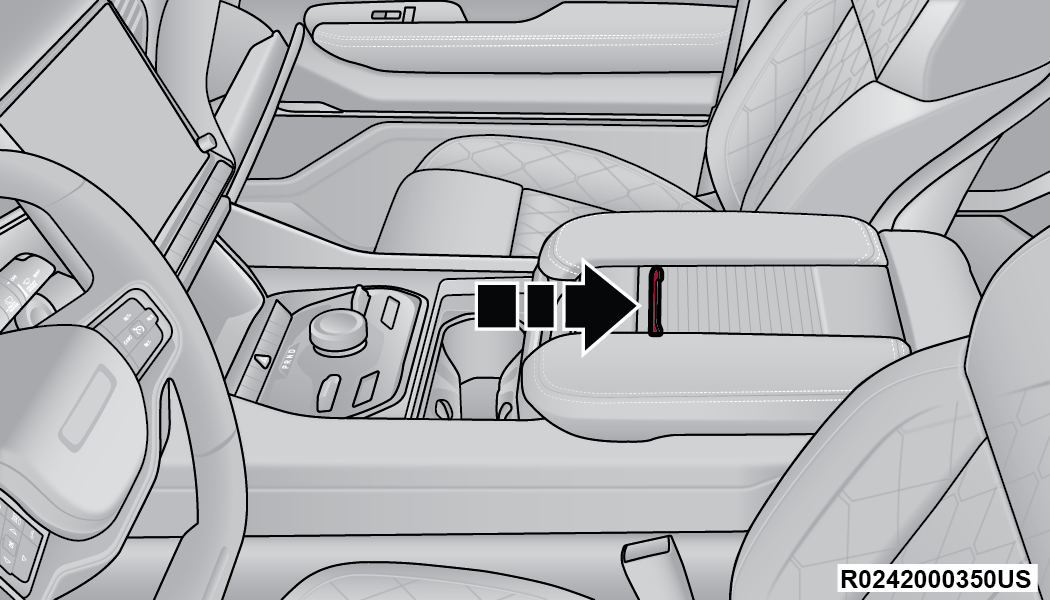
Upper Storage Compartment Sliding Tab
SUNGLASSES BIN DOOR
At the front of the console a compartment is provided for the storage of a pair of sunglasses. The storage compartment access is a “push/push” design. Push the chrome pad on the door to open. Push the chrome pad on the door to close.
From the fully closed position, push the chrome pad on the door once to fully open the sunglasses bin.
From the fully open position, raise the door back up 3/4th of the way and release to achieve the conversation mirror position.
Note:
From the conversation mirror position, do not pull the door fully open because it will damage the door. The door must be put back in the closed position before fully opening it.
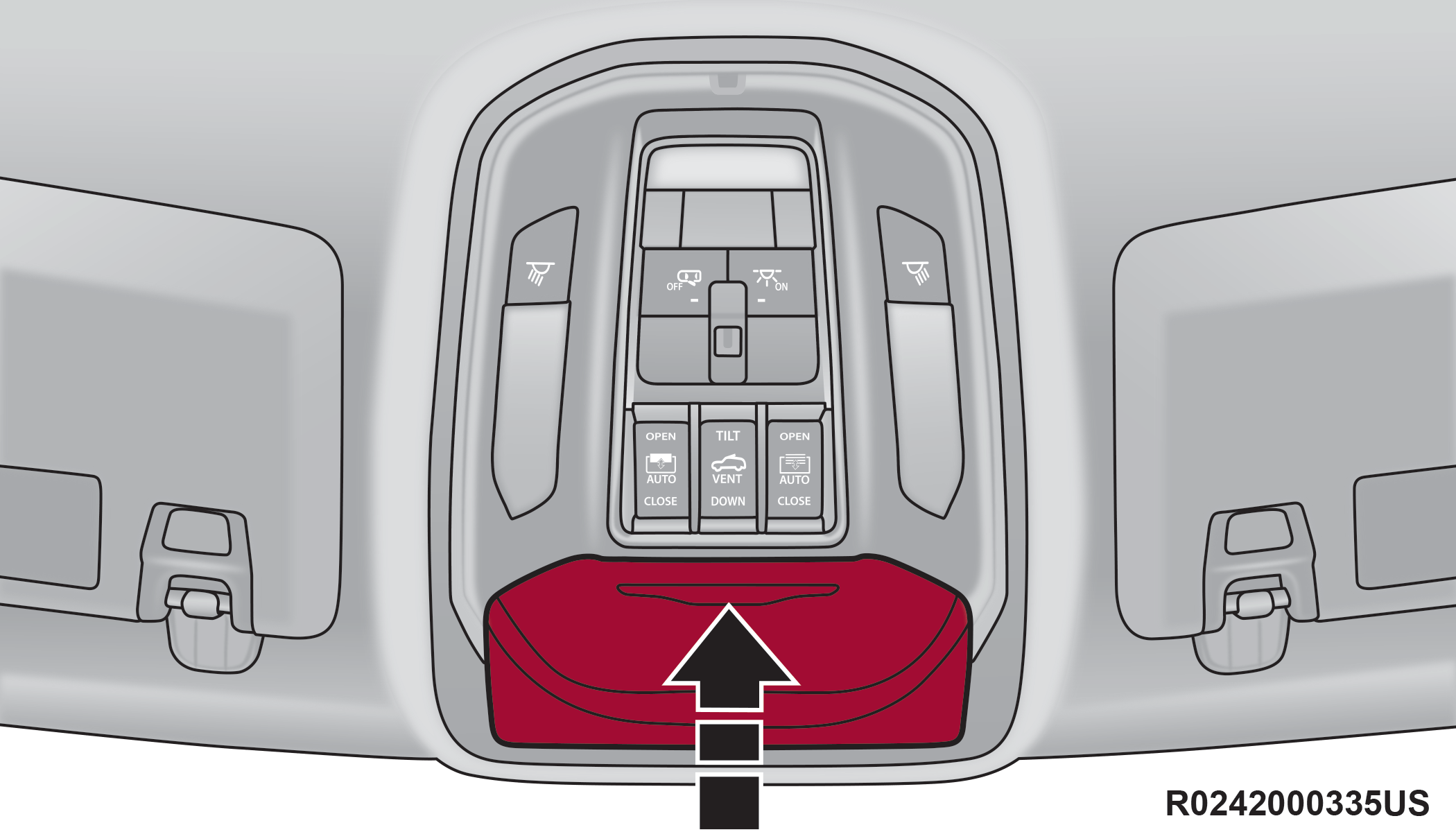
Sunglasses Bin Door
REAR FULL CENTER CONSOLE — IF EQUIPPED
The rear full center console contains both an upper and a lower storage area.
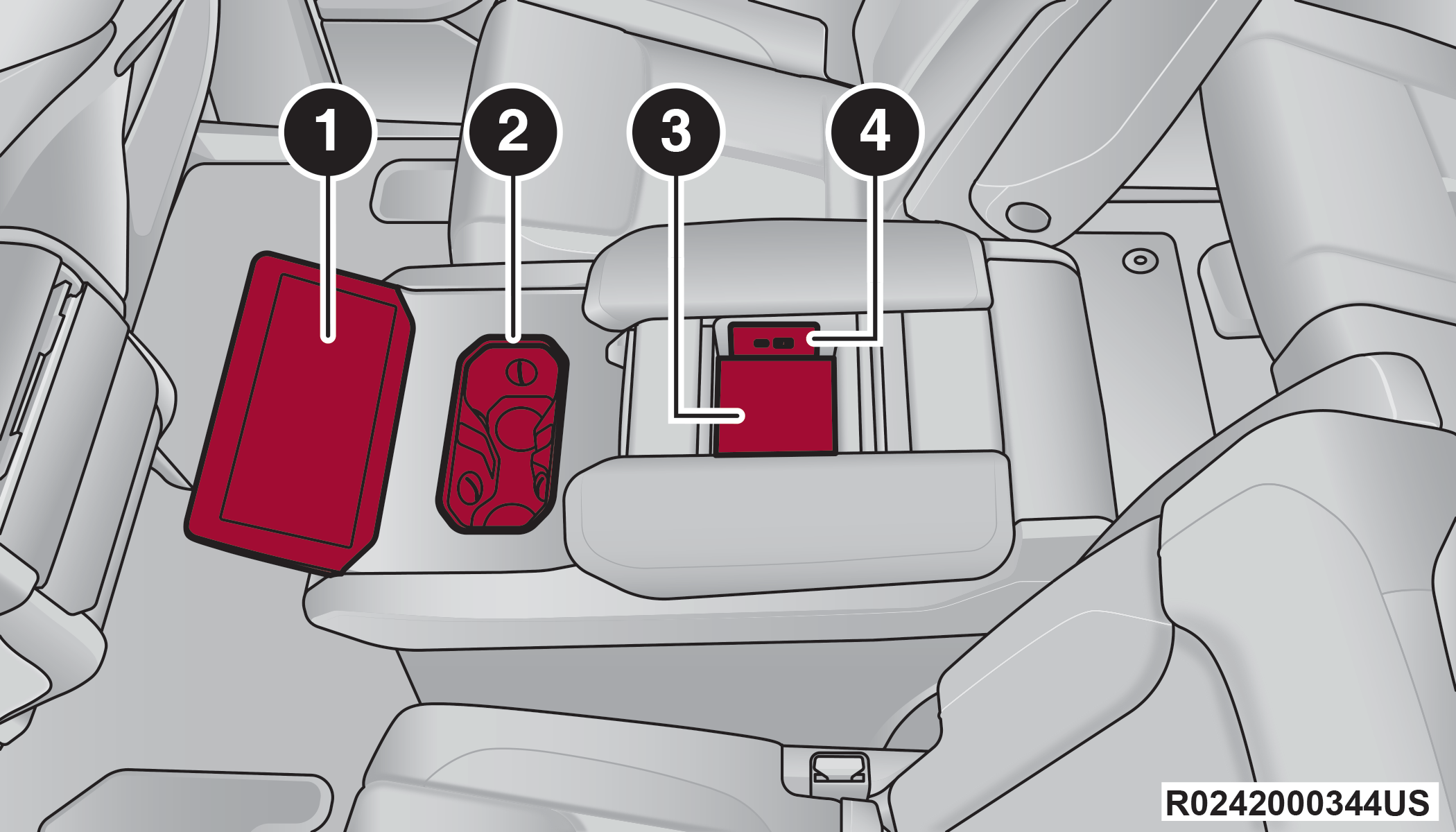
Rear Center Console
|
1 — Rear Comfort And Convenience Display |
|
2 — Console Cupholders |
|
3 — Upper Storage Compartment |
|
4 — USB Ports |
To open the upper storage compartment, pull the sliding tab rearward to slide the compartment door open.
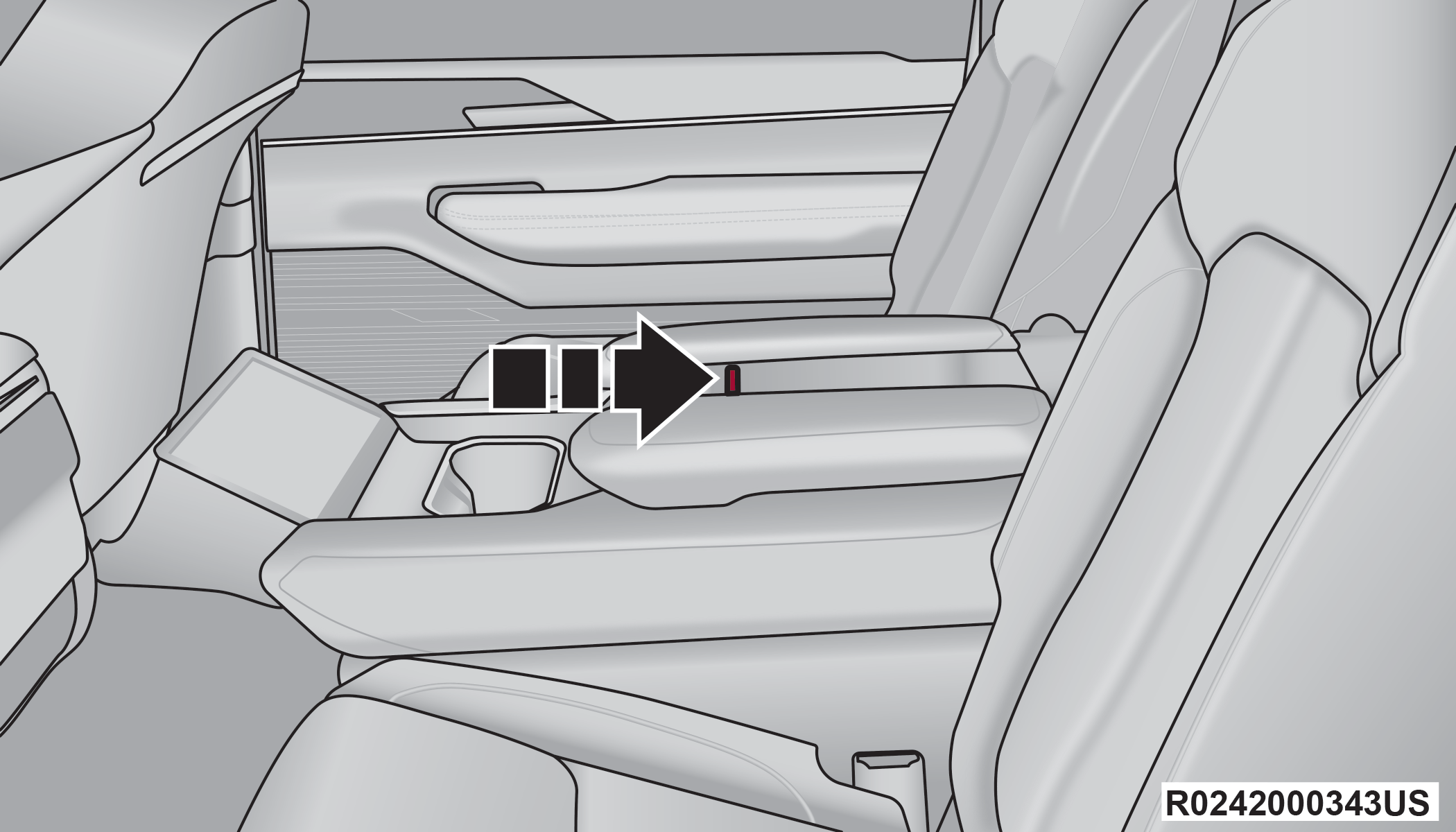
Upper Storage Sliding Tab
To open the lower storage compartment, pull the release handle and lift upward.
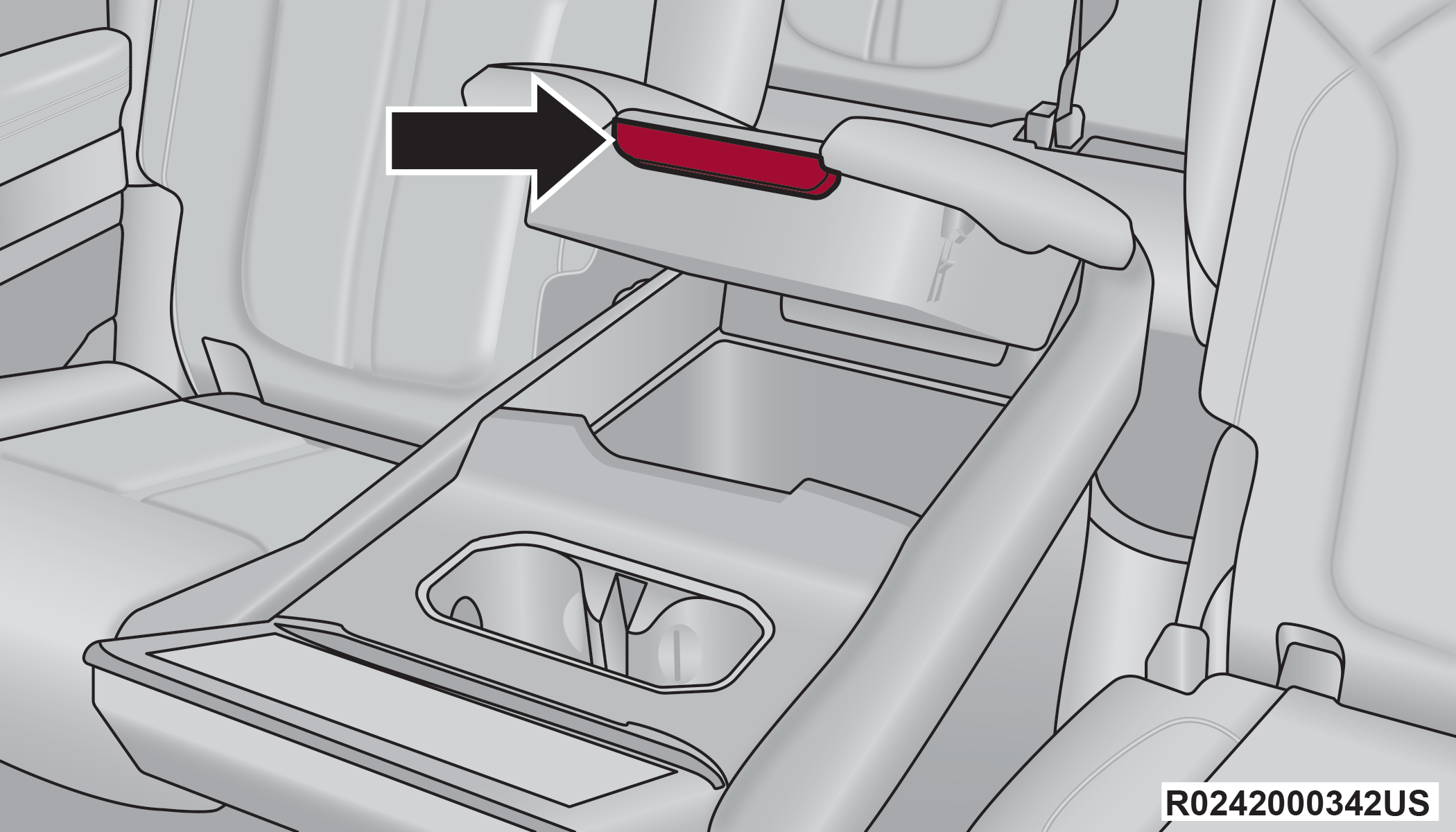
Lower Storage Release Handle
CAUTION:
Remove any items stored in the console cupholders or devices with cords routing through upper storage area. Damage may occur to upper console lid and device cables when upper storage compartment is lifted forward.
PHONE STORAGE — IF EQUIPPED
Your vehicle may be equipped with two pockets, located at the front edge of the media bin, that can hold mobile phones.
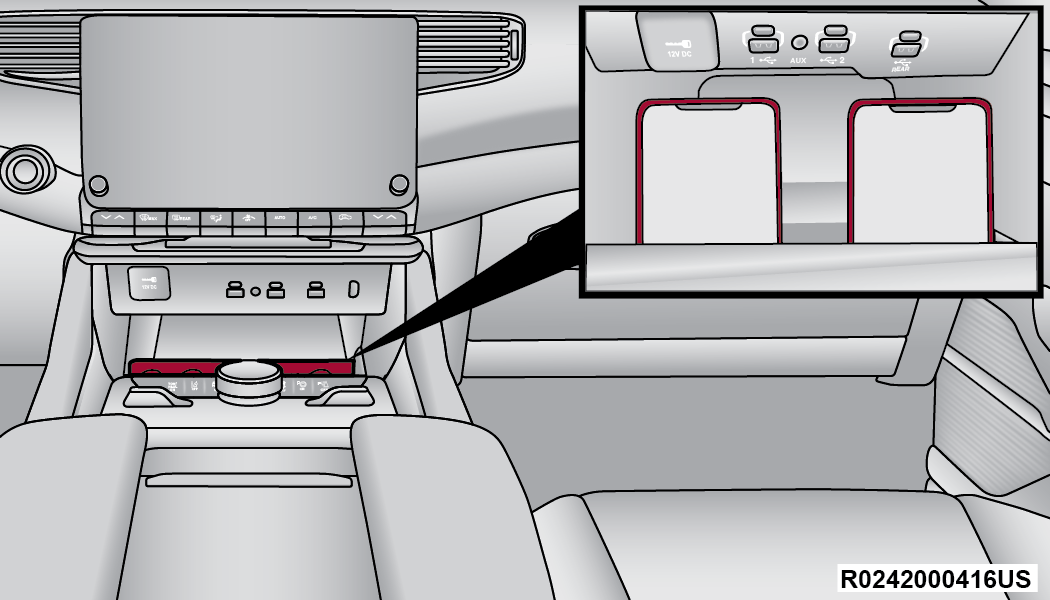
Phone Holder Location
CENTER CONSOLE COOLER — IF EQUIPPED
Your vehicle may be equipped with a console cooler located in the front center console.
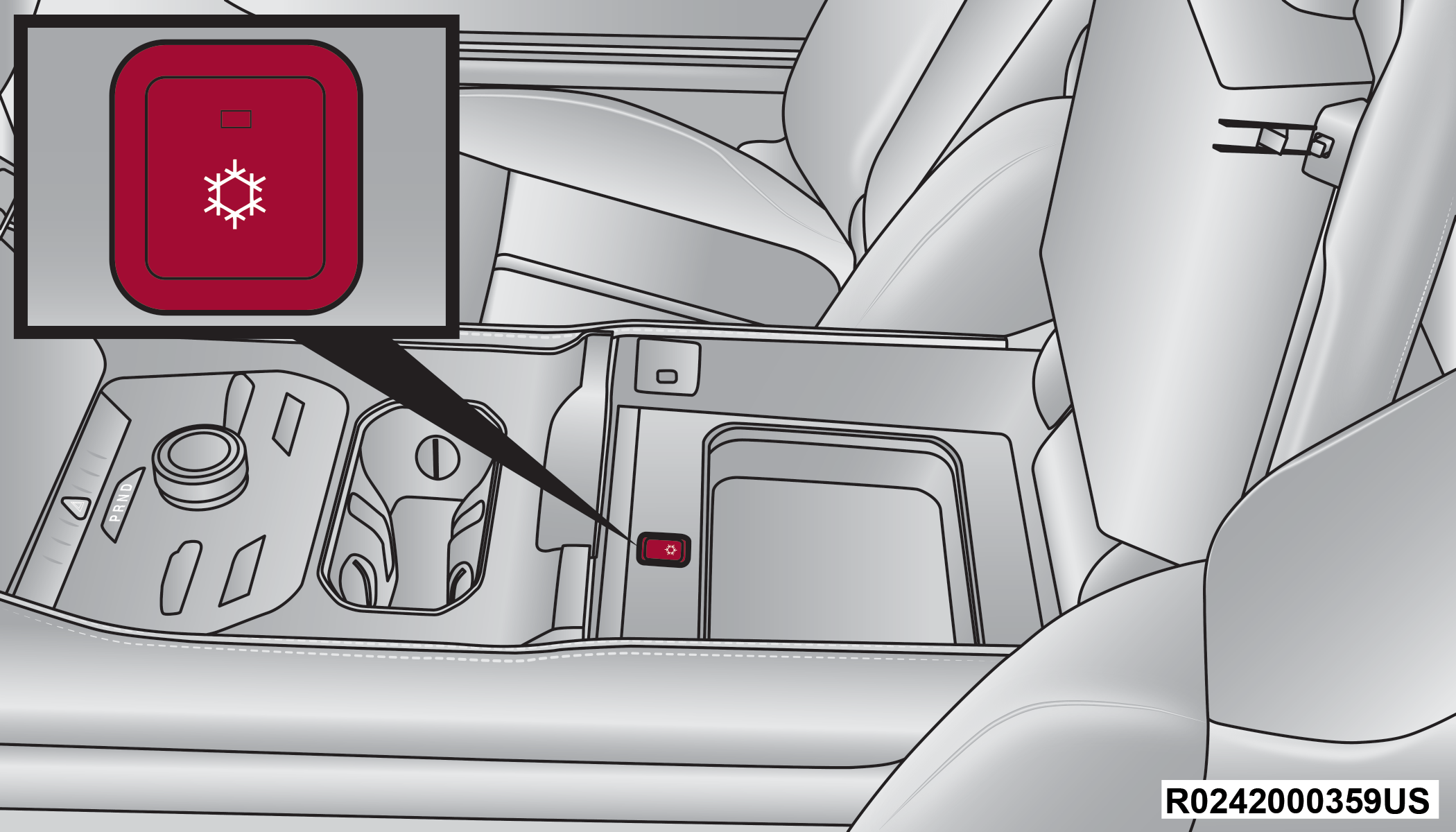
Center Console Cooler Button
Press the cooler button once to turn on the cooler. The LED will illuminate.
Press the button a second time to turn the cooler off. The LED will turn off.
CENTER CONSOLE SAFE — IF EQUIPPED
 Your vehicle may be equipped with a safe to store your valuables. The safe is located inside of the front center console.
There is a keypad on the safe that consists of six buttons. The first five buttons have numbers you can select to create the lock code, while the sixth button is the Door Open button.
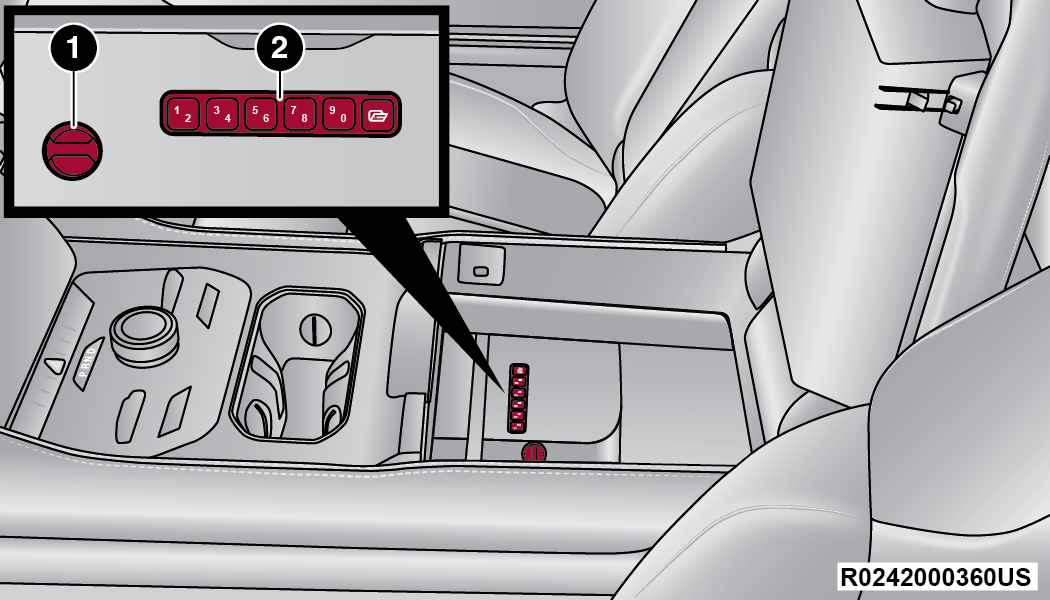
Center Console Safe
|
1 — Emergency Override Location |
|
2 — Keypad |
The safe can be used as locked or unlocked storage.
The color of the keypad indicates the lock mode of the safe:
-
White: Unlocked
-
Red: Locked
-
Pink: Lock code programming mode
 To open the safe while it is in the unlocked mode, simply press the Door Open button on the keypad.
You can program a lock code by performing the following procedure:
-
Press and hold the Door Open button for two seconds. The keypad will flash pink, and then turn solid pink.
-
Using the keypad, enter a 6-digit code. The keypad will flash red, and then turn solid red.
-
Close the lid of the safe, and the safe will lock.
To open the locked safe, use the keypad to enter the previously programmed 6-digit code, and then press the Door Open button. After pressing the Door Open button, the keypad turns white briefly to open the safe door.
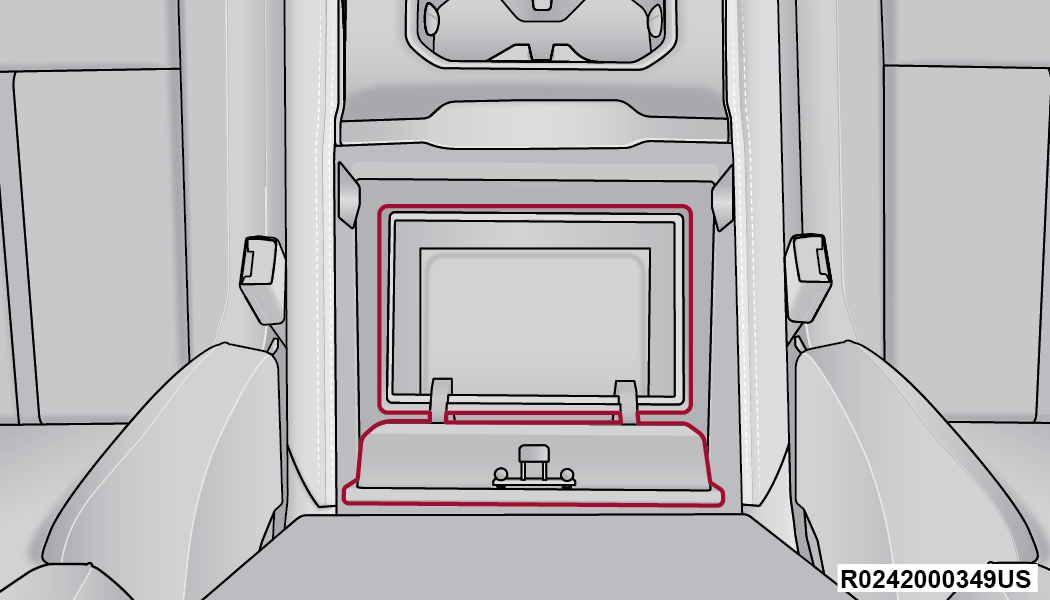
Open Center Console Safe
The keypad will then turn red again, and return to the locked mode when the safe lid is closed.
Note:
The keypad will flash red if an incorrect lock code is entered. If the incorrect code is entered ten times in a row, the user will be locked out from further attempts for approximately 30 minutes.
To revert the safe back to the unlocked mode:
-
Enter the programmed 6-digit code.
-
Press and hold the Door Open button for two seconds. The keypad will flash red and change to pink.
-
Enter the 6-digit code and press the Door Open button. The keypad will flash white.
Once this procedure is completed, the safe will no longer lock when the lid is closed.
Lock Code Override
If you forget the 6-digit code, there is a way to override the code, using the emergency key stored inside your key fob:
-
Remove the emergency key from the key fob Replacing The Battery In The Key Fob.
-
Use the emergency key to open the safe door.
-
Press and hold the reset button, located under the lid, for two seconds.
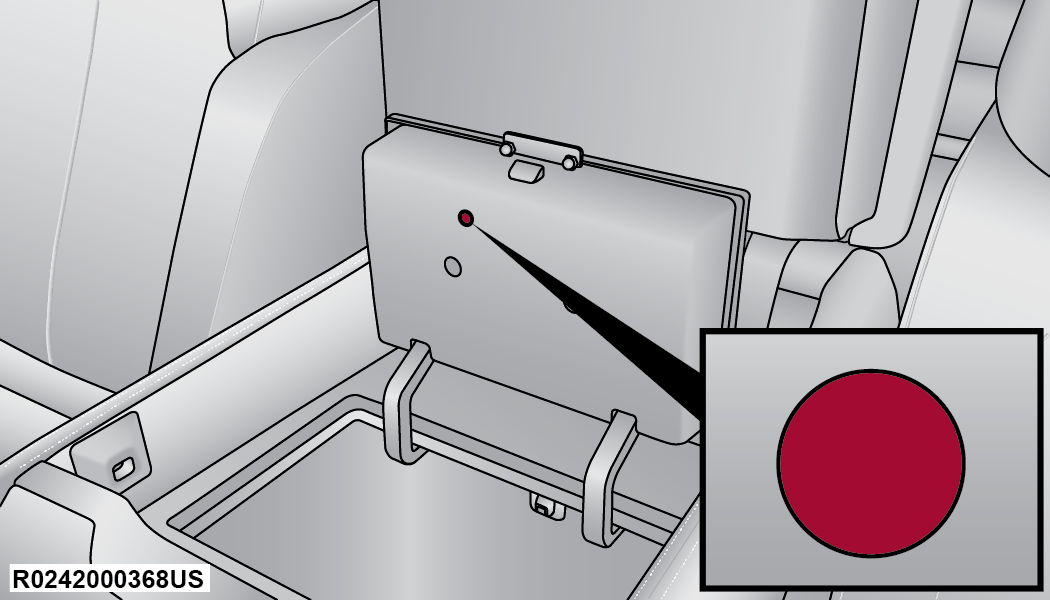
Reset Button Location
The safe will return to the unlocked mode.
Note:
When valet parking your vehicle, remove the emergency key from the key fob, as it will open the safe.
SUN SCREENS — IF EQUIPPED
Sun screens are available for the second row seating windows. The screens store in the sill trim panels, and the tops of the windows are equipped with hooks that the sun screens attach to when pulled up.
Gently pull up on the tab to raise the sun screen. Continue pulling the sun screen until the tab is near the top of the window.
Once the screen is completely to the top of the window, extend the top bar of the sun screen over the two hooks attached to the top of the window.
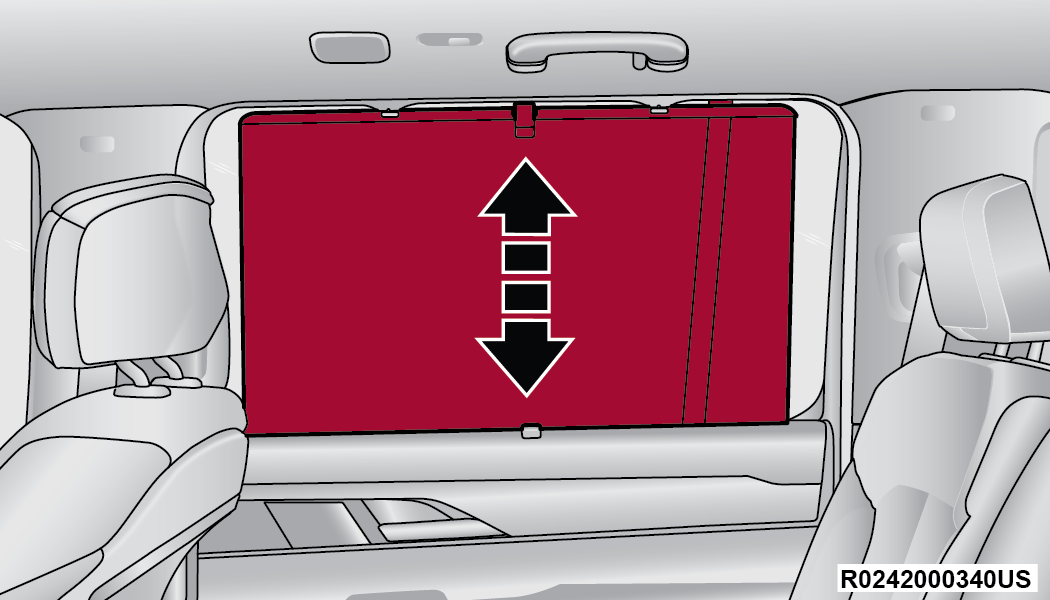
Sun Screen Extended
To lower the sun screen, gently lift the tab upward to disengage the hooks, and feed the screen back into the base sill.
USB/AUX CONTROL
This feature allows an external USB device to be plugged into one of the USB ports, located in the center stack of the instrument panel.
Plugging in a smartphone device to a USB port will activate Android Auto™ or Apple CarPlay® features, if equipped. Android Auto™ and Apple CarPlay® can also be activated wirelessly. For further information, refer to “Android Auto™” or “Apple CarPlay®” in the Owner’s Manual Supplement.
Note:
Two devices can be plugged in at the same time, and both ports will provide charging capabilities. Only one port can transfer data to the system at a time.
For example, if a device is plugged into the Type A USB port and another device is plugged into the Type C USB port, a message will appear and allow you to select which device to use.
The following are scenarios when a non-phone device is plugged into the smaller and larger USB ports, and when a phone device is plugged into the smaller and larger USB ports:
-
“A new device is now connected. Previous connection was lost.”
-
“(Phone Name) now connected. Previous connection was lost.”
-
“Another device is in use through the same USB port. Please disconnect the first device to use the second device.”
Plugging in a phone or another USB device may cause the connection to a previous device to be lost.
CONNECTING AUX OR THE EXTERNAL USB DEVICE
Use a connection cable to connect an external USB device to the vehicle’s USB port, or use an auxiliary cable to connect a device to the vehicle’s AUX port. These ports are located below the climate controls.
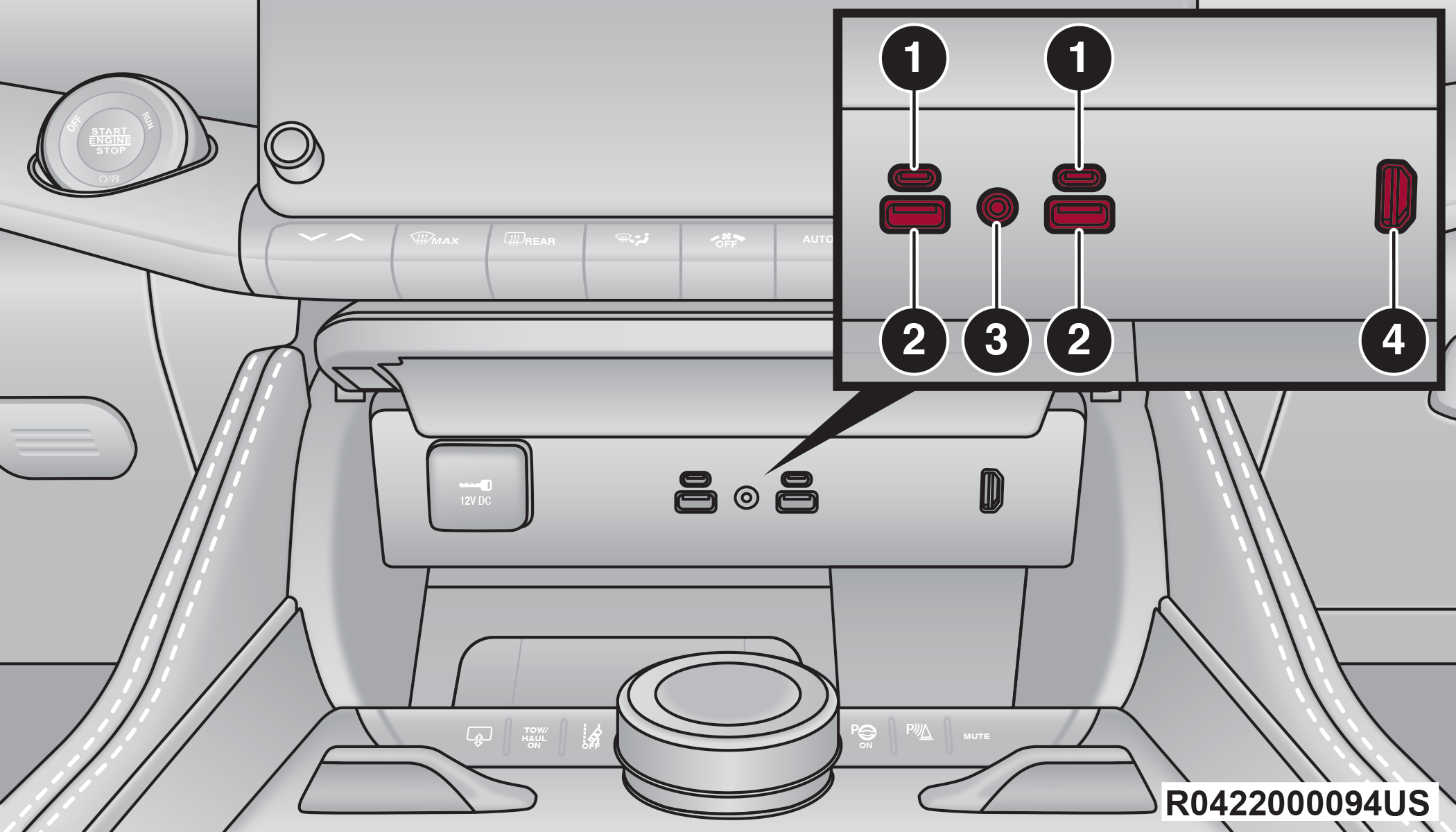
Front Media Hub USB/AUX Ports
|
1 — USB C Port |
|
2 — USB A Port |
|
3 — AUX Port |
|
4 — HDMI Port (If Equipped) |
To the right of the front media hub is an HDMI port used for the Passenger Display feature PASSENGER SCREEN — IF EQUIPPED.
For vehicles not equipped with the Passenger Display feature, the front media hub configuration will appear different.
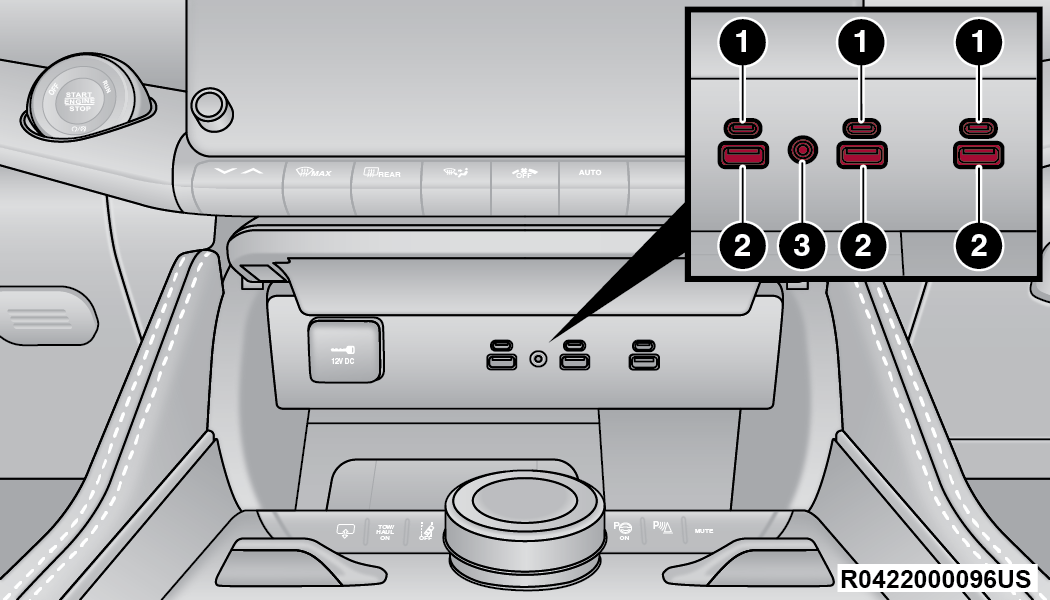
Front Media Hub USB/AUX Ports — Without Passenger Display
|
1 — USB C Port |
|
2 — USB A Port |
|
3 — AUX Port |
Once a device is connected to the USB port, it will begin charging and is ready for use with the system. Type C and Type A charge-only USB ports can be used at the same time but cannot be used simultaneously while playing media. When both Type C and Type A charge-only USB ports are in use they will be charged at a reduced rate.
If equipped, your vehicle may have additional charge-only USB ports in the center compartment.
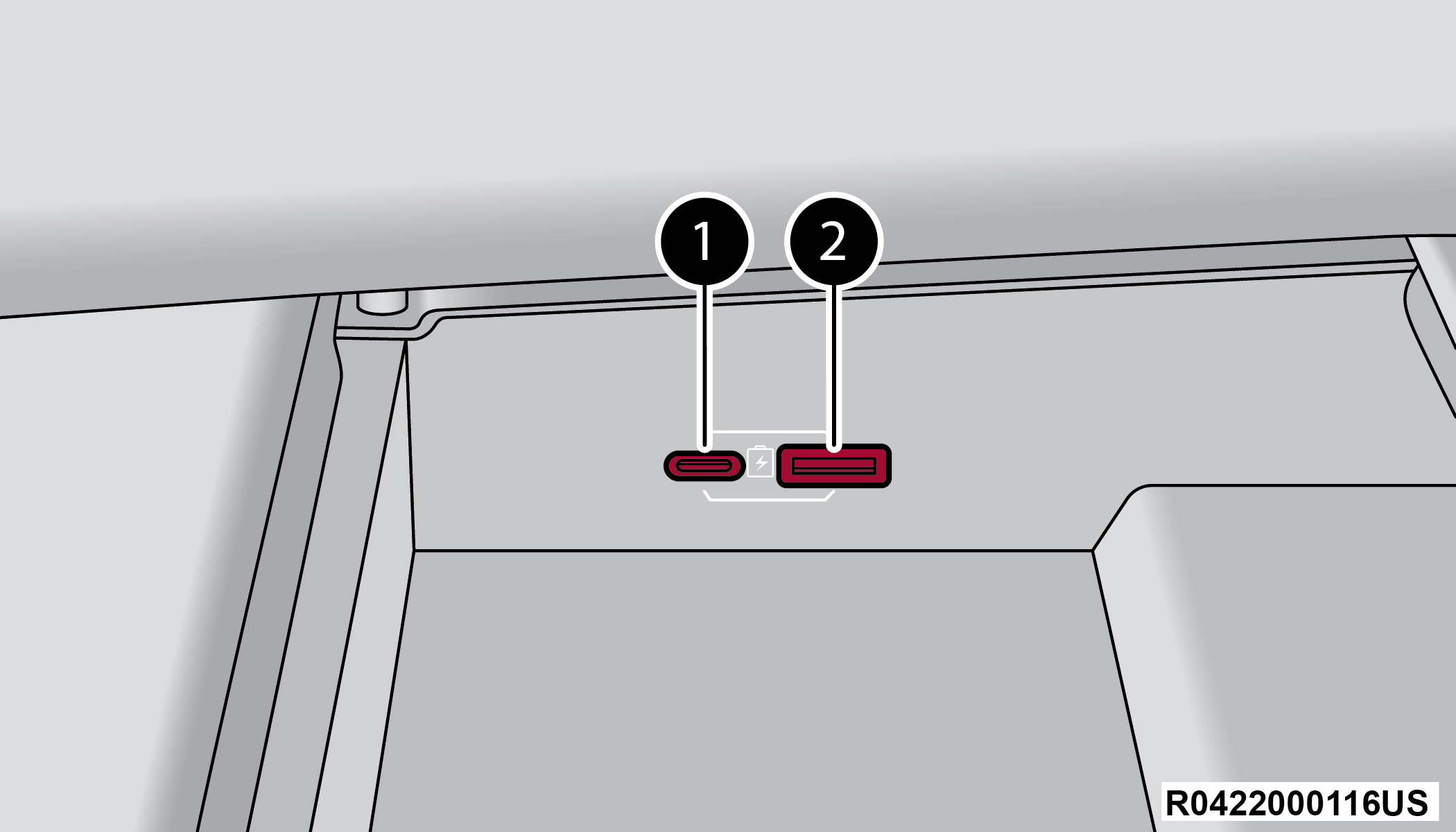
Center Compartment USB Charge-Only Ports
|
1 — USB C Port |
|
2 — USB A Port |
Note:
If the device’s battery completely discharges, it may not communicate with the Uconnect system until a minimum charge is attained. Leaving the device connected to the USB port may charge it to the required level.
USING THIS FEATURE
By using a USB cable to connect an external device:
-
The device can be played on the vehicle’s sound system, providing the artist, track title, and album information on the radio display.
Note:Depending on track configuration, track information may not be present on the radio display.
-
The device can be controlled using the radio buttons to play, and browse the contents of the device.
-
The audio device battery charges when plugged into the USB port.
By using an auxiliary cable to connect an external device:
-
The audio device can be played on the vehicle’s sound system. The Uconnect system will not display information related to the artist, track title, and album information.
Note:
When using the AUX port, the external device cannot be controlled using the radio buttons. The device will not charge.
For further information, refer to the Uconnect Owner’s Manual Supplement.
SECOND AND THIRD ROW USB PORTS — IF EQUIPPED
If equipped, the second row USB ports can be used to charge a device.
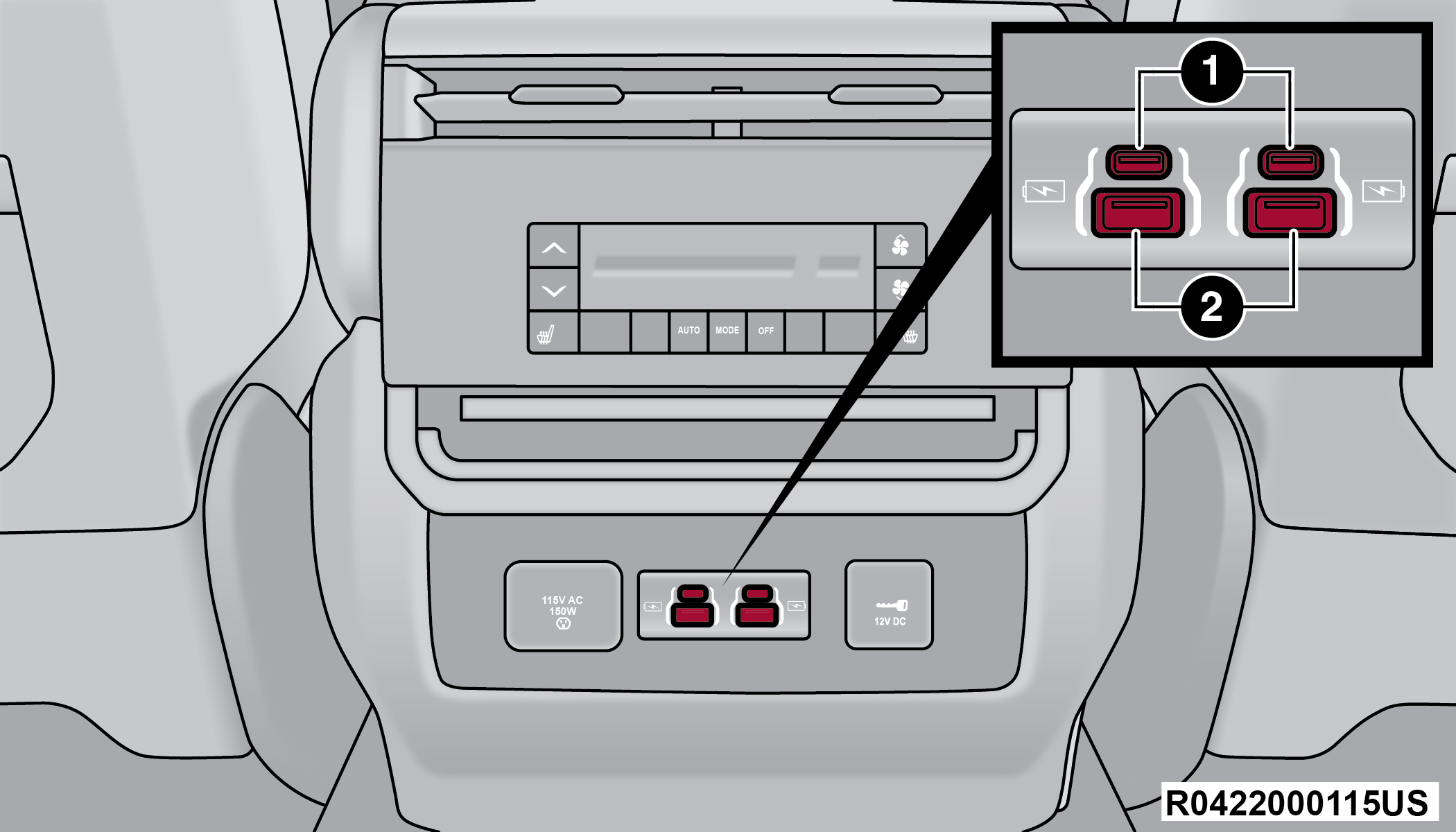
Center Console Rear USB Ports
|
1 — Type C Mini USB Ports (Charge Only) |
|
2 — Type A Standard USB Ports (Charge Only) |
If equipped, in the third rows, a set of two USB ports can be used to charge a device. These ports are charge only.
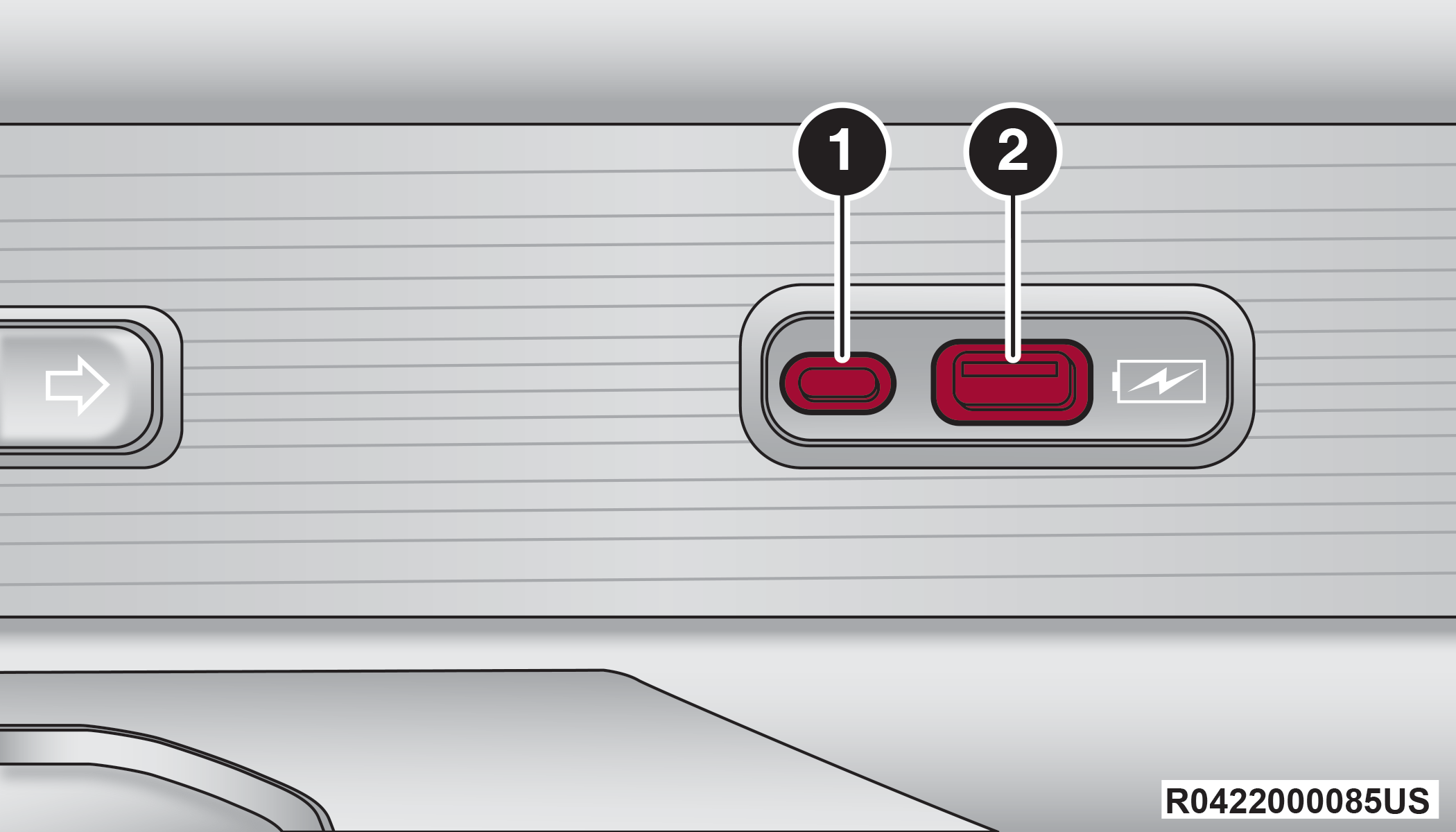
Third Row USB Ports
|
1 — Type C USB Port |
|
2 — Type A USB Port |
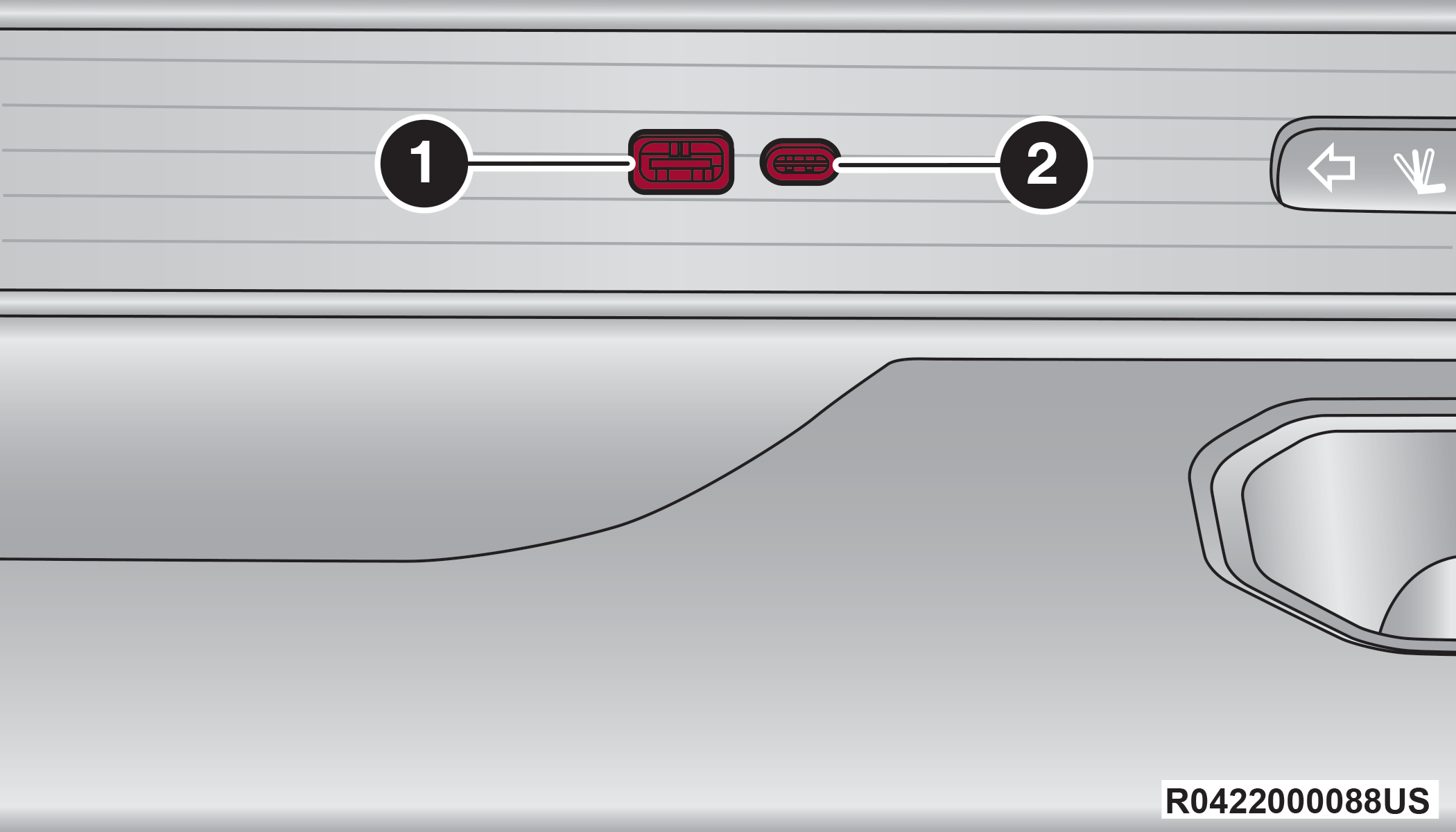
Third Row USB Ports
|
1 — Type A USB Port |
|
2 — Type C USB Port |
Note:
Charge unsupported devices with the charge only USB ports. If an unsupported device is plugged into a Media USB port, a message will display on the touchscreen that the device is not supported by the system.
ELECTRICAL POWER OUTLETS
Your vehicle is equipped with 12 Volt (13 Amp) power outlets that can be used to power cellular phones, small electronics and other low powered electrical accessories. The power outlets are labeled with either a “key” or a “battery” symbol to indicate how the outlet is powered. Power outlets labeled with a key symbol are powered when the ignition switch is in the ON position, while the outlets labeled with a battery symbol are connected directly to the battery and powered at all times.
Note:
-
All accessories connected to the battery powered outlets should be removed or turned off when the vehicle is not in use to protect the battery against discharge.
-
Do not exceed the maximum power of 160 Watts (13 Amps) at 12 Volts. If the 160 Watt (13 Amp) power rating is exceeded the fuse protecting the system needs to be replaced.
-
Power outlets are designed for accessory plugs only. Do not insert any other object in the power outlets as this will damage the outlet and blow the fuse. Improper use of the power outlet can cause damage not covered by your New Vehicle Limited Warranty.
The front power outlet is located inside the storage area on the center stack of the instrument panel, below the climate controls.
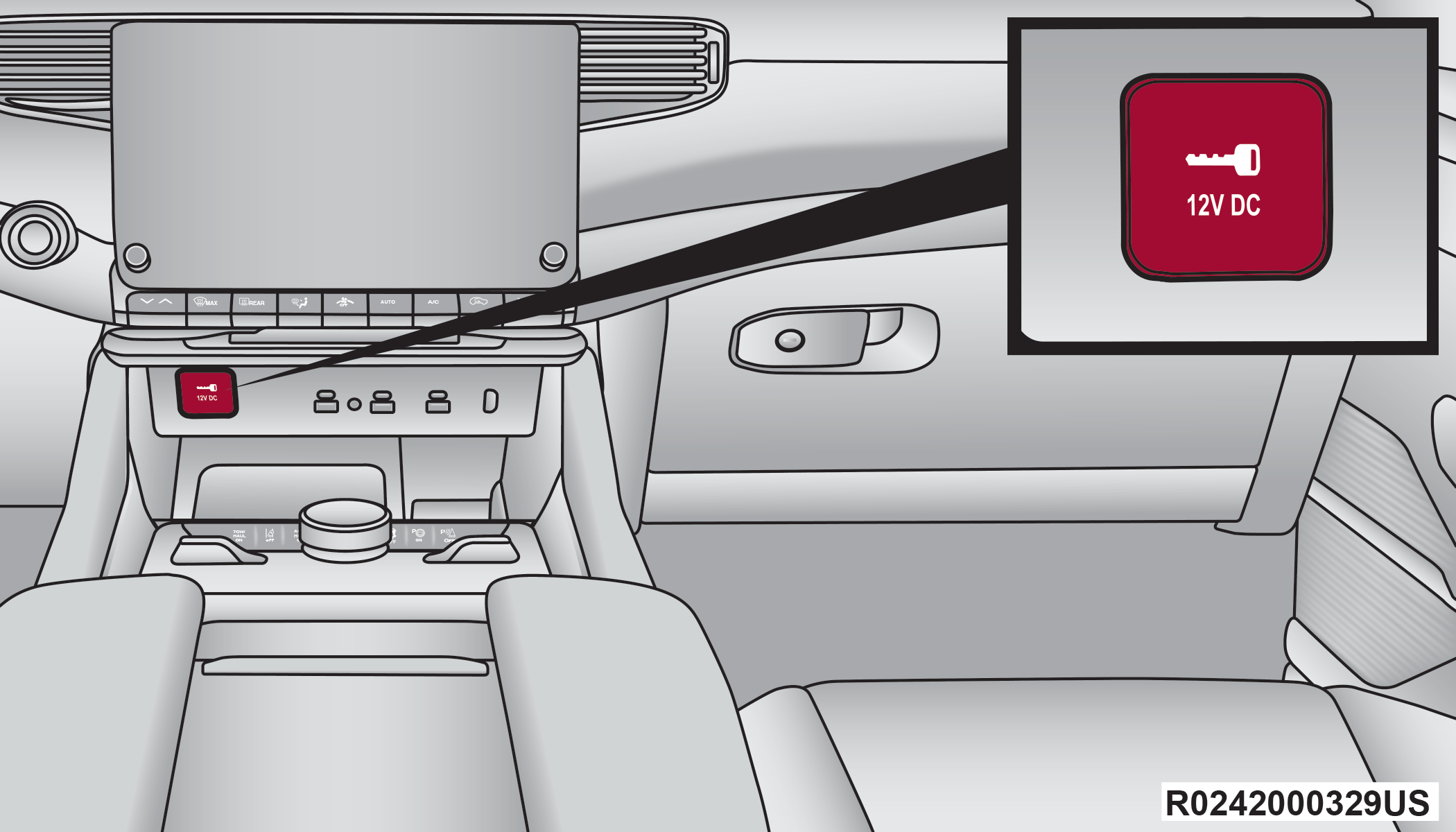
Front Power Outlet
In addition to the front power outlet, there is also a power outlet located on the rear of the front center console.
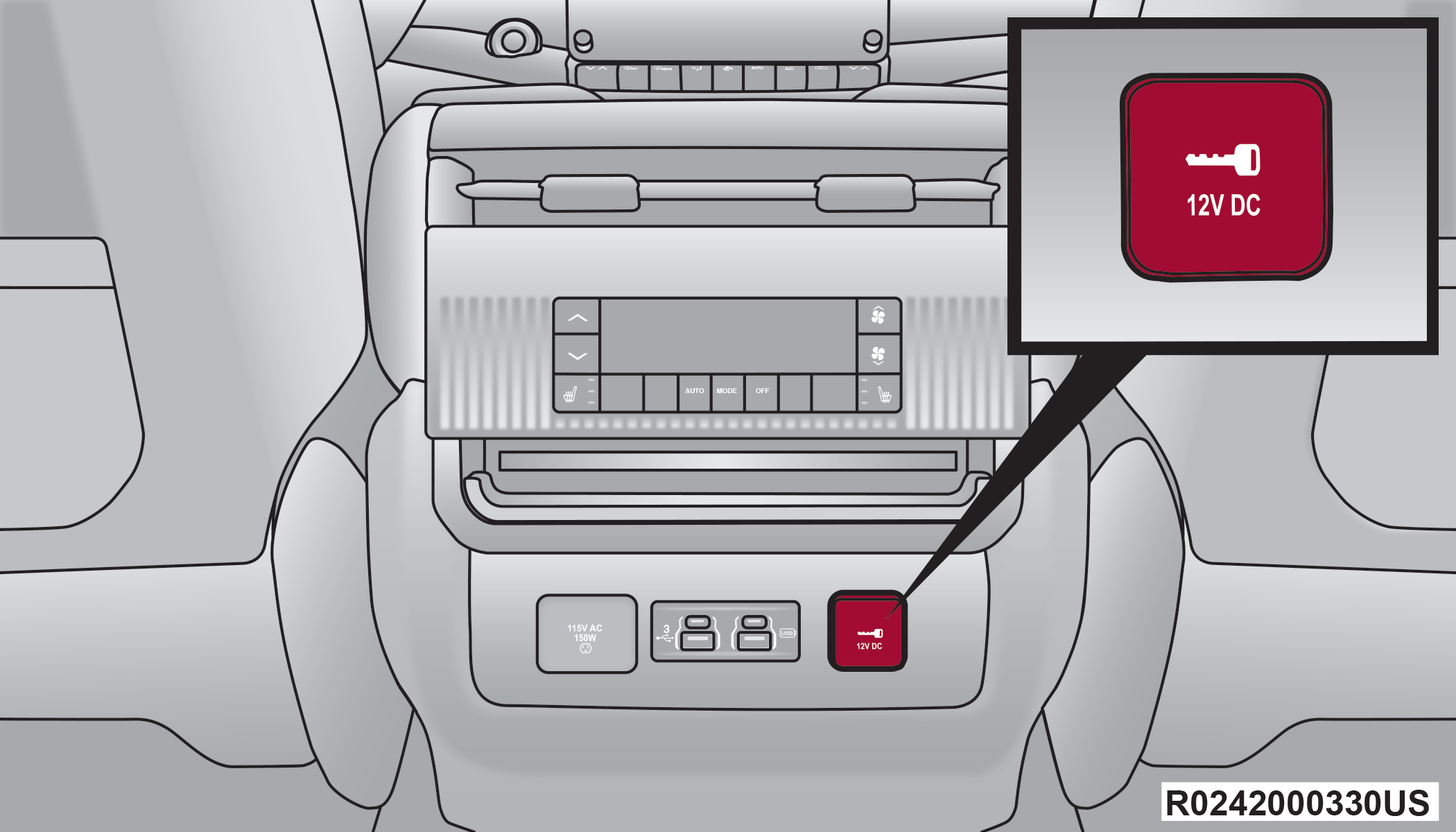
Front Center Console Power Outlet
The rear cargo power outlet is located in the right rear cargo area.
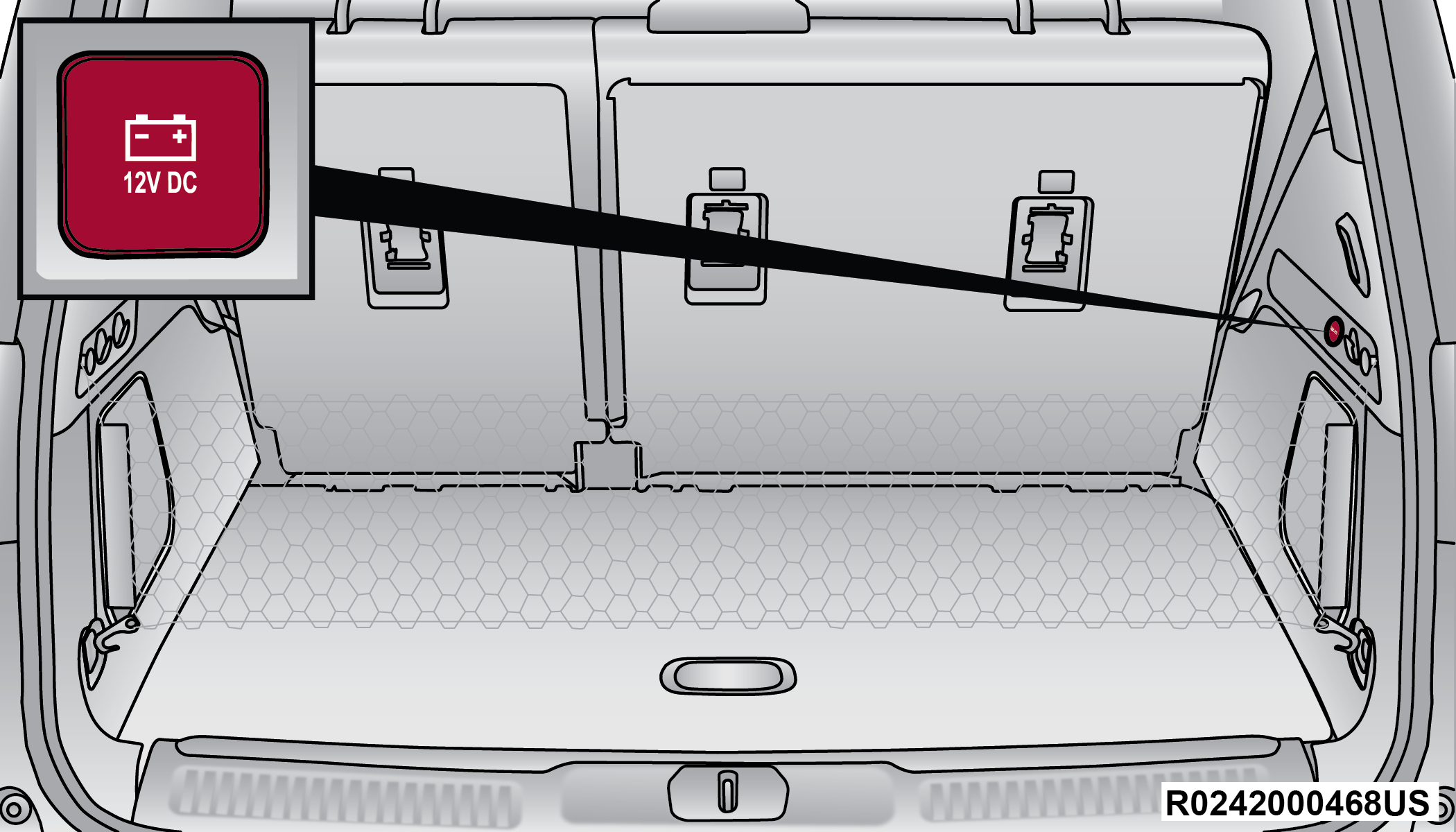
Rear Cargo Power Outlet
Note:
The rear cargo power outlet can be changed to battery (powered at all times) by switching the power outlet right rear quarter panel fuse in the fuse panel from fuse location F90 to F91 Fuses.
Warning:
To avoid serious injury or death:
-
Only devices designed for use in this type of outlet should be inserted into any 12 Volt outlet.
-
Do not touch with wet hands.
-
Close the lid when not in use and while driving the vehicle.
-
If this outlet is mishandled, it may cause an electric shock and failure.
CAUTION:
-
Many accessories that can be plugged in draw power from the vehicle's battery, even when not in use (i.e., cellular phones, etc.). Eventually, if plugged in long enough, the vehicle's battery will discharge sufficiently to degrade battery life and/or prevent the engine from starting.
-
Accessories that draw higher power (i.e., coolers, vacuum cleaners, lights, etc.) will degrade the battery even more quickly. Only use these intermittently and with greater caution.
-
After the use of high power draw accessories, or long periods of the vehicle not being started (with accessories still plugged in), the vehicle must be driven a sufficient length of time to allow the generator to recharge the vehicle's battery.
POWER INVERTER
There is a 115 Volt, 150 Watt inverter outlet located on the back of the center console to convert DC current to AC current. This outlet can power cellular phones, electronics and other low power devices requiring power up to 150 Watts. Certain video game consoles exceed this power limit, as will most power tools.

Power Inverter
The power inverter is designed with built-in overload protection. If the power rating of 150 Watts is exceeded, the power inverter automatically shuts down. Once the electrical device has been removed from the outlet the inverter should automatically reset. To avoid overloading the circuit, check the power ratings on electrical devices prior to using the inverter.
Warning:
To avoid serious injury or death:
-
Do not insert any objects into the receptacles.
-
Do not touch with wet hands.
-
Close the lid when not in use.
-
If this outlet is mishandled, it may cause an electric shock and failure.
WIRELESS CHARGING PAD — IF EQUIPPED
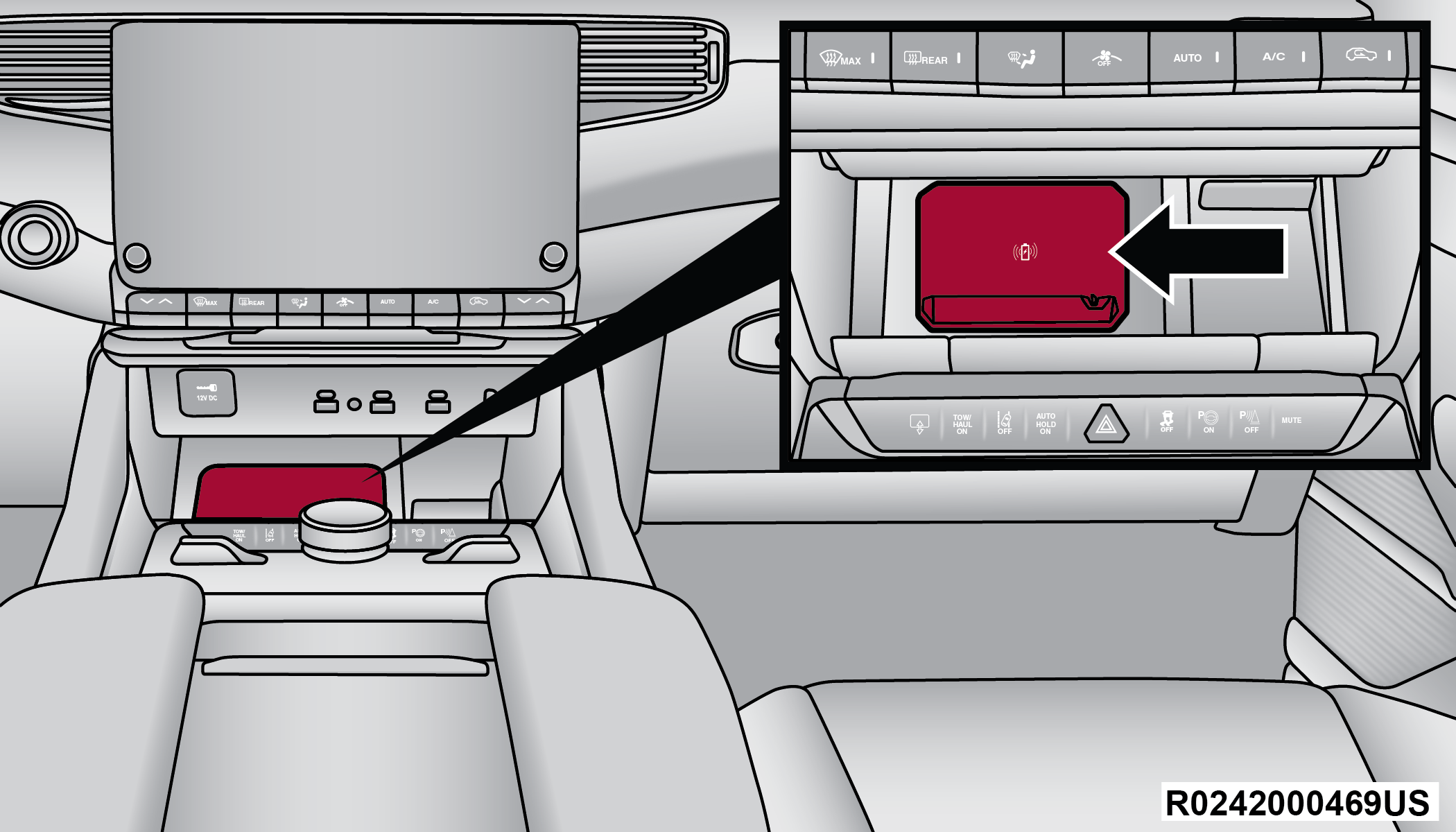
Wireless Charging Pad
Your vehicle may be equipped with a 15W 3A Qi® wireless charging pad located below the center stack, within the storage compartment. This charging pad is designed to wirelessly charge your Qi® enabled mobile phone. Qi® is a standard that allows wireless charging of your mobile phone.
Your mobile phone must be designed for Qi® wireless charging. If the phone is not equipped with Qi® wireless charging functionality, an aftermarket sleeve or a specialized back plate can be purchased from your mobile phone provider or a local electronics retailer. Please see your phone’s Owner’s Manual for further information.
The wireless charging pad is equipped with an anti-slip mat to hold your mobile phone in place, and an LED indicator light.
Place the device inside the prepared area delimited in the mat as shown in the image. Incorrect positioning will prevent the phone from charging.
LED Indicator Status:
-
No Light: Charging pad is idle or searching for a device. Device may not be compatible with the Qi® standard.
-
Blue Light: Device is detected and is charging.
-
Red Light/Flashing: Internal error, or foreign object is detected.
-
Green Light: Device has completed battery charging (if device is equipped to transmit this information).
Important Notes Regarding This Vehicle’s Wireless Charging Pad:
-
The presence of the Near-Field Communication (NFC) function active on a smartphone could signal malfunction anomalies.
-
The ignition must be in the ON/RUN position in order for the phone to charge.
-
To avoid interference with the key fob search, the wireless charging pad will stop charging when any door or liftgate is opened, even if the engine is running.
-
Be sure to place the mobile device correctly (display facing upward, and phone not covering the LED) on the wireless charging pad.
-
If the phone moves on the pad causing the red light to illuminate, the phone will have to be picked up and placed back on the charging pad to resume charging.
-
Wireless charging is not as fast as when the phone is connected to a wired charger.
-
The phone’s protective case must be removed when placed on the wireless charging pad.
-
iPhone® 12 (including iPod®) is equipped with software to protect the device from overheating. When the software is active, the rate of charge is slowed down to protect the device.
-
Phones must always be placed on the wireless charging pad within the outline shown on the pad so that its charging parts connect with the charging coils of the system. Movement of the phone during charging may prevent or slow the rate of charge.
-
Having multiple applications open on the phone while charging will reduce the charging efficiency, and may even shut down an application that is actively running (i.e. Apple CarPlay®). This may also cause the phone to overheat.
-
Wireless chargers may implement certain methods to prevent the phone from overheating during charging such as slowing down the rate of charge. In certain instances, the device may shut down for a brief period of time (when the device reaches a certain temperature). If this happens, it does not mean there is a fault with the wireless charging pad. This may just be a protective measure to prevent damage to the phone.
-
The use of multiple wireless functions at the same time (wireless charging, Apple CarPlay®, Android Auto™) could cause the device to overheat, resulting in limitation of the functions or it turning off. In this case, it is recommended to connect the system using the USB port.
-
Do not place the key fob or any other type of metal/magnetized object inside the mobile phone housing or near the wireless charging pad.
-
With a compatible device placed on the charging pad, and the ignition is cycled to the OFF position, a reminder message may appear on the instrument cluster display to warn the driver.
CAUTION:
The key fob should not be placed on the charging pad or within 6 inches (15 cm) of it. Doing so can cause excessive heat buildup and damage to the fob. Placing the fob in close proximity of the charging pad blocks the fob from being detected by the vehicle and prevents the vehicle from starting.
Download Manual